
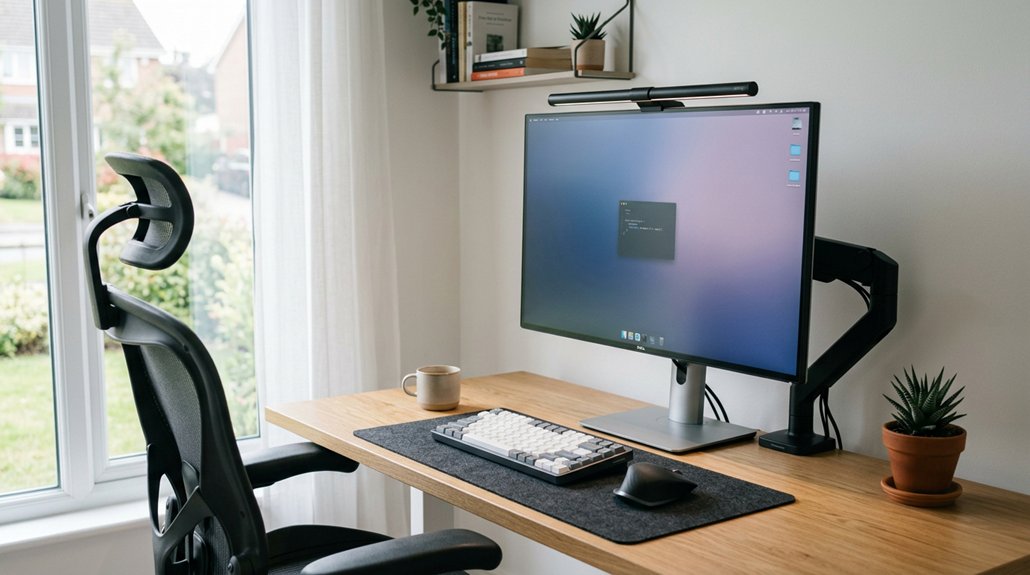
Positioning your screen at eye level helps you maintain a natural, relaxed gaze, reducing neck and shoulder strain. It keeps your head in a neutral position and prevents awkward postures like slumping or tilting, which can cause discomfort over time. Proper height also minimizes glare and eye fatigue, making your work feel more comfortable. If you want to learn how to optimize your setup further, keep going, and you’ll discover practical tips to improve your posture easily.
Why Proper Eye Level Screen Placement Enhances Comfort
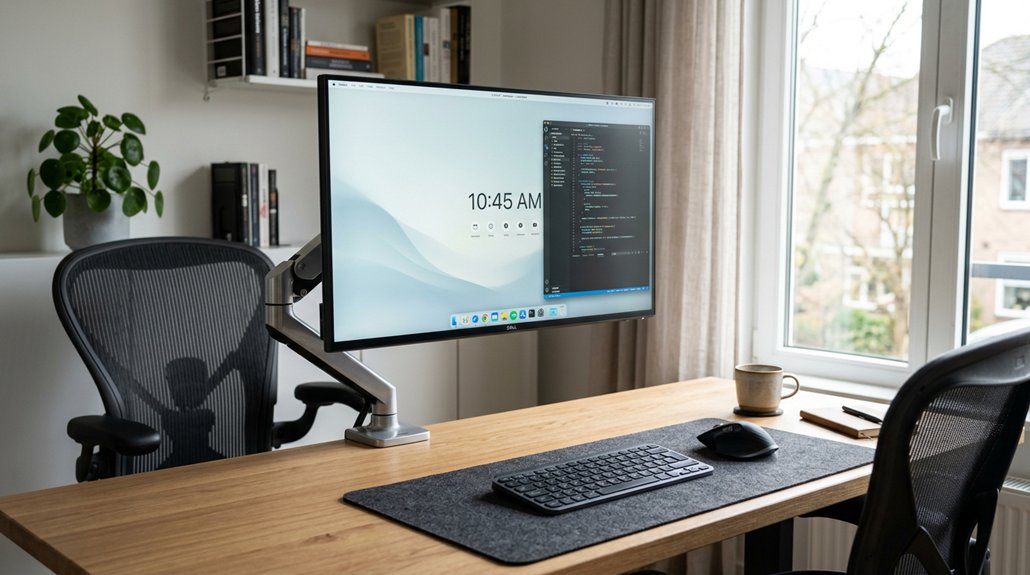
Positioning your screen at eye level is essential for comfort because it promotes a natural, downward gaze that reduces strain on your eyes and neck. When the top third of the screen aligns with your eye level, you avoid tilting your head up or down, which strains neck muscles and leads to discomfort. Using an adjustable monitor stand can help you achieve the ideal height and positioning for increased ergonomic benefits. Proper screen placement encourages better posture and keeps your head in a neutral position, helping to prevent long-term musculoskeletal issues. This alignment also reduces the need for frequent head and eye adjustments, minimizing fatigue. Additionally, maintaining eye level positioning supports clearer vision, as it encourages slight tilt and reduces glare. Overall, setting your screen at eye level makes work more comfortable, helps reduce eye strain, and promotes healthier, more sustainable posture during long sessions.
How Monitor Height and Distance Impact Your Posture
Your monitor’s height and distance directly affect your posture and comfort. If it’s too high or low, your neck and back muscles work harder to compensate, leading to strain. A proper ergonomic setup includes ensuring the monitor aligns with your eye level using a monitor riser height-adjustable, which supports maintaining a neutral posture throughout extended work periods. Keeping it at the right height and arm’s length away helps you stay relaxed and maintain a neutral, comfortable position.
Optimal Eye Level Position
Have you ever wondered how the height and distance of your monitor can influence your posture? Proper monitor height places the eye at or slightly below eye level, encouraging a relaxed downward gaze that eases neck and shoulder strain. When the eye lines up correctly, your neck and shoulders stay relaxed, preventing muscle tension. Use this table as a guide:
| Monitor Height | Viewing Distance | Effects |
|---|---|---|
| Slightly below eye level | About an arm’s length (20–30 inches) | Reduces forward leaning and eye fatigue |
| Eye level | Ideal distance | Supports neutral head position |
| Above eye level | Too close or too far | Causes discomfort and tension |
Align your monitor height and distance to support upright posture and reduce discomfort. Additionally, selecting a monitor arm with adjustable height and tilt features can help fine-tune your setup for optimal ergonomic alignment ergonomic adjustments.
Effects of Monitor Placement
Proper monitor placement is essential for maintaining good posture and reducing strain during extended screen time. Position the monitor so the top edge is at or slightly below your eye level, encouraging a natural downward gaze that lessens neck strain and promotes better posture. Screens set too high cause chin lift and backward head tilt, increasing tension in neck and back muscles. Conversely, monitors placed too low make you bend your neck forward or slump, causing discomfort over time. Keep the monitor about an arm’s length away—typically 20–30 inches—to guarantee clear readability without forward head posture or eye strain. Adjusting height and distance together, along with a slight backward tilt, helps maintain a neutral viewing angle, reducing fatigue and supporting overall comfort during long periods at your desk. Additionally, choosing an anti-glare monitor hood can further minimize reflections and eye strain, enhancing overall ergonomic comfort.
Maintaining Neutral Posture
Maintaining a neutral posture depends heavily on how you position your monitor in relation to your body. Position the top third of the screen at or slightly below eye level to keep your head back and neck aligned naturally. This setup promotes a neutral head posture, reducing fatigue during long periods of work. Ensuring that your monitor supports color and lighting stability can help maintain consistent visual comfort and reduce strain. Keep the monitor about 20 to 30 inches away, close to an arm’s length, to support a relaxed gaze. This distance prevents forward head tilt and guarantees your shoulders stay relaxed. Avoid screens placed too high, which forces chin lift and strains upper back muscles, or too low, which causes head dropping and forward slumping. Proper height and distance help you maintain a comfortable, balanced posture, ultimately minimizing discomfort and preventing musculoskeletal issues.
Adjusting Screen Height for Different Tasks and Desk Setups
Adjusting your screen height accurately depends on the specific task and your desk setup, ensuring you maintain a comfortable and efficient posture.
To minimize strain, position the top edge or top third of the display at or slightly below eye level, so you’re gazing downward naturally. If you’re sitting and standing, use a monitor stand or adjustable arm to keep both screens at the same height, preventing unnecessary neck and back discomfort.
For tasks like reading or browsing, a lower position works best, while immersive activities like gaming may require higher placement. Optimize viewing distance and tilt angle to avoid awkward neck postures during extended work.
Properly adjusted monitor height keeps your neck and back aligned, reducing fatigue and promoting comfort regardless of your desk setup. Height adjustment range is vital for accommodating different monitor sizes and user preferences.
Risks of Incorrect Monitor Height and How to Avoid Them
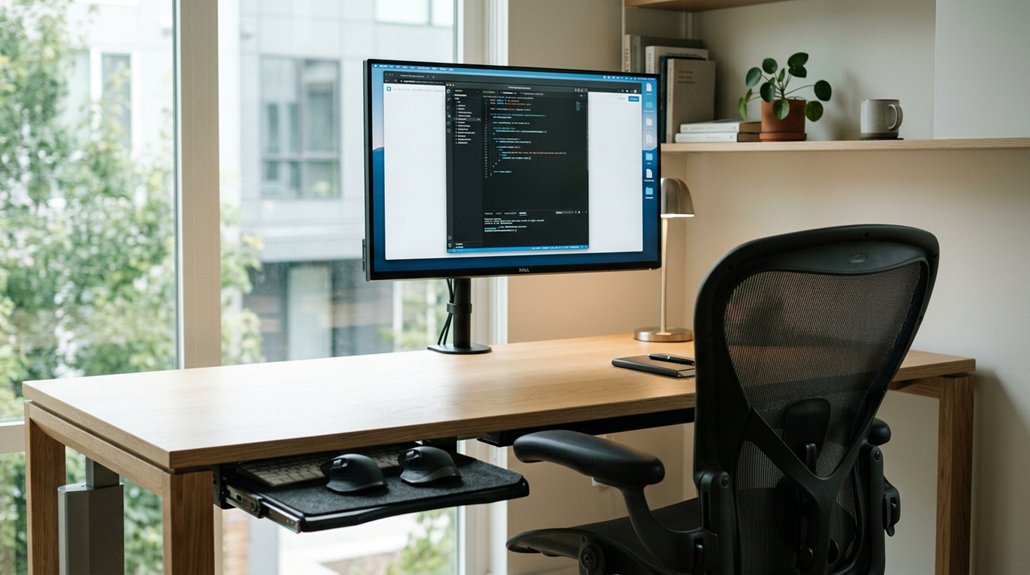
Have you ever experienced neck strain or eye fatigue after working at your computer? Incorrect monitor height causes issues like shoulders hunching and a chin lift, increasing muscle strain. Placing the top of the screen above eye level encourages head-back tilt, while placing it too low promotes slumping and forward head posture. These posture changes increase neck bending and pressure on joints. Improper height also alters the distance between your eyes and the screen, leading to eye strain from unnatural gaze angles. To avoid these risks, align the top of the screen at or slightly below eye level. Use adjustable stands or arms to place the monitor at a proper height, maintaining neutral head posture and preventing musculoskeletal problems. Considering ergonomic support features in your document setup can further enhance comfort during long periods of use.
Using Monitor Stands and Arms to Optimize Your Screen Position
Using monitor stands and arms offers a practical way to fine-tune your screen position for better ergonomics. They allow you to adjust height and distance, ensuring the top third of the screen is at or just below eye level, so you can look straight ahead comfortably. This promotes a natural downward gaze and reduces neck strain. Additionally, many mounts feature adjustability features like tilt, swivel, and rotation, which enhance personalized comfort and help prevent discomfort from prolonged screen time.
Monitor stands and arms also support dynamic workstyles, letting you quickly change height and angle, keeping your head aligned and preventing asymmetrical viewing in multi-monitor setups.
Aligning Your Screen Height With Keyboard and Chair Settings
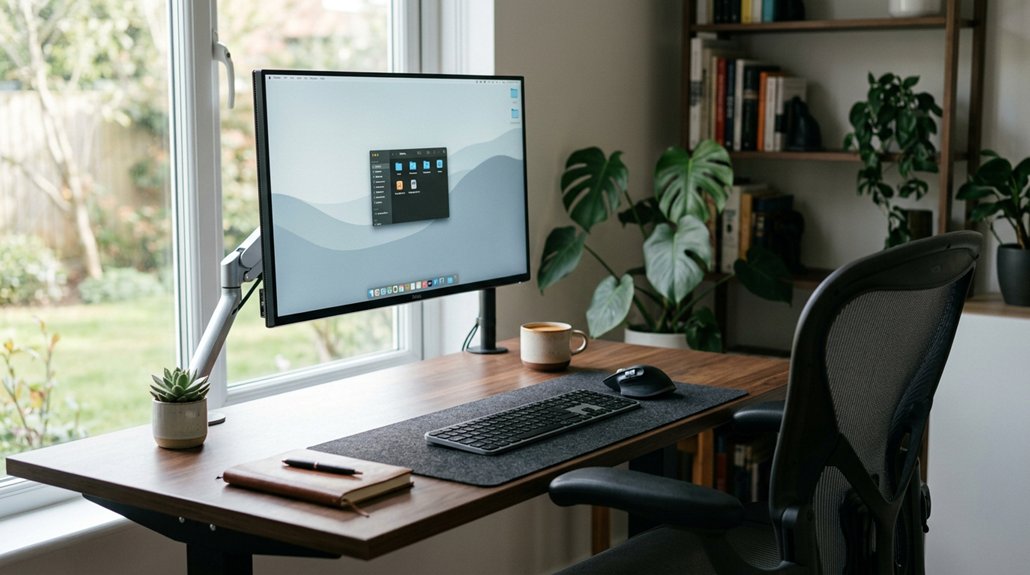
To guarantee comfortable and efficient work, your screen height should be aligned with your keyboard and chair settings. The right height positions the top third of your screen at or slightly below eye level, promoting a natural downward gaze that reduces neck strain. Proper placement also helps prevent wrist strain by ensuring your hands stay in a neutral position. Adjust your chair so your feet rest flat on the floor, with knees at a 90-degree angle and hips aligned, ensuring a balanced, comfortable posture. Your keyboard and mouse should be positioned so your elbows stay comfortably beyond 90 degrees. When your chair and keyboard are correctly set, your screen height will naturally align with your arm posture, preventing forward head posture or chin lifting. Using adjustable stands or arms can help fine-tune this setup, supporting ergonomic comfort throughout your workday.
Quick Tips to Check and Improve Your Monitor Position Today
Adjusting your monitor today is simple with a few quick checks. First, guarantee the top third of your full display aligns at or just below your natural eye level. This promotes a slightly downward gaze, helping you maintain better posture and reducing neck strain.
Next, position your monitor about an arm’s length away (20–30 inches); this distance helps prevent leaning forward or straining your eyes.
Finally, angle the screen slightly backward (10–20 degrees) to match your eyes’ natural line of sight, reducing glare.
Use a quick check by sitting straight, extending your arm forward, and confirming your eyes naturally rest on the top third of the display. Adjust the height and tilt together while keeping your feet flat and shoulders relaxed for a comfortable, well-balanced work environment. Incorporating an adjustable gooseneck or flexible positioning mechanism can further help you fine-tune your monitor placement for optimal comfort.
Frequently Asked Questions
Why Is It Important to Position the Monitor at Eye Level?
You should position your monitor at eye level to avoid neck and eye strain, maintain proper posture, and stay comfortable during long work sessions. This helps prevent fatigue and supports overall ergonomic health effortlessly.
What Is the 90-90-90 Rule in Ergonomics?
The 90-90-90 rule in ergonomics means you sit with your hips, knees, and elbows bent at about 90 degrees, maintaining neutral joints and proper posture, which helps reduce strain and promotes comfort during prolonged computer use.
Should the Top of Your Screen Be at Around Eye Level?
Yes, you should position the top of your screen at or slightly below eye level. This keeps your neck relaxed, prevents strain, and promotes comfortable, neutral head and eye posture during extended periods of computer use.
How Far Should You Sit From Your Computer Screen 6 to 12 Inches, 12 to 18 Inches, 18 to 24 Inches, 24 to 30 Inches?
You should sit about 18 to 24 inches from your screen for balanced comfort and readability. Sitting closer than 12 inches causes eye strain, while farther than 30 inches reduces visibility and may lead to poor posture.




Leave a Reply