
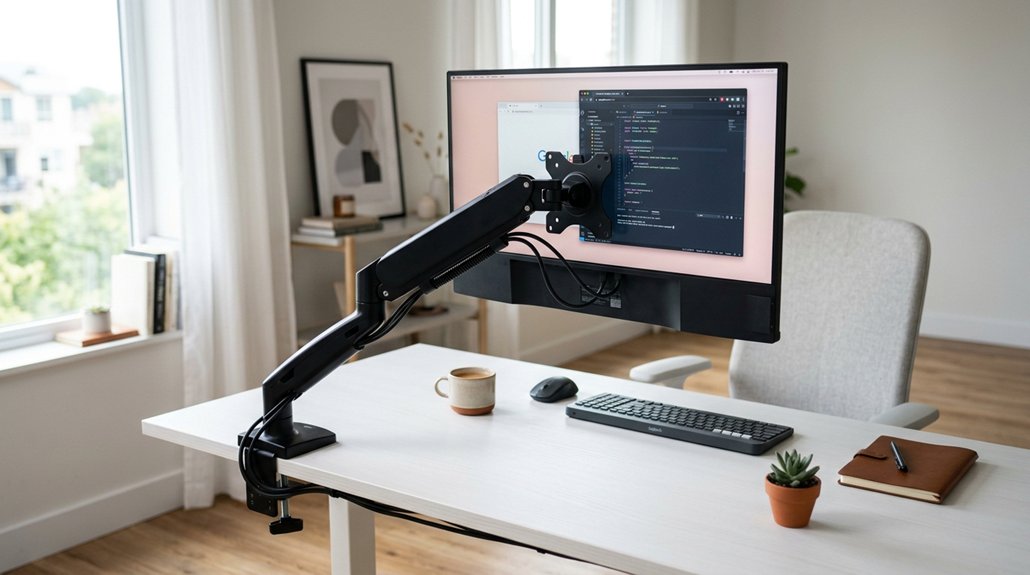
Using an adjustable monitor arm can help you find the perfect screen position, reducing neck pain caused by poor ergonomics. By setting your monitor at or just below eye level, with about 20-30 inches distance, you can prevent forward head tilt and strain. Tilting and swiveling the arm reduce glare and keep your neck comfortable during long hours. Keep your setup aligned to support long-term neck health — discover how to optimize your workspace for lasting relief.
Why Proper Monitor Position Prevents Neck Pain
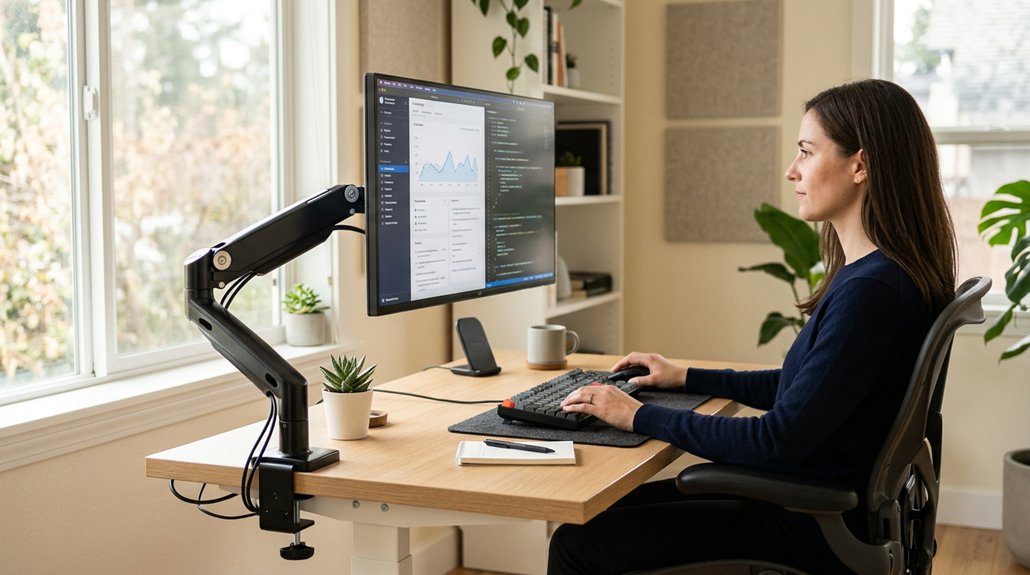
Proper monitor positioning is essential for preventing neck pain because it helps you maintain a neutral neck posture. When your monitor’s top edge is at or slightly below eye level and the screen is about 15 degrees below horizontal eye level, you prevent unnecessary strain. An ideal monitor arm setup allows you to adjust height, depth, and tilt, ensuring your screen is at the right distance—20 to 30 inches for most monitors—so you don’t have to squint or lean forward. Poor placement causes repeated small movements and compensatory postures that strain your neck, shoulders, and back over time. Utilizing a flexible mount arm can help you achieve optimal ergonomic positioning more easily and adapt to different workspaces.
How Monitor Arms Enhance Ergonomic Comfort
Monitor arms give you flexible options to adjust your screen’s height, angle, and distance, helping you maintain a neutral neck position. They also guarantee your monitor is aligned at or just below eye level and at the right distance, which improves your posture. A well-constructed arm with robust joints and reinforced fasteners provides smoother adjustments and longer-lasting stability, reducing the need for frequent readjustments. With these adjustments, you’ll reduce muscle strain and feel more comfortable during long hours at your desk.
Flexible Positioning Options
Have you ever felt strain from trying to adjust your workspace for comfort? Monitor arms give you flexible positioning options with adjustable height, tilt, swivel, and rotation.
This means you can set your screen so its top edge is at or just below eye level and at an ideal 20-36 inch viewing distance, tailored to your monitor size. With these controls, you can easily align your monitor with your keyboard and chair, helping to maintain a neutral neck posture.
Tilt adjustments also help reduce glare and visual strain. The ability to angle dual or ultrawide monitors inward in an arc minimizes excessive head turning.
These quick, customizable adjustments keep your workspace ergonomic, preventing neck and shoulder discomfort during long hours at your desk.
Additionally, choosing a mount with adjustable reach and rotation allows for precise positioning tailored to your desk thickness support, enhancing comfort and stability.
Improved Posture Alignment
Adjusting your workstation with monitor arms allows you to fine-tune your screen’s position to support a neutral neck posture. This helps prevent strain and enhances overall ergonomic comfort.
By precisely setting the height, tilt, and distance, monitor arms keep the top edge of your monitor at or just below eye level, promoting proper alignment. Positioning your monitor about 15 degrees below horizontal eye level and 20-30 inches away prevents forward head posture, cutting down neck and shoulder discomfort.
Additionally, these adjustments enable you to align your screen with your keyboard and chair, supporting ergonomic posture and reducing the risk of musculoskeletal issues. With monitor arms, you’ll experience fewer repetitive movements and less fatigue. They also encourage frequent position shifts, which protect your cervical spine and foster a healthier, ergonomic office setup.
Set Your Monitor Height at Eye Level for Comfort
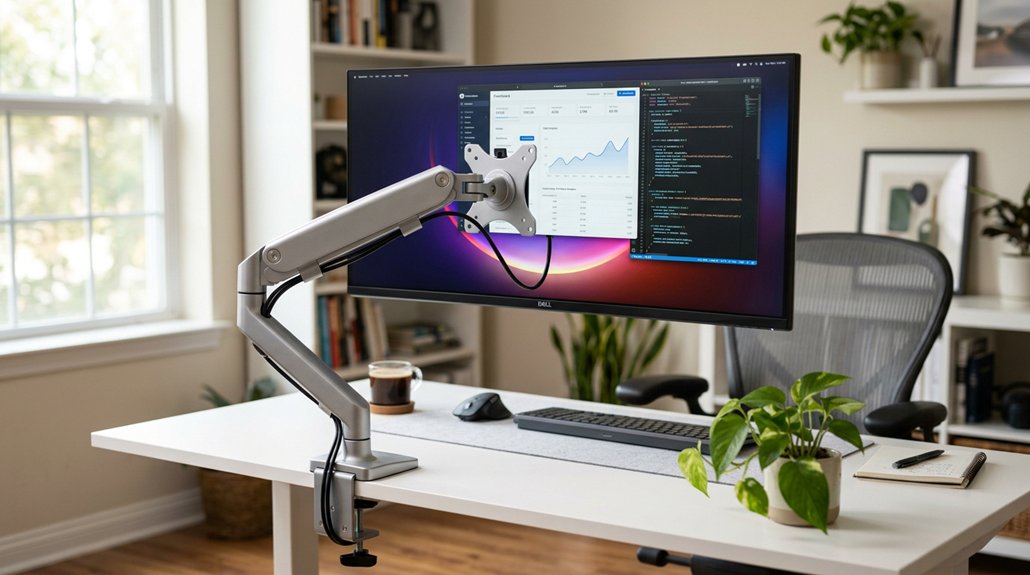
Setting your monitor height at eye level is essential for maintaining comfortable neck posture during work. When your monitor is at eye level, your neck muscles stay relaxed, reducing strain. A helpful tip is to use adjustable monitor arms, such as those supported by a VESA standard, to achieve precise positioning. Position the top edge of the monitor slightly below eye level, with the screen center about 15 degrees below horizontal eye level, to promote natural viewing. Use height adjustment features on your monitor arm to achieve a precise setup. This prevents you from looking up or down constantly, which can cause muscle fatigue and discomfort over time. Maintaining the correct monitor height also minimizes unnecessary neck movements and muscle load, lowering the risk of neck and shoulder pain. Regularly recheck and fine-tune your monitor position to sustain ergonomic benefits and stay comfortable throughout your work session.
Choose the Right Monitor Distance Based on Screen Size
Choosing the correct monitor distance based on screen size is essential for maintaining a comfortable neck position and minimizing strain. Proper monitor placement guarantees you avoid forward head tilt and reduces neck strain.
For 24-27 inch monitors, aim for a viewing distance of 20-30 inches. Larger 32-inch monitors should sit 28-36 inches away to prevent excessive eye travel. Ultrawide 32-inch screens require about 28 inches, while 40-inch ultrawides need around 35 inches.
Using adjustable monitor arms makes it easy to fine-tune the viewing distance, supporting a neutral neck posture. Additionally, selecting the right monitor hood can help reduce glare and improve visibility, making it easier to maintain proper positioning.
Adjust Your Screen Tilt to Reduce Glare and Strain
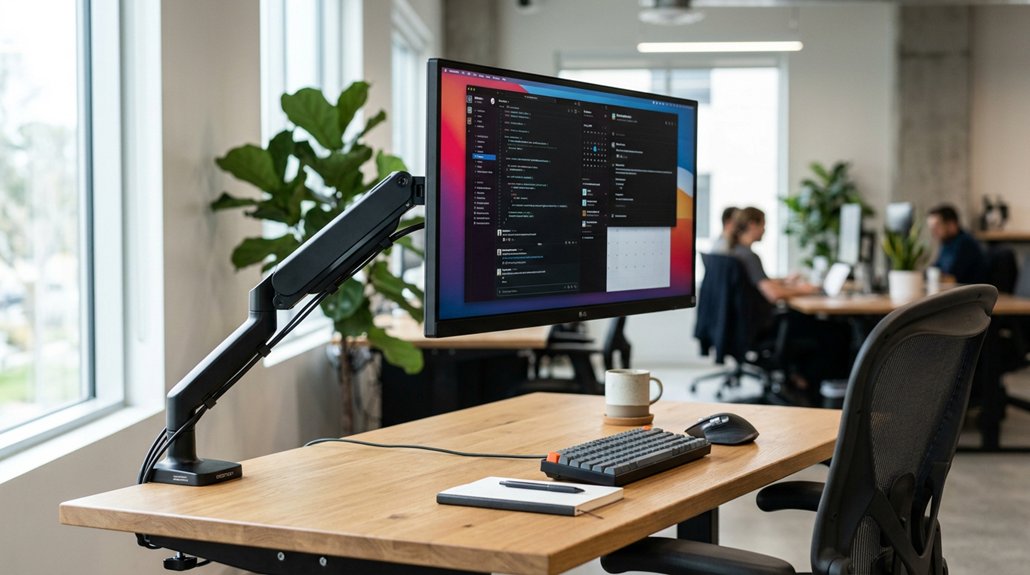
To reduce glare and strain, you should tilt your monitor screen so it faces directly toward you, ideally not exceeding 35 degrees. This adjustment helps prevent reflections from overhead lights and windows, reducing visual discomfort. A clip-on or clamp monitor mount can provide the precise tilt control needed for optimal positioning. Tilting the screen slightly downward, about 15 degrees below your horizontal eye level, promotes comfortable viewing and minimizes eye strain. Proper tilt aligns the screen for your natural neck posture, preventing awkward positions that cause discomfort. Monitor arms allow precise tilt control, making it easy to adapt as lighting conditions or tasks change. By adjusting your screen tilt to match your preferred viewing distance—typically between 20 and 36 inches—you enhance clarity and reduce the need for frequent head movements. This simple adjustment greatly improves comfort and helps prevent neck and eye strain during long work hours.
Benefits of Adjustable Monitor Mounts for Dynamic Tasks
Adjustable monitor mounts give you the flexibility to switch your setup quickly, ensuring ideal comfort during various tasks. With easy height, tilt, and swivel adjustments, you can customize your screen position without straining your neck. Incorporating ergonomic principles like proper monitor positioning can further enhance comfort and reduce fatigue during long work sessions. This versatility helps you stay comfortable and focused, whether you’re gaming, editing, or collaborating.
Enhanced Versatility for Tasks
Because your work involves different tasks that demand various screen positions, adjustable monitor mounts greatly enhance versatility. They let you quickly change the height, angle, swivel, and rotation, supporting a wide range of activities like gaming, editing, or collaborating without neck strain.
With adjustable monitor mounts, you can seamlessly switch between portrait and landscape modes for different tasks, maintaining comfort and productivity. The flexibility allows you to create an ideal workspace tailored to your needs.
- Customize your setup for any task
- Switch seamlessly between modes
- Adjust height and angle for perfect ergonomics
- Reduce neck and eye strain during multitasking
- Adapt your workspace effortlessly for various work modes
Easy Adjustments for Comfort
Efficiently switching between different tasks becomes easier when your monitor mount allows quick, precise adjustments. With adjustable monitor mounts, you can easily change the height, tilt, swivel, and rotation, maintaining ideal ergonomic alignment during varied workflows.
This flexibility helps keep the top edge of your screen at or slightly below eye level, reducing neck and shoulder pain, and preventing awkward postures. Proper positioning supports natural head and neck movements, which minimizes eye strain and shoulder tension during long hours at the desk.
Whether you’re typing, collaborating, or gaming, these easy adjustments let you customize your screen’s position for maximum comfort. By enabling seamless shifts between tasks, adjustable monitor mounts help you stay comfortable and reduce discomfort associated with extended computer use.
Why Monitor Arms Are Better Than Fixed Stands for Posture
Monitor arms surpass fixed stands by offering precise adjustments for height, tilt, swivel, and depth, helping you position your screen at the ideal eye level and distance. This flexibility guarantees your working posture stays neutral, reducing neck strain and discomfort.
Unlike fixed stands, monitor arms help keep the screen centered with your keyboard and chair, preventing forward head tilt that tightens neck and shoulder muscles. They also support ergonomic multi-monitor setups through inward angling, cutting down neck rotation and fatigue. Additionally, quick re-positioning allows you to avoid awkward postures or repetitive movements.
This adaptability fosters a personalized ergonomic environment, which reduces the risk of chronic neck, shoulder, and muscle pain caused by static, poorly positioned screens. The right monitor arm truly makes a difference for your neck health.
Setting Up Ultrawide and Dual Monitors Ergonomically
To set up ultrawide and dual monitors ergonomically, start by positioning your primary screen directly in front of you, with the top edge at or just below eye level. Ultrawide monitors should be about 28-35 inches away to guarantee comfortable viewing and minimize eye and neck strain.
Use adjustable monitor arms with strong weight capacity to support the larger screens securely and allow precise positioning. Tilt the ultrawide monitor less than 35 degrees to reduce glare and neck movement.
For dual monitors, place the primary straight ahead and angle the secondary inward, forming a shallow arc for balanced neck alignment. Keep the central one-third of the ultrawide in your primary focus, while the side zones handle less intensive tasks, further reducing neck strain.
Positioning Portable Monitors for Comfortable Use
To improve your comfort, position portable monitors so their height and angle match your main screen. Keeping them close to eye level and within 20-30 inches reduces neck and eye strain.
Adjusting your monitor mounts for these factors helps maintain a neutral posture during long work sessions.
Mounting Height and Angle
Have you ever wondered why your neck feels strained after hours in front of a portable monitor? It often comes down to the mounting height and angle. To promote a neutral neck posture, position the top edge of your monitor at or just below eye level, with the screen center about 15 degrees below horizontal eye level.
To optimize comfort and reduce neck and back pain and even, consider these tips:
- Mount the monitor closer to your main screen’s height and tilt less than 35 degrees
- Keep the screen about 20-30 inches away
- Use adjustable arms for better tilt and swivel control
- Avoid placing the monitor too low or far to the side
- Align the monitor with your keyboard to prevent awkward head movements
Proper mounting height and angle are key for comfortable, pain-free extended use.
Maintaining Proper Distance
Wondering how to keep your portable monitor comfortable during extended use? The key is maintaining proper distance from the computer screen to your eyes—ideally between 20-30 inches. Staying within this range helps keep your neck or back in a neutral position, reducing strain during long tasks like writing or coding.
When using your portable monitor occasionally, it’s fine to keep it in a lower or side position, but keeping it closer minimizes awkward head turns. An adjustable gas spring arm or stand is essential to help position your monitor at the correct height, angle, and distance.
This guarantees your portable monitor stays aligned with your primary screen, preventing muscle fatigue and maintaining ergonomic comfort throughout your work.
Test and Fine-Tune Your Monitor Setup Step-by-Step
After setting your initial monitor position, it’s vital to regularly test and fine-tune your setup to guarantee it remains ergonomically sound. This helps prevent back, neck, and shoulder strain caused by poor alignment.
To do this effectively:
- Recheck your monitor height, ensuring the top edge is at or slightly below eye level.
- Confirm the screen’s center is about 15 degrees below horizontal eye level.
- Adjust the distance so you can read comfortably without leaning forward.
- Tilt the monitor no more than 35 degrees for minimal glare and ideal neck angle.
- Face the monitor directly or angle multi-screens inward into an ergonomic arc.
Regularly evaluating these factors during work sessions, especially after 30 minutes, helps you maintain proper position without unnecessary strain.
Common Ergonomic Corrections Using Monitor Arms
Adjusting your monitor to the right height and distance helps keep your neck comfortable and eyes relaxed.
Using the tilt and swivel features allows you to fine-tune your screen to reduce glare and maintain a neutral posture.
With monitor arms, you can easily customize your setup for ideal ergonomics, preventing strain and fatigue.
Proper Monitor Height and Distance
Using a monitor arm to set the proper height and distance is essential in maintaining a neutral neck posture and reducing strain. When your monitor’s top edge is near or slightly below eye level, and the center is about 15 degrees below your horizontal eye line, it helps prevent neck and back pain.
For ideal viewing, keep the monitor at:
- 20-30 inches for 24-27 inch screens
- 28-36 inches for larger monitors
Adjustable monitor arms allow you to fine-tune height and depth, supporting proper eye-to-screen distance and avoiding forward head posture. Centering the monitor with your keyboard and chair, and setting the tilt to less than 35 degrees, minimizes glare and neck movements.
Proper monitor placement balances neck, shoulders, and back, reducing discomfort.
Adjustable Tilt and Swivel
Adjustable tilt and swivel features on monitor arms are essential tools for creating a comfortable, ergonomic workspace. With adjustable tilt, you can angle your screen up to 35 degrees, reducing glare and helping you maintain a neutral neck posture.
Swivel allows you to rotate the monitor horizontally, aligning it properly with your keyboard and chair, which prevents harmful neck twists. Combining tilt and swivel adjustments gives you the flexibility to position your monitor, so the top edge is near or slightly below your eye level.
This minimizes neck strain and reduces the need for repetitive head movements. Quick adjustments to tilt and swivel also support seamless shifts between work, collaboration, and different user heights, helping to lower muscle load and prevent chronic neck and shoulder pain.
How Adjustable Monitor Mounts Support Long-Term Neck Health
When your monitor is positioned correctly, it can greatly reduce strain on your neck over time. Adjustable monitor mounts help maintain a neutral neck posture, vital for protecting your cervical spine. By allowing you to easily tweak height, tilt, swivel, and rotation, these mounts let you customize screen placement for your ergonomic needs.
Properly positioned monitors reduce neck strain and promote long-term cervical health through customizable ergonomic adjustments.
This guarantees your monitor’s top edge is near or slightly below eye level, preventing forward head tilt and repetitive movements that cause discomfort. Proper setup supports the ideal viewing distance, reducing eye and neck strain.
Additionally, arranging dual or ultrawide screens in an arc within a 30-degree visual field minimizes neck rotation. Using adjustable mount+ pairs with ergonomic practices, these setups promote long-term neck health and help prevent chronic pain.
- Maintain peak eye level and neutral neck posture
- Customizable height, tilt, swivel, and rotation
- Prevents forward head tilt and cervical strain
- Distributes visual focus evenly across multiple screens
- Supports sustained neck health over time
Maintain Your Monitor Arm for Optimal Ergonomics
To guarantee your monitor arm continues to support ideal ergonomics, it’s essential to regularly check and fine-tune its position. Keep the top edge of your screen at or slightly below eye level, aiming for a 15-degree downward viewing angle to reduce neck strain.
Confirm the monitor arm allows stable placement at the recommended distance—20-30 inches for 24-27 inch monitors, or 28-36 inches for larger screens—to prevent awkward forward head postures. Periodically tighten joints and inspect mounting hardware to prevent sagging, which can cause repetitive adjustments and poor posture. Clean moving parts and cables to facilitate smooth adjustments.
After changing your desk or chair setup, reassess the monitor arm position to maintain peak ergonomic posture and minimize neck discomfort.
Create a Comfortable Home Office With the Right Monitor Mount
Creating a comfortable home office starts with choosing the right monitor mount, which can greatly improve your posture and reduce neck strain. An adjustable monitor mount allows you to position your screen at or just below eye level, encouraging a neutral posture.
It also provides personalized depth adjustments, keeping your screen 20-30 inches away to minimize eye and neck fatigue during long hours. Dual monitor setups benefit from mounts that align screens in a shallow inward arc, supporting relaxed neck movements.
Features like tilt and swivel help reduce glare and keep your screens facing directly forward. A good monitor mount frees up desk space and helps you create an ergonomic, clutter-free environment.
- Positions screens at eye level for comfort
- Reduces glare with tilt/swell features
- Supports relaxed neck posture
- Saves desk space and promotes organization
- Minimizes long-term neck strain
Frequently Asked Questions
How to Relieve Neck Pain While at Work?
To relieve neck pain at work, you should adjust your monitor to eye level, take regular breaks, stretch your neck, recline your chair properly, and perform gentle neck exercises, all to reduce strain and maintain proper posture.
How to Release Trapped Nerve in Neck?
To release a trapped nerve in your neck, you should gently stretch and move your neck, improve posture with ergonomic support, take regular breaks, and consider physical therapy exercises. Seek medical advice if symptoms persist or worsen.
What Is Cervicalgia?
Cervicalgia is neck pain caused by muscle strain, poor posture, or spinal issues. You experience stiffness, headaches, or shoulder pain, often from prolonged bad posture at work. Proper monitor setup and rest help prevent it.
How to Get Rid of Tech Neck?
To get rid of tech neck, you should adjust your monitor to eye level using an adjustable arm, take regular breaks, perform neck stretches, strengthen neck muscles, and maintain good posture, all helping reduce strain and prevent discomfort.



