
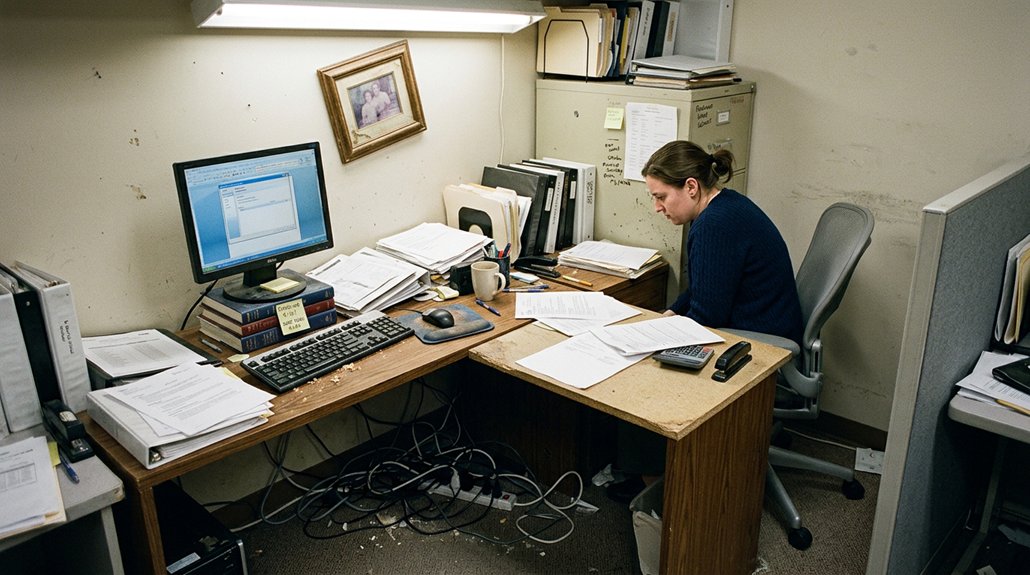
Your office layout can cause back pain if your chair, monitor, and workspace aren’t ergonomically arranged. Poor posture from incorrect chair height or monitor placement puts strain on your lower and upper back. Lack of movement and improper support make muscles fatigue and discs compress. Ensuring your setup promotes good posture and encourages regular movement can alleviate pain. Keep exploring to discover how adjusting your workspace can make a big difference for your back health.
Why Back Pain Happens in Your Home Office Setup
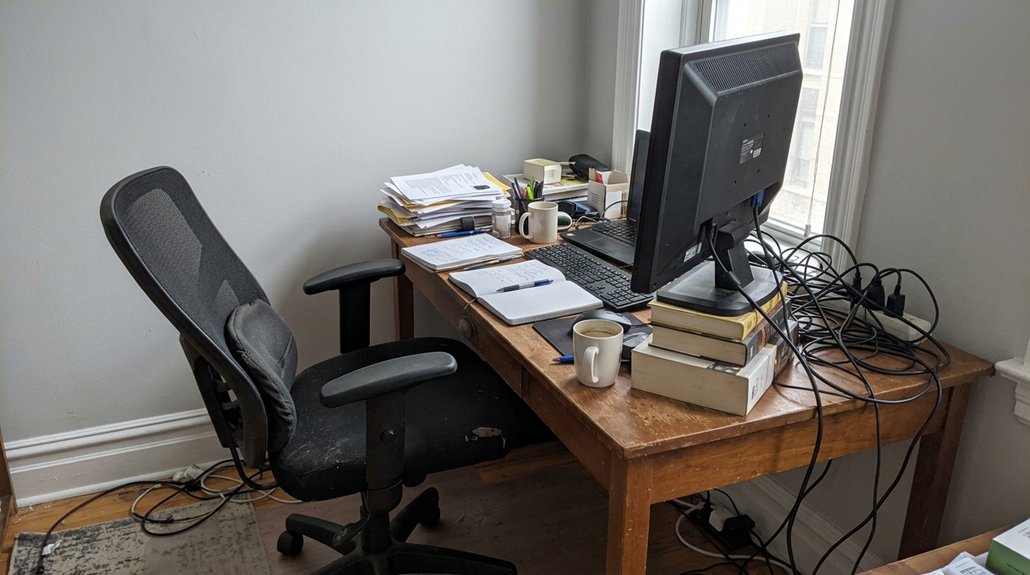
Back pain in your home office often occurs because your setup encourages poor posture and strain. Sitting for long hours without proper lumbar support compresses your spinal discs and strains lower back muscles, increasing discomfort.
If your chair is too high or too low relative to the desk, you may slouch or lean forward, leading to spinal misalignment. Poor monitor placement forces you to tilt or lean your neck forward, causing upper back and neck tension.
Incorrect chair height and monitor placement can cause spinal misalignment and neck tension.
Inadequate keyboard and mouse positioning makes you reach or twist repeatedly, adding to upper back and shoulder strain. Without regular movement breaks, your muscles become stiff, and circulation slows, raising your risk of chronic back pain.
An ergonomic setup is essential to prevent these issues and reduce discomfort.
How to Assess Your Current Desk and Chair for Back Support
Start by checking if your chair has adjustable lumbar support to keep your lower back’s natural curve. Make sure your monitor is at eye level to prevent neck strain, and confirm your chair can be adjusted so your feet rest flat on the floor. When you sit, your elbows should form a 90-degree angle at your desk to reduce shoulder tension. Additionally, verify that your chair features multidimensional adjustments for optimal comfort and support.
Check Lumbar Support Presence
Ever wondered if your chair provides adequate lumbar support? To check, sit with your back against the chair and see if the lumbar area fills the space between your lumbar spine and the seat. Proper back support maintains the spine’s natural curve, reducing lower back pain. Chairs with ergonomic features often have adjustable lumbar support that allows you to customize height and firmness, preventing muscle fatigue. If the lumbar support feels flat or hard, add a cushion or switch to a chair with built-in ergonomic support. Additionally, choosing a support with breathable material choice can help prevent heat buildup and discomfort during long hours.
Monitor Monitor Height Position
How you position your monitor can greatly impact your back health during long work hours. The monitor screen should be at or slightly below eye level to help maintain a neutral neck position, preventing you from leaning forward or tilting your head.
If the monitor height is too low or high, it can cause neck strain and contribute to forward head posture, leading to upper back discomfort. Make certain your monitor is an arm’s length away to reduce eye strain and discourage leaning, which affects spinal alignment.
To assess your setup, sit upright and see if your eyes naturally align with the top of the monitor. Proper monitor height supports good posture and helps prevent chronic neck and upper back pain over time. Additionally, choosing a height-adjustable monitor stand can ensure you maintain optimal ergonomics throughout your workday.
Evaluate Chair Adjustability
To guarantee your chair provides proper back support, it’s essential to evaluate its adjustability features carefully. Start by checking if your chair has adjustable lumbar support to maintain the natural curve of your lower spine and support your back properly.
Verify the chair height allows your feet to rest flat on the floor, with thighs parallel to the ground, promoting good posture. Assess whether the armrests can be adjusted in multiple directions so your elbows stay comfortably at about a 90-degree angle.
Confirm the seat padding offers adequate firmness to prevent pressure points during prolonged sitting. Test the recline and tilt functions to enable dynamic sitting and reduce strain on your lower back and spinal discs. Additionally, choosing armrests with multi-directional movement can help customize your workspace and further improve ergonomic support.
Adjusting your workspace correctly will greatly improve comfort and reduce pain.
Positioning Your Monitor to Keep Your Neck and Back Neutral
To keep your neck and back neutral, position your monitor so the top of the screen is at or slightly below eye level. Place it about an arm’s length away to reduce the need for head turning and neck strain. Adjust the height and angle so you don’t have to lean forward or look down, supporting better posture and comfort. Ensuring your monitor has full ergonomic adjustability allows for precise positioning tailored to your workspace.
Monitor Height Alignment
Proper monitor height is essential for maintaining a neutral neck and back posture, helping prevent strain and discomfort. Position your monitor so the top of the screen is at or slightly below eye level, which encourages spinal alignment and reduces neck strain. Keeping the monitor directly in front of you at about an arm’s length minimizes unnecessary neck turning and helps maintain upper back comfort. Use monitor stands, risers, or adjustable arms to achieve this ideal height, especially during prolonged desk work. An ergonomic workspace promotes proper posture and prevents a forward head posture that can lead to discomfort. Proper adjustment mechanisms like adjustable height options are key in tailoring your workspace to fit your unique needs.
Optimal Screen Distance
Are you positioning your monitor at the right distance to support a neutral neck and back posture? The ideal screen distance is about an arm’s length, roughly 20-30 inches away, which helps prevent eye strain and reduces the tendency to lean forward, minimizing neck and back pain. Using adjustable monitor arms can help you effortlessly find the optimal height and reach, ensuring your setup promotes an ergonomic office environment that maintains proper posture during prolonged computer use. Your monitor should be at eye level, with the top of the screen slightly below your eye line, ensuring a neutral neck angle and spinal alignment. Center the monitor directly in front of you to avoid excessive head turning. Adjust screen brightness and enlarge text to prevent leaning in or squinting.
Neck Posture Tips
Positioning your monitor correctly is key to maintaining a neutral neck and back posture throughout your workday. Make certain your computer screen is at eye level so your head stays aligned and avoids a forward head tilt. The monitor should be about an arm’s length away, reducing the need to lean forward or tilt your neck, which strains neck muscles and disrupts spine alignment. Using an adjustable monitor hood can help minimize glare and reflections, further making it easier to maintain proper posture without straining your eyes. Keep the monitor centered directly in front of you to prevent frequent turning of your head, minimizing neck and shoulder tension. Adjust monitor brightness and enlarge text size to avoid leaning forward or squinting, which can cause additional neck and upper back discomfort. If you use dual monitors, set them side-by-side at equal height and angle to maintain a neutral neck position and support overall spinal health.
Optimizing Keyboard and Mouse Placement for Better Posture
To promote better posture at your workstation, focus on placing your keyboard and mouse within easy reach and at appropriate heights. In an ergonomic home office, correct placement helps prevent poor posture and reduces back pain.
Prioritize proper placement of keyboard and mouse to support comfort and reduce back pain during work.
Keep the keyboard directly in front of you at a height that allows your elbows to stay at about a 90-degree angle, minimizing shoulder and wrist strain. Position the mouse close to the keyboard to avoid overextending your arm or twisting your wrist unnaturally.
Make certain your shoulders stay relaxed and aligned, avoiding reaching or twisting motions. Use an ergonomic keyboard designed to reduce strain, and keep your forearms parallel to the floor with wrists in a neutral position.
Following these ergonomic principles supports spine health and prevents musculoskeletal issues while sitting at a desk.
Organizing Your Desk to Promote Movement and Reduce Stiffness
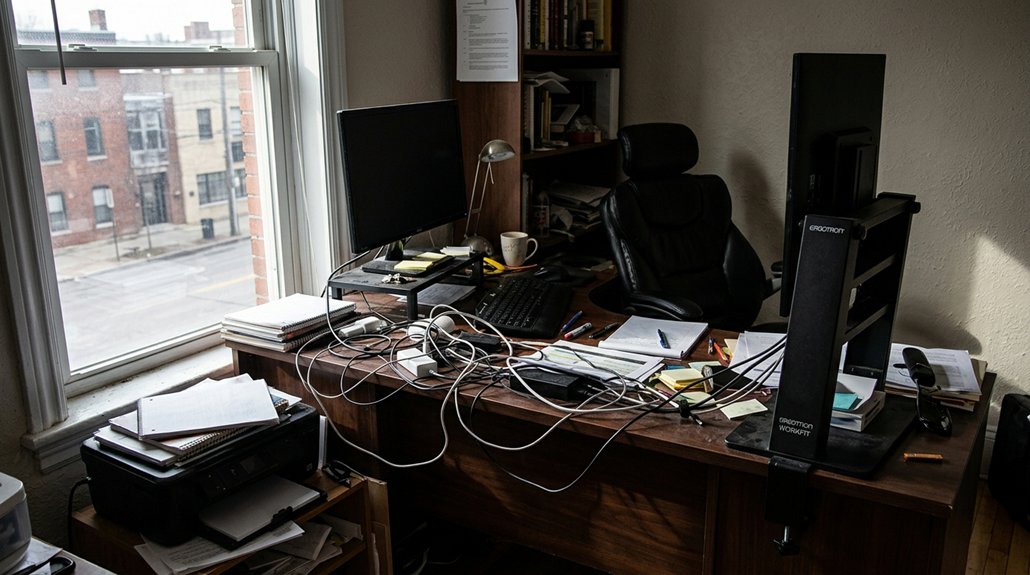
Organizing your desk to promote movement starts with keeping frequently used items, like your phone, keyboard, and mouse, within easy reach. This prevents excessive stretching and twisting that strain back muscles during your desk job.
Arrange your workspace to encourage frequent breaks—stand up or take short walks every 30 minutes to boost circulation and reduce stiffness. Keep your area clutter-free to allow quick movement and stretching without obstruction.
Use adjustable desk accessories like monitor stands and keyboard trays to maintain a neutral posture and make shifting between sitting and standing easier. Incorporate multiple monitors for ergonomic positioning, and adjust their height to keep your neck and back comfortable.
Using Footrests and Floor Support to Maintain Good Posture
Using a footrest can greatly improve your posture by guaranteeing your feet rest flat and supported, especially if your chair height prevents your feet from reaching the floor. A footrest helps maintain good posture by promoting proper pelvic alignment, which supports the spine and reduces lower back stress.
When your feet are properly supported, whether sitting or standing, muscle fatigue and poor circulation decrease, preventing discomfort. Adjustable footrests allow you to set the right height, keeping your hips slightly above your knees for ideal posture.
Using supportive shoes combined with a footrest guarantees balanced weight distribution, reducing strain on your lower back and legs. Incorporating floor support like a footrest forms an essential part of ergonomic setups, helping you sustain healthy sitting habits and minimize back pain.
How Lighting Choices Affect Your Sitting Habits and Back Comfort
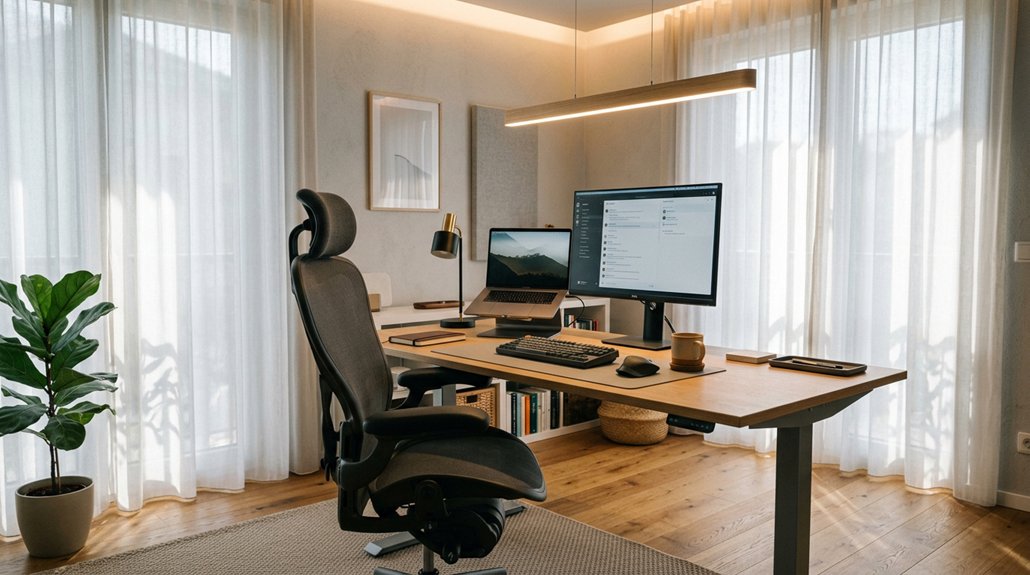
Lighting plays a crucial role in maintaining good sitting habits and preventing back pain, as improper illumination can cause you to lean or hunch over in an attempt to see better. Poor lighting, like harsh glare or insufficient natural light, forces you into awkward postures that strain your neck and back muscles. Using adjustable desk lamps reduces eye strain and encourages an upright posture, supporting better spine alignment and back pain relief. Proper lighting placement helps you maintain comfortable head and neck positions, decreasing muscle fatigue during long sitting periods. To visualize, here’s how lighting adjustments impact your workspace:
| Lighting Choice | Effect on Sitting Habits |
|---|---|
| Adequate brightness | Promotes upright posture, reduces muscle tension |
| Adjustable desk lamps | Helps focus light, minimizes hunching |
| Strategic placement | Prevents strain, supports spine alignment |
Practical Ways to Incorporate Movement and Breaks During Work
To reduce back pain and improve your comfort at work, incorporating regular movement and breaks is essential. Desk jobs can cause your spine to stiffen and lead to muscle stiffness and lower back pain.
To prevent this, stand up and walk around every 30 minutes to reduce spinal compression and reset your posture. Short movement breaks, such as walking to the kitchen or stretching, improve circulation and ease tension.
Incorporate quick exercises like shoulder rolls and hip twists at least once every hour to maintain spinal mobility. Breaking up prolonged sitting with standing and brief walks counters issues linked to sedentary work. Regular movement throughout the day greatly reduces discomfort and the risk of developing chronic back pain associated with your office layout.
Frequently Asked Questions
Do Office Jobs Cause Lower Back Pain?
Yes, office jobs can cause lower back pain because prolonged sitting, poor ergonomics, and sedentary habits create pressure, muscle strain, and imbalances that damage your spine and muscles over time, leading to discomfort and pain.
Can GLP-1 Cause Lower Back Pain?
GLP-1 medications don’t typically cause lower back pain directly. If you experience it, consider other factors like physical activity changes or pre-existing conditions, and consult your healthcare provider to identify the true cause and explore appropriate treatment options.
Does Your Back Hurt With Parkinson’s?
Yes, your back can hurt with Parkinson’s due to muscle rigidity, postural instability, and altered spinal alignment. These factors cause stiffness and discomfort, making it harder to maintain good posture and increasing your risk of chronic back pain.
How to Fix Lower Back Pain From Desk Job?
To fix lower back pain from your desk job, adjust your chair for lumbar support, keep your monitor eye-level, take movement breaks every 30 minutes, and strengthen your core muscles to support spinal stability and reduce strain.



