
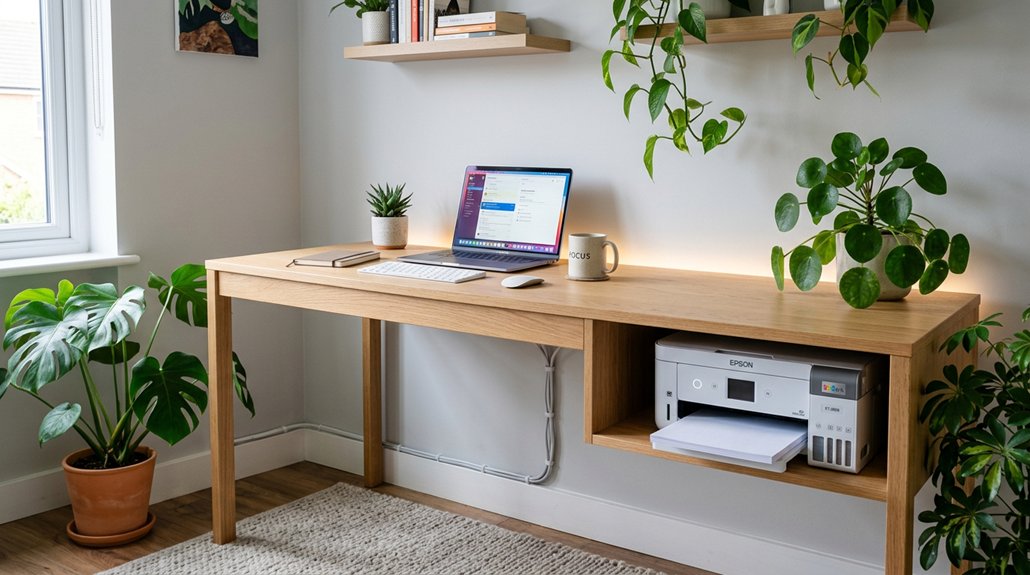
Proper printer placement is essential for smooth office flow. When you position printers near high-traffic areas and key departments, you reduce walking time and prevent delays. Secure printers in controlled spots to protect sensitive documents. Think about environmental factors like noise and overheating, and guarantee easy access for maintenance. Strategic placement also saves costs by preventing device clutter. Keep these points in mind, and you’ll find ways to optimize your office’s productivity and efficiency.
Why Printer Placement Matters for Office Workflow
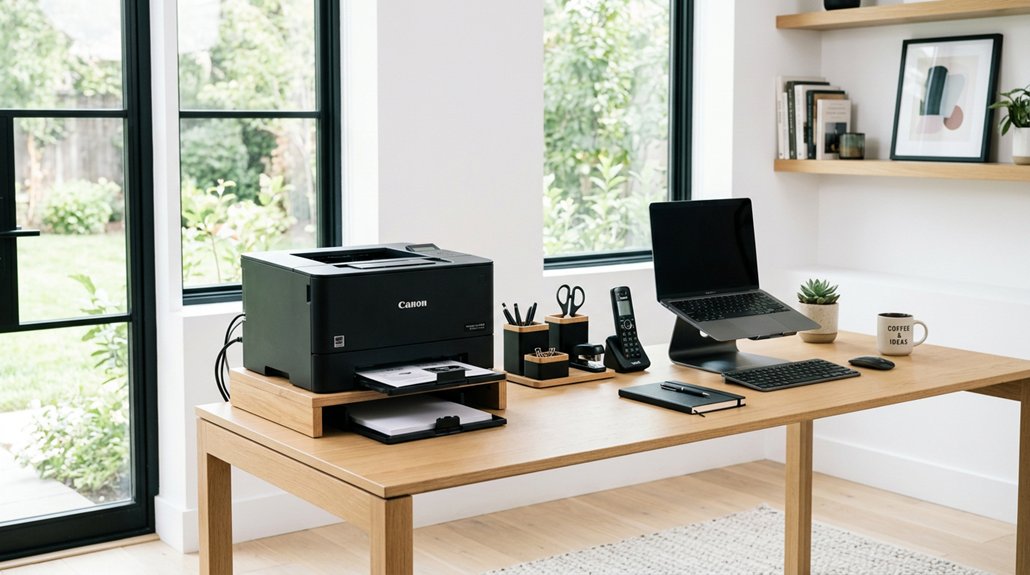
The way you position printers greatly impacts your office’s workflow. Proper printer placement guarantees employees spend less time walking and more time focusing on tasks. Placing printers near high-use departments reduces employee downtime and speeds up print job completion. Strategic placement close to primary users also decreases network latency, leading to quicker results. Additionally, choosing suitable clamp mounts for flexible positioning can help adapt printer locations to changing office layouts. Creating centralized, accessible shared printer zones streamlines document handling and prevents workflow disruptions caused by scattered devices. When printers are properly positioned, they help balance load across multiple devices, avoiding bottlenecks that slow everything down. Additionally, keeping printer areas clear and at ergonomic heights improves user convenience and allows for smoother print task completion. In short, thoughtful printer placement optimizes workflow, minimizes delays, and boosts overall office productivity.
How Proper Placement Reduces Employee Walks and Saves Time
Placing printers closer to work areas minimizes the time you spend walking back and forth, keeping productivity high. A well-organized setup with cable management ensures that the area remains tidy and reduces tripping hazards, further enhancing efficiency. When printing stations are well-positioned, it streamlines the entire process and prevents unnecessary stops. Proper placement directly boosts overall efficiency by reducing wasted movement and saving you valuable hours each day.
Minimizes Employee Transit Time
When printers are strategically positioned near high-volume departments, you’ll notice employees spend less time walking back and forth. This reduces downtime and keeps workflows flowing smoothly.
By placing printers close to where most printing occurs, you cut unnecessary transit, allowing employees to focus on their core tasks. Centralized printer locations within accessible shared zones mean less physical travel, preventing workflow interruptions caused by long walks to distant devices.
Reducing the number of printer hops and travel time streamlines print job completion, saving valuable minutes each day. Efficient printer placement decreases bottlenecks and wait times, ensuring a smoother office flow and less congestion.
Simply put, placing printers thoughtfully minimizes employee transit time, making your office more productive and less cluttered with unnecessary movement. Incorporating ergonomic layouts into your office design further enhances comfort and efficiency by reducing strain during movement.
Streamlines Printing Workflow
Proper printer placement directly streamlines your printing workflow by reducing unnecessary employee walks. When printers are close to high-use departments like HR or Accounting, employees can quickly access devices, minimizing delays.
Implementing centralized print zones helps consolidate multiple printers, speeding up document turnaround and avoiding bottlenecks. In large departments, placing multiple multifunction devices enables parallel print jobs, decreasing wait times and improving efficiency.
Strategic placement near frequent users allows for efficient print release, so employees don’t waste time searching for available printers. It also reduces the need for employees to traverse floors or corridors for printing tasks.
Additionally, choosing the right material compatibility for flooring — such as placing mats on hardwood or carpet — ensures stability and prevents slipping, further enhancing workflow safety and efficiency. This thoughtful approach guarantees smoother workflows, reduces idle time, and keeps operations running seamlessly with less disruption.
Enhances Overall Office Efficiency
Strategically positioning printers throughout the office can greatly boost overall efficiency by cutting down on unnecessary employee movement. In a well-organized print environment, high-use departments are near printers, reducing walking distances and minimizing downtime. Additionally, incorporating appropriate space planning ensures that printers are accessible without cluttering walkways or workstations. Centralized and accessible printer locations help employees find devices quickly, speeding up document turnaround. Placing multifunction devices thoughtfully prevents bottlenecks by distributing workload across multiple units, ensuring smooth print job flow. When printers are within easy reach of frequent users, employees save time and avoid unneeded steps, enhancing workflow efficiency. Well-planned printer zones also decrease wait times for print jobs, allowing staff to complete tasks faster and with fewer interruptions.
Where Are the Best Spots for Office Printers?
Have you ever wondered where the best spots are for office printers? Effective print management starts with strategic placement.
To optimize workflow and reduce clutter, consider these key spots:
- Place printers centrally in shared zones to serve multiple departments efficiently.
- Position printers near high-use departments like HR, Accounting, or Legal to minimize walking time.
- Set up dedicated print stations in quiet corners or alcoves to reduce noise disruptions.
- Keep printers away from Wi-Fi routers or server racks to avoid network congestion.
Controlled-access areas close to authorized users work well for sensitive printing, balancing security and convenience.
Smart placement enhances print management by making devices accessible without disrupting busy areas, helping your office run smoothly and efficiently. Incorporating proper network setup ensures printers operate reliably within your office network.
How to Match Printer Placement With Department Usage
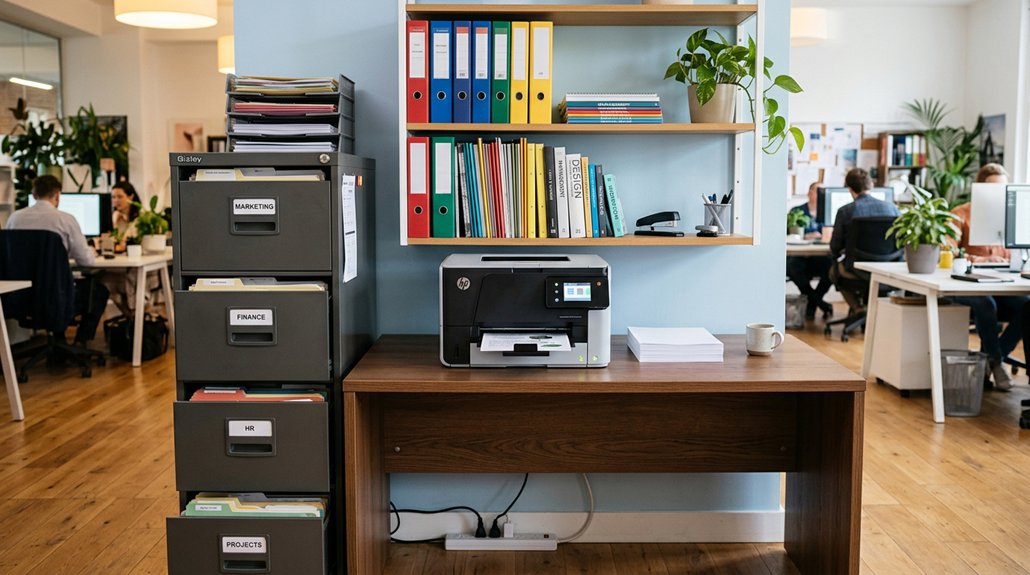
To match printer placement with department usage, start by evaluating each team’s printing needs and volume.
Position printers close to high-usage areas like Marketing and HR to minimize walking and downtime.
Regularly review usage data to guarantee the setup continues to meet their evolving requirements efficiently.
Additionally, consider storage capacity when selecting locations to ensure printers remain accessible without cluttering the workspace.
Assess Department Printing Needs
How can you guarantee your printers meet your department’s specific print needs? The key is understanding your team’s usage patterns.
Start by analyzing print volume and types of documents each department handles. Then, match printer placement to these needs. Consider these steps:
- Place printers near departments with high print volumes, like Marketing, HR, Accounting, and Legal.
- Use usage analytics to determine the right number and type of printers to avoid device sprawl.
- Deploy multiple multifunction devices in large or high-use departments to reduce congestion.
- Balance centralized and departmental printers to streamline management and maintain user convenience.
- Incorporate desk drawer organizers to keep office supplies organized and enhance overall workspace efficiency, which can indirectly support better printer management and usage coordination.
Position Near High-Usage Areas
Placing printers near high-usage areas directly supports efficient workflows by minimizing the distance employees need to walk to access office printers. Positioning printers close to departments with the highest print volume—like Marketing, HR, Accounting, and Legal—reduces unnecessary walking time and speeds up task completion.
When multiple multifunction devices are near large teams, it prevents congestion and decreases delays caused by printer queues. Strategically located office printers near primary users also lower data packet hops, reducing latency and speeding up print jobs.
To maintain accessibility, place printers in open zones close to high-use departments, avoiding narrow corridors or break rooms nearby, which can cause traffic bottlenecks. Proper placement improves overall efficiency and user experience across your office.
How to Secure Sensitive Documents With Strategic Printer Locations
Strategically locating printers that handle sensitive documents is essential for maintaining confidentiality and security in your office.
To implement secure print effectively, consider these steps:
- Place secure printers in controlled-access areas, ensuring only authorized personnel can retrieve sensitive printouts.
- Avoid high-traffic or public spaces to minimize the risk of unattended documents being exposed or stolen.
- Use secure print release features that require user authentication before collecting documents, adding an extra layer of confidentiality.
- Position printers near departments like legal or HR, but keep access physically restricted to support compliance with data protection laws like HIPAA or GDPR.
How to Avoid Traffic Jams by Distributing Printers Wisely
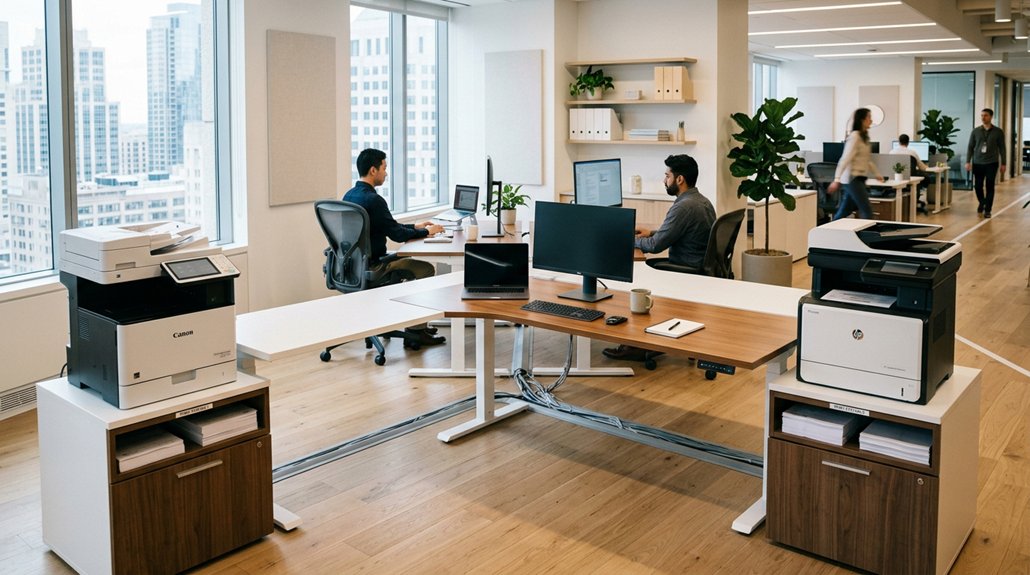
Distributing printers thoughtfully across your office prevents bottlenecks and keeps workflows flowing smoothly. When you place printers based on user density, you reduce employee waiting times for print jobs and avoid unnecessary congestion.
Smart printer placement reduces wait times and prevents office congestion, ensuring smooth workflows and easy access for all employees.
Avoid clustering printers in narrow corridors or high-traffic hallways, which can create traffic jams and hinder movement. Instead, position multiple multifunction devices near departments with high print volumes to balance workloads effectively.
Also, locate printers away from busy meeting areas or break rooms to guarantee accessibility while minimizing disruptions. Utilizing usage analytics and employee feedback can help you optimize printer locations and avoid overcrowding at any single device.
This strategic approach guarantees that print jobs are processed quickly and office flow remains unimpeded.
Choosing Quiet Places for Printers to Minimize Distractions
When selecting locations for your office printers, considering noise levels is key to maintaining a focused work environment. Placing printers in quiet zones or near desks and meeting areas can cause distractions that reduce employee productivity.
To minimize noise interference, consider these options:
- Use alcoves, enclosed printer rooms, or low-traffic corners for added sound insulation.
- Keep printers away from narrow corridors and high-traffic break rooms to prevent disruptions and congestion.
- Position printers in well-ventilated areas, far from HVAC systems and direct sunlight, to reduce mechanical noise and overheating.
- Strategically locate printers away from quiet zones or zones dedicated to focused work, promoting a calm atmosphere for concentration and collaboration. These choices help create a productive, distraction-free office environment.
Supporting Digital and Cloud Printing With Smart Placement
To support efficient digital and cloud printing, placing printers with strong, stable network connections is essential. Optimize your print setup by positioning printers away from Wi-Fi routers to minimize signal interference, which enhances speed and reliability for wireless and cloud workflows.
Place printers near areas with high cloud document activity to facilitate faster scanning and uploading, boosting overall efficiency. Guarantee easy access to power outlets and network ports to support seamless integration with cloud-connected solutions.
Position multifunction devices strategically to enable quick digital workflows like scanning to email or cloud storage, encouraging paperless practices. By smartly placing printers with reliable connectivity, you streamline digital document processes, improve user experience, and support your office’s modern, cloud-based work habits.
How to Place Printers to Promote User Comfort and Safety
Have you considered how the placement of your office printers directly impacts user comfort and safety? Proper positioning guarantees users can print efficiently without strain or hazards.
Optimal printer placement ensures user comfort, safety, and efficient workflow in your office environment.
To promote a safe and comfortable print environment, consider these tips:
- Place printers at ergonomic heights to reduce strain during frequent print jobs.
- Keep the area around the print device free of cables and obstacles for safe walkways.
- Locate printers in well-ventilated, dust-free zones, away from sunlight and HVAC vents to safeguard device life and user health.
- Avoid narrow corridors or high-traffic zones to minimize congestion and noise distractions, ensuring everyone can print comfortably and safely. Consider ADA standards to provide wheelchair access and sufficient space for all users.
Proper printer placement enhances efficiency, safety, and user well-being in your office.
Making Maintenance Easier With Thoughtful Printer Locations
Strategically locating your office printers can greatly simplify maintenance tasks and reduce downtime. When printers are placed near accessible panels and trays, technicians can perform repairs or clear jams quickly without moving furniture.
Positioning printers close to reachable power outlets and network ports streamlines routine servicing and simplifies troubleshooting. Placing printers in well-ventilated, dust-free areas minimizes mechanical wear, extending their lifespan and reducing maintenance frequency.
Arranging devices for easy removal and replacement helps minimize operational disruptions during repairs. Additionally, situating printers away from congested zones allows maintenance staff to work efficiently and safely without blocking employee movement.
Thoughtful printer placement not only speeds up maintenance but also keeps your office running smoothly, helping you avoid unnecessary delays and interruptions.
Environmental Factors to Consider for Printer Longevity
You need to place printers in well-ventilated areas with good airflow to prevent overheating and dust buildup.
Keep them away from direct sunlight, HVAC vents, and humid zones that can cause damage or reduce print quality.
Maintaining a stable temperature and humidity level helps extend the lifespan of your printer and keeps it running smoothly.
Proper Ventilation and Airflow
Ensuring proper ventilation and airflow around your printer is essential for its longevity and reliable performance. Your office layout plays a key role in maintaining this environment.
To optimize airflow:
- Place printers in well-ventilated areas to prevent overheating and mechanical wear.
- Keep printers away from HVAC exhausts and direct sunlight to avoid dust, heat, and humidity damage.
- Use stable temperature zones to reduce thermal stress on components.
- Avoid tight, enclosed spaces that trap heat and restrict airflow, which increases maintenance needs.
Temperature and Humidity Control
Maintaining consistent temperature and humidity levels around your current setup is essential for your printer’s longevity and peak performance. Make certain your printer is placed in a well-ventilated area away from HVAC exhausts and direct sunlight, preventing temperature fluctuations that can cause mechanical wear.
High humidity can lead to paper jams and poor print quality, so keep the environment at moderate humidity levels. Avoid placing printers near heat sources or in rooms with unstable temperatures to extend their lifespan and reduce maintenance.
Dust buildup in poorly ventilated spaces can harm internal components, so keep the area clean and dust-free. Consistent environmental conditions help minimize thermal stress on sensitive parts, guaranteeing your printer operates reliably and lasts longer.
How Printer Placement Can Save Costs and Improve Resource Management
Proper printer placement can greatly lower costs and boost resource efficiency by reducing device sprawl and streamlining access.
When you strategically locate printers, you cut unnecessary equipment, minimizing redundant devices across departments. This approach enables you to:
- Reduce device sprawl, cutting maintenance and supply expenses.
- Improve visibility and accountability through shared locations.
- Prevent wasteful printing and high operational costs with optimized layouts.
- Integrate print management software for real-time monitoring and control.
Why Regularly Reassessing Printer Layout Boosts Office Efficiency
Regularly re-evaluating your printer layout helps catch inefficiencies before they impact office productivity. Placing printers strategically is essential as office layouts change, teams grow, or printing needs shift.
Periodic reviews guarantee your devices stay accessible and well-distributed, preventing bottlenecks. Ongoing assessment also highlights unnecessary printers, reducing costs related to supplies, maintenance, and operations.
Combining physical layout adjustments with print management tools improves tracking, secures print jobs, and boosts accountability. These measures minimize employee downtime, enabling smoother document turnaround.
Designing a Printer Layout That Supports Long-Term Office Productivity
A well-designed printer layout boosts long-term office productivity by reducing unnecessary travel and avoiding congestion.
Consider placing printers near high-use departments and ensuring easy access and security for all users.
Regularly evaluate and adjust the layout to match office growth and evolving print needs.
Strategic Placement Benefits
Strategically placing printers throughout the office can greatly boost long-term productivity by reducing unnecessary employee movement and streamlining workflows. This approach enhances document solutions, ensuring employees access printers efficiently.
Here’s how it benefits you:
- Centralized devices cut down travel time, speeding up document turnaround.
- Well-planned layouts lower maintenance and supply costs by consolidating printers.
- Positioning high-usage printers near departments improves print speed and minimizes network latency.
- Controlled placement guarantees secure print release, safeguarding sensitive info while remaining accessible for authorized staff.
Regularly evaluating and adjusting printer locations also helps sustain efficiency, control costs, and adapt to evolving office layouts and print demands. This strategic setup supports a smooth, productive office environment.
Accessibility and Security Considerations
Placing printers with accessibility and security in mind guarantees that employees can retrieve their documents efficiently without risking sensitive information exposure.
Shared devices should be positioned near high-usage departments, but away from public or uncontrolled areas, reducing the risk of confidential material exposure. Controlled access to printers, combined with secure print release features, safeguards against unauthorized viewing or theft—crucial for compliance with regulations like HIPAA and GDPR.
Positioning printers away from high foot traffic areas prevents unattended output trays, boosting security without sacrificing accessibility for authorized users. Placing shared devices in semi-private zones balances convenience with safety, ensuring employees can retrieve documents quickly while maintaining control over sensitive information.
Integrating physical layout with IT security measures strengthens confidentiality and aligns with data protection policies.
Regular Layout Evaluations
Regularly evaluating your printer layout is essential to maintain long-term office productivity. It helps uncover hidden inefficiencies and prevents productivity losses caused by poorly placed printers.
When your office layout or team size changes, revisiting your printer placement guarantees smooth workflows and reduces unnecessary employee movement. Incorporating ongoing assessments, especially with managed print services, allows you to adapt print volume and avoid device sprawl, which can inflate costs.
Consider these steps:
- Review current printer locations for inefficiencies.
- Use managed print services to monitor usage and optimize device placement.
- Adjust layout based on team or office changes.
- Implement technology integrations for better tracking and waste reduction.
Frequent evaluations keep print loads balanced, prevent bottlenecks, and guarantee faster job completion for everyone.
Frequently Asked Questions
Where to Place a Printer in the Office?
You should place printers near high-use departments like Marketing or HR, ensuring they’re accessible, at ergonomic heights, and away from routers. Keep them centralized, secure, and unobstructed for smooth workflow and quick, hassle-free printing experiences.
What Does Aligning a Printer Do?
Aligning a printer improves office flow by reducing walking time, minimizing network latency, speeding up print jobs, enhancing security, and cutting costs. You guarantee the device is accessible, efficient, and secure by strategic placement and alignment.
How Does a Printer Contribute to Office Efficiency?
A printer boosts office efficiency by reducing walk time, enabling quick access, decreasing congestion, and streamlining workflow. Proper placement guarantees smooth printing processes, minimizes delays, and keeps employees focused and productive without unnecessary interruptions.
Can My Boss See What I Print at Work?
Yes, your boss can see what you print at work if your office uses print management software that tracks print jobs. They can review details like who printed, what was printed, and when, especially in secure or monitored environments.



