
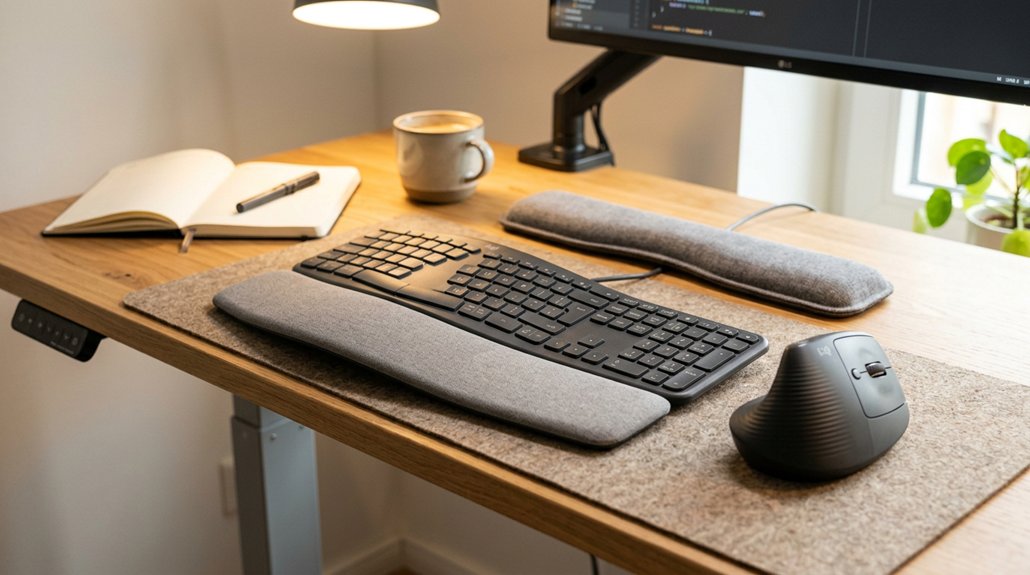
To evaluate your keyboard and mouse ergonomics, start by checking if your equipment is positioned directly in front of you at comfortable distances, with wrists kept neutral and supported by wrist rests or adjustable trays. Guarantee your monitor is at eye level to avoid strain. Adjust your chair height to keep elbows close to your body and feet flat on the floor. Make sure your mouse fits your hand comfortably, and take regular breaks to support muscle recovery. Continue exploring this guide for more tips to optimize your workspace.
Is Your Workspace Set Up for Comfortable Use?
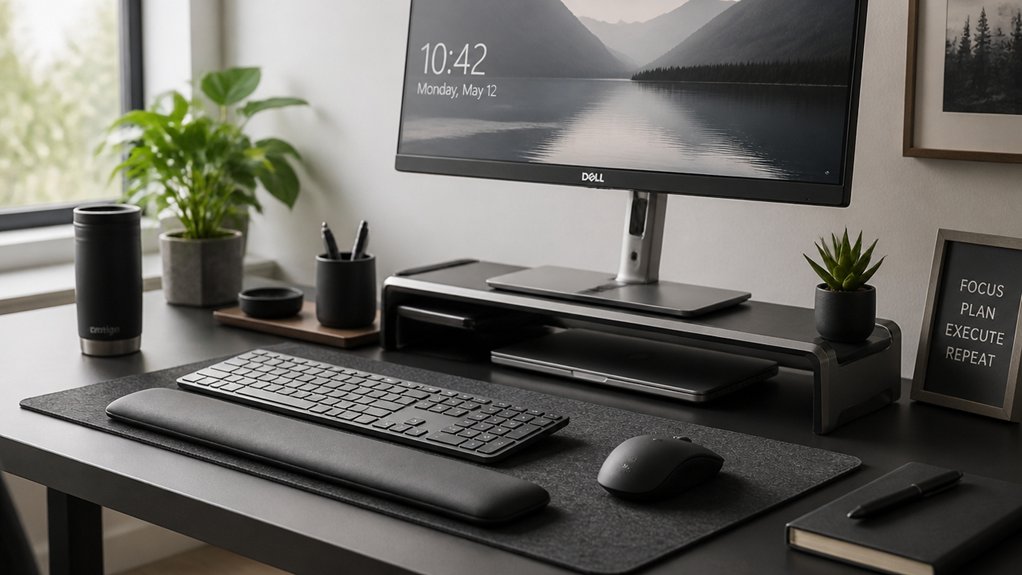
Is your workspace set up to promote comfort and reduce strain? Make certain your keyboard is directly in front of you at a height just below your elbows. This keeps your wrist in a neutral position, minimizing bending and pressure.
Keep your elbows close to your body and your forearms parallel to the floor to support comfortable, sustained use. Place your mouse within 1–2 inches of the keyboard—either beside or slightly above it—to allow easy forearm movement without stretching or twisting your wrist.
Choose an ergonomic mouse that fits your hand well, preferably flat and symmetrical, to encourage forearm motion instead of wrist flicking. Adjust your chair height so your shoulders stay relaxed, supporting proper posture during prolonged work sessions. Proper keyboard tilt can further help align your wrists and forearms, reducing strain and potential tendon issues over time.
Are Your Mouse and Keyboard Correctly Positioned?
Make sure your keyboard is directly in front of you at a comfortable distance, with elbows close to your body and forearms parallel to the floor.
Keep your mouse within easy reach on the same surface, ideally 1–2 inches above the keyboard, to prevent stretching or twisting your wrist. Maintain a neutral wrist position aligned with your forearms to reduce strain and promote better ergonomics. Consider using an ergonomic mouse pad with wrist support to further enhance wrist comfort during prolonged use.
Proper Placement Techniques
To promote comfortable and strain-free use, it’s essential to position your keyboard and mouse correctly. Keep the keyboard directly in front of you, at a distance that allows your elbows to stay close to your body with forearms parallel to the floor. This helps you maintain a neutral wrist posture and avoid overreaching. Incorporate split keyboard features into your setup, such as adjustable tilt and wrist rests, to further enhance ergonomic comfort. Place your mouse on the same surface as the keyboard, ideally 1-2 inches above it and near the numeric keypad if you’re right-handed, reducing stretching and shoulder strain. Adjust your chair and desk height so your elbows are at about 90°, with the keyboard and mouse slightly below elbow level. Always make certain wrists stay straight and aligned with your forearms, minimizing strain and promoting ergonomic posture.
Optimal Hand and Wrist Position
Proper placement of your keyboard and mouse is essential for maintaining comfortable hand and wrist positions. Keep your keyboard directly in front of you at a height just below your elbows, ensuring your wrists stay straight and aligned with your forearms to promote a neutral wrist posture.
When you use a mouse, keep it within easy reach, about 1–2 inches above the keyboard and near the numeric keypad if you’re right-handed, so you avoid stretching or overreaching. Elevate your wrists slightly off the hard surfaces by using a padded wrist rest if needed, reducing contact stress on tendons and blood vessels.
To prevent strain, use forearm motions rather than flicking the wrist, and keep your elbows close to your body with forearms parallel to the floor. Additionally, choosing the right wrist support material can help maintain ergonomic alignment and reduce fatigue during long use.
How Is Your Hand and Wrist Posture During Work?
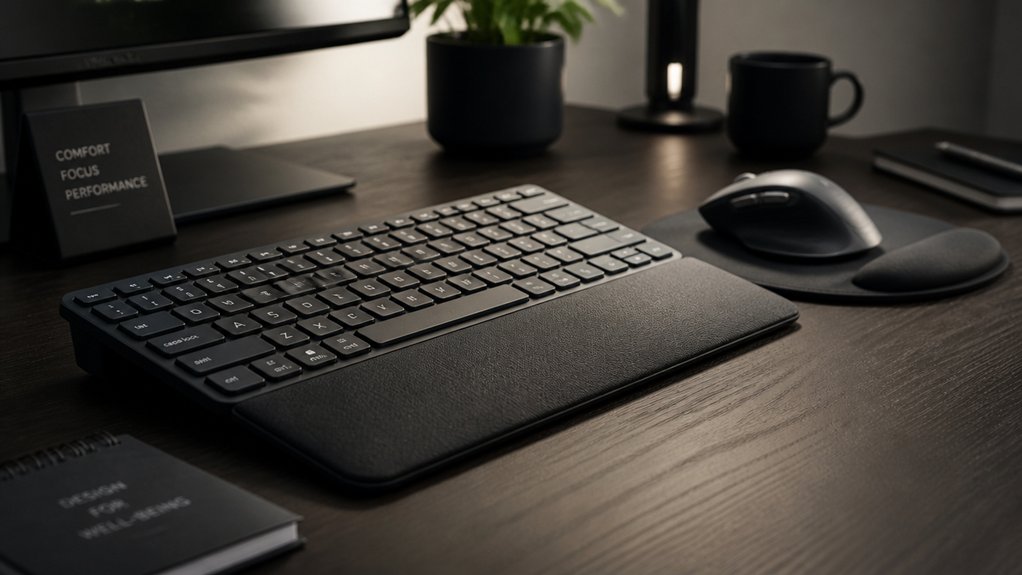
Are you paying attention to your hand and wrist positioning while working? Maintaining proper wrist posture is essential to reduce strain and prevent conditions like carpal tunnel syndrome.
Pay attention to your wrist position to prevent strain and avoid carpal tunnel syndrome while working.
Keep your wrists straight and in a neutral position, avoiding bending them up, down, or sideways. When using your mouse, move it with your whole forearm and elbow as a pivot, rather than flicking or bending your wrist alone.
Don’t rest your wrists on hard surfaces or wrist rests during active typing or mousing, as this can increase pressure on blood vessels and tendons. Your hand grip should be gentle and relaxed, with your hand just above elbow height to support natural arm posture.
Monitoring for discomfort such as tingling, numbness, or stiffness can help you identify poor hand and wrist posture early. Using an ergonomic wrist rest designed with memory foam can provide better support and reduce strain during extended periods of typing.
Do Your Equipment Shapes and Sizes Fit Your Needs?
Can your keyboard and mouse truly support your natural hand and finger movements? Choosing mice and keyboards that match your hand size and shape helps prevent muscle strain and discomfort. An ergonomic mouse, with a flat, symmetrical design and appropriate size, encourages forearm movement instead of wrist flicking, alleviating carpal tunnel pressure. Larger mice fit your hand comfortably, reducing tight grips and muscle overuse. For keyboards, key spacing of 18-19 mm horizontally and 18-21 mm vertically guarantees comfortable key presses without fatigue. Ergonomic keyboards with split designs and wrist rests help maintain a neutral wrist position, decreasing wrist bending by up to 25%. Tailoring your equipment to your natural wrist and finger sizes guarantees peak comfort and minimizes strain during long hours at your desk. Ensuring your equipment features adjustable tilt angles can further promote ergonomic placement and reduce strain.
Can You Easily Adjust Your Desk and Chair for Neutral Posture?
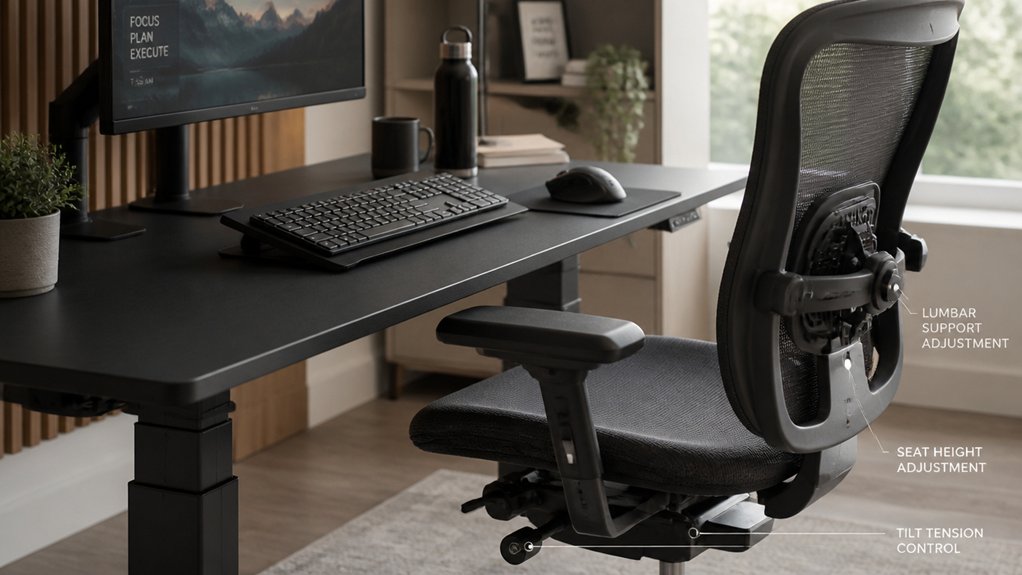
Ensuring your desk and chair are easily adjustable is key to maintaining a neutral posture throughout your workday.
Adjust your chair height so your feet rest flat on the floor or a footrest, with thighs parallel to the floor. Your elbows should sit close to the keyboard height, forming about a 90° angle for comfort.
Check if the desk height is at or slightly below elbow level, helping keep your wrists neutral and your forearms parallel to the floor. Use armrests to support relaxed shoulders without forcing your elbows or wrists into awkward positions.
Make sure there’s enough leg and foot space to avoid reaching or forced postures. Proper adjustments help keep your wrists straight and your posture aligned, reducing strain and supporting long-term comfort. Incorporating ergonomic lumbar support can further improve your overall posture and reduce back strain during extended sitting periods.
Are Your Breaks and Job Tasks Supporting Muscle Recovery?
Taking regular breaks during your workday plays a vital role in supporting muscle recovery and preventing strain. When using a computer, prolonged periods of repetitive keyboard and mouse activity can lead to discomfort or injury. A new ergonomic practice involves using soft silicone grip tools and accessories to facilitate a more natural hand posture, reducing fatigue. Micro-breaks of about five minutes each hour allow your muscles and tendons to recover, reducing strain. It’s helpful to alternate tasks or practice job rotation to prevent continuous repetitive motions, giving specific muscle groups time to rest. Including stretches for your hands, fingers, and arms during breaks prevents stiffness and minimizes injury risks. Maintaining good office ergonomics, such as proper posture, enhances muscle recovery even during rest periods. Frequent breaks disrupt long blocks of work, decreasing fatigue and supporting healthier muscle function throughout your workday.
What Resources and Tools Can Help Improve Your Ergonomics?
There are many resources and tools to help you optimize your ergonomic setup, from online assessment quizzes to product guides like Logitech’s fitting checklist.
Adjustable equipment, such as keyboard trays and mouse platforms, allows you to fine-tune your workspace for comfort. Educational videos and specialized software also offer practical tips and reminders to maintain healthy posture during long computer sessions.
Ergonomic Assessment Tools
To improve your keyboard and mouse ergonomics, a variety of assessment tools are available to guide you toward better posture and device setup. Ergonomic assessment tools, such as workplace checklists, help you evaluate keyboard height, mouse positioning, and overall workstation arrangement, highlighting areas that may cause awkward postures.
Wrist angle measurement apps or wearable sensors monitor neutral wrist positioning during use, aiding injury prevention. Posture tracking software provides real-time feedback on arm, wrist, and shoulder alignment, encouraging ergonomic adjustments. Online ergonomic assessment tools and typing tests offer interactive guidance with videos to improve technique.
Using these resources, you can identify and correct poor habits, ensuring your setup promotes comfort, reduces strain, and minimizes injury risk.
Adjustable Workstation Equipment
Adjustable workstation equipment plays a crucial role in optimizing your ergonomic setup and reducing strain during prolonged computer use. It allows you to customize your workspace for comfort and proper alignment.
For example, adjustable keyboard trays with height and tilt options help you maintain neutral wrist and elbow postures by positioning the keyboard below elbow level and minimizing wrist extension. Position-adjustable mouse platforms keep your mouse within easy reach, preventing overreach and supporting relaxed shoulders.
Monitor and laptop stands raise screens to eye level, promoting a neutral head position. Coupled with ergonomic chairs that support proper arm positioning, these tools create a balanced workspace.
Additional accessories, like external ergonomic keyboards, further enhance comfort and reduce repetitive strain risks. Incorporating these resources guarantees an ergonomic, adaptable setup tailored to your needs.
Ergonomic Guide Resources
Using the right resources can greatly boost your ability to optimize keyboard and mouse ergonomics. An ergonomic guide provides valuable insights into proper device use, workstation setup, and posture adjustments. Online ergonomic assessment tools and typing tests help identify strain points, while manufacturer guidelines from brands like Logitech and the ERGO Series suggest ideal device sizes. Ergonomic training videos demonstrate correct keyboard and mouse positioning to reduce injury risks. You can also consult Occupational Safety and Health Administration (OSHA) resources for workplace standards. Additionally, tools like a laptop stand can improve your workstation components for better alignment. Here’s a quick reference:
| Resource Type | Purpose | Example |
|---|---|---|
| Ergonomic guides | Overall posture and device use | OSHA, manufacturer manuals |
| Assessment tools | Identify strain and inefficiencies | Typing tests, online assessments |
| Training videos | Practical device positioning | YouTube tutorials |
| Ergonomic experts | Personalized workstation advice | Occupational therapists |
| Workplace resources | Breaks, device setup, posture | OSHA ergonomic guidelines |
Frequently Asked Questions
How Can I Tell if My Keyboard Slope Is Appropriate?
You can tell if your keyboard slope is appropriate by ensuring your wrists stay straight and relaxed while typing. Adjust the tilt to avoid strain, and feel comfortable without excessive bending or tension in your wrists and forearms.
What Signs Indicate My Mouse Position Might Cause Strain?
If your mouse causes discomfort, signs like wrist pain, numbness, tingling, or frequent fatigue indicate poor positioning. You might also experience awkward hand angles or strain after prolonged use, suggesting your mouse setup needs adjustment for better ergonomics.
How Do I Measure if My Arm Is at a Proper 90-Degree Angle?
You can measure your arm’s angle by resting your arm comfortably on a desk, ensuring your elbow is at a 90-degree angle. Adjust your chair or desk height if necessary, and use a protractor or angle guide for accuracy.
Are There Specific Wrist Supports Recommended for Prolonged Use?
Yes, you should look for wrist supports that are adjustable, cushioned, and promote a neutral wrist position. Gel-filled or memory foam supports work well, reducing strain during prolonged use, and are highly recommended for comfort and injury prevention.
How Often Should I Check and Readjust My Ergonomic Setup?
You should check and readjust your ergonomic setup at least once a month or whenever you notice discomfort, strain, or poor posture. Regular evaluations help prevent injuries and guarantee your workstation remains comfortable, supporting long-term health.



