
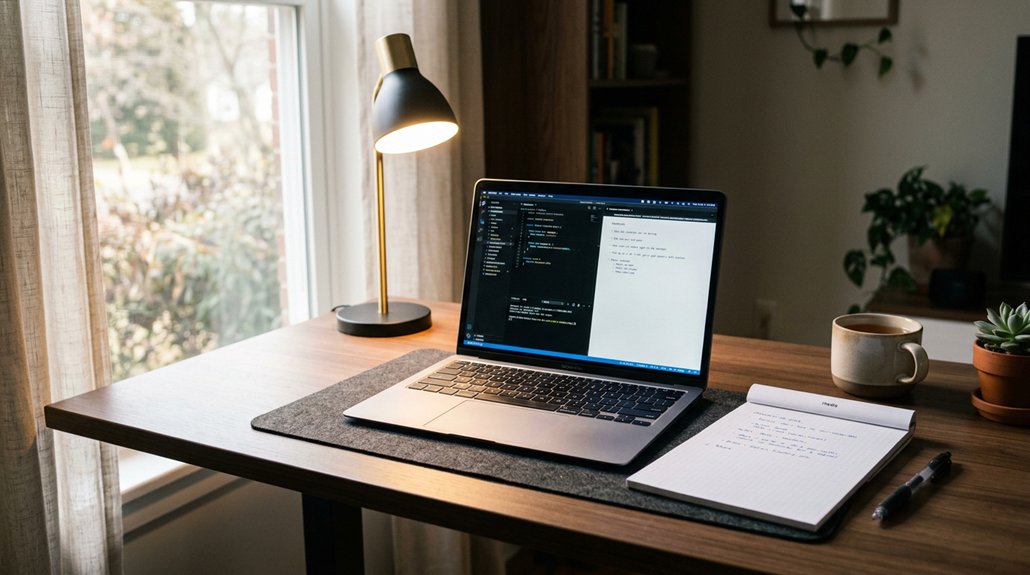
Proper lighting reduces eye strain by minimizing glare, reflections, and harsh shadows that cause your eyes to work harder. When your environment has balanced ambient and task lighting with appropriate brightness and color temperature, your pupils stay steady, preventing fatigue. Controlling flicker and blue light also helps protect your eyes during extended screen use. If you keep exploring, you’ll discover simple ways to set up an eye-friendly lighting environment that keeps your eyes comfortable all day long.
How Proper Lighting Keeps Your Eyes Comfortable and Focused
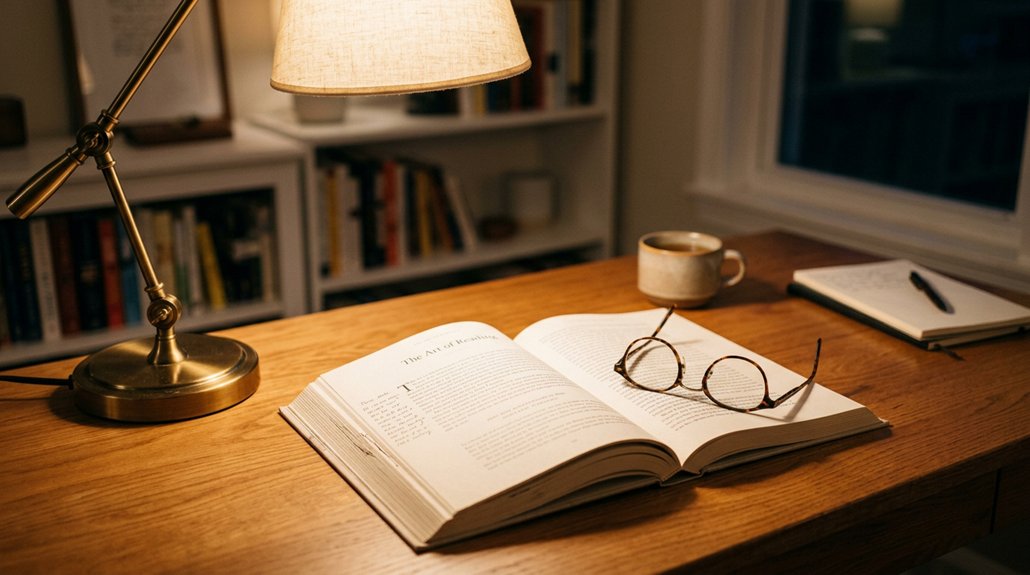
Proper lighting plays a crucial role in keeping your eyes comfortable and focused, especially during long periods of work or screen time. Adequate lighting reduces eye strain by minimizing glare and reflections on screens and surfaces, making it easier to see clearly without extra effort.
A well-designed lighting setup balances ambient light and task lighting, with color temperatures between 3500K and 5000K, creating a natural, restful environment. Adjustable desk lamps give you control over light direction and intensity, decreasing shadows and helping you focus on detailed tasks.
Matching screen brightness to ambient light levels lessens contrast stress, preventing your pupils from constantly adjusting. Using layered lighting and avoiding harsh overhead light reduces flicker and uneven illumination, supporting sustained comfort and clearer vision.
The Science of Light Levels and How They Affect Your Pupils
Your pupils constantly adjust to different light levels, and these changes impact your focus and comfort. Bright environments cause your pupils to constrict, while dim settings make them dilate, both affecting how clearly you see. Using appropriate lighting settings helps maintain consistent pupil response, promoting visual comfort and reducing strain. Keeping lighting stable minimizes these adjustments, reducing eye strain and helping you stay comfortable longer.
Pupils Adjust to Brightness
When exposure to varying light levels occurs, the pupils actively adjust to regulate the amount of light entering the eyes. This process helps maintain visual comfort and protects your retina from excessive brightness.
If the environment is too bright, pupils constrict to reduce light intake; if dim, they dilate to gather more light.
- Rapid changes in brightness force pupils to constantly adjust, increasing eye strain.
- Proper ambient lighting with balanced brightness minimizes these adjustments.
- Matching screen brightness to ambient light keeps pupils stable, reducing discomfort.
- Using flicker-free LEDs and adjustable color temperature lamps supports eye-care lens technology, ensuring steady, harmful light exposure is minimized.
Light Intensity Influences Focus
Light intensity directly impacts the size of your pupils, which in turn affects how well you can focus on visual tasks. When lighting levels are just right, your pupils stay steady, allowing enough light to enter for clear vision without causing eye strain. A blue light filter can help reduce glare and improve comfort during extended screen use. If the light is too dim, your pupils dilate widely, making focusing harder and increasing eye muscle fatigue during visual tasks. Conversely, excessive light causes pupils to constrict, but glare and reflections become problematic, forcing your eyes to work harder to maintain clarity. Maintaining ideal lighting levels—around 500–750 lux—helps keep pupil size stable, reducing visual discomfort and eye strain. Consistent, moderate light guarantees your pupils function efficiently, supporting better focus during extended visual tasks.
Proper Lighting Enhances Comfort
Proper lighting creates a comfortable visual environment by ensuring the luminance levels are just right for your eyes. When lighting matches your screen brightness, your pupils respond steadily, promoting visual comfort and reducing eye strain. A well-calibrated display with multi-display profiling ensures consistent color and brightness across screens, further easing visual fatigue. Balanced lighting with ideal brightness levels—around 500–750 lux for tasks—helps your pupils adjust easily without excessive dilation or constriction, preventing eye muscle fatigue. Avoiding glare and high contrast minimizes bold shifts in lighting, allowing your pupils to stay stable with minimal effort. Proper light distribution with color temperatures between 3500K and 5000K supports natural pupil response, reducing discomfort from flickering or harsh light sources.
Why Glare and Reflections Cause Eye Strain: And How to Stop Them
Glare and reflections cause eye strain because they force your eyes to constantly adjust focus and pupil size, leading to muscle fatigue. Bright light shining directly into your eyes or bouncing off screens creates high contrast, making it hard to see clearly and increasing visual discomfort. Additionally, using monitor hood accessories can further reduce glare, providing a more comfortable viewing environment. Overhead fluorescent lights or sunlight through windows often produce flicker or intense glare, which can trigger headaches or migraines. To stop this, position your desk parallel to windows and use adjustable blinds or curtains to minimize reflections and glare on your screen. Anti-reflective coatings on glasses and screen filters help diffuse light, enhancing visual clarity. Reducing glare and reflections protects your eyes from unnecessary strain and keeps your workspace comfortable.
The Importance of Brightness and Contrast for Clear Vision
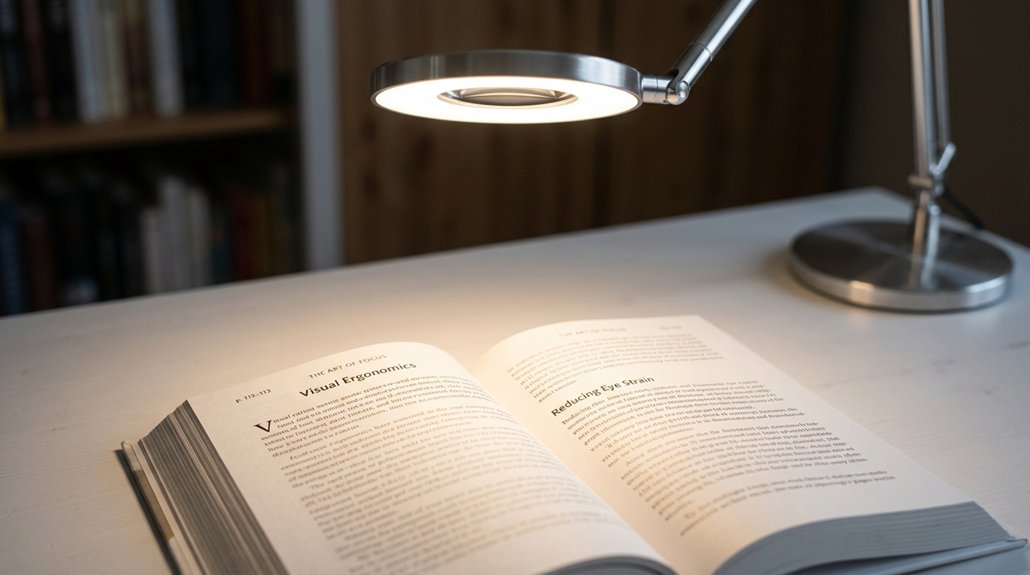
Maintaining ideal brightness levels that match your ambient lighting helps prevent eye fatigue and keeps images clear. Proper contrast between your screen and surroundings makes text easier to read without straining your eyes. Using bias lighting enhances color accuracy and further reduces eye strain during long viewing sessions. Adjusting brightness and contrast based on your environment guarantees you can work comfortably without unnecessary eye effort.
Optimal Brightness Levels
Adjusting your screen brightness to match the ambient lighting is essential for comfortable viewing. Ideal brightness levels typically fall between 500 to 750 lux, reducing eye effort and limiting glare.
When your screen brightness aligns with task lighting and ambient lighting, contrast is balanced, making text and images clearer. This helps prevent excessive pupil constriction or dilation, which contributes to eye strain.
By fine-tuning your monitor’s settings, you minimize reflections and avoid overexposure. Remember these points:
- Match screen brightness with ambient lighting to prevent glare.
- Maintain balanced contrast to improve clarity and reduce visual fatigue.
- Use adjustable brightness to avoid overly bright or dim screens that strain your eyes.
- Incorporating blue light filtering technology can further reduce eye fatigue caused by prolonged screen use.
Appropriate brightness levels guarantee easier focus and less eye discomfort over prolonged periods.
Proper Contrast Settings
Proper contrast settings are essential for achieving clear vision and reducing eye strain during screen use. Matching screen brightness with ambient lighting prevents unnecessary adjustments and minimizes eye fatigue. Ideal contrast levels clearly define text and images, avoiding glare that can cause discomfort. Factory default brightness is often too high, so lowering it promotes comfort during prolonged use. To help you refine your settings, consider this:
| Brightness & Color | Contrast Levels | Environment Impact |
|---|---|---|
| Match with ambient lighting | Keep contrast high but comfortable | Reduce glare by adjusting lighting |
| Prevents unnecessary eye effort | Avoid extremes for clarity | Promotes visual comfort |
| Adjust as lighting changes | Maintain clear text & images | Decreases headache risk |
| Adjust monitor settings for optimal viewing |
Proper contrast balances brightness and color to foster visual comfort and reduce eye fatigue.
Adjusting for Ambient Light
Since ambient light greatly impacts your screen experience, matching your monitor’s brightness and contrast to the surrounding environment is essential for clear vision. A well-balanced lighting setup reduces flicker-free illumination and glare that can cause eye discomfort. When screen brightness aligns with ambient lighting, you minimize glare and reflections that cause visual discomfort. Proper ambient lighting creates a consistent visual field, reducing eye strain and visual fatigue. Adjusting brightness contrast prevents your eyes from working harder due to excessive contrast, especially in dark rooms. Using soft, diffuse lighting alongside your screen helps your pupils adapt smoothly, avoiding rapid dilation that leads to fatigue. Keep these tips in mind:
- Match screen brightness to ambient lighting levels
- Minimize glare and reflections with diffused light
- Balance brightness contrast to prevent eye muscle strain
Why Natural Light Is Best for Your Eye Health
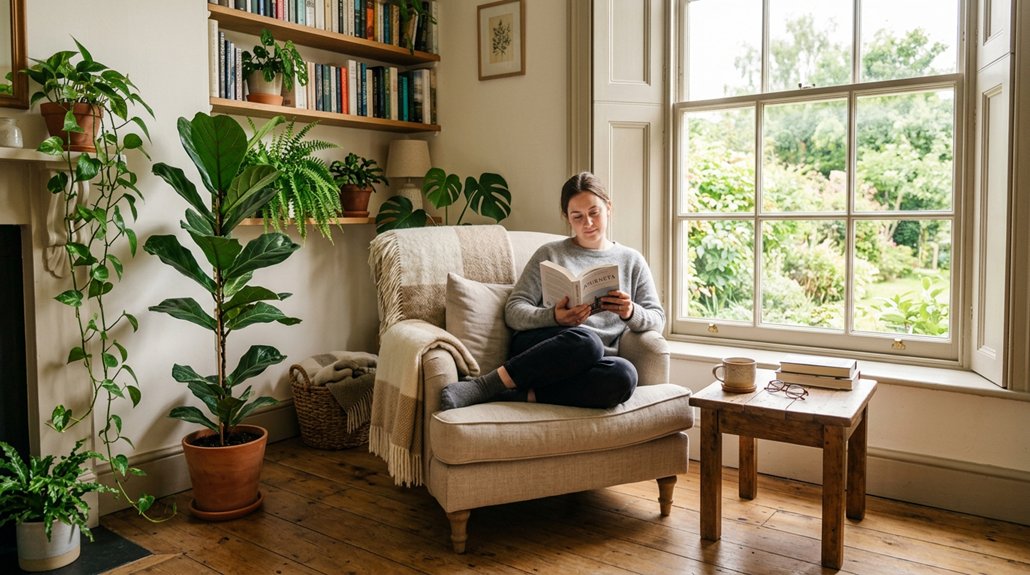
Natural light is the best choice for your eye health because it provides a full spectrum of wavelengths that closely mirror the environment our eyes evolved to see. Exposure to natural light supports healthy vision development and helps regulate circadian rhythms, which can boost overall eye health and sleep quality. Incorporating recycled materials in window treatments or lighting fixtures can contribute to sustainability while optimizing light quality. Properly filtered natural light through UV-protective windows minimizes harmful UV light that can cause permanent damage, like cataracts. It also delivers a balanced color temperature, reducing glare and harsh shadows that contribute to eye strain. Increasing your indoor access to natural light—via windows, skylights, or solar tubes—can lower reliance on artificial lighting, which often emits blue light and flicker, both linked to increased eye fatigue and discomfort.
Best Indoor Lighting for Digital Work and Eye Comfort
Are you looking to optimize your indoor lighting for digital work and reduce eye strain? The best lighting combines layered lighting, adjustable task lighting, and appropriate color temperature.
Use LED bulbs with a color temperature between 4000K and 5000K, which emit natural white light that enhances eye comfort and minimizes digital eye strain. Incorporate adjustable task lighting, like desk lamps, to target light precisely, reducing shadows and screen glare.
Use 4000K–5000K LED bulbs and adjustable desk lamps to reduce shadows and minimize eye strain.
Position your monitor perpendicular to windows and use blinds or shades to cut down natural light glare, preventing visual fatigue. Creating layered lighting with ambient, task, and accent lights provides balanced illumination, avoiding harsh contrasts.
This setup helps you work comfortably for extended periods and supports healthier eyes during screen time.
How to Adjust Your Screen Brightness for Less Eye Strain
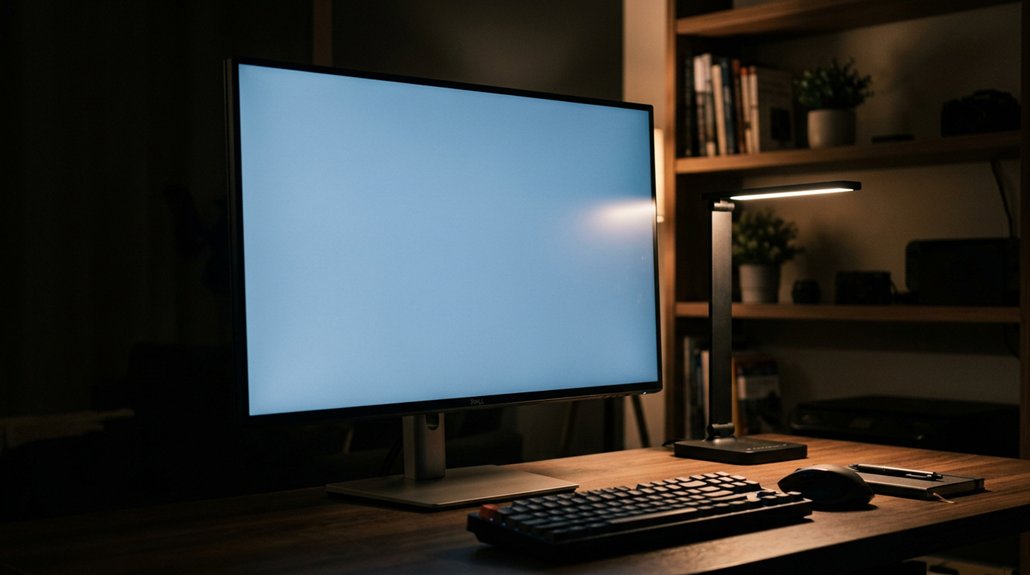
To reduce eye strain, you should match your screen brightness to the surrounding lighting, avoiding displays that are too bright or dim.
Remember to adjust these settings regularly as lighting conditions change throughout the day. Fine-tuning your brightness helps prevent headaches, blurred vision, and dry eyes during extended screen time.
Match Screen and Room Light
Matching your screen brightness to the ambient room light is essential for reducing eye strain, especially during extended screen time. When your screen is too bright or too dim for the surroundings, it forces your eyes to work harder, increasing discomfort.
To optimize visual comfort:
- Adjust your screen brightness to prevent glare and match the level of ambient light.
- Lower brightness to reduce blue light exposure and lessen eye fatigue during prolonged use.
- Regularly check lighting conditions and tweak brightness settings accordingly, especially when shifting between daylight and nighttime.
This way, your eyes won’t need to focus as much, easing symptoms like headaches and dry eyes.
Proper matching of screen and room light helps create a balanced environment, easing eye strain and making screen time more comfortable.
Adjust Brightness Regularly
Adjusting your screen brightness regularly helps maintain comfort as lighting conditions change throughout the day. When you adjust brightness to match ambient lighting, you reduce the contrast between your screen and surroundings, easing eye strain. Lowering screen brightness in dim light or increasing it in bright conditions balances visibility, preventing eye muscle fatigue. Reassessing and adjusting screen brightness guarantees your display aligns with natural light conditions, reducing unnecessary visual effort.
| Brighten in sunlight | Dim in low light | Consistent comfort |
|---|---|---|
| Prevents eye strain | Reduces eye muscle fatigue | Keeps eyes relaxed |
| Adjusts contrast | Preserves natural light | Maintains visual comfort |
Reducing Flicker and Blue Light to Protect Your Eyes
Reducing flicker and blue light is essential for protecting your eyes from unnecessary strain and long-term damage. Flickering light, especially from fluorescent lights, causes rapid brightness changes that strain your eyes, trigger headaches, and lead to mental fatigue.
Using flicker-free technology in LEDs provides steady illumination, helping cut down on eye fatigue. Blue light from screens and artificial lights penetrates deeply, increasing risk of digital eye strain and retinal damage.
To shield your eyes, consider protective eyewear with blue light filters or screen covers. Also, choose lighting with warmer color temperatures to minimize blue light exposure.
- Use flicker-free LED lighting instead of fluorescent lights
- Wear protective eyewear with blue light blocking coatings
- Adjust your lighting to reduce blue light and flickering effects
Where You Should Place Lights to Minimize Eye Fatigue
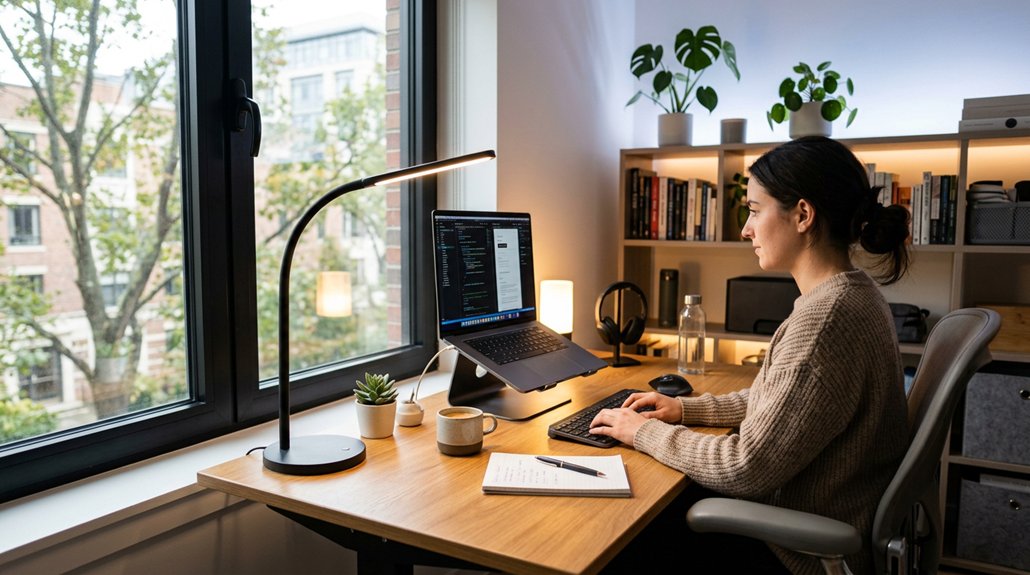
Have you ever noticed how certain lighting placements can cause eye strain? To reduce eye fatigue, position lights strategically around your workspace. Use task lighting like adjustable desk lamps to focus light on your work area, which helps prevent shadows and uneven brightness.
Avoid placement of lights directly in front of or behind your screen to minimize screen reflections and glare. Side lighting works best, providing illumination without creating harsh contrasts.
Install diffused or indirect overhead lighting that bounces off ceilings or walls, creating a soft, even ambient glow. Arrange your desk so natural daylight comes from the side, and use blinds or curtains to control brightness.
Combining these layered lighting strategies guarantees balanced illumination, effectively reducing eye fatigue and making your workspace more comfortable.
Simple Tips to Balance Task and Ambient Lighting at Home
Balancing task and ambient lighting at home is key to creating a comfortable and eye-friendly environment. Proper placement of task lighting, like desk lamps, to the side of your work area helps avoid shadows and reduces eye strain.
Use warm light bulbs with a color temperature between 3500K and 4000K in task lamps and ambient fixtures to promote a balanced lighting setup. Make certain ambient lighting provides soft, diffused illumination around 300–500 lux to prevent harsh contrasts and tire your eyes. Adjust window blinds or sheer curtains to control natural daylight, minimizing glare on screens.
Combining layered lighting—overhead ambient lights with adjustable task lamps—allows you to customize brightness, reduce glare, and maintain balanced lighting that supports comfortable, eye-friendly visual work.
Easy Steps to Create an Eye-Friendly Home Office Lighting Setup
Are you ready to transform your home office into an eye-friendly workspace? Creating the right lighting setup can help reduce eye strain during computer work.
Start by positioning your desk perpendicular to windows to minimize screen reflections and glare. Use adjustable LED desk lamps with a color temperature of 4000K to 5000K and brightness around 500–750 lux for focused task lighting that decreases eye fatigue.
Incorporate layered lighting by combining ambient ceiling lights with task lighting, and use dimmers to help customize illumination based on the time of day. Installing blinds or sheer curtains on windows also helps control sunlight intensity, reducing glare.
Finally, match your screen brightness to ambient lighting, and consider anti-glare screen protectors or blue light filters to further protect your eyes.
Frequently Asked Questions
How Does Lighting Affect Eye Strain?
Lighting affects your eye strain by reducing glare and reflections, balancing ambient and task light, and preventing pupils from constantly adjusting. Proper lighting decreases fatigue, headaches, and blurry vision, keeping your eyes comfortable during screen use.
What Is the 30 30 30 Rule for Eyes?
The 30 30 30 rule tells you to take a 30-second break every 30 minutes by looking at something 30 feet away. It relaxes your eye muscles, reduces fatigue, and helps prevent dryness, headaches, and blurred vision from digital strain.
Are LED Lights Ok for Lupus?
Yes, LED lights are generally okay for lupus if you choose flicker-free, low UV, blue light filtering, and warm white options. Always guarantee adjustable brightness and consult your healthcare provider for personalized advice to avoid flare triggers.
What Lighting Reduces Eye Strain?
You should use warm, natural light or full-spectrum bulbs with flicker-free technology, combined with layered ambient, task, and accent lighting at proper levels, while avoiding glare and controlling sunlight, to effectively reduce eye strain.
In Summary
Proper lighting keeps your eyes comfortable and reduces strain by maintaining ideal light levels, minimizing glare, and avoiding harsh reflections. By balancing natural and artificial light and positioning your lights carefully, you help your eyes stay relaxed and focused. Simple adjustments, like controlling brightness and reducing blue light, can make a big difference. Prioritize good lighting in your home and workspace to protect your vision and enjoy clearer, more comfortable sight every day.



