
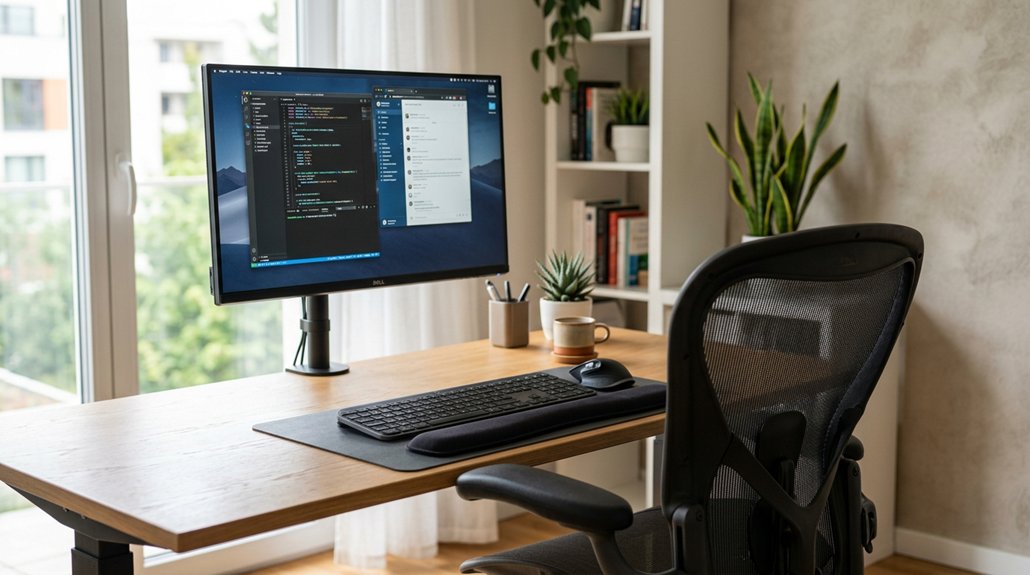
To sit correctly at your computer desk, keep your back straight with good lumbar support, and sit fully back in your chair. Your monitor should be at eye level, about an arm’s length away, while your keyboard and mouse are positioned so your elbows stay at 90-120 degrees with relaxed shoulders. Keep your feet flat on the floor or a footrest, and take breaks often to stretch and move. If you want to learn more tips, keep exploring these essential practices.
Why Proper Sitting Posture Matters for Your Health
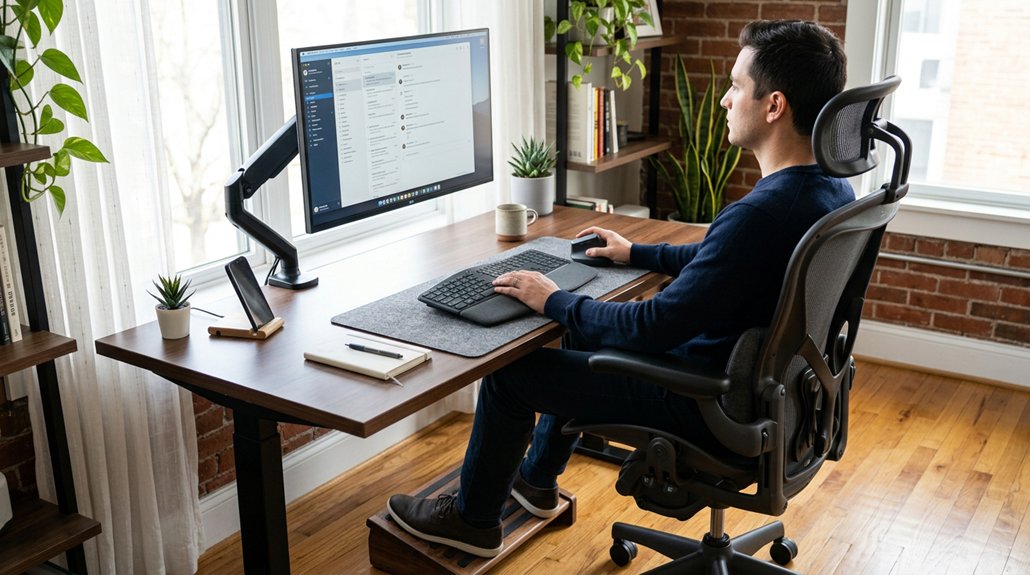
Why does your sitting posture matter for your health? Sitting with poor posture, especially during prolonged periods, can cause neck and back pain, increasing the risk of musculoskeletal disorders like disc herniation and sciatica.
Using good lumbar support helps maintain a natural spine curve, reducing strain. Avoid forward head posture, which doubles pressure on your cervical spine and can lead to headaches, neck strain, and arm numbness.
Good lumbar support preserves your spine’s natural curve, preventing neck strain and related discomfort.
When you sit correctly, your muscles stay relaxed, and your joints are less stressed, preventing long-term damage. Proper posture also boosts your overall health by improving breathing, digestion, and energy. Additionally, ergonomic support technology—such as specially designed cushions and adjustable straps—can further enhance your sitting posture.
Taking steps to improve your sitting alignment is essential to prevent discomfort and protect your spine and health over time.
How to Adjust Your Chair and Desk for Comfort
Start by adjusting your chair height so your feet sit flat on the floor and your knees form a 90-120° angle.
Then, set your desk height to keep your shoulders relaxed and your elbows bent comfortably at 90-120°, with enough space underneath.
Finally, position your armrests properly to support your arms near your body without lifting your shoulders, ensuring they offer ergonomic support during long periods of use.
Chair Height Adjustment
To guarantee a comfortable sitting position, begin by adjusting your chair height so your feet rest flat on the floor or a footrest, with knees bent at a 90-120° angle, ideally slightly below your hips. This positioning assures proper circulation and reduces strain.
To optimize comfort:
- Make certain your thighs are parallel to the floor, with 2-3 finger widths of space between the seat edge and your knees.
- Use lumbar support to maintain the natural curve of your lumbar spine.
- Adjust the chair height so your hips are slightly higher than your knees for better posture.
- Additionally, selecting a chair with adjustable lumbar support can greatly enhance lower back comfort and spinal alignment during long hours of sitting.
These adjustments help keep your legs and back properly aligned, prevent pressure points, and support long-term ergonomic health.
Desk Clearance Optimization
Adjusting your desk height and ensuring proper clearance are key steps to maintaining a comfortable and ergonomic working posture. Make sure there’s enough leg space under your desk by avoiding clutter or storage items that block your feet. Your feet should rest flat on the floor or a footrest, keeping your knees at or slightly below hip level to promote proper alignment. If your desk is too low, raise it with stable boards or blocks to achieve ideal height; if it’s too high, raise your chair and use a footrest to prevent strain. Maintain 2-3 finger widths of space between the front edge of your chair and the back of your knees to support circulation. Clear hard edges or add padding at the desk’s underside to prevent arm and wrist strain. Additionally, choosing a desk with appropriate under-desk clearance can greatly improve your overall comfort and allow for better movement throughout the day.
Proper Arm Support
Ensuring proper arm support is essential for maintaining comfort and preventing strain during long periods of work. To achieve this, adjust your chair armrests so your elbows stay close to your body with shoulders relaxed, forming a 90-120 degree angle at the elbow.
Keep your forearms parallel to the floor and supported by armrests or the desk surface to avoid shoulder and wrist fatigue. Position your keyboard 4-6 inches from the desk edge to keep your wrists in a neutral position and allow your forearms to rest comfortably.
Select an adjustable chair with armrests that can vary in height, width, and angle for personalized support. Keep your mouse within easy reach on the same surface as your keyboard to prevent overreaching and maintain proper arm alignment.
Position Your Monitor, Keyboard, and Mouse Correctly
To prevent strain, position your monitor directly in front of you at an arm’s length, with the top at or slightly below your eye level.
Keep your keyboard 4-6 inches from the desk edge so your wrists stay supported and your forearms stay parallel to the floor. Place your mouse close to the keyboard on the same surface for easy access and reduced shoulder tension. Using an ergonomic keyboard with a split layout and adjustable tilt can further promote a neutral hand posture and reduce wrist strain during extended typing sessions.
Monitor Height and Distance
Position your monitor directly in front of you at an arm’s length—ideally between 18 to 24 inches—to reduce eye and neck strain. The top of your computer monitor should be at or slightly below eye level to keep your head in a neutral spine position and prevent neck forward tilt.
Use a monitor stand or adjustable arm to set the correct monitor height. If you wear bifocals, lower the screen by 1-2 inches to avoid tilting your head back.
- Guarantee the monitor height promotes a relaxed head position
- Keep the monitor within arm’s length distance for peak ergonomics
- Use monitor stands or adjustable arms to fine-tune height and eye level
- Incorporating height adjustability options ensures the optimal ergonomic setup for diverse users and tasks
Keyboard and Mouse Placement
Proper placement of your keyboard and mouse is essential for maintaining comfort and preventing strain during extended use. Position your keyboard 4-6 inches from the desk edge to support your wrists and stop forward reaching that can cause shoulder rounding. Keep your wrists neutral and straight, aligned with your forearms, with your hands floating above the keyboard to reduce tension. Place the mouse close to the keyboard at the same height and within easy reach to avoid excessive arm extension or shoulder rotation. Adjust your mouse sensitivity for a light touch, minimizing grip tension and repetitive strain. Guarantee your forearms are parallel to the floor and your elbows are bent at 90-120 degrees. Keep your shoulders relaxed and elbows close to your body while working to maintain ideal ergonomic position. Additionally, using an ergonomic mouse pad with wrist support can greatly enhance wrist comfort and promote proper alignment during prolonged computer use.
Set Your Feet, Legs, And Hips for Proper Support

Begin by planting your feet flat on the floor or resting them on a footrest to guarantee stable support. This helps keep your lower back relaxed and reduces strain when you sit for long periods. Using an adjustable footrest can also promote proper circulation, which is essential for maintaining comfort and preventing fatigue. Confirm your knees form a 90-120 degree angle, aligned with or slightly lower than your hips, for ideal support. Avoid crossing your legs, knees, or ankles, as this can cause circulatory issues and misalign your spine. Keep a small 2-3 finger space between your knees and the front of the chair to prevent pressure behind your knees. Also, make sure your thighs are parallel to the floor and your hips are neutral. Using a footrest can make a big difference in maintaining comfort and proper posture during your workday.
Keep Your Upper Body and Head in a Relaxed, Neutral Position
Keeping your upper body and head relaxed and in a neutral position helps prevent muscle strain and supports overall good posture. Keep your back straight and maintain neutral spine alignment by sitting fully back in your chair with proper support.
Your head should face forward, aligned with your torso, to reduce neck tension and avoid slumping. Relax your shoulders, ensuring they’re relaxed and not hunched, with elbows close to your body at a 90-120 degree angle. This position helps prevent upper back and shoulder tension.
Keep your forearms parallel to the floor and lightly resting near your keyboard, avoiding fatigue or strain in your shoulders and arms. Consistently maintaining this relaxed, neutral posture promotes comfort and helps prevent musculoskeletal issues.
Use Ergonomic Accessories Like Lumbar Supports and Wrist Rests
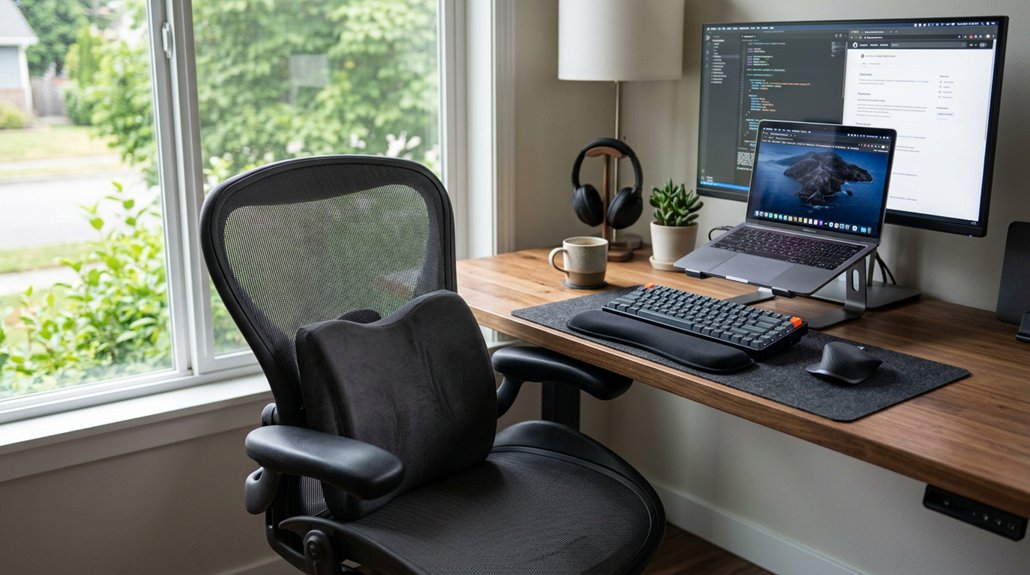
Ergonomic accessories like lumbar supports and wrist rests play a crucial role in maintaining correct posture and preventing discomfort during long hours of sitting. Lumbar supports help keep your lower back’s natural curves, reducing the risk of kyphosis, strains, and disc herniation.
Adjustable lumbar supports guarantee a proper fit to your spinal curves, boosting comfort and spinal health. Wrist rests, used during typing breaks, support your wrists without applying pressure, helping prevent repetitive strain injuries.
To maximize their benefits:
- Position the keyboard 4-6 inches from the desk edge with wrist rests
- Keep wrists in a neutral, straight alignment with forearms
- Use lumbar supports to support the spine’s natural lordotic curve
- Incorporate cushions designed with supportive, high-density memory foam, to enhance ergonomic comfort throughout extended periods of sitting
Incorporating ergonomic accessories like these promotes better posture and reduces muscle fatigue all day long.
Incorporate Movement and Stretch Breaks Into Your Day
Integrating movement and stretch breaks into your daily routine can considerably boost your comfort and prevent muscle stiffness during long periods of desk work. Every hour, take a 10-minute micro-break to walk around, stretch, or shift positions—these simple actions promote spinal health and relieve muscle tightness. Remember the 20/20 rule: every 20 minutes, stand or move for 20 seconds to boost blood flow and activate muscles. Incorporate essential stretches like neck tilts, shoulder shrugs, spinal rotations, and hip flexor stretches regularly. Using supportive footrests can also promote proper posture and circulation during prolonged sitting. Use timers or apps as reminders to stay consistent with your micro-breaks. Maintaining this habit helps prevent static posture strain and keeps you feeling energized throughout your workday.
Common Poor Posture Habits and How to Fix Them
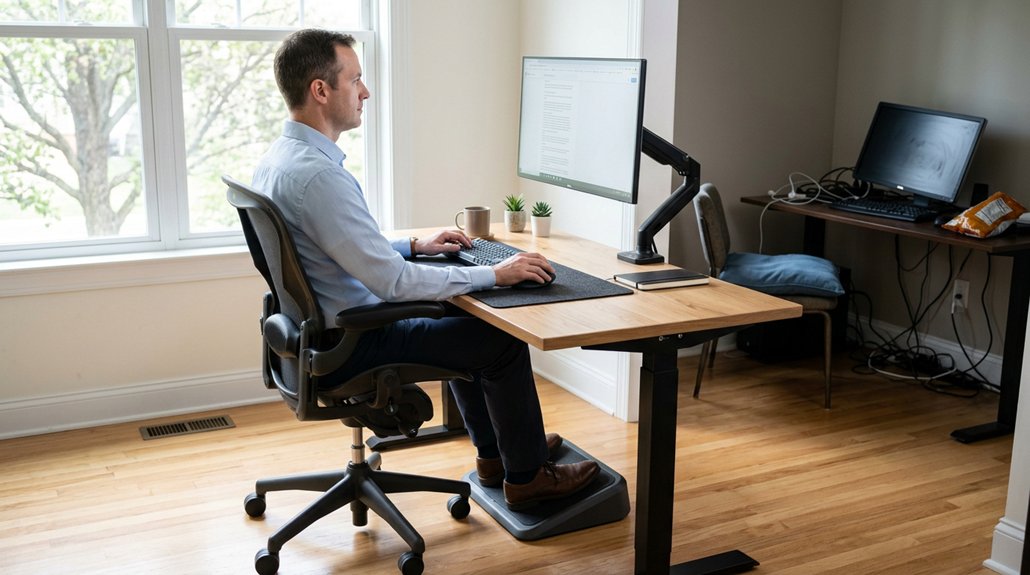
Poor posture habits often develop subtly during long hours at your desk, but they can lead to discomfort and long-term musculoskeletal issues if left uncorrected.
Common issues include crossing legs, which hampers circulation, and slouching, which flattens the spine’s natural curves. Moving your monitor to eye level and about an arm’s length away helps prevent forward head posture and cervical strain. Reaching too far for your keyboard and mouse causes shoulder and upper back strain.
To fix these habits:
- Keep your feet flat on the floor, with hips and knees at 90 degrees.
- Sit back fully with lumbar support to maintain proper posture.
- Place your monitor correctly to avoid leaning forward, and keep your arms at arms length away from external keyboard and mouse.
Frequently Asked Questions
What Is the 90-90-90 Rule for Sitting?
The 90-90-90 rule means you keep your hips, knees, and ankles each bent at 90 degrees, with your hips slightly above or at knee level, feet flat, and back straight to maintain ergonomic posture and reduce strain.
What Is the 20/8-2 Rule for Standing Desks?
The 20/8-2 rule for standing desks suggests you stand for 20 minutes, sit for 8, then move for 2 minutes each half hour. It helps maintain circulation, reduce fatigue, and promote movement during work.
What Is the Most Unhealthy Sitting Position?
You sit most unhealthily when you slouch, lean forward, cross your legs, or tilt your head forward. These positions flatten your spine, increase pressure, strain your neck, and cause muscle imbalances, risking pain and injury over time.
Can Ergonomics Help With Back Pain?
Yes, ergonomics help with back pain by promoting proper spinal alignment, providing lumbar support, adjusting chair height, and encouraging breaks. These strategies reduce strain, improve circulation, and prevent muscle fatigue, keeping your back healthier over long periods of sitting.



