
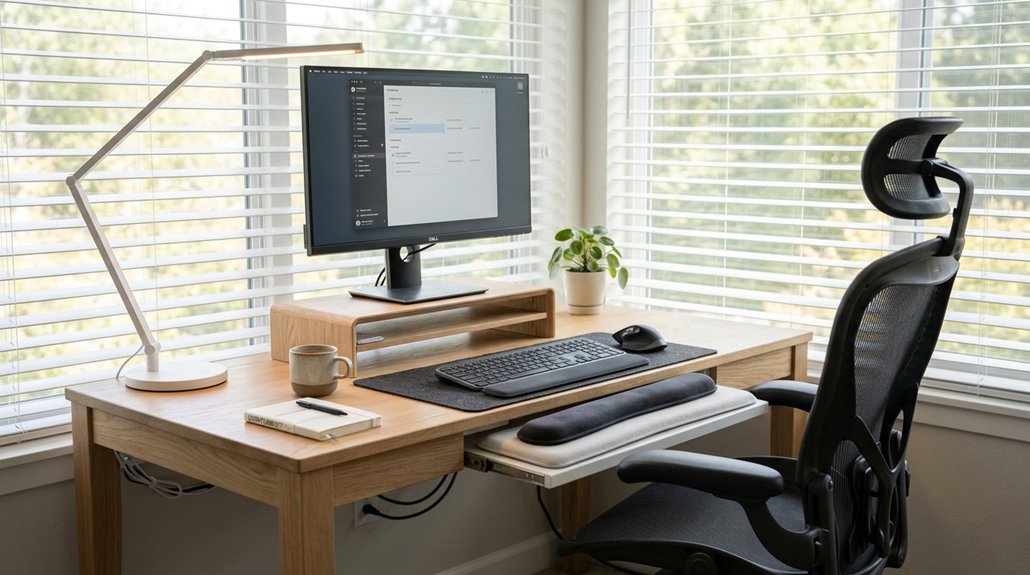
To prevent neck pain, set your workspace with an adjustable monitor aligned with your eye level, about arm’s length away, and tilted back slightly. Keep your keyboard and mouse close to avoid overreaching, and use footrests or lumbar supports to maintain proper posture. Guarantee good lighting to reduce glare, organize items within reach, and take regular breaks to stretch and move. For more tips on creating the perfect setup, continue exploring this guide.
Assess Your Workspace to Find Neck Strain Risks
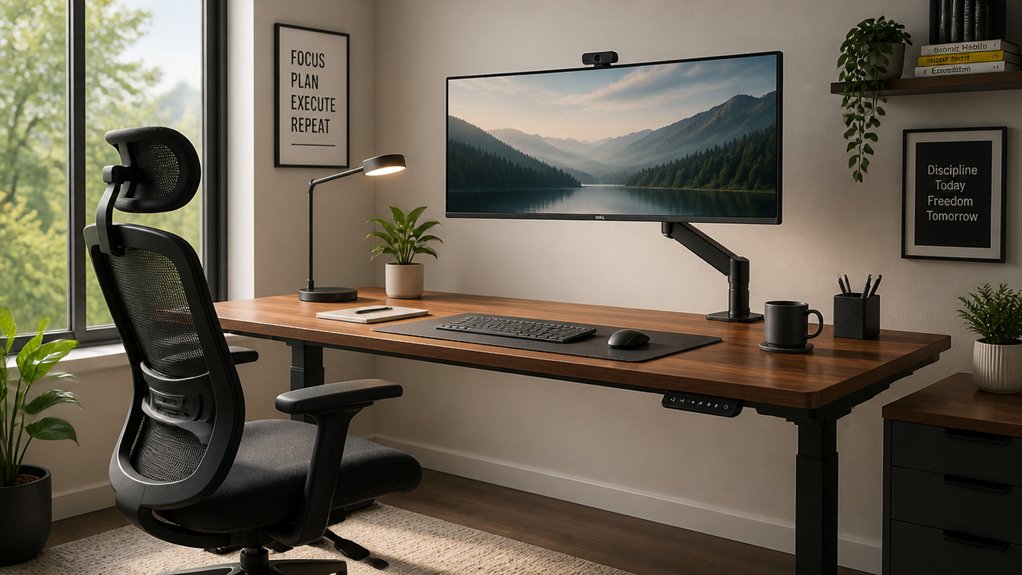
Before making ergonomic changes, you should assess your workspace to identify potential neck strain risks.
Start by checking your monitor—its top should be aligned with your eye level and about an arm’s length away to prevent forward head tilt, which can increase neck strain by nearly 50 pounds.
Adjust your chair height so your feet are flat on the floor or supported by a footrest, maintaining hips and knees at roughly 90 degrees to promote proper pelvic alignment and reduce neck and back tension.
Evaluate your keyboard and mouse placement: elbows should be bent at 90-100 degrees with relaxed shoulders, and wrists kept straight.
Also, watch for habits like slouching or leaning forward, which load your neck muscles unnecessarily.
Implementing an ergonomic footrest can help improve posture and reduce overall strain during prolonged sitting.
Maintaining these basics can greatly lower strain risks.
Choose Ergonomic Desks and Chairs That Support Your Neck
Choosing the right ergonomic desk and chair is key to supporting your neck comfortably. Look for adjustable height features and good lumbar support to keep your spine in a neutral position. A well-designed chair with adjustable lumbar cushions can further reduce neck strain by promoting proper spinal alignment.
Adjustable Height Features
An ergonomic workspace also includes a chair with lumbar support, keeping your pelvis stable and spine neutral. Additionally, positioning your monitor top at eye level prevents downward or forward head tilt that exponentially increases neck load. Ensuring your desk height aligns with your body’s natural sitting or standing position is crucial for comfort and health, and adjustable desks can provide this precise height range for optimal ergonomics. By using height-adjustable workstations, you can easily switch between sitting and standing, avoiding prolonged static postures. Remember these benefits:
- Feel relief from neck and back pain thanks to personalized adjustments.
- Experience less fatigue by maintaining proper alignment throughout the day.
- Empower yourself with a flexible workspace that promotes comfort and productivity.
Proper Lumbar Support
To support your neck effectively, selecting ergonomic chairs with proper lumbar support is essential. Proper lumbar support maintains the natural lordotic curve of your lower spine, preventing slumping that can increase neck strain. When your chair offers adjustable lumbar support, it helps tilt your pelvis slightly forward, stabilizing your posture from the hips up and reducing tension in your neck muscles. Ensuring your chair supports the lumbar region decreases the tendency to slouch and forward head posture, which can add significant load to your neck—up to nearly 50 pounds during slouching. Look for chairs with contoured backrests and firmness that matches your lower back’s natural shape. Combined with a proper desk height, this promotes neutral spine alignment, preventing chronic neck discomfort and promoting overall comfort. Breathable material choices also contribute to maintaining comfort and skin health during long hours.
Position Your Monitor at Eye Level for Better Posture
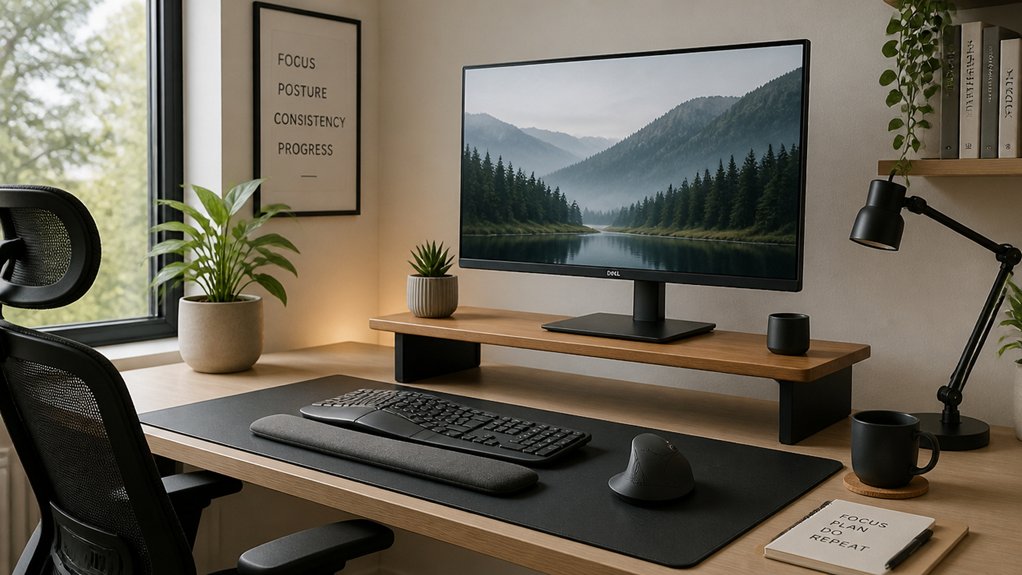
Positioning your monitor at eye level is essential for maintaining proper neck posture and reducing strain. When the top of the screen is at or slightly below eye level, you keep your neck in a neutral position, preventing forward or downward head tilt that causes Neck Pain. A suitable adjustable monitor stand can help you achieve this ergonomic setup by allowing customized height adjustments. To do this effectively:
Proper monitor height maintains neck health by preventing strain and supporting a neutral head position.
- Adjust the height of your monitor so the top of the screen aligns with your eyes.
- Keep the monitor approximately one arm’s length away, about 20-28 inches, to prevent leaning forward.
- Tilt the screen back 10-20 degrees to reduce glare and promote a natural neck position.
Arrange Your Keyboard and Mouse to Reduce Wrist and Shoulder Tension
After confirming your monitor is at eye level, the next step is arranging your keyboard and mouse properly to prevent wrist and shoulder discomfort. Place your keyboard directly in front of you at a height that allows your elbows to form a 90 to 100-degree angle, keeping shoulders relaxed. Use an ergonomic keyboard, such as split or no-number-pad designs, to promote a natural wrist position. Keep your mouse close and on the same surface to avoid overreaching, which reduces strain on your upper arms and shoulders. Make certain your wrists stay straight, with forearms parallel or slightly downward while typing and clicking. Adjust mouse sensitivity for effortless movements, minimizing grip tightness. To further improve comfort, consider ergonomic design factors like adjustable tilt angles and supportive palm rests. Proper placement and ergonomics help decrease wrist tension and shoulder fatigue, supporting a healthier, pain-free work environment.
Use Footrests or Support for Better Leg and Back Alignment
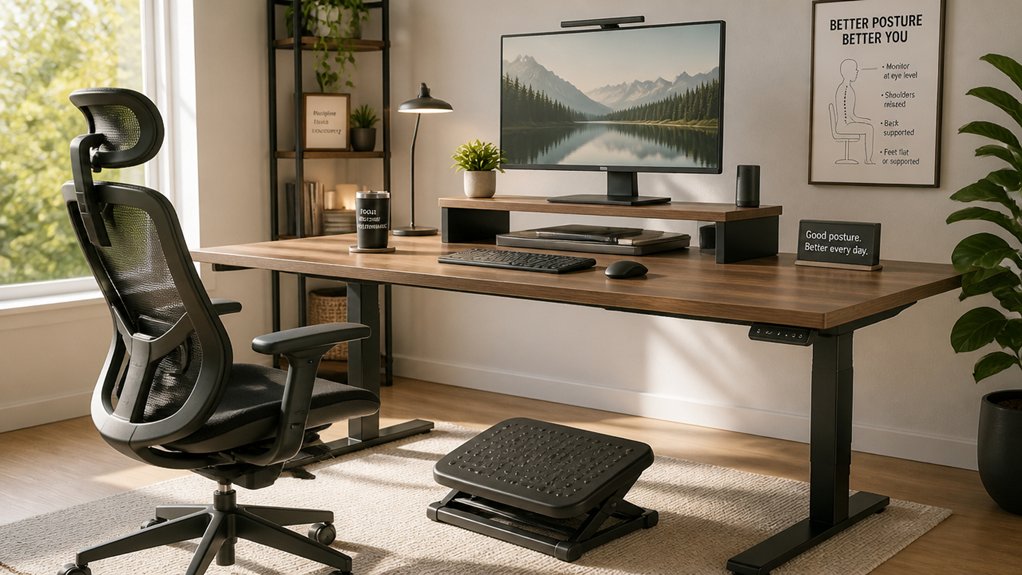
Using a footrest helps you keep your feet flat and supported, promoting better leg and back alignment. It prevents dangling feet, reduces lower back pressure, and improves circulation. A well-designed footrest also encourages proper posture by providing height adjustment options, ensuring your feet are comfortably supported at the correct angle.
Proper Foot Placement
Placing your feet flat on the floor or on a supportive footrest helps keep your hips, knees, and ankles at roughly 90-degree angles, which promotes better leg and back alignment. This stance encourages a healthy lumbar curve and supports your posture, reducing strain on your lower back. Incorporating a rocking mechanism can further promote active leg movement, boost circulation, and help alleviate stiffness. Consider these steps to optimize your setup:
- Use a footrest if your feet don’t reach the floor comfortably; this prevents dangling feet and pelvic instability.
- Keep your feet flat on the floor or footrest to maintain even weight distribution and promote circulation.
- Adjust your foot placement to help tilt your pelvis slightly forward, fostering neutral spine alignment and alleviating neck and back tension.
Proper foot placement is key to minimizing discomfort and supporting your overall posture stability.
Enhanced Postural Support
Enhancing your postural support with the right footrests and ergonomic supports helps maintain proper leg and back alignment, which is essential for preventing neck strain. Using a footrest guarantees your feet are flat and supported if they don’t reach the floor, promoting proper hip and pelvic alignment. Proper leg positioning, with thighs parallel to the floor and knees at about 90 degrees, stabilizes the pelvis and supports a neutral spine. Combined with lumbar support, this prevents slumping and maintains the natural curve of your lower back, reducing neck muscle tension. Additionally, proper support improves circulation and minimizes muscle fatigue. Here’s how these supports complement each other:
| Support Type | Function | Key Benefit |
|---|---|---|
| Footrest | Elevates feet for proper leg positioning | Prevents pressure and supports alignment |
| Lumbar support | Maintains lower back’s natural curve | Avoids slumping and neck tension |
| Ergonomic chair | Promotes proper leg and back positioning | Supports neutral spine |
| Proper position | Guarantees thighs parallel to floor | Stabilizes pelvis for overall posture |
Alternate Sitting and Standing to Prevent Muscle Fatigue
Alternating between sitting and standing during your workday can effectively reduce muscle fatigue and prevent the strain caused by prolonged static postures. Using an alternative sitting and standing setup, like a standing desk, helps maintain a neutral neck position and lessens strain.
Switching between sitting and standing reduces muscle fatigue and prevents strain from static postures.
To optimize comfort, remember to keep your monitor at eye level to avoid tilting your neck downward or upward. Incorporating these changes can help you:
- Feel more energized and less fatigued throughout the day
- Improve posture by reducing muscle tension and neck stress
- Achieve a balanced routine that minimizes the risk of pain from static positions
Switching positions regularly keeps your muscles active, preventing stagnation and discomfort, ultimately supporting long-term neck and overall muscle health.
Add Proper Lighting to Minimize Eye and Neck Strain
Maintaining good posture during your workday isn’t just about how you sit or stand; proper lighting plays an essential role in reducing eye and neck strain. Adequate lighting prevents you from leaning forward or tilting your neck to see clearly, helping maintain a neutral neck posture. Natural light boosts your mood and lessens visual fatigue, making it easier to sit comfortably. Position light sources to avoid glare or reflections on your monitor, as glare pushes you toward awkward head positions that increase neck tension. Use adjustable desk lamps to focus light on your work materials, minimizing the need to lean or tilt your head.
| Proper Lighting Tips | Benefits |
|---|---|
| Use adjustable desk lamps | Focused lighting reduces neck strain and eye fatigue |
| Balance ambient lighting | Maintains neutral neck posture and prevents contrast issues |
| Avoid glare and reflections | Prevents awkward head positions and discomfort |
Organize Frequently Used Items Within Reach to Avoid Twisting
To prevent unnecessary neck twisting and strain, it’s important to keep your frequently used items within easy reach. Place items like your phone, pens, and documents directly in front or within a 20-28 inch arm’s length. This minimizes the need for reaching or twisting your neck, which can damage your cervical spine over time.
Keep essential items within 20-28 inches to reduce neck twisting and strain.
Consider these tips:
- Keep your phone, documents, and writing tools aligned straight ahead.
- Arrange secondary objects on your dominant hand’s side to prevent excessive torso rotation.
- Use desk organizers or trays to group essentials, reducing awkward neck and shoulder movements.
Staying organized helps you avoid constant craning and twisting, protecting your neck from strain and maintaining better spinal alignment throughout your workday.
Take Regular Breaks and Do Neck Stretches to Relieve Tension
Taking regular breaks and doing neck stretches is essential for preventing stiffness and reducing pain caused by prolonged sitting. You should take frequent breaks every 30 to 60 minutes to perform neck stretches like chin tucks and neck side stretches. These exercises help reduce strain on your neck muscles and prevent chronic pain.
During your breaks, incorporate simple movements like backward shoulder rolls and “No Moneys” exercises to loosen tension in your upper back and shoulders, which can contribute to neck discomfort. Stretching exercises held for 15-20 seconds on each side boost neck mobility and help alleviate built-up tension.
Regular movement breaks and neck stretches break up static postures, improve blood flow, and protect against long-term neck issues caused by prolonged sitting.
Incorporate Ergonomic Accessories for Long-Term Neck Health
Incorporating ergonomic accessories into your workspace can greatly promote long-term neck health by supporting proper posture and reducing strain.
Enhancing your workspace with ergonomic accessories supports proper posture and helps prevent neck strain over time.
Start with a chair featuring lumbar support and a footrest; this keeps your hips, knees, and ankles at 90 degrees, aligning your spine and easing neck tension. Use a monitor arm or stand to position the monitor top at eye level and about one arm’s length away. This prevents forward head tilt and reduces cervical spine load.
Consider ergonomic keyboards and mice kept close to your body, with wrists straight and shoulders relaxed to minimize upper trapezius strain.
Prioritize these accessories:
- Lumbar support chair for ideal spine alignment
- Adjustable monitor stand for perfect screen height
- Laptop stand to keep your neck neutral during portable work
Frequently Asked Questions
How to Set up a Desk to Avoid Neck Pain?
You should position your monitor at eye level, keep it an arm’s length away, and adjust your chair and desk to maintain neutral angles for your elbows, hips, and knees. Keep items close and take regular breaks.
What Kind of Desk Is Best for Neck Pain?
The best desk for neck pain is height-adjustable, allowing you to keep your monitor eye level and elbows at 90-100 degrees. It offers ample space for your legs, and supports alternating between sitting and standing positions.
How Do You Stop Neck Pain From Sitting at Desk?
You stop neck pain by adjusting your chair and monitor to maintain proper alignment, taking regular breaks for neck stretches, and keeping items within reach, using ergonomic accessories to guarantee relaxed shoulders and a neutral spine while working.
What Are the 5 D’s for Neck Pain?
The 5 D’s for neck pain are Desks, Devices, Distance, Directions, and Detachment. You should adjust your desk, properly position devices, maintain appropriate distance, keep monitors facing forward, and take regular breaks to prevent neck strain.



