
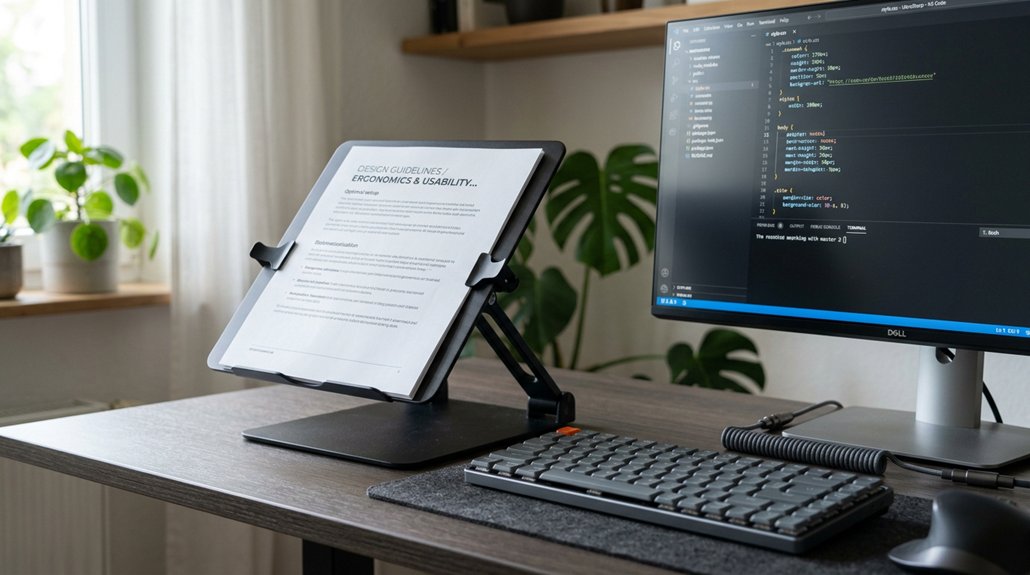
To reduce eye strain, you should tilt your documents at an angle of 15° to 20°. This slight tilt aligns the document surface with your natural gaze, minimizing the need for frequent refocusing and head movement. Positioning your documents just below eye level and matching the tilt with your monitor helps you maintain a comfortable posture. Keep learning how proper setup can make your workspace more ergonomic and less tiring.
Why Correct Document Angles Are Essential for Eye Comfort
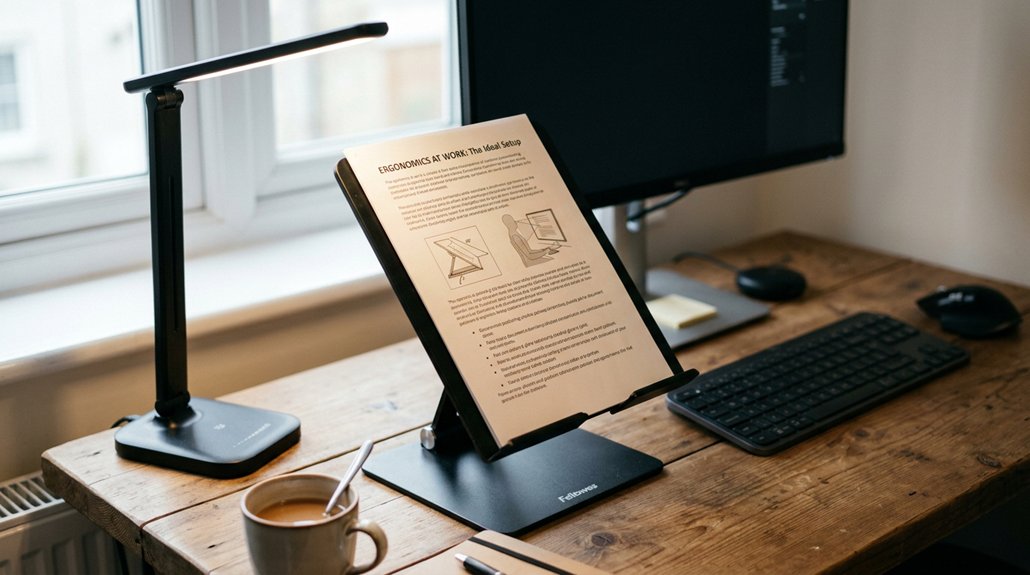
Proper document angles are essential for maintaining eye comfort because they help reduce the need for constant refocusing and unnecessary head movements. When your document is well-aligned, you achieve proper viewing, which minimizes eye strain during screen use. Using an adjustable copyholder to keep reference materials aligned with your monitor helps maintain a consistent focal distance, decreasing visual fatigue. Positioning documents slightly below the monitor at the same viewing distance (about 20–28 inches) reduces excessive eye adjustments. Additionally, tilting documents to avoid glare and reflections improves contrast and readability, further easing eye discomfort. Correct document angles also promote ergonomic posture, preventing neck and shoulder strain that can worsen digital eye strain symptoms. The variability in features and adjustable mechanisms of modern document holders ensures that users can customize the setup for optimal comfort, supporting ergonomic support and reducing strain during prolonged use. This careful alignment supports comfort and helps protect your eyes during prolonged work sessions.
Optimal Viewing Angles for Reading and Screen Use
To minimize eye strain when reading or working at a screen, maintaining an ideal viewing angle is essential. Position your screen with the top slightly below eye level, about 15–20 degrees downward, so your eyes are looking downward comfortably. This reduces the effort needed for focusing and minimizes muscle discomfort. Using anti-glare screen protectors with blue-light filtering technology can further decrease eye fatigue by blocking high-energy visible blue light. Keep your documents or reference materials at a similar height to the screen, about 20–28 inches away, to support good posture and decrease visual fatigue. Tilting the screen slightly away can help avoid glare and improve readability. When your screen is angled properly with a downward viewing angle of roughly 10–20 degrees, you’ll find it easier to avoid glare and reduce eye strain. Keeping a consistent and ergonomic angle is key to comfortable, strain-free viewing.
How to Set Up Your Desk for Better Document Positioning
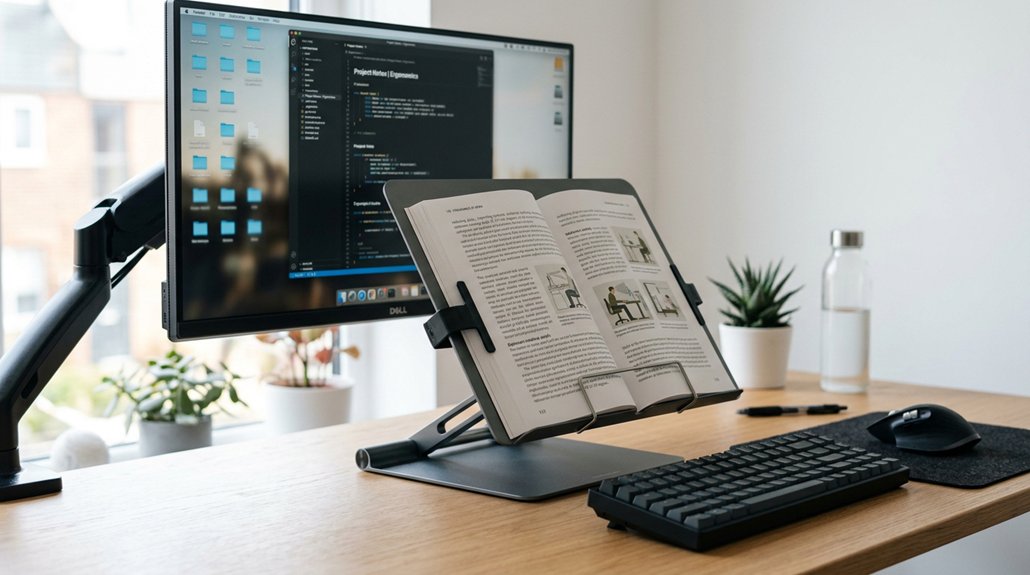
Are you making the most of your desk setup to reduce eye and neck strain? To do this, avoid positioning documents too far from your computer screen. Use an adjustable copyholder to align documents at a comfortable angle and roughly the same height as your monitor, minimizing frequent eye refocusing and neck movement.
Place reference materials above your keyboard and below the monitor so your eyes move minimally between documents and the screen. Tilt documents slightly to match the monitor’s 10–20 degree backward tilt, reducing glare and making them easier to read.
Keep documents about 20–28 inches from your eyes, matching the screen distance to decrease unnecessary eye muscles’ strain. Proper setup supports better posture and lessens eye, neck, and shoulder fatigue during long work sessions.
Effective Ways to Use Stands and Book Holders
Using stands and book holders effectively can greatly reduce strain by positioning your reference materials at an ideal height and angle. Keep your document angle between 15° and 30° to minimize neck and eye strain, aligning your line of sight naturally. Place stands or book holders at about the same distance as your monitor (20–28 inches) to avoid unnecessary refocusing. Keep documents parallel or slightly tilted toward you, allowing easier reading without awkward head movements. Proper placement supports ergonomic posture and reduces eye muscle fatigue. To summarize, the right setup makes a significant difference: Adjustable height and angle features can help customize your workspace for optimal comfort and reduce strain.
Benefits of Slightly Tilting Your Documents When Reading
Tilting your documents slightly can greatly improve your reading comfort by aligning them more naturally with your screen. This technique promotes a downward viewing angle of about 10–20 degrees, helping to reduce eye muscle strain and the need for frequent refocusing.
When you tilt documents slightly, you create a smoother visual shift between the text and your monitor, which enhances reading efficiency and minimizes digital eye strain. Using an adjustable copyholder allows you to position your documents just below the monitor, minimizing unnecessary neck and eye movements.
Properly aligning documents with the screen’s angle supports ergonomic posture, reducing neck and shoulder discomfort during long hours at your desk. Overall, slight tilting makes your workspace more comfortable and promotes healthier viewing habits.
Common Mistakes That Cause Eye Fatigue: And How to Avoid Them
Incorrect document placement and poor lighting are common mistakes that can quickly tire your eyes. When documents aren’t aligned properly or lighting is too dim or harsh, your eyes work harder to focus and adjust.
To avoid fatigue, keep documents at the right angle and guarantee your workspace is well-lit and comfortable.
Incorrect Document Placement
Placing reference documents flat on your desk forces your eyes to constantly refocus and your neck to adjust movements, which can quickly lead to eye and neck strain. Instead, position the computer screen, feet away every, and documents at the same height and angle as the monitor. Using a copyholder helps align documents close to the center of the screen. Keep documents tilted 15 to 20 degrees away from you to maintain a natural downward gaze. Ensuring your workspace employs flicker-free illumination further reduces visual discomfort during prolonged tasks.
Poor Lighting Conditions
Poor lighting conditions can greatly contribute to eye fatigue during work. Glare from light sources or windows causes eye discomfort and makes focusing more difficult.
When working from home, inconsistent lighting or too much sunlight can worsen eye strain. Avoid placing your computer near windows that create glare and use curtains or blinds to control light levels.
Well-placed lighting, such as adjustable lamps, helps reduce eye effort. Focus on evenly illuminating your workspace, minimizing shadows and contrast between bright screens and dark surroundings.
Proper lighting allows your eyes to maintain relaxed focus, reducing the need for frequent refocusing and preventing fatigue. Incorporating full-spectrum LED lighting, which mimics natural daylight, can further enhance visual comfort. By managing lighting conditions carefully, you support your eye health and improve overall comfort during long work sessions.
Equipment and Tools to Maintain Proper Document Angles
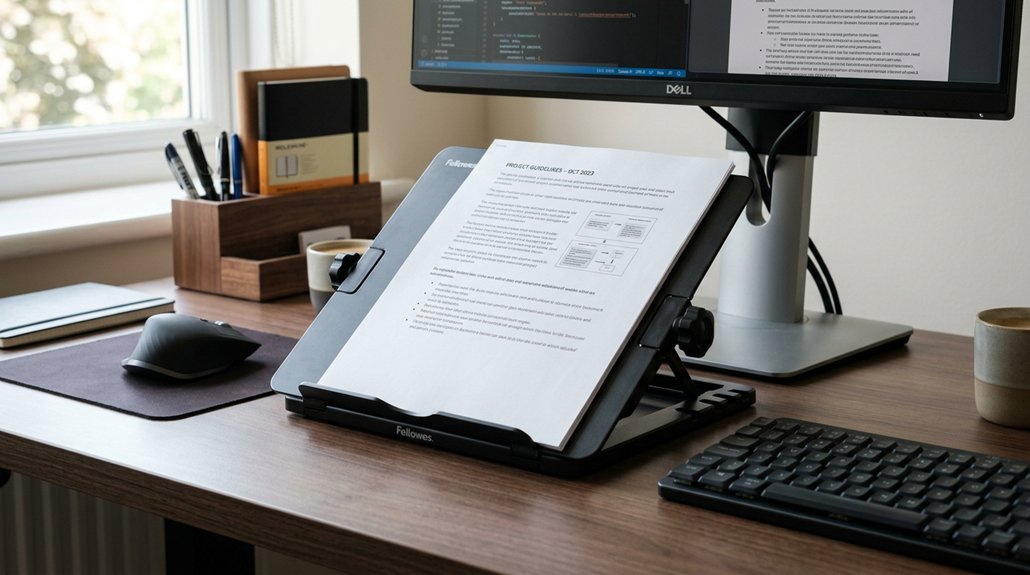
Using adjustable document holders and positioning your materials at the right angle helps keep your eyes comfortable and reduces strain. Aligning reference items with your screen minimizes constant refocusing, making your workflow more efficient. Proper equipment setup encourages better posture and less discomfort during extended computer use. Incorporating ergonomic design into your setup can further enhance comfort and prevent fatigue.
Adjustable Document Holders
Adjustable document holders are essential tools for maintaining proper viewing angles and reducing eye strain during prolonged computer use. By using an adjustable document holder, you can position documents at a slight downward angle of about 15 to 20 degrees, aligning them with your monitor height. This setup helps keep your line of sight consistent, limiting unnecessary neck and eye movement.
A well-designed holder can also incorporate ergonomic features, promoting better posture and reduced fatigue over extended periods. Placing documents just below or slightly below the monitor minimizes refocusing effort, easing visual fatigue. An adjustable holder allows you to personalize your ergonomic setup, ensuring your materials stay close to the screen and reducing strain from looking back and forth.
Properly angled document holders facilitate seamless shifts for your eyes, making extended work sessions more comfortable and less tiring.
Ergonomic Monitor Placement
Ever wondered how to optimize your workspace for comfort and productivity? Proper monitor placement starts with centering your screen directly in front of you, keeping the monitor at or slightly below eye level.
Position your feet flat on the floor, guaranteeing your chair supports a relaxed posture. Using a glare filter can greatly reduce glare and reflection, decreasing eye strain.
Measure your monitor’s height from the center to guarantee it’s aligned with your eye level, allowing your eyes to gaze about 15-20 degrees downward.
Keep documents close to the monitor’s plane for easier reference, minimizing unnecessary neck and head movements. Adjustable stands or angled holders help maintain these ergonomic angles, supporting a natural, comfortable viewing experience that reduces fatigue during long work sessions. Incorporating a monitor privacy screen can also help limit side glare and improve focus.
Optimal Viewing Angle
Maintaining the correct document viewing angle is essential for reducing eye and neck strain during prolonged work sessions. The best viewing angle places your eyes about 15–20 degrees below eye level, reducing eye muscle discomfort and fatigue.
A slight downward tilt of 10–20 degrees for documents helps your eyes stay focused comfortably, minimizing the need for frequent refocusing between screen and paper. Using an adjustable copyholder aligned with your monitor keeps reference materials at the perfect angle, easing eye strain.
Position documents just above your keyboard and below the monitor, making eye movement natural without overextending your neck. Ensuring your workspace includes adjustable mounting systems can help fine-tune your setup for maximum ergonomic benefit.
- Feel confident knowing your setup relieves eye muscle discomfort
- Experience less fatigue with an ideal document viewing angle
- Maintain focus effortlessly without constant refocusing
- Enjoy a more comfortable, strain-free workspace
Frequently Asked Questions
What Display Setting Reduces Eye Strain?
You can reduce eye strain by adjusting your display settings—lower the blue light and color temperature in the evening, increase contrast, enlarge text for easier readability, and set brightness around 50% for comfortable viewing.
Is 60 or 120 Hz Better for Eyes?
You’ll find 120 Hz better for your eyes because it reduces flicker and motion blur, making visuals smoother and easier to follow. This lowers eye fatigue, headaches, and discomfort during prolonged use or fast-paced activities.
Which Rule Helps Reduce Digital Eye Strain?
The 20-20-20 rule helps reduce digital eye strain. You look away from your screen every 20 minutes, focus on an object at 20 feet for 20 seconds, relaxes your eye muscles, and prevents fatigue, dryness, and headaches.
How to Reduce Eye Strain on Computer?
You can reduce eye strain by positioning your document at a 15–20 degree angle, aligning it with your monitor, keeping screens 20-28 inches away, and following the 20-20-20 rule to relax your eye muscles effectively.



