
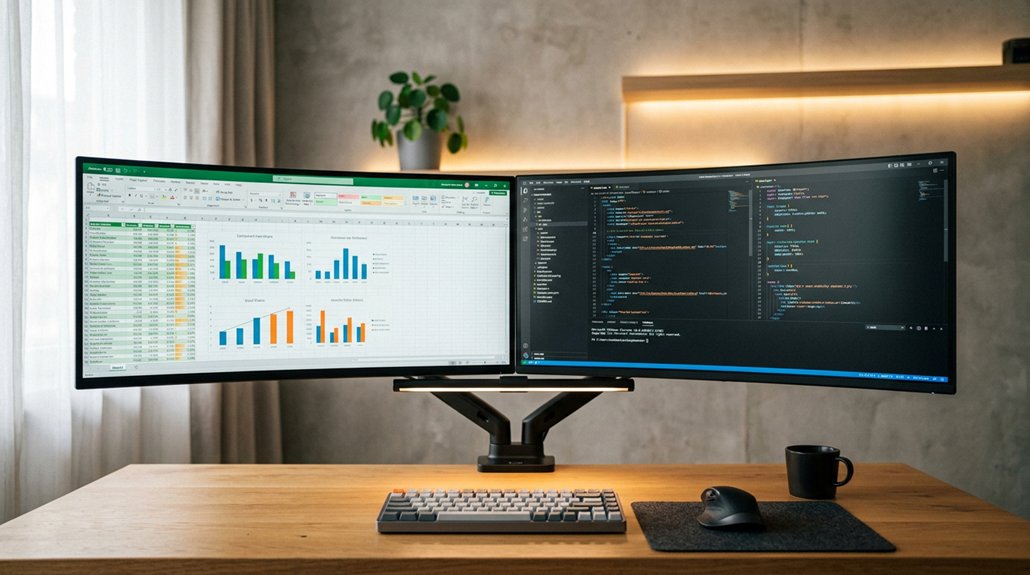
To maximize comfort, position your main monitor at eye level directly in front of you and align secondary screens at the same height with slight inward angles. Keep your monitors about arm’s length away to reduce eye strain, adjusting distance based on size. Tilt screens so the top edge is at or just below eye level for natural viewing angles. Use adjustable monitor arms for flexibility, and arrange your desk to support good posture. Continue exploring to learn how to perfect your dual screen setup.
Set Your Monitors to the Right Height and Properly Aligned
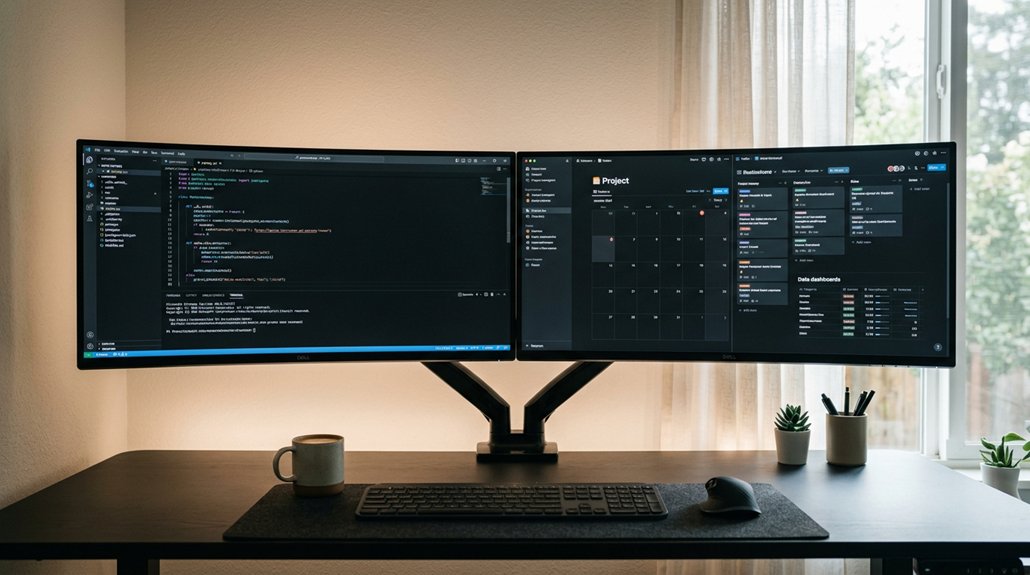
To prevent neck strain and promote good posture, it’s essential to set your monitors to the right height and align them properly. Position your main screen at eye level to avoid tilting your head up or down, which causes neck discomfort. When using dual monitors, keep them side by side with the top edges at the same height for consistent screen positioning. Maintain an arm’s length distance (about 60-70 cm) from your eyes to reduce eye strain and guarantee clear readability. If one monitor is primary, place it directly in front and angle the secondary screen toward your dominant eye, minimizing neck twisting. Slight inward angles (15-30 degrees) between monitors help keep your neck aligned and comfortable during extended use. Choosing a monitor arm with full motion adjustability ensures you can fine-tune positioning for optimal ergonomics and comfort.
Position Your Monitors at an Optimal Distance to Reduce Eye Strain
After setting your monitors to the correct height and alignment, the next step is to position them at an ideal distance to lessen eye strain. Keep your dual-monitor setup about an arm’s length away, roughly 60-70 cm, for comfortable readability. For using multiple screens, guarantee both are positioned at equal distances to maintain a consistent focal length and reduce refocusing stress. Adjust viewing distance based on monitor size—larger screens need more space to prevent eye fatigue. The main display should be directly in front at eye level, minimizing neck strain. Ensuring your monitors support adjustable mounting solutions, such as VESA compatibility, can help achieve optimal positioning for comfort and productivity.
Tilt and Angle Screens for a Comfortable, Natural Viewing Angle
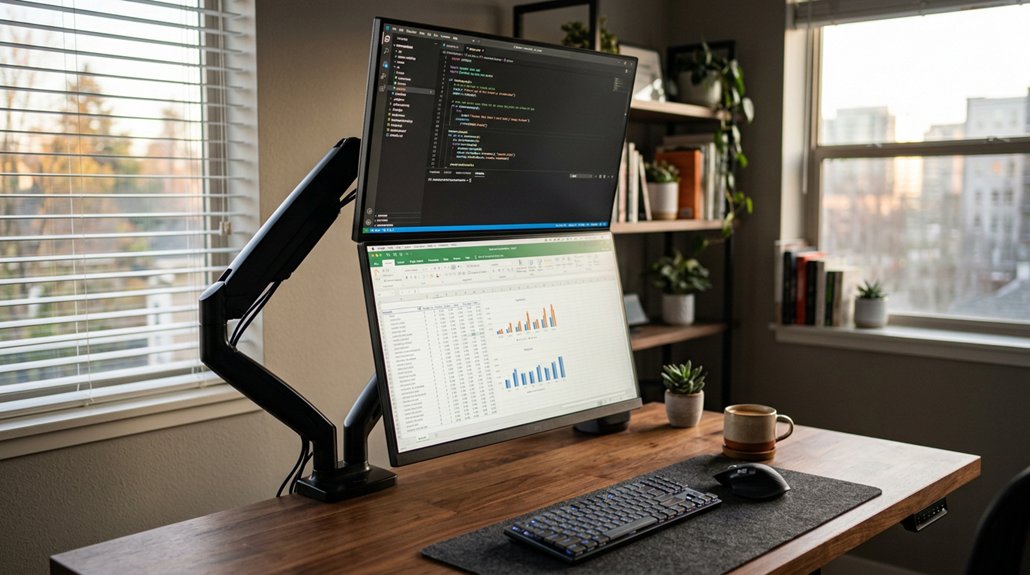
Adjusting the tilt and angle of your monitors is essential for creating a comfortable, natural viewing experience. Tilt screens so the top edge is at or slightly below eye level, keeping your gaze between eye level and about 30 degrees downward to reduce neck strain.
For dual monitors, angle them inward in a slight “V” shape, typically between 15 to 30 degrees, to maintain a natural head position and decrease neck twisting. Make certain both screens are aligned at the same height and parallel to foster consistent viewing planes, preventing eye and neck discomfort.
Adjust screen tilt to minimize glare by positioning screens at a 90-degree angle to windows or light sources, reducing reflections that cause eye strain. Regular fine-tuning helps sustain ergonomic comfort during extended use. Additionally, choosing monitors with adjustable height and tilt features ensures you can customize your setup for optimal comfort.
Arrange Your Desk and Workspace to Support Good Posture
Guaranteeing your desk and workspace are arranged properly is key to maintaining good posture during extended use. Start by positioning your main monitor directly in front at eye level; this encourages a natural, upright head position and minimizes neck pain.
Place secondary monitors parallel in height to reduce repetitive neck twisting and keep your neck aligned. Keep one screen at the correct distance to avoid straining your eyes and neck. Additionally, guarantee your chair supports your lower back, with feet flat on the floor.
Adjust your workspace so your forearms rest comfortably on the desk at a 90-degree elbow angle, whether sitting or standing. A well-organized, clutter-free workspace prevents awkward reaching and helps sustain ergonomic positioning of all monitors and peripherals.
Use Adjustable Monitor Arms to Perfect Your Dual Screen Setup
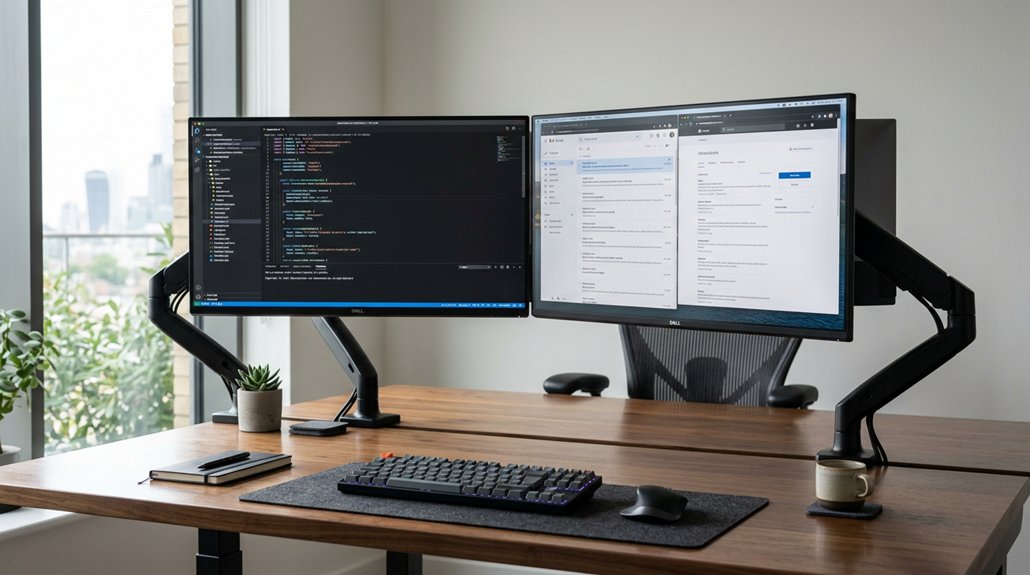
Using adjustable monitor arms can greatly enhance your dual screen setup by offering precise positioning flexibility. These arms, like the Ollin or Flo models, allow for wide motion and tilt adjustments, making it easy to align dual displays at eye level and a prime viewing angle. You can quickly modify height, distance, and tilt, ensuring ergonomic comfort and reducing neck and eye strain. Flexible arms support side-by-side or V-shape arrangements for ideal ergonomics and seamless workspace organization. Here’s how different options suit your needs: adjustable height range.
Frequently Asked Questions
How Can I Prevent Glare and Reflections on Dual Monitors?
You can prevent glare and reflections by positioning your monitors away from windows and bright lights, using matte screens or anti-glare filters, and adjusting monitor angles to minimize direct reflections, ensuring a clearer, more comfortable viewing experience.
What’s the Best Way to Organize Cables and Accessories for Dual Screens?
You should use cable clips, sleeves, or organizers to keep wires tidy, and position accessories conveniently to reduce clutter. Tucking cables behind monitors and labeling them makes setup easier, ensuring a clean, functional workspace for your dual screens.
Should I Use Different Monitor Sizes or Identical Ones for Dual Setups?
Using identical monitors in your dual setup creates a seamless look and consistent display performance. It simplifies positioning and calibration, helping you maintain a clean, organized workspace while minimizing visual discrepancies and enhancing overall productivity.
How Often Should I Reposition My Monitors for Ergonomic Health?
You should reposition your monitors whenever you notice discomfort or poor posture, ideally daily or weekly. Adjust their height, angle, and distance to maintain ergonomic health, prevent strain, and guarantee your workspace feels comfortable and supports good posture.
Can Dual Screens Affect My Overall Posture and Physical Comfort?
Dual screens can impact your posture and comfort if not positioned correctly. You might strain your neck, shoulders, or eyes, so guarantee the monitors are at eye level, close enough, and aligned to reduce awkward postures and enhance overall comfort.



