
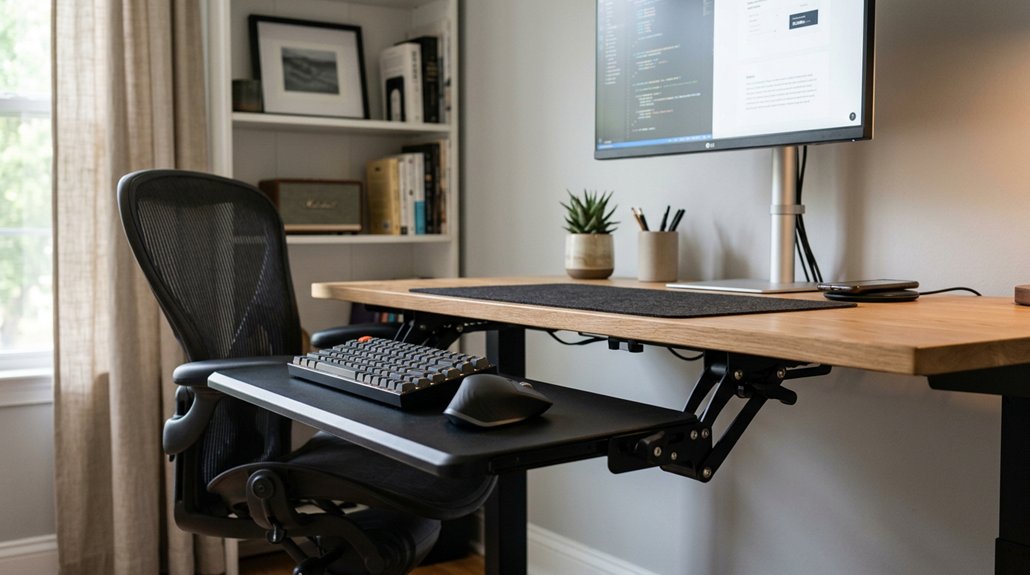
To optimize your keyboard tray position, set it at or just below elbow height to keep your arms relaxed and elbows at a 90-degree angle. Tilt the tray slightly negative between 11-15 degrees for a neutral wrist posture that reduces strain. Organize your mouse and accessories close to your keyboard to prevent reaching. Adjusting these elements can greatly boost comfort and reduce injury risk—discover more tips that will help you work smarter and safer.
How to Properly Position Your Keyboard Tray to Reduce Strain
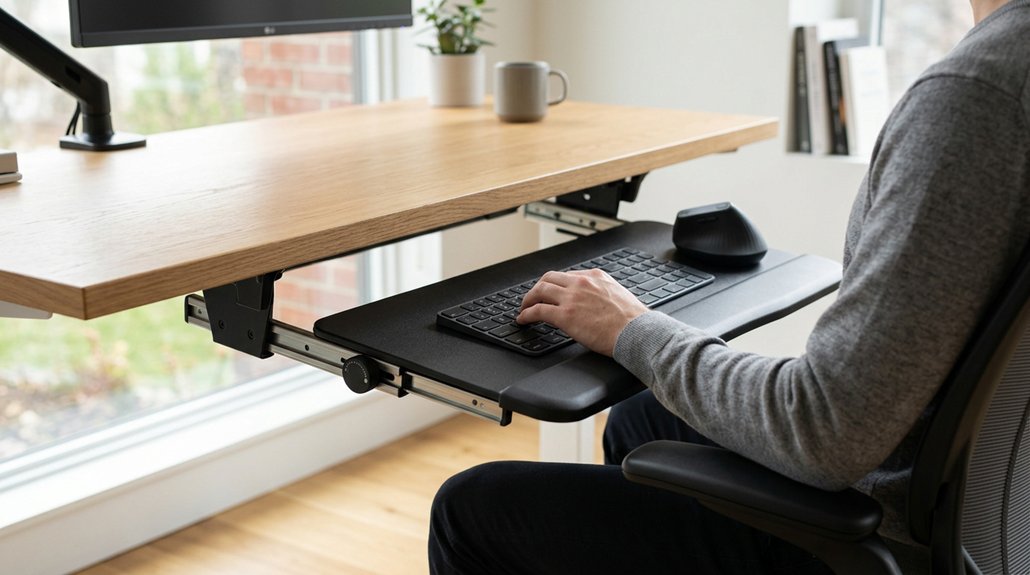
To reduce strain while typing, it’s important to position your keyboard tray correctly. Use ergonomic keyboard trays that support a neutral wrist posture by setting the keyboard at or slightly below elbow height.
Position your keyboard at or just below elbow height to support neutral wrist posture and reduce strain.
Aim for a negative tilt of 11-15 degrees to keep wrists straight, reducing risk of discomfort and injury. Keep the keyboard and mouse close within your ideal reach zone, with a proper keyboard position that allows elbows to stay bent around 90 degrees.
Guarantee the tray platform is wide enough for both keyboard and mouse, preventing awkward reaching or arm strain. Adjust your chair armrests and desk height if needed, so your wrist stays in a comfortable, neutral position. Additionally, selecting a tray with a smooth sliding mechanism can help you make quick, effortless adjustments throughout your workday.
Proper keyboard tray positioning promotes comfortable, efficient typing while minimizing strain.
Adjust Your Tray Height and Tilt for Maximum Comfort
Ensuring your keyboard tray is set at the correct height and tilt is essential for maintaining comfort during extended typing sessions. Adjust the keyboard tray height so your elbows form about 90 degrees and your forearms stay parallel to the floor, which reduces wrist strain and encourages an ergonomic posture. Set the tray tilt to a slight negative angle (11-15 degrees) to keep your wrists straight and avoid upward bending, preventing carpal tunnel issues. Avoid positive tilt, as it causes wrist bending and discomfort. Use the following table to optimize your setup:
| Aspect | Recommended Adjustment | Impact |
|---|---|---|
| Keyboard tray height | Elbows at 90°, forearms parallel | Prevents shoulder and wrist strain |
| Keyboard tray tilt | Slight negative tilt (11-15°) | Maintains neutral wrist posture |
| Wrist position | Straight and relaxed | Reduces wrist strain and carpal tunnel risk |
Additionally, incorporating an ergonomic keyboard with supportive features, such as split layout and wrist support, can further enhance comfort and reduce strain during long typing sessions.
Organize Your Mouse and Accessories for Better Ergonomics & Efficiency
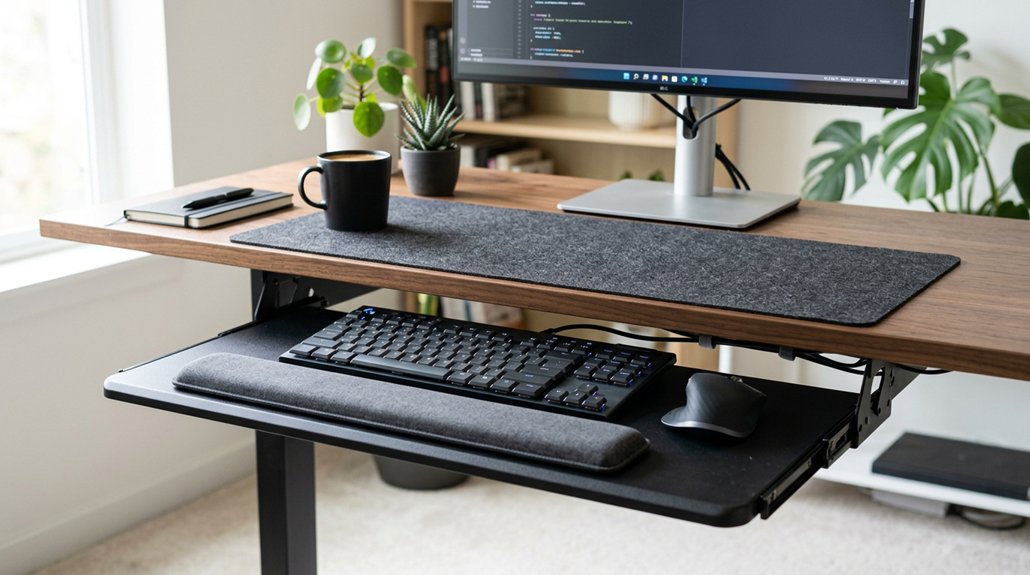
Properly organizing your mouse and accessories on the keyboard tray can greatly improve your comfort and workflow. Since keyboard trays come in various sizes, choose a large, single platform tray that comfortably fits both your keyboard and mouse, preventing awkward reaching.
Position the mouse close to the keyboard to keep both devices within the neutral reach zone, reducing shoulder and arm strain. Consider trays with adjustable or pivoting mouse platforms to align the mouse height and tilt with your keyboard, supporting neutral wrist alignment.
Avoid permanently resting your wrists on wrist rests to maintain healthy hand mobility. For accessory placement, use dedicated mounting points for external touchpads or phone stands, keeping your workspace organized and within easy reach for better ergonomics and efficiency. Incorporating ergonomic mouse pads with wrist support can further enhance wrist positioning and reduce fatigue during long work sessions.
Frequently Asked Questions
How Often Should I Readjust My Keyboard Tray During Long Work Sessions?
You should readjust your keyboard tray whenever you notice discomfort or strain during long work sessions. Regularly check your posture, and reposition the tray as needed, ideally every 30 minutes, to maintain ergonomic support and prevent fatigue.
What Signs Indicate My Keyboard Tray Is Incorrectly Positioned?
You might notice discomfort, wrist strain, or shoulder tension, which indicate your keyboard tray is wrongly positioned. If your elbows aren’t at a 90-degree angle or your wrists bend awkwardly, it’s time to adjust your tray for better ergonomics.
Can a Keyboard Tray Help Prevent Wrist Injuries?
Yes, a properly positioned keyboard tray can help prevent wrist injuries by aligning your wrists naturally, reducing strain, and promoting ergonomic posture. Make sure it’s at the right height and angle to support comfortable, healthy typing habits.
Should I Use a Wrist Rest Together With My Keyboard Tray?
Yes, you should use a wrist rest with your keyboard tray to support your wrists, reduce strain, and maintain proper alignment. This combo promotes ergonomic comfort, helping prevent injury and making typing more comfortable during long hours.
How Do I Customize My Setup for Different Tasks or Users?
You customize your setup by adjusting the height and tilt of your keyboard tray for comfort, adding or removing wrist rests, and positioning accessories based on different tasks or users, ensuring ergonomic comfort and efficiency for everyone.



