
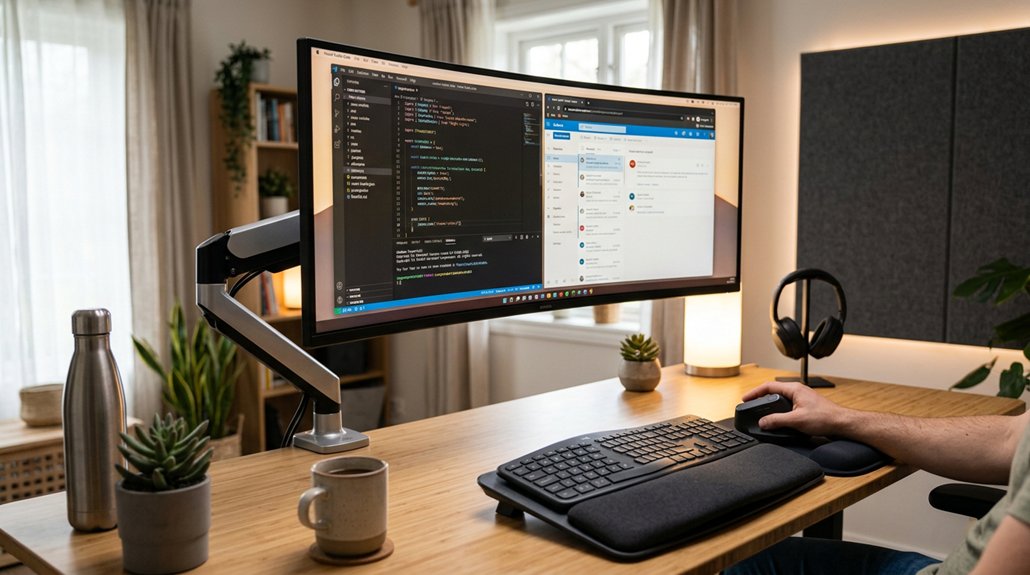
To optimize your screen distance and positioning, set your monitor so the top is at or just below eye level, with eyes 5-10 cm below the top edge. Keep the screen about 20-30 inches away, adjusting for size. Tilt and swivel the monitor to reduce glare and maintain neutral neck posture. Use adjustable mounts or stands for stability and consistent placement, especially with multiple screens. For more tips on creating an ergonomic workspace, stay tuned.
Why Proper Monitor Position Matters
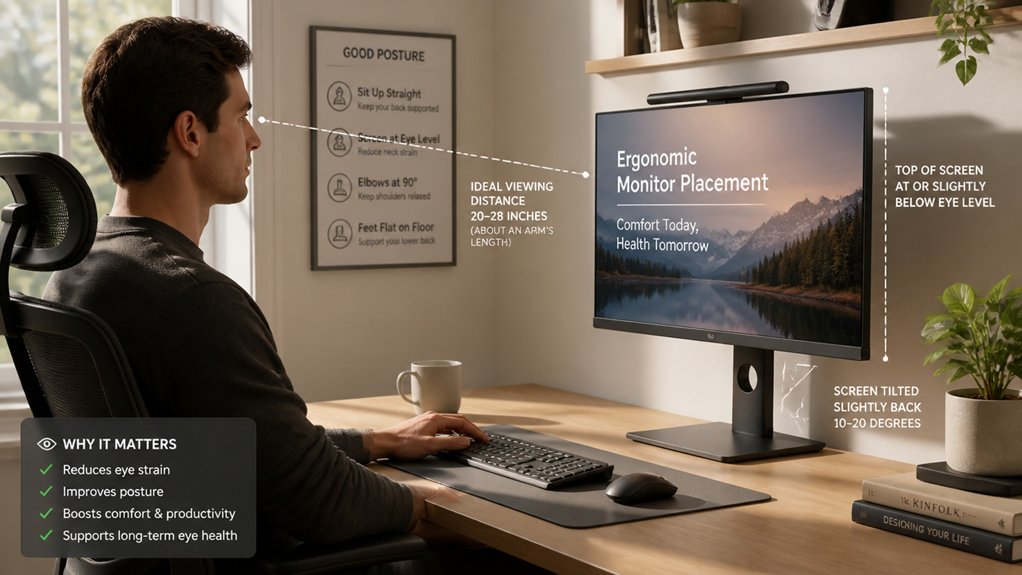
Proper monitor positioning is essential because it directly impacts your comfort and overall health while working. Setting the monitor at the correct height guarantees the top is slightly below your eye level, helping you maintain a neutral position and avoid chin tilt. An ergonomic monitor placed at a proper viewing distance—about 20-30 inches—reduces eye strain and minimizes headaches. When your monitor is positioned correctly, it promotes good posture, preventing neck and shoulder pain caused by twisting or reaching. Incorporating a height-adjustable monitor riser ensures that your setup can be customized for optimal ergonomic alignment and ongoing comfort.
How to Find Your Ideal Screen Distance
To find your ideal screen distance, start by sitting comfortably and extending your arm toward the monitor.
The screen should be about 20 to 28 inches away, depending on your monitor size and comfort. Adjust your setup until your fingertips just barely miss touching the screen when you reach out.
Arm’s Length Range
Finding your ideal screen distance involves measuring roughly an arm’s length from your eyes to the monitor, which typically ranges between 50 to 70 centimeters. To find the right distance, stretch your arm forward with your fingertips extended; they should just barely not touch the screen.
This guarantees your monitor is within an arm’s length away, promoting proper positioning and reducing eye strain. Sitting too close can cause fatigue and headaches, while sitting too far may encourage leaning forward, leading to neck strain.
Adjusting the distance based on your monitor size is essential for comfort and clarity. Maintaining this arm’s length range helps support good posture, minimizes discomfort, and keeps your eyes relaxed during prolonged use. Additionally, choosing an adjustable monitor stand with flexible angle and height settings can make it easier to fine-tune your monitor’s position for optimal ergonomics and adjustable monitor stands.
Screen Size Impact
As screen sizes increase, you’ll need to adjust your viewing distance to maintain clarity and reduce eye strain. Larger monitors require sitting slightly farther back to keep the screen at a comfortable distance, usually between 50 to 70 cm (20 to 28 inches). To ensure your setup promotes good posture, consider using an ergonomic height adjustment stand that aligns your screen at eye level, preventing you from tilting or lowering your neck. Position the monitor so the center is about 17 to 18 degrees below your eye level, which helps optimize visual comfort and lessen neck strain. The distance between your eyes and the screen is vital—if you’re too close, you’ll strain your eyes and experience frequent head movements; too far, and you might lean forward, resulting in poor posture. To find your ideal screen height and position, lean back, stretch your arm out, and adjust so that the screen’s center aligns with your visual target.
How to Adjust Your Monitor Height for Comfort
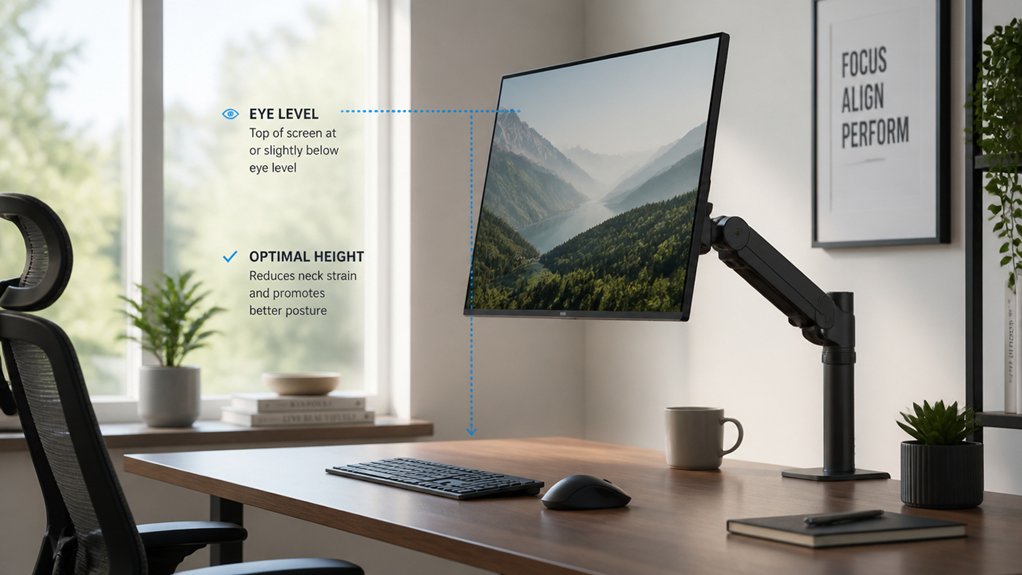
Adjust your monitor so the top edge is at or slightly below your eye level to reduce neck strain. Use adjustable stands, risers, or arms to set the height without changing your seating position. Ensuring your monitor remains ergonomically aligned can help prevent discomfort over long periods. Keeping your monitor at a consistent height helps maintain comfort and proper posture.
Eye Level Alignment
Positioning your monitor at the correct height is key to reducing neck strain and maintaining good posture. The top of the screen should be at or slightly below eye level so your eyes naturally look downward at the screen center, easing tension.
Adjust your monitor so that your eyes align about 5-10 cm (2-4 inches) below the top edge of the screen, encouraging a neutral head position. Using monitor stands, risers, or adjustable arms helps achieve the correct height without tilting or bending your neck.
If you wear progressive lenses, lower the monitor and tilt it back slightly to prevent craning.
Wide-screen reach and adjustable height features in monitor arms support ergonomic flexibility to achieve optimal positioning.
Consistently keeping your monitor at the correct height supports ergonomic comfort, reduces muscle strain, and promotes healthier posture during extended computer use.
Use Adjustable Stands
Using an adjustable stand makes it easy to set your monitor at the perfect height for comfort and ergonomic alignment. With adjustable stands, you can raise or lower your monitor, ensuring the top of the screen is at or just below eye level, preventing neck strain. Ensure the monitor is positioned to minimize glare and reflections, which can contribute to eye fatigue. Position the monitor so your eyes naturally look slightly downward, about 5-10 cm below the top edge. Many monitor arms and risers let you customize height and position for optimal viewing. Tilt and swivel features are essential—tilt the screen between 10°–20° to reduce glare and improve visual comfort, while swiveling helps adjust the angle. Keep the monitor about an arm’s length away, around 20-30 inches, for ideal ergonomics and clear, direct viewing. Additionally, ensuring the display’s color temperature stability aligns with your ambient lighting can further reduce eye strain and enhance visual comfort during extended use.
Consistent Monitor Heights
Maintaining consistent monitor heights across your workspace helps prevent neck strain and promotes good posture. Make certain the top edge of your screen is at or slightly below eye level, so your eyes naturally look downward at the center of the screen. Use monitor stands, risers, or adjustable arms to set your screens evenly, avoiding unnecessary neck and shoulder movement. When setting up dual monitors, aim for consistent heights to prevent twisting your neck and maintain a neutral posture. Proper positioning prevents chin tilt and reduces muscle strain, making long hours more comfortable. Use the following guide to fine-tune your setup:
| Monitor Positioning Guide | Ideal Adjustment | Benefits |
|---|---|---|
| Top edge at eye level | Slightly below | Comfort, visual clarity |
| Equal heights | Same height | Prevents neck twisting |
| Adjustable stands | Customized fit | Supports neutral posture |
Additionally, ensuring your monitor’s scanning distance is appropriate helps reduce eye fatigue and keeps your posture aligned.
How to Position Your Screen to Minimize Glare
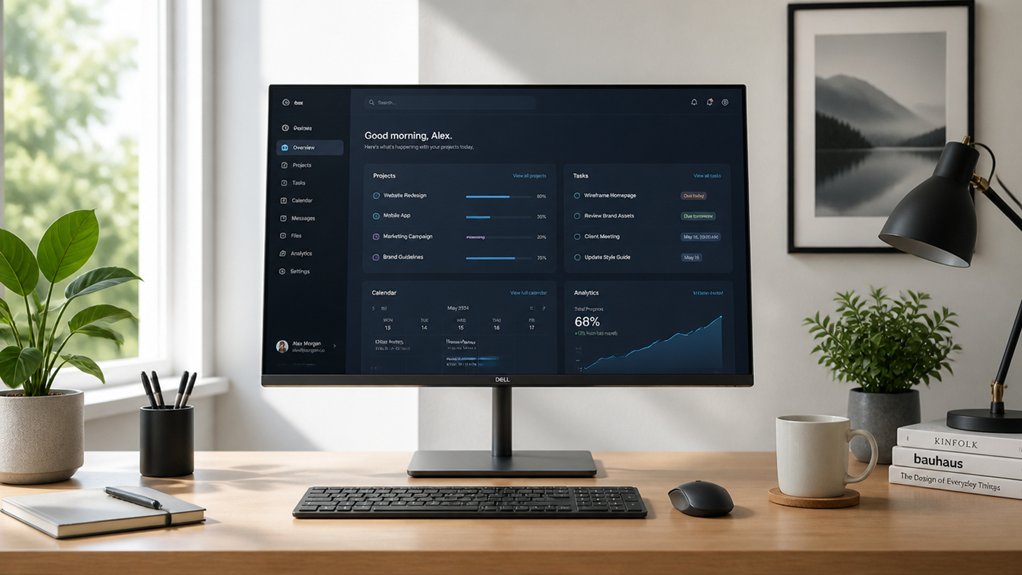
Glare can greatly strain your eyes and make it difficult to see your screen clearly, but you can reduce it by carefully arranging your monitor relative to light sources. A well-positioned monitor can also benefit from additional accessories like monitor hoods to further diminish glare and enhance visual comfort.
Here are key tips:
- Position your monitor so natural light sources, like windows, are to the side rather than in front or behind, reducing glare and screen reflections.
- Adjust the monitor tilt back 10°–20° to lessen reflected light and maintain a comfortable viewing angle.
- Use window shades, blinds, or glare-reducing filters to control external light and minimize glare impact.
- Turn off your monitor momentarily to check for reflections, then reposition the screen or light sources to eliminate them.
Proper positioning helps balance ambient light and prevents glare from interfering with your viewing experience.
How to Use Mounts and Arms to Perfect Your Monitor Setup
Adjustable monitor mounts and arms give you precise control over your setup, allowing you to fine-tune height, tilt, swivel, and extension to achieve ideal ergonomics.
With monitor mounts and adjustable arms, you can set your screen at eye level, with the top just below your eye height, reducing neck and eye strain. Wall mounts help save desk space and let you swivel the monitor left or right, while also moving it forward or backward for optimal distance, typically 20-30 inches.
Desk mounts clamp securely and support frequent repositioning, maintaining proper screen tilt of 10°–20°. High-quality options like Vogel’s MOMO series offer durability, TÜV certification, and support for larger monitors, helping you create a flexible, ergonomic setup tailored to your needs.
What’s the Best Viewing Angle for Your Monitor?
Finding the right viewing angle for your monitor can greatly improve comfort and reduce strain during long work sessions. The key is positioning the top of your screen at or slightly below eye level, so your eyes naturally look slightly downward.
To achieve correct viewing, keep these tips in mind:
- Position the screen’s center about 17-18 degrees below your eye level.
- Tilt the monitor back 10° to 20° for better distance and glare reduction.
- Make sure the top of the monitor isn’t too high or low to avoid chin tilt or body bending.
- Keep your eyes aligned with the top of the screen for correct viewing comfort.
This setup minimizes eye strain, neck tension, and long-term discomfort.
How to Arrange Dual Monitors Ergonomically
To arrange dual monitors ergonomically, you should guarantee both screens are positioned at the same height with their top edge at or just below your eye level, which helps maintain a neutral neck posture. Position your primary monitor directly in front at an arm’s length (20-28 inches), and angle the secondary monitor slightly toward your dominant eye to minimize head twisting. Use adjustable monitor arms or stands to easily align the screens vertically and horizontally. Arrange the monitors to avoid glare by placing them perpendicular to windows or bright lights, and consider glare filters if needed. The table below summarizes key setup points:
| Aspect | Recommendation |
|---|---|
| Top edge | Align at or just below eye level |
| Distance | 20-28 inches (arm’s length) |
| Angling | Slightly toward dominant eye |
| Glare | Perpendicular to light sources, use filters |
| Adjustment tools | Use adjustable arms or stands |
Which Accessories Help Improve Monitor Placement?
Wondering how to make your monitor placement really seamless? The right accessories can dramatically improve your setup’s ergonomics and comfort.
Enhance your workspace with accessories that optimize monitor placement for improved comfort and productivity.
Consider these options:
- Adjustable monitor arms – allow quick vertical, horizontal, and tilt adjustments to keep your screen at eye level and ideal screen position.
- Wall mounts – save desk space and offer flexible positioning, with swivel, tilt, and extension features for precise control.
- Desk clamp mounts – provide stable support and easy repositioning, keeping your monitor about an arm’s length away.
- Specialized accessories – like keyboard arms and wall mounts, help align your entire workspace for better ergonomics.
These accessories guarantee your monitor placement supports good posture, reduces strain, and enhances productivity.
How to Keep Your Monitor Position Consistent When Moving Equipment
To keep your monitor position consistent after moving equipment, mark or measure your ideal setup, like distance and height, for quick reference.
Use adjustable mounts or arms to easily restore your preferred position and avoid guesswork. Secure cables and choose sturdy mounts with locking features to guarantee your monitor stays in place.
Mark Fixed Positions
Maintaining a consistent monitor position becomes easier when you mark fixed spots on your desk. This helps you quickly place the monitor, ensuring the correct distance and preferred height are always maintained. Use tape or adhesive markers to indicate the exact spot for your monitor base or stand.
Additionally, attaching labels or color-coded stickers on monitor mounts or arms allows for quick realignment. Document your ideal measurements—such as eye level and 20-30 inches away—in a visible note nearby.
If you have adjustable monitor arms with locking mechanisms, set them to your preferred positioning so you can effortlessly return to the same setup after moving equipment. Taking photos from various angles also provides a visual reference for consistent placement.
Use Adjustable Mounts
Using adjustable mounts makes it easy to keep your monitor in the right spot when you need to move your equipment. With adjustable monitor mounts, you can precisely position your screen to the correct height and distance, ensuring ergonomic comfort.
Desktop mounts with tilt, swivel, and extension features let you direct your monitor to the ideal angle and keep it directly in front of you, reducing neck and eye strain. These flexible mounts enable quick adjustments without you having to move your entire setup, supporting consistent posture and preventing repetitive strain injuries.
High-quality options like Vogel’s MOMO series offer stability and TÜV certification, safely supporting various monitor sizes. Whether wall or desk-mounted, these mounts save space and help you maintain peak viewing angles effortlessly.
How to Regularly Review and Improve Your Monitor Setup
Regularly reviewing and improving your monitor setup is essential to guarantee it remains ergonomic and comfortable. Monitoring your setup helps maintain proper distance, which helps prevent eye strain.
Here are key steps:
- Check distance—measure from your eyes to the screen, aiming for 50-70 cm, using your arm’s stretch.
- Adjust monitor height—set the top edge at or just below eye level, with the screen center about 17-18 degrees below your line of sight.
- Assess brightness and contrast—match screens to ambient lighting to reduce eye fatigue.
- Inspect position—ensure natural light sources don’t cause glare by adjusting tilt or using filters.
Using adjustable monitor arms or risers makes quick changes easier, ensuring comfortable viewing and minimizing the risk of eye strain.
Frequently Asked Questions
What Distance Away Should You Position Your Screen?
You should position your screen about 20 to 28 inches away, roughly an arm’s length, ensuring your fingertips don’t touch the screen. Adjust based on screen size, keeping the center 17-18 degrees below eye level for comfort.
How Far Should You Sit From a 27 Inch 4K Monitor?
You should sit about 50 to 70 cm (20 to 28 inches) from your 27-inch 4K monitor. This distance allows clear viewing without eye strain, helps maintain neutral posture, and takes advantage of 4K resolution for better detail recognition.
How Far Should You Sit From Your Computer Screen 6 to 12 Inches, 12 to 18 Inches, 18 to 24 Inches, 24 to 30 Inches?
You should sit 6 to 12 inches for very small screens or detail-oriented tasks, 12 to 18 inches for compact screens, 18 to 24 inches for medium-sized monitors, and 24 to 30 inches for larger displays, adjusting for comfort and readability.
How Far Should You Sit From a 32 Inch 4K Monitor?
You should sit about 50 to 70 centimeters (20 to 28 inches) from your 32-inch 4K monitor. This distance guarantees clear readability, reduces eye strain, and helps maintain a comfortable, neutral posture during extended use.



