
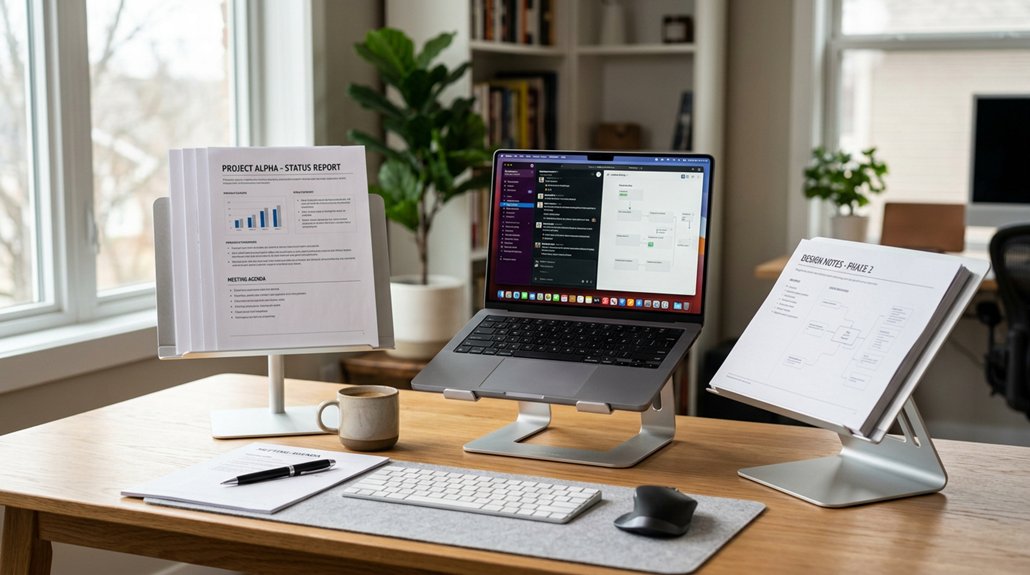
To set up document holders for multitasking, evaluate your workspace and choose adaptable, stable options like adjustable or clip-on holders that fit your needs. Position them close to your monitor at eye level to reduce neck strain, and tilt or rotate to minimize glare. Keep light away from reflections, and customize with DIY solutions if needed. Adjust height and angle regularly for comfort. If you want detailed tips, keep going—you’ll discover ways to optimize your setup even further.
Assess Your Workspace and Document Needs
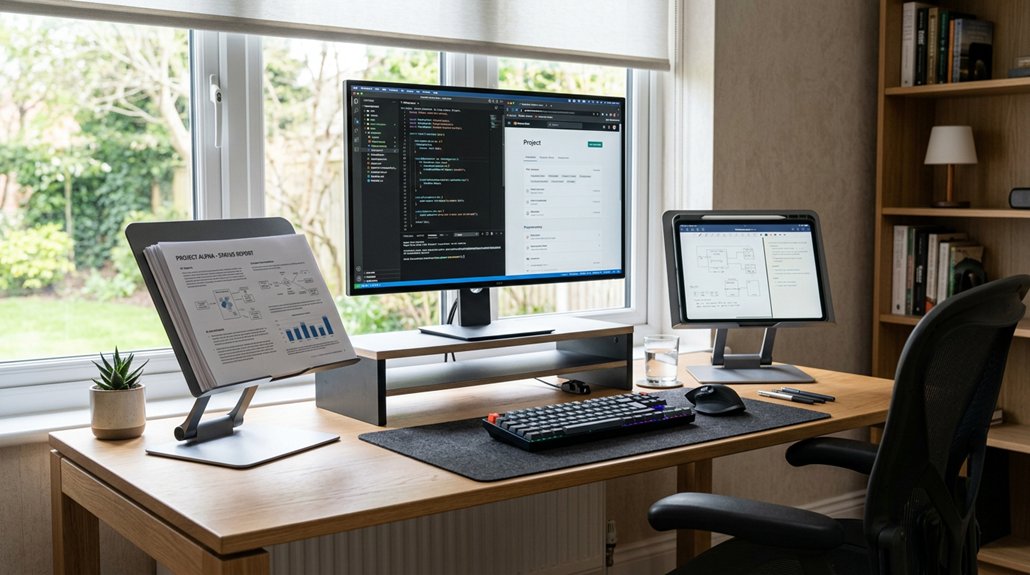
Have you considered how your workspace setup influences your ability to stay organized? Your desk space plays a vital role in using document efficiently. Start by evaluating your desk size and layout to find the best placement for document holders, ensuring papers are within easy reach and in your line of sight. Identify the types of documents you frequently reference — notes, mail, recipes, or tablets — so you can choose adjustable or clip-on holders that suit those materials. Think about ergonomic factors, positioning your document holders at eye level or adjustable heights to cut down on neck strain while multitasking. Analyzing your workflow helps determine if freestanding, wall-mounted, or multi-functional holders fit best and how to maximize vertical storage, keeping your desktop clear and your important info accessible. Considering the ergonomic support features of your document holders can further enhance your comfort during long working sessions.
Pick the Right Document Holders for Your Setup
Are you choosing the right document holders to complement your workspace? Focus on adjustable document holders that let you customize height and angle, ensuring your documents stay at eye level. This ergonomic feature minimizes neck and eye strain during multitasking. Think about the style that fits best: freestanding for flexibility or clip-on to save space and attach directly to monitors or desks. To keep all essentials within sight, select holders capable of holding multiple items like papers, tablets, or phones. Additionally, opt for models with built-in storage for pens or notes, boosting efficiency. Stability matters too—choose sturdy, reliable holders, especially if you use a standing desk or reference frequently, to prevent slips and maintain ergonomic comfort.
Find the Best Height and Angle for Your Documents
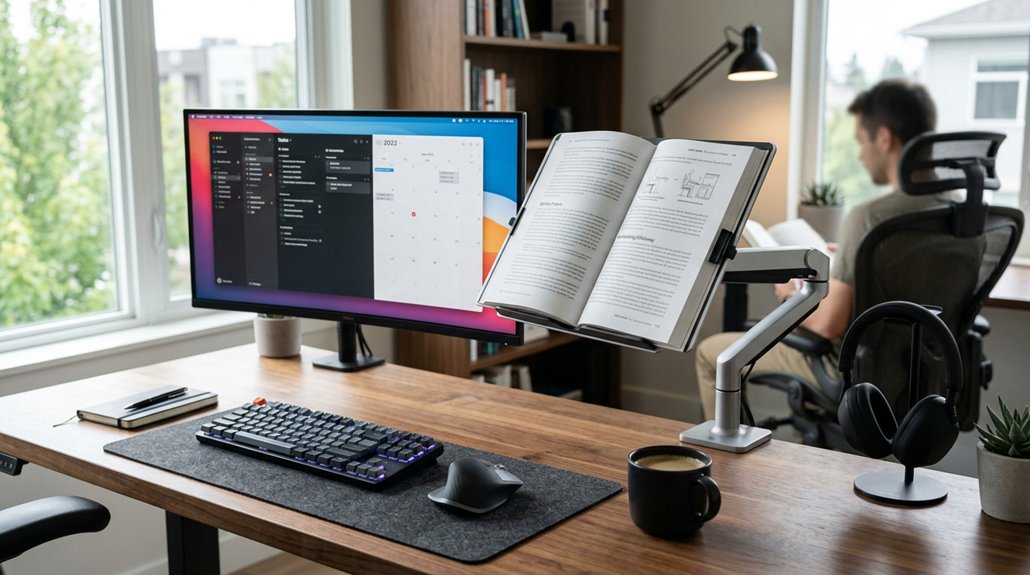
Finding the right height and angle for your document holder can greatly boost your ergonomic comfort and productivity. Position your papers so they’re at eye level, reducing neck strain and making it easier to read during long work sessions.
Adjust the angle to minimize glare and eye fatigue—tilt documents slightly toward or away, based on your lighting. Use adjustable, clip-on, or freestanding holders to customize height and angle for comfortable, ergonomic multitasking.
Keep documents upright within your direct line of sight to streamline reference, saving time on unnecessary head movements. Aim to align document height with the top third of your primary monitor, especially if you’re using a dual monitor setup. This maintains a natural posture and guarantees quick, efficient switching between screens and papers, enhancing your overall time management.
Ensuring your document holder is compatible with your desk setup, such as considering mounting systems or adjustable features, can further optimize your workspace ergonomics.
Place Your Document Holders Near Your Monitor
Placing your document holders close to your monitor guarantees that reference materials stay within your natural line of sight, which helps reduce neck strain and improves overall comfort. Positioning them at eye level guarantees quick access and makes it easier to find essential documents when needed. Incorporating adjustable mounting options can further enhance their flexibility for optimal positioning. Use adjustable or clip-on holders that attach near the screen’s edges to keep your workspace organized and clutter-free. Keeping documents nearby allows for quick glances between your papers and digital screens, boosting workflow efficiency. Additionally, integrating tablet or smartphone holders with your monitor-mounted setups centralizes digital and physical information sources.
Adjust Tilt and Rotation to Reduce Glare and Improve Readability
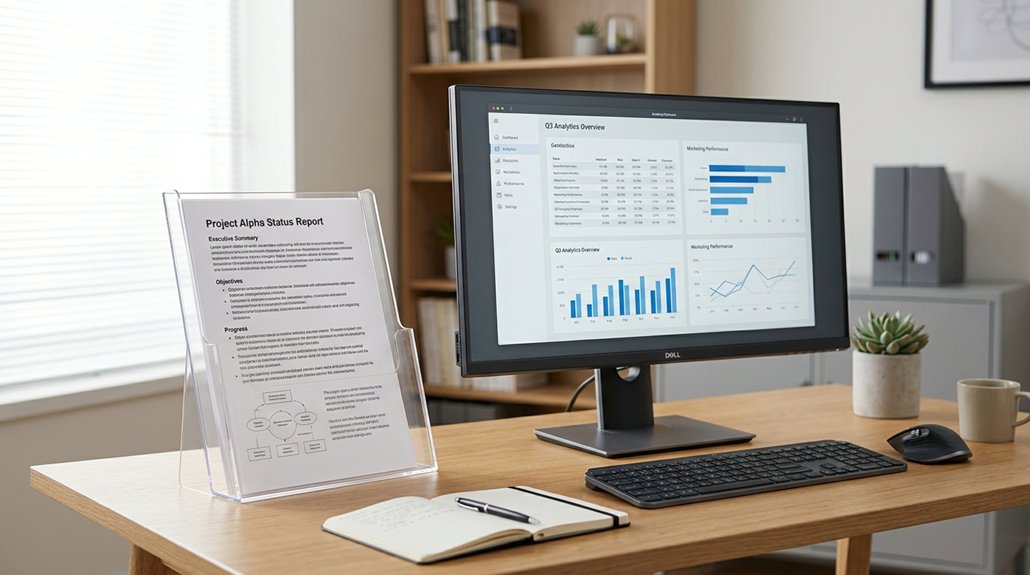
Adjusting the tilt and rotation of your document holder helps you control light reflection and reduces glare on your papers or screen. Position it so the viewing angles are comfortable and optimize readability while minimizing eye strain. Using anti-glare screen protectors with visual clarity can further enhance your viewing experience by reducing screen glare and blue-light fatigue. Regular tweaks throughout the day guarantee your display stays clear, no matter the lighting conditions.
Optimize Light Reflection
Positioning your document holder correctly can greatly reduce glare and improve readability. Adjust the tilt so papers are perpendicular to light sources, preventing harsh reflections that strain your eyes.
Rotate the holder away from overhead or side lighting to avoid direct reflections, which can hinder clarity and cause discomfort. Use an adjustable holder to customize height and angle, optimizing light exposure without creating shadows or glare.
Place your document holder near natural light but avoid windows where sunlight could flicker or produce glare. Additionally, consider matte or anti-glare surfaces on the holder itself to further prevent light reflection. Ensuring the light-blocking panel design of your setup can also help minimize ambient reflections and improve visual comfort.
Adjust Viewing Angles
To improve readability and reduce glare, you should carefully fine-tune the tilt and rotation of your document holder. Adjust viewing angles to position papers at a slight backward tilt, minimizing glare from overhead lights.
Rotate the holder so documents align with your natural line of sight, preventing neck strain and promoting ergonomic posture. Fine-tuning angles helps reduce reflections on glossy pages or screens, enhancing clarity during extended use.
Use adjustable holders that allow seamless modifications to tilt and rotation, enabling quick adaptation to changing lighting conditions and document types. Guarantee your materials are upright and stable to maintain consistent viewing angles that support efficient multitasking. Additionally, selecting flicker-free lighting can further reduce eye strain during prolonged reading or working sessions.
Minimize Screen Glare
Properly tilting and rotating your document holder can greatly reduce screen glare and improve overall readability. By adjusting the tilt angle, you position documents within a perpendicular line of sight, which minimizes reflections from overhead lighting or windows.
Rotating the holder also helps align documents away from direct light sources, reducing glare and eye strain during extended multitasking sessions. Use adjustable, freestanding, or clip-on holders with customizable tilt and swivel features for the best positioning and glare control.
Place the document holder at a height matching your monitor’s eye level to maintain consistent viewing angles. Regularly reposition the holder throughout the day to adapt to changing lighting conditions, ensuring continued clarity, comfort, and less time spent adjusting your setup. Incorporating adjustable monitor arms can also enhance ergonomic flexibility and seamless integration with your workspace.
Try DIY Solutions to Customize Your Viewing Experience
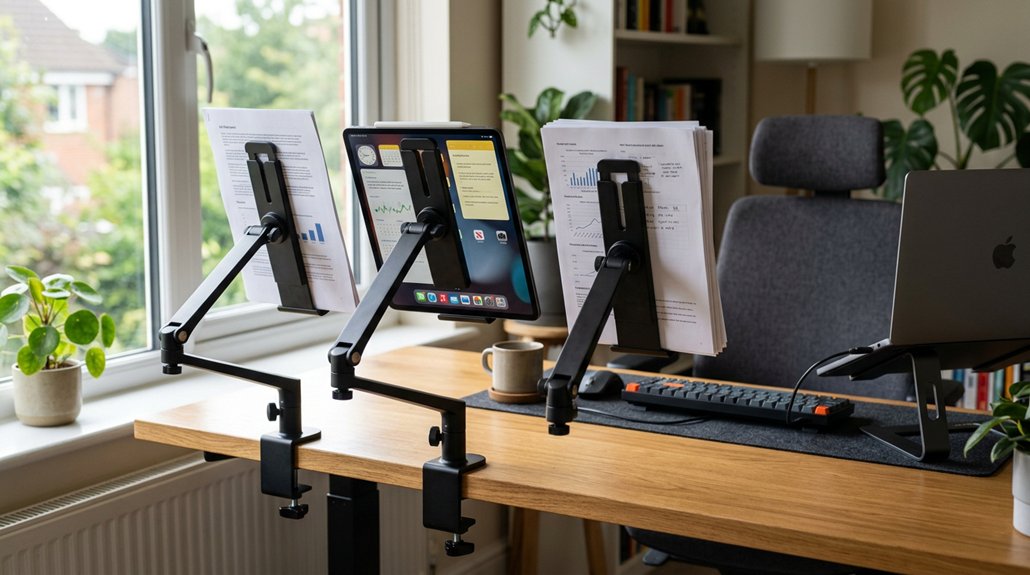
You can easily create customized document holders using everyday household items like cardboard, binder clips, or coat hangers.
Using washi tape and stacked boxes, you can organize and secure your materials at eye level for better comfort. These DIY solutions help make your workspace more ergonomic and tailored to your needs.
Incorporating adjustable height and angle features into your DIY setup can further improve your viewing experience and reduce strain during multitasking.
Creative Materials for DIY
Getting creative with DIY materials offers a practical way to customize your document viewing setup. Everyday household items can be transformed into effective document holders tailored to your needs.
For example, you can use:
- Cardboard stands, binder clips, or hangers to adjust height and angle for ergonomic viewing.
- Stacked boxes wrapped with washi tape, creating colorful, adjustable organizers that keep documents upright and accessible.
- Household items like clipboards or bookends, providing sturdy, cost-effective solutions for holding papers and tablets during multitasking.
These materials allow you to experiment and personalize your setup without extra expense. Building a system with items you already have makes it easy to keep your documents, every day, within reach and at eye level, promoting ergonomic posture and reducing strain.
Tips for Custom Placement
Customizing the placement of your document holders can greatly improve comfort and efficiency during your work or study sessions.
When using a document, keep it at eye level to prevent neck strain, positioning it directly in front or slightly to the side of your main workspace. Adjustable or clip-on holders let you customize height, angle, and placement for different reading materials like papers, tablets, or phones, making multitasking seamless.
DIY solutions, such as cardboard stands, binder clips, or stacked boxes, can create personalized options tailored to your desk layout and needs. Add washi tape or labels to organize documents by priority or task, speeding up access.
Experiment with freestanding or wall-mounted holders to maximize desk space, balancing accessibility with workspace tidiness during multitasking.
Set Up Good Lighting to Protect Your Eyes and See Clearly
Proper lighting is essential for protecting your eyes and guaranteeing clear visibility when setting up document holders. Good lighting minimizes eye strain and allows you to focus on your daily tasks effectively.
To achieve this, position your document holders near a natural light source to reduce glare or shadows. Use adjustable LED desk lamps with a color temperature between 4000K and 5000K for crisp, cool light that enhances readability. Avoid overhead fluorescent lights, as they can create reflections and contribute to eye fatigue.
Additionally, guarantee the light is evenly distributed across your documents to prevent constant refocusing. Consider incorporating anti-glare screen protectors or matte surfaces on your document holders to improve visibility. Proper lighting setup saves time and increases efficiency during multitasking, protecting your eyes over the long run.
Test and Tweak Your Setup for Comfort and Efficiency
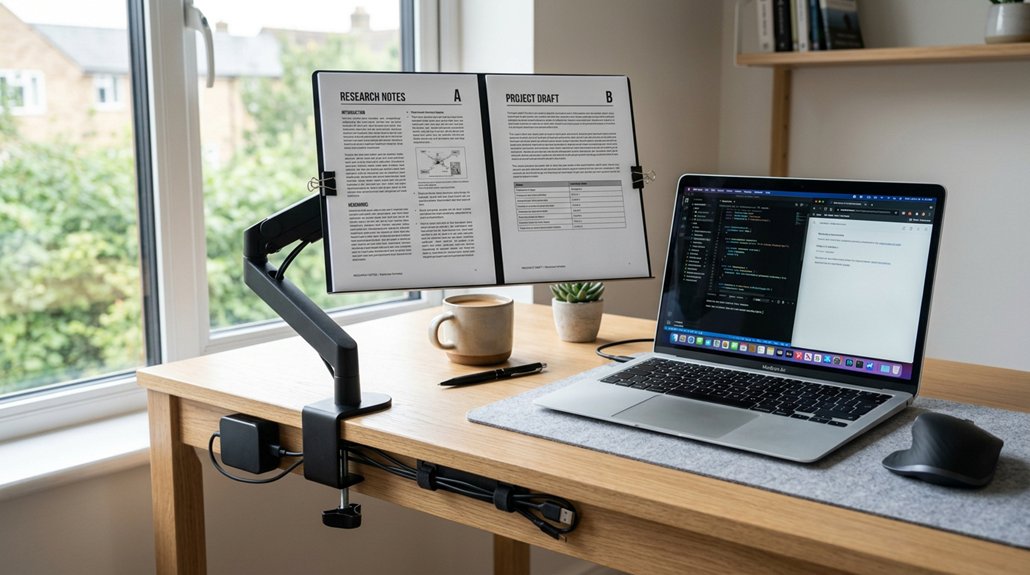
To guarantee your document setup promotes comfort and efficiency, it’s essential to experiment with different positions and angles. This makes it easier to find what works best, ultimately increasing productivity.
Start by adjusting your document holder to eye level and within arm’s reach to reduce neck strain and avoid disrupting your workflow. Test different placements by switching between freestanding, clip-on, or adjustable holders, ensuring they integrate smoothly with your monitor and keyboard.
Incorporate your document holders into your line of sight, along with multiple monitors, so you can reference documents quickly without losing focus on digital tasks. Regularly assess your comfort after work sessions, and tweak your setup to maintain ergonomic alignment, preventing fatigue and improving overall efficiency.
Frequently Asked Questions
How to Handle Multiple Tasks at the Same Time?
To handle multiple tasks simultaneously, you should prioritize, organize documents with labeled holders, use adjustable and clip-on holders for quick access, and keep everything within easy reach for efficient multitasking and minimal disruption.
How to Split Screen to Work on Two Documents?
You can split your screen by dragging and snapping two windows side-by-side or using your operating system’s split-screen feature. Adjust the window sizes to fit your physical document holders, making referencing easy and efficient.
How to Enable Multitasking?
To enable multitasking, reorganize your workspace with adjustable, labeled document holders at eye level near your monitors. Use vertical and multi-tasking setups, incorporating digital device stands, to switch seamlessly between tasks, boosting efficiency and reducing strain.
How to Have Multiple Tabs Open on Windows?
You can have multiple tabs open on Windows by using web browsers like Chrome, Edge, or Firefox. Simply press Ctrl + T to open new tabs, and organize them by dragging to improve your multitasking efficiency.



