
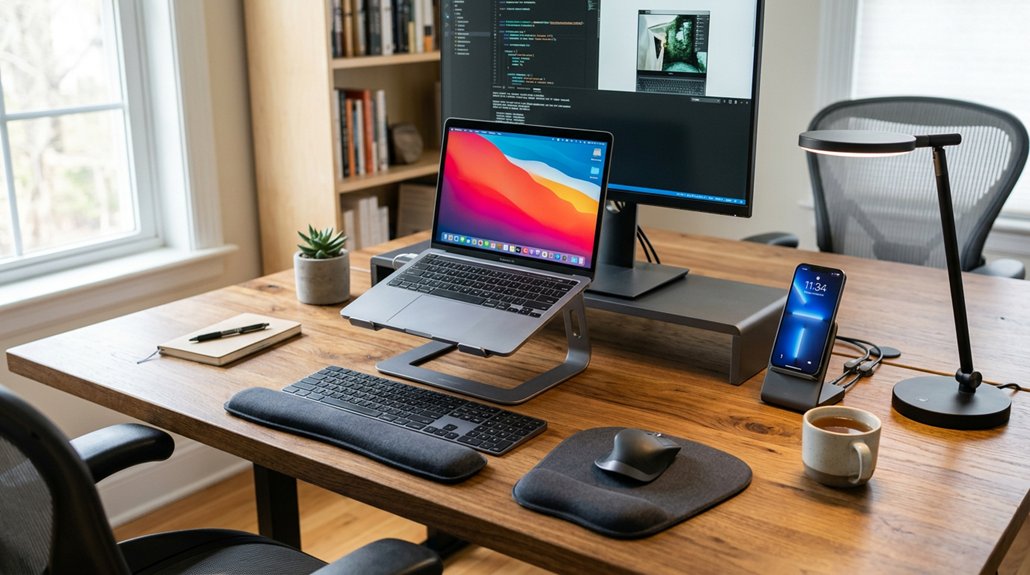
To maximize comfort at your desk, invest in adjustable ergonomic accessories like a supportive chair with lumbar support, a monitor stand at eye level, and an ergonomic keyboard and mouse that minimize wrist strain. Incorporate footrests and balance boards to promote better posture and circulation, while good lighting reduces eye fatigue. Adding stress-relief items like plants or noise-canceling headphones can further boost your comfort. Keep exploring to discover even more ways to create an ideal workspace.
How to Support Your Posture and Reduce Pain With the Right Chair

Choosing the right ergonomic chair is essential for supporting your posture and reducing discomfort during long hours at your desk. An ergonomic chair with adjustable seat height lets you set the seat for proper posture, keeping your feet flat on footrests or the floor. Proper lumbar support, positioned to fit your lumbar curve, helps maintain spinal alignment and reduces strain on your lower back. Adjustable armrests guarantee your shoulders and elbows stay relaxed at 90 degrees, promoting good posture. When these components work together, they support the natural “S” curve of your spine, helping to reduce pain and musculoskeletal strain. Incorporating lumbar support mechanisms into your chair ensures targeted lower back relief and better overall ergonomics. By customizing your chair to your body, you improve comfort, enhance blood circulation, and stay productive longer.
How to Position Your Monitor for Eye Comfort and Better Posture
To reduce eye strain and promote good posture, position your monitor so the top of the screen is at or just below eye level. Keep it about 20 to 26 inches away from your eyes and tilt it slightly downward to minimize glare. Using an adjustable arm makes it easy to customize the height, distance, and angle for your comfort. Additionally, incorporating a stand with ergonomic adjustments can further enhance your workspace and support sustained comfort.
Monitor Height Alignment
Have you ever noticed neck strain after long hours at your desk? Proper monitor placement is key to reducing neck strain and maintaining good posture. Position the top of your monitor screen at or slightly below eye level, aligning with your natural eye line.
Use an adjustable monitor arm or riser to easily set the screen to the ideal height for both sitting and standing postures, creating a truly ergonomic workstation. Keep the monitor about 20-26 inches away—roughly an arm’s length—to minimize eye fatigue.
Tilt the screen 10-20 degrees backward to reduce glare and improve comfort. Ensuring the monitor is perpendicular to light sources further lessens reflections. Adjustable height options enable a customized and ergonomic setup tailored to your needs.
Precise monitor height alignment supports better posture and sustained comfort throughout your workday.
Proper Viewing Distance
Positioning your monitor at the correct distance is essential for reducing eye strain and maintaining proper posture. To achieve this, guarantee your monitor is at an arm’s length distance, about 20-26 inches away, promoting the proper viewing distance.
Use an adjustable monitor arm to easily change the height and distance, helping you maintain a neutral head position. Keep the top edge of the monitor screen at or just below eye level to avoid neck craning. Tilt the screen 10-20 degrees backward to minimize glare and optimize comfort.
Additionally, align the monitor perpendicular to windows or bright light sources to reduce reflections. These adjustments help maintain the correct distance, reduce eye strain, and support overall ergonomic posture.
Minimize Glare and Reflections
Ever wondered how to reduce glare and reflections on your monitor for better eye comfort? Position your monitor so it’s perpendicular to windows, minimizing glare and unwanted reflections.
Adjust the monitor height so the top of the screen is at or just below eye level; this helps reduce strain and encourages neutral head positioning. Maintain a viewing distance of 20-26 inches, about an arm’s length, to prevent eye fatigue.
Tilt the monitor between 10-20 degrees to cut down on glare from overhead lighting and optimize your viewing angle. Using adjustable monitor arms or stands allows you to precisely align your screen against light sources, further reducing glare and making it easier to see without straining your eyes.
Proper positioning makes a big difference for comfort and posture, especially when using monitor hoods to block ambient light and enhance visual clarity.
How to Choose Ergonomic Keyboard and Mouse Devices for Wrist Relief
Choosing the right ergonomic keyboard and mouse can greatly reduce wrist strain and improve comfort during long hours at your desk. Look for keyboards with split, curved, or tented layouts like Microsoft Sculpt or Logitech Ergo K860, which promote a neutral wrist position and help reduce strain.
When selecting an ergonomic mouse, consider vertical designs or trackballs that minimize twisting and gripping, supporting wrist and forearm health. To maximize comfort, combine your devices with a wrist rest and guarantee your mouse fits your hand properly.
Additionally, features like low-force keys and adjustable DPI on mice reduce effort and enhance control. Incorporating multiple tilt positions and adjustable slopes can further optimize your posture and reduce tendon stress over time. Keep in mind that adapting may take 2-4 weeks, but these choices will help prevent repetitive strain injuries over time.
How Footrests and Balance Boards Improve Whole-Body Comfort
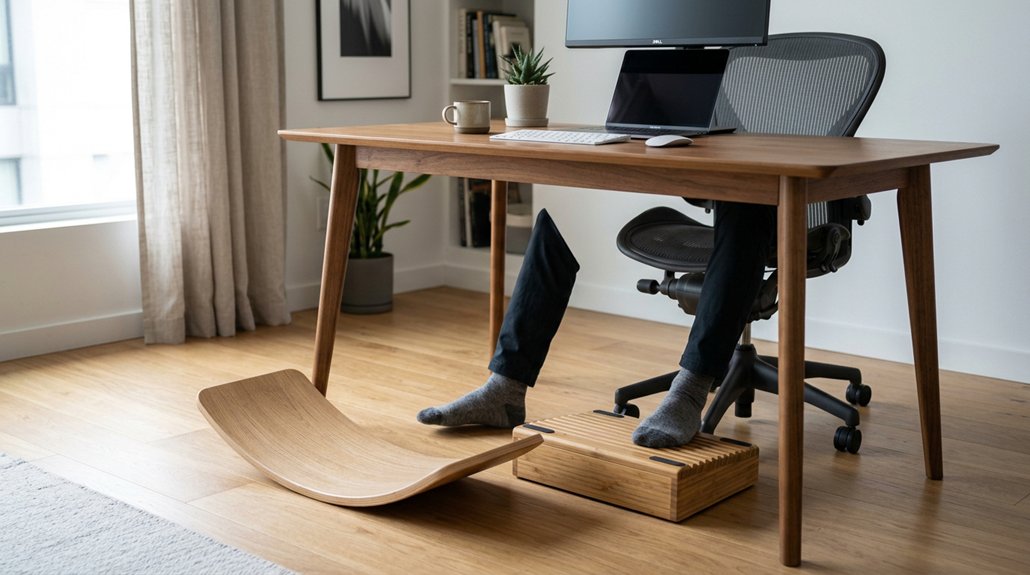
Using footrests and balance boards keeps you moving and improves your posture, reducing fatigue and discomfort. Footrests support proper leg positioning and boost circulation, while balance boards encourage subtle movements that engage your core. A well-designed footrest with non-slip features can also enhance stability during extended use. Together, they promote active sitting, helping your whole body stay comfortable during long work hours.
Enhancing Circulation and Posture
Properly supporting your feet with ergonomic footrests and incorporating balance boards into your workspace can greatly boost circulation and posture. Using ergonomic footrests keeps your feet flat and knees at a 90-degree angle, reducing lower back pressure and improving leg circulation. Adjustable footrests with rocking features encourage subtle movement, promoting active sitting and relieving sciatic nerve pressure. High-quality foam cores provide durable support that maintains shape over time, enhancing comfort. Balance boards like The Original, Level, and Plane® Cloud engage your core and legs during standing, enhancing posture throughout the day. Consider these key benefits: 1. Ergonomic footrests improve leg circulation and reduce lower back strain. 2. Balance boards stimulate subtle, continuous movements supporting spinal health. 3. Combining these accessories creates a dynamic setup that promotes whole-body circulation and reduces fatigue.
Promoting Active Sitting
To promote active sitting and enhance overall comfort, incorporating ergonomic footrests and balance boards encourages subtle, continuous movements that keep your body engaged throughout the day. Ergonomic footrests help keep your feet flat and knees at a 90-degree angle, reducing lower back pressure and improving leg circulation—especially beneficial for shorter users or fixed desk setups. Adjustable footrests with rocking motions promote active work by relieving sciatic nerve pressure and supporting better posture. Balance boards, like the durable Original Balance Board, encourage micro-movements of your core and legs while standing, preventing fatigue and promoting whole-body comfort during long periods. Incorporating natural rocking mechanisms into your workspace can further enhance comfort by promoting smooth, active movements. Using footrests with balance boards stimulates circulation, reduces musculoskeletal strain, and creates a more dynamic, comfortable workspace focused on active sitting.
How to Optimize Your Desk Setup With Laptop Stands and Organizers
Optimizing your desk setup involves more than just arranging your workspace; it requires strategic placement of laptop stands and organizers to promote comfort and efficiency. Start by choosing a laptop stand to elevate your screen to eye level, which helps maintain a neutral head posture and reduces neck strain. Using an adjustable ergonomic height stand allows you to customize the position for maximum comfort. Pair it with an ergonomic keyboard and mouse to keep your wrists and arms comfortable during long hours. Use desk organizers, like the Slope desk whiteboard or Bloc cork system, to keep your primary work items within 18 inches, minimizing reaching or twisting. To further streamline, position these items close to your monitor. This setup keeps everything within arms’ reach, reduces strain, and promotes better posture, making your workspace both functional and ergonomic.
How to Improve Lighting and Add Stress-Relief Accessories to Your Workspace
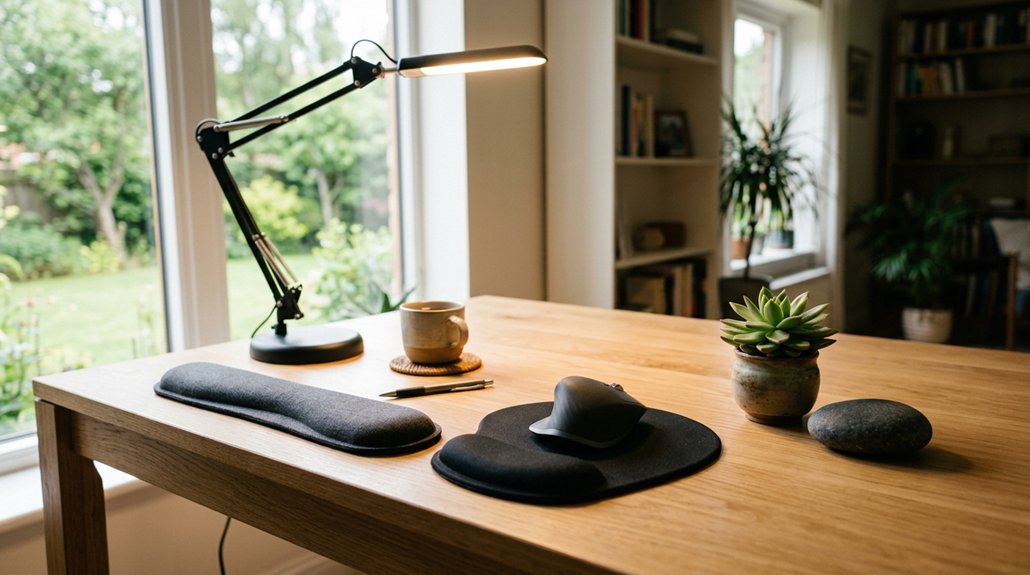
Enhancing your workspace lighting and adding stress-relief accessories can greatly boost comfort and productivity.
Use task lighting like the IKEA Forså Work Lamp with adjustable LED bulbs to provide bright, focused illumination and reduce eye strain during detailed work. Maximize natural light whenever possible, as it improves energy and overall well-being.
Combine natural light with adjustable lamps to achieve balanced brightness without glare, which can cause eye fatigue. Incorporate noise-cancelling headphones to block distractions and ease muscle tension, creating a calming environment. Personal touches such as houseplants or essential oil diffusers promote stress-relief and foster focus.
Position lighting sources carefully to minimize glare on screens and documents, enhancing visual comfort and helping you stay productive throughout the day. Considering flicker-free lighting options from high-quality LED lamps can further reduce eye strain and headaches during extended periods of work.
Frequently Asked Questions
Which Ergonomic Accessories Are Best for Small Workspaces?
You should choose compact ergonomic accessories like a small adjustable keyboard tray, a space-saving monitor stand, a compact wrist rest, and an ergonomic mouse. These help maximize comfort without cluttering your small workspace.
How Do I Choose the Right Anti-Fatigue Mat?
You should choose an anti-fatigue mat that offers cushioning, durability, and support for your feet; finds one that fits your workspace well, and guarantees it’s non-slip to prevent accidents. Consider your comfort and specific needs.
Can Ergonomic Desk Accessories Prevent Repetitive Strain Injuries?
Yes, ergonomic desk accessories can prevent repetitive strain injuries by encouraging proper posture, reducing strain on your neck, wrists, and back, and promoting movement. Using supportive, adjustable tools makes a noticeable difference in your comfort and injury prevention.
How Often Should I Adjust My Ergonomic Desk Setup?
You should adjust your ergonomic desk setup whenever you notice discomfort or repetitive strain signs. Regularly evaluate your posture, ideally every 30 minutes, to guarantee your workspace stays aligned and comfortable, preventing strain and promoting productivity.
Are There Portable Ergonomic Accessories for Remote Work?
Yes, you can find portable ergonomic accessories like foldable laptop stands, compact ergonomic mice, adjustable keyboard trays, and portable lumbar supports. These travel-friendly options help you maintain comfort and good posture, no matter where your remote work takes you.



