
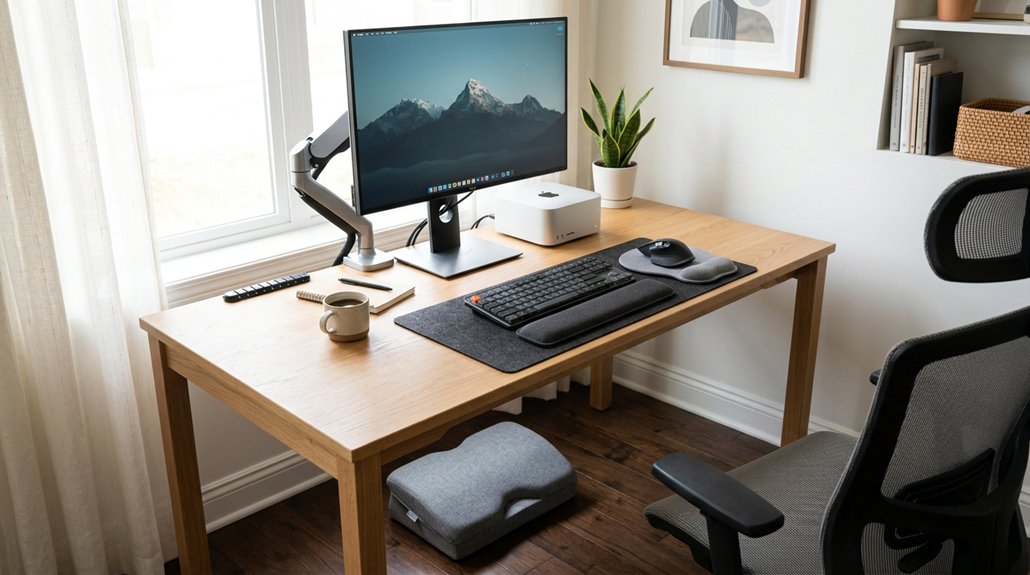
To prevent repetitive strain, choose ergonomic accessories like adjustable keyboards and mice that support neutral wrist positions. Use wrist supports, gel pads, and wrist braces to keep wrists aligned and reduce pressure. Adjust your monitor to eye level with stands or arms to avoid neck strain. Incorporate sit-stand desks, footrests, and anti-fatigue mats to promote movement and proper posture. Regularly clean and maintain your accessories, and you’ll discover effective ways to stay comfortable and injury-free throughout your workday.
How to Choose Ergonomic Desk Accessories to Prevent RSI
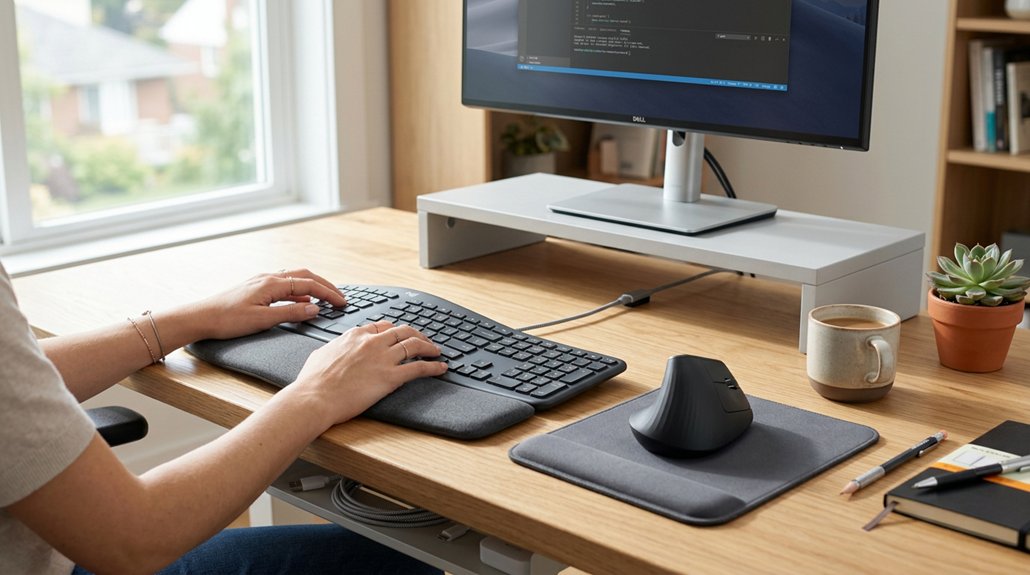
How do you select the best ergonomic desk accessories to prevent repetitive strain injuries? Start with ergonomic keyboards designed to keep your wrists straight, reducing muscle tension. Look for models with wave or split designs that support neutral wrist positioning.
Incorporate a wrist brace or wrist rest made of gel or foam cushioning; these provide added support and help prevent compression during typing or mouse use. Choose monitor stands or arms to keep your screen at eye level, promoting a neutral neck posture and alleviating shoulder strain.
Additionally, opt for compact keyboards and mice placed within easy reach to minimize reaching and maintain a straight wrist, decreasing repetitive muscle effort. Considering wrist rest materials such as memory foam or leatherette can further enhance comfort and durability, helping you stay comfortable and prevent strain during long hours at your desk.
Selecting Adjustable Keyboards and Mice for Custom Comfort
Are you looking to maximize comfort and reduce strain during long hours at your desk? Choosing adjustable keyboards with split or wave designs helps maintain a neutral position, reducing wrist strain. Ergonomic mice that fit comfortably in your hand and offer customizable sensitivity minimize muscle tension and repetitive movements. Look for adjustable keyboards that allow tilt and height adjustments, keeping elbows at 80-120° and wrists straight. Compact keyboards bring input devices closer, decreasing shoulder and arm strain. When selecting ergonomic mice, prioritize those with wrist support or use mouse mats with wrist cushions to prevent compression issues. Additionally, selecting material breathability features enhances comfort and prevents sweat buildup during extended use.
Wrist Supports and Pads for Comfortable Extended Use
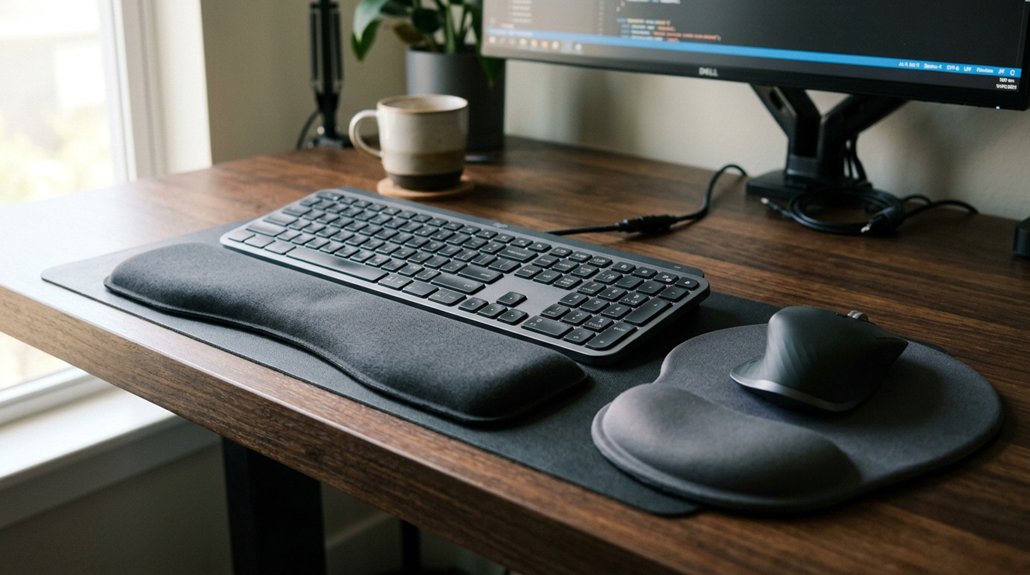
Using adjustable keyboards and ergonomic mice helps improve your overall comfort, but maintaining a neutral wrist position is key to preventing discomfort during extended work sessions. Wrist supports, like gel or foam rests, help keep your wrists in proper alignment, reducing repetitive strain. A well-designed ergonomic contour, conforming to your wrist’s natural shape, can further enhance comfort and support. Padded wrist pads cushion your tendons and nerves, lowering injury risks by evenly distributing pressure. Carpal tunnel wrist braces are especially useful for keeping your wrists straight, preventing awkward bending that worsens symptoms. Properly positioned wrist supports minimize muscle fatigue and discomfort by balancing pressure across your wrist and forearm. Choose supports that allow freedom of movement while offering firm support to reduce inflammation caused by repetitive motions. Incorporating these accessories helps make long hours at your desk more comfortable and injury-free.
Using Monitor Stands and Arms to Achieve Eye-Level Screens
To prevent neck and shoulder strain during long computer sessions, positioning your monitor at eye level is essential. Using monitor stands or adjustable monitor arms helps elevate your screen to the right height, promoting a neutral neck posture and reducing tension.
Adjustable monitor arms offer customization of height, distance, and tilt, allowing you to maintain an arm’s length away and ideal screen angles for comfort. Proper screen height aligned with your eyes prevents forward head posture, which can lead to upper body discomfort.
These accessories also free up desk space and improve the placement of keyboards and input devices, creating a more ergonomic setup. For bifocal users, adjustable monitor stands can position the screen slightly lower, reducing eye and neck strain during extended use.
Additionally, selecting a stand or arm with a sturdy build and smooth adjustment mechanisms ensures consistent positioning, as highlighted by various mounting methods and materials used in high-quality stands.
Choosing Sit-Stand Desks and Risers for Better Posture
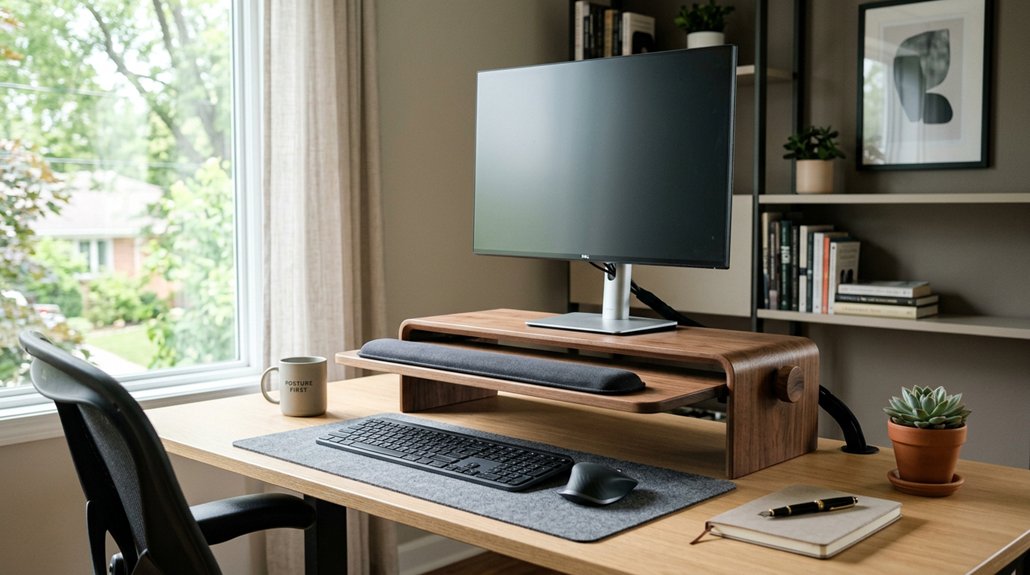
Have you considered how your choice of sit-stand desks or risers can transform your workstation? Selecting the right equipment helps reduce the strain caused by static postures and promotes proper posture.
Imagine:
- A sleek sit-stand desk with a smooth height adjustment mechanism
- An adjustable riser that easily elevates your laptop to eye level
- A durable surface that supports your arms comfortably
- Tools that lock firmly in place to prevent sudden shifts
- Portable options like lightweight ironing boards for flexibility
With the right sit-stand desks or risers, you can alternate between sitting and standing throughout your day. This variety helps maintain an upright torso, supports your spine’s natural curve, and minimizes posture-related RSI symptoms, encouraging healthier work habits. Height range flexibility
Footrests to Support Your Feet and Improve Alignment
Using a footrest helps keep your feet flat on the floor, promoting better posture and reducing strain on your lower back and legs. It also prevents slouching by supporting your feet, encouraging an upright, comfortable position. Adjustable footrests let you customize height for ideal alignment during long work sessions. Many models feature motion mechanisms that promote active movement, further enhancing circulation and reducing stiffness during extended periods of sitting.
Proper Foot Positioning
Guaranteeing your feet rest flat on the floor is essential for maintaining proper posture, but when your desk or chair height makes this difficult, a footrest can make a significant difference.
A well-chosen footrest helps keep your knees slightly lower than your hips, promoting proper postural alignment and reducing lower back strain. It also improves circulation, preventing pressure points and increasing comfort during long hours.
When selecting a footrest, consider adjustable options that suit your height and leg length. Visualize this:
- Your feet firmly grounded on a supportive surface
- Knees gently angled below hips
- Back straight and shoulders relaxed
- Legs free from pressure or numbness
- An ergonomic setup supporting sustained comfort
- Height adjustability ensures the footrest can be tailored exactly to your needs.
Using a footrest guarantees proper foot positioning, reducing muscle fatigue and promoting good overall posture throughout your workday.
Enhances Posture Alignment
Supporting your feet with a stable footrest naturally encourages proper posture by aligning your hips, knees, and spine. This promotes ergonomic alignment, maintaining an upright sitting position and reducing musculoskeletal discomfort. When your feet are flat on a footrest, you’re less likely to dangle your legs, which helps keep your knees slightly lower than your hips. Proper seated posture is preserved, preventing strain on your lower back and legs. Adjustable footrests allow you to tailor support to your height, ensuring comfort during long work sessions. By incorporating footrests into your setup, you distribute your body weight evenly, improving circulation and preventing pressure points. Utilizing non-slip features on the footrest further enhances stability and safety during use.
Managing Cables for a Safer, Organized Workspace
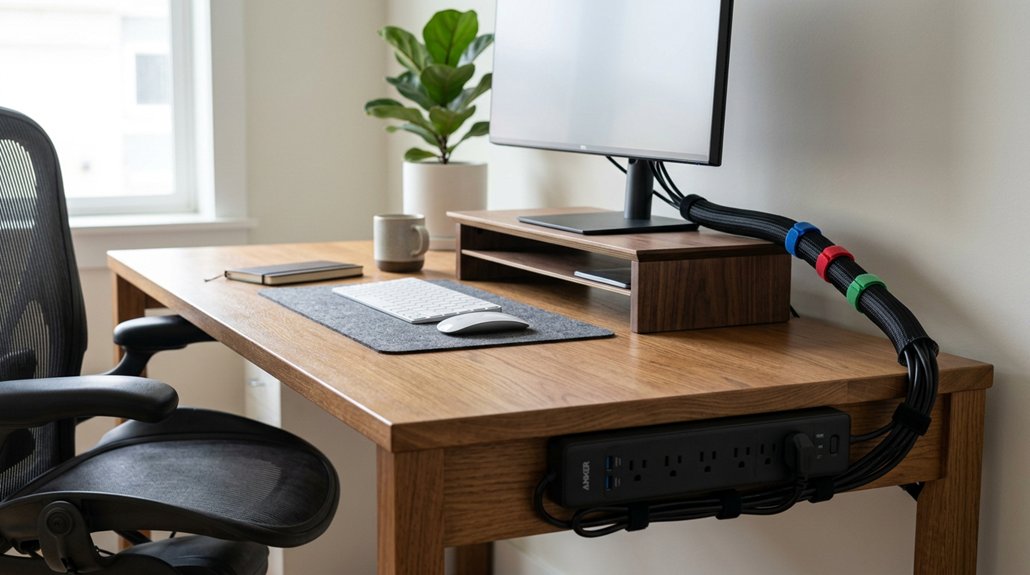
Managing your cables effectively keeps your workspace safe and tidy. Use clips, sleeves, or organizers to bundle cables and prevent tripping hazards, and keep frequently used cords within reach to avoid strain. A well-organized setup can also support cable flexibility, reducing the risk of damage or disconnection during daily use. When placing cables, make sure they’re secured and labeled to avoid accidental pull or disconnection, promoting better ergonomics.
Cable Management Strategies
Organizing your cables effectively can greatly improve both safety and productivity at your workspace. Use cable clips and cable organizers to bundle cords neatly, preventing tangled cables that can cause tripping hazards.
Route cables along desk edges or underneath the desk using adhesive cable organizers or under-desk trays; this keeps cords out of the way and reduces wrist strain from awkward movements. Label cables near plugs and connectors to quickly identify devices, minimizing the need to handle cables excessively.
Avoid running cables across walkways to prevent accidental snagging or falls that can cause strain injuries. Consider flexible cable sleeves or spiral wraps to group multiple wires, making adjustments easier and maintaining a tidy, efficient setup.
- Cable clips securing cords along the desk edge
- Under-desk trays hiding power strips and cables
- Labeled cables near connectors for quick identification
- Spiral wraps neatly grouping multiple wires
- Cables routed away from high-traffic areas
Safe Cable Placement
Placing cables thoughtfully is essential for creating a safer, more organized workspace. Properly arranged cables reduce tripping hazards and clutter that can lead to awkward reaching or pulling motions, which may cause repetitive strain.
Keep cables away from wrist and hand areas to prevent pressure points that contribute to RSIs. Position power strips and extension cords within easy reach, so you avoid unnecessary bending or stretching that strains muscles and tendons.
Use cable organizers or under-desk trays to keep cords off the floor and desk surfaces, supporting better ergonomics. Regularly inspect and adjust your cable placement to guarantee they don’t obstruct legroom or force unnatural postures.
Additional accessories like rotatable clips or multi-slot silicone organizers can help you customize cable routing for maximum comfort and efficiency. Well-managed cables help you stay comfortable and reduce the risk of repetitive strain in your workspace.
Desk Accessories That Promote Movement and Flexibility
Incorporating desk accessories that encourage movement and flexibility can greatly reduce the risk of repetitive strain injuries. Using tools like sit-stand desks and desk risers helps you switch between sitting and standing, promoting frequent movement.
Adjustable monitor arms and laptop stands allow easy screen height changes, keeping your neck and upper body flexible. An ergonomic chair with adjustable height, lumbar support, and a footrest helps maintain good posture and encourages subtle body shifts.
Wrist rests and cushioned mouse pads support neutral wrist positions and enable micro-adjustments, easing strain. Additionally, compact keyboards and close mouse placement minimize reaching, reducing tension in your arms and shoulders.
These accessories work together to keep your body active, reducing prolonged static postures and enhancing overall comfort during work.
How Anti-Fatigue Mats Can Keep You Comfortable Standing
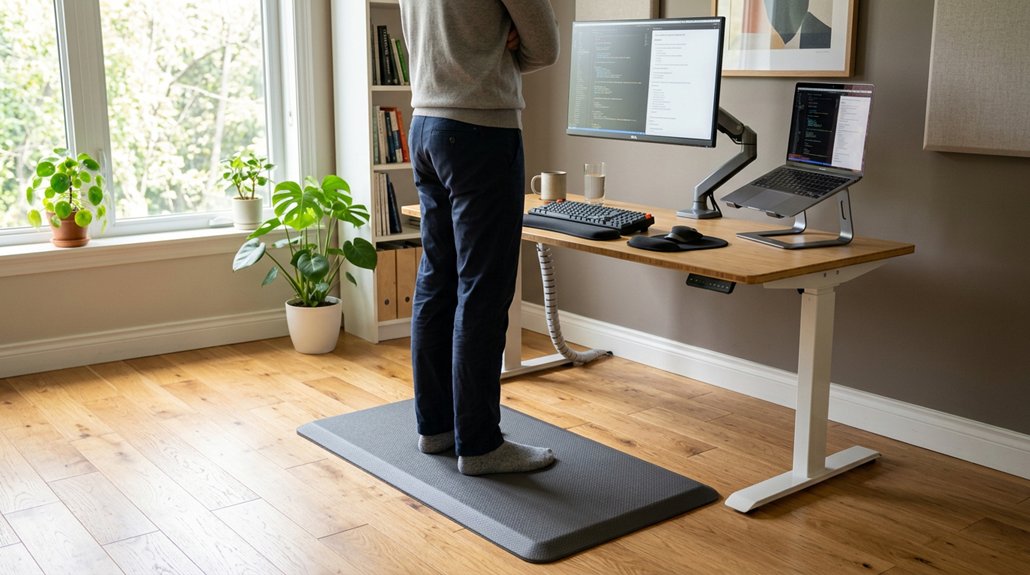
Switching between sitting and standing at your desk can greatly reduce strain, but standing for long periods without proper support can lead to discomfort.
Anti-fatigue mats help by reducing discomfort and fatigue through a cushioned surface that absorbs shock and decreases joint stress. When you stand on an anti-fatigue mat, it encourages subtle muscle movements, which help improve blood circulation and prevent stagnation.
Anti-fatigue mats boost comfort by cushioning your stance, promoting circulation, and reducing joint stress during prolonged standing.
Using these mats with your sit/stand desk setup lessens pressure on your feet, legs, and lower back, lowering the risk of strain and pain. They also promote better posture by encouraging shifts in weight, preventing stagnant standing positions linked to musculoskeletal issues.
Incorporating anti-fatigue mats into your workspace makes standing more comfortable and helps maintain energy throughout your workday.
Setting Up Proper Lighting and Screen Filters to Reduce Eye Strain
Proper lighting placement helps reduce glare and reflections, making it easier on your eyes during long work sessions. Adjust your screen so it’s perpendicular to windows or light sources to prevent harsh brightness and squinting.
Using anti-glare filters and soft, diffused lighting also enhances visual comfort and reduces eye strain.
Optimal Lighting Placement
To reduce eye strain, it’s essential to position your lighting sources thoughtfully and avoid glare that reflects directly on your screen. Proper placement minimizes reflections and prevents improper posture caused by squinting or leaning forward.
Use adjustable desk lamps with soft, diffused light to create a balanced environment that reduces harsh shadows. Place your screen perpendicular to windows, which helps avoid natural light glare while maintaining enough ambient illumination.
To help visualize, imagine:
- An adjustable desk lamp with a flexible arm directing gentle light
- A computer screen positioned at a right angle to a window
- Warm, diffuse lighting filling the workspace evenly
- Shadows cast softly without harsh edges
- A workspace bathed in consistent, balanced light
These steps support healthy eye focus, reduce glare, and enhance overall comfort.
Screen Filter Benefits
Using screen filters alongside well-placed lighting creates a more comfortable viewing experience by minimizing glare and reflections. Screen filters help reduce glare from sunlight and artificial lighting, which can cause eye strain and headaches during extended computer use.
When paired with appropriate lighting, these filters maintain ideal contrast and lessen the need for your eyes to strain excessively. They also prevent reflections that lead you to adopt awkward postures, reducing neck and shoulder tension. Adjustable brightness settings and blue light reduction filters further enhance visual comfort in varying lighting conditions.
Positioning your screen correctly to avoid direct light sources, combined with the use of screen filters, supports sustained focus and diminishes the risk of repetitive strain injuries caused by eye discomfort.
Maintaining and Cleaning Your Ergonomic Accessories for Longevity
Regular cleaning and maintenance of your ergonomic accessories are essential for their durability and hygiene. Keeping your wrist rests, keyboards, and mouse mats clean prevents sweat, oils, and dust from degrading materials and compromising hygiene.
Use a mild detergent and soft cloth to wipe surfaces regularly. Disinfect frequently touched areas weekly with alcohol-based wipes to reduce bacteria buildup that can cause skin irritation.
Check and tighten adjustable parts on sit-stand desks or monitor stands monthly to guarantee stability and proper ergonomic positioning. Replace foam or gel padding in wrist rests every 1-2 years or when support diminishes to maintain comfort.
Remember: avoid eating or drinking near your accessories to prevent stains and sticky residues.
Personalizing Your Workspace to Maximize Comfort and Minimize Strain
Have you ever noticed how small adjustments can make a big difference in comfort at your workstation? Personalizing your home workspace helps prevent repetitive strain by ensuring everything supports good posture.
Adjust your monitor height with stands or adjustable arms so the top aligns with your eye level, reducing neck and shoulder tension. Use ergonomic input devices like keyboards and mouse pads with wrist rests to keep your wrists neutral and lower injury risks. Incorporate a footrest if your feet don’t reach the floor comfortably, promoting better posture and easing lower back strain.
Also, customize your chair with adjustable height and lumbar support to maintain an upright position. Keep frequently used desk items within 18 inches to avoid awkward reaching, preventing unnecessary strain on your arms and shoulders.
Frequently Asked Questions
Which Ergonomic Accessories Can Help Reduce Wrist Strain While Typing?
You can reduce wrist strain by using ergonomic keyboards with wave designs, gel wrist rests, and adjustable trays. Also, opt for compact keyboards and utilize shortcuts to lessen repetitive movements, keeping your wrists comfortable and properly aligned while typing.
How to Avoid RSI When Using a Computer?
To avoid RSI, you should keep your workspace ergonomically optimized, take regular breaks to stretch, maintain proper posture, use supportive accessories like wrist rests, and guarantee your monitor and keyboard are positioned at comfortable heights.
What Desk Accessories Are Good for Carpal Tunnel?
To help with carpal tunnel, you should use gel or foam wrist rests, wrist braces, ergonomic keyboards with wave designs, adjustable chair cushions, and ergonomic mouse mats with wrist pads. These accessories keep your wrists neutral and reduce pressure.
What Is Computer Wrist Syndrome?
Computer Wrist Syndrome is a repetitive strain injury causing wrist pain, numbness, and tenderness from prolonged, awkward positioning during computer use. You may experience tingling, stiffness, and weakness, potentially leading to nerve irritation or carpal tunnel if untreated.




Leave a Reply