
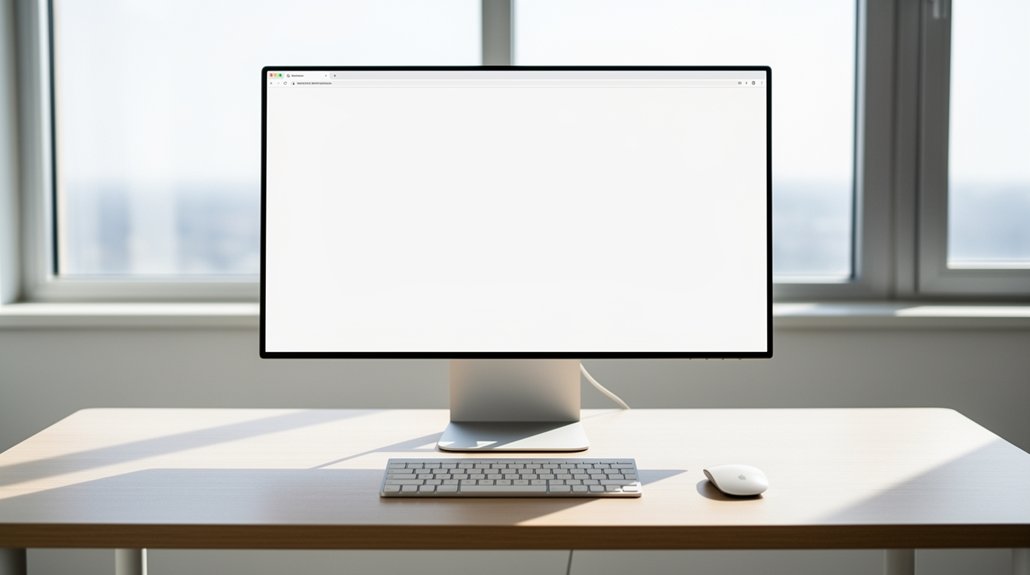
Place your monitor about 20–30 inches (50–75 cm) away, with the top edge at or just below eye level so your neck stays neutral. Adjust your desk depth or use a monitor arm to lock this distance, keeping the screen perpendicular to your line of sight. If you wear progressive lenses, tilt the screen back a few degrees and lower it slightly. Make sure your elbows form roughly 90° at the keyboard, and you’ll avoid eye strain and musculoskeletal fatigue. Keep reading for more ergonomic tips.
Why Proper Monitor Distance Matters for Comfort and Health
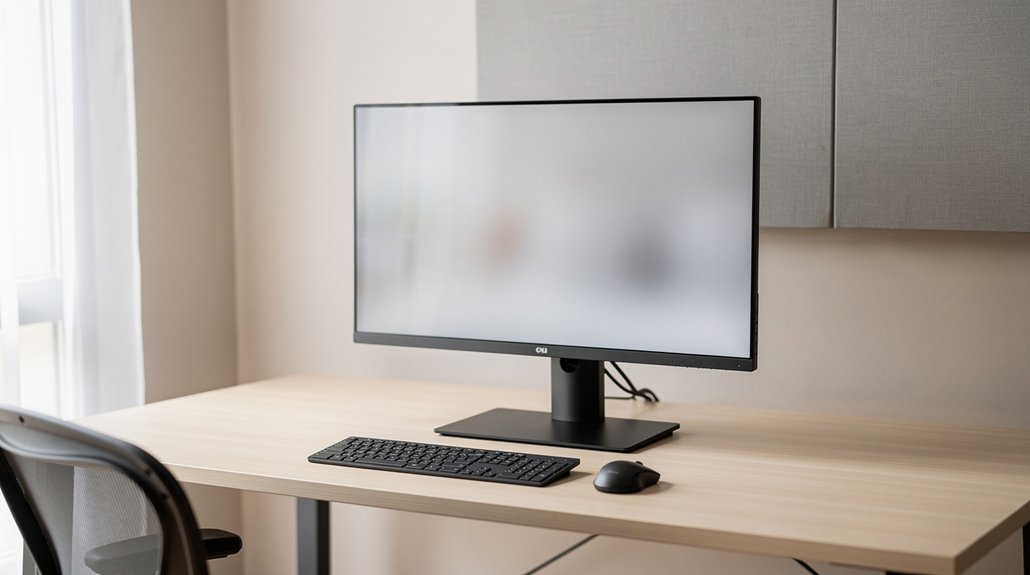
Why does the distance of your monitor matter? You’ll notice less eye strain when you sit about 20–30 inches away, because the viewing distance lets your eyes focus comfortably without constant accommodation. Position the top edge of the screen at eye level or just below, and you’ll keep a neutral neck position, avoiding forward‑head posture. A proper monitor distance also prevents you from leaning forward or squinting, which can cause musculoskeletal fatigue.
If you upgrade to a larger or higher‑resolution display, increase the distance slightly to preserve clear focal depth.
When text feels too small, enlarge the font instead of moving the screen closer—this maintains the same viewing distance and protects your neck alignment.
The 50‑70 cm (Arm’s Length) Rule Explained
You can simply stretch your arm and see if you can barely touch the screen; that’s your 50‑70 cm sweet spot.
Adjust the monitor up or down until the text is clear without straining your eyes or neck.
Keep this distance consistent, and you’ll maintain comfortable, neutral posture throughout the day.
Measure Arm’s Length
Ever wondered how far your eyes should be from the screen? Measure your arm’s length to set a solid viewing distance. Extend your arm fully and note where your fingertips meet the monitor; that spot is roughly 50–70 cm away. If you can just touch the screen with your fingertips, you’ve achieved the proper monitor distance. This simple check ensures your eye posture stays neutral, reducing strain on the eyes, neck, and upper back.
Adjust the measurement if you use a larger screen or higher resolution—farther away works better. When you switch between sitting and standing, re‑measure to keep the same comfortable distance. Consistently applying the arm’s‑length rule gives you a reliable baseline for a healthy workspace.
Adjust for Visual Comfort
How far should your eyes be from the screen for optimal comfort? Aim for a monitor distance of 50–70 cm (20–28 inches). That arm’s‑length viewing distance lets you see the whole screen without leaning or squinting.
Position the top edge at or just below eye level, so your gaze drops 10–20 degrees. This slight downward angle reduces eye strain and keeps neck posture neutral.
If you wear progressive lenses, lower the screen a touch and tilt it back a bit to preserve that neutral neck posture. Do a quick visual check: you should read text and view central content without excessive head movement or forward head tilt.
Adjusting these angles ensures comfortable, strain‑free work sessions.
Maintain Consistent Distance
Why settle for a guess when you can anchor your workspace to a simple rule? Keep your monitor at a consistent 50–70 cm viewing distance—roughly arm’s length—to curb eye strain and preserve a neutral neck posture. An arm‑length baseline lets you see the whole screen without leaning or squinting, and you can fine‑tune it for screen size or resolution. If you wear progressive lenses, lower the monitor slightly and tilt it back to keep your head upright. Staying within this range prevents forward‑head posture and fatigue; drifting closer or farther only taxes your eyes and neck.
| Position | Distance (cm) | Effect |
|---|---|---|
| Ideal | 50‑70 | Minimal eye strain, neutral neck |
| Too close | <50 | Squinting, forward head |
| Too far | >70 | Eye fatigue, neck extension |
| Adjusted | 60‑65 (custom) | Balanced comfort |
Measure Your Ideal Monitor Distance in Seconds
You can gauge the perfect distance in just a few seconds by extending your arm and noting where the screen lands. If the whole display fits comfortably without you having to lean or squint, you’ve passed the arm‑length test. Adjust the monitor up or down until the top is at or just below eye level for a relaxed, neutral posture.
Arm‑Length Distance
Ever wondered how far your screen should be for comfortable viewing? Your arm’s length distance is the sweet spot for monitor distance and screen viewing distance. Extend your arm fully; you should be able to touch the screen with the tip of your middle finger without leaning forward. This 50–70 cm (20–28 in) range keeps your neck neutral and cuts eye strain. If you have a larger or higher‑resolution display, nudge the distance a bit farther to ease the eyes. When text feels cramped, boost font size instead of pulling the monitor closer—maintaining the proper arm‑length rule preserves comfort.
| Feeling | Reason | Result |
|---|---|---|
| Relief | Proper arm’s length | Less eye strain |
| Confidence | Balanced monitor distance | Stable posture |
| Comfort | Adequate screen viewing distance | No squinting |
| Productivity | Correct setup | Fewer distractions |
Arm‑Length Test
The arm‑length rule gives you a solid baseline, but confirming it takes just seconds. Extend your arm, straighten it, and bring your fingertips toward the screen. If you can barely touch the display, your monitor distance aligns with the arm’s-length rule and sits within the recommended 50–70 cm range.
For larger or higher‑resolution screens, let the distance drift toward the upper end of that span to keep the focal plane comfortable. When you’re done, check your neck posture; a neutral neck indicates the viewing distance is correct.
If you notice forward head tilt, adjust the screen slightly closer or lower it, especially if you wear progressive lenses. This quick test ensures a healthy setup in just a few seconds.
Adjustable Positioning
When you sit upright and keep your head in a neutral position, a quick eye‑centered test can confirm the perfect monitor distance in just a few seconds: glance at the top third of the screen, keep your eyes open, and note whether the text feels comfortably readable without straining.
If it’s blurry or you have to squint, slide the monitor farther away until the words are crisp; if you’re leaning forward, pull it closer. Adjust the stand or arm so the screen sits at eye level, preserving a neutral neck posture and a natural viewing distance of 50–70 cm.
For progressive‑lens users, lower the monitor slightly and tilt it back. Increase font size before moving the screen, as that reduces eye strain while keeping neck comfort intact.
Adjust Desk Depth to Meet the Optimal Viewing Range
How far should your desk extend to keep your monitor within the ideal viewing range? You’ll want a desk depth that lets your eyes land comfortably on the screen without leaning. Aim for a 20‑30‑inch monitor distance, which translates to a desk depth of about 27‑30 inches for most setups. This range supports an ergonomic setup where your elbows stay close to a 90‑degree angle and your shoulders remain relaxed.
If you use a larger monitor or multiple input devices, consider a deeper surface—36 inches or more—to preserve neutral arm posture. Adjust the depth before adding accessories, ensuring the viewing range stays consistent whether you sit or stand. This simple tweak reduces strain and keeps your workspace efficient.
Use Monitor Stands and Arms to Fine‑Tune Distance
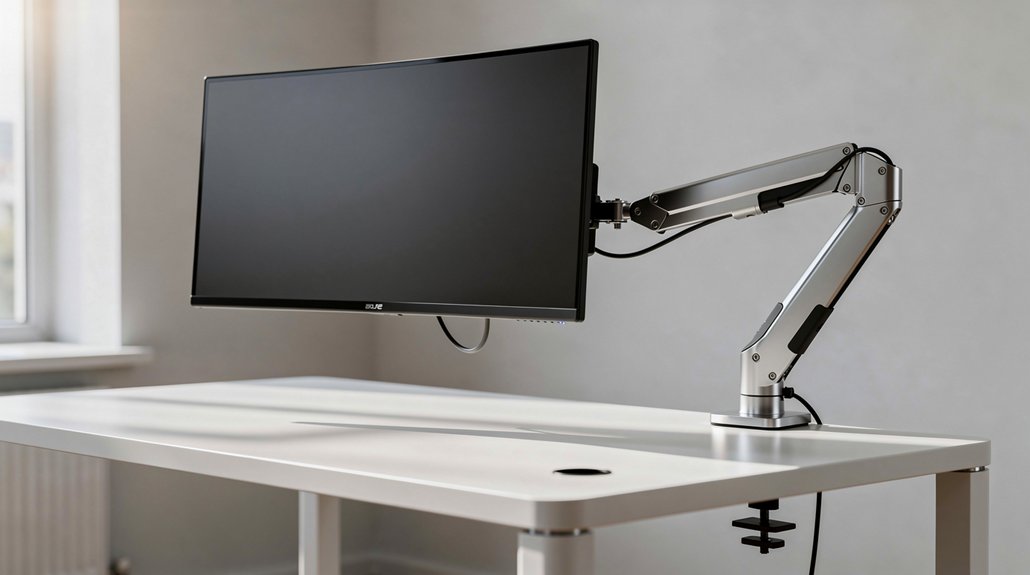
You can grab an adjustable monitor arm and set the screen at roughly arm’s length—about 50–70 cm—to hit the sweet spot.
Fine‑tune the height so the top edge sits at or just below eye level, keeping your neck neutral.
When you switch between sitting and standing, the arm lets you quickly read‑adjust depth without moving the whole desk.
Adjustable Monitor Arms
Adjustable monitor arms give you precise control over height, depth, and tilt, letting you set the screen at an arm’s‑length distance (about 50–70 cm or 20–28 inches) and keep the top edge at eye level. With a monitor arm you can centralize your primary display, keep a consistent ergonomic setup, and switch seamlessly between sit‑stand vision without compromising viewing distance. The arm’s flexibility frees desk space, accommodates larger work surfaces, and lets you fine‑tune height for progressive lenses, reducing neck strain.
- Mount the arm on a sturdy desk grommet or clamp.
- Adjust height so the top of the screen aligns with your eyes.
- Set depth to maintain a 50–70 cm viewing distance.
- Tilt and swivel to keep the screen perpendicular to your line of sight.
Arm’s Length Measurement
When you extend your arm and let the screen touch the tip of your middle finger at full stretch, you’ve hit the ideal viewing distance—about 50–70 cm (20–28 inches). This arm’s length rule gives you a quick baseline for monitor distance and ergonomics. Use a monitor stand or an articulated arm to lock that distance in place, especially on deeper desks or with multiple screens. Adjust the arm’s pivot until the screen stays at the same viewing distance when you swivel or tilt.
If text feels cramped, increase font size instead of pulling the monitor closer; this keeps your neck neutral. For dual-monitor setups, position the primary screen directly ahead at arm’s length, and place the secondary slightly off-center while preserving the same distance. This fine-tuning ensures consistent eye comfort and optimal workspace ergonomics.
Fine‑Tune Height Alignment
Wondering how to keep your neck neutral while you work? Fine‑tuning monitor height with a stand or arm lets you set the top edge at eye level, keeping neck posture natural and eye strain low. Adjust the arm so the screen sits an arm’s‑length away—about 50–70 cm—so you can glance without leaning forward. If you wear progressive lenses, lower the monitor a touch and tilt it back to preserve a comfortable line of sight. For dual setups, keep the primary display directly ahead and the secondary slightly off‑center to limit head turning.
- Mount the monitor on an adjustable arm.
- Set the top edge at or just below eye level.
- Position the screen 50–70 cm away.
- Tweak tilt for progressive lenses or sit‑stand changes.
How Multiple Monitors Change the Distance Equation
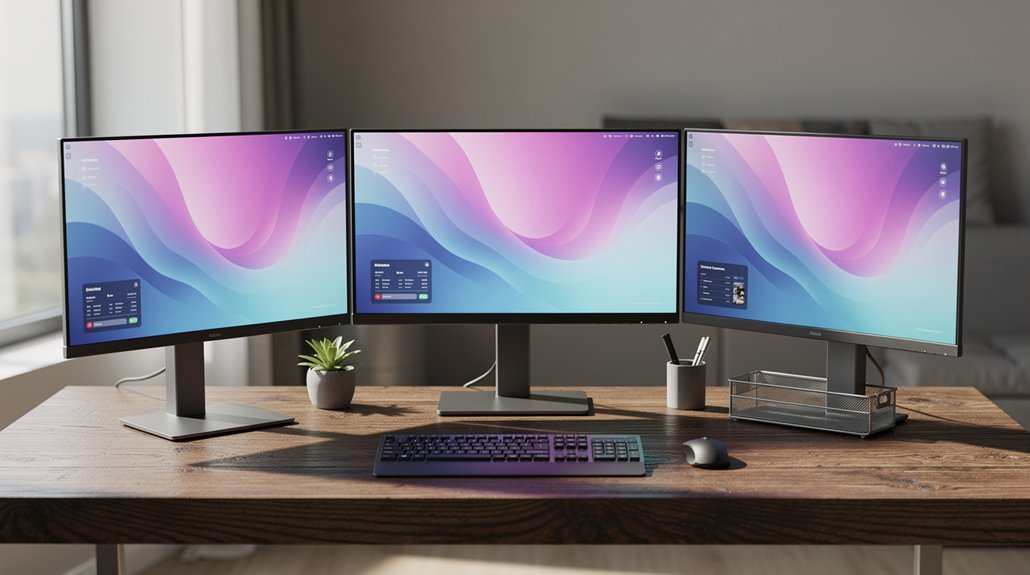
Ever wonder how adding a second monitor reshapes your viewing distance? When you set up dual monitors, keep the primary screen straight ahead at arm’s length—about 20–30 inches (50–75 cm).
Position the secondary monitor to the side so you won’t twist your neck; its monitor distance should stay within the same comfortable range. Align the top edges of both displays at or just below eye level to maintain a neutral neck posture. Use a monitor arm or stand to fine‑tune each screen’s height and distance independently, allowing quick shifts between reading text, coding, or design work.
For wide or ultrawide configurations, keep the screens close enough that the center of each remains reachable without excessive head movement, preserving consistent viewing distance across the whole workspace.
Laptop‑Only Setups: Bridging the Gap Without a Stand
How can you keep a laptop‑only workspace ergonomic without a traditional desk stand? You can still hit the right monitor distance and eye level by using everyday tricks that mimic a laptop stand and keep external input devices within easy reach.
- Prop the laptop on a sturdy book or a stack of magazines so the top edge sits at or just below eye level, allowing a slight downward gaze (10‑20°).
- Position an external keyboard and mouse at arm’s length, aligning them with the screen’s center to keep forearms parallel to the desk.
- Adjust your chair height so your elbows form a 90° angle when typing, preserving the 50‑70 cm monitor distance.
- Use a portable laptop riser or a DIY acrylic platform when you need extra height, ensuring the screen stays at eye level without a permanent laptop stand.
How Chair Height Helps Keep Your Screen at the Right Distance
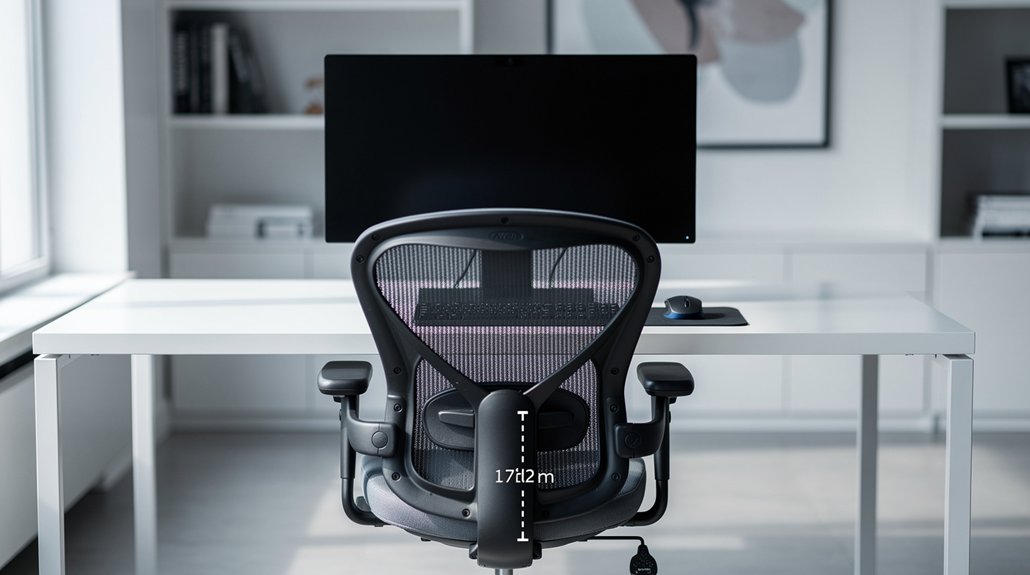
When you set your chair height so your forearms rest flat on the desk, the monitor naturally falls within arm’s‑length distance, keeping your neck neutral. If the chair is too high or low, you’ll end up tilting your head or leaning forward, which strains the neck.
A correctly adjusted chair lets you sit back with hips at about 90°, maintaining a steady 20‑30 inch viewing distance without extra effort.
Chair Height Determines Screen Distance
Why does your chair matter for screen distance? Your chair height sets the baseline for how far you sit from the monitor. When your forearms stay parallel to the floor and elbows form a right angle, you naturally achieve the optimal screen distance. A higher chair lifts you, demanding a farther monitor to keep the eyes at arm’s length and maintain eye level. A lower chair pulls the screen closer, risking forward head posture and eye strain unless you adjust the monitor. Proper chair height aligns the top of the screen with your eyes, giving a 10‑20° downward gaze and supporting a neutral posture that promotes ergonomic viewing.
- Adjust chair so forearms are parallel to the floor.
- Ensure elbows form roughly 90°.
- Align the screen’s top edge with eye level.
- Keep the monitor 20‑30 inches away for neutral posture.
Adjust Height for Optimal Viewing
Ever wondered how a simple chair adjustment can lock your screen at the perfect distance? When you raise or lower your chair so the top of the monitor sits at eye level, you create a natural viewing angle of about 10–20 degrees downward. This positioning keeps your forearms parallel to the desk, forming roughly 90‑degree elbows, and maintains a monitor distance of 20–30 inches (50–75 cm).
If the chair sits too low, avoid tilting your head up; instead, use a stand or arm to raise the screen. Proper chair height reduces the need to crane your neck or lean forward, preserving a neutral spine and comfortable viewing angle during long work sessions.
Quick Visual Test: Is Your Distance Right?
Curious if your desk setup is truly ergonomic? You can quickly verify your distance with a simple visual test. Sit upright, stretch your arm, and see if your fingertips just graze the screen. If they don’t, adjust the monitor position until the top edge aligns with your eye level or sits slightly below. This ensures a neutral head posture and reduces strain. For dual screens, keep the primary monitor directly in front at arm’s length, and move secondary displays only if needed.
- Extend your arm; fingertip should barely touch the screen.
- Check that the top edge of the monitor is at eye level.
- Ensure the screen is 20–30 inches away (arm’s length).
- For two monitors, place the main one straight ahead, preventing head turn.
Common Mistakes That Reduce Ergonomic Distance
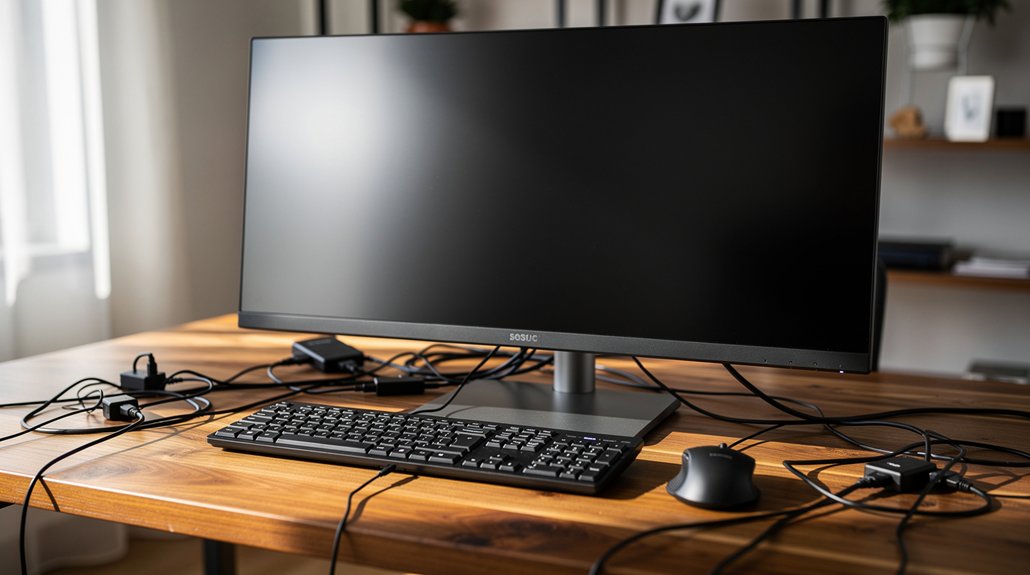
Do you know which simple habits are silently sabotaging your ergonomic setup? You might set the monitor too low, forcing a forward head tilt that creates neck strain, or raise it so high that you constantly extend your neck upward. When the viewing distance shrinks to arm’s length on a shallow desk, the screen ends up too close, causing eye fatigue and breaking neutral posture. A dual‑monitor rig often misplaces the secondary screen, making you twist or turn repeatedly, which adds shoulder tension. Glare from lights or windows can compel you to crane your neck or lean forward, further compromising the ideal monitor distance and eye level. These misalignments reduce comfort and increase long‑term musculoskeletal risk.
Prevent Eye Strain: Pair Distance With Font Size and Brightness
Improper monitor placement often leads to neck strain, but the next step is protecting your eyes. Keep your screen about an arm’s length away—50–70 cm—so you don’t have to squint. If text feels small, increase the font size instead of moving closer; this preserves a neutral neck position and eases eye strain. Adjust brightness and contrast so the display stands out from the surrounding light, minimizing glare. Pair the right distance with a comfortable font size and optimal brightness for a relaxed visual experience.
Keep screens at arm’s length, use larger fonts, and adjust brightness for glare‑free, relaxed viewing.
- Set distance to 50–70 cm (20–28 in).
- Raise font size until you can read without leaning forward.
- Calibrate brightness to match ambient lighting, avoiding harsh glare.
- Use high‑contrast themes to reduce eye strain during long sessions.
Adapting Monitor Distance for Different Tasks (Coding, Design, Reading)
Adjusting your monitor distance based on the task at hand guarantees comfort and productivity. For coding, keep the monitor at arm’s length—about 50 cm—and align the top edge just below eye level so you can glance at code without neck flexion. When designing, shift a bit farther, aiming for 60–75 cm, which lets you see high‑resolution UI elements without excessive eye movement. Reading dense documents calls for the upper end of the 50–70 cm range; tilt the screen slightly so the text center stays near eye level, reducing strain. If you wear progressive lenses, lower the monitor and tilt it back 5–10 degrees to maintain a relaxed gaze across all tasks. This task adaptation ensures each activity receives the optimal monitor distance.
Ergonomic Checklist: Verify Screen Distance Before You Sit
Ever wonder how to confirm your screen is at the right distance before you settle in? You can quickly verify your ergonomic setup with a simple checklist, ensuring the monitor distance reduces eye strain and prevents neck strain. Follow these steps before you sit:
- Measure roughly 50–70 cm (or an arm’s length) from your eyes to the screen.
- Align the screen’s center 17–18° below your natural line of sight.
- Position the top edge at or just below eye level so you look slightly downward.
- Adjust if text feels fuzzy or your neck tenses—move the monitor a few centimeters closer or farther as needed.
Doing this each day keeps your workspace comfortable and your posture neutral.
Fix Glare While Keeping Proper Monitor Distance
Wondering how to eliminate glare without sacrificing the ideal 50‑70 cm viewing distance?
Position your monitor away from windows or bright lamps, and let natural light come from the side instead of directly behind the screen. Keep the top edge at or just below eye level, then tilt the display back 10–20 degrees; this reduces reflections and aligns the view with your sightline. Adjust the desk height so the monitor distance stays within an arm’s length—about 50–70 cm (20–28 in)—to preserve a comfortable viewing distance.
If overhead lights cause glare, dim them or relocate desk. By combining side lighting, proper tilt, and eye‑level placement, you’ll maintain ergonomic monitor distance while keeping glare at bay.
Keep Consistent Distance in Sit‑Stand Workflows
How can you keep your screen at the right distance while moving between sitting and standing? You’ll want a stable monitor distance that stays arm’s-length and at eye level no matter your posture. Consistency prevents neck torque and eye strain, especially in a sit‑stand routine. Follow these steps to lock in the right geometry:
- Measure 50–70 cm (20–28 in) from your eyes to the screen and mark that spot on your desk.
- Set the monitor top at or just below eye level, aiming for a 10–20° downward gaze.
- Choose a desk depth of 27–30 in (or 36 in+ if you’re a power user) to keep the arm’s-length distance constant.
- Install a monitor arm or adjustable stand that maintains the same distance while you raise or lower the desk.
Frequently Asked Questions
How Far Should You Sit From Your Computer Screen 6 to 12 Inches, 12 to 18 Inches, 18 to 24 Inches, 24 to 30 Inches?
You should sit about 24–30 inches away; it keeps your neck neutral, reduces eye strain, and lets you view larger screens comfortably without constantly moving your head or squinting.
How Far Should I Sit Away From a 27-Inch Screen?
Sit about 27 inches (≈70 cm) from a 27‑inch monitor. Adjust a bit closer if you need detail, but keep the top at eye level or slightly below to avoid neck strain.
How Far Away Should Your Desk Monitor Be?
You should sit about 20‑30 inches away, roughly an arm’s length, keeping the screen’s top edge at eye level or slightly below so you gaze down 10‑20 degrees for comfort.
How to Set up Monitor Distance?
Place your monitor about arm’s length—20‑30 inches—so the top edge aligns with your eye level and the screen center sits 17‑18° below. Adjust height, distance, and font size for comfort.
In Summary
By keeping your screen within the 50‑70 cm sweet spot, you’ll reduce eye strain, improve posture, and boost productivity. Adjust your desk, use a monitor arm, and fine‑tune the distance for each task. Check glare, stay consistent in sit‑stand mode, and regularly verify the setup. When you stick to these simple steps, your workspace stays comfortable and healthy, letting you focus on the work that matters.

Leave a Reply