
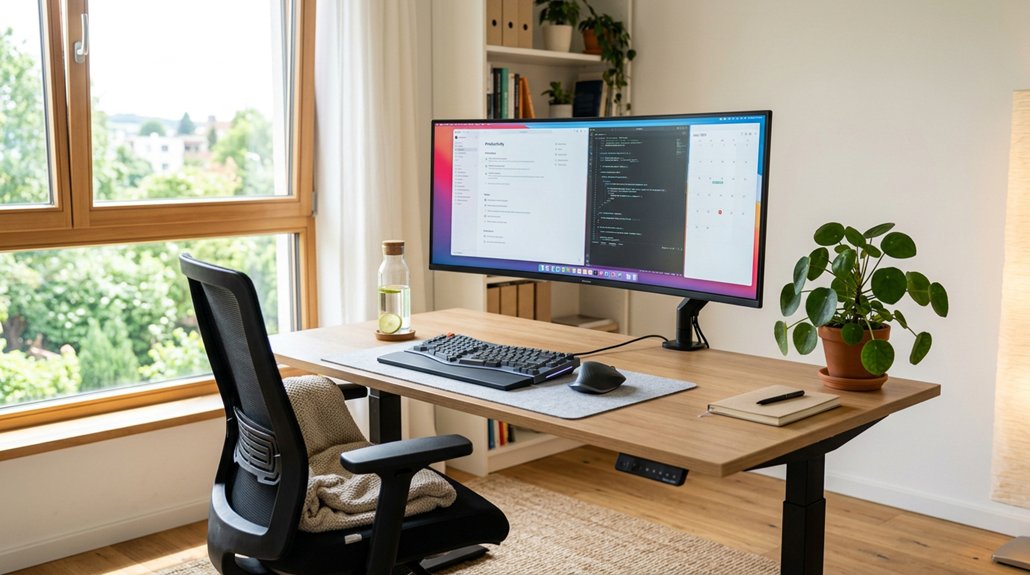
Your visual workstation setup impacts your eye health, posture, and overall comfort during long screen sessions. Proper monitor placement, height, and tilt reduce eye strain and neck pain, while good lighting and glare prevention improve visual clarity. Regular breaks and eye exercises help prevent fatigue and dryness. Avoid common mistakes like incorrect monitor distance or poor lighting, which can lead to discomfort. Keep going to discover how to optimize your workspace for better health and productivity.
What Are the Common Signs of Visual Strain?
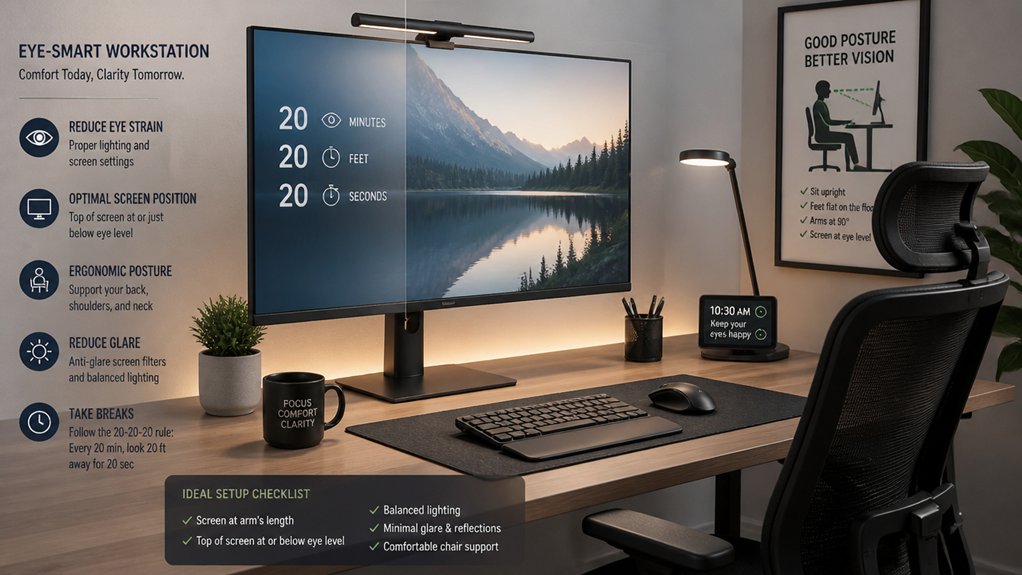
Have you ever noticed your eyes feeling tired or bothered after hours of screen time? That’s a common sign of eye strain and computer vision syndrome.
You might experience visual strain, which causes eye fatigue, dryness, redness, and a burning sensation. Headaches often accompany these symptoms, making it harder to focus on tasks. Blurred vision can also occur, further reducing your efficiency.
Visual strain causes eye discomfort, headaches, and blurred vision, impacting focus and productivity during screen time.
Poor monitor placement, glare, and inadequate lighting contribute to these issues, forcing your eyes to work harder. The discomfort isn’t just limited to your eyes—neck and shoulder pain can develop as you adjust your posture in response to eye strain. Utilizing air purifiers with low noise levels can help create a more comfortable work environment by reducing indoor pollutants that may exacerbate eye discomfort.
Recognizing these signs early helps prevent long-term problems and keeps your workstation healthier and more comfortable.
The Basics of Monitoring Placement and Viewing Distance
To set up your workspace effectively, you need to take into account both monitor placement and viewing distance. Position your screen so it’s directly in front of you at about 20 to 40 inches away, with the top at or slightly below eye level. Using an adjustable monitor stand can help achieve this ideal ergonomic position, ensuring comfort during extended periods of work or play. Adjust the monitor’s tilt and angle to reduce glare and maintain a comfortable, neutral head position.
Monitor Placement and Distance
Proper monitor placement is essential for maintaining comfort and preventing strain during extended work periods. Keep your monitor directly in front of you at a comfortable viewing distance of 20 to 40 inches (50–100 cm). This helps maintain proper posture and reduces eye strain.
The top line of your screen should be at or just below eye level, allowing for a natural, slightly downward gaze that eases neck and shoulder fatigue. Position the monitor perpendicular to windows to minimize glare and reflections, which can cause visual discomfort.
Adjust the monitor’s tilt no more than 10–20 degrees to stay perpendicular to your line of sight. Also, keep the horizontal viewing angle within 35 degrees to prevent awkward neck twisting and support neutral head posture. Ensuring your monitor is placed on a monitor riser can significantly aid in achieving these ergonomic angles and proper height.
Optimal Viewing Angles
Are you aware of how your monitor’s viewing angle can impact your comfort and eye health? The ideal viewing angle is key to maintaining good neck postures and reducing strain.
Position the top of the monitor slightly below eye level so you can look straight ahead with a downward viewing angle of 15 to 30 degrees, minimizing neck discomfort. Keep the monitor approximately arms length away, around 20 to 40 inches, for a comfortable viewing distance.
The horizontal viewing angle shouldn’t exceed 35 degrees left or right, and the screen tilt should be limited to 10–20 degrees to reduce glare. Proper placement guarantees your computer screen is perpendicular to windows, helping you avoid reflections and maintain an optimal line of sight for overall visual health.
Additionally, using monitor hoods can effectively block overhead and side glare, improving visual comfort and reducing eye strain during long work sessions.
How Do Monitor Height and Tilt Affect Your Neck and Eyes?
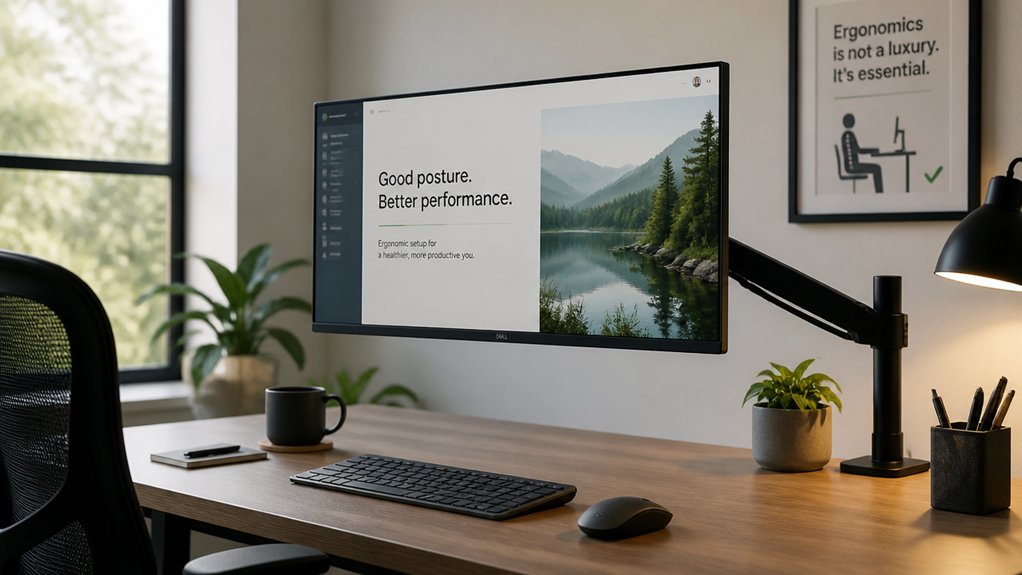
Your monitor’s height and tilt directly impact your comfort and health. When you align the screen correctly and reduce glare, you help maintain a neutral neck posture and ease eye strain. Additionally, choosing an adjustable monitor arm with sufficient height adjustment range ensures you can customize positioning for ergonomic comfort.
Optimal Viewing Angle
Aligning your monitor at the correct height and tilt directly influences your neck and eye comfort during extended work sessions. A screen positioned with its top at or just below eye level helps keep your neck in a neutral posture, reducing strain. A monitor tilt between 10 to 20 degrees, perpendicular to your line of sight, minimizes glare and improves visibility without causing head tilt. Viewing angles beyond 15° upward or 60° downward lead to awkward neck positions and discomfort. Proper height and tilt also help reduce eye fatigue by aligning the monitor with natural eye movement, promoting a comfortable downward gaze of 15–30°. Use this table to understand ideal viewing angles:
| Height Position | View Angle | Effect |
|---|---|---|
| Top at eye level | Neutral gaze | Reduces neck strain |
| Slightly below eye level | 15-30° downward | Minimize eye fatigue & discomfort |
| Above eye level | Over 60° downward | Causes awkward neck posture |
Maintaining the correct ergonomic setup, including monitor height and tilt, is essential for preventing long-term discomfort or injury.
Preventing Glare and Reflection
Adjusting your monitor’s height and tilt plays an essential role in preventing glare and reflection, which can cause significant eye strain and discomfort. Keep the screen in front of you, and tilt it no more than 10–20 degrees to maintain a perpendicular position to your line of sight. This minimizes glare from overhead lighting and reduces the need to tilt your head awkwardly to see clearly. Position the top of the monitor at or slightly below your eye level to support natural viewing distances and reduce eye fatigue. If reflections from nearby windows or bright light sources are an issue, use adjustable stands or risers to fine-tune both monitor height and tilt. Proper setup guarantees your neck stays relaxed and your eyes face less glare, promoting comfort throughout your workday. Incorporating ambient light adjustment into your workspace setup can further enhance eye comfort by maintaining consistent lighting conditions.
Maintaining Neutral Neck Posture
Proper monitor height and tilt are essential for maintaining a neutral neck posture, which helps prevent strain and discomfort during long periods of work. Position your monitor so the top of the screen is at or slightly below eye level to keep your neck in a neutral position, avoiding the need to tilt your head up or down. Tilt your monitor no more than 10–20 degrees to align the screen perpendicular to your line of sight, reducing neck strain and glare. An improper monitor setup can lead to awkward neck posture, resulting in muscle fatigue and increased pain in your neck and shoulders. Keeping a downward viewing angle of about 15–30 degrees supports natural neck alignment, easing tension on your neck muscles and helping prevent long-term musculoskeletal issues. Additionally, using adjustable monitor stands or mounts can help achieve the optimal ergonomic positioning for your workspace.
How to Recognize and Prevent Eye Fatigue During Long Computer Sessions
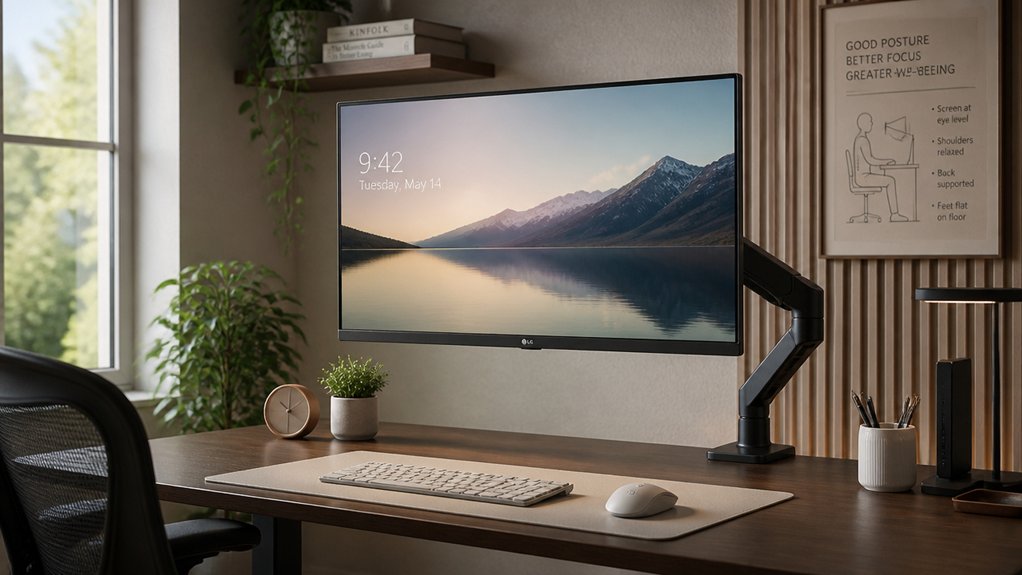
Have you noticed lingering eye discomfort or headaches after long hours at your computer? If so, you might be experiencing digital eyestrain. Signs include eye strain, dryness, blurred vision, and discomfort during viewing computer screens.
To recognize these symptoms early, pay attention to how your eyes feel after extended sessions. To prevent eye fatigue, position your monitor 20 to 40 inches away and slightly below eye level to reduce strain on your eyes and neck.
Follow the 20-20-20 rule: every 20 minutes, look at something 20 feet away for at least 20 seconds. Remember to blink more often, as blinking less can dry out your eyes and increase discomfort. Taking these steps helps maintain eye health during long computer sessions.
How to Adjust Lighting to Minimize Glare and Eye Discomfort
To reduce glare and eye discomfort, start by controlling natural light sources; position your monitor perpendicular to windows and use blinds or curtains to limit direct sunlight.
Adjust your task lighting to be indirect and diffused, avoiding harsh overhead lights that strain your eyes.
Regularly clean your screen to prevent dust buildup, which can worsen glare and reduce clarity.
Controlling Natural Light Sources
Natural light can enhance your workspace’s comfort and productivity, but if not managed correctly, it can cause glare and eye strain. To control natural light sources, position your monitor perpendicular to windows, reducing direct glare and maintaining comfortable viewing conditions. Use adjustable blinds or curtains to regulate sunlight intensity and prevent reflections that worsen screen glare. Arrange your workstation so natural light hits from the side, avoiding direct front or back exposure. Tilt your monitor between 10–20 degrees to minimize glare from overhead or sunlight. Regularly clean windows and screens to guarantee clarity and reduce dust-induced glare. Implementing these strategies helps create an ergonomic workstation that minimizes eye discomfort and maximizes productivity.
| Control Method | Effect |
|---|---|
| Position monitor perpendicular | Reduces direct glare and improves visibility |
| Adjustable blinds | Regulates sunlight and prevents reflections |
| Monitor tilt | Lessens overhead and sunlight glare, maintains clarity |
Using Appropriate Task Lighting
Proper task lighting is key to creating a comfortable workspace while minimizing eye strain. You should position task lighting to prevent direct glare on your monitor, which can cause headaches and discomfort. Use adjustable light sources that you can direct away from your eyes and reflective surfaces.
Ambient lighting should complement task lighting to reduce harsh shadows and contrast differences, preventing visual fatigue. Consider diffused lighting or lamps with shades to soften the light intensity, avoiding harsh spots that tire your eyes.
Additionally, employ monitor anti-reflective coatings or tilt your monitor 10–20 degrees to decrease glare from overhead or nearby lights. Adjusting lighting in this way helps to reduce eye strain and creates a healthier, more comfortable environment.
Which Ergonomic Accessories Support Better Visual Comfort?
Have you considered how ergonomic accessories can greatly boost your visual comfort during long work sessions? These tools can markedly reduce eye strain and fatigue.
Ergonomic accessories can significantly enhance comfort and reduce eye strain during long work hours.
First, adjustable monitor stands or arms help you position screens at eye level and maintain a 20 to 40-inch viewing distance, easing neck and eye tension.
Second, anti-reflective coatings on lenses and screens cut glare, sharpening clarity and decreasing headaches.
Third, ergonomic keyboards and mice with wrist rests keep your wrists in neutral positions, reducing muscle strain and helping you stay focused visually.
Additionally, blue light filtering screen protectors or glasses minimize dryness and discomfort, while adjustable desk lamps improve contrast and reduce glare.
These accessories work together to create a healthier, more comfortable visual experience throughout your workday.
Common Mistakes in Workstation Setup That Cause Eye and Posture Problems
Many common workstation setup mistakes can lead to eye strain and poor posture, making your workday uncomfortable and tiring. For example, placing the monitor too close or too far from you, outside the ideal 20-40 inch range, forces awkward postures and makes focusing difficult.
Positioning the monitor too high or too low causes neck and shoulder strain as your head tilts repeatedly. Setting the screen off-center or at an angle greater than 35 degrees creates unnecessary head and torso rotations, increasing musculoskeletal fatigue.
Excessive monitor tilt beyond 10–20 degrees can also cause glare, worsening eye discomfort. Additionally, ignoring regular viewing breaks leads to prolonged eye fatigue, dryness, and computer vision syndrome, which only heighten visual and posture problems over time.
Correcting these mistakes can greatly improve comfort and health.
How Can Regular Breaks and Eye Exercises Help Your Vision?
Ever wonder how taking regular breaks and doing simple eye exercises can protect your vision during long work hours? Regular breaks allow your eyes to rest and focus on distant objects, reducing eye fatigue and dryness.
By practicing eye exercises like blinking often and looking away from your monitor, you can help prevent symptoms of computer vision syndrome, including blurred vision and headaches. The 20-20-20 rule—pausing every 20 minutes to look at something 20 feet away for 20 seconds—relaxes your eye muscles and alleviates strain.
Incorporating these habits:
- Prevents eye fatigue caused by continuous screen focus
- Reduces the risk of headaches and blurred vision
- Keeps your eyes comfortable and healthy during long work sessions
Making these small adjustments makes a big difference for your vision.
Resources for Assessing and Improving Your Visual Ergonomics
Evaluating and improving your visual ergonomics can greatly reduce eye strain and prevent long-term discomfort. Resources like no-cost work site assessments identify issues in your workstation setup and suggest tailored solutions.
During these evaluations, check your monitor placement, viewing distance (20-40 inches), and screen tilt (10-20 degrees) to guarantee clarity, reduce glare, and support neutral head and neck positions. Assess your computer work habits, including viewing times and task variety, and consider breaks or task rotation to ease symptoms of computer vision syndrome.
Additionally, review environmental factors like electrostatic or magnetic interference around monitors that may affect display quality. Services such as Vision Care Direct offer customizable vision plans, including coverage for progressive lenses and anti-reflective coatings, further enhancing your visual workstation setup and overall ergonomics.
Top Tips to Maintain Eye Health in Your Home Office
Maintaining good eye health in your home office requires mindful adjustments to your workstation and habits. Here are top tips to prevent eye strain and computer vision syndrome:
- Position your monitor at least 20 inches away and slightly below eye level. This setup encourages proper posture and reduces eye strain.
- Minimize glare by ensuring your monitor is perpendicular to windows and tilting it no more than 20 degrees. Use anti-reflective coatings to improve visual comfort.
- Follow the 20-20-20 rule: every 20 minutes, look at something 20 feet away for 20 seconds. Also, blink frequently and switch tasks to keep your eyes moist and healthy.
Applying these tips helps you maintain clear, comfortable vision during your workday.
Frequently Asked Questions
Why Is It Important to Have Your Workstation Set up Properly?
You need a proper workstation setup to prevent discomfort, reduce injury risk, and boost your focus. When your equipment is aligned correctly, you’ll work more efficiently, stay healthier, and avoid long-term musculoskeletal issues.
Is Proper Workstation Set up Important to Avoid Physical Injuries?
Yes, proper workstation setup helps prevent injuries by promoting neutral posture, reducing strain on your neck, shoulders, back, and wrists. It minimizes muscle fatigue and repetitive movements, lowering your risk of developing long-term musculoskeletal disorders.
Why Is It Important to Maintain Proper Ergonomics at a Computer Workstation in Healthcare?
You maintain proper ergonomics at your computer workstation to prevent musculoskeletal strain, reduce fatigue, and avoid injuries like back and neck pain. This guarantees comfort, enhances productivity, and allows you to provide better care to your patients.
What Is the Main Benefit of Ergonomic Workstation Setup?
The main benefit of an ergonomic workstation setup is that it keeps you comfortable, safe, and efficient. By supporting proper posture and reducing strain, it helps you stay productive, avoid injuries, and maintain overall health during work.



