
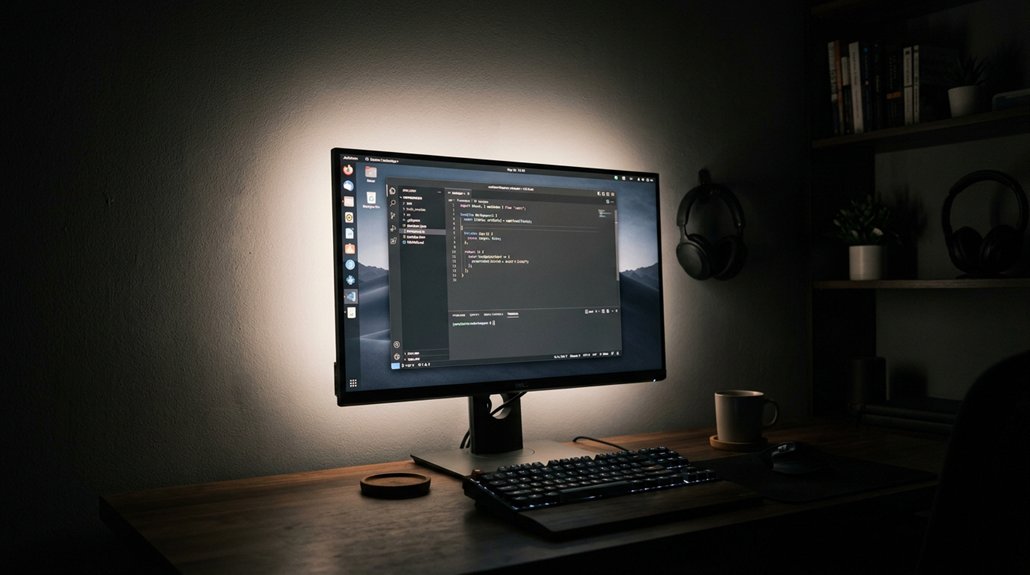
Backlighting reduces eye strain by softening the contrast between your bright screen and dark surroundings, which helps your eyes adjust more comfortably. It creates a gentle glow behind your monitor that stabilizes your pupil size, preventing frequent constriction and dilation. This indirect light also minimizes harsh glare and reflections, easing muscle strain. Choosing the right color temperature and brightness level enhances comfort even further. Keep exploring to discover how to set up your backlighting for ideal eye health.
Why Bright Monitors in Dark Rooms Worsen Eye Strain
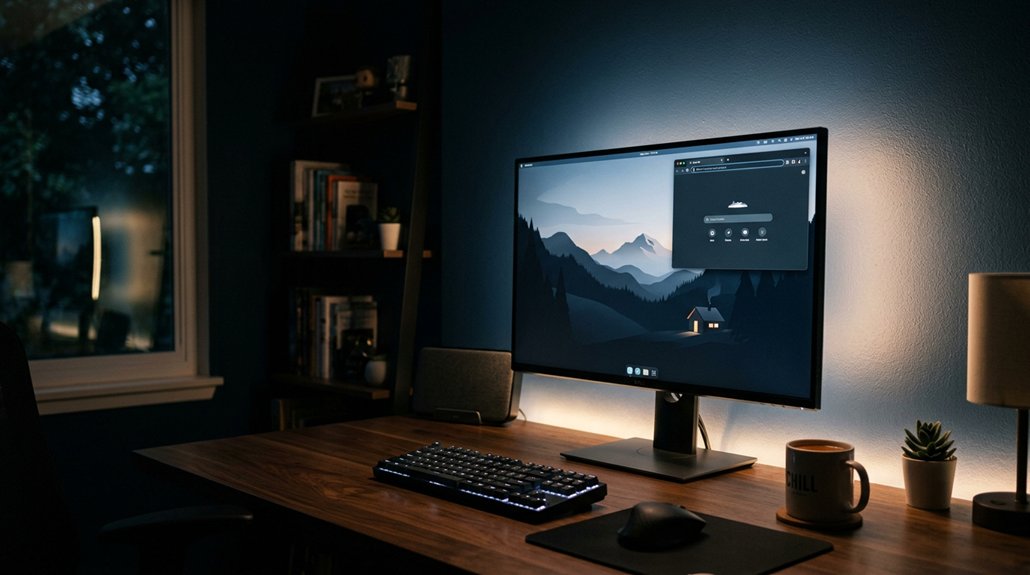
When you use a bright monitor in a dark room, your eyes have to constantly adjust to the stark contrast between the screen and the surrounding darkness. This bright display forces your pupils to dilate excessively, putting strain on your eye muscles. The high contrast makes it harder for your eyes to maintain proper focus, leading to visual fatigue, headaches, and dryness. Because the only light source is a bright screen in a dark environment, your eyes struggle to adapt, impairing sharp vision. Bias lighting can help by providing indirect illumination that reduces this stark contrast, easing eye strain during prolonged use. Lowering the brightness helps reduce discomfort, but often results in dull whites and unclear text. The visual system averages brightness across the field, so extreme contrast between the monitor and darkness intensifies eye strain during prolonged use, making your eyes work harder than necessary.
How Backlighting Reduces Contrast Gaps and Eases Eye Fatigue
Backlighting helps reduce contrast gaps between your screen and its surroundings, which minimizes the need for your pupils to constantly adjust their size. By providing a soft glow behind the display, backlighting averages out the overall brightness you perceive, easing the strain on your eye muscles. A well-designed backlight can also enhance the color fidelity of your display, ensuring that images remain vibrant and accurate. This reduced contrast prevents sharp differences that cause glare and visual fatigue, lowering symptoms like headaches and dryness. Proper backlighting, with a balanced color temperature around 6500K, maintains color accuracy and prevents distortion, helping your eyes focus comfortably.
How Indirect Light Helps Minimize Glare and Prevent Visual Fatigue
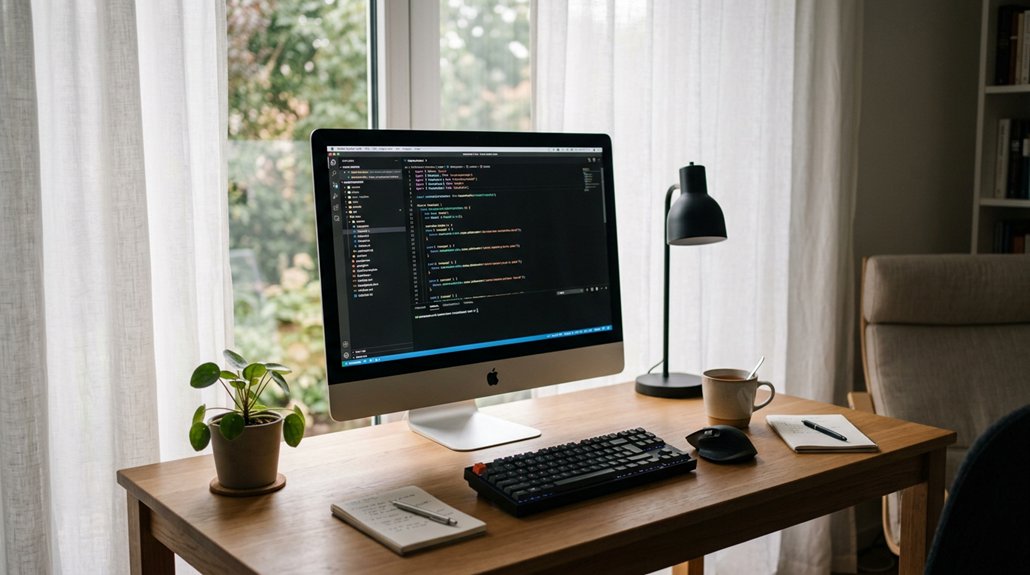
Using indirect light softens the brightness difference between your screen and the room, reducing glare that can cause visual fatigue. This gentle illumination helps keep your pupils from dilating excessively, easing eyestrain. Additionally, flicker-free illumination from quality lamps prevents rapid flickering that can contribute to eye discomfort.
Softens Brightness Contrast
Indirect light from a soft backlight creates a gentle glow that reduces the harsh contrast between your screen and its surroundings. This ambient illumination helps balance the brightness difference, making the display easier on your eyes. A well-designed backlight also helps maintain screen brightness, preventing your eyes from constantly adjusting to sudden luminance changes. By softening the brightness contrast, the backlight prevents your pupils from constantly adjusting, which can cause eye strain and visual fatigue over time. It also reduces glare and flicker effects caused by bright screens in dark environments. When the backlight is properly color-balanced around 6500K, it preserves accurate colors without adding harshness. Overall, this smoothens the shift between the screen and its surroundings, supporting a comfortable viewing experience. Soft backlights effectively minimize contrast-related eye discomfort, allowing you to focus longer without fatigue or headaches.
Reduces Pupil Dilation
By softly illuminating the space behind your screen, indirect lighting helps keep your pupils from dilating too much in response to bright displays. When the light behind the monitor creates a balanced luminance, your eyes don’t need to work as hard to adjust between the bright screen and dark surroundings. This bias lighting stabilizes pupil dilation, reducing eye strain. Here’s a visual idea:
| Light behind the monitor | Pupil dilation | Visual comfort |
|---|---|---|
| Creates a glowing wall | Maintains size | Less strain |
| Reduces brightness contrast | Prevents overreaction | Better focus |
| Guarantees even luminance | Stabilizes eyes | Less fatigue |
This indirect lighting, with its balanced luminance, helps you work longer comfortably and prevents symptoms like headaches or blurry vision. Using a monitor privacy screen can further reduce glare and enhance visual comfort during extended work periods.
Minimizes Screen Glares
When the backlight is positioned behind your monitor, it creates a gentle, diffuse glow that greatly reduces harsh reflections and glare on the screen surface. Indirect lighting from the backlight prevents bright hotspots and sharp contrast between the display and surrounding environment, minimizing screen glare. A well-designed backlight system also utilizes full-spectrum LED technology, ensuring accurate color perception and reducing eye strain. This reduction in glare helps lessen the constant pupil dilation and contraction that contribute to eye fatigue. By evenly balancing ambient light, the backlight prevents the brightness contrast that causes discomfort, headaches, and dryness. Additionally, this technique preserves accurate color perception and image sharpness by avoiding distracting glare on the screen.
Why Pupil Dilation Matters and How Backlighting Supports Comfort
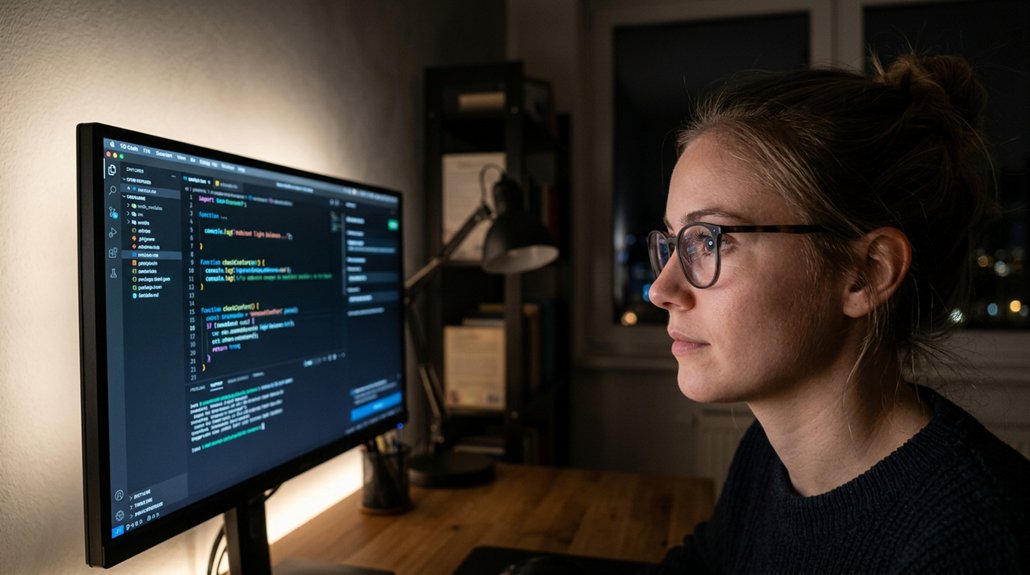
Pupil dilation plays a crucial role in how comfortably your eyes can focus on screens; it adjusts in real time to the surrounding light conditions to control the amount of light entering your eyes.
Pupil dilation adjusts in real time to light, helping your eyes focus comfortably and reducing strain during screen use.
When staring at a bright screen in a dark room, your pupils dilate excessively, forcing your eye muscles to work harder and causing eye strain. Proper backlighting behind the screen provides a soft ambient glow that balances luminance, helping pupils stay more stable in size.
This reduces the constant dilation and constriction that fatigue your eyes. Additionally, blue light filtering lenses can further decrease the stress on your eyes by blocking most of the harmful blue light in the 400-450 nm wavelength range.
- Maintains consistent light levels
- Mimics natural ambient conditions
- Lessens the effort needed for focus
- Supports sharper detail perception
- Reduces headaches and dryness
Choosing the Right Color Temperature for Your Backlight
Selecting the right color temperature for your backlight can greatly impact visual comfort and color accuracy while using screens. Bias lighting helps by providing a neutral reference point, reducing eye strain and preventing visual fatigue.
An LED strip with a color temperature around 6500 Kelvin aligns with the industry standard D65 white point, ensuring accurate color perception. Using a backlight with a markedly different temperature, whether lower or higher, can distort on-screen colors and decrease comfort.
High CRI (Color Rendering Index) LED lights near 6500K deliver vibrant colors with minimal shifts, supporting better visual accuracy. While slight adjustments in brightness and color temperature can suit personal preferences, 6500 Kelvin remains the ideal baseline to promote eye health and overall visual comfort during prolonged screen use.
How to Adjust Brightness and Contrast for the Best Viewing Experience
Have you ever noticed how adjusting brightness and contrast can dramatically improve your screen’s clarity and comfort? To achieve the best viewing experience, match your brightness to ambient room lighting—lower it in dim settings to reduce glare and eye strain.
Set contrast so whites are bright but not blown out, and blacks stay deep without losing detail, usually around 70-80%. Adding bias lighting behind your monitor at about 6500K helps stabilize perceived brightness, easing pupil adjustments.
Avoid high brightness in dark rooms, as it increases the contrast between your screen and surroundings, causing pupil dilation and fatigue. Fine-tune your monitor’s settings along with gamma and color calibration for ideal text clarity and reduced eye discomfort during prolonged screen use.
Tips for Setting Up Your Monitor Backlighting Effectively
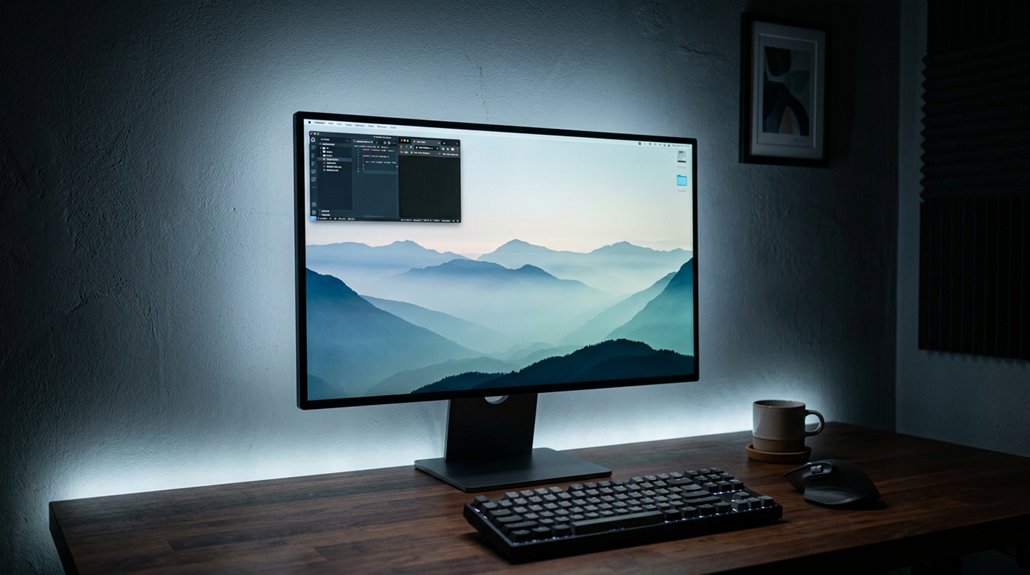
Properly setting up your monitor’s backlighting can greatly reduce eye strain by creating a comfortable visual environment. Position the light placed behind your monitor to illuminate the wall behind, providing a soft, indirect glow that reduces contrast glare without causing reflections. Use LED lighting with a color temperature around 6,500K to guarantee accurate color perception and avoid color distortion. Adjust the brightness without exceeding 10% of your monitor’s maximum luminance; this balance minimizes eye fatigue. Choose high CRI (90+) LED strips to support true color rendering and overall light quality. Avoid placing backlighting sources that shine directly on the screen or desk to prevent glare. Additionally, consider the monitor hood options to shield against direct overhead and side light, further enhancing visual comfort. Adjust based on your surroundings for peak comfort, making your setup more effective in reducing eye strain.
Frequently Asked Questions
Do Backlights Reduce Eye Strain?
Yes, backlights reduce eye strain by minimizing contrast between your screen and dark surroundings, stabilizing your pupils, reducing eye fatigue, and allowing you to lower screen brightness without losing clarity, ultimately making your viewing more comfortable and less tiring.
What Is the 20 Minute Eye Rule?
The 20 Minute Eye Rule advises you to look away from your screen every 20 minutes for 20 seconds, focusing on something 20 feet away. This relaxes your eye muscles, reducing fatigue, dryness, and preventing headaches.
Which Is Better for Your Eyes, LED or OLED?
You’ll find OLED better for your eyes because it emits light pixels individually, reducing glare and contrast issues common with LED screens. This localized lighting enhances comfort, especially in dark rooms, preventing eye fatigue over long viewing periods.
Is Dark Mode Actually Better for Eye Strain?
Dark mode can reduce eye strain by lowering brightness and glare, especially in dimly lit environments. But if contrast is too high or lighting isn’t balanced, it may cause discomfort or fatigue, making individual adjustments essential for comfort.
In Summary
Using proper backlighting can greatly reduce eye strain by minimizing glare, balancing contrast, and supporting natural pupil dilation. When you choose the right color temperature and adjust brightness levels accordingly, your eyes stay comfortable even during long screen sessions. Setting up your monitor with effective backlighting isn’t just about visual comfort—it helps prevent fatigue and keeps your eyes healthier in the long run. Take the time to optimize your setup for a more comfortable, strain-free viewing experience.



