
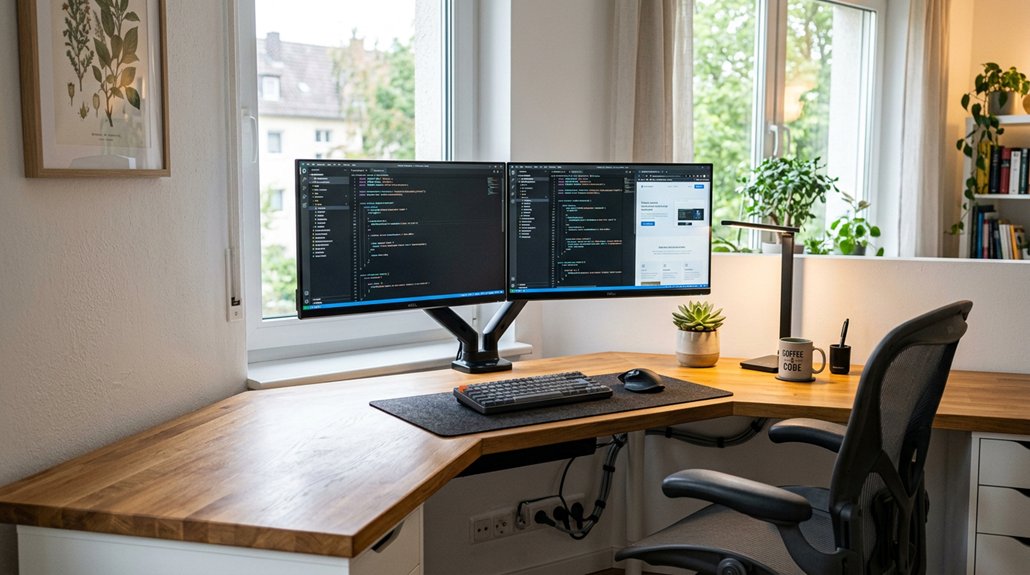
To set up two monitors on a corner desk comfortably, measure your space and choose appropriately sized screens, positioning the primary monitor directly in front at eye level. Angle the secondary monitor inward 15-30 degrees, keeping edges close and tops aligned. Use adjustable mounts for flexibility, ensuring easy movement and cable management. Incorporate a sit-stand desk to stay active, and keep clutter minimal. For more tips on creating an ergonomic, efficient workspace, keep exploring.
Assess Your Corner Space and Monitor Sizes
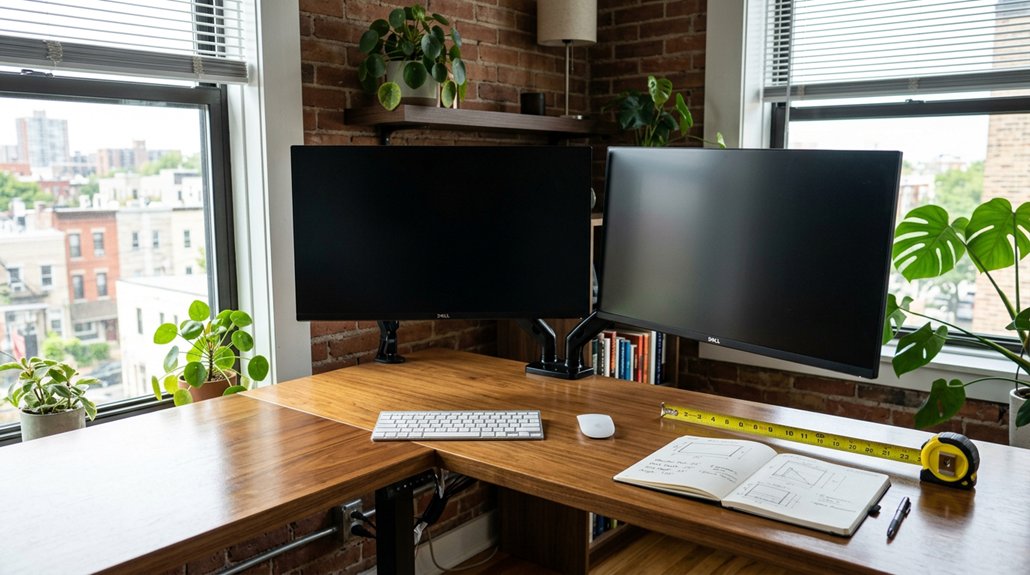
Have you accurately measured your corner of an L-shaped desk space before setting up your dual monitors? Ensuring enough depth—at least 24-30 inches—is crucial for comfortably fitting 27-32 inch monitors on monitor arms, keeping your screens at an arm’s length (20-30 inches). Choosing monitors of matching size and resolution, with the primary monitor positioned on one wing and the secondary angled on the other, helps maintain ergonomic comfort. Avoid placing both directly in the corner to prevent neck twists and awkward postures. Also, check that your corner desk has enough clearance—about 2 inches—behind the monitors for airflow and to prevent overheating. Using monitor arms rated 20-30% above your monitor’s weight grants flexibility for ergonomic adjustments, maximizing your corner desk’s efficiency. Additionally, selecting stands with robust adjustment features ensures stable positioning and quick repositioning to suit your workflow.
Position Monitors at Eye Level for Comfort
Once you’ve measured your corner space and selected monitors of the right size, the next step is to position them at eye level for ideal comfort. You need your main monitor’s top edge to be at or just below eye level to reduce neck strain and support ergonomic viewing.
Place the primary monitor directly in front at an arm’s length distance of about 20-30 inches for clear, comfortable viewing without leaning forward. Use adjustable monitor arms or stands to fine-tune height, angle, and distance, ensuring they align perfectly.
Keep the tops of both monitors at the same level to create a consistent visual field, minimizing vertical eye movement. Avoid placing monitors in the corner apex, and use one side of the desk for your primary monitor at eye level, promoting a natural, comfortable viewing position. For enhanced stability and ergonomic flexibility, consider using a monitor riser designed for height adjustability, which can help achieve precise eye-level alignment.
Arrange Side Monitors for Natural Angles
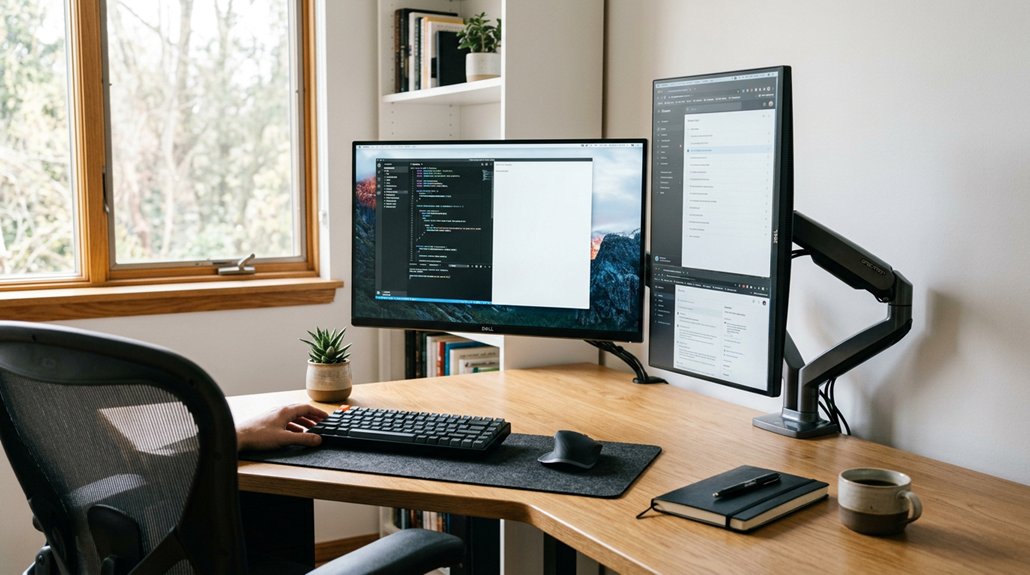
To keep your side monitors comfortable and natural, angle them inward by 15 to 30 degrees so they follow your line of sight. Make sure the edges stay close together and align their top edges at or just below eye level to reduce neck strain. Using adjustable monitor arms can help you precisely set these angles and distances for optimal ergonomic comfort.
Optimal Monitor Angles
How should you position your side monitors to achieve an ergonomic and natural viewing experience? For a dual monitor setup, angle the secondary monitor inward between 15 to 30 degrees, creating a gentle curve toward your main viewing position.
Keep the primary monitor directly in front and the secondary slightly angled, guaranteeing both screens remain within a comfortable viewing distance—about an arm’s length.
- Align the top edges at or just below eye level to reduce neck strain.
- Position the secondary monitor close to the main, with edges nearly touching.
- Avoid placing either monitor in the 90-degree corner apex to prevent awkward twisting.
- Use monitor arms for easy adjustments, fine-tuning angles for comfort.
- Ensure that the monitor mounts are compatible with VESA standards, which support easy adjustment and secure attachment.
This setup guarantees natural, ergonomic eye movements and minimizes unnecessary neck or wrist strain.
Consistent Top Edges
Ensuring that the top edges of your side monitors are aligned is key to creating a seamless and ergonomic viewing experience. For dual monitors, maintaining consistent top edges helps keep your eye level uniform, reducing neck strain during extended use. Using VESA mounting standards allows for precise height adjustments and better alignment of your monitors. Position your monitors at a shallow inward angle of 15 to 30 degrees toward you to form a natural viewing arc. Using adjustable monitor arms allows you to fine-tune height and angle, ensuring perfect alignment and ideal ergonomic positioning. Keeping the top edges uniform also minimizes vertical eye adjustments, creating a cohesive visual field. Pay attention to viewing distances to prevent eye fatigue and promote comfort. Properly arranged side monitors with consistent top edges help streamline multitasking while maintaining a neutral head position.
Minimize Head Rotation
Positioning your side monitors at natural angles is key to minimizing head rotation and maintaining comfort during extended work sessions.
To achieve this, consider these tips:
- Place the primary monitor directly in front on one wing of your L-shaped desk, avoiding the 90-degree corner to keep your neck aligned.
- Angle the secondary monitors inward between 15 to 30 degrees using monitor arms, reducing excessive head turning.
- Keep the edges of side monitors close together so you don’t need to twist or turn your neck frequently.
- Adjust monitor heights and angles with monitor arms to stay at arm’s length (20-30 inches) and just below eye level, promoting natural head posture.
- Using privacy screens can also help focus your attention and reduce visual distractions, further supporting ergonomic positioning monitor privacy screens.
This setup guarantees minimal head rotation, easing strain and boosting productivity.
Use Adjustable Mounts for Flexibility
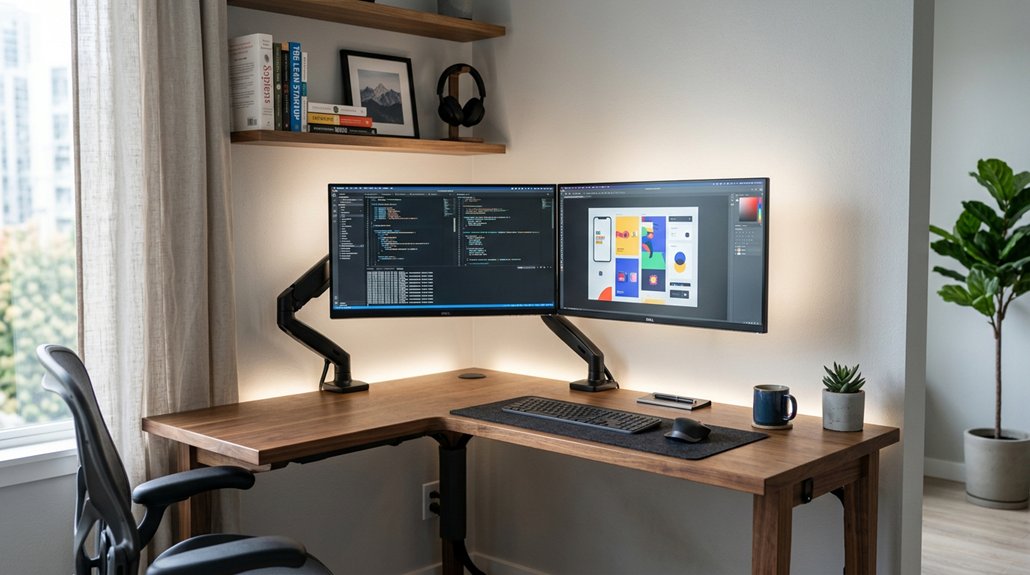
Adjustable mounts let you customize your screens to fit your workflow and comfort needs, giving you precise control over height, distance, and angle. They also make it simple to switch between landscape and portrait modes, adapting to different tasks. A well-designed mounting mechanism ensures stability and wobble-free positioning, enhancing your ergonomic setup. Plus, using mounts helps free up desk space and keeps cables organized, making your setup cleaner and more efficient.
Customizable Viewing Angles
Using adjustable mounts gives you the flexibility to customize your viewing angles precisely. With adjustable monitor mounts, you can set each screen at eye level, ensuring a natural, neutral posture.
To optimize your dual-screen setup:
- Position your primary monitor directly in front, aligned with your viewing guide.
- Angle your secondary monitor inward 15 to 30 degrees, reducing neck rotation.
- Keep screens approximately an arm’s length apart, between 50-75 cm, for seamless visual flow.
- Adjust tilt, swivel, or rotation easily to find the most comfortable, strain-free angle during different tasks.
- Incorporate ergonomic design principles, like adjustable mounts, to support long-term comfort and reduce fatigue during extended work sessions.
This adaptability supports quick reorientation, minimizes eye strain, and helps sustain a neutral posture throughout long work sessions—all while maximizing comfort and productivity on your corner desk.
Easy Height Adjustments
To achieve ideal comfort and flexibility on your corner desk, it’s essential to choose monitor arms with gas spring tension that can handle 20-30% more than your monitor’s weight. These adjustable mounts enable smooth height adjustments, so you can easily set your screens at eye level — about an arm’s length (50-75 cm) away for ergonomic viewing.
Make sure the monitor arms have a wide range of motion and can pivot 90 degrees for vertical or horizontal orientation. Perform height adjustments after raising the desk to its maximum height to leave enough cable slack, preventing damage during movement.
Confirm that your mounts’ clamp widths match your desk’s thickness and test the desk stability with a wobble test before finalizing your setup.
Reduced Desk Clutter
By mounting your monitors on adjustable arms, you can substantially reduce clutter on your desk surface. This frees up space for your keyboard, documents, and accessories, making your workspace feel more open.
Here are four reasons why adjustable mounts are a game-changer:
- Enhanced organization: Cable management features keep power and data cables neat, preventing tangles and distractions.
- Increased flexibility: Easily reconfigure your dual screens for different tasks or sharing, without changing hardware.
- Ergonomic comfort: Precise positioning with adjustable monitor arms lowers neck and eye strain, promoting better posture.
- Minimal monitor stands: Off-desk mounting eliminates bulky monitor stands, giving your workspace a cleaner, streamlined look.
With adjustable mounts, you gain control over your desk clutter while improving functionality and comfort for your dual screens.
Design Your Workspace for Easy Movement
Designing your workspace for easy movement begins with thoughtful placement of monitors and furniture. Position your primary monitor squarely on one straight wing of the L-shaped desk, with the chair facing that side to promote a neutral spine.
Arrange secondary monitors on the return wing, angled inward 15 to 30 degrees toward you, reducing head and neck strain. Avoid placing monitors directly in the 90-degree corner to prevent awkward wrist and arm positions.
Use monitor arms for quick, precise micro-adjustments in height, distance, and angle, allowing smooth shifts between screens. Maintain a clear pathway between desk sections by managing cables and devices under the desk.
Keeping this space uncluttered guarantees unrestricted movement, making your setup more ergonomic and efficient.
Optimize Cable Management for Tidiness
Effective cable management is essential for maintaining a tidy and functional two-screen corner desk. By organizing cables properly, you create a clean workspace and prevent frustration.
Here are key tips to optimize your cable management:
- Use cable trays or J-channels under your desk to route power and data cables separately, avoiding tangling.
- Leave enough slack by raising your desk to its maximum height before tying cables, protecting them during sit-stand adjustments.
- Bundle cables with sleeves or velcro straps to reduce clutter and simplify future tweaks.
- Position monitor arms with cable management channels, keeping cables elevated along desk edges and freeing up space.
These steps guarantee your workspace stays sleek, organized, and ready for smooth movement.
Add Standing and Sitting Options to Stay Active
Adding sitting and standing options to your desk encourages movement and reduces the health risks associated with prolonged sedentary behavior. Use a motorized height-adjustable standing desk for quick shifts, aiming to follow the 20-8-2 guideline—sit for 20 minutes, stand for 8, and move for 2.
Guarantee you sit directly in front of your monitor arms, which should have enough slack to adjust height smoothly during shifts without stressing cables. Maintain ergonomic alignment by keeping your feet flat, knees at 90 degrees, and wrists straight, whether sitting or standing.
Test your desk’s stability with a light lateral force to avoid wobbling during moves. Properly managing these factors in your two-screen corner desk setup will promote comfort, posture, and productivity.
Frequently Asked Questions
How Should I Choose the Best Monitor Size for a Corner Setup?
You should choose monitor sizes based on your workspace, viewing distance, and tasks. Generally, 24 to 27 inches work well for most corner setups, providing a good balance of screen real estate and comfort without overwhelming your desk.
What Are the Ideal Lighting Conditions for Dual Monitors?
You should set your dual monitors in well-lit conditions with natural light or soft, indirect artificial lighting, minimizing glare and reflections. Guarantee lighting is consistent to reduce eye strain and create a comfortable workspace.
How Can I Prevent Glare and Reflections From Affecting Screen Visibility?
You can prevent glare and reflections by positioning your monitors perpendicular to windows, using matte screen protectors, adjusting window blinds, and ensuring ambient lighting is soft and indirect. These steps help improve visibility and reduce eye strain efficiently.
What Ergonomic Accessories Can Enhance Comfort During Long Work Sessions?
You can enhance comfort during long work sessions by using an adjustable keyboard tray, ergonomic mouse, footrest, wrist supports, and a comfortable chair with lumbar support. These accessories help reduce strain and promote better posture throughout your day.
How Do I Balance Aesthetics and Functionality in a Corner Workspace?
You balance aesthetics and functionality by choosing sleek, coordinated furniture and accessories that boost productivity while maintaining visual appeal. Keep your workspace organized with stylish storage solutions, ensuring everything is functional yet unobtrusive and aligned with your overall decor style.



