
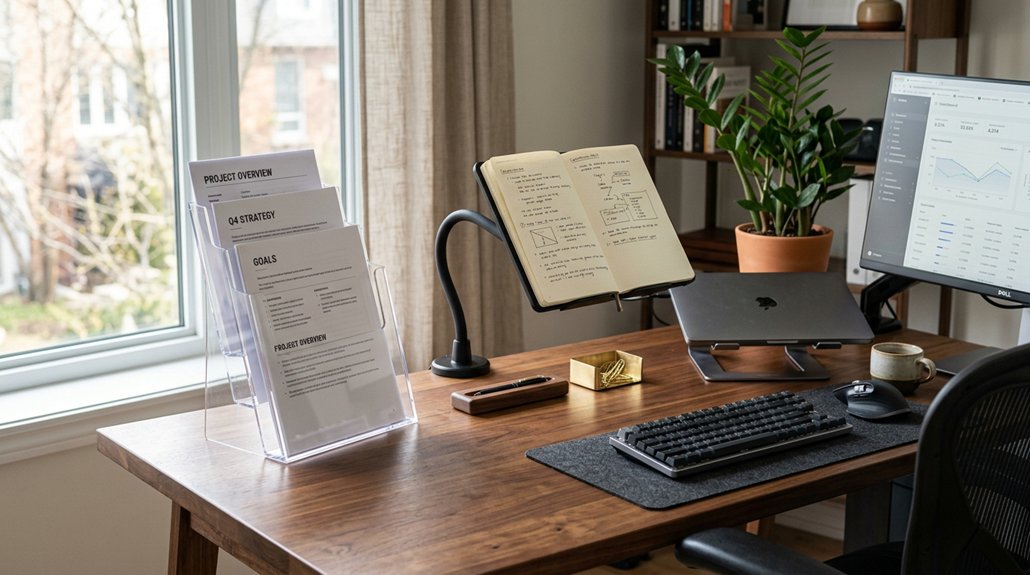
To ease neck strain at work, choose an adjustable document holder that aligns documents with your monitor at or below eye level. Look for features like tilt and height adjustments, close positioning to your screen, and a stable base to prevent slipping. Proper placement minimizes twisting and bending, reducing muscle fatigue. Using the right holder can make a noticeable difference in comfort and posture—if you want to discover more tips, keep exploring how to improve your workspace ergonomics.
Why Neck Strain Is Common and How Document Holders Offer Relief

Neck strain is a common problem among office workers because frequent twisting and bending while referencing documents put unnecessary stress on neck muscles. When you look down at papers off to the side or flat on your desk, your head and neck shift into awkward postures, increasing strain.
A document holder helps by positioning papers at eye level, aligning them with your monitor to prevent unnatural neck rotation. By keeping documents within your line of sight, you reduce repetitive micro-movements and support better head and neck postures. When documents are angled at 45°-60°, your neck stays in a more natural position, decreasing muscle fatigue and the risk of long-term musculoskeletal issues. Additionally, adjustable features like tilt and height support ergonomic support to further promote comfortable and healthy working postures.
Using a document holder encourages smooth shifts between screen and paper, helping you stay comfortable during long work sessions.
The Essentials of Proper Document Placement to Prevent Neck Pain
Ensuring proper document placement is key to preventing neck pain during work sessions. You want a document holder that keeps papers closer to eye level, so you don’t have to bend your neck forward or sideways.
Align documents at the same height and distance as your monitor, ideally at a 45°-60° angle, to avoid awkward twisting of your neck. Positioning the document directly below or beside your screen helps maintain a straight posture, reducing strain.
Keep the holder close to your monitor to minimize excessive eye movement and head rotation, allowing you to switch between papers and the screen smoothly. Proper placement supports a natural neck position, helping prevent discomfort and promoting longer, pain-free work sessions. Incorporating an adjustable document holder can further customize setup for comfort and ergonomic efficiency.
Key Ergonomic Features to Look for in a Document Holder
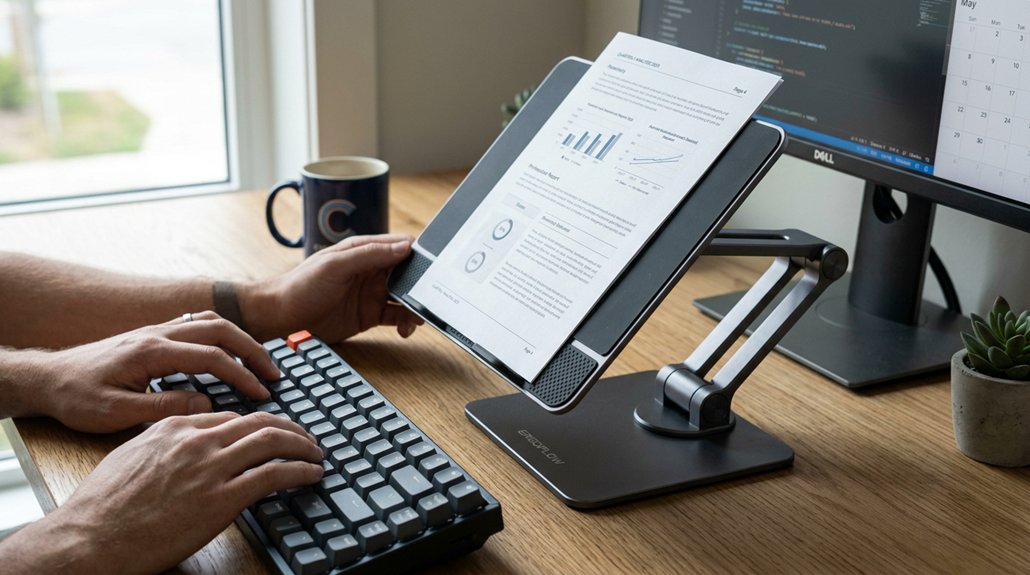
Choosing a document holder with adjustable height lets you align papers at eye level, reducing neck strain. A proper viewing angle guarantees your documents stay at a comfortable 45°-60° tilt, preventing awkward head movements. A space-saving design keeps your workspace organized and promotes a natural posture during work. Incorporating ergonomic height adjustment features ensures that your setup supports comfortable and healthy reading positions throughout your workday.
Adjustable Height Settings
Adjustable height settings are an essential feature to look for in a document holder because they allow you to align your documents with your monitor effortlessly. When you can easily adjust the height, you can position the document at a comfortable angle between 45° and 60°, maintaining good ergonomic posture. This reduces neck twisting and lowers the risk of strain during prolonged tasks.
A sturdy and stable stand with anti-slip features ensures that your documents stay securely in place at the desired height without wobbling or sliding. Ergonomic design principles support smooth eye movement between your screen and documents, minimizing eye and neck fatigue.
Optimal Viewing Angle
To promote proper ergonomics, a document holder should be set at an ideal viewing angle, typically between 45° and 60°. This guarantees your paper document aligns with your monitor, reducing neck twisting.
Carefully choose a holder that’s height adjustable so you can keep the document at the same level as your screen, minimizing eye strain. Look for features like:
- An adjustable tilt to find the best viewing angle within the 45°-60° range.
- A height-adjustable design that matches your monitor.
- A slanted surface for better readability and reduced head tilt.
- Proper placement between your keyboard and monitor, supporting smooth eye movement and neutral neck posture.
Additionally, selecting a document holder with ergonomic features such as adjustable tilt and height can further enhance comfort and support a natural neck position, preventing fatigue during long tasks.
Space-Saving Design
A well-designed document holder can greatly boost your workspace efficiency without taking up valuable desk space. A good document holder fits snugly between your keyboard and computer screen, optimizing your limited desk area.
Look for a space-saving design with a slim, vertical profile and adjustable height to align documents at eye level. This setup encourages a better ergonomic posture and keeps documents from cluttering your workspace.
Compact holders often feature a slanted surface at a 45°-60° angle, placing documents close to the screen to minimize neck twisting and reduce eye strain. Choosing a versatile holder that supports both portrait and landscape orientations maximizes space efficiency.
Lightweight materials like formed plastic make repositioning easy, ideal for confined or shared workstations. Additionally, selecting a multifunctional holder with adjustable features can enhance your overall ergonomic setup and productivity.
How Adjustable Angles Make Your Workspace More Comfortable
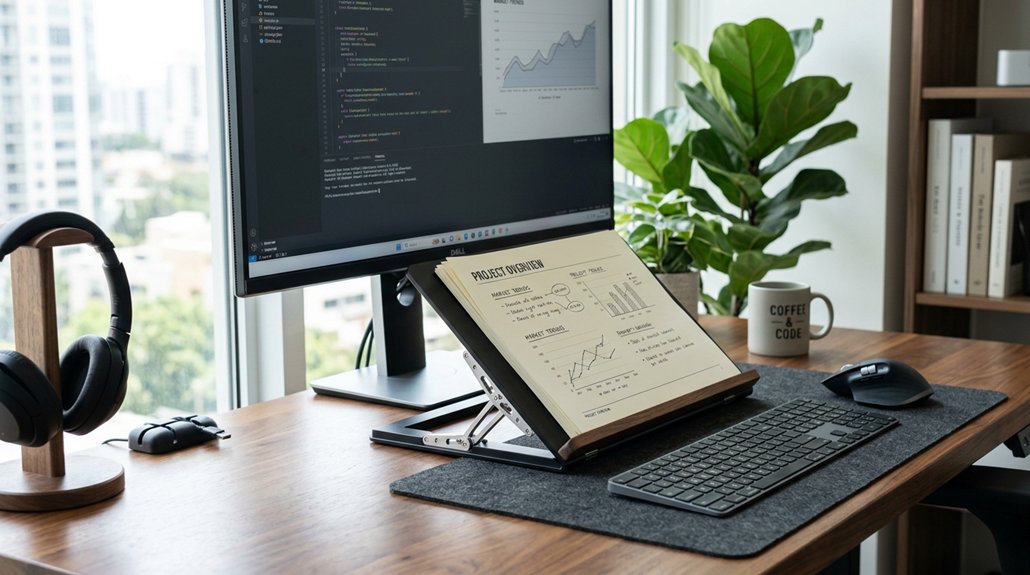
When you set your document holder to a 45°-60° incline, it aligns papers with your line of sight, making reading more natural and effortless. The adjustable angle helps you maintain the same distance and height as your monitor, reducing eye strain and neck fatigue. A well-designed stand with ergonomic height adjustability ensures you can fine-tune your workspace for optimal comfort. With customizable tilt, you can:
- Easily switch between reading, writing, or typing tasks without awkward postures
- Keep your documents at a comfortable angle that matches your natural sight lines
- Reduce the need for frequent head twisting or bending
- Promote an upright posture that supports ergonomic comfort
This flexibility allows you to adapt your workspace, minimizing musculoskeletal tension and creating a more comfortable, efficient work environment.
Tips for Properly Positioning Your Documents for Easy Viewing
To view your documents comfortably, make sure they’re positioned at the right height, ideally slightly below your eye level. Keep the papers at an ideal distance that matches your monitor, so your eyes don’t strain or overreach. Also, angle the documents between 45° and 60°, allowing for smooth, natural eye movement without twisting your neck. Utilizing an ergonomic stand can further enhance device stability and prevent slippage during use.
Optimal Height Placement
Ensuring your document holder is positioned at the right height can greatly reduce neck strain during work. You want your documents to align with your eye level or slightly below your monitor screen, preventing awkward head tilts.
To optimize placement:
- Position the document holder so that your papers are roughly at the same height as your eye and monitor screen.
- Angle the documents between 45° and 60° relative to your keyboard and monitor for easy reading without neck bending.
- Keep the papers close to the monitor, enabling smooth shifts between reading and screen viewing.
- Use an adjustable holder directly beside or beneath your monitor, avoiding flat or side placements that cause twisting.
- Select a mounting option that offers height adjustability, ensuring your documents stay at an ergonomic level as you work.
This setup minimizes neck movement and promotes ergonomic comfort, making your workspace more efficient.
Ideal Distance From Eyes
Positioning your documents at the right distance from your eyes helps prevent unnecessary eye strain and makes reading more natural. Use a document holder that keeps your papers at about an arm’s length away, similar to your computer screen. This distance minimizes eye adjustments and reduces fatigue.
Choosing a holder with an ergonomic design can further optimize weight distribution and support comfortable viewing angles. Make sure the document holder’s height aligns with your monitor to keep your gaze steady and avoid neck twisting. Set the surface at a 45° to 60° angle between the keyboard and monitor for easy reading. Keep documents centered between your screen and keyboard to allow smooth eye movement, reducing the need for excessive head or neck rotation.
Keeping your documents close enough guarantees quick, natural gaze shifts, easing neck and eye strain throughout your workday.
Proper Angle Alignment
Proper angle alignment is essential for comfortable and efficient document viewing. To do this, position your document holder at a 45° to 60° angle relative to your keyboard and monitor. This creates a readable angle where papers are closer, reducing neck twisting.
Make sure your documents are aligned in height and distance with your computer screen to minimize eye movement and refocusing. The surface of the document holder should be slanted at a readable angle, so you don’t have to bend your neck downward or sideways.
Place the holder close to the monitor for seamless shifts between screen and paper. Finally, adjust the height so the top of your documents sits just below eye level, supporting a natural, upright posture during work.
Finding the Right Height and Distance for Your Workspace
Have you ever noticed how easily neck strain can develop when your document holder isn’t aligned with your monitor? To prevent this, position your document holder so that documents are at eye level or just below, helping you maintain a neutral neck posture.
Keep the holder at a similar distance from your eyes as your monitor—about an arm’s length—to reduce eye strain and lessen refocusing efforts. Adjust the angle between 45° and 60° so papers sit at a readable slant, minimizing the need to bend or twist your neck.
Place the document holder directly between your keyboard and monitor or just below the screen for seamless sightline shifts. Make sure it’s height adjustable to fit your unique setup, ensuring long-term comfort and neck health during work.
How Good Document Placement Prevents Long-Term Spinal Problems
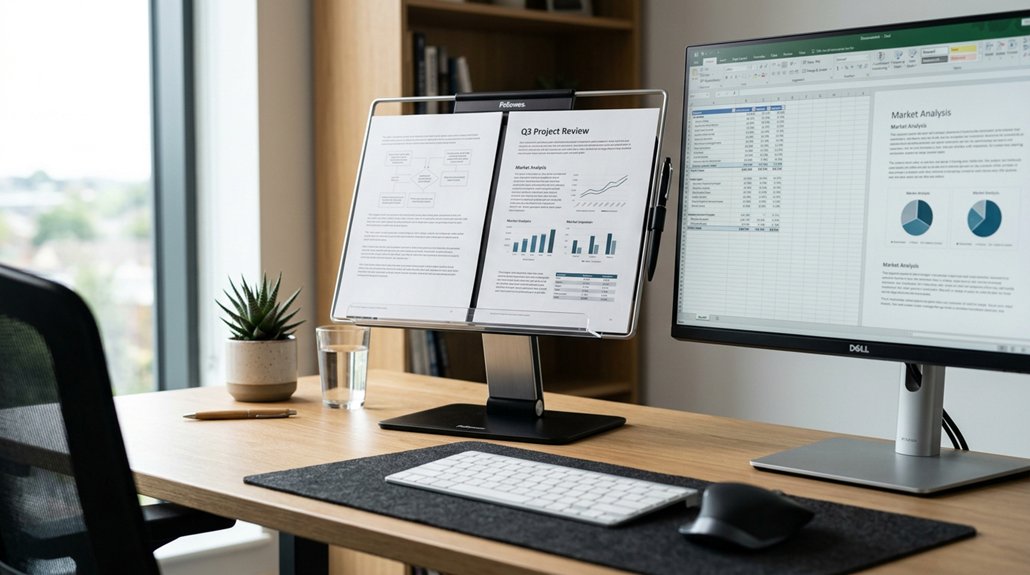
When you place your documents at eye level and align them with your monitor, you prevent the need for repetitive twisting and bending of your neck, which can lead to long-term spinal issues.
Placing documents at eye level aligned with your monitor prevents neck twisting and helps avoid long-term spinal problems.
Using a document holder to keep papers closer to eye height helps support good posture and reduces strain. Consider these key points:
- Position your papers at a consistent distance and angle with your monitor.
- Keep documents on a holder between your keyboard and monitor for a straight neck.
- Use a holder that angles papers at 45°-60° for neutral head alignment.
- Make certain papers are aligned with your line of sight to avoid unnatural head movements.
This setup minimizes neck muscle fatigue and reduces the risk of chronic neck pain and spinal injuries linked to sustained awkward postures.
Common Setup Mistakes That Can Worsen Neck Strain
Many common setup mistakes can undermine the benefits of an ergonomic document holder and actually worsen neck strain. Placing documents flat on the desk or to the side causes you to twist and bend your neck repeatedly, increasing discomfort.
Positioning the document holder too low or too far from your monitor leads to awkward head and neck positions, forcing you to stretch or crane your neck, which adds fatigue. Using a holder that doesn’t match the height and distance as your computer can create inconsistent viewing angles, causing eyestrain along with neck tension.
Additionally, neglecting to center the document holder with your keyboard and screen results in repetitive neck rotation. Poorly chosen or cramped holders further promote bad posture, negating ergonomic benefits and intensifying neck strain.
Additional Ergonomic Accessories to Support Your Workspace

To create a truly ergonomic workspace, incorporating key accessories can make a significant difference in supporting proper posture.
A well-chosen document holder reduces neck strain by elevating papers to eye level, helping you avoid constant bending. Consider these accessories:
A document holder elevates papers to eye level, reducing neck strain and promoting better posture.
- Monitor stands or risers—position your screen at eye level, preventing neck bending.
- Adjustable keyboard trays—keep wrists straight and shoulders relaxed while typing.
- Ergonomic chairs with lumbar support—maintain proper spine alignment to reduce neck fatigue.
- Cable management systems and desk organizers—keep essentials within reach, cutting down repetitive reaching that strains your neck and shoulders.
Adding these accessories helps maintain a neutral posture, making your workspace more comfortable and reducing long-term neck discomfort.
Creating a Neck-Friendly Office at Home or in the Office
Creating a neck-friendly office setup involves strategic placement of your documents, monitor, and seating. Using a document holder at eye level and close to your monitor aligns your documents with the screen, preventing neck twisting and reducing strain.
Positioning the holder between your keyboard and monitor maintains a comfortable viewing distance of 45° to 60°, minimizing eye fatigue and encouraging good posture. An adjustable document holder supports upright sitting, preventing forward bending that can cause neck and spinal issues.
Ergonomic placement of documents helps keep your neck in a neutral position, avoiding frequent head tilts and rotations during prolonged tasks. When combined with an adjustable chair, monitor at eye level, and accessible keyboard, a well-arranged office creates a neck-friendly environment that reduces discomfort and enhances productivity.
Why a Microdesk™-Style Document Holder Is a Game Changer
Have you considered how a properly designed document holder can transform your workspace?
The Microdesk™ is a game changer because it elevates documents to support a neutral neck posture and reduce strain. Here’s how it helps:
- It’s height adjustable, aligning documents perfectly with your monitor.
- Positioned between your keyboard and monitor, it prevents awkward neck twisting.
- Supports documents at a 45°–60° angle, reducing eye fatigue and headaches.
- Endorsed by the Australian Physiotherapy Association, it promotes an ergonomic workspace.
Simple Posture Tips for Longer, Pain-Free Work Sessions
Maintaining good posture during long work sessions is essential to prevent discomfort and fatigue. Position your document holder at the same height and distance as your monitor, ideally at a 45°-60° angle, to keep your neck aligned and prevent twisting.
Keep your monitor top slightly below eye level and at arm’s length so your neck stays neutral, avoiding forward bending or tilting. Place the document holder directly between your keyboard and monitor for smooth eye shifts, reducing neck muscle strain.
Remember to take micro breaks every hour—stand, stretch, and reset your posture—to relieve tension. Supporting an upright posture with feet flat on the floor and relaxed shoulders, combined with an ergonomic document holder setup, helps maintain comfort and prevents neck pain during extended work sessions.
Frequently Asked Questions
How to Stop Neck From Hurting When Sitting at Desk?
To stop neck pain at your desk, keep your monitor at eye level, use a supportive chair, position your documents properly, take regular breaks, and keep your keyboard and mouse within easy reach to maintain good posture and reduce strain.
Does a Laptop Stand Help With Neck Pain?
Yes, a laptop stand helps with neck pain by raising your screen to eye level, promoting better posture. This reduces neck strain, muscle fatigue, and discomfort during long hours of work, making your workspace more comfortable and ergonomic.
What Kind of Desk Is Best for Neck Pain?
A sit-stand desk best relieves neck pain by allowing you to switch positions easily. Pair it with ergonomic accessories, keep your monitor at eye level, and guarantee spacious, clutter-free workspace to promote proper posture and reduce strain.
How Should I Set My Desk to Prevent Neck Pain?
You should position your monitor directly in front of you with the top slightly below eye level, use an adjustable document holder, keep your chair and items within easy reach, and take micro breaks to prevent neck pain effectively.



