
To achieve perfect document viewing angles, adjust your monitor height so the top edge is at or just below eye level, reducing neck strain. Keep documents about 15 degrees below your line of sight and maintain arm’s length distance for clarity. Use adjustable stands or supports for better ergonomics, and position your documents centered in your natural line of sight. Optimize lighting by minimizing glare and reflections. For more tips on creating a comfortable workspace, explore further.
Why Proper Document Viewing Angles Matter
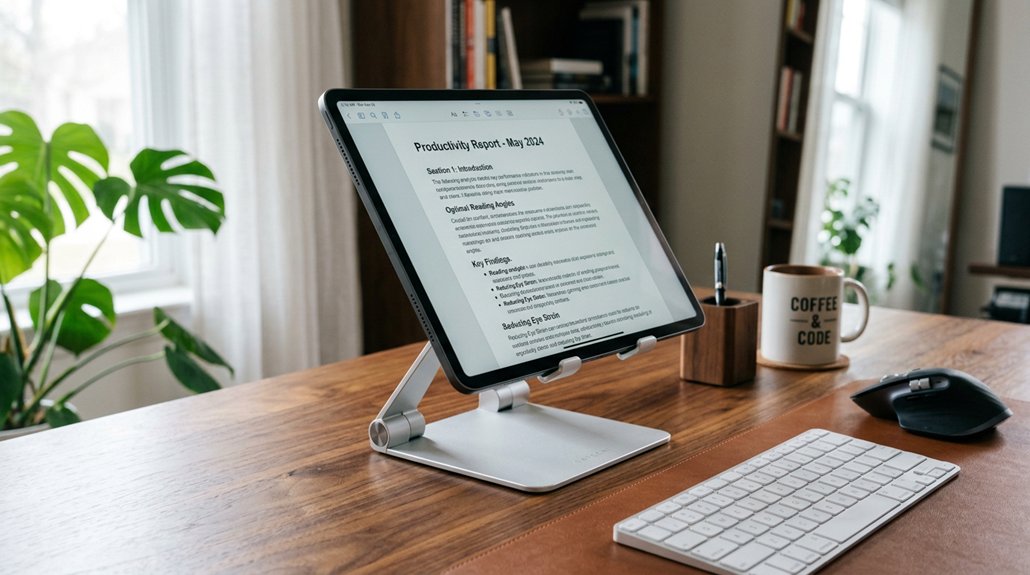
Proper document viewing angles are essential because they directly affect how clearly you can read and interpret the content. When your screen is viewed outside the ideal ±30 degrees horizontally and about 15 degrees below eye level, colors can appear shifted, and brightness may become inconsistent. This hampers color accuracy and makes text harder to read. Additionally, choosing monitors with wide viewing angles, such as those with IPS or OLED panels, helps maintain consistent color reproduction across different viewing positions. Proper positioning avoids distortions like washed-out or tinted text, reducing eye strain and visual fatigue.
How to Adjust Your Monitor Height for Clearer Documents
To achieve clearer document viewing, you need to adjust your monitor height so the top edge is at or just below your eye level. This positions the screen about 15 degrees below your horizontal sightline, creating a prime viewing angle. Your eyes should naturally look downward at the monitor, reducing neck strain and enhancing focus. Keep your monitor at an ideal viewing distance—about 30 to 36 inches—to see details clearly without eye fatigue. Use an adjustable stand or arm for easy fine-tuning, aligning the screen center with your natural line of sight. Proper ergonomic setup also involves selecting the right monitor riser to ensure consistent height adjustment and reliable support. Here’s a quick overview:
| Goal | Method | Benefit |
|---|---|---|
| Achieve prime angle | Top edge slightly below eye | Decreases strain; improves clarity |
| Maintain ideal distance | 30-36 inches away | Prevents eye fatigue |
| Confirm perpendicularity | Adjust to face screen directly | Prevents distortion |
Choosing and Using Adjustable Stands for Better Ergonomics
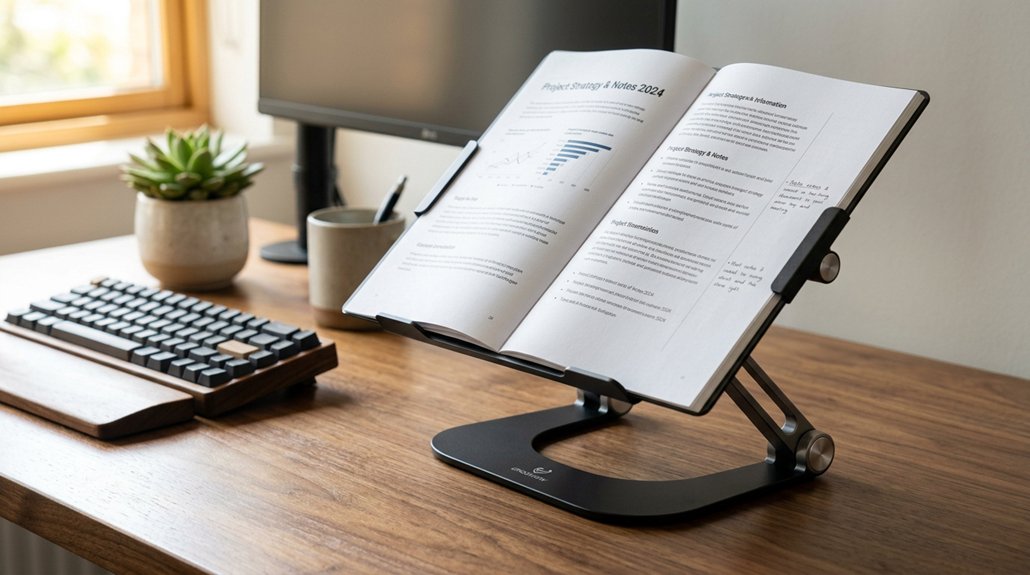
Choosing the right adjustable stand helps you position your monitor for maximum comfort and efficiency. Make sure it allows you to set the height so the top of the screen is at or below eye level, preventing neck strain. A well-designed stand with ergonomic support will also help maintain proper posture throughout your work session. Don’t forget to use tilt adjustments to align the screen perfectly, reducing glare and improving readability.
Adjustable Height Benefits
Adjustable height stands offer significant ergonomic benefits by allowing you to position your monitor at or just below eye level, which helps keep your neck in a comfortable, neutral position. This reduces strain during long work hours.
With an adjustable stand, you can:
- Maintain proper ergonomic posture by aligning the top of your monitor with your eye level.
- Keep the viewing distance at about an arm’s length (30-36 inches), reducing eye fatigue.
- Tilt the monitor up to 15 degrees below the line of sight, minimizing brightness and color inconsistencies.
These features support personalized setups that improve comfort and efficiency, helping you prevent discomfort during extended desk work.
Choosing adjustable height stands guarantees your workspace promotes healthier, ergonomic habits.
Proper Tilt Adjustment
Proper tilt adjustment is key to achieving ideal ergonomic comfort when using a monitor. It helps position the screen about 15 degrees below your horizontal sightline, reducing neck and shoulder strain during long document sessions. Adjustable stands give you precise tilt control, allowing the screen to face your eyes directly and ensuring consistent viewing angles. Many stands feature lockable hinges that enable steady positioning during extended use, preventing accidental angle shifts. When your monitor is properly tilted, it remains perpendicular to your line of sight, preserving image clarity and preventing text distortion. Tilt ranges of around -5° to +20° accommodate different user heights and desk setups, boosting comfort and readability. Using stands with smooth, stable tilt mechanics makes it easy to find and maintain the perfect viewing angles throughout your workday, supporting better posture and reducing fatigue.
Keeping the Right Distance : How Far Should You Sit From Your Screen?
To find the right distance, sit about an arm’s length away from your monitor, usually between 20 to 36 inches. Adjust this range based on your screen size and personal comfort to see details clearly without straining your eyes.
Maintaining the proper distance also helps you keep a natural posture and reduces neck or shoulder discomfort.
Optimal Viewing Range
Finding the right distance from your monitor is key to reducing eye strain and ensuring clear visuals. The ideal viewing range is about arm’s length, roughly 30 to 36 inches, especially for larger screens.
For 27-32 inch monitors, a distance between 20 and 30 inches helps preserve image quality and prevents distortion. Maintain a consistent vertical viewing angle close to 0 degrees to avoid awkward neck positions that strain your eyes and neck.
Adjusting your setup to stay within this range promotes sharp image details and prevents color shifts caused by unfavorable viewing angles. Too close or too far can compromise clarity or cause fatigue.
Furthermore, choosing a monitor with flicker-free technology and adjustable brightness can significantly enhance comfort during prolonged use.
Focus on aligning your screen at the right distance for comfortable, clear, and safe viewing that supports both your vision and posture.
Adjust for Comfort
Adjusting your seating position so that your monitor is about 20 to 30 inches from your eyes helps you view documents comfortably and clearly. Sit directly in front of your screen to keep your line of sight steady, reducing neck and eye strain.
This distance allows you to see the entire document within your field of view, minimizing excessive head or eye movement. For larger screens, starting around 24 inches and adjusting up to 28-30 inches helps avoid dim corners or uneven color displays. Additionally, choosing a monitor with blue light filtering can further reduce eye fatigue during prolonged work sessions. Maintaining this recommended distance supports ergonomic health and guarantees wide angles for viewing, making it easier to focus without unnecessary fatigue. Properly positioning yourself promotes comfort during prolonged document work and enhances overall visual clarity.
Positioning Your Documents to Reduce Neck and Eye Strain
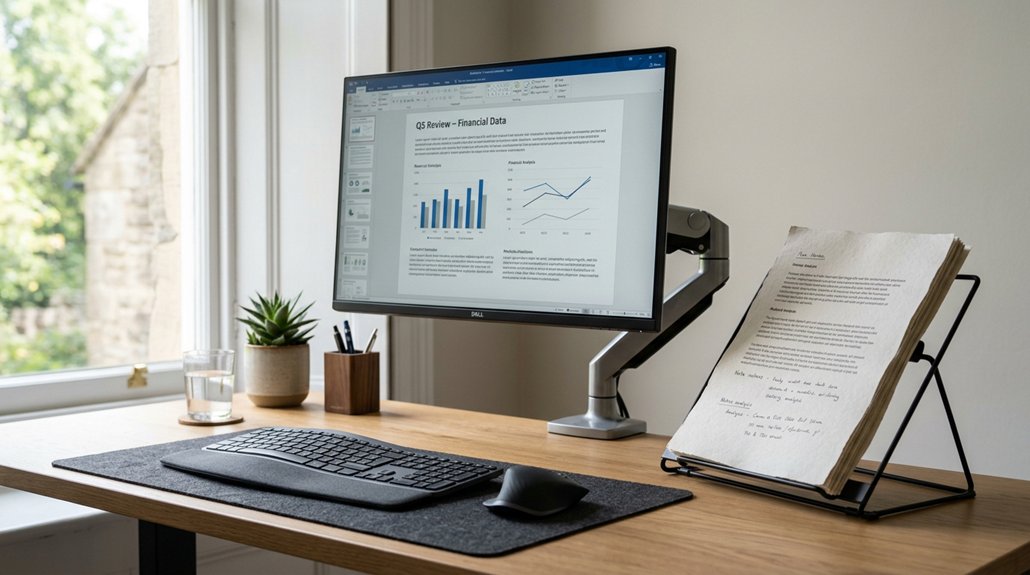
Positioning your documents correctly can greatly reduce neck and eye strain during long hours at your desk. Place your documents about 15 degrees below your horizontal sight line to lessen neck and shoulder fatigue.
Position your documents 15 degrees below eye level to minimize neck and shoulder strain during extended desk work.
Keep them at an arm’s length (30-36 inches) to reduce eye strain and improve focus. Make sure your documents are centered in your natural line of sight to prevent unnecessary head turns, which can cause uneven posture.
Use adjustable document holders to maintain the proper tilt and height, avoiding awkward angles. Pay attention to display technology, as the monitor’s image, color, and brightness shifts can impact readability and comfort. A stable ergonomic support with adjustable support features can help ensure your arms remain in a natural, strain-free position during long work sessions.
Proper positioning promotes better readability without excessive eye movement or glare, reducing overall discomfort during prolonged work sessions.
Tips for Adjusting Lighting to Minimize Glare and Boost Clarity
To minimize glare and enhance screen clarity, it’s essential to manage your lighting environment effectively. Position your monitor so that windows and light sources stay within 90 degrees, avoiding direct reflections. Use adjustable blinds or curtains to control natural light, preventing harsh sunlight from washing out your display. Employ anti-glare screen protectors or matte coatings to reduce reflections while preserving image sharpness. Indirect or diffused lighting helps create a balanced brightness, reducing eye strain during long hours. Additionally, adjust your monitor’s brightness and contrast settings to match ambient light levels, keeping the text clear and comfortable. Here’s a quick guide:
| Lighting Tip | Purpose | Example |
|---|---|---|
| Adjust blinds or curtains | Control natural light intensity | Use blackout curtains |
| Use anti-glare screen protectors | Reduce reflective glare | Matte coating on monitor |
| Keep ambient light indirect or diffused | Minimize reflections and eye strain | Floor lamps with shades |
| Choose high-quality blue-light filters | Further reduce eye fatigue and blue light exposure |
How to Regularly Assess and Fine-Tune Your Ergonomic Setup
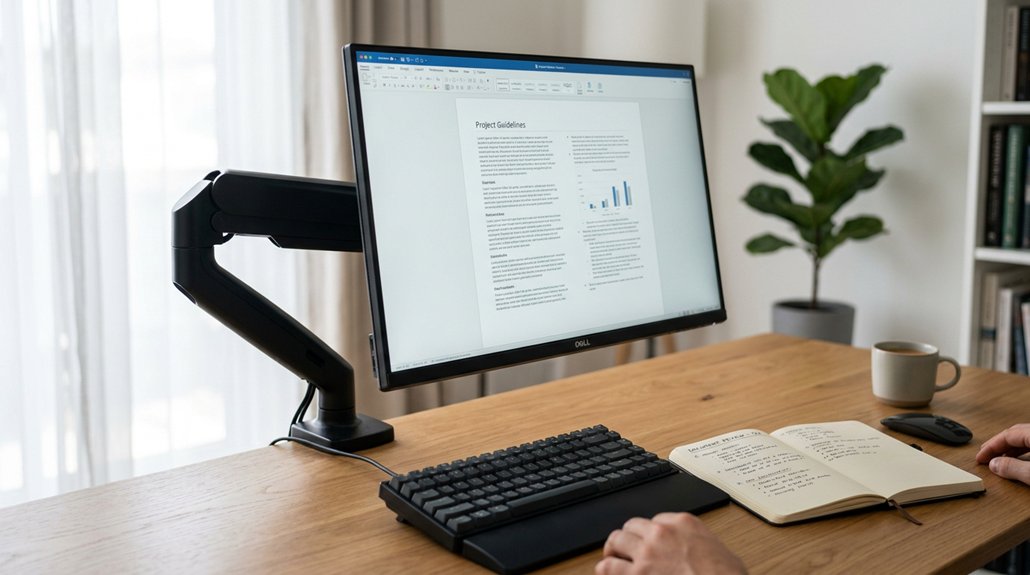
Regularly evaluating and fine-tuning your ergonomic setup is essential to maintain comfort and prevent strain during document viewing. Check that your desktop monitor’s top edge is at or slightly below eye level, guaranteeing a natural viewing angle of about 15 degrees below horizontal. Maintain an arm’s length distance (30–36 inches) from the screen, adjusting for comfort and clarity. Incorporate adjustable lumbar support features to ensure proper lower back alignment during long periods of sitting. Perform simple viewing angle tests by slowly moving your head while observing neutral gray images to spot any color shifts or brightness inconsistencies caused by panel type or aging. Recalibrate your monitor every few months after warming it up for 10–15 minutes to keep brightness, contrast, and color temperature optimized. Also, make certain your chair, keyboard, and monitor align on the same centerline to support good posture.
Frequently Asked Questions
What Is the Optimal Viewing Angle?
The ideal viewing angle is about 15 degrees below eye level, maintaining within ±30 degrees from the screen center, with the top of the monitor slightly below eye level for comfort, clarity, and to reduce neck strain.
What Causes Bad Viewing Angles?
Bad viewing angles happen because of panel limitations like TN and VA types, which shift colors and dim as you view off-center. Large monitors, panel physics, and backlight issues worsen these effects, reducing image quality when viewed at angles.
How to Get a Perfect 90 Degree Angle?
To get a perfect 90-degree angle, position your monitor perpendicular to your line of sight, use an adjustable stand, keep the top at or below eye level, and verify with an angle tool for precise alignment.
Is a 178 Viewing Angle Good?
Yes, a 178-degree viewing angle is excellent. It allows you to see the screen clearly from nearly any angle, minimizes color and contrast shifts, and provides consistent image quality, especially useful for shared or professional viewing situations.



