
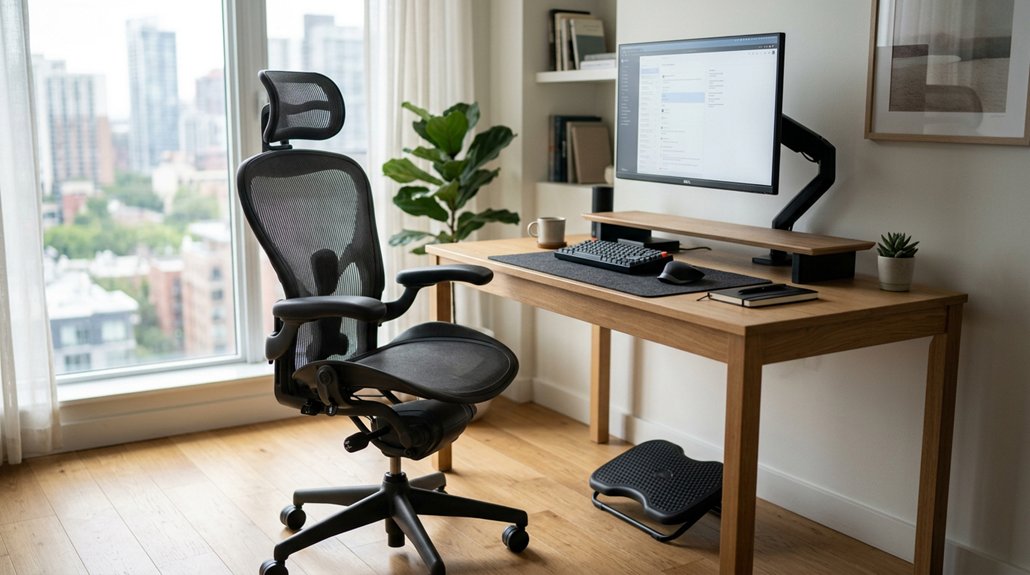
To improve your posture, start by adjusting your chair’s height so your feet rest flat and your thighs are parallel to the ground. Position the lumbar support to match your lower back curve, and set the armrests to keep your shoulders relaxed with elbows at 90°. Keep your monitor at eye level and within arm’s reach. Using these tips will help you stay comfortable and healthy—all the details you need are just ahead.
Why Proper Ergonomic Chair Setup Matters
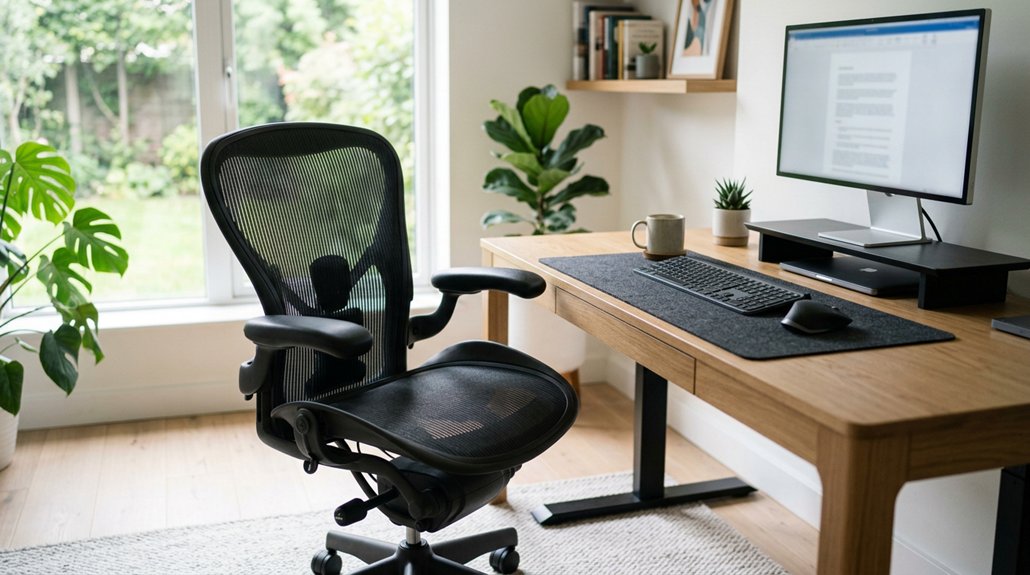
Have you ever wondered why setting up your ergonomic chair correctly is so important? An ergonomic chair helps your spine keep its natural curve, reducing back pain and long-term health issues.
Proper ergonomic chair setup supports your spine’s natural curve, reducing pain and promoting long-term health.
When you adjust the chair height so your feet are flat on the floor and your thighs are parallel, you promote a stable, balanced posture. Proper lumbar support, aligned with your lower spine, evenly distributes pressure and prevents discomfort over time.
Correct armrest height, allowing elbows to bend at 90°, relaxes your shoulders and eases upper body tension. Taking advantage of adjustable features—like seat depth and backrest tilt—ensures personalized support.
Additionally, understanding lumbar support mechanisms can significantly enhance your seating comfort by maintaining natural spinal alignment. A well-set-up ergonomic chair is key to maintaining proper posture, keeping you comfortable and protected throughout your workday.
Assess Your Chair’s Adjustability Features
Start by checking if your chair’s seat height can be adjusted so your feet rest flat on the floor or a footrest. Then, verify if the backrest can move to align lumbar support with your lower spine and if it has a range of movement to follow your spine’s natural motion. Finally, make certain the backrest and armrests are adjustable enough to keep you comfortable and properly supported throughout your work, ensuring multi-directional adjustments for optimal ergonomic positioning.
Adjustable Seat Height
To guarantee your chair supports proper posture, it’s important to assess and utilize its adjustable seat height feature. You should adjust the height so your feet are flat on the floor or use a footrest if needed.
The height of the chair should allow your thighs to be parallel to the ground, while your knees bend at about 90 degrees. Most ergonomic chairs, like the Newtral Chair, offer adjustable seat heights from 44 cm to 52.5 cm, with extensions for taller users.
Regularly reassess and adjust the seat height as your posture or desk setup changes throughout the day. Avoid setting the chair too high, which can cause dangling feet and pressure under your thighs, or too low, which strains your knees and hips.
Lumbar Support Settings
Adjusting the lumbar support guarantees your chair molds effectively to the natural curve of your lower back, promoting better posture and reducing back fatigue. Proper lumbar support helps keep your spine aligned and minimizes lower back pain. Using support cushions with ergonomic shape and targeted zones can further enhance spinal alignment. To optimize it:
- Adjust the height so the lumbar belt supports your waist at the right level, maintaining consistent support.
- Use the adjustable intensity feature to find a firm yet comfortable feel for your lower back.
- Lock the lumbar support in place once it’s correctly positioned to prevent displacement during movement.
- Regularly reassess and tweak the lumbar settings as you modify seat depth or backrest height to maintain ideal spinal alignment.
These steps guarantee continuous, tailored support for your lower back, making it easier to keep your spine healthy.
Backrest Movement Range
Understanding your chair’s backrest movement range is essential for guaranteeing it provides continuous support as you shift positions throughout the day. The backrest movement range allows the backrest to follow your back’s natural movements, helping to distribute your weight evenly and reduce pressure points on your spine.
For example, Newtral Magic H series chairs offer about an 8 cm tracking range, while NT series chairs provide around 5 cm. This adjustability helps maintain spinal alignment by accommodating your spine’s curves and your height. Additionally, choosing a chair with a precise movement mechanism ensures smoother and more reliable adjustments, enhancing overall comfort and support.
As you recline or move, a well-tracking backrest ensures your shoulders are relaxed and your back stays supported. Locking mechanisms let you secure the backrest within its movement range, personalizing your comfort and maintaining proper posture during long hours.
Set Your Seat Height and Adjust Depth for Comfort
Setting your seat height correctly is essential for all-day comfort and proper posture. When sit properly, your feet should rest flat on the floor, with your knees bent at a 90° angle and thighs parallel to the ground for stability.
Use these steps to fine-tune your setup:
- Adjust the seat height so your feet are flat, and your knees align with your hips.
- Make certain your upper arms are parallel to the floor, avoiding shoulder strain.
- Use the chair’s adjustable depth to leave a 2-3 finger gap between the seat edge and back of your knees for better circulation.
- When sitting fully back, confirm the lumbar support aligns with the natural curve of your lower spine.
- Incorporate support accessories such as headrests or neck pillows to maintain cervical spine alignment during extended periods of sitting, enhancing overall posture.
Position the Lumbar Support for Lower Back Alignment
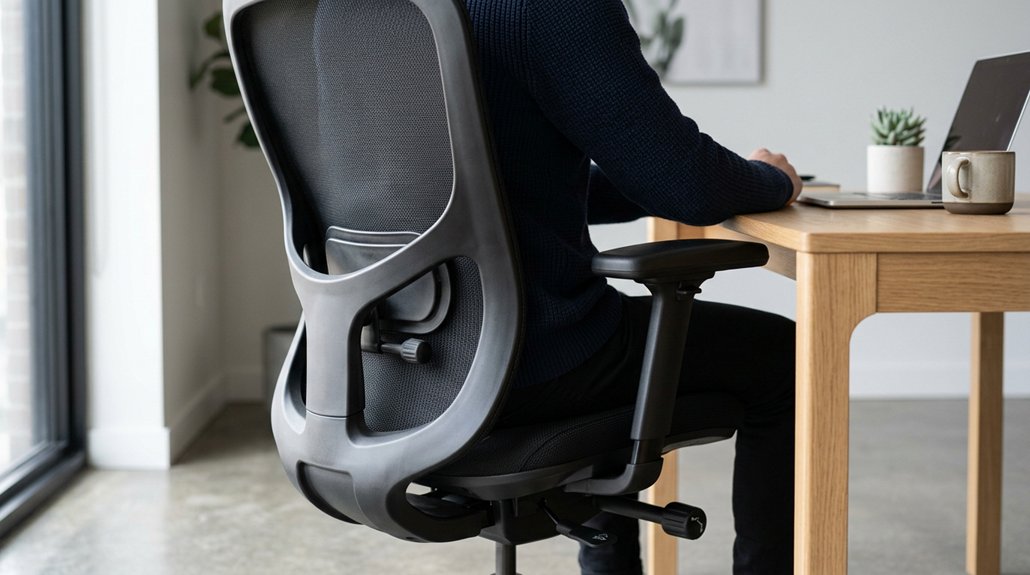
To guarantee your lower back stays properly supported, you’ll want to position the lumbar support so it aligns precisely with the natural curve of your spine. Keep it snugly in the hollow of your lower back to prevent slouching and promote a neutral sitting posture. Proper alignment helps reduce strain and discomfort by evenly distributing weight along your lumbar region. Use the chair’s adjustable backrest height to match the lumbar support to your waist, especially if you’re taller or shorter than average. Once in position, lock the backrest to maintain consistent support during long periods of sitting. This setup encourages you to keep a relaxed posture while sitting upright, minimizing fatigue and supporting overall spinal health. Adjusting the cushion materials for comfort can further enhance support and promote better posture.
Adjust Armrests to Keep Shoulders Relaxed and Elbows Close
Adjust your armrests so that your elbows bend comfortably at a 90° angle and stay close to your sides. This helps keep your upper arms relaxed and prevents shoulder strain. A properly supported armrest should also accommodate repetitive motions without causing wrist fatigue, promoting overall comfort during long periods of use.
Adjust your armrests to keep elbows at a 90° angle and close to your sides for relaxed shoulders.
Properly adjusted armrests support your forearms lightly, avoiding the need to lift or slump your shoulders. Follow these tips to maintain ideal posture:
- Use adjustable armrests to keep your upper arms aligned with your torso.
- Position the armrests at a height where your shoulders stay relaxed when typing or using the mouse.
- Make certain your shoulders aren’t elevated or strained by the armrest height.
- Regularly fine-tune the armrest placement to sustain a neutral, tension-free position.
Arrange Your Monitor and Laptop at Eye Level
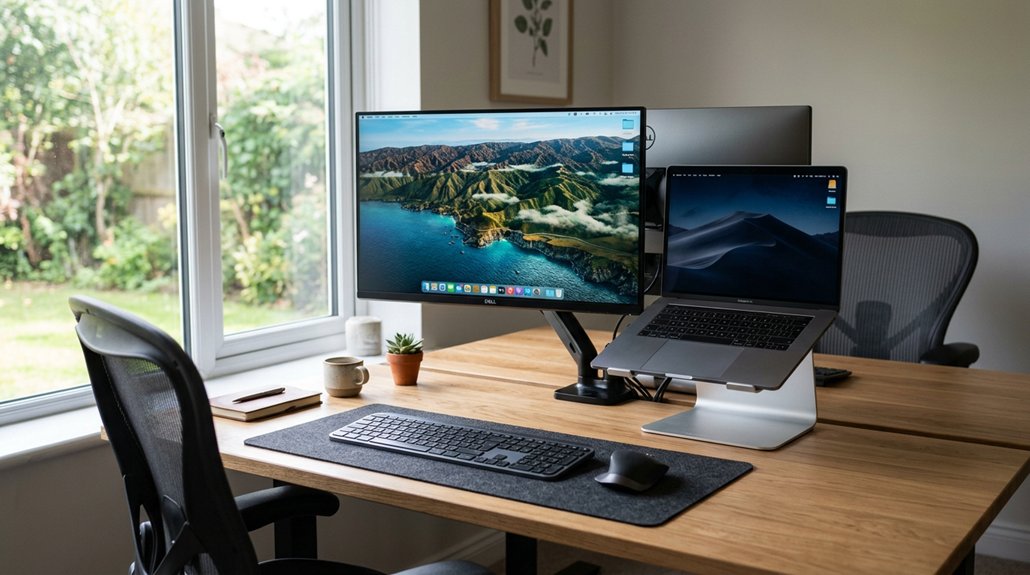
To reduce strain, position your monitor or laptop so the top of the screen is at or just below eye level. Keep the screen about 20-40 inches away, using stands or adjustable mounts to achieve the right height and distance. Proper adjustment ensures ergonomic comfort and helps prevent long-term musculoskeletal issues. This setup helps keep your head aligned and prevents neck and shoulder discomfort.
Monitor Height Adjustment
Ever wonder why eye strain and neck discomfort are common with improper monitor placement? It’s because your screen isn’t at the right height. To fix this, make sure your monitor is directly in front of you, about 20 to 40 inches away.
Position the top third of the screen at or slightly below your eye level to promote a neutral head position. If you wear bifocals, lower the screen by 1 to 2 inches to ease neck tension. Use a monitor stand or an adjustable laptop stand to raise your display to the correct height if your desk or laptop is too low. Consider height adjustability options to find the most ergonomic setup.
Remember:
- Keep the monitor straight in front of you.
- Align the top third with eye level.
- Use a stand for height adjustments.
- Maintain a stable, comfortable angle.
Proper Screen Distance
Ensuring your monitor and laptop are at the right distance from your eyes is essential for comfortable, strain-free viewing. Make sure your screen is positioned straight in front of you at about 20-40 inches, roughly arm’s length, to reduce eye strain and keep your neck aligned. Adjust the top of the screen to be at or just below your eye level, so your head stays in a neutral position and your posture stays straight in front of your workspace. If you wear bifocals, lower the screen by 1-2 inches to prevent tilting your head. Additionally, using an ergonomic stand can help achieve the correct height and angle, promoting better adjustable height support.
Use of Monitor Stands
Using a monitor stand or adjustable arm is essential for aligning your screen with your eye level, which helps maintain good posture and reduces strain.
To achieve this, consider these tips:
- Position your monitor directly in front of you at a distance of 20-40 inches to reduce eye strain.
- Raise the monitor so the top third is parallel to the floor, keeping your head aligned with your spine.
- Adjust the height so the screen is within easy reach and at eye level, preventing the need to tilt or crane your neck.
- For laptops, elevate your device with a stand and use an external keyboard and mouse to keep your workspace within easy reach and promote the best posture.
This setup guarantees your monitor is at the ideal height and reduces unnecessary strain.
Create a Comfortable Workstation and Take Regular Breaks
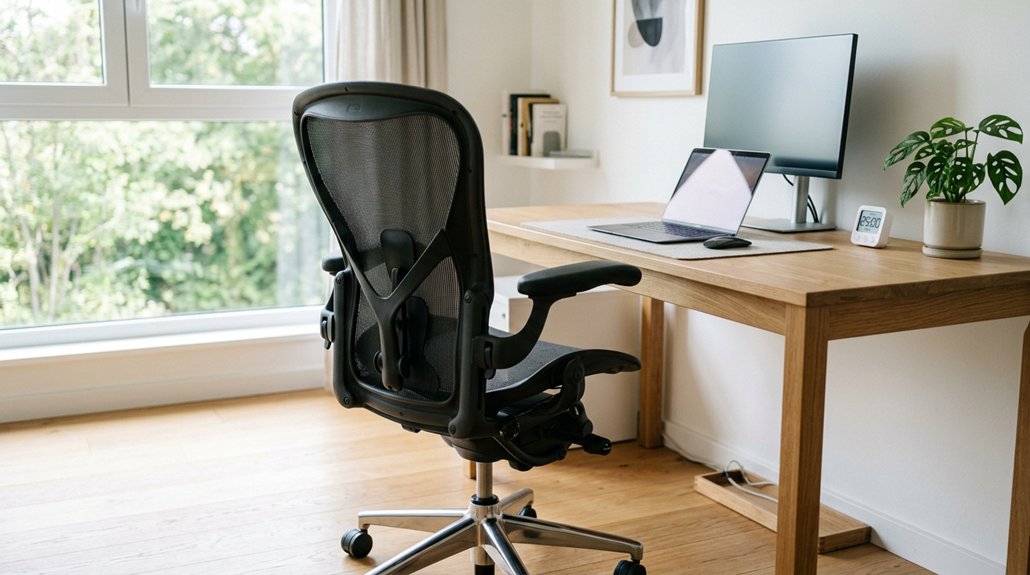
Creating a comfortable workstation starts with proper setup and mindful habits. You should adjust your chair height so your feet rest flat on the floor or on a footrest, with thighs parallel to the floor and knees at a 90° angle, supporting stable, balanced posture. Keep frequently used items within easy reach to prevent excessive stretching. Position your monitor about 20-40 inches away, with the top third at or slightly below eye level, easing neck and eye strain. To avoid muscle fatigue, take regular breaks every 30-60 minutes—stand, stretch your hands, fingers, and arms, and change your sitting position. Use the following visual to help imagine your ideal setup:
| Item | Proper Position | Purpose |
|---|---|---|
| Footrest | Under feet, stable | Rest flat, support posture |
| Monitor | 20-40 inches, eye level | Reduce neck, eye strain |
| Frequently used | Near, within arm’s reach | Minimize stretching |
| Breaks | Every 30-60 min | Promote circulation, reduce fatigue |
Frequently Asked Questions
What Is the 90-90-90 Rule for Sitting?
The 90-90-90 rule means you position your hips, knees, and elbows at 90 degrees, with feet flat, thighs parallel to the floor, and elbows near your body, promoting better posture and reducing strain during long sitting periods.
Will an Ergonomic Chair Improve Posture?
Yes, an ergonomic chair improves your posture by supporting your spine’s natural curve, aligning your feet, knees, and shoulders, and encouraging proper sitting habits. Just remember to stay active and take regular breaks for best results.
How to Sit in a Chair to Improve Posture?
To improve posture, sit fully back in your chair with your back supported, keep your shoulders relaxed, elbows at 90°, wrists straight, and the monitor at eye level. Maintain natural curves and avoid slouching or leaning forward.
Which Chair Is Best for Scoliosis?
You should choose a chair with adjustable lumbar support, a back-tracking mechanism like the Newtral Magic H series, customizable seat depth, and a wide tilt range. Proper armrest positioning completes your scoliosis-friendly, personalized posture setup effectively.



