

To choose a mouse for arthritis pain, look for ergonomic designs that support natural hand and wrist positions, like vertical or trackball mice. Opt for lightweight, wireless options with adjustable angles, supportive thumb rests, and customizable buttons to reduce strain and repetitive movements. Make sure it fits your grip style and hand size comfortably. Proper placement and posture also matter. Keep exploring for more tips to find the best setup tailored to your needs.
Why an Ergonomic Mouse Can Ease Arthritis Pain
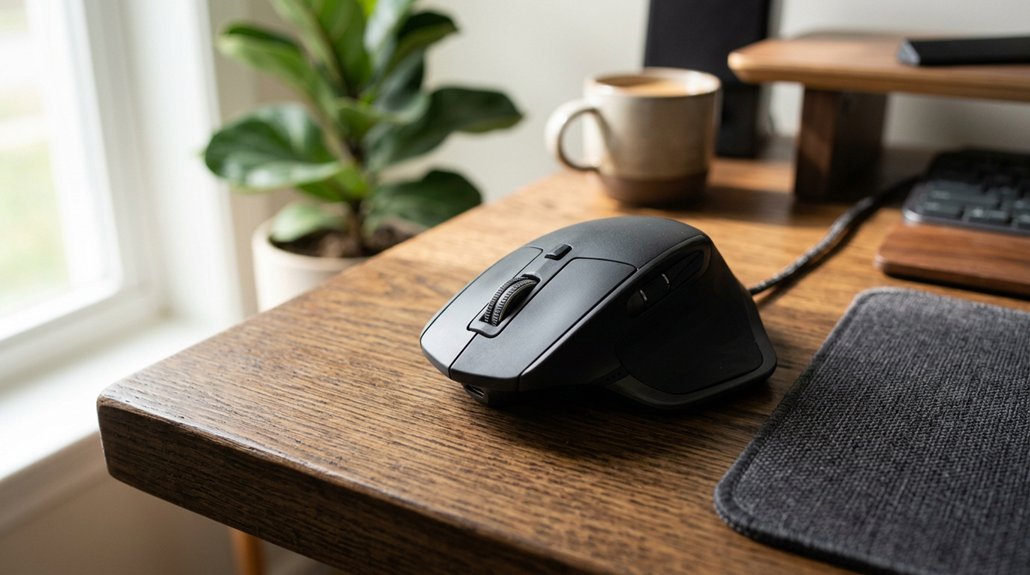
Choosing an ergonomic mouse can greatly ease arthritis pain because it encourages a natural hand and arm position that reduces joint strain. While an ergonomic keyboard helps prevent wrist strain, the right ergonomic mouse directly minimizes joint stress during use. An ergonomic vertical mouse, such as the Logitech MX Vertical, provides a large, angled grip that keeps your wrist in a neutral position, reducing pressure and improving circulation. They also often feature customizable buttons and adjustable speeds, which lessen repetitive movements and help those with limited hand dexterity. Lightweight and wireless, ergonomic mice are easy to handle without gripping tightly, decreasing discomfort over extended use. Additionally, adjustable DPI settings allow for precise control, further lowering the need for excessive hand movement.
Features That Help Reduce Wrist and Finger Strain
Features that help reduce wrist and finger strain focus on design elements that promote a more natural and comfortable hand position. Vertical mice like the Logitech MX Vertical are crafted with a 57° tilt, which encourages a handshake grip, decreasing wrist circulation issues and muscle tension. Additionally, adjustable ergonomic angles allow you to personalize the tilt, ensuring a neutral wrist position tailored to your hand size and grip style. Mice with customizable buttons, including rebindable thumb buttons, help reduce strain by simplifying access to common functions and lowering repetitive finger movements. An ergonomic shape that offers a larger size and evenly distributes pressure across your fingers can reduce localized joint pain. Wireless options, whether Bluetooth or USB, eliminate cable drag, allowing freer hand movement and reducing wrist tension. Additionally, soft-click buttons and quieter operation minimize finger force and repetitive stress, helping ease discomfort caused by arthritis.
Choosing a Mouse That Fits Your Hand and Grip Style
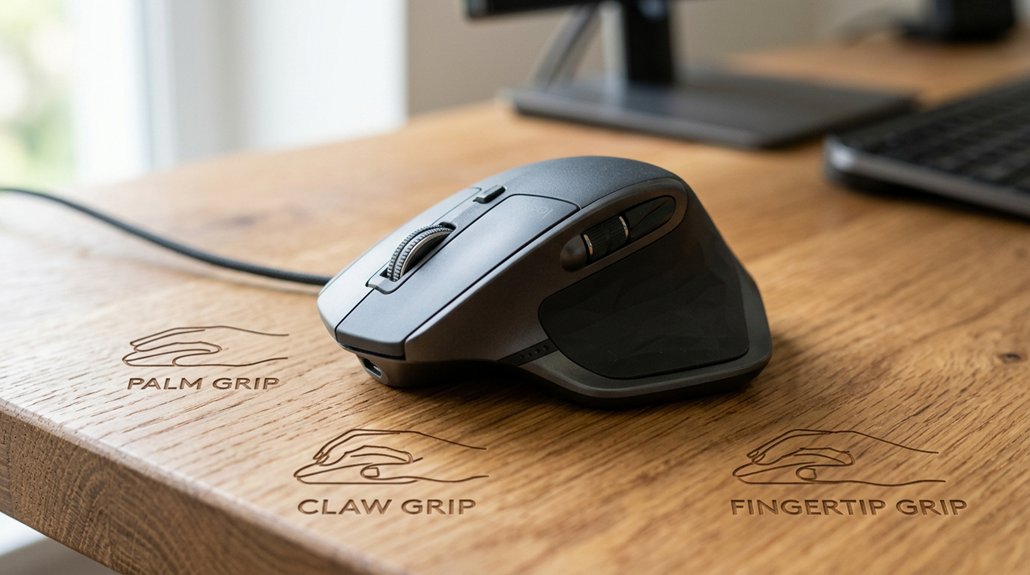
Finding a mouse that fits your hand and grip style can make a significant difference in managing arthritis discomfort. Using a vertical mouse, like the Logitech MX Vertical, encourages a natural handshake position that reduces wrist strain. Consider the size and shape of the mouse—the larger, bulkier models offer better support and stability, while smaller mice might cause more finger movement and pain. Look for mice with thumb rests or sculpted contours to minimize grip force and address pain points such as thumb base discomfort. Make certain you can rest the side of your hand on the desk to keep circulation healthy. Adjustable grip options and programmable buttons also help tailor the mouse to your needs, making daily use more comfortable and sustainable. Additionally, choosing an ergonomic mouse with features such as contouring or tilt can further promote proper wrist alignment and reduce discomfort.
Comparing Vertical and Trackball Mice: Which Is Better for You?
Vertical and trackball mice each offer unique advantages for comfort and control, but which one suits your needs better? Your choice impacts hand position, ease of use, and maintenance; understanding these factors helps reduce arthritis pain. Modern ergonomic designs, such as those with memory-foam palm rests, further enhance comfort and support during prolonged use. Let’s compare their comfort, precision, and durability to find the best fit for you.
Hand Position and Comfort
When choosing between different mouse styles for arthritis pain, understanding how each promotes hand comfort and posture is essential.
Vertical mice, like the Logitech MX Vertical, support a natural handshake grip, which helps reduce wrist strain and improves circulation by allowing the side of your hand to rest on the desk.
Trackball mice, such as the Logitech ERGO M575, let you control the cursor with your thumb, without moving your arm or wrist, minimizing forearm and wrist muscle use.
Vertical mice are bulkier but promote a neutral arm position, aiding in wrist pain reduction. Trackballs, being stationary, are suitable if limited arm movement is a concern.
Both types include customizable buttons, but vertical mice focus more on comfort, while trackballs emphasize reducing repetitive motions.
- Vertical mice promote a neutral wrist posture, helping reduce wrist pain.
- Trackballs allow thumb control, minimizing wrist and forearm movement.
- Bulkiness of vertical mice offers ergonomic hand positioning for comfort.
- Stationary design of trackballs reduces repetitive wrist motions.
- An important feature to consider is wrist support, which can further enhance comfort and prevent strain during extended use.
Control and Precision
Choosing the right tool for control and precision depends largely on your specific needs and hand comfort. Vertical mice like the Logitech MX Vertical promote a natural handshake grip, helping to reduce wrist circulation issues and providing steady, controlled movement. They’re limited in customization but excel in maintaining neutral arm posture for better precision over long periods. Additionally, ergonomic designs often incorporate impact resistance features to withstand prolonged daily use. Trackball mice, such as the Logitech ERGO M575, allow precise cursor control through thumb movements without needing full arm movement, which reduces repetitive strain. If you have arthritis in your thumb base, a trackball can reduce thumb strain while still offering accurate control. Vertical mice improve forearm and wrist alignment to reduce muscle fatigue, whereas trackballs preserve arm movements, focusing control in your fingers and thumb. Your choice depends on which method reduces strain and enhances accuracy for your daily use.
Maintenance and Durability
Maintenance and durability are key factors to take into account when selecting between vertical and trackball mice. Using MX Vertical, you’ll find a sturdy, bulkier design that’s built to last, but it can feel awkward while charging and may have more moving parts that could affect long-term durability.
On the other hand, trackball mice like the Logitech ERGO M575 S are stationary, with fewer moving components, reducing mechanical wear and tear over time. They require occasional cleaning of the ball and sensors to maintain smooth operation.
Vertical mice typically offer adjustable settings and customizable buttons but may need more maintenance due to their complexity. Conversely, trackball mice’s simple design makes them potentially more durable for long-term use, especially if you want minimal mechanical issues.
- Using MX Vertical suited for durability with a sturdy design
- Trackball mice reduce wear by limiting physical movement
- Maintenance varies: vertical mice need charging, trackballs require cleaning
- Fewer moving parts in trackball mice can mean longer-lasting performance
- Durable materials and construction features play a vital role in the longevity of both types of mice
How to Pick the Right Mouse Size and Weight for Comfort
Selecting the right mouse size and weight is essential for comfort, especially if you experience arthritis pain. For example, the MX Vertical offers a larger, ergonomic design that fits naturally in your hand, reducing strain through a neutral handshake grip.
Choose a lightweight mouse to minimize muscle fatigue during extended use, making movements smoother and effortless. Opt for models that allow your hand to rest fully on your desk, improving circulation and decreasing wrist compression.
If thumb pain is an issue, look for a mouse with a thumb rest or support, which helps distribute pressure evenly. It’s also helpful to test different sizes and weights, because comfort varies. Prioritize a design that promotes a neutral wrist and forearm posture for the best arthritis-friendly use.
Furthermore, selecting a mouse with ergonomic contours that support natural wrist positioning can significantly reduce discomfort over time.
Adjustable Sensitivity and Custom Buttons : Why They Matter
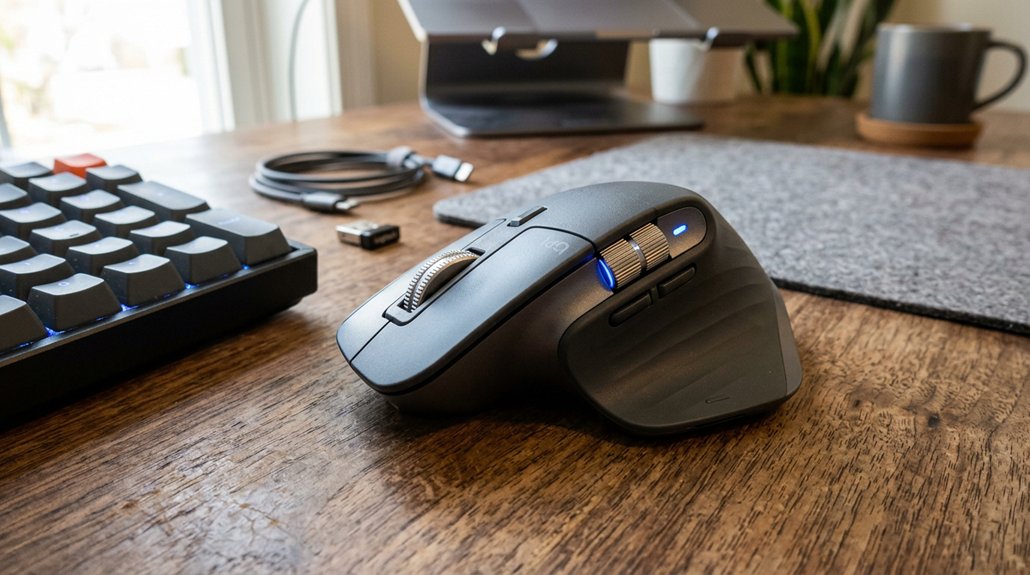
Adjustable sensitivity and custom buttons are essential features for anyone managing arthritis pain, as they help reduce unnecessary strain during computer use. With adjustable pointer sensitivity, like the Logitech MX Vertical’s DPI up to 4000, you can minimize hand movement and joint fatigue. A split design with ergonomic features further enhances comfort by reducing wrist and forearm strain during long use. Customizable buttons, such as rebindable thumb or middle buttons, let you perform frequent tasks without excessive clicking or finger stretching, decreasing discomfort. Some mice, like the Logitech Lift Vertical, offer four programmable buttons, enabling tailored workflows that cut down repetitive motions. Additionally, changing pointer speed settings gives you more precise control with less effort. These features focus on comfort and efficiency, making long hours easier on arthritis-affected joints.
Wireless or Wired: Which Reduces Strain More?
Wireless mice offer greater mobility and flexibility, helping you avoid awkward positions that can increase strain. Wired options provide consistent connection and power, reducing interruptions that might cause discomfort during use. Consider how connection stability and freedom of movement impact your comfort to choose the best fit. Additionally, choosing a mouse with ergonomic design can further decrease discomfort and support your hand during prolonged use.
Mobility and Flexibility
When it comes to reducing strain for arthritis sufferers, mobility and flexibility play essential roles. Using a gaming mouse that’s wireless can greatly improve your comfort by eliminating cable drag, allowing for smoother, more natural movements.
Wireless models, like the Logitech MX Vertical or Lift, enable relaxed wrist posture and unrestricted hand adjustments, reducing tension. Wired mice, while offering consistent power, can limit your motion because of cables, increasing discomfort over time.
Charging wireless mice might interrupt your workflow or gaming sessions, making flexibility more difficult. Ultimately, wireless mice prioritize reducing strain through free movement, which benefits arthritis sufferers, whereas wired mice can restrict your natural hand and arm positions despite their reliable power.
- No cable restrictions for better mobility
- Easier to adjust hand and wrist positions
- More relaxed posture when using wireless models
- Less overall tension during extended use
Connection Stability
Connecting your mouse reliably is essential because unstable signals can cause you to overcompensate or make unnecessary wrist movements, which increases strain. Wireless mice, like the Logitech MX Vertical, offer strong connection stability without the tethering of cables. They provide the freedom of movement to maintain a natural grip, reducing tension on your hand and wrist.
Bluetooth wireless mice also minimize desk clutter and allow adjustable arm positions, helping arthritis sufferers lessen tension. Using a wireless mouse with excellent battery life avoids interruptions during use, preventing awkward adjustments that could heighten discomfort.
While wired mice deliver a stable connection, the cable can restrict hand positioning and cause tugging, potentially increasing strain. Overall, a reliable wireless connection often results in less wrist tension and better ergonomic comfort.
Tips for Proper Mouse Placement to Minimize Wrist Stress
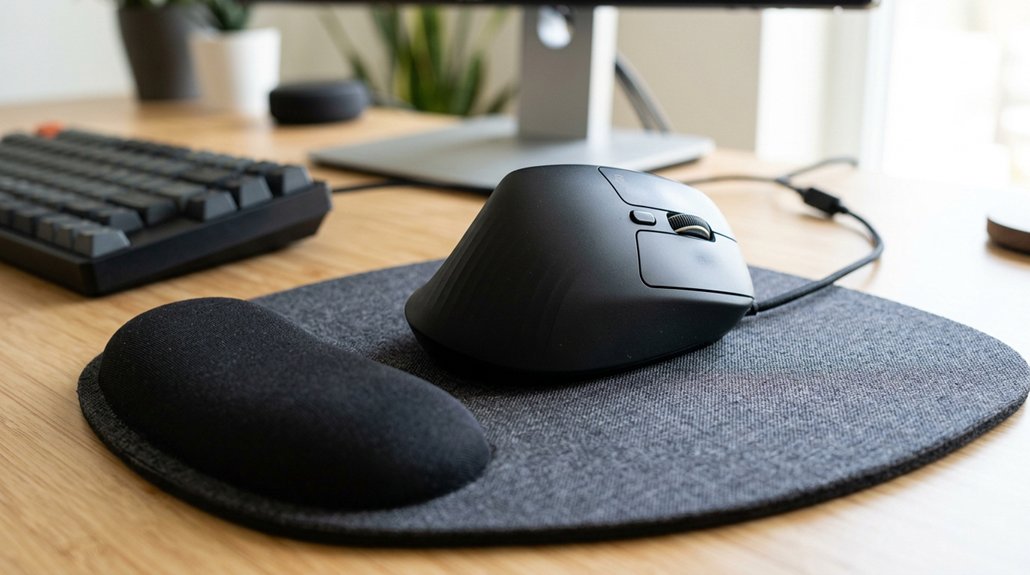
To minimize wrist stress, it’s important to place your mouse correctly relative to your keyboard and desk setup. Proper placement helps reduce overreaching and keeps your wrist in a neutral position during use.
Keep the mouse close to your keyboard to avoid straining your elbow and wrist. Rest the side of your hand lightly on the desk to support a natural grip, especially when using ergonomic vertical mice like the Logitech MX Vertical. Confirm your wrist remains straight and aligned with your forearm, avoiding twisting or bending.
Match the height of the mouse surface with your keyboard and desk to prevent unnecessary extension of your wrist. Allow enough space to move the mouse freely without gripping tightly, which helps keep muscles relaxed and reduces arthritis pain.
- Place the mouse close to the keyboard
- Rest your hand lightly on the desk
- Keep your wrist in a neutral, straight position
- Ensure the mouse surface is at desk height
Other Ergonomic Tools to Reduce Hand and Wrist Pain
Using ergonomic tools beyond your mouse can make a big difference in reducing hand and wrist pain. Options like supportive gel wrist pads, adjustable keyboard setups, and keyboard alternatives ease strain during extended use.
Incorporating regular movement breaks also helps prevent fatigue and discomfort.
Ergonomic Keyboard Alternatives
When managing hand and wrist pain from arthritis, exploring ergonomic tools beyond traditional keyboards can make a significant difference. Using gaming mouse options designed for comfort can reduce strain and improve your overall experience.
Besides, low-profile ergonomic keyboards with soft-touch keys help minimize finger stress, making typing less painful. Wireless keyboards improve wrist angles and allow flexible positioning, reducing joint strain. You might also consider keyguards to provide a stable platform for your hands and prevent accidental key presses, especially if finger dexterity is limited.
Additionally, software features like Sticky Keys can cut down on repetitive motions. Combining these tools with cushioned gel pads or wrist rests maintains neutral joint positions. These alternatives support better hand posture, easing arthritis-related discomfort during computer use.
- Using gaming mouse designed for comfort
- Compact, soft-touch ergonomic keyboards
- Wireless setups for flexible positioning
- Keyguards for precision and stability
Supportive Wrist Devices
Supportive wrist devices are essential tools for reducing hand and wrist pain during prolonged computer use, especially if you have arthritis.
Wrist support devices, such as gel pads and ergonomic slanted mousepads like the Allsop Wrist Aid with a 7-degree slant, help maintain a neutral wrist posture, reducing strain and pressure. Gel pads cushion your joints and promote circulation, easing pain from repetitive movements and flare-ups.
Ergonomic mousepads with built-in wrist rests decrease contact stress and prevent tendon irritation common in rheumatoid arthritis and carpal tunnel syndrome. Adjustable wrist supports and braces stabilize your joints by limiting unnecessary wrist extension and flexion.
Combining these wrist support devices with ergonomic mice guarantees natural hand alignment and reduces overall muscular tension for greater comfort during long computer sessions.
Movement Break Techniques
Taking regular movement breaks is one of the most effective ways to reduce hand and wrist pain during extended computer sessions. By pausing every 30-45 minutes for 1-2 minutes, you allow your hand muscles to relax and reduce stiffness.
Pausing after around 15 minutes of typing or mouse use helps prevent joint fatigue and flare-ups. Incorporating gentle hand and wrist stretches during these breaks supports flexibility and lessens discomfort.
Using ergonomic tools like adjustable footrests and monitor risers can improve your overall posture, indirectly reducing hand and wrist strain. Additionally, applying keyboard shortcuts minimizes repetitive mouse clicking and typing, lowering stress on arthritic joints.
These movement break techniques combined with ergonomic tools help you manage arthritis pain effectively.
How to Transition Safely to an Ergonomic Mouse
Shifting to an ergonomic mouse safely involves a gradual approach that allows your hand to adapt without exacerbating pain. Start by slowly introducing the ergonomic mouse into your daily routine, limiting sessions to 15 minutes to prevent fatigue.
Gradually introduce your ergonomic mouse, starting with 15-minute sessions for a safe, pain-free transition.
Choose a design with a natural hand position, like a vertical gaming mouse such as the Logitech MX Vertical, which minimizes wrist strain with a handshake grip. Adjust pointer speed and sensitivity to match your comfort level, reducing unnecessary hand movement.
Take micro-breaks of 1-2 minutes after each interval to stretch and relax your hand, preventing stiffness. Monitor any pain or discomfort, and consider alternating between your regular mouse and the ergonomic one to ease the adjustment.
This method helps your hand adjust comfortably and safely.
Frequently Asked Questions
What Type of Mouse Is Best for Arthritis?
You should choose an ergonomic, vertical mouse like the Logitech MX Vertical, which promotes a natural handshake grip, reduces wrist strain, and offers customizable buttons. Wireless options and larger shapes also help minimize joint pain during extended use.
What’s the Worst Enemy of Arthritis?
The worst enemy of arthritis is repetitive motions and prolonged use of traditional mice. They increase joint pain, swelling, and stiffness, especially when grip is poor and movements are awkward, worsening symptoms over time.
What Is the Fastest Way to Relieve Arthritis Pain?
The fastest way to relieve arthritis pain is by taking micro-breaks every 15-30 minutes, applying heat therapy, and maintaining neutral wrist positioning with ergonomic tools. These actions quickly reduce joint stiffness and ease discomfort.
Do Any Pros Use Ergo Mice?
Yes, many pros use ergonomic mice like the Logitech MX Vertical because they help reduce hand strain and pain, especially during long sessions. You benefit from improved comfort, wrist circulation, and adjustable features tailored to your needs.
In Summary
Choosing the right ergonomic mouse can greatly ease your arthritis pain. Prioritize one that fits your hand comfortably, supports your grip style, and reduces strain through features like vertical or trackball designs. Remember to keep proper placement, consider wireless options, and explore other ergonomic tools. Shift gradually to your new mouse to avoid discomfort. With the right choice and adjustments, you can work more comfortably and reduce your arthritis-related wrist and finger pain.



