
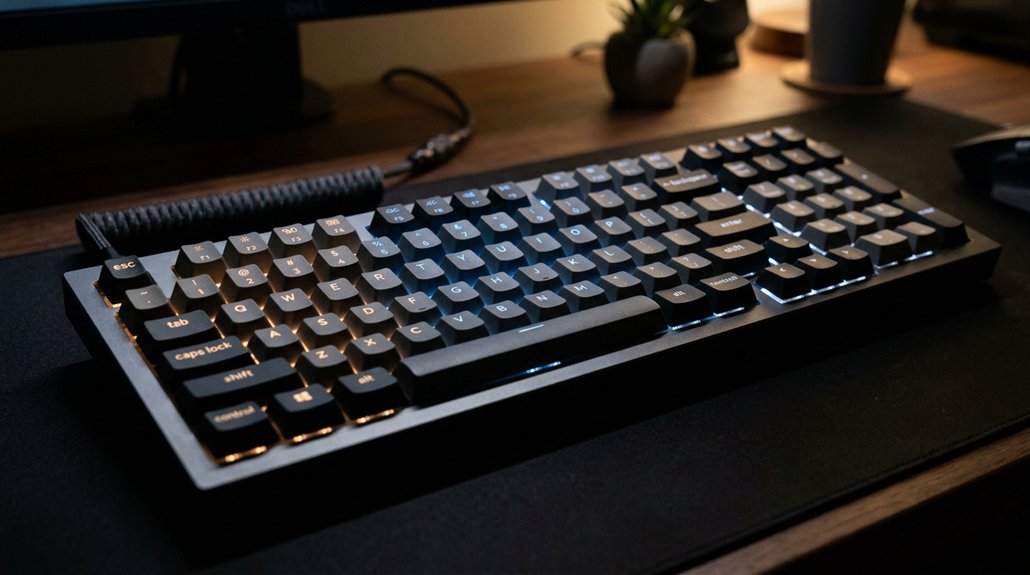
To reduce eye strain, keep your keyboard backlighting around 50% brightness to avoid harsh contrasts. Opt for warm-colored backlighting like amber or soft orange, which minimizes blue light exposure and glare. Adjust the brightness based on your environment—lower it in bright spaces and increase in dark rooms. Combining these strategies with blue light filters helps protect your eyes. Curious to learn more about creating the perfect setup? Keep exploring for detailed tips.
Why Proper Keyboard Backlighting Matters for Your Eyes
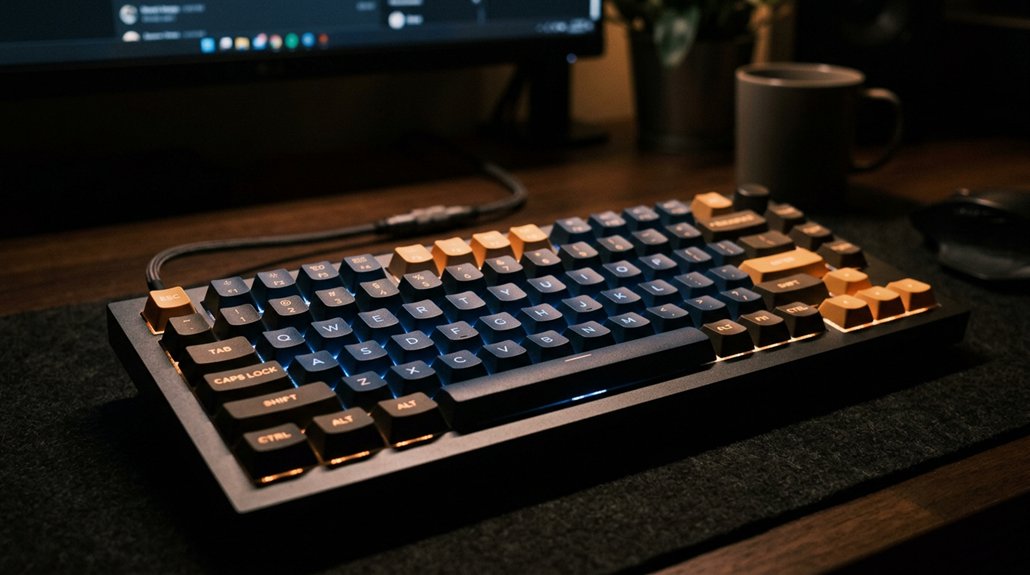
Proper keyboard backlighting is essential because it directly impacts your eye health, especially when you’re using your computer in low-light conditions. When you’re working in dim environments, good lighting helps reduce the strain on your eyes by making keys more visible without increasing screen brightness. A well-designed backlight can also help minimize glare and prevent the need for excessive screen brightness, which further supports eye health. I’m using soft, evenly distributed backlighting to help reduce eye fatigue and avoid harsh contrasts between the keyboard and screen. Adjusting the brightness allows you to match the lighting to your ambient conditions, which can also be optimized with blue light filtering techniques to further ease eye strain caused by glare or poor illumination. Using warm-colored backlighting can also help reduce blue light exposure, which is linked to eye discomfort and sleep issues. Overall, a well-lit keyboard supports good posture and focus, helping you work comfortably and protect your eye health during extended computer use.
How to Adjust Brightness and Colors for Maximum Comfort
Adjusting your keyboard backlighting properly can greatly improve comfort during long periods of use. When I’m using my keyboard, I make sure the brightness is around 50%, preventing harsh glare that strains my eyes, especially in low-light settings.
Adjust your keyboard backlight to about 50% to reduce glare and prevent eye strain during extended use.
To stay comfortable, consider these tips:
- Keep brightness at a moderate level to reduce eye fatigue.
- Use warm-toned colors like amber or soft orange to minimize blue light exposure.
- Avoid high-intensity or white backlighting, which increases contrast and eye strain.
- Dim the backlight when ambient room lighting is sufficient, maintaining a balanced visual environment.
- Opt for customizable backlighting options that allow precise adjustments suited to your workspace setup.
Keeping the backlighting at eye level and adjusting based on your task duration help you stay comfortable, avoiding unnecessary fatigue during extended use.
Smart Tips for Using Backlit Keys in Different Lighting Conditions
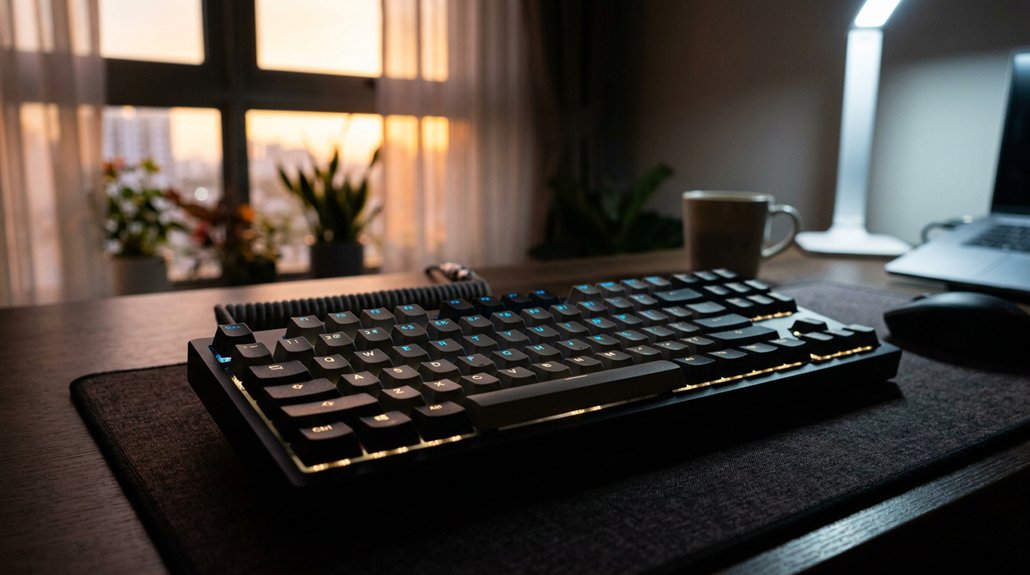
Optimizing your keyboard backlighting for different lighting environments can make a significant difference in comfort and efficiency. When going from bright to dark rooms, I’m careful to adjust the brightness to low or medium levels—I’ve seen how high settings cause glare and eye strain. Aiming for visual clarity ensures that you can see keys clearly without straining your eyes.
In well-lit spaces, I recommend turning off or minimizing backlighting to prevent unnecessary visual contrast. Conversely, in dim environments, enabling backlit keys helps reduce the effort needed for key recognition without overwhelming your eyes.
Choosing warm-toned or adjustable RGB settings can also minimize blue light exposure, especially during evening use. Combining backlighting with ambient lighting behind your screen balances pupil constriction, improving overall comfort.
Adjusting to your environment is key to preventing eye fatigue and ensuring smooth, comfortable usage.
Frequently Asked Questions
What Is the 30 30 30 Rule for Eyes?
You should follow the 30 30 30 rule by looking at something 30 feet away for 30 seconds every 30 minutes. This helps relax your eye muscles, reduces strain, and keeps your eyes comfortable during long screen sessions.
Does Backlight Reduce Eye Strain?
Yes, backlighting can reduce eye strain by improving key visibility in low light. Keep brightness moderate, avoid flashing colors, and consider ambient lighting to minimize glare, making your workspace more comfortable and reducing fatigue.
Is 60 or 120 Hz Better for Eyes?
You find 120 Hz better for your eyes than 60 Hz because it reduces flicker and motion blur, making visuals smoother and less tiring during long sessions. Your eye comfort improves with higher refresh rates, especially in bright environments.
Is LED or OLED Better for Eye Strain?
OLED backlighting is better for eye strain because it emits less blue light, has deeper blacks, and maintains color accuracy at lower brightness levels. This reduces fatigue during prolonged use, making your viewing experience more comfortable and less stressful.
In Summary
By adjusting your keyboard’s backlighting to suit your environment and personal comfort, you can greatly reduce eye strain and improve your typing experience. Take advantage of brightness controls and color settings to find what works best for you. Remember, using your keyboard wisely in different lighting conditions helps prevent fatigue and keeps your eyes comfortable during long hours of work or play. Prioritize your eye health — your vision will thank you.



