
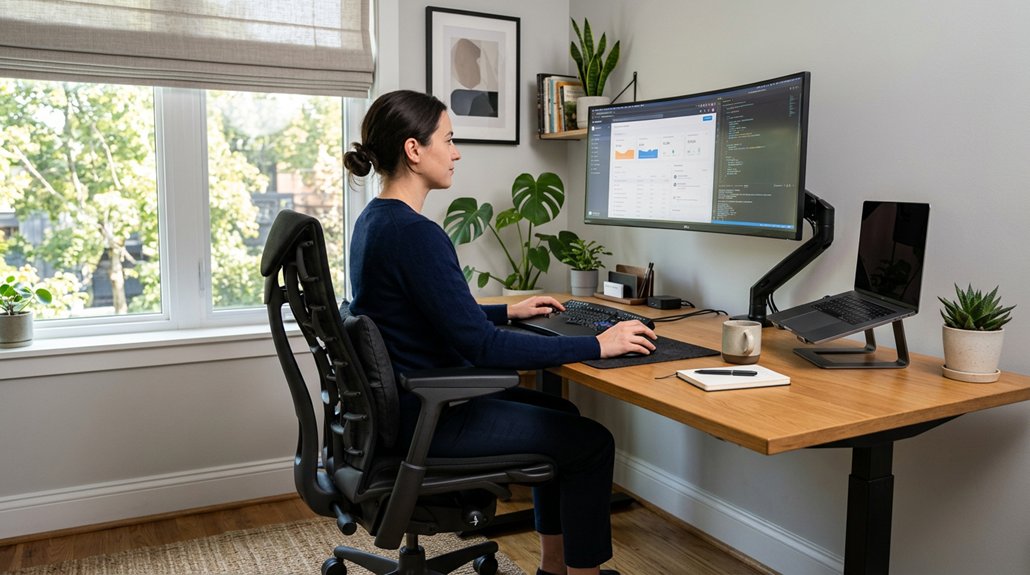
As a remote worker, your makeshift home office might put you at risk for musculoskeletal problems, eye strain, and discomfort, which can reduce your productivity and cause long-term health issues. An ergonomic risk assessment helps identify and fix setup issues, recommends supportive equipment, and promotes healthy habits like breaks and proper posture. Staying proactive about your workspace can prevent injuries and boost comfort. Keep exploring to discover how to set up a safer, more comfortable home office environment.
Why Ergonomic Assessments Are Essential for Remote Work
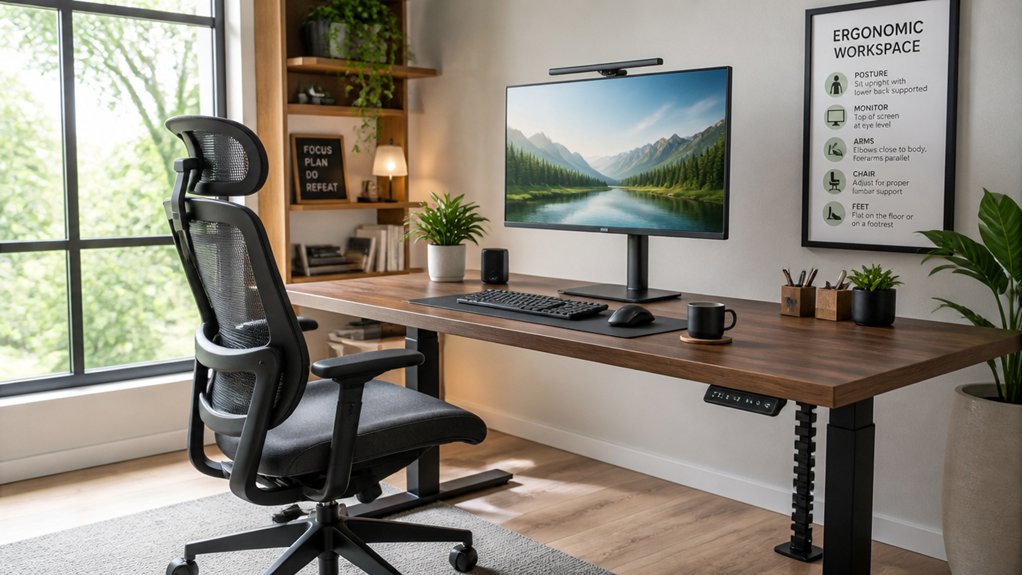
Ergonomic assessments are essential for remote work because they help identify and address common physical risks associated with makeshift home setups. When working remotely, you often lack proper furniture and ergonomic tools, increasing the likelihood of poor posture and musculoskeletal issues. These assessments offer tailored recommendations for equipment like adjustable chairs and monitor risers, improving comfort and remote work safety. By identifying hazards early, you can prevent repetitive strain injuries (RSIs) and back pain that could lead to absenteeism and reduced productivity. Including insights on lumbar support mechanisms can further optimize chair ergonomics for long-term comfort. Virtual ergonomic evaluations make it easy to receive personalized support without needing on-site visits. Implementing these assessments encourages healthy work habits, such as regular breaks and maintaining a neutral posture, essential for safeguarding your long-term physical health.
Common Risks in Your Home Office Setup
Your home office setup often features makeshift furniture and poor lighting, which can lead to discomfort and strain. A lack of proper ergonomic support can further exacerbate these issues, increasing the risk of pain and long-term musculoskeletal problems. Poor posture habits develop when you use non-ergonomic chairs or work on surfaces not designed for sitting long hours. Without proper adjustments, these risks can quickly impact your health and productivity.
Poor Posture Habits
Poor posture habits often develop when makeshift home office setups lack proper support, leaving you prone to musculoskeletal discomfort. Using non-ergonomic seating, like dining chairs without lumbar support, encourages slouched positions that strain your lower back and neck.
Poor posture over time can threaten your long-term health by increasing the risk of musculoskeletal disorders (MSDs). Improper monitor placement below eye level causes you to crane your neck, adding stress to your cervical spine.
Additionally, working on a laptop without elevation or external peripherals forces awkward wrist and shoulder positions, contributing to repetitive strain injuries (RSIs). Prolonged sitting without regular posture adjustments exacerbates poor habits, leading to persistent discomfort and reduced productivity. Incorporating adjustable headrest support can help promote proper neck alignment and reduce strain during long sessions.
Addressing these habits is essential for maintaining comfort and safeguarding your health.
Inadequate Lighting Conditions
Inadequate lighting in a home office can greatly impair your visual comfort and overall productivity. Poor lighting can lead to eye strain, headaches, and decreased focus, making it harder to work efficiently.
An ergonomic setup includes about 500 lux of lighting on your workspace, with task lamps to prevent visual fatigue. Positioning your screen at right angles to windows and using blinds or filters helps reduce glare that can cause eye and neck strain.
Insufficient or uneven lighting makes you squint or lean forward, increasing the risk of musculoskeletal discomfort. Remote ergonomic assessments can identify these lighting issues and recommend improvements, ensuring your workspace promotes better visual ergonomics and overall wellbeing. Proper lighting, such as utilizing natural light desk lamps, is essential for avoiding avoidable eye strain and maintaining productivity.
Makeshift Furniture Risks
Many home office setups rely on makeshift furniture like kitchen tables, couches, or beds, which often lack proper ergonomic support. Without proper lumbar support, you’re prone to poor posture, increasing your risk of back pain and musculoskeletal disorders (MSDs). Using non-ergonomic chairs, such as dining chairs, can cause slouching, neck strain, and repetitive strain injuries because they lack adjustability and cushioning. An improper desk height can force you into awkward positions, leading to shoulder discomfort and wrist strain during work. Makeshift setups also limit movement and promote static postures, elevating injury risks and decreasing productivity. To avoid these hazards, you need an ergonomic workspace that supports healthy posture and reduces strain over long work hours. Incorporating ergonomic armrest pads can significantly improve comfort and support during long periods of sitting, helping maintain proper elbow and arm alignment.
How Poor Workspace Setup Affects Your Health and Productivity
Have you ever noticed how your discomfort at your workspace can quietly chip away at your focus and energy? Poor workspace setup can lead to musculoskeletal disorders, like back pain and repetitive strain injuries, affecting your long-term health. Misaligned chairs and monitors cause poor posture, increasing neck and eye strain, which reduces comfort and focus. Without ergonomic tools or breaks, fatigue and discomfort build, lowering productivity and job satisfaction. Eye strain from poor lighting and improper screen placement also causes headaches and decreases concentration. Addressing ergonomic risks is essential. Using adjustable monitor stands can help achieve optimal monitor height and maintain proper ergonomics to prevent these issues.
How to Conduct a Self-Assessment of Your Home Workspace
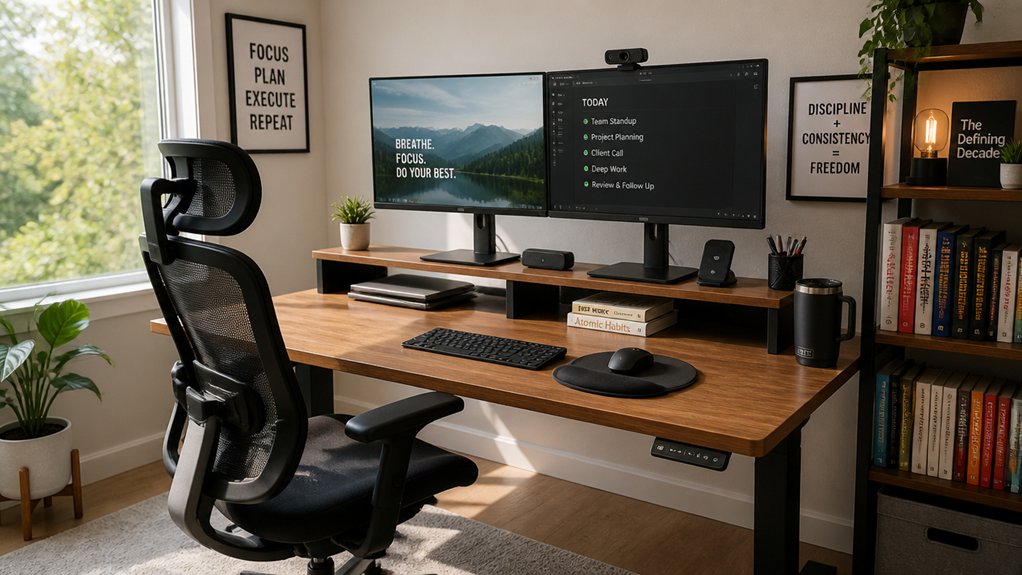
To effectively assess your home workspace, start by reviewing ergonomic checklists and trusted resources from sources like state HR or Labor & Industries websites. This self-assessment helps you understand ergonomic principles and identify potential risks. Incorporating supportive lumbar pillows can significantly improve your posture and reduce back strain during long hours of sitting. Measure key dimensions of your workstation, such as desk height, chair adjustments, and monitor position, ensuring your monitor is at eye level and roughly an arm’s length away to prevent neck and eye strain. Check your seating posture: your feet should be flat on the floor, thighs parallel to the ground, with lumbar support aligned to maintain the natural curve of your lower back. Also, position your keyboard and mouse at elbow height to promote neutral wrist posture.
Use photos from different angles to objectively evaluate your ergonomic setup and identify needed improvements.
Step-by-Step Guide to Checking Your Posture and Equipment
Are you ready to guarantee your workspace supports healthy posture? For remote work success, it’s essential to check your ergonomic setup.
Start by positioning your monitor at eye level and about an arm’s length away to prevent neck strain and keep your head neutral. Adjust your keyboard and mouse to elbow height, maintaining approximately 90-degree angles at your elbows to reduce wrist stress.
Position your monitor at eye level, about an arm’s length away, to prevent neck strain and stay neutral.
Sit fully back in an ergonomic chair with proper lumbar support, ensuring your feet are flat on the floor or on a footrest, with knees level to hips.
Take regular breaks following the 20-20-20 rule—look 20 feet away for 20 seconds every 20 minutes—to ease eye strain. Use photos or video self-assessments to spot posture issues and optimize your workspace ergonomics remotely. Incorporating adjustable support features like ergonomic support bars can further improve your posture during long work sessions.
Essential Tools and Resources for Home Office Ergonomics
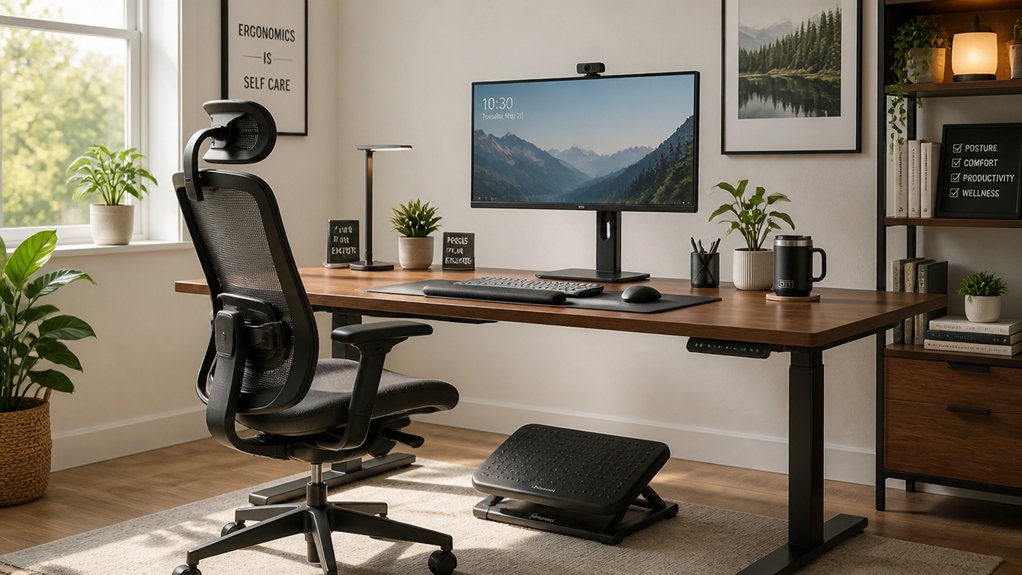
Once you’ve checked your posture and equipment, supporting your efforts with the right tools and resources makes maintaining a healthy home workspace more manageable. Using an external keyboard and mouse helps maintain neutral wrist positions, reducing strain. Adjustable desks enable you to change between sitting and standing, promoting movement and better posture. Virtual ergonomic assessments, including workspace photos from multiple angles, offer personalized guidance to optimize your setup remotely.
| Tool/Resource | Benefit |
|---|---|
| External keyboard and mouse | Prevents wrist strain and encourages neutral posture |
| Adjustable desks | Allows height adjustments for comfort and variety |
| Virtual ergonomic assessments | Provides expert feedback tailored to your workspace |
These resources support healthier work habits and prevent musculoskeletal issues.
How to Correct Posture and Desk Setup Errors
To correct posture and desk setup errors, start by positioning your monitor at eye level and about an arm’s length away to prevent strain.
Make sure your chair supports a neutral back and that your feet are flat on the floor with knees level to your hips.
Keep your keyboard and mouse at elbow height with wrists flat to reduce tension and injury.
Align Monitor at Eye Level
Properly aligning your monitor at eye level is essential for maintaining good posture and preventing strain. The top third of your screen should match your natural eye level, helping you avoid forward head posture and neck strain.
Keeping your screen at eye level encourages an upright sitting position, reducing musculoskeletal risks. To achieve this, consider elevating laptops with stands or thick books and using external keyboards and mice.
Keep the monitor about an arm’s length away (50–70 cm) to lessen eye strain and promote proper head and neck alignment.
Combining correct monitor height with ergonomic chairs that support lumbar posture can greatly boost comfort and productivity.
- Position the top of the monitor with your eye line
- Use external devices for laptops
- Maintain an arm’s length distance
- Adjust your ergonomic chair regularly
- Avoid looking down or up for extended periods
Support Neutral Wrist Posture
Maintaining a neutral wrist posture is essential for preventing strain and repetitive stress injuries while working at your desk. In a remote ergonomic setup, keeping your wrists aligned with your forearms helps protect your ergonomic safety.
Position your keyboard and mouse at elbow height to maintain a straight wrist posture, reducing pressure on your tendons. When using a laptop, employ an external keyboard and mouse to avoid wrist extension or deviation, especially if the device is elevated.
Adjust your desk and chair height to keep wrists in a comfortable, neutral position without bending upward, downward, or sideways. Consider ergonomic accessories like wrist rests or keyboard trays that support proper alignment.
Remember to take regular breaks and stretch your wrists to prevent fatigue and promote long-term comfort.
Adjust Chair for Comfort
Adjusting your chair correctly helps you sit comfortably and avoid posture errors that can lead to discomfort or injury. Start by setting the chair height so your feet are flat on the floor, with your thighs parallel and knees at hip level, supporting proper lower body alignment.
Make sure the chair offers good lumbar support and that you sit fully back, preserving the natural curve of your lower back. Adjust the seat depth so there’s a small gap of about 2-3 fingers between the seat edge and your knees to promote circulation.
Keep your keyboard and mouse at elbow height, with forearms parallel to the floor. Position your monitor at eye level and about an arm’s length away to prevent neck strain.
Proper Lighting and Screen Positioning Tips for Comfort
Ensuring your workspace has the right lighting and screen placement can greatly boost comfort and reduce strain. Position your monitor at eye level and about arm’s length away (50–70 cm), with a slight tilt of 10–20 degrees to minimize neck and eye fatigue.
Position your monitor at eye level and about arm’s length for better comfort and reduced strain.
Use proper lighting by combining natural and artificial sources, aiming for around 500 lux on your work surface. Add a task lamp if needed to prevent eye fatigue.
Place your screen at right angles to windows and use blinds or filters to reduce glare and reflections, which cause discomfort and headaches. When necessary, increase font size on your screen to lessen eye strain.
Elevate your laptop with stands or books so the top third aligns with your natural eye level, encouraging better posture and comfort.
Must-Have Ergonomic Equipment for Remote Workers
To create an ergonomic remote workspace, having the right equipment is essential. Proper ergonomic evaluation helps identify the best equipment for remote work needs.
Key items include:
- Ergonomic chairs with adjustable lumbar support and seat height to keep your spine aligned and lower back pain at bay.
- External keyboards and mice, which prevent wrist strain and elevate your laptop to eye level.
- Monitor risers or laptop stands to position screens at eye level and maintain a comfortable distance.
- Footrests that support your feet when chair adjustments leave them dangling, promoting circulation.
- Adjustable desks or sit-stand workstations, enabling you to switch between sitting and standing, reducing musculoskeletal strain.
Investing in this equipment guarantees peak comfort, lessening the risk of injury.
Simple Strategies to Reduce Musculoskeletal Strain
Implementing simple strategies can considerably lower your risk of musculoskeletal strain while working remotely. Ergonomics for remote work involves small adjustments that make a big difference.
Position your monitor at eye level and an arm’s length away to maintain a neutral neck posture and reduce cervical muscle strain. Use an external keyboard and mouse at elbow height to support a natural wrist position, lowering the risk of repetitive strain injuries.
Keep your monitor at eye level and use an external keyboard and mouse at elbow height for comfortable, strain-free work.
Choose an ergonomic chair with lumbar support, ensuring your feet are flat on the floor and knees level with hips to promote proper spinal alignment.
Incorporate the 20-20-20 rule—every 20 minutes, look 20 feet away for 20 seconds—to lessen eye strain. These small adjustments can greatly improve comfort during prolonged sitting and prevent musculoskeletal issues.
Incorporate Micro-Breaks and Movement Into Your Day
Incorporating micro-breaks and movement into your day is essential for reducing musculoskeletal strain and maintaining overall comfort during remote work. Regular breaks prevent prolonged sitting and promote better work ergonomics, which directly benefits your physical well-being.
By following the 20-8-2 rule—taking 8 seconds to move and 2 minutes to rest every 20 minutes—you reduce fatigue and improve circulation. Additionally, practicing the 20-20-20 rule can help ease eye strain. Stretching your neck, shoulders, arms, and legs during these intervals relaxes muscles and alleviates discomfort tied to repetitive tasks.
Incorporate these habits consistently to stay comfortable and boost your productivity. Making micro-breaks part of your routine guarantees your remote work environment supports your health and minimizes ergonomic risks.
- Reduce musculoskeletal discomfort
- Improve circulation and posture
- Enhance focus and productivity
- Prevent muscle fatigue
- Support overall work ergonomics
Signs You’re Experiencing Ergonomic Strain and When to Seek Help
Paying attention to how your body responds during remote work helps catch early signs of ergonomic strain. Persistent neck, shoulder, or lower back pain may signal a need for assessment, especially if discomfort lasts after work.
Monitoring your body during remote work can reveal early ergonomic issues worth addressing promptly.
Frequent headaches, eye strain, or blurred vision can result from poor workstation lighting or improper screen positioning, impacting your eye health.
Numbness, tingling, or weakness in your hands or wrists might indicate repetitive strain injuries like carpal tunnel syndrome, often caused by improper keyboard or mouse use.
Difficulty maintaining proper posture or discomfort during extended sitting are also warning signs.
If these symptoms persist despite self-adjustments, or if pain begins to interfere with your daily activities or work, it’s time to seek professional ergonomic evaluation to protect your employee health and prevent further issues.
How Employers Can Support Your Ergonomic Needs at Home
Employers can support your ergonomic needs at home by providing or reimbursing for equipment like adjustable chairs and monitor risers. They can also offer virtual assessments and training to help you set up your workspace correctly.
Clear communication channels with ergonomic experts guarantee you get personalized guidance and quick support when needed.
Providing Ergonomic Equipment
Supporting your ergonomic needs at home starts with providing the right equipment. Employers can help by supplying essential ergonomic equipment like adjustable chairs with lumbar support, external keyboards, mice, and monitor risers. These tools promote proper posture and help prevent musculoskeletal strain.
Tailoring ergonomic tools to your home office setup reduces common injuries such as back pain and repetitive strain injuries (RSIs). Employers often offer reimbursable budgets or direct purchase options, making it easier for employees to create a healthier workspace. Additionally, virtual ergonomic assessments can identify specific equipment needs and suggest improvements.
Investing in ergonomic equipment not only enhances your comfort but also supports your overall employees’ health, boosting productivity and satisfaction. Proper equipment is a crucial step toward a safer and more efficient remote work environment.
Offering Virtual Assistance
Providing ergonomic equipment sets the foundation for a healthy home workspace, but ongoing guidance is essential to guarantee proper use and adjustments. Virtual consultations with ergonomic specialists allow you to receive personalized advice on chair height, monitor placement, and keyboard positioning, reducing musculoskeletal strain.
Regular ergonomic assessments—done through video or photo submissions—help identify risks specific to your setup and confirm adjustments are effective. Employers can also offer training modules ranging from 14 to 45 minutes, teaching you proper setup, safe practices, and injury prevention at your convenience.
Additionally, access to curated ergonomic resources and equipment lists empowers you to create a supportive environment. Follow-up support from your employer helps implement recommendations effectively, minimizing injury risks and promoting long-term wellness in your remote workspace.
Benefits of Regular Ergonomic Reassessments for Ongoing Wellness
Regular ergonomic reassessments are essential for maintaining your ongoing wellness because they help catch and address changes in your workspace or tasks before discomfort develops into more serious issues. Staying proactive guarantees your ergonomics support proper posture and reduce strain, ultimately boosting your health and safety while working remotely.
Regular reviews encourage healthy habits like taking scheduled breaks, stretching, and adjusting your setup as needed. They also enable you to update equipment, preventing discomfort from escalating into chronic musculoskeletal disorders (MSDs). Plus, ongoing reassessments foster a culture of wellbeing that minimizes absenteeism and healthcare costs.
- Identify evolving musculoskeletal risks early
- Guarantee your workspace adapts to changing needs
- Promote sustained comfort and productivity
- Prevent long-term health issues
- Encourage healthy remote work habits
Frequently Asked Questions
What Are the Benefits of Ergonomic Assessments for Staff Working Remotely?
Ergonomic assessments help you avoid musculoskeletal issues, boost comfort and focus, and reduce fatigue. They also provide tailored equipment suggestions, prevent injuries early, and show your employer cares about your health, increasing satisfaction and engagement in your remote work.
What Is the 90-90-90 Rule in Ergonomics?
The 90-90-90 rule in ergonomics means keeping your hips, knees, and elbows at 90-degree angles. You should sit with feet flat, thighs parallel to the ground, and wrists neutral, helping prevent strain and promote comfort during work.
Are Employers Required to Provide Ergonomic Equipment for Remote Employees?
Employers aren’t legally required to provide ergonomic equipment for remote workers, but under the General Duty Clause, they should maintain a safe environment, often voluntarily offering ergonomic gear to reduce risks, support health, and guarantee compliance.
What Are the Risks of Remote Work?
You face risks like musculoskeletal disorders, eye strain, and fatigue from poor posture, improper lighting, limited movement, and inadequate ergonomic tools at home. These factors can cause discomfort, reduce productivity, and impact your overall health.




Leave a Reply