
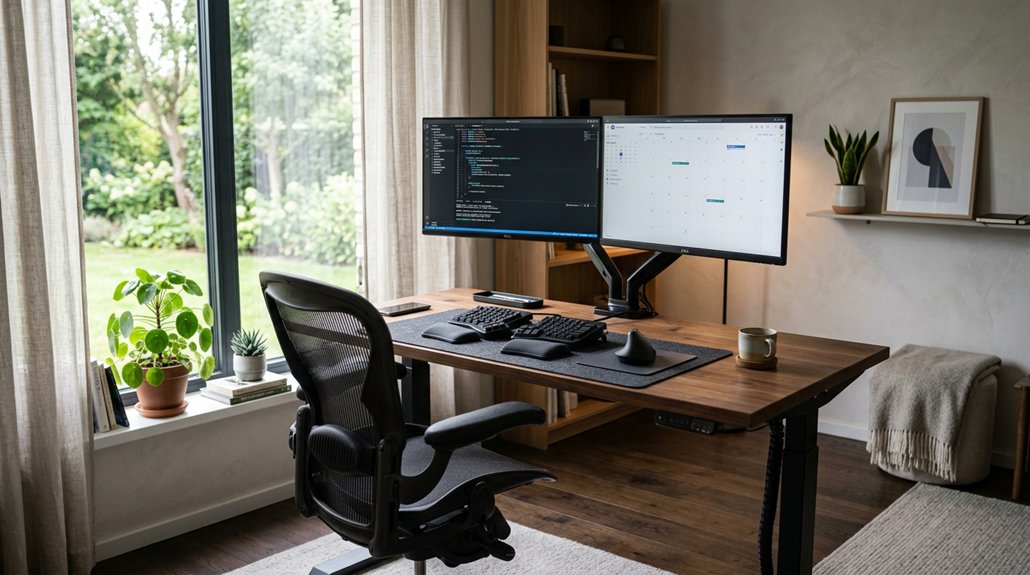
A complete ergonomic workplace assessment helps you identify and fix risks that cause discomfort and long-term health issues. You should check your monitor placement, chair height, and keyboard positioning to guarantee proper posture. Adjust lighting, use supportive accessories, and take regular breaks to avoid strain. Prioritize high-risk areas first, like monitor setup and wrist alignment. Keep your workspace well-maintained and continue improving it—there’s plenty more to learn to create a safe, comfortable environment.
Why Ergonomic Assessments Matter in Home Offices
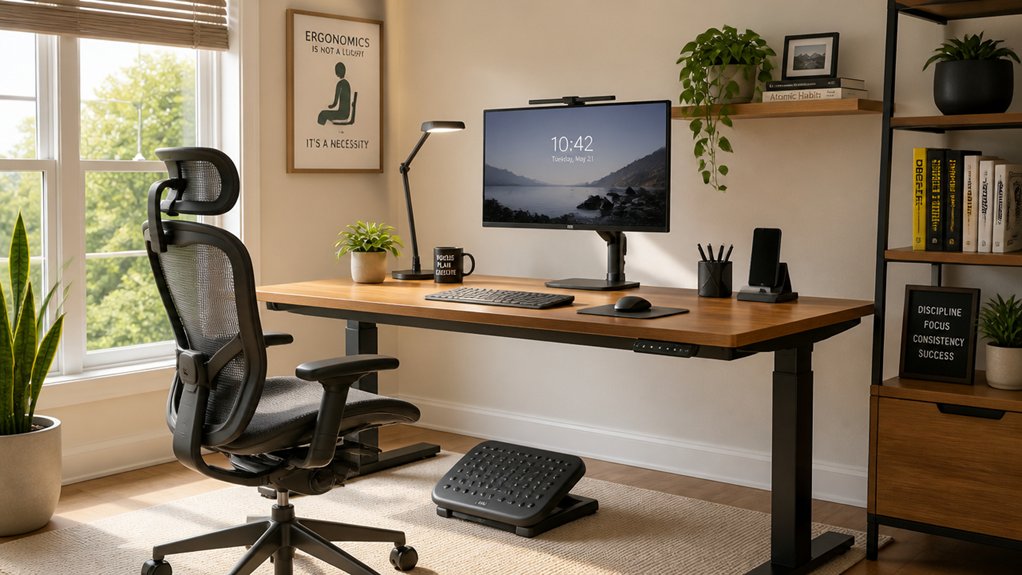
Ergonomic assessments are essential for home offices because they help prevent musculoskeletal disorders that can lead to long-term health issues and costly medical expenses. When you optimize your workspace using principles of ergonomics, you reduce risks like neck and forearm tension caused by poor posture. Incorporating features such as adjustable lumbar support can significantly enhance comfort and support for extended work periods. An ergonomic assessment evaluates your workstation, including your desk, chair, monitor, and lighting, ensuring everything fits your needs and space constraints. Proper posture plays a significant role in preventing discomfort and fatigue.
Regularly adjusting your workstation and taking posture breaks can counteract static positions and improve overall comfort. By prioritizing ergonomic setup in your home office, you support your long-term health, stay focused, and maintain work efficiency outside traditional office environments.
Key Components of an Ergonomic Workspace Evaluation
To create an ergonomic workspace, you need to evaluate monitor positioning to reduce neck strain and guarantee it’s aligned with your eye level. Adjust your desk and chair so your setup supports your posture, with proper height and lumbar support. Additionally, check lighting and environmental factors to minimize glare and create a comfortable work environment. Incorporating height-adjustable monitor risers can further enhance ergonomic alignment by allowing you to customize the screen height for optimal comfort.
Monitor Positioning Techniques
Proper monitor positioning is essential for maintaining comfort and preventing strain during work hours. You should position your monitor directly in front of you, with the top of your monitor at or slightly below eye level to keep your neck neutral.
Maintain a viewing distance of about 20–30 inches, roughly arms’ length, so you can read easily without leaning forward. The monitor should be perpendicular to your window or light sources, reducing glare and reflections. Tilt the monitor back 10–20° to minimize glare and achieve a comfortable head angle.
Features to take into account include:
- Adjusting the monitor to be directly in front of you for balanced posture
- Ensuring the top of the screen is aligned with your eye level
- Keeping the monitor at arms’ length for comfort
- Tilting the monitor back to lessen glare and strain
- Consider using an adjustable monitor stand or mount to optimize height and tilt for your ergonomic needs adjustable monitor stand.
Desk and Chair Adjustments
Adjusting your desk and chair appropriately is critical for maintaining comfort and preventing strain during work. Set your chair height so your feet are flat on the floor, with knees slightly below hip level, creating at least a 90° torso-thigh angle. The seat pan should be level or slightly tilted downward, with a two-finger gap behind your knees to guarantee good circulation.
Confirm the lumbar support aligns with your lower back, just below your belt line, to support your spine’s natural curve. Adjust the armrests to be wider than your shoulders, supporting your forearms without elevating your shoulders, while keeping your elbows at 90° to 110°. Use a footrest if needed to keep your feet flat and prevent dangling, promoting overall ergonomic comfort. Ensuring the support technology and ergonomic shape of your cushion maintain proper spinal alignment is also vital for long-term ergonomic health.
Lighting and Environmental Factors
Ensuring ideal lighting and environmental conditions is essential for reducing eye strain and promoting comfort during work. Proper lighting manages glare and prevents fatigue by providing moderate, indirect illumination at about 50% intensity of non-computer areas.
Use task lighting specifically for documents to lessen eye discomfort. Position monitors perpendicular to windows to minimize glare and reflections, and adjust shades or curtains to control natural light. Employ computer-compatible lamps and reduce overhead lights to prevent screen glare and awkward postures caused by squinting.
Think about your environment:
- Experience less eye strain with soothing blue, green, or white backgrounds with dark letters
- Feel more focused with well-placed, frequently used items at eye level
- Enjoy comfort with proper monitor positioning away from direct sunlight
- Minimize fatigue through controlled lighting and environmental conditions at your computer workstation
- Incorporate flicker-free lighting to ensure steady illumination that reduces eye discomfort and visual fatigue
How to Conduct an Ergonomic Workspace Inspection?
Start by observing actual working postures, noting repetition, force exertion, and how long positions are maintained to identify ergonomic risks.
Then, evaluate the workstation setup, including chair height, support, and monitor placement, along with environmental factors like lighting and noise.
Don’t forget to gather employee feedback to understand discomfort areas and use standardized tools like RULA or REBA to create a clear assessment report.
Additionally, consider ergonomic features such as split keyboard layouts and wrist supports, which can significantly reduce wrist strain and improve comfort during prolonged use.
Key Inspection Elements
Conducting an ergonomic workspace inspection involves systematically evaluating key elements to identify potential issues and improve comfort. During your ergonomic evaluation, focus on the workstation setup to maximize efficiency and reduce strain.
Check the seat height so your feet sit flat with a 2-3 finger gap behind your knees, supporting proper circulation. Confirm the monitor is positioned so the top aligns with your eye level, directly in front, about arm’s length away, to keep your neck neutral.
Examine keyboard and mouse placement—elbows should bend at 90–110°, with wrists straight, and the mouse close to the keyboard at the same height.
Be mindful of armrest pads positioning and comfort, ensuring they provide proper elbow support to prevent strain during long sessions.
Common Ergonomic Issues
To identify common ergonomic issues during an inspection, you need to look closely at how your workspace is set up and how you interact with it throughout the day. Misalignments like a low or off-center monitor can cause forward head posture, increasing neck load from 12 to 27 pounds. Guarantee your keyboard and mouse maintain neutral wrist positions and your forearms stay parallel to the floor. Proper ergonomic setup also involves adjusting your chair to keep feet flat, with a 2–3 finger gap behind your knees, and aligning lumbar support with your natural spinal curve. Check for glare on screens and take note of how long you stay in static positions without microbreaks. These observations help prevent musculoskeletal disorders (MSDs) and improve your overall office ergonomics. Additionally, paying attention to split keyboard layouts and wrist rest placement can significantly enhance wrist angle comfort and reduce strain.
Common Ergonomic Risks and How to Fix Them
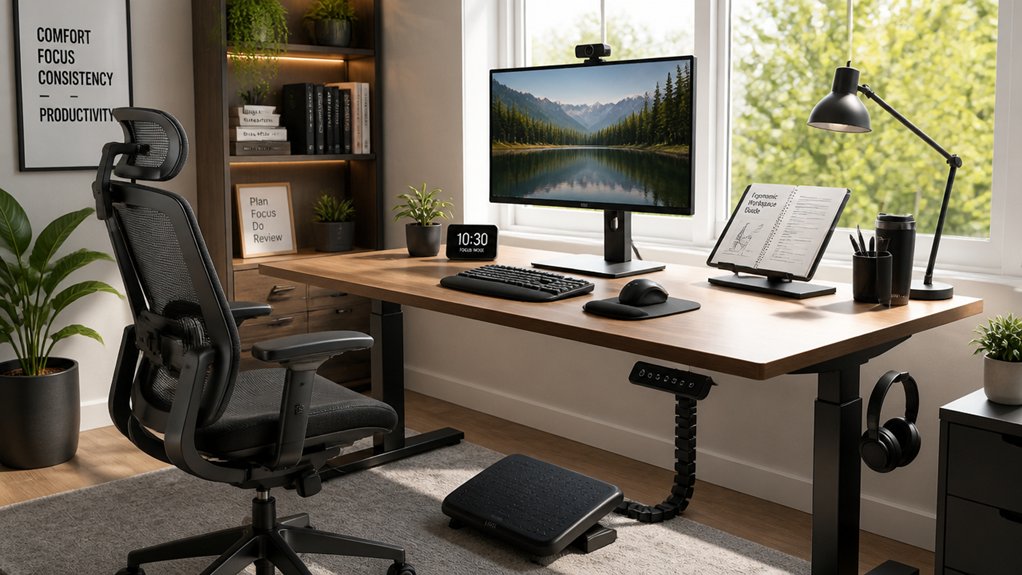
Many common ergonomic risks in the workplace stem from improper setup and repetitive postures that can lead to discomfort and injury over time. You may experience neck pain from low monitor placement or wrist strain from poorly positioned keyboards.
To prevent this, make ergonomic improvements such as aligning your monitor so the top is at or just below eye level and keeping your forearms parallel to the floor while typing. Keep your feet away from the desk surface, use a footrest if necessary, and take microbreaks every 30 minutes to stretch.
Additionally, avoid static postures by alternating between sitting and standing. Remember to look straight at your screen to reduce neck strain and guarantee your workspace is properly lit to avoid eye fatigue.
Tools and Resources for Your Ergonomic Assessment
Effective ergonomic assessment tools are essential for accurately identifying risks and guiding improvements in the workplace. They streamline the assessment process, helping you evaluate posture, workstation setup, and work habits objectively.
Standardized checklists, digital apps, and frameworks like RULA and REBA enable precise analysis of posture, force, and repetition, supporting health and safety goals. High-quality resources often feature photo and video capabilities, capturing workstation layouts and employee postures for clear communication and records. Ergonomic software, whether employer-provided or third-party, guarantees consistency across multiple sites and simplifies reporting.
Including employee feedback and environmental factors like lighting, noise, and temperature offers a holistic view of occupational health risks. Access to expert guides, training modules, and self-assessment quizzes further improves the accuracy and practicality of your assessments.
Prioritize and Implement Ergonomic Improvements
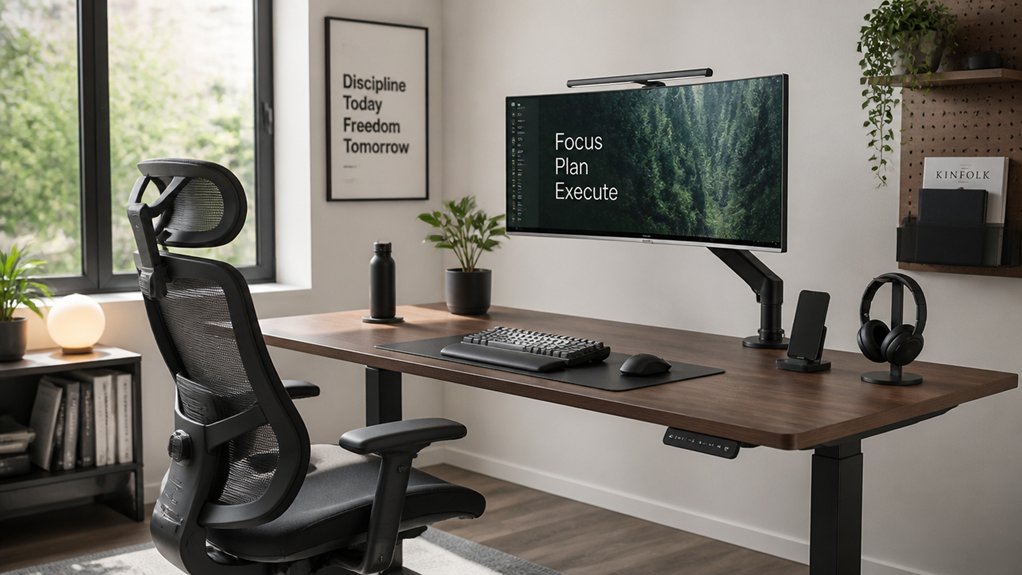
Prioritizing and implementing ergonomic improvements requires a structured approach that targets the most significant risks first. Focus on adjustments that fully support your body, like raising your chair’s height so your feet are flat on the floor and your knees are at a 90-degree angle.
Start by addressing high-risk factors such as monitor placement to reduce neck strain or keyboard setup to prevent wrist discomfort.
You can:
- Prioritize changes based on risk severity
- Gradually raise your chair and adjust monitor positions
- Fully support your lower back and wrists
- Incorporate stress management techniques for better health
Keep Your Workspace Ergonomic: Regular Checks and Maintenance
Regular checks and maintenance are essential to keeping your workspace ergonomic and preventing discomfort. Use these assessments to verify your chair height, backrest support, and desk setup promote correct posture.
Make sure your feet are flat on the ground, with support for the back of your knees, and that your lumbar region is properly supported. Adjust your chair to maintain the right height so your elbows rest at a 90–110 degree angle in the home row position.
Periodically clean monitors with anti-static cleaners and tweak lighting to reduce glare and eye strain, preserving visual comfort.
Reassess keyboard and mouse placement often to keep wrists neutral and forearms parallel to the floor. Regularly review your setup, especially after changes, to support long-term health.
Frequently Asked Questions
How Often Should Ergonomic Assessments Be Performed?
You should perform ergonomic assessments annually, or more frequently if there are changes in workstations, tasks, or if employees report discomfort. Regular evaluations help prevent injuries and guarantee proper ergonomic practices are maintained throughout your workplace.
Who Can Conduct an Effective Ergonomic Workplace Assessment?
You can conduct an effective ergonomic workplace assessment if you’re trained in ergonomics or ergonomic principles. Often, a certified ergonomist, occupational therapist, or trained health and safety professional performs these assessments to guarantee proper evaluation and recommendations.
What Are the Costs Associated With Ergonomic Workplace Improvements?
The costs vary based on needed modifications, equipment, and ergonomic assessments. You might spend on ergonomic furniture, accessories, or professional evaluations, but investing in proper ergonomics boosts productivity and reduces injury-related expenses over time.
How Do Ergonomic Assessments Differ Across Industries?
You’ll find ergonomic assessments vary by industry because each sector faces unique physical demands, workspace setups, and safety standards. You adapt your evaluations to address these specific requirements, ensuring effective solutions tailored to your industry’s work environment.
What Legal Requirements Exist for Ergonomic Workplace Safety?
You must comply with OSHA standards, which require providing a safe workspace, addressing ergonomic hazards, and implementing injury prevention measures. Regulations vary by jurisdiction, so regularly review and update procedures to guarantee ongoing legal compliance and worker safety.



