
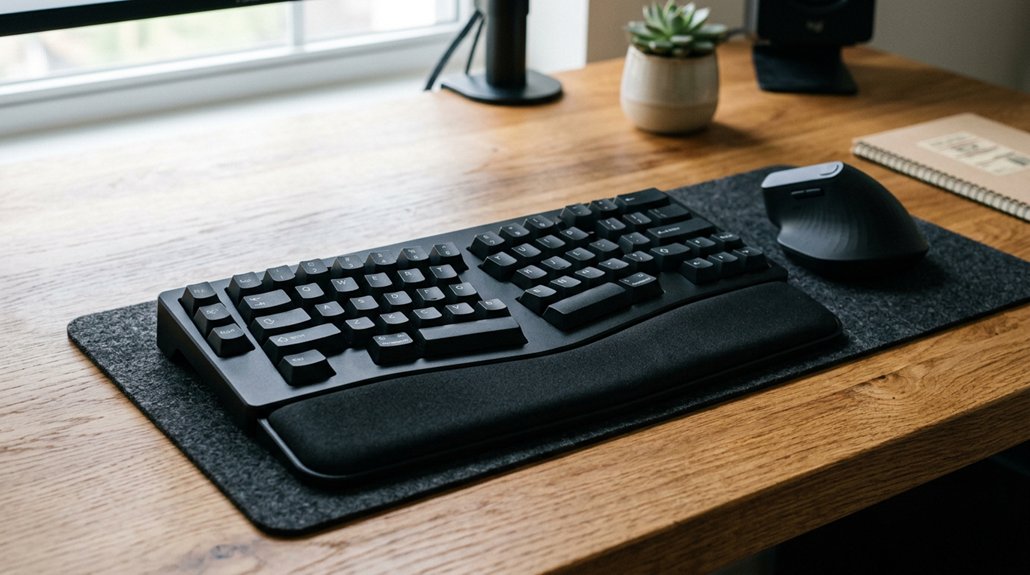
For ideal comfort, position your keyboard and mouse so they don’t cramp your desk space, keeping your wrists neutral and straight, with the keyboard level or slightly angled. Adjust your monitor so the top is at or just below eye level, and keep your forearms parallel to the floor. Use wrist supports or armrests to ease pressure, and take regular breaks to stretch and reset your posture. To discover more tips, keep exploring ways to improve your workspace setup.
Assess Your Current Keyboard and Mouse Ergonomics
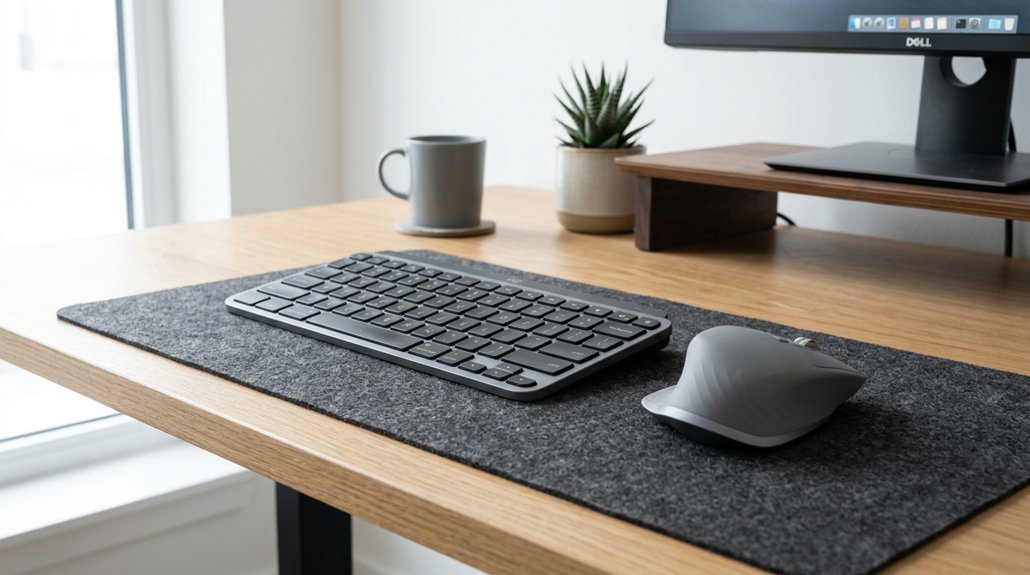
Have you ever wondered if your current keyboard and mouse setup supports healthy posture? Start by evaluating your desk space: is there enough room for both your keyboard and mouse without feeling cramped? A properly aligned tilt mechanism can help maintain ergonomic positioning and reduce strain during prolonged use. Check your keyboard placement—ideally, it should be level or slightly angled to promote natural wrist and shoulder alignment. If your keyboard is too far or overlaps with your mouse, you risk overreaching, which can cause strain in your arms and wrists. Pay attention to any discomfort or strain during use, as this can indicate poor positioning. Also, consider how easily you can access keybinds and mouse controls without stretching or twisting. Making these quick assessments helps you identify if your setup promotes comfort or needs adjustments for better ergonomics.
Decide Whether to Use a Horizontal or Angled Keyboard Setup
Choosing between a horizontal or angled keyboard setup depends largely on your workspace and personal comfort preferences. A horizontal setup aligns your keyboard and mouse side-by-side, offering a straightforward position that requires ample desk space and a wide arm span. This layout provides a natural, comfortable feel for many users.
An angled setup, perpendicular to the mouse, gives more room for mouse movement and easier access to key binds, making it popular for gaming and fast-paced tasks. However, it might cause wrist strain if not supported properly, such as with armrests or cloth wraps.
Your choice should consider comfort, wrist health, and available desk space. An angled setup can be beneficial but may need an adjustment period and proper support to minimize discomfort. Incorporating a height-adjustable stand can help optimize ergonomic positioning for either configuration.
Adjust Your Keyboard Height and Screen Position for Comfort
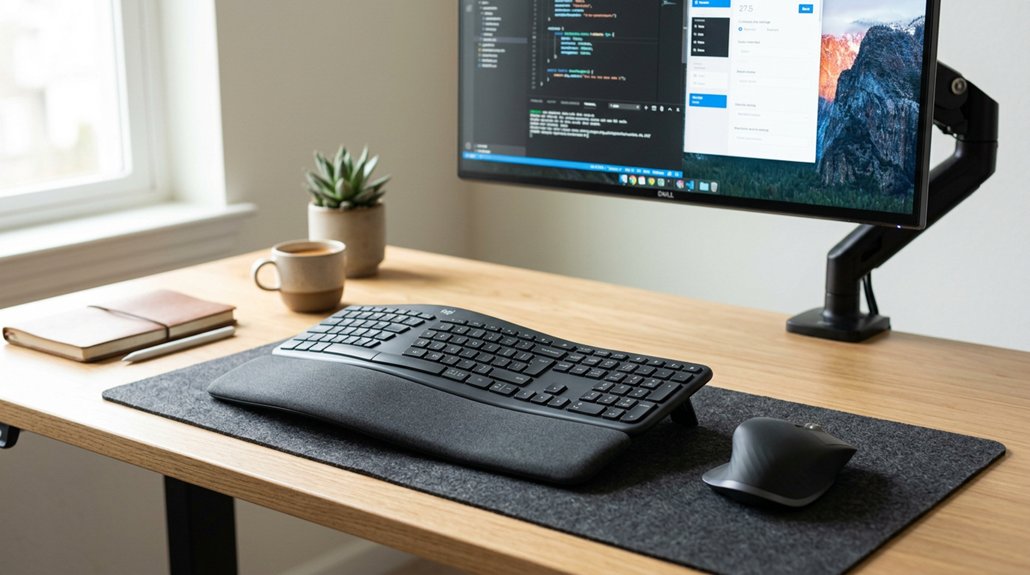
Once you’ve settled on a keyboard setup, fine-tuning its height and your screen position can greatly improve comfort and reduce strain. Set your keyboard so your forearms are parallel to the floor, which helps minimize wrist strain and encourages good ergonomics.
Adjust your monitor so the top is at or just below your eye level to reduce neck discomfort. Your wrists should remain straight while typing, so choose a height that avoids bending them upward or downward. Position your screen directly in front of you to maintain a natural head and neck position.
Use adjustable desks or keyboard trays to customize your setup, ensuring that both your keyboard and monitor provide ideal comfort and lessen fatigue during long hours. Paying attention to the ergonomic height range of your keyboard tray can help you maintain proper posture and prevent discomfort.
Use Wrist Supports and Armrests to Reduce Strain
Using wrist supports and armrests can greatly reduce strain during extended keyboard and mouse use. They help keep your wrists in a neutral position, preventing repetitive stress injuries. Armrests provide cushioning, avoiding pressure on the ulnar nerve, especially with angled keyboard setups. Soft cloth wraps or gel pads underneath your wrists absorb impact, offering comfort during intense typing or gaming sessions. Adjustable armrests allow you to customize height and arm positioning for maximum comfort, minimizing wrist fatigue. Proper wrist support guarantees consistent ergonomics, especially when keyboard angles might cause discomfort. Incorporating adjustable multi-directional movements in your armrests enhances their ergonomic benefits.
Practice Regular Posture Exercises and Movement Breaks
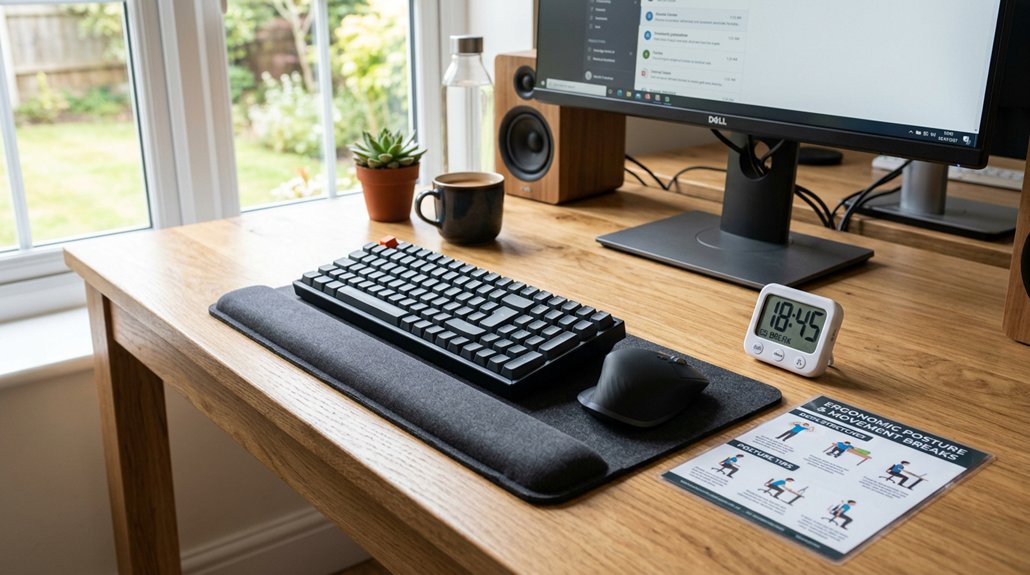
Regularly practicing posture exercises and taking movement breaks can greatly reduce the risk of strain and discomfort during long periods at your keyboard or mouse.
Frequent posture exercises and movement breaks help prevent strain and enhance comfort during extended computer use.
Performing wrist stretches and shoulder rolls relieves tension from prolonged use. Every hour, take a five-minute break to stretch, reset your posture, and improve blood flow in your hands and arms.
Gentle finger flexing exercises during breaks reduce the risk of repetitive strain injuries. Focus on maintaining full-body alignment by sitting upright, with elbows at a 90-degree angle, supporting wrist health.
Set reminders to pause periodically, ensuring you reset your posture and avoid cumulative fatigue. Incorporating these habits can help keep your muscles relaxed, improve circulation, and sustain your comfort during extended gaming or work sessions. Lumbar support mechanisms can also enhance spinal alignment and reduce back strain during long sitting periods.
Frequently Asked Questions
How Do I Know if My Keyboard Setup Is Causing Discomfort?
You’ll notice discomfort if you experience wrist pain, tension in your shoulders, or numbness in your fingers. If you feel strain or fatigue after working, your keyboard setup likely isn’t ideal, so adjust your position accordingly.
Can Different Keyboard Angles Affect Typing Speed?
Yes, different keyboard angles can impact your typing speed. An ideal angle reduces strain and improves comfort, helping you type more efficiently. Adjust your keyboard to a position that feels natural and minimizes wrist tension for best results.
What Is the Ideal Distance Between Keyboard and Mouse?
You should keep the keyboard and mouse about an arm’s length apart, ensuring your elbows stay close to your sides, wrists are straight, and there’s a comfortable, natural angle. Adjust based on your height and workstation setup.
How Often Should I Change My Ergonomic Setup?
You should review and adjust your ergonomic setup every few months or if you notice discomfort, pain, or fatigue. Regular changes guarantee comfort, prevent strain, and accommodate any physical or work environment shifts.
Are Certain Wrist Supports Better for Long-Term Use?
Yes, certain wrist supports are better for long-term use because they provide gentle elevation and cushioning. Look for supports that keep your wrists neutral, reduce strain, and are adjustable to fit comfortably during extended periods of typing and mouse use.



