
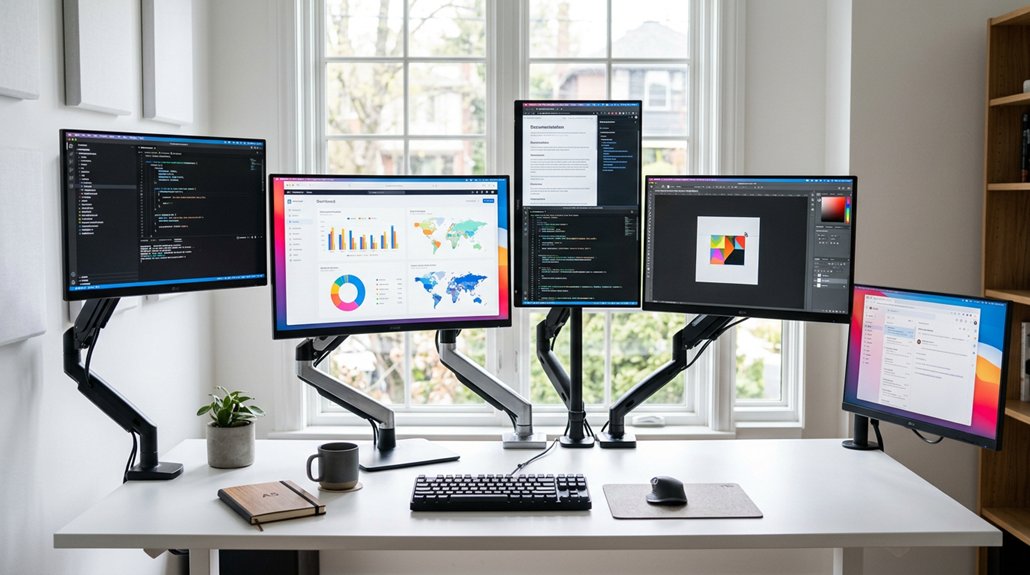
To position your screen height correctly, start by setting the top of your monitor at or just below eye level, reducing neck strain. Keep the monitor about 20-30 inches away, and tilt it back 10°–20° to cut glare and improve comfort. Use adjustable stands or arms to easily modify height and angle, especially with multiple monitors. Ensuring proper alignment prevents muscle strain, and if you keep adjusting your setup, you’ll be able to maintain long-term comfort.
Why Proper Monitor Height Is Key to Good Posture
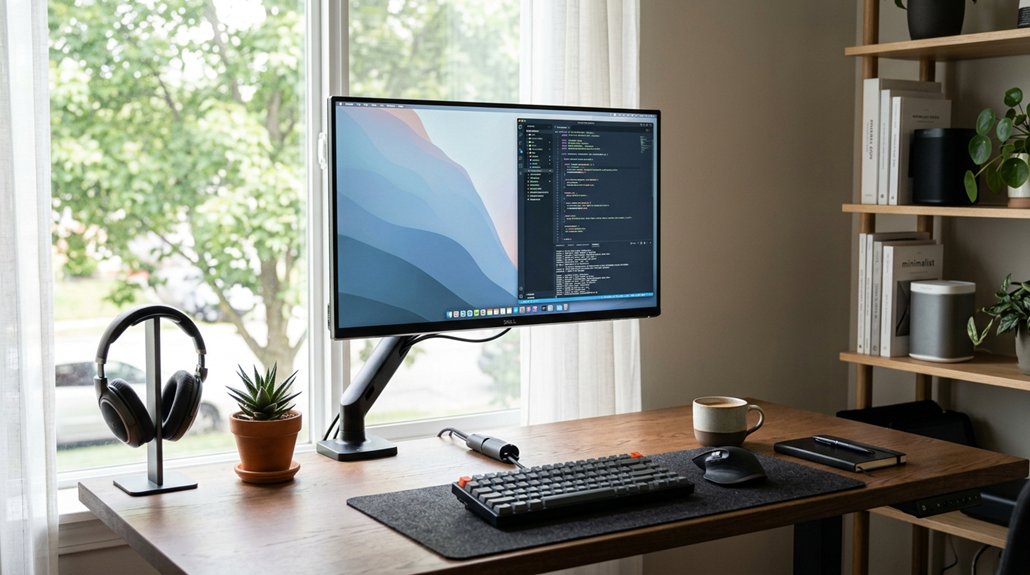
Proper monitor height is essential for maintaining good posture because it helps you avoid unnecessary neck and shoulder strain. When you position your monitor so the top is at or slightly below eye level, your eyes rest naturally 2-3 inches below the screen’s top, reducing neck strain.
Adjusting screen height with stands or arms guarantees your monitor aligns with your line of sight, usually about 17-18 degrees below horizontal. This proper position supports a neutral posture, preventing forward or backward head tilting that can cause musculoskeletal problems over time.
In ergonomics, comfortable viewing is key to overall well-being. Maintaining an appropriate monitor height not only reduces discomfort but also promotes better alignment, allowing you to work longer with less fatigue. Proper adjustment mechanisms ensure you can easily achieve and maintain this optimal position.
How to Adjust Your Monitor for Comfort and Ergonomics
Adjusting your monitor for comfort and ergonomics involves fine-tuning its height, tilt, and distance to suit your vision and posture. Set the monitor height so the top of the screen is at or slightly below eye level, allowing your eyes to naturally look 17-18 degrees downward at the screen center. Position the monitor about an arm’s length away (20-30 inches) to reduce eyestrain while maintaining clarity. Tilt the monitor back 10° to 20° to optimize your viewing angle and prevent glare. Use adjustable monitor stands or arms to easily raise, lower, or tilt the screen, promoting neutral spinal alignment and easing strain on your neck and shoulders. For dual monitors, align the primary display directly in front at the right height, with the secondary slightly angled toward your dominant eye. Proper height alignment supports ergonomic benefits, reducing musculoskeletal stress and eye strain during extended use.
Which Accessories Help You Elevate and Position Your Monitor
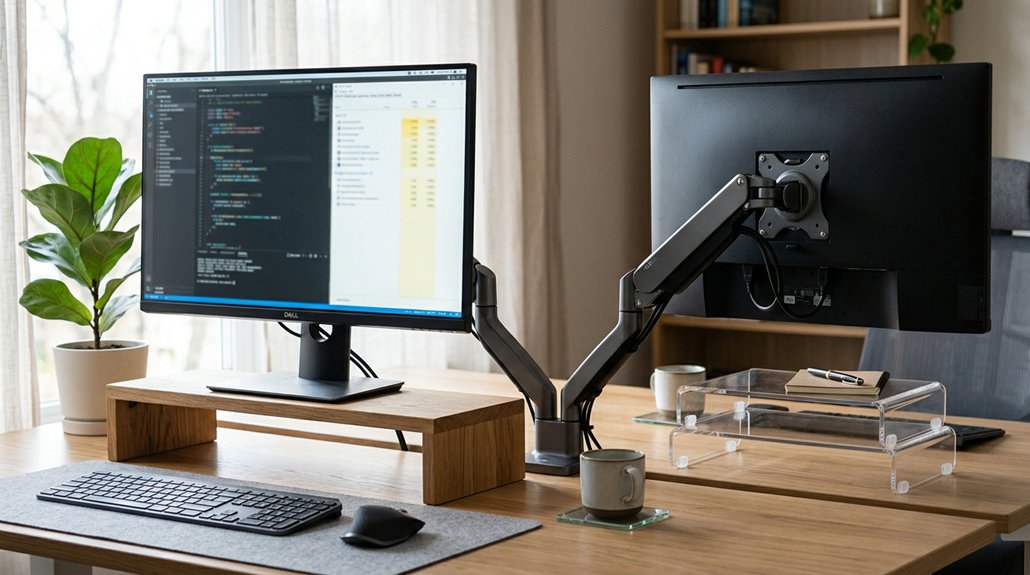
To effectively elevate and position your monitor, you can use a variety of accessories designed for flexibility and stability. Monitor stands and risers are common options to raise screen height, saving desk space and ensuring proper eye-level alignment.
Adjustable monitor arms provide flexible vertical and horizontal movement, perfect for dual monitor setups and maintaining ergonomic viewing angles. Desk-mounted monitor arms let you quickly change screen height and positioning without moving the entire monitor, supporting dynamic work routines.
Sturdy, stable monitor stands should match your monitor’s size and weight for safe ergonomic positioning, helping to prevent neck strain. Using these accessories helps keep your screen height ideal, promoting neutral posture and reducing discomfort during long work hours, especially when selecting arms with sufficient height adjustment ranges as highlighted in the Knowledge.
- Monitor stands and risers
- Adjustable monitor arms
- Desk-mounted monitor arms
- Stable monitor stands
How to Maintain Your Monitor Position for Long-Term Comfort
Maintaining your monitor position over time requires mindful adjustments to prevent strain and discomfort. Keep the top of the monitor at or just below eye level, so your eyes are roughly 2-3 inches below the top edge, reducing neck strain. Position your monitor at an arm’s length—about 20-30 inches—to balance viewing comfort and reduce eyestrain. Use adjustable monitor stands, arms, or risers to fine-tune screen height and tilt, supporting ergonomic posture. For dual monitors, match the heights and angles to minimize neck twisting. Regularly check for screen glare and adjust placement as needed. Consider the range of motion capabilities of your monitor arms and how they can facilitate a more adaptable setup. Consistently maintaining these positions guarantees a comfortable, long-term setup.
Common Mistakes to Avoid When Setting Your Monitor Height
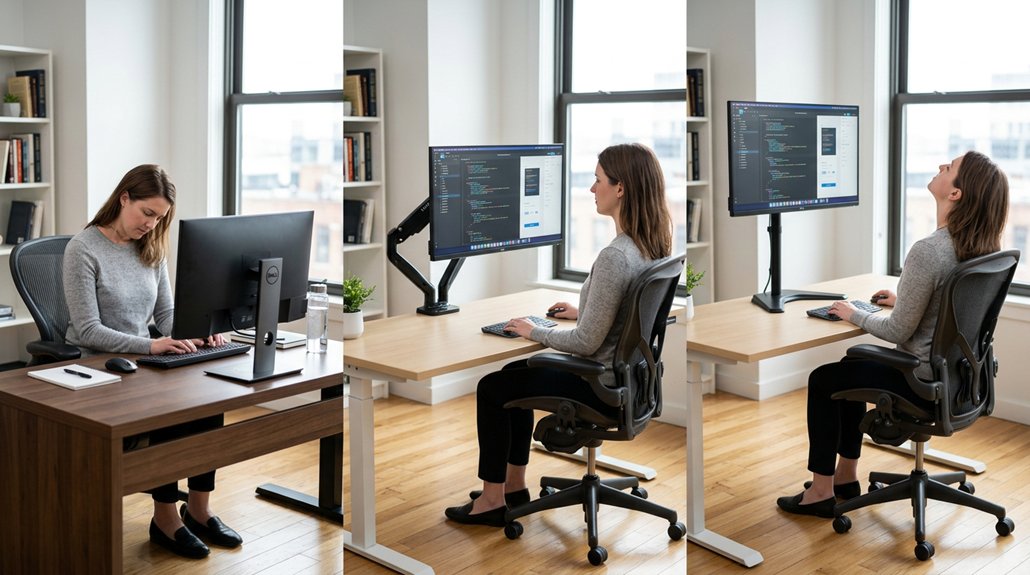
Setting your monitor at the wrong height can lead to discomfort and long-term health issues. Avoid these common mistakes to improve your ergonomics and posture.
First, don’t position the screen too high; this causes you to tilt your chin upward, straining your neck. Second, setting the screen too low forces you to bend forward or downward, increasing shoulder pain and poor posture.
Third, failing to align the top of the screen at or just below eye level results in eyestrain and unnatural gaze. Finally, ignore monitor tilt—keeping it flat or not tilting the screen back 10°–20° can cause glare and force uncomfortable head positions.
Using an adjustable laptop stand can help you achieve the ideal height and angle for optimal ergonomic support. Proper height, tilt, and individual adjustment are key to reducing strain and creating an ergonomic workspace.
Frequently Asked Questions
How to Position Monitor Height?
You should position your monitor so the top edge is at or slightly below eye level, keeping your eyes about 5-10 cm below the top, with a neutral neck posture and a downward viewing angle of 17-18 degrees for comfort.
How High Should a 32 Inch Monitor Be?
You should position your 32-inch monitor so the top is at or slightly below eye level, with your eyes 2-3 inches below the top edge, maintaining an arm’s length distance, and tilting it slightly for ergonomic comfort.
What Height Should a 27-Inch Monitor Be?
You should position your 27-inch monitor so its top is at or just below your eye level, with the screen center about 17-18 degrees below horizontal eye level, maintaining about an arm’s length distance for comfortable viewing.
Is It Better for a Monitor to Be Higher or Lower?
It’s better for your monitor to be positioned with the top at or just below eye level, so you unwind strain, maintain neutral posture, and avoid discomfort caused by looking too high or too low. Adjust it for ideal comfort.



