
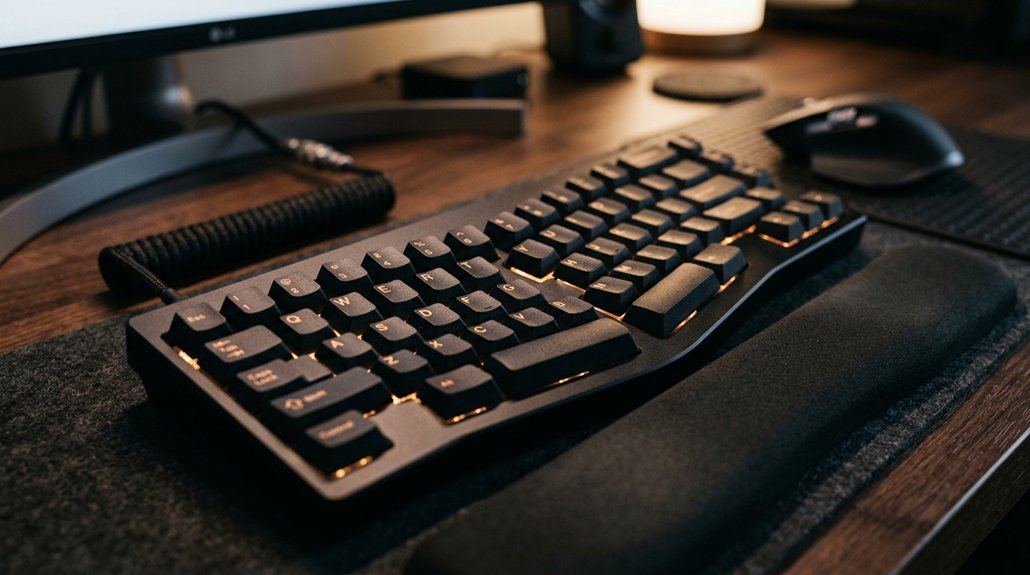
Your choice of key travel depth affects how much your fingers move and the amount of muscle tension you experience while typing. Shallow travel reduces finger motion but can cause fatigue from bottoming out, while deep travel provides better tactile feedback but may increase strain. Medium travel balances comfort and effort, helping prevent repetitive strain injuries. Understanding these effects helps you select the right keyboard for your hand health—something you’ll learn more about as you continue.
Why Key Travel Depth Matters for Hand Health
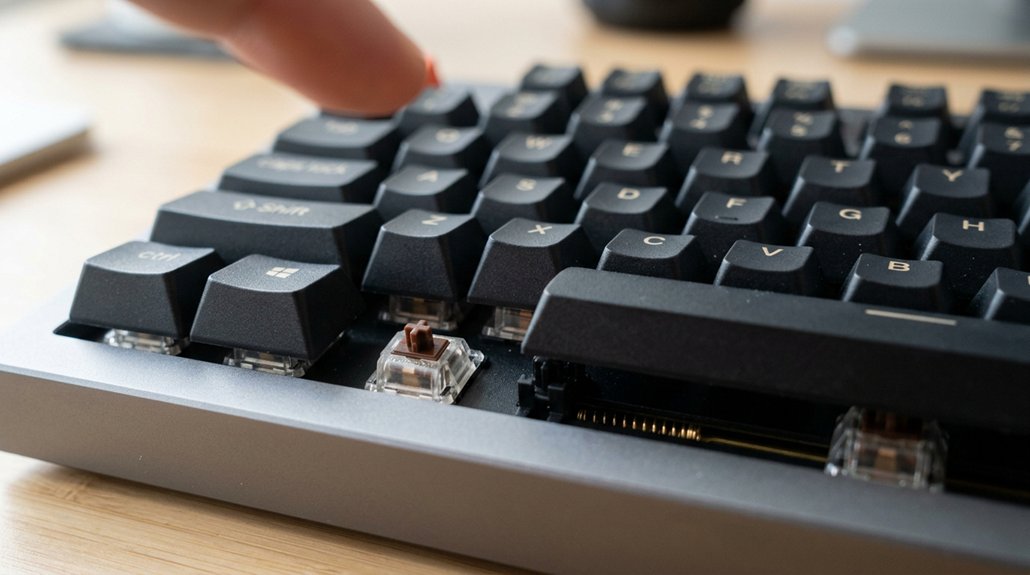
Key travel depth greatly influences hand health because it determines how much your fingers need to move and how much force you experience during typing. A deeper key travel, like 3-4mm, provides clear tactile feedback but requires more finger motion, increasing muscle tension and the risk of repetitive strain.
Conversely, shallower keys (1.5-2.5mm) reduce finger movement, which can lessen immediate fatigue. However, they often lead to bottoming out, causing finger fatigue and discomfort over time.
Medium travel depth (2.5-3.5mm) strikes a balance, helping you avoid excessive strain by supporting natural finger extension. Matching key travel depth to your typing style minimizes micro-strains and cumulative impacts, lowering the risk of repetitive strain injuries (RSIs) and promoting hand health during extended typing sessions.
How Shallow and Deep Key Travel Affect Finger Movement and Fatigue
Shallow key travel reduces the distance your fingers need to move, which can help minimize overall finger fatigue during typing sessions. However, it may cause frequent bottoming out, increasing fingertip impacts and tiredness. Deeper travel provides better tactile feedback but requires more finger motion, potentially raising fatigue levels. Medium key travel (2.5-3.5mm) strikes a balance by offering tactile feedback without excessive finger extension, making it ideal for most users. Short travel keyboards generally limit finger movement, easing fatigue for light-touch typists. Longer travel keyboards suit heavy typists needing distinct feedback but may increase fatigue over time. To visualize, consider the table:
| Travel Depth | Effect on Finger Movement | Fatigue Impact |
|---|---|---|
| Shallow | Less motion | Can cause impacts |
| Medium | Moderate motion | Balanced |
| Deep | More motion | Higher fatigue |
Additionally, choosing a keyboard with appropriate key travel depth can contribute significantly to ergonomic comfort and long-term hand health.
Does Actuation Force Impact Typing Fatigue?
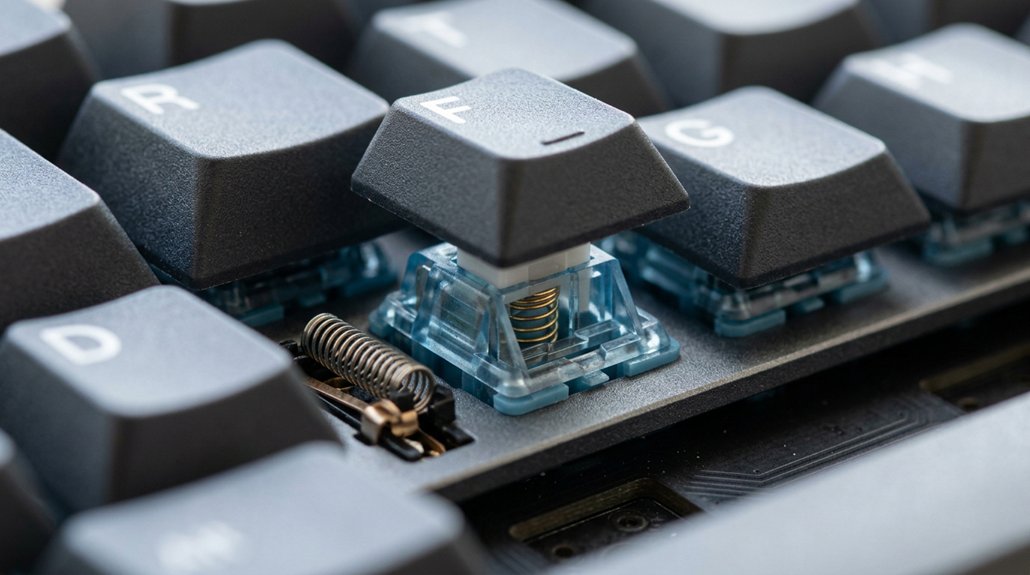
Does the force needed to actuate a key influence how quickly your fingers tire? Yes, actuation force directly impacts typing fatigue.
A lighter actuation force (45-50g) reduces muscle tension, making typing easier and decreasing fatigue over time. However, it increases the risk of accidental key presses, which can lead to unnecessary finger movements and strain.
Medium actuation force (55-65g) provides a balance, preventing accidental presses while keeping effort manageable.
Heavier actuation force (above 70g) demands more pressure, which may suit those needing precision but often raises finger fatigue levels.
Matching actuation force to your typing style—whether you hover or rest fingers—helps optimize comfort and decrease cumulative fatigue, supporting long-term wrist health.
Choosing the Right Key Travel for Your Typing Style
Choosing the right key travel depth depends heavily on your typing style and personal preferences, as it directly influences comfort and efficiency.
If you have a light touch, shorter travel (1.5-2.5mm) minimizes finger movement but can cause discomfort from bottoming out if you press too hard. For most users, medium travel (2.5-3.5mm) offers a good balance of tactile feedback and finger extension, reducing strain. Deep travel (3-4mm) provides clear tactile cues but demands more finger motion, suitable for deliberate presses.
Your wrist position also matters; aligning it ergonomically supports longer sessions. Mechanical switches often complement specific travel depths, allowing you to customize feel and response. Matching key travel to your typing style helps prevent fatigue and promotes healthier hand movements, especially when considering ergonomic design factors.
How Keyboard Design Features Improve Hand and Wrist Comfort
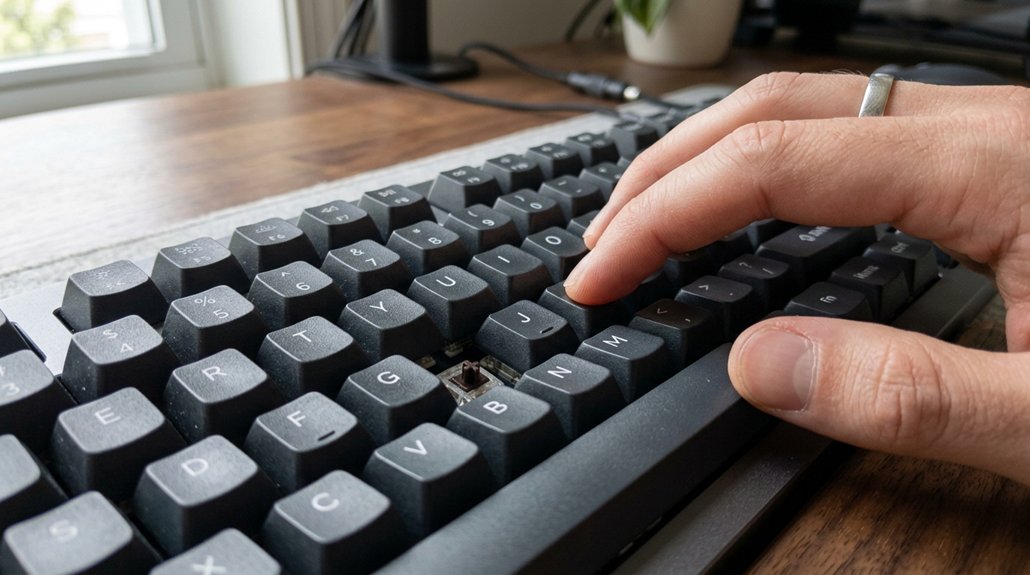
Keyboard design features play an essential role in enhancing hand and wrist comfort by supporting natural movement and reducing strain during prolonged typing sessions. Good wrist posture is achieved through features like concave or sculpted keycap surfaces, which improve finger positioning and minimize muscle strain.
Mechanical switches with tactile feedback at the right actuation force (55-65g) provide responsive responses, helping you avoid excessive finger muscle tension and reduce typing effort. Shorter key travel distances (1.5-2.5mm) can lessen finger movement, but if poorly designed, may cause bottoming out and impact discomfort. Adjustable height-stand models can further optimize ergonomics by allowing personalized key and workspace positioning, reducing strain over extended periods.
Low-profile switches with buffer zones prevent this, decreasing cumulative fingertip impacts. These features work together to promote a more comfortable, ergonomic typing experience, supporting healthy hand and wrist movement over time.
Practical Tips for Selecting a Keyboard Based on Travel Depth
When choosing a keyboard, consider your hand movement range to find a comfortable travel depth that reduces strain.
Match the key travel to your typing style—heavier typists often prefer medium to deep travel, while light-touch users might opt for shorter keys.
Prioritize comfort by selecting switches and travel distances that minimize finger fatigue and support long typing sessions.
Additionally, understanding different key capacities can help you select a keyboard that offers optimal comfort and efficiency for your typing needs.
Consider Hand Movement Range
Your hand movement range plays a crucial role in selecting the right keyboard travel depth, as it directly impacts comfort and strain during prolonged typing sessions. Choosing the appropriate key travel distance helps reduce strain and prevents fatigue.
If you have a limited hand movement range, a keyboard with short travel (1.5-2.5mm) may seem appealing but can cause fatigue from bottoming out and repetitive impacts.
Conversely, if you have greater hand mobility, deep travel keys (3-4mm) can provide satisfying tactile feedback and reduce accidental presses, but may require more finger extension.
For most users, medium travel distance (2.5-3.5mm) offers a good balance. Additionally, understanding ergonomic design principles in keyboard construction can further enhance comfort and promote long-term hand health.
Matching key travel depth to your hand movement range can optimize comfort, minimize unnecessary finger exertion, and promote hand health during long typing sessions.
Match Travel With Typing Style
How your typing style influences the ideal travel depth is key to selecting a comfortable and efficient keyboard setup. If you’re a light-touch typist, shorter key travel (1.5–2.5mm) reduces finger movement but may increase impacts from bottoming out, leading to fatigue. Heavy typists often prefer longer travel (2.5–4mm), offering tactile feedback without excessive muscle tension. The choice also depends on actuation force; for instance, light force (45–50g) suits hoverers, while heavier force (55–65g) helps prevent accidental presses during prolonged use. Additionally, considering ergonomic wrist support can further enhance overall comfort during extended typing sessions.
Prioritize Comfort and Strain Reduction
Selecting a keyboard with the right travel depth is essential for comfort and reducing strain during long typing sessions. To prioritize comfort, choose a key travel that offers a balanced tactile experience.
Consider these tips:
- Opt for medium key travel (2.5–3.5mm) to balance feedback and finger extension, reducing finger strain.
- Be cautious with short key travel (1.5–2.5mm), which may decrease finger movement but risks bottoming out, leading to fatigue.
- For heavy typists, deep key travel (3–4mm) provides better tactile feedback but can cause more muscle tension if matched poorly with your style.
- When selecting a keyboard, also consider the adjustability options available to ensure an ergonomic fit, reducing overall strain during extended use.
Pair your chosen key travel with a medium actuation force (55–65g) to prevent accidental key presses while maintaining comfort. Proper pairing minimizes effort and strain for sustained typing.
Combining Keyboard and Workspace Setup to Minimize Hand Stress
To reduce hand stress, focus on positioning your keyboard and workspace for ideal comfort. Adjust your chair and wrist supports so your wrists stay aligned with your forearms, and keep your mouse close to avoid overreaching. Using ergonomic layouts like split or tented keyboards can further enhance your posture and decrease strain. Incorporating ergonomic grip designs for your pens and tools can also help minimize hand fatigue during prolonged tasks.
Optimal Keyboard Positioning
Achieving ideal keyboard positioning is essential for minimizing hand stress and preventing discomfort during extended typing sessions.
To maintain a neutral position and reduce stress, focus on these key factors:
- Position the keyboard at zero-degree slope to align wrists with your forearms, minimizing wrist extension and promoting better circulation.
- Adjust keyboard height so keycaps sit below wrist level, with integrated or added palm supports, to sustain a neutral wrist posture and lessen strain.
- Keep the keyboard width aligned with your shoulder span to avoid ulnar deviation, allowing your wrists to stay straight without bending outward.
- Using a desk pad with ergonomic wrist support can further improve wrist alignment and overall comfort during prolonged use.
Proper placement also involves placing the mouse directly in front of your shoulder, reducing overreach and shoulder strain.
These steps help you create an ergonomic setup that supports hand health.
Ergonomic Workspace Design
Creating an ergonomic workspace involves more than just choosing the right keyboard; it requires integrating various components to support hand health and reduce strain. Start with keyboards that have medium to deep key travel (2.5-4mm) to balance tactile feedback and prevent finger extension strain, especially for heavy typists.
Position your keyboard at zero degrees slope with integrated palm supports to keep your wrists aligned with your forearms, avoiding wrist extension and promoting better circulation. Use ergonomic split or adjustable splay keyboards, combined with proper chair and monitor height, to keep elbows close to your body and wrists neutral, minimizing ulnar deviation and forearm pronation.
Adjustable Wrist Support
When integrating adjustable wrist supports into your workspace, you can greatly reduce hand and wrist strain by maintaining a neutral wrist position. Using adjustable wrist supports guarantees your wrists stay aligned with your forearms, minimizing extension and circulation issues.
Pairing these supports with ergonomic keyboards—especially those with a zero-degree slope—keeps keys below wrist level, reducing upward bending and repetitive strain risks. Imagine:
- Cushioned palm pads near your forearms, relieving pressure and muscle tension.
- Supports that keep wrists level with forearms, preventing ulnar deviation.
- Adjustable tenting features on ergonomic keyboards that reduce forearm pronation, decreasing fatigue.
These adjustments create a workspace where your wrists are well supported, helping prevent injury and promote overall hand health.
Final Tips for Ergonomic Typing and Hand Wellness
Ever wondered how small adjustments can greatly improve your typing comfort and hand health? Choosing mechanical keyboards with medium to deep key travel—around 2.5 to 3.5mm—helps balance tactile feedback and reduce finger strain during long sessions.
Opt for actuation forces between 55-65g to lessen muscle tension, while avoiding accidental keystrokes. Use keycaps with sculpted profiles and textured surfaces to support natural finger positioning and ease muscle tension.
Remember to take frequent microbreaks, stretching your wrists and fingers to keep circulation flowing and prevent strain. Maintain proper wrist posture with a zero-degree or negative keyboard slope, supported by an integrated palm rest.
These small but effective adjustments can greatly lower unnecessary strain, promoting healthier, more comfortable typing habits.
Frequently Asked Questions
Why Is Key Travel Important?
Key travel is important because it directly affects your finger movement, comfort, and fatigue. Choosing the right depth helps you type efficiently, reduces strain, and prevents repetitive motion injuries during long typing sessions.
What Makes a Keyboard More Ergonomic?
A keyboard is more ergonomic when it combines proper key travel, tactile switches, a split or curved layout, and sculpted keycaps. These features promote neutral wrist posture, reduce finger strain, and minimize fatigue during extended typing sessions.
What Wrist and Hand Position Reduces the Risk of an Ergonomic Injury When Typing?
You reduce injury risk by keeping your wrists in a neutral, slightly elevated position with minimal ulnar deviation. Maintain elbows at 90 degrees, use a zero-degree slope, and support your palms to promote circulation and minimize muscle strain.
What Are Some Risk Factors Associated With Keyboards?
You risk finger fatigue and repetitive stress injuries if you use keyboards with excessive key travel, high actuation force, or inadequate slope. Bottoming out, poor wrist positioning, and lack of tactile feedback also increase your chances of hand strain.
In Summary
Choosing the right key travel depth isn’t just about preference – it’s about protecting your hands and maintaining comfort during long typing sessions. By understanding how shallow or deep keys influence movement and fatigue, you can make smarter decisions for your keyboard setup. Pay attention to your style, try different options, and incorporate ergonomic features. With these adjustments, you’ll reduce strain, prevent injuries, and enjoy a healthier, more comfortable typing experience every day.



