
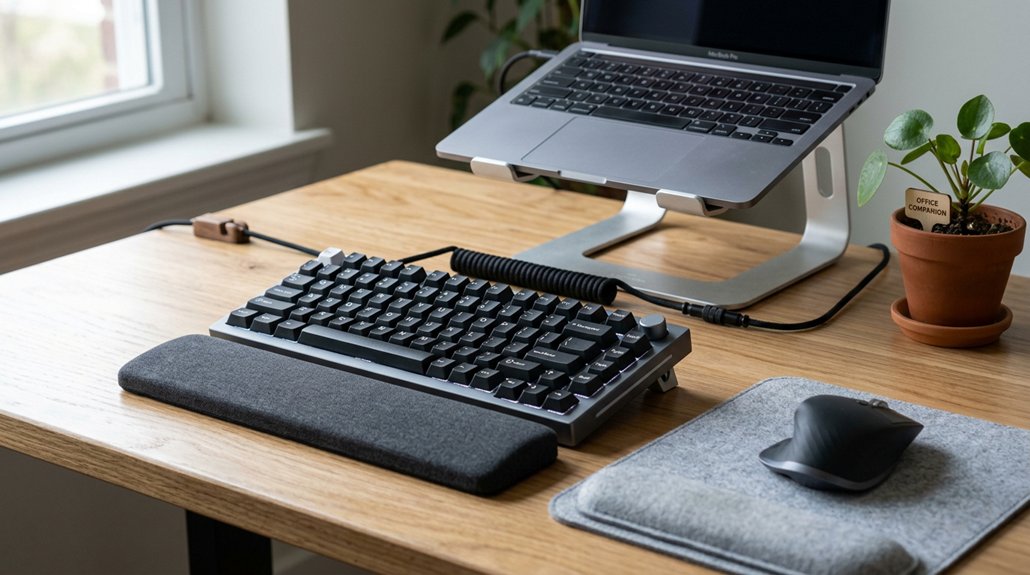
To optimize your workspace, set your keyboard height so your wrists stay neutral and straight, avoiding bending up or down. Position it directly in front of you at a comfortable distance to prevent overreaching. Keep your hands relaxed and aligned with your forearms, using adjustable trays or wrist supports to enhance comfort. Choose a keyboard size that fits your space and reduces strain. Taking regular breaks and moving helps maintain good posture — explore more tips for long-term comfort.
Set Your Keyboard Height to Keep Wrists Neutral
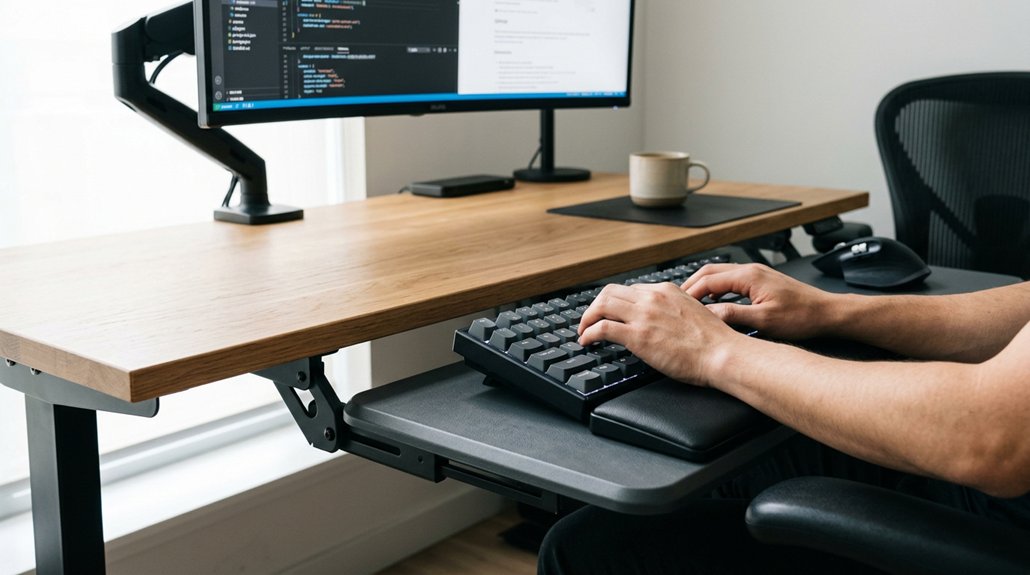
To prevent wrist strain, it’s crucial to set your keyboard height so your wrists stay in a neutral, straight position. This means adjusting the keyboard height so your wrists are aligned naturally with the keyboard without bending up, down, or sideways. A height-adjustable stand can help fine-tune your setup for optimal comfort. Keep your elbows close to your sides and your forearms parallel to the floor, with elbows bent roughly between 90-110 degrees. Using a keyboard tray can help achieve this setup by lowering your keyboard to the best height. Avoid elevating your keyboard with feet if it causes your wrists to bend upward. Instead, keep the keyboard flat or slightly sloped away from you. Maintaining this neutral wrist posture helps reduce tension and minimizes the risk of musculoskeletal issues over time.
Position the Keyboard Directly in Front of You
Positioning your keyboard directly in front of you is essential for maintaining an ergonomic typing posture.
Placing your keyboard directly in front helps promote a comfortable, neutral, and strain-free typing position.
When you place the keyboard directly in front, your forearms stay parallel to the floor, and your elbows stay close to your sides, reducing shoulder and arm strain. Align the center of the keyboard, usually the “H” key in standard layouts, with the center of your body to encourage a neutral wrist posture and prevent twisting.
Keep the keyboard close enough so you don’t have to reach, ensuring your wrists remain straight and supported by your forearms. Maintain the keyboard height at or just below your elbow level to avoid upward or downward bending.
If your desk height isn’t adjustable, use a keyboard tray to position it correctly for ergonomic comfort. Consider employing a memory foam wrist rest or adjustable tilt features to further support a neutral wrist position and reduce strain during prolonged use.
Keep Your Hands and Wrists Relaxed and Aligned
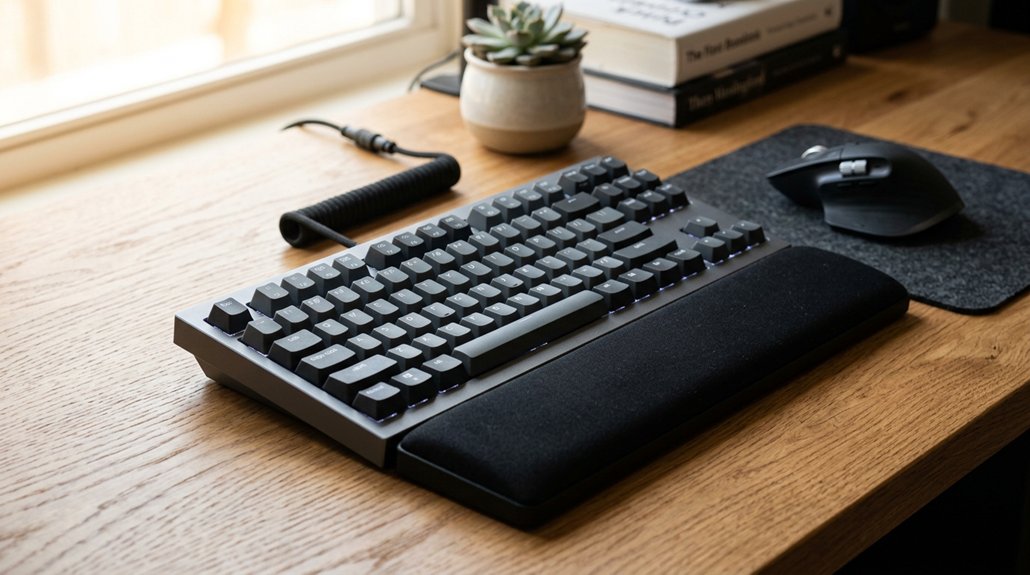
Keep your wrists straight and aligned with your forearms to prevent strain and guarantee comfort. Use wrist supports if needed and keep your fingers light on the keys to reduce muscle tension. A properly chosen wrist rest can further enhance ergonomic support, promoting better posture during long typing sessions. Maintaining a relaxed, neutral posture helps you type more efficiently and reduces the risk of injury.
Maintain Neutral Wrist Position
Maintaining a neutral wrist position is essential for comfortable and injury-free typing. Your wrist posture should keep your wrists straight and aligned with your forearms, avoiding upward or downward bending.
Position your keyboard just below elbow height to prevent strain, ensuring your arms are at your arm’s length and close to your body. Use a chair with the right height or an adjustable desk or tray to support this alignment.
Keep your wrists relaxed, avoiding resting them on hard surfaces, which adds contact stress and can cause discomfort over time. Avoid keyboard feet that tilt the keyboard upwards, as this increases wrist extension.
Maintaining a 90-110 degree bend at your elbows and keeping your wrists flat reduces tension, promoting healthy tendon and nerve function during long typing sessions.
Use Wrist Supports Properly
Using wrist supports properly can substantially reduce strain during long typing sessions by helping your wrists stay straight and aligned with your forearms. Place wrist supports only to support the heel of your hand during pauses, avoiding constant pressure that can restrict blood flow and cause contact stress. Cushioned and ergonomic wrist supports protect your wrists from external contact stress from desk edges and promote a neutral posture. When combined with proper keyboard height, they help maintain relaxed, aligned hands and wrists, reducing the risk of carpal tunnel syndrome. Proper use of wrist supports is essential for preventing repetitive strain injuries and supporting overall comfort. Additionally, selecting wrist supports with anti-slip bases ensures stability during prolonged use, preventing unintended movements that could cause strain. Remember to take breaks and stretch regularly. Proper use of wrist supports is essential for preventing repetitive strain injuries and supporting overall comfort.
Keep Fingers Light Touch
Have you ever noticed how applying too much force while typing causes unnecessary fatigue? Keeping a light touch helps reduce finger and wrist strain by minimizing muscle tension and overexertion.
Good posture supports this habit; keep your wrists straight and aligned with your forearms to prevent bending or twisting that increases stress on tendons. Relax your shoulders and keep elbows close to your body with forearms roughly parallel to the floor to promote ergonomic hand positioning. Adjust your keyboard height so your hands rest just below elbow level, making your fingers move easily without awkward angles.
Choosing ergonomic keyboards with tactile feedback helps you maintain a gentle yet precise keystroke, ultimately helping you type comfortably and efficiently with a light, relaxed finger touch. For enhanced comfort, consider models with palm rests and ergonomic designs that promote natural hand placement.
Use an Adjustable Keyboard Tray or Wrist Rest
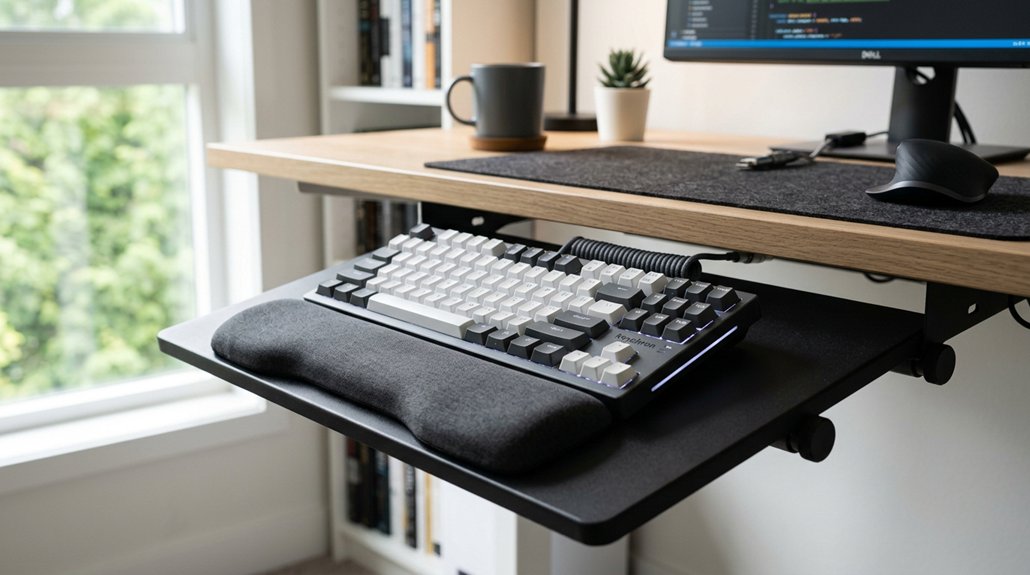
Using an adjustable keyboard tray or wrist rest helps you keep your wrists and arms in a neutral position, reducing strain during long typing sessions.
Make sure the tray is positioned so your elbows stay close to your body, with forearms parallel or slightly angled downward. A padded wrist rest can support your wrists, but avoid resting them while typing to prevent pressure buildup.
Proper Height Alignment
Maintaining proper height alignment is essential for comfortable and injury-free typing sessions. In line with Occupational Safety and Health guidelines, you should adjust the height of your keyboard to reduce strain. Use an adjustable keyboard tray or wrist rest to customize your workstation components, ensuring your wrists stay straight and your forearms are parallel to the floor. Properly compatible mounting systems can help achieve the desired ergonomic positioning for various desk setups. Position the keyboard just below elbow height to create a 90–110 degree bend at your elbows, decreasing wrist and shoulder tension. Avoid raising keyboard feet if they cause wrist extension; instead, tweak the tray’s height or angle for ideal ergonomic posture. Proper height alignment prevents awkward postures, minimizing discomfort or musculoskeletal issues during extended use. Prioritize these adjustments for a healthier, more efficient workspace.
Enhanced Wrist Support
Implementing an adjustable keyboard tray or wrist rest enhances wrist support by allowing you to customize your workspace for maximum comfort. An adjustable tray helps you set the correct height and tilt, maintaining a neutral wrist posture and reducing strain during long typing sessions. Cushioned, flat wrist rests support your palms and keep wrists straight, preventing upward or downward bending. Proper positioning of your mechanical keyboard with a tray aligns your elbows close to your body and forearms parallel to the floor, boosting ergonomic comfort. Using these tools together decreases contact stress on tendons and nerves, lowering fatigue. They also reduce muscle activity in your forearms, protecting wrist health over time. Additionally, selecting ergonomically designed accessories made from durable materials ensures long-lasting support and stability during extended work periods.
Select a Mechanical Keyboard Size and Layout for Comfort
Choosing the right mechanical keyboard size and layout is essential for comfort and efficiency. Your workspace setup should consider the available desk space, aiming for a layout that balances functionality with room to move. A split or ergonomic keyboard with adjustable tenting encourages proper wrist positioning and reduces strain. Also, consider layouts that place frequently used keys, like the “H,” near your body’s center, minimizing reach. When selecting a layout, pay attention to wrist angle comfort, which can significantly impact long-term ergonomic health and reduce strain during extended typing sessions. Key spacing around 0.71-0.75 inches horizontally and 0.71-0.82 inches vertically enhances comfort and reduces finger fatigue.
Place Your Keyboard at a Proper Distance From Your Body
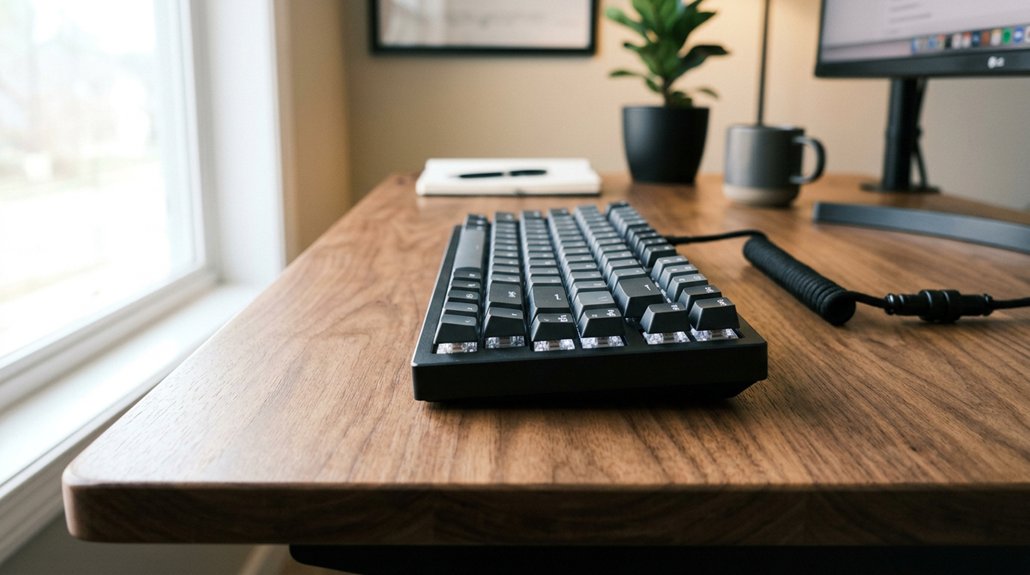
Position your keyboard so that it sits directly in front of you at a comfortable distance, allowing your elbows to stay close to your body and your forearms to be roughly parallel to the floor. This lower position helps maintain a neutral wrist posture and reduces strain. Keep the keyboard close to your body, within the distance that allows you to type without overreaching or leaning forward. If it’s too far, you’ll extend your elbows and lean, which adds stress to your shoulders and back. If it’s too close, you might cramp your posture and tire your hands faster. Using an adjustable keyboard tray can help maintain the ideal distance, ensuring your setup supports a relaxed, ergonomic typing position and helps prevent fatigue. Additionally, choosing an ergonomic cable management kit can keep your workspace organized and reduce clutter that might interfere with your comfortable posture.
Take Regular Breaks and Move to Prevent Strain
Maintaining proper distance from your keyboard is just one part of practicing ergonomic safety; taking regular breaks is equally important for preventing strain. The Safety and Health Administration recommends short, frequent pauses to give muscles and tendons time to recover from repetitive movements. Make sure you try using micro-breaks every hour—stand up, stretch your hands, fingers, and arms, or change your position. Doing so helps you avoid health problems caused by continuous keyboard use. During breaks, look away from your screen to reduce eye strain. Incorporate task rotation and non-computer activities into your day to maintain muscle flexibility and keep your wrists neutral. It’s also helpful to consider ergonomic footrests, which promote proper foot placement and can improve overall posture during long work sessions. Here’s a quick overview:
| Action | Frequency | Benefits |
|---|---|---|
| Stretch hands & arms | Every 60 minutes | Prevents overuse strain |
| Micro-breaks | 5 minutes every hour | Reduces internal stress |
| Look away from screen | Every 20 minutes | Lowers eye strain |
| Switch tasks | Throughout the day | Maintains muscle flexibility |
| Change position | During micro-breaks | Supports ergonomic health |
Frequently Asked Questions
How Do I Know My Ideal Keyboard Height?
You find your ideal keyboard height by adjusting it so your elbows are at a 90-degree angle, wrists are straight, and your hands rest comfortably. Test different heights until typing feels natural and causes no strain.
What Types of Keyboard Tilt Are Best for Ergonomics?
You should choose a keyboard tilt that keeps your wrists straight and relaxed, ideally slightly negative or zero degrees. Adjust tilt to prevent strain, ensuring your forearms are parallel to the ground for comfortable, ergonomic typing.
How Can I Reduce Wrist Strain During Long Typing Sessions?
To reduce wrist strain during long typing sessions, you should keep your wrists straight and elevated slightly, use a wrist rest, take frequent breaks, and maintain a neutral hand position. Adjust your keyboard angle for comfort.
Are Mechanical Keyboards More Ergonomic Than Membrane Ones?
Mechanical keyboards can be more ergonomic than membrane ones because they often have sharper, more responsive keys, allowing you to type efficiently with less effort. Additionally, you can customize their key layouts and actuation points for better comfort.
What Are Signs of Poor Keyboard Ergonomics?
You might experience discomfort, stiffness, or pain in your wrists, hands, or shoulders, along with frequent fatigue or numbness. If your fingers feel strained or you regularly adjust your position, your keyboard ergonomics likely need improvement.
In Summary
By following these ergonomic tips, you can create a workspace that minimizes strain and boosts comfort. Adjust your keyboard height, keep it in front of you, and choose the right size and layout. Remember to stay relaxed, use supports like wrist rests, and take regular breaks to move around. Small changes make a big difference, so prioritize your comfort and health to work efficiently and avoid unnecessary discomfort.




Leave a Reply