
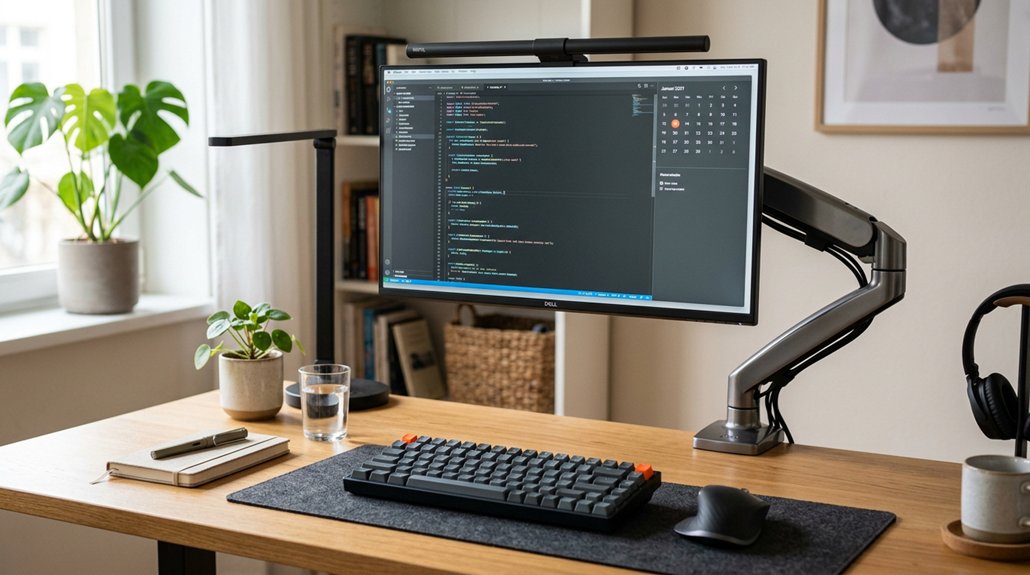
A quality clamp arm is essential for your small desk because it frees up surface space by securely anchoring your monitor, allowing you to organize essentials better. It offers ergonomic flexibility with tilt, swivel, and rotation adjustments, reducing strain on your neck and eyes. Plus, it prevents wobble and damage, especially on smaller or thinner desks. If you want to optimize space and comfort, keep exploring how the right clamp arm can make a difference.
Why Use a Clamp Mount on Small Desks?
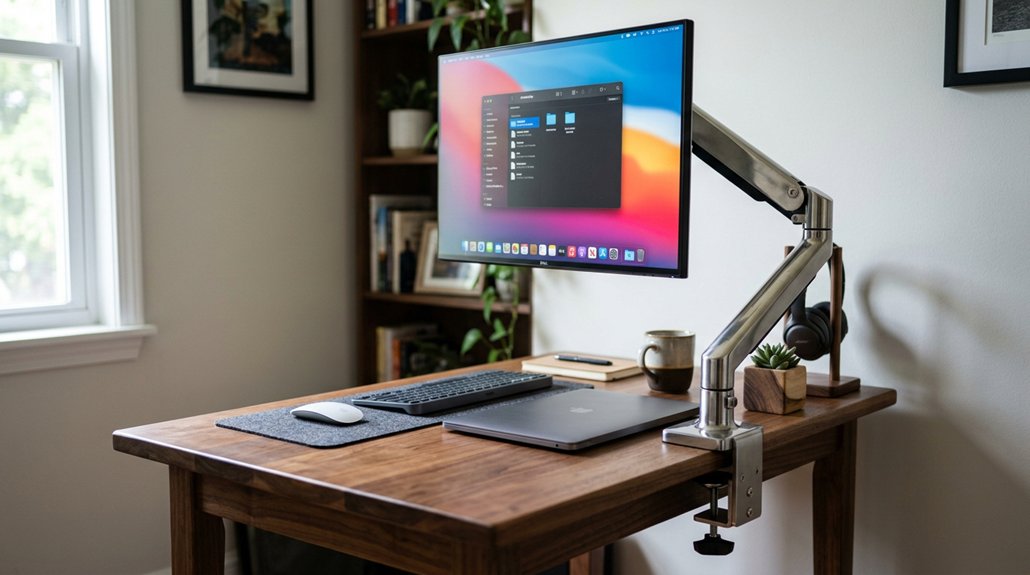
Have you ever struggled with limited space on your small desk? A clamp can make a huge difference. Using a monitor arm clamp frees up surface area typically taken by bulky monitor stands, giving you more room to work.
Additionally, many quality clamp mounts feature adjustability features such as tilt, swivel, and rotation, allowing you to customize your viewing angles for increased comfort.
It also offers ergonomic benefits, letting you adjust your monitor’s height and swivel axes for maximum comfort. Quality clamp mounts fit desks as thin as 0.6 inches, making them perfect for small, space-efficient setups. Plus, their low-profile design won’t interfere with under-desk equipment like cable trays or keyboard trays.
Securing your monitor with a clamp eliminates wobble and instability common with lightweight stands, providing a stable, secure setup. Overall, a good monitor arm clamp transforms a cramped desk into an efficient workspace.
How Clamp Mounts Compare to Free-Standing Stands
Clamp mounts stand out by offering a stable, space-efficient solution compared to free-standing stands, especially on small desks. When attached to the desk edge, clamp mounts free up valuable surface area, making room for keyboards and accessories.
They also provide greater ergonomic adjustability with multiple swivel axes, letting you position your monitor at eye level and at the ideal distance. Unlike free-standing stands, clamp mounts reduce desk clutter and vibrations by anchoring securely, which is crucial on lightweight or limited-space desks.
Additionally, many clamp mounts are designed with mounting options like C-clamp or grommet bases, ensuring versatility in various desk setups. However, they typically require a flat, sturdy desk edge with a minimum thickness of around 0.6 inches. While free-standing stands are easier to set up, clamp mounts deliver superior workspace optimization and stability, making them the smarter choice for small desk setups.
Maximize Your Workspace With Clamp Arms
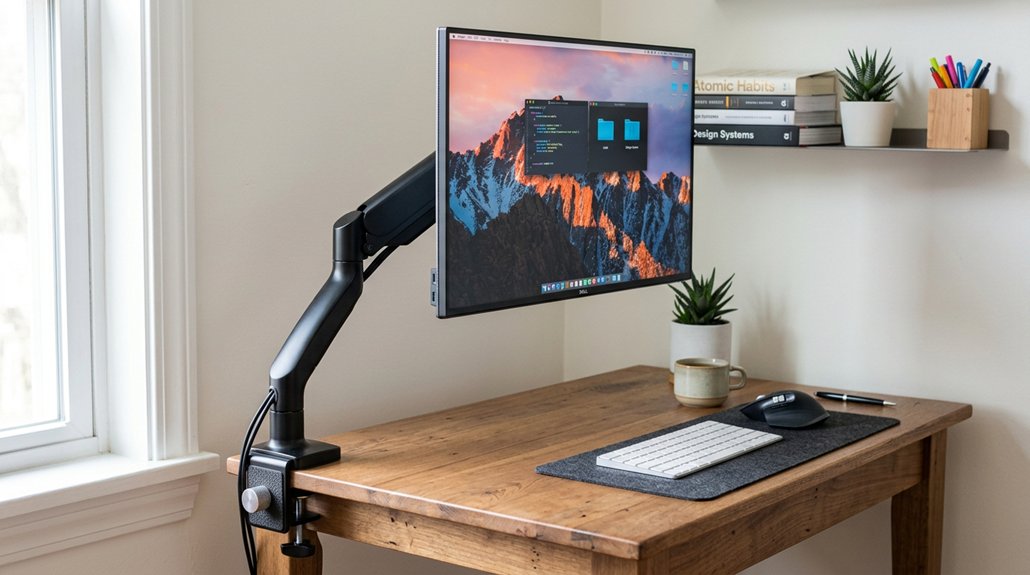
Using clamp arms lets you free up valuable desk space by mounting monitors off your surface, making your setup more efficient. They offer flexible positioning so you can find the perfect eye level and reduce neck strain, all without clutter. Properly chosen clamps also protect your desk while maximizing comfort and workspace. Additionally, selecting a mount with appropriate weight capacity and reach ensures your monitor stays secure and comfortably positioned for extended use.
Space Optimization Strategies
To maximize your limited workspace, installing a desk-mounted clamp arm can be a game-changer. Desk clamps free up valuable surface area by removing bulky monitor stands, giving you more room for keyboards, papers, and other essentials.
They also keep monitors at ergonomic eye level and arm’s length, helping you maintain better posture while enhancing your available space. Using clamp arms allows for improved cable management underneath, reducing clutter and promoting a cleaner, more organized desk.
For small desks, clamp mounts are especially effective—they minimize the footprint under the monitor, enabling more efficient use of limited space. Just make sure you select a clamp arm compatible with your desk thickness to avoid damage and guarantee stability. To ensure a secure fit, consider models with adjustable clamps capable of handling various desk thicknesses mounting system compatibility.
Flexible Positioning Options
Flexible positioning options are among the key advantages of incorporating clamp arms into your workspace. With monitor arms, you can easily adjust height and swivel axes to place your monitors at eye level and at the ideal arm’s length, promoting better ergonomics.
Clamp needs are minimal, as quality clamp arms like the Secretlab Magnus or VIVO-US models support secure mounting on desks around 0.6 inches thick without sacrificing stability. These monitor arms can be positioned near the monitor’s centerline and close to the pivot point (4-6 inches away), reducing desk wobble and torque.
Additionally, clamp arms make it simple to reposition your monitors—whether dual or portrait setups—maximizing productivity and workflow in limited desk environments without clutter or hassle. Incorporating adjustable mounting methods allows for versatile configurations tailored to your specific workspace constraints.
Enhanced Ergonomic Comfort
Maximizing your workspace with clamp arms enhances ergonomic comfort by allowing precise monitor positioning tailored to your needs. With adjustable swivel axes, you can easily find the ideal angle and height, reducing neck and eye strain. A wide range of adjustable tilt and rotation features ensures you can customize your setup for optimal viewing angles. Positioning your monitor at or just below eye level and about an arm’s length away promotes better posture and minimizes fatigue. Clamp arms free up valuable desk space by removing bulky stands, making your setup more efficient. They also work well with shallow desks or those with cable trays, avoiding interference. Properly selected clamp arms with the right weight capacity and secure mounting give you a stable and flexible monitor setup, boosting comfort and productivity. Compatibility with various monitor sizes and weights ensures you can find a suitable solution for your specific workspace needs.
Choosing the Right Monitor Clamp Mount for Your Desk
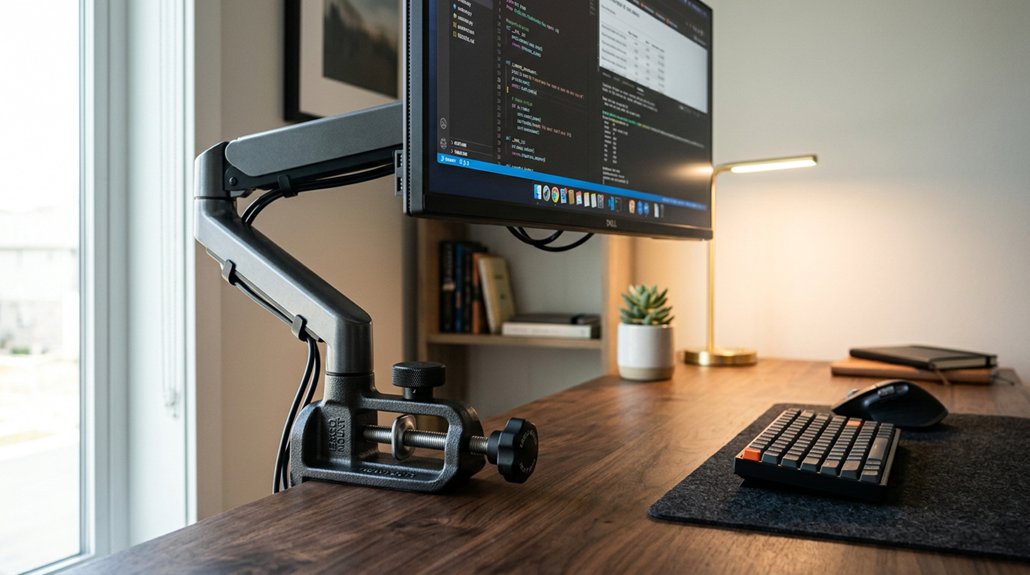
Are you selecting a monitor clamp mount that fits your desk perfectly? Start by matching the clamp mount to your desk’s specific thickness and edge profile.
Most standard clamp mounts support desks between 0.6 and 1.2 inches thick with flat, square edges for a stable grip. If your desk is thinner than 0.6 inches, consider reinforcement plates or wood blocks to prevent damage and guarantee stability.
For desks with overhangs or limited space behind them, heavy-duty F-clamps are excellent options, supporting capacities from 12kg to 18kg depending on the model.
Make sure the clamp’s opening range fits your desk’s thickness, and check for clearance underneath to avoid interference with any cable trays or metal frames. Proper positioning near the centerline and using protective pads help minimize wobble and surface damage. Additionally, selecting a clamp mount with a weight capacity suitable for your monitor ensures safe and stable support.
Can Your Desk Handle a Clamp Mount? Important Compatibility Factors
Before installing a clamp mount, check if your desk material can handle it—solid wood or thick engineered wood works best, while thinner surfaces may need reinforcement. A mounting stability assessment can help prevent wobbling or potential damage over time. Confirm the edge is flat and square to maximize contact and stability, as beveled or rounded edges can cause wobbling or damage. Also, measure the desk thickness carefully, and consider adding support if it’s made from hollow or particleboard, especially if there’s a metal frame underneath.
Desk Material Compatibility
Determining if your desk can handle a clamp mount hinges on its material and construction. Solid wood desktops are ideal because they resist crushing and splitting under clamp pressure.
If your desk’s desktop thickness is less than 0.6 inches (15 mm), especially with engineered wood or particleboard, you often need a reinforcement plate to protect against damage and guarantee clamp stability.
Be aware that beveled, rounded, or waterfall edges limit the flat surface needed for secure mounting, increasing instability or risking edge damage unless reinforced.
Metal frames beneath the desk can also interfere with clamp placement, sometimes requiring wood slabs or wedges to create a suitable clamping surface.
Verify your desk’s desktop thickness and structural features before choosing a clamp mount for peak support.
Edge Shape Considerations
The shape of your desk’s edge plays a crucial role in whether a clamp mount will stay secure. Flat, square edges provide the necessary contact area, ensuring clamp mounts hold steadily without wobbling or slipping.
Beveled, rounded, or waterfall edges reduce this contact, increasing the risk of clamp slippage, dents, or even surface splitting under pressure. It’s essential to measure your desk’s edge carefully and confirm it has a flat, stable section suitable for mounting.
If your desk is less than 0.6 inches (15 mm) thick or made of soft materials like particleboard, you’ll need reinforcement plates to distribute clamp pressure evenly. Using protective pads under clamps also helps prevent surface damage and discoloration, especially on softwood or finished edges exposed to sunlight.
Thickness and Reinforcement
Clamps require a surface that’s flat and thick enough to grip securely without causing damage or instability. Your desk thickness should ideally be between 0.6 and 1.2 inches (15–30 mm) for a proper clamp fit.
If your desk is thinner than 0.6 inches, especially materials like particleboard or MDF, you’ll need reinforcement plates to prevent crushing or flexing under clamp pressure. Be cautious of beveled or rounded edges, which reduce the contact area, often requiring additional support.
Metal frames or cable trays underneath can interfere with the clamp’s placement, so using wood slabs or blocks can help increase overall thickness and create a stable mounting surface. Always measure the exact desk thickness at the attachment point for a secure and damage-free clamp setup.
How to Install a Clamp Mount Safely and Effectively
Wondering how to mount your clamp arm securely? First, measure your desk thickness carefully at the clamp location, ensuring it falls within the clamp’s specified range, usually 0.6–1.2 inches.
Measure your desk thickness to ensure it matches the clamp’s specified range for a secure fit.
Confirm that the desk edge is flat and square; avoid bevels or rounded profiles for maximum contact. Use reinforcement plates if needed for beveled edges.
Position the clamp near the monitor’s centerline and about 4–6 inches from the arm’s pivot point to reduce torque. Place protective pads under the clamp to prevent surface damage.
Tighten the clamp gradually with a quarter-turn wrench, avoiding overtightening.
Finally, verify there are no obstructions like metal frames or cable trays under the desk. If necessary, use wood blocks to create a stable clamping surface.
What Keeps a Clamp Mount Stable and Prevents Desk Damage?
What keeps a clamp mount stable and prevents damage to your desk? The key is maximizing the contact area between the clamp and your desk edge for stability. A flat, straight edge free of bevels or rounded profiles guarantees the clamp holds firmly without twisting or slipping.
Proper fit is essential; measure the thickness at the clamp location to stay within the clamp’s specified range, typically 0.6–1.2 inches. Using protective pads under the clamp prevents surface scratches.
Gradually tightening the clamp by hand and finishing with a quarter-turn wrench avoids overtightening. Reinforcement plates or wood blocks help distribute pressure evenly, preventing dents or compression, especially on thin or engineered wood desks.
Positioning the clamp slightly inward reduces leverage stress, boosting long-term stability.
Adjusting Your Clamp Mount for Ergonomics and Flexibility
To get the best ergonomics and flexibility from your clamp mount, start by positioning it slightly inward from the desk edge, close to the arm’s pivot point.
Make sure the clamp is secure with protective pads to prevent damage and allows smooth adjustments without slipping. Then, fine-tune the monitor height, tension, and swivel angles to achieve comfortable, flexible viewing angles.
Proper Positioning Techniques
Properly positioning your clamp mount is essential for both stability and ergonomic comfort. Start by placing the clamp slightly inward from the desk edge, within 4-6 inches of the monitor mount’s pivot point to reduce wobble and desk stress.
Measure your desk thickness accurately at the clamp location, avoiding beveled or rounded edges that can compromise stability. Use protective pads beneath the clamp to prevent surface damage. Tighten the clamp gradually by hand, then give a quarter-turn with a wrench—never overtighten.
Adjust your monitor height so the top is at or slightly below eye level, maintaining about an arm’s length distance. Remember to leave slack in cables for movement, and recheck clamp tightness regularly, especially on height-adjustable desks.
Ensuring Clamp Stability
Guaranteeing your clamp mount remains stable requires careful adjustment and regular maintenance. Start by positioning the clamp slightly inward from the desk edge, using protective pads to prevent damage and guarantee a firm grip. Measure your desk’s thickness at the clamp site, and confirm it matches the clamp’s range to prevent wobbling or damage. Tighten the clamp gradually by hand, finishing with a quarter-turn wrench — avoid overtightening that could harm your desk or clamp. Place the clamp within 4-6 inches of the monitor arm’s pivot point for better leverage and ergonomic flexibility. Regularly check for flex, creaking, or looseness, especially on standing desks. Leave slack in cables to maintain stability.
| Adjustment Step | Purpose | Common Mistake |
|---|---|---|
| Position inward from desk edge | Stability and grip | Installing too close to edge |
| Verify desk thickness compatibility | Prevent damage and wobble | Using incompatible clamps |
| Gradually tighten with wrench | Secure, avoid over-tightening | Overtightening causing damage |
| Monitor clamp distance from pivot | Maximize flexibility | Placing too far or too close |
Fine-Tuning for Comfort
Adjusting your clamp mount for ideal comfort involves fine-tuning your monitor’s position for ergonomic alignment and flexibility. Proper adjustments help prevent strain and guarantee smooth movement throughout your workday.
First, position the clamp slightly inward from the desk edge and use protective pads to avoid surface damage and keep the mount stable. Next, set the monitor height so the top is at or just below your eye level, keeping a comfortable arm’s length from your eyes.
Fine-tune arm tension and tilt for smooth, vibration-free swivel and positioning. Regularly check and tighten the clamp, especially on standing desks, to prevent flex and maintain stability.
Also, leave enough cable slack near the clamp to avoid tension that could destabilize or interfere with your adjustments.
Troubleshooting Common Clamp Fit and Stability Problems
Have you ever experienced your clamp wobbling or slipping despite tightening it? This usually happens if the clamp isn’t gripping securely or if the desk edge isn’t suitable.
Beveled or rounded edges reduce contact, making it tough for the clamp to stay stable. If your desk surface is thinner than 0.6 inches, adding steel reinforcement plates helps prevent crushing and keeps the clamp secure. Metal frames underneath can block clamps from attaching firmly, so using wood blocks or wedges creates a better clamping surface.
Overextended clamp arms increase leverage and pressure, causing flex or wobble. To avoid this, position the clamp near the arm’s pivot point within 4–6 inches and tighten gradually with protective pads. This guarantees a firm grip, stability, and prevents damage.
Best Clamp Mounts for Small Desks and Light Loads
When selecting clamp mounts for small desks and light loads, C-Clamp mounts are often the most versatile and widely used option due to their strength and adaptability. They work well for attaching monitor stands or extended clamps, supporting up to 16kg (35lb).
For desks with thin edges or limited clearance, opt for F-Clamps with a slim top piece (~6mm), which support up to 12kg (26.5lb), or heavy-duty F-Clamps that handle up to 18kg (40lb). Ensuring the desk thickness is between 0.6 and 1.2 inches (15–30mm) provides stability.
Proper clamp placement near the monitor’s centerline and within 4-6 inches of the arm’s pivot minimizes wobble. Reinforcement plates can help when using cheaper clamps on engineered wood or thin desks.
Features to Look for in a High-Quality Clamp Mount
A high-quality clamp mount should support a wide weight range, guaranteeing it can securely hold your monitor without risk of slipping or instability. Look for a clamp mount with a substantial capacity, like 16kg (35lb), which can handle most 27-inch monitors comfortably.
Choose a model with a thin top piece, around 6mm, to fit desks with limited clearance or overhangs common in small desks. Make certain it’s designed for the specific desk thickness, ideally 0.6 to 1.2 inches, or consider extended clamp kits for thicker edges.
Low-profile designs help prevent interference with under-desk equipment and distribute clamping force evenly for stability. Additionally, multiple swivel axes and ergonomic adjustments allow flexible monitor positioning, keeping your desk moves smooth and your workspace comfortable.
Enhance Your Workspace With Clamp Accessories
Adding clamp accessories to your workspace can greatly boost its functionality and organization. These accessories help maximize limited desk space by securely holding monitors off the surface, freeing room for essential tasks. High-quality clamps are designed to avoid damage and can support monitors weighing up to 18kg (40lb), making them sturdy yet gentle on your desk.
Protective pads included with clamps prevent dents and slipping, ensuring a stable attachment. You can also add cable trays to keep cords neat and easily accessible, reducing clutter and tripping hazards. Other useful clamp accessories include headphone hooks, pet perches, and additional monitor arms, all enhancing your workspace’s comfort and efficiency. These accessories create a cleaner, more organized environment tailored to your needs.
Final Tips for Maintaining and Extending the Life of Your Clamp Mount
To guarantee your clamp mount remains secure and functional over time, regular maintenance is essential. Check and retighten the clamp screws gradually, especially on standing desks that experience movement or vibrations.
Using protective pads like rubber or felt between the clamp and desk surface helps prevent dents, discoloration, and surface damage. Position the clamp slightly inward from the desk edge and near the monitor arm pivot point to reduce leverage stress and wobble, ensuring stability.
Avoid overtightening; tighten the clamp by hand first, then use a quarter-turn wrench. Periodically inspect for wear, loosening, or desk compression, and reinforce with steel plates or wood blocks if needed, especially on thin or fragile desks.
Consistent care extends the life of your clamp and keeps your standing desk secure.
Frequently Asked Questions
Why Is My Monitor Arm Clamp Too Small for My Desk?
Your monitor arm clamp is too small because your desk is thinner than the clamp’s minimum thickness, or its edge isn’t flat enough. Obstructions like metal frames or cables can also prevent a proper grip, causing instability.
Are Desk Mounted Monitor Arms Safe?
Desk-mounted monitor arms are generally safe when you install them correctly on sturdy, compatible desks with proper clamp sizes and support. Regularly check the tightness, and guarantee the mount is secure to prevent wobbling or damage.
Is a Clamp or Grommet Better?
You should choose a clamp if your desk is sturdy, flat, and between 0.6 to 1.2 inches thick for quick, portable mounting. Opt for a grommet if your desk is thinner, fragile, or needs added stability for heavier monitors.
What Are the Benefits of Using Clamps?
Using clamps keeps your small desk organized by freeing up surface space, provides stable and secure monitor mounting, and offers adjustable positioning for ergonomic comfort—all while preventing wobbling and protecting your workspace’s limited area.



