
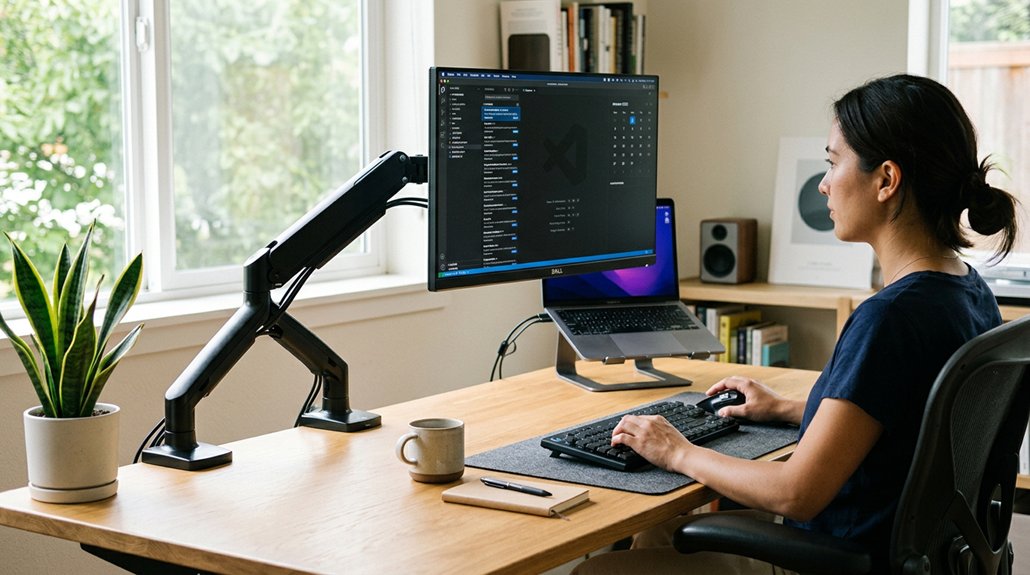
To improve your posture with adjustable arm mounts, position your monitor at or just below eye level and about an arm’s length away. Use the mount’s tilt, swivel, and height adjustments to keep your neck and back in a natural, relaxed position. Keep your spine straight and shoulders relaxed. Organize cables neatly to prevent clutter, and regularly tweak your setup for comfort. Stay mindful of your posture daily—exploring these tips further can lead to lasting ergonomic habits.
Why Proper Monitor Placement Is Key to Comfort and Posture
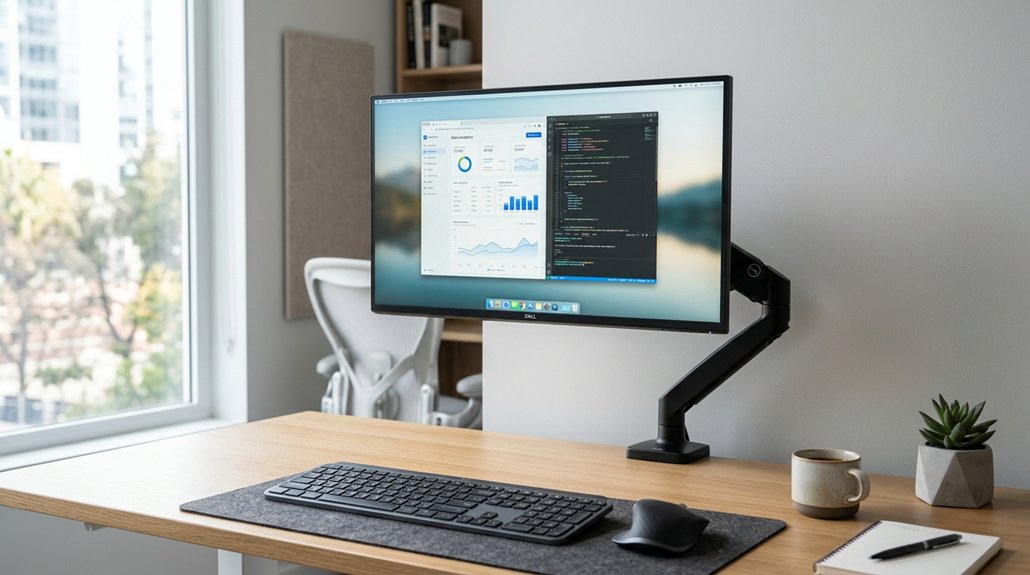
Proper monitor placement is essential for maintaining good posture and comfort throughout your workday. Using an adjustable mount, like a monitor arm, allows you to set the screen at or slightly below eye level, promoting a neutral neck posture and reducing strain.
Keeping the monitor about an arm’s length away prevents you from leaning forward, which can cause shoulder tension. Tilt adjustments of 10 to 20 degrees help minimize glare and encourage a relaxed eye gaze. Centering the monitor directly in front of you avoids head twisting and shoulder imbalance.
With an adjustable mount, you can easily customize the height and angle, enabling ergonomic repositioning whenever needed. These simple adjustments foster better posture, reduce discomfort, and support long-term musculoskeletal health. Additionally, choosing a mount with sufficient reach and extension ensures the monitor can be positioned optimally, especially for ultrawide screens or deep desks.
How to Choose the Right Monitor Mount for Your Workspace
Choose a monitor mount that’s compatible with your VESA pattern and weight to keep your screen secure.
Look for adjustable arms that let you customize height, tilt, and rotation for better ergonomics.
Make sure the mounting method fits your desk and match the mount’s durability and cable management features to keep your workspace organized.
Additionally, consider selecting a stand with a sturdy material and finish, which enhances stability and longevity in your setup.
Compatibility and Adjustability
Selecting the right monitor mount for your workspace involves ensuring compatibility with your monitor’s specifications and your desk setup.
First, check that your monitor is VESA compatible, typically with 75x75mm or 100x100mm patterns, and that the monitor arm supports its weight and size. Look for an adjustable monitor arm that offers extensive adjustability, including height adjustment, tilt (10–20°), swivel, and rotation, to optimize ergonomic positioning.
Verify your desk’s thickness and mounting style—clamp mounts work at the desk edge, while grommet mounts require pre-drilled holes for stability. If using multiple screens, consider dual or pro models for independent adjustment.
Prioritize arms with built-in cable management and adjustable tension controls for a tidy, comfortable workspace that promotes good posture. Additionally, ensuring the mount’s adjustability range aligns with your workspace requirements can significantly impact your ergonomic comfort.
Workspace and Design Fit
Finding a monitor mount that fits seamlessly into your workspace involves evaluating your desk’s dimensions, mounting preferences, and overall layout.
First, check your desk thickness to guarantee the monitor arm’s clamp or grommet mount will support a stable installation. If your desk is thick, opt for a mount with a suitable clamping mechanism or a grommet kit.
Make sure the mount supports your monitor’s size, weight, and VESA compatibility—typically 75x75mm or 100x100mm—to guarantee secure attachment and ergonomic positioning. Consider whether you need a single or dual monitor arm based on your multitasking needs.
Finally, choose a monitor arm with adjustable height, tilt, swivel, and rotation. Features like cable management help keep your workspace organized, enhancing both comfort and aesthetics. Ensuring your mount’s compatibility with desk thickness and monitor specifications is crucial for a safe and efficient setup; refer to clamp design and weight capacity details to select the best fit.
Step-by-Step: Installing Your Monitor Arm Safely and Quickly
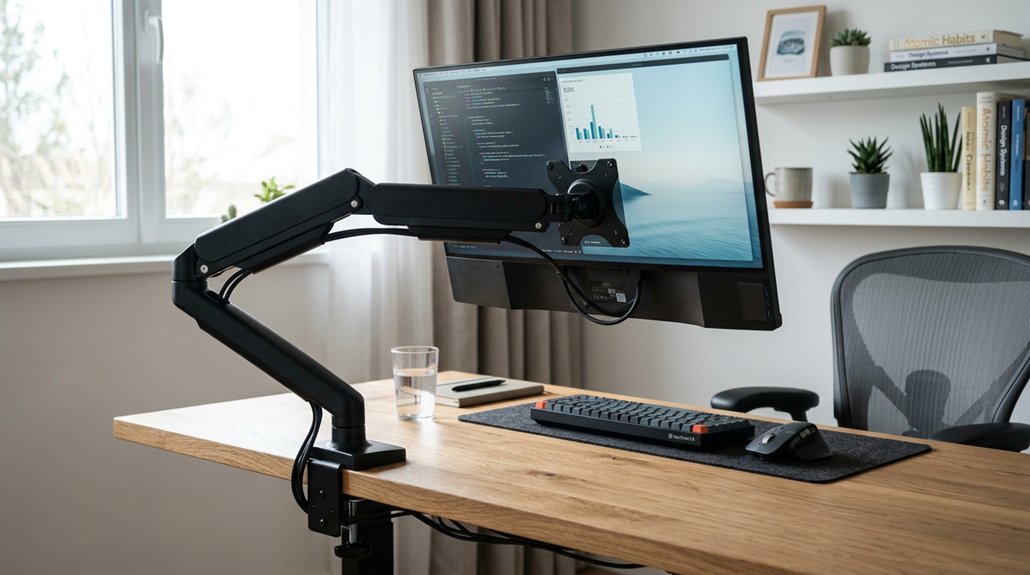
Start by preparing your workspace, making sure your desk can support the monitor arm securely.
Next, follow the manufacturer’s instructions carefully to attach your monitor safely, using the right tools and mounting method.
A stable and sturdy desk surface can enhance the overall mounting stability of your monitor, preventing wobble and ensuring safe support.
Finally, adjust tension and fine-tune the arm for smooth movement and ideal positioning.
Prepare Your Workspace
Setting up your monitor arm correctly begins with preparing your workspace to guarantee a safe and efficient installation.
Start by evaluating your desk’s thickness and strength to confirm it can support the monitor arm’s weight and mounting method. Next, decide between clamping it to the desk edge or using a grommet hole—make sure these are properly drilled and positioned. Consider the clamp stability and grip, ensuring that your mounting surface provides adequate friction and support for the mount’s clamps or clips. Finally, verify that your monitor is VESA compatible (75x75mm or 100x100mm) and within the monitor arm’s size limits. Confirm that your desk surface is free of debris, and clear enough space for maneuvering tools.
These steps create a stable base, guaranteeing your monitor stays secure and adjusts smoothly during use.
Attach Monitor Safely
How can you guarantee your monitor arm is installed safely and efficiently? First, verify that your desk thickness and strength meet your monitor arm’s specifications for stable support.
Check the manual to confirm the weight capacity matches your monitor’s size and weight. Select the appropriate mounting method—clamp for desk edges or grommet for pre-drilled holes—and follow the manufacturer’s instructions to securely fasten it.
Attach your monitor to the arm using the compatible VESA mount, typically 75x75mm or 100x100mm, and utilize any quick-release mechanisms if available.
Once installed, tighten all joints and fasteners on your adjustable arm mounts to prevent wobbling or screen drift. Sturdy materials and proper adjustment are crucial for a secure, ergonomic setup that promotes better posture and workspace safety.
Adjust and Fine-Tune
Once you’ve securely mounted your monitor arm, the next step is to adjust and fine-tune it for ideal comfort and stability.
To do this effectively:
- Adjust the height so the top edge of your screen is at or just below eye level, reducing neck strain.
- Fine-tune the screen position to guarantee it’s approximately an arm’s length away, promoting a neutral posture.
- Use the monitor arm’s range of motion to find the correct angle and tilt, preventing awkward neck angles or glare.
- Consider the ergonomic design principles of adjustable mounts, ensuring your setup supports healthy posture habits.
If your monitor uses a gas spring monitor arm, fine-tune the tension settings to prevent drifting or bouncing.
Regularly re-tighten fasteners to maintain stability, assuring your screen stays in the best position for comfort and proper ergonomics.
How to Adjust Your Monitor Height and Angle for Ergonomic Comfort
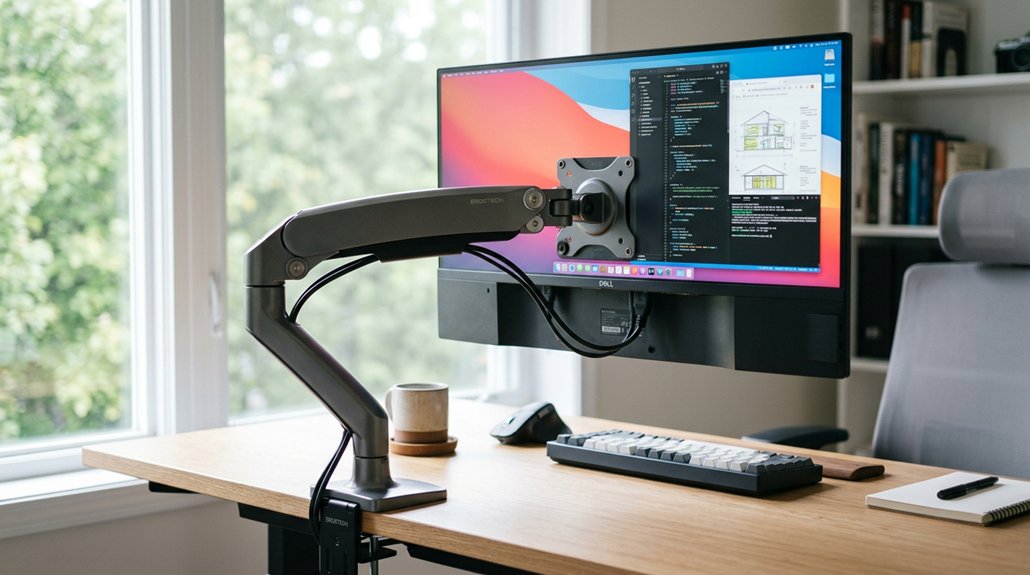
Ever wondered how to position your monitor for maximum comfort and productivity? Start by adjusting the monitor height using your adjustable arm. Aim to set the top of the screen at or slightly below eye level to maintain a neutral neck posture and prevent strain.
Adjust your monitor so the top is at or just below eye level for optimal comfort and posture.
The monitor arm helps hold the screen steady while allowing easy repositioning. Keep the monitor about an arm’s length away to reduce eye strain and prevent leaning forward or slouching.
Tilt your head slightly upward between 10 to 20 degrees to minimize glare and avoid neck bending. Regularly check and fine-tune the monitor’s angle and height, so it stays aligned and comfortable throughout the day.
Proper positioning helps maintain good posture and keeps you comfortable.
What’s the Best Way to Position Dual Monitors to Reduce Strain?
Positioning dual monitors effectively can considerably reduce neck and shoulder strain during long work sessions. To do this, follow these steps:
- Use a dual monitor arm to place your primary monitor directly in front of you at eye level, with the top of the screen at or slightly below eye height.
- Align the secondary monitor side-by-side, angled inward slightly to minimize neck rotation and shoulder strain during screen switching.
- Adjust each monitor using monitor arms to guarantee both screens are at an equal, comfortable distance — about an arm’s length — with minimal gap between bezels. Secure monitor arms on a stable desk mount, and manage cables neatly to prevent wobbling, supporting the right position to reduce neck and eye strain.
Proper placement facilitates smoother shifts and better ergonomic comfort.
How to Tilt and Swivel Your Monitor for Better Viewing and Reduced Glare
Adjusting your monitor’s tilt and swivel can greatly enhance your viewing comfort and reduce glare that causes eye strain.
With an adjustable arm mount, you can tilt your monitor upward between 10° to 20°, minimizing glare from overhead lighting while maintaining a comfortable angle that reduces neck strain.
Use the swivel feature to angle the screen slightly toward your line of sight, especially if you have dual monitors, to prevent repetitive neck twisting.
Position the top of your screen at or just below eye level, so your natural tilt supports a relaxed, downward gaze without tilting your head excessively.
You can also fine-tune tilt and swivel settings throughout the day, ensuring continuous ergonomic comfort by adapting to changes in lighting and posture.
Tips for Organizing Cables and Creating a Tidy, Ergonomic Workspace
Keeping your cables organized helps create a cleaner, more efficient workspace. Use built-in cable management channels, Velcro straps, and desk grommets to route wires neatly and prevent interference.
Position cables away from movement areas to maintain both cable integrity and ergonomic comfort.
Use Cable Management Channels
Utilizing the built-in cable management channels on adjustable arm mounts is an effective way to organize your workspace. Proper cable management helps keep cables tidy, reducing clutter and supporting an ergonomic workspace.
By routing cables through monitor arms, you prevent tangles that can restrict full monitor movement, making it easier to maintain good posture.
To maximize benefits, consider these tips:
- Secure cables within channels to keep your desk surface clear and prevent accidental tugging.
- Use the channels to route cables neatly along the arm, reducing visual clutter and improving workspace aesthetics.
- Regularly check cable routing to guarantee they remain secure, helping the monitor arm stay stable at your peak ergonomic height and angle.
This approach promotes better arm and wrist positioning while fostering a stress-free environment.
Optimize Monitor Placement
To create a workspace that’s both tidy and ergonomic, start by strategically positioning your monitor using an adjustable arm. Use a monitor arm or monitor mounts to fine-tune your screen angle and bring the monitor closer, reducing neck strain and promoting better posture.
Adjust the monitor height to align with your eye level, minimizing head tilt. With cable management features on your monitor arm, route and conceal wires to keep your desk clutter-free. Secure cables with Velcro straps or clips along the arm to prevent loose wires from interfering with adjustments.
Opt for a desk clamp or grommet mount to minimize exposed cables and maximize free desk space for essentials. Regularly check and re-arrange cables after adjustments to maintain a neat, ergonomic setup that supports your comfort and productivity.
Maintain Clear Desk Space
An organized workspace begins with effectively managing cables to keep your desk neat and ergonomic. Proper cable management on adjustable monitor arms guarantees a clutter-free environment and better workspace organization.
To do this:
- Use built-in cable channels on adjustable monitor arms to route wires neatly and prevent desk clutter.
- Secure excess cable length with clips or ties, avoiding tangles and obstructing your workspace.
- Position monitor arms near desk edges or grommet holes for streamlined cable routing, reducing strain on connectors.
Elevating monitors with arm mounts frees up valuable desk space for ergonomic accessories like keyboards and notebooks.
Regularly check and tighten cable clips to maintain a stable, tidy setup, which supports your posture and minimizes distractions.
How to Maintain Good Posture With Your Monitor Setup Over Time
Maintaining good posture with your monitor setup over time requires regular adjustments and mindful positioning. Use your monitor arm to keep the screen top at or just below eye level, promoting a neutral neck position and reducing strain.
Keep the monitor at arm’s length distance, and tilt it upward 10 to 20 degrees to minimize glare and support relaxed eye gaze. Periodically check and tighten the monitor arm’s joints and tension to prevent sagging, which can lead to poor posture.
Utilize the multi-directional adjustments to keep the screen centered and aligned with your natural line of sight, avoiding neck twisting and shoulder tension. Incorporate brief posture resets and stretching breaks during work to sustain the ergonomic benefits supported by an adjustable monitor setup over time.
Troubleshooting Common Issues With Monitor Mounts and Setup
Have you noticed your monitor wobbling or drifting unexpectedly? To keep your setup ergonomic and stable, check a few key factors.
- Make sure your desk’s thickness and strength match the monitor arm’s specifications to prevent sagging or instability during adjustments.
- Regularly adjust the tension settings on your monitor arm to stop drifting or bouncing, ensuring it stays where you position it.
- Confirm all joints and fasteners are securely tightened after installation. This prevents wobbling and helps maintain the correct screen height, reducing neck strain.
Additionally, avoid excessive tilt, aiming for a slight upward tilt of 10–20°. Properly aligned, your monitor will support better posture and reduce discomfort throughout your workday.
Practical Tips to Maximize Ergonomics and Increase Productivity
Optimizing your workspace for comfort and efficiency starts with fine-tuning your monitor setup. Using a monitor arm and right monitor arm, you can easily position your screen at or slightly below eye level. This helps you maintain a neutral neck posture and reduce strain during long work sessions.
Keep the monitor about an arm’s length away to minimize eye fatigue and promote relaxed shoulder alignment. Tilt the screen upward 10 to 20 degrees to cut glare and prevent neck tipping. Regularly adjusting the adjustable arm mounts throughout the day allows you to adapt to posture changes and stay comfortable.
Additionally, utilize built-in cable management to keep your workspace tidy, reducing distractions and boosting productivity. Proper monitor positioning is key to improving posture and enhancing your overall work experience.
Frequently Asked Questions
Are Armrests Good or Bad for Posture?
Armrests are good for posture when properly adjusted because they support your forearms, reduce shoulder tension, and help keep your shoulders relaxed. But if they’re misaligned, they can encourage slouching or strain, so adjust them carefully.
Is It Better to Look Down or Up?
You should look slightly downward or straight ahead. This maintains a neutral neck posture, reduces strain, and is more comfortable. Avoid looking up, as it causes chin lift, neck tension, and shoulder strain over time.
How to Fix Bad Posture From Desk Job?
To fix bad posture from desk jobs, you should adjust your monitor to eye level, keep your shoulders relaxed, avoid leaning forward, and take regular breaks to stretch, ensuring your body stays supported and aligned throughout the day.
Should Your Monitor Be Directly in Front of You?
Yes, your monitor should be directly in front of you. This keeps your neck neutral, reduces strain, and promotes better posture. Use an adjustable arm mount to guarantee the monitor stays at eye level and aligns perfectly with your line of sight.



