
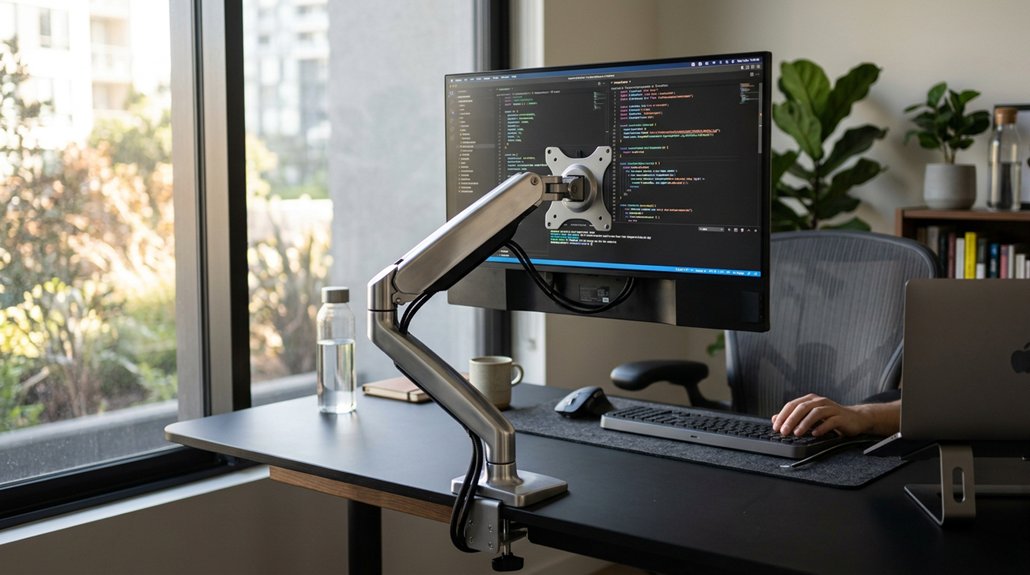
To reduce eye strain with monitor arms, position your screen so the center is 4–6 cm below eye level, ensuring a natural downward gaze of 10–20°. Maintain a distance of 50–80 cm, depending on your screen size. Tilt the monitor back 5–10° to minimize glare. Adjust the arm so your monitor is stable, and leave some slack in the cables to prevent tension. Keep these tips in mind to improve comfort — if you want more details, continue exploring.
How Monitor Placement Affects Eye Comfort and Posture
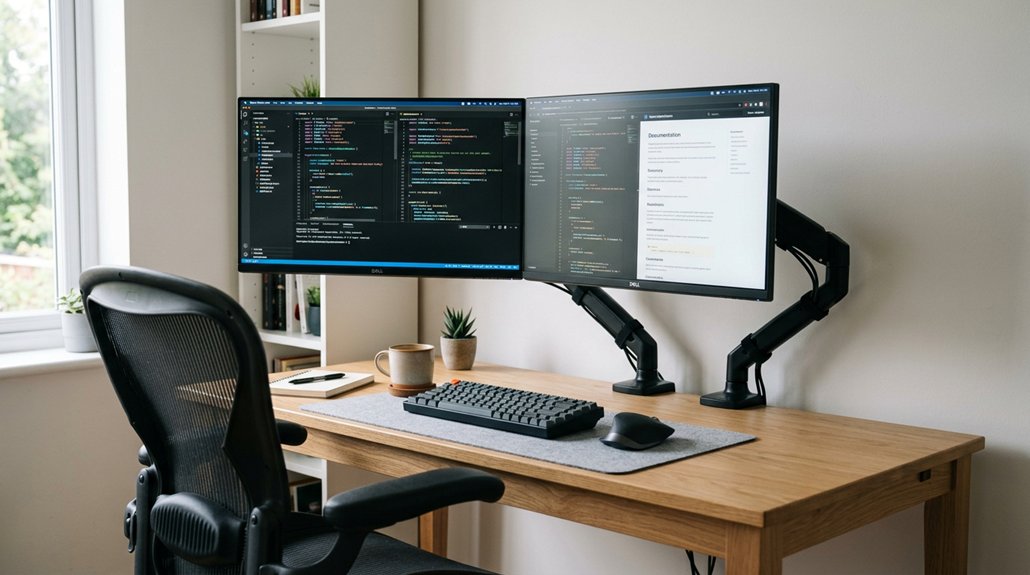
Proper monitor placement plays a crucial role in ensuring eye comfort and maintaining good posture. Using monitor arms allows you to adjust screen height, positioning the center 4–6 cm below eye level. This encourages a natural downward gaze of 10–20°, reducing eye and neck strain. Additionally, ensuring your monitors support proper range of motion and ergonomic adjustability helps you fine-tune their position for optimal comfort. With tilt adjustments, you can prevent glare from overhead or window light, improving visual comfort. Maintaining an ideal viewing distance—50–70 cm for smaller screens or 60–80 cm for larger ones—helps minimize eye focusing effort. Proper placement promotes a neutral neck position, preventing muscular overload caused by upward or extreme tilting of the head. When your monitor aligns with your eye level and is correctly positioned, you support better posture and reduce fatigue, making your workspace more comfortable and healthy.
Best Practices for Setting Monitor Height, Distance, and Tilt
Adjusting your monitor’s height, distance, and tilt is essential for maintaining comfortable and healthy viewing. Set the monitor height so the screen center is 4–6 cm below eye level, promoting a natural downward gaze that reduces eye and neck strain.
Maintain a viewing distance of 50–80 cm, depending on your screen size and resolution, to lessen eye focus effort. Tilt the monitor backward by 5–10° to align with your downward eye angle and minimize reflections from overhead lighting.
Use monitor arms with at least 30 cm vertical travel and 30–50 cm horizontal reach for easy, precise adjustments, especially when using progressive lenses. Regularly fine-tune these settings over days for ergonomic positioning and to prevent visual fatigue.
How to Choose and Install the Right Monitor Arm for Ergonomic Setup
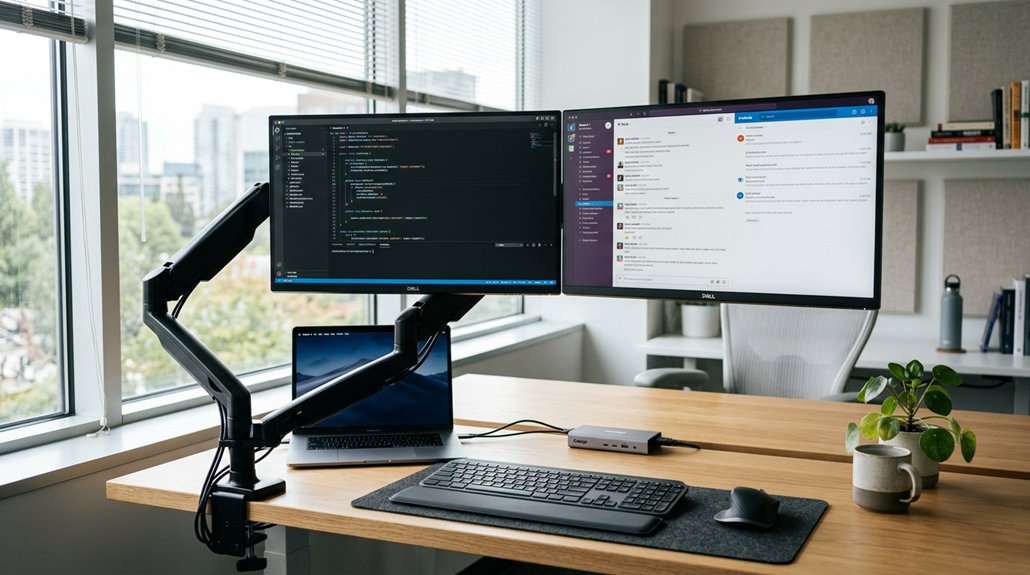
Choosing the right monitor arm is essential for creating an ergonomic workspace that adapts to your needs. Select a monitor arm with a weight capacity 20–30% above your monitor’s weight to guarantee stability.
Look for ergonomic adjustments like vertical travel of at least 30 cm and horizontal reach of 30–50 cm, allowing you to find the perfect position. Install the arm on a stable desk or grommet mount to prevent wobbling, avoiding areas near cut-outs or drawers.
Leave 10–15 cm of cable slack at joints to prevent tension that can cause undesired tilt or movement shifts. Position the monitor so that the screen center is 4–6 cm below eye level with a slight backward tilt, supporting a neutral neck posture and reducing eye strain, glare, and neck discomfort. Considering a long arm monitor mount can also help achieve the ideal reach and flexibility for your setup.
How to Adjust Your Monitor Arm Step by Step for Optimal Comfort
To set your monitor arm for maximum comfort, start by adjusting the height so the screen’s center is 4–6 cm below your eye level. This creates a downward gaze angle of 10–20°, reducing neck strain. Next, set the monitor distance based on your screen size, guaranteeing a relaxed posture. Then, tilt the monitor arm 5–10° backward to reduce glare and reflections. Balance the gas spring tension so the monitor stays stable at your chosen height and tilt, avoiding unwanted droop. Leave 10–15 cm of cable slack at arm joints to prevent tension that can affect movement. Ensuring your monitor stand or arm has adjustable joints will also help fine-tune positioning for optimal comfort.
Tips to Protect Your Eyes and Prevent Screen Fatigue During Extended Use
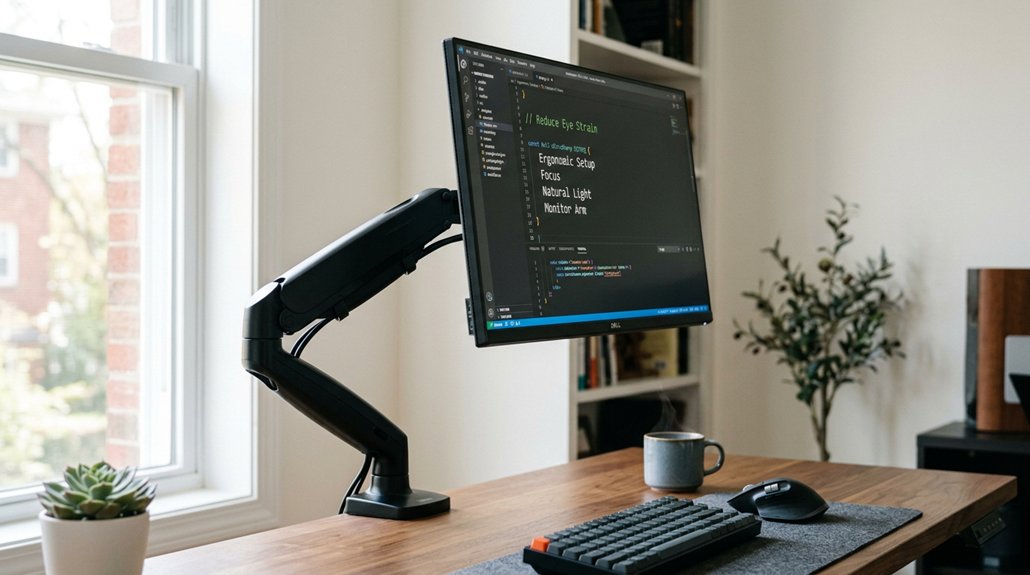
Extended screen time can lead to eye fatigue and discomfort, but you can take simple steps to protect your eyes and enhance visual comfort.
Use monitor arms to position your screen so the center is 10–20° below eye level, encouraging a slight downward gaze that reduces eye and neck strain. Keep the monitor about an arm’s length away (50–80 cm), avoiding small text that forces excessive focus. Tilt the monitor back 5–10° to minimize glare from overhead lights and windows, improving visual clarity.
Sync monitor arm height with sit-stand workspaces to maintain consistent viewing angles and prevent unnecessary refocusing. Finally, add backlight bias lighting behind the monitor, adjusted to 10–30% of screen brightness, to soften contrast and reduce eye fatigue during long sessions. Incorporating bias lighting kits that support adjustable brightness and color options can further enhance eye comfort.
Frequently Asked Questions
How to Fix Eye Strain From Monitor?
You fix eye strain from your monitor by adjusting its position with a monitor arm, keeping the screen 10-20° below eye level, reducing glare, taking regular breaks, and maintaining proper posture to lessen muscular and eye fatigue.
What Is the 10 10 10 Rule for Screens?
The 10 10 10 rule for screens means you take a quick 10-second break every 10 minutes and look at something 10 feet away. This habit helps reduce eye strain and keeps your eyes refreshed during screen time.
What Is the Best Monitor Setting to Reduce Eye Strain?
Set your monitor brightness to match ambient lighting, use a comfortable contrast, and guarantee text is sharp without flickering. Adjust the color temperature to warmer tones, and maintain proper positioning with monitor arms for peak comfort.
Does 240HZ Reduce Eye Strain?
Yes, a 240Hz refresh rate can reduce eye strain by minimizing flicker and motion blur, especially during fast-moving content. However, comfortable positioning, proper brightness, and ambient lighting are equally important for preventing eye fatigue.



