
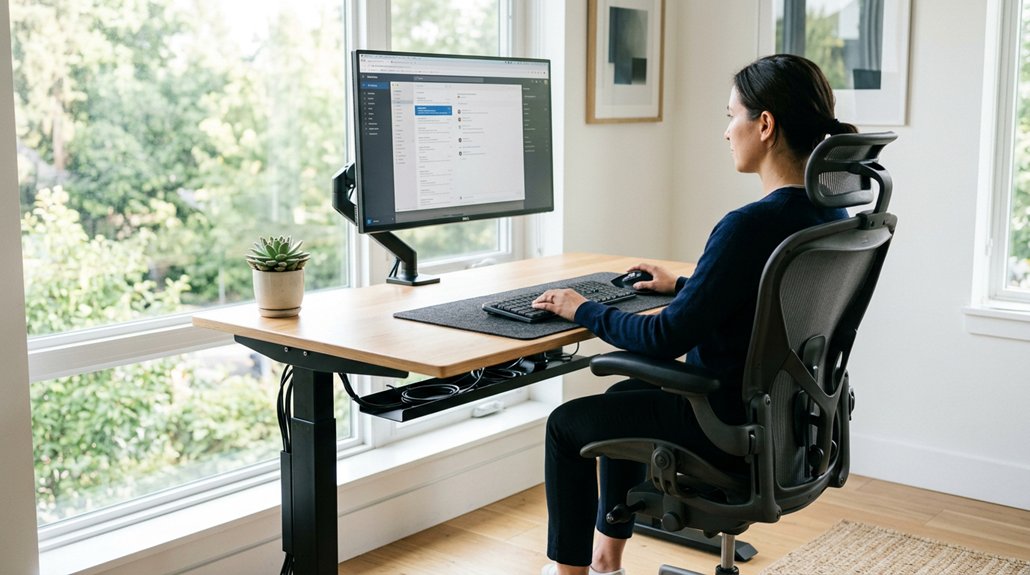
To support better posture at your desk, position your monitor at eye level, using adjustable stands if needed, and keep it directly in front to avoid twisting your neck. Use a footrest to keep your feet flat and comfortable, and choose an ergonomic chair with adjustable lumbar support for proper lower back support. Arrange your keyboard and mouse for natural, relaxed arms, and keep essentials nearby to prevent overreaching. An anti-fatigue mat can boost standing comfort. Keep exploring for more tips to enhance your setup.
Set Your Monitor at Eye Level for Better Posture
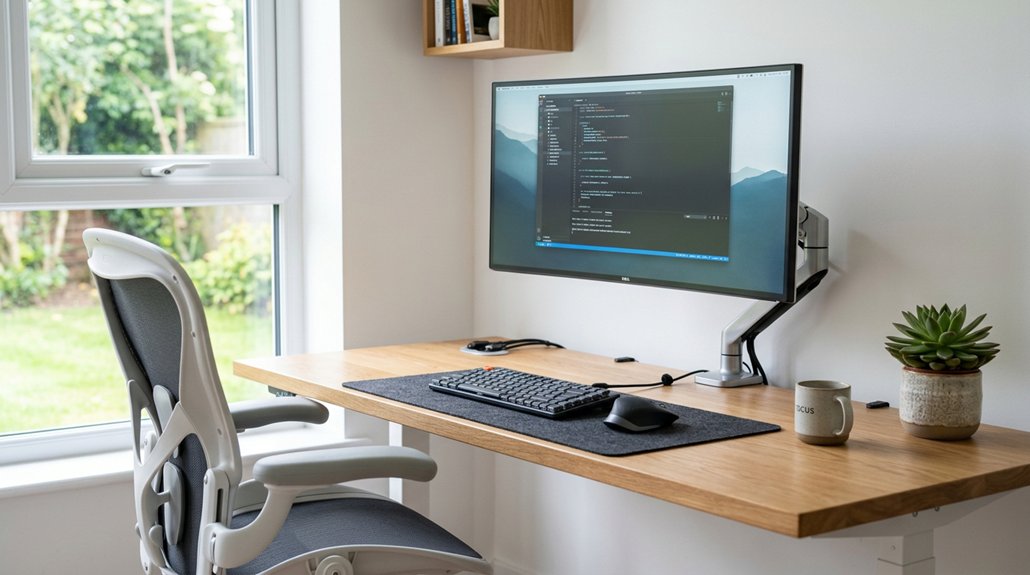
To support better posture, it’s essential to position your monitor at eye level. Place your computer monitor about 18-24 inches from your face with the top third aligned to your eye level. This setup helps maintain natural curves in your neck and prevents forward head posture, which can increase neck strain and contribute to neck and back pain. Using an adjustable monitor stand allows you to easily customize the height for optimal ergonomic positioning. If you wear bifocals, lower the monitor 1-2 inches to avoid awkward neck bending. Make sure the monitor is centered directly in front of you to prevent twisting your neck and shoulders, which can cause muscle fatigue and spinal misalignment. Regularly check and adjust your monitor’s height throughout the day to guarantee proper ergonomics, promoting healthier posture and reducing discomfort.
Use a Footrest to Keep Feet Flat and Improve Leg Comfort
Using a footrest can greatly improve your sitting posture by keeping your feet flat on the ground. This supports proper posture, reduces asymmetrical loading on your spine, and promotes better lower back health.
A footrest prevents leg fatigue by ensuring even weight distribution over both hips and minimizes pressure on your lower limbs.
To maximize benefits:
- Adjust the footrest so your feet are flat, maintaining a 90-degree angle at your knees and hips.
- Keep your thighs parallel to the ground for a neutral spine alignment.
- Prevent dangling feet, which can cause stress and discomfort, by providing stable support.
- Choosing a footrest with non-slip surfaces or textured bottoms can further enhance stability during prolonged sitting.
Using a footrest helps maintain a healthy posture, reduces muscle stiffness, and prevents strain on your lower back.
Choose an Ergonomic Chair With Adjustable Lumbar Support
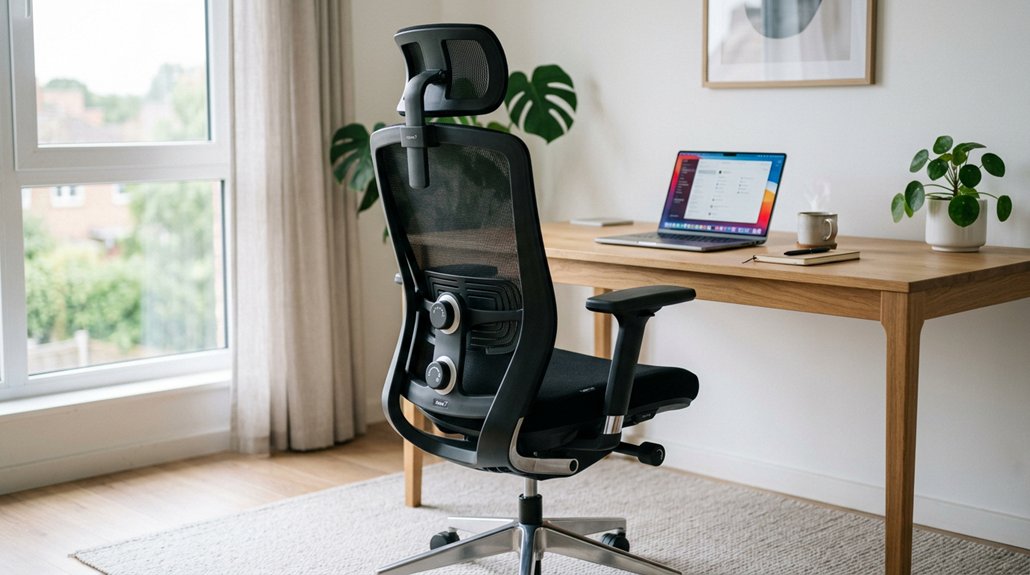
When choosing an ergonomic chair, make sure the lumbar support can be adjusted to fit the natural curve of your lower back. Proper height and firmness settings help maintain good posture and reduce strain during long sessions. A customizable fit guarantees you stay comfortable and support your back effectively all day. Additionally, look for chairs with adjustable lumbar cushions that offer vertical and horizontal adjustments or inflatable options to personalize your lower back support precisely.
Adjust Lumbar Height
Choosing an ergonomic chair with adjustable lumbar support allows you to customize the fit to your lower back’s natural curve, promoting better posture and comfort.
To optimize lumbar adjustment:
- Guarantee the lumbar support aligns with your natural lordotic curve, supporting your lower back’s shape.
- Adjust the lumbar height so it snugly fits into the lower back, maintaining proper alignment and reducing strain.
- Use additional support, like a rolled towel or pillow, if needed, for personalized comfort and stability.
- Select a chair with adjustable height and angle features to ensure comprehensive support for your entire back and seating position.
Proper lumbar support decreases stress on spinal ligaments, reduces muscle fatigue, and minimizes pain.
Consistent lumbar support during sitting promotes spinal health by maintaining a neutral pelvis and sitz bones alignment, vital for long-term posture and avoiding back issues.
Ensure Custom Fit
To guarantee a proper fit, look for an ergonomic chair with adjustable lumbar support that can be tailored to your individual needs. This guarantees proper sitting posture by aligning your back and supporting spinal alignment during prolonged sitting. The lumbar support should be customizable in height and firmness, helping keep your pelvis in a neutral position and maintaining the natural curve of your lower back. Additionally, selecting a cushion with zoned support can enhance targeted pressure relief and further improve ergonomic comfort.
Position Your Keyboard and Mouse for Natural, Relaxed Arms
Position your keyboard directly in front of you at the same height as your elbows, ensuring your wrists and forearms stay aligned. This promotes relaxed arms and a natural desk posture.
Align your keyboard with your elbows for relaxed arms and natural, comfortable posture while working.
To optimize your setup:
- Keep your forearms parallel to the floor and form a 90-degree angle with your upper arms.
- Place the mouse close to the keyboard on the same surface within easy reach to avoid unnecessary shoulder reaching and rotation.
- Maintain straight wrists and keep your upper arms close to your body to reduce nerve impingement and muscle fatigue.
- Use ergonomic accessories such as wrist supports or cushioned palm rests to help maintain a neutral wrist posture and prevent strain during prolonged typing sessions.
Adjust your keyboard height so your elbows are at a comfortable level, supporting relaxed arms. Keep the mouse close and sensitive for light touches, minimizing strain during extended use.
Proper positioning fosters better ergonomics and overall comfort.
Use a Document Holder to Reduce Neck Turning and Strain
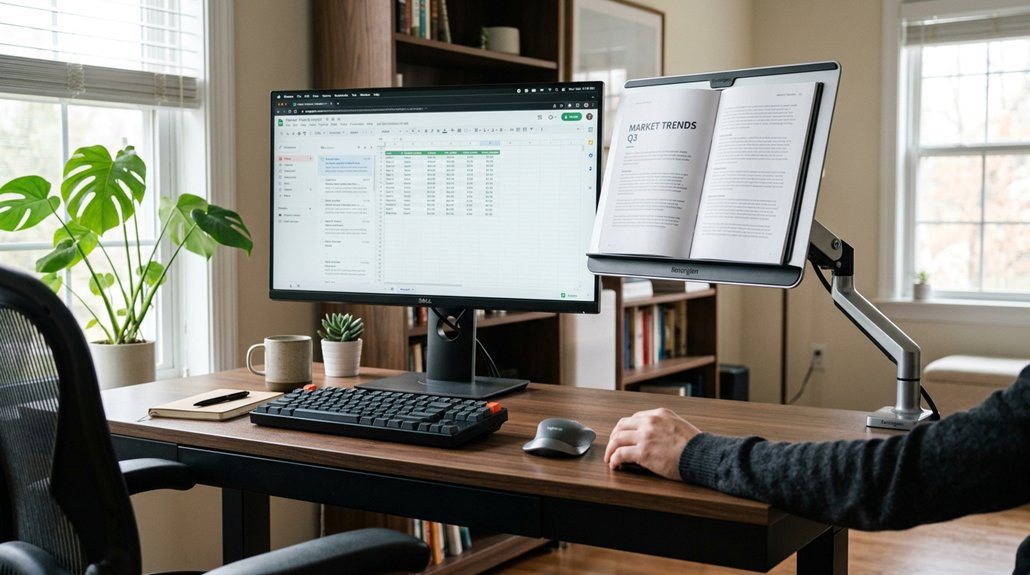
Using a document holder placed at eye level helps keep your neck in a neutral position by eliminating the need to look down at papers. This setup reduces neck strain and prevents forward head posture, which can add up to 10 pounds of force per inch of shift. Proper use of a document holder keeps your head aligned with your spine, promoting straight neck and neutral spine alignment during work. Placing the holder close to your monitor makes it easier to glance at documents without excessive head turning. Here’s a visual to help you set up:
| Position | Distance from Monitor | Angle | Height | Purpose |
|---|---|---|---|---|
| Eye level | Close | Flat | Same as monitor | Reduce neck strain |
| Near monitor | Slightly closer | Slight tilt | Slightly below eye level | Maintain ergonomics |
| Directly in front | Aligned | Flat | Same as monitor | Support neutral spine |
| To the side | Slightly to side | Adjustable | Slightly below eye level | Minimize head turn |
| Above monitor | Slightly higher | Flat | Slightly above eye level | Reduce neck extension |
Additionally, choosing a durable material for your document holder can ensure long-term ergonomic support and stability during daily use.
This setup supports proper ergonomics, helping avoid neck pain and headaches.
Keep Frequently Used Items Close to Prevent Overreaching
Keeping frequently used items within arm’s reach minimizes the need to stretch or twist awkwardly, which can strain your shoulders and neck. When items like your phone, documents, or office supplies are within easy reach, you prevent neck pain and keep your shoulders relaxed. A supported monitor position also enhances your posture by reducing unnecessary movements during work.
To optimize your setup:
- Place the most-used items close to your primary work area.
- Avoid leaning forward or sideways by organizing essentials nearby.
- Maintain a clutter-free desk, so everything is accessible without stretching or twisting excessively.
This setup supports good posture and helps reduce musculoskeletal fatigue. Physical therapists often recommend these adjustments to prevent discomfort and encourage stretching breaks.
Enhance Standing Comfort With an Anti-Fatigue Mat
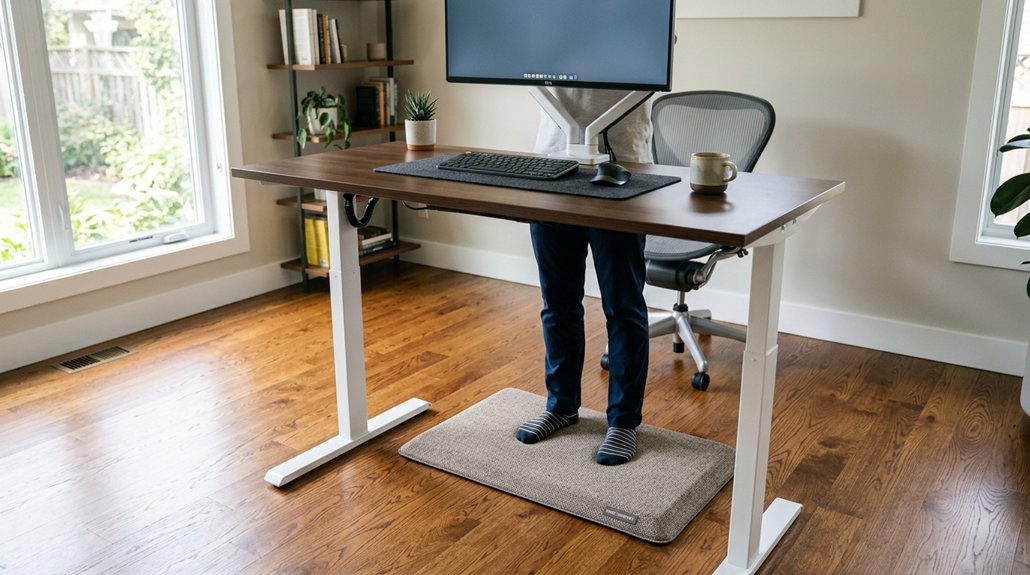
Standing desk setups can be markedly more comfortable when you incorporate an anti-fatigue mat into your workspace. This simple addition offers cushioned support that reduces pressure on your feet, knees, and hips, promoting better posture. An anti-fatigue mat encourages subtle muscle movements, helping to reduce fatigue and improve circulation during long periods of standing. It also absorbs shock and relieves spinal compression, supporting natural spinal curves and decreasing joint strain. To maximize benefits, place the mat where you stand most often and guarantee it has a non-slip backing for safety. Using a high-quality mat with non-slip bottom material can further enhance safety during extended standing sessions.
Frequently Asked Questions
How Often Should I Take Breaks to Improve Posture?
You should take breaks every 30 to 60 minutes to improve posture. Stand, stretch, or walk around during these intervals to reduce strain and prevent musculoskeletal problems, ensuring your desk setup remains comfortable and supportive.
What Are Signs of Poor Ergonomic Setup?
Signs of poor ergonomic setup include persistent neck, shoulder, or back pain, frequent discomfort, headaches, eye strain, and fatigue. If you notice these, it’s a clear sign you need to adjust your workstation for better support and comfort.
Can I Use Regular Furniture for Better Posture?
Yes, you can use regular furniture for better posture if it’s adjustable and supportive; guarantee your chair and desk align with ergonomic principles, maintaining good lumbar support, proper height, and positioning to prevent strain and discomfort.
How Do I Adjust My Chair for Optimal Support?
Adjust your chair by setting the height so your feet rest flat on the floor, knees are at a 90-degree angle, and your hips are slightly higher than your knees. Keep your back fully supported and elbows close to your body.
Are There Specific Exercises to Complement Desk Posture?
You can do exercises like shoulder rolls, neck stretches, and upper back squeezes daily. These movements improve flexibility, reduce tension, and support proper posture, helping you stay comfortable and aligned during long desk hours effortlessly.



