
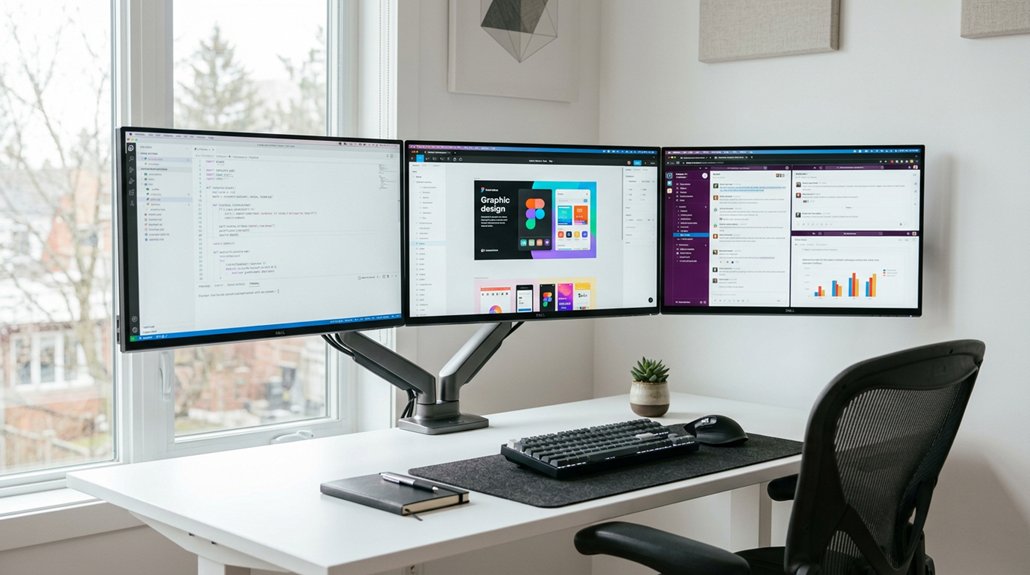
To set up your triple monitor arm effectively, position the center monitor directly in front of you, with side monitors angled inward at about 30° for natural viewing. Keep the top edges at or just below eye level and maintain an arm’s length distance to reduce eye strain. Guarantee your desk supports the weight and size of your monitors, and use flexible, VESA-compatible arms for easy adjustments. For more detailed tips on achieving an ergonomic and tidy workspace, keep exploring.
Why a Proper Triple Monitor Setup Boosts Your Productivity and Comfort
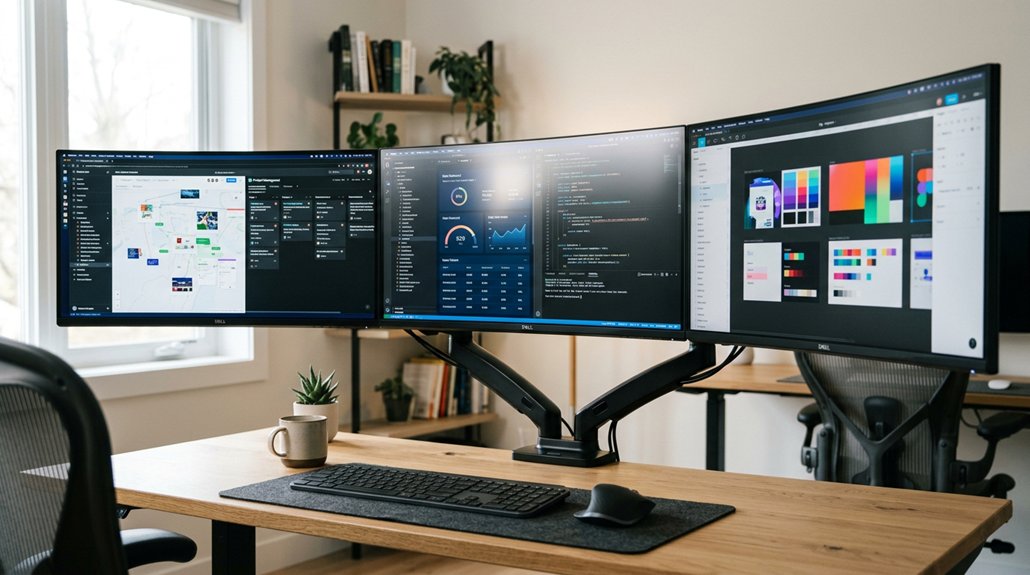
A proper triple monitor setup greatly boosts your productivity and comfort by giving you more screen space to work efficiently. When you use a monitor arm, you can position your screens at eye level, reducing neck strain and promoting ergonomic comfort. Align the center monitor directly ahead, with side monitors angled slightly inward at about 30 degrees, so your eyes can easily shift between screens without discomfort. Maintaining an ideal viewing distance of 20 to 28 inches helps prevent eye strain and encourages good posture. Range of motion and adjustability features in monitor arms allow you to customize your setup for maximum comfort and efficiency. Cable management keeps your desk tidy, freeing up space and streamlining your workflow. This setup turns your workspace into a productivity powerhouse, allowing you to multitask with ease, minimize fatigue, and stay focused longer.
How to Evaluate Your Desk Space, Monitor Sizes, and Weight Limits
Start by measuring your desk to guarantee it’s at least 60 inches wide and 30 inches deep for comfortable placement and cable management. Choose monitors between 24 to 32 inches, with 27 inches being ideal for a balanced view. Always check your monitor’s weight to make sure it falls within your mount’s capacity, typically 30-45 pounds, for safe and stable support. Additionally, verify that your desk’s mounting surface can securely accommodate the stand’s mounting method, whether clamp, grommet, or freestanding.
Desk Dimensions and Layout
Wondering if your desk can support a triple monitor setup? Your desk needs a minimum width of 60 inches and at least 30 inches of depth to comfortably fit triple 27-inch monitors and maintain proper viewing angles. Standard 24-inch depths often fall short, making monitors too close and creating sharp inward angles. Having sufficient arm reach and adjustability is crucial to avoid strain and ensure ergonomic comfort.
It’s essential to take into account the desk’s load capacity, especially when using heavy-duty monitor arms with VESA mounts, which typically support 15-20 pounds each. L-shaped desks with 40-inch depths can improve ergonomics and offer a better focal range.
Opt for a setup that allows your monitor arms to be securely mounted, so your monitors stay stable, keep your desk organized, and maximize space efficiency. Proper dimensions guarantee a comfortable, safe, and functional desk arrangement.
Monitor Weight Capacity
Guaranteeing your desk can handle a triple monitor setup involves more than just the dimensions; understanding the support and monitor weight capacity is equally important.
You need to take into account the total weight your desk can support, including the combined weight of your monitors and monitor stands. Keep these points in mind:
- Most triple support arms typically handle 30 to 45 pounds total, with each arm rated for 15 to 20 pounds.
- Choose a monitor stand that exceeds your monitors’ total weight by at least 15% for safety.
- Monitor sizes between 24 to 32 inches work well for ergonomic and mounting ease.
- Confirm your desk’s sturdiness and depth can accommodate the total weight of the monitors and arm mounts without wobbling.
- Always verify the weight capacity of your mounts and ensure your desk’s material and construction can support the setup to maintain stability and safety.
Choosing the Best Triple Monitor Arm for Stability and Adjustability
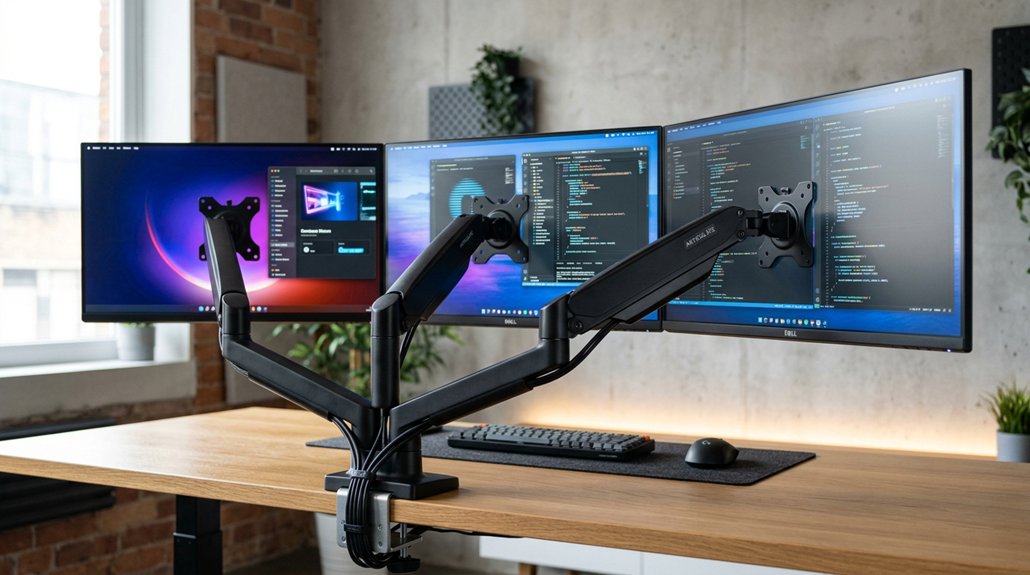
How do you choose a triple monitor arm that offers both stability and versatile adjustability? Start by selecting a monitor arm that supports three monitors, with a weight capacity exceeding your total monitor weight by at least 15%.
Look for a Multi Monitor setup featuring individual height, tilt (5° forward to 35° backward), rotation (360°), and extension (4–16 inches) adjustments—these are essential for ergonomic eye-level alignment. Make sure the arm is compatible with VESA mounting standards and rated for 15–20 pounds per arm to prevent wobbling and support stability.
Considering the adjustability options available can significantly impact your workspace comfort and ergonomics, so prioritize models that offer multiple flexible positioning features.
Finally, opt for a model with integrated cable management, keeping your workspace tidy and allowing smooth adjustments during long work sessions.
Installing Your Monitor Arm Safely and Securely in Easy Steps
To install your triple monitor arm safely and securely, start by double-checking that your desk can support the combined weight, which typically ranges from 30 to 45 pounds plus a safety margin. Securely attach the setup arm’s base or clamp to a desk edge or surface at least 30 inches deep for stability and proper monitor positioning. Guarantee each monitor connects with VESA-compatible mounts, matching the arm’s individual weight capacity of 15-20 pounds. Route all cables through the arm’s cable management system to reduce clutter and connector stress. Adjust height, tilt, and rotation to align each monitor at ergonomic eye-level. Position the side monitors angled inward about 30 degrees for peak workspace ergonomics and viewing comfort. Ensuring the stability features of your monitor arm are properly engaged enhances safety and prevents accidental slippage.
Adjusting Monitors for Ergonomic Comfort and Clear Viewing
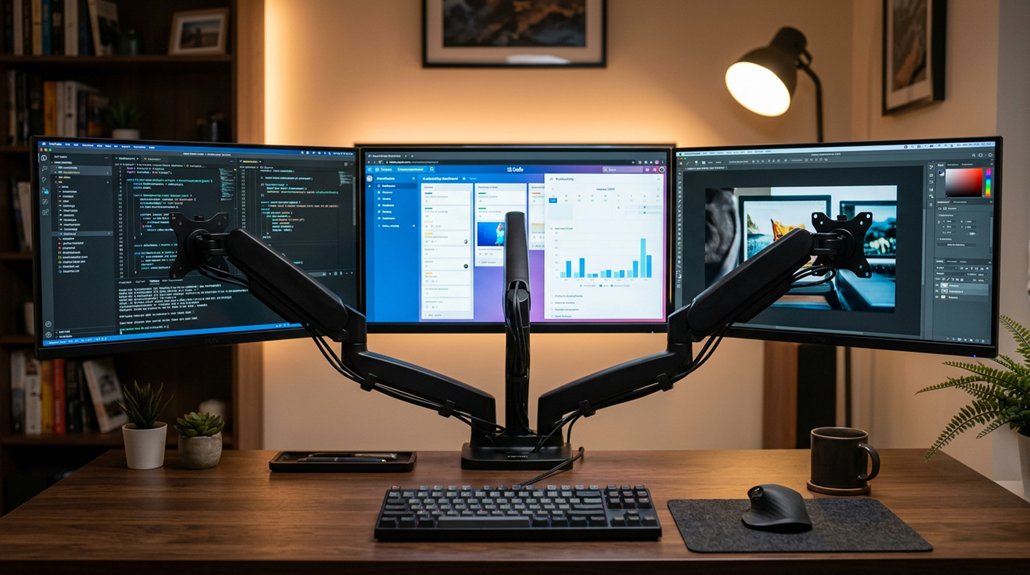
To optimize your viewing comfort, position your monitors so the top edges are at or just below your eye level. Angle the side screens inward about 30 degrees to create a natural line of sight and reduce neck strain. Keep all screens aligned horizontally and at an arm’s length to prevent unnecessary muscle tension and eye fatigue. Additionally, consider using a monitor hood to block glare and reflections, enhancing visual clarity and reducing eye strain during long hours of work.
Monitor Height Alignment
Are your monitors positioned at the right height for comfort and clarity? Proper three monitor height alignment helps prevent neck strain and keeps your head in a natural posture.
Using adjustable triple monitor arms allows you to set each monitor’s height, tilt, and rotation individually for maximum comfort. Aim to align the top edges of all three screens at or just below your eye level to reduce neck and eye fatigue.
Position side monitors with a slight inward tilt of about 30 degrees, maintaining consistent eye-to-screen distance across all displays. Make sure the monitors are set to accommodate a slightly reclined, neutral seating posture, which minimizes cervical spine stress during extended use.
Additionally, considering monitor calibration to ensure consistent brightness and color across all screens can further enhance ergonomic comfort and visual clarity.
Inward Angle Optimization
Proper inward angling of side monitors is key to maintaining ergonomic comfort and reducing neck strain in a triple-monitor setup. You should angle your side monitors about 30 degrees inward to create a natural, symmetrical monitor layout.
This inward angle helps keep each monitor within a consistent eye-to-screen distance, reducing the need for excessive head rotation. Using adjustable monitor arms allows you to fine-tune the inward angle, ensuring each screen stays within your ergonomic posture.
Aligning the monitors in a gentle arc supports seamless peripheral vision and minimizes muscle fatigue. Keep in mind that tilting and rotating your monitor arms helps meet your individual seating preferences and reduce computer vision syndrome risks, creating a comfortable and efficient workspace.
Tips for Cable Management and Making the Most of Your Space
Effective cable management can greatly enhance your triple monitor setup’s appearance and functionality. To keep your monitors and setup looking clean, use the built-in cable management features of your arms, like integrated clips and raceways, to route cables neatly behind your desk.
Bundle power and video cables with ties, sleeves, or spiral wraps to prevent tangling. Consider installing trays or shelves beneath your desk to hide and organize cables, keeping the floor clear. Leave extra slack on cables to allow smooth movement and prevent strain on connectors.
Position power strips and adapters close to your desk with cable anchors, reducing visible clutter and freeing up space on your surface. With these tips, your three screens will be perfectly aligned and your workspace optimized.
Frequently Asked Questions
What Is the Best Layout for 3 Monitors?
You should arrange your three monitors in a symmetrical arc with the center directly in front, angled inward at roughly 30 degrees, ensuring consistent eye distance and minimal neck strain for ideal ergonomics.
How to Set up 3 Monitors With Arms?
You should mount your monitors on calibrated, VESA-compatible arms, then adjust height, tilt, rotation, and extension for eye-level positioning. Angle side monitors inward, guarantee proper distance, and use cable management to keep your workspace tidy.
What Is the Best Curve for Triple Monitor Setup?
The best curve for your triple monitor setup involves angling side screens inward at roughly 30 degrees and maintaining an arc that matches natural eye movement. Use adjustable arms to fine-tune curvature for comfort and an immersive experience.
How to Use 3 Screens Effectively?
You should dedicate each screen to specific tasks, position the center monitor directly in front, angle the side monitors inward, and adjust each for comfort. Keep a consistent viewing distance and optimize UI scaling for better multitasking and ergonomic health.



