
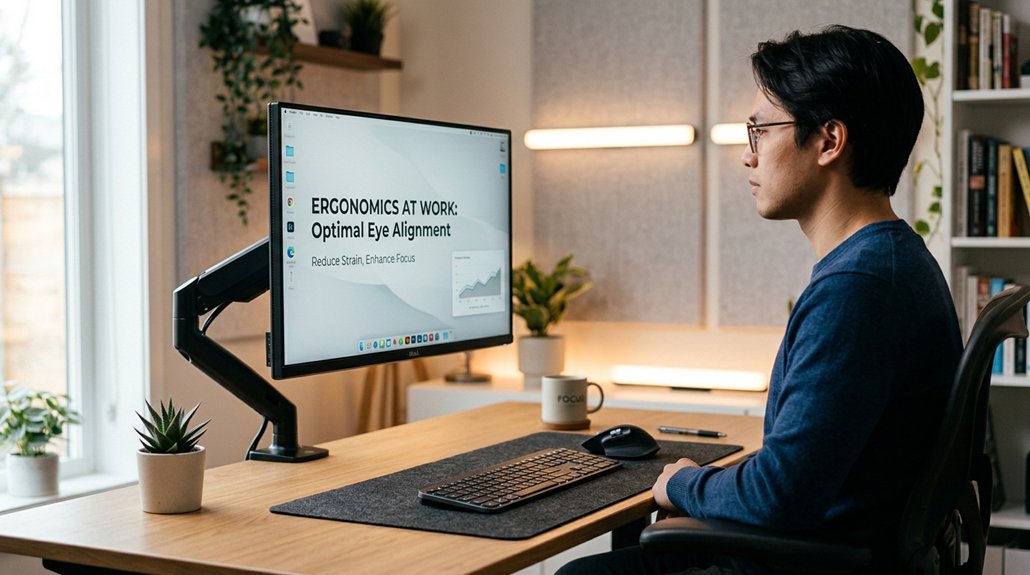
To position your screen for eye strain relief, keep it about 20-30 inches away from your eyes and at or slightly below eye level to promote a natural downward gaze. Tilt the screen back 10-20 degrees to reduce glare, and guarantee the top is just below your eye line. Minimize reflections by positioning your monitor perpendicular to windows and bright lights. Adjust your lighting and take regular breaks to further protect your eyes. Keep going to learn more tips for a comfortable workspace.
Why Good Screen Positioning Reduces Eye Strain
Proper screen positioning directly reduces eye strain by minimizing the effort your eyes must exert to focus and refocus. When your screen is 20-30 inches away, your eyes don’t have to work as hard to maintain focus, preventing muscle fatigue. Using a monitor riser to achieve the correct height and angle ensures your screen is at an optimal viewing level, further reducing strain. Positioning the top of the screen at or just below your eye level encourages a natural downward gaze, reducing eye and neck strain. An ergonomic distance helps keep your eyes moist and less prone to dryness, especially when looking slightly downward. Adjusting the screen tilt by 10-20 degrees reduces glare and reflections, which can cause visual discomfort. Correct screen positioning not only lessens eye strain but also supports good posture, lessening the tension on your neck and shoulders. Focus on these elements for a healthier, more comfortable workspace.
How to Adjust Your Monitor Height for Comfort
Have you ever noticed how your neck and eyes feel tired after hours at the computer? Adjusting your monitor height is key to comfort and reducing strain.
Position the top of your monitor screen at or just below eye level so you naturally look downward, minimizing eye and neck strain. Keep a viewing distance of about 20 to 30 inches—roughly an arm’s length—for peak focus.
Position your monitor so the top is at or below eye level for comfortable, strain-free viewing.
Tilt the monitor slightly backward at 10 to 20 degrees to prevent glare and improve visibility. Use an adjustable stand or a stable monitor arm to achieve ergonomic alignment with your posture.
This setup encourages your eyes to look downward, helping maintain blink frequency and reducing eyelid strain. Proper monitor height is essential for lasting comfort at your workstation. Additionally, choosing a monitor arm with sufficient reach ensures you can position your screen at the optimal distance and angle for decreased fatigue.
Maintaining the Right Distance Between Your Eyes and Screen
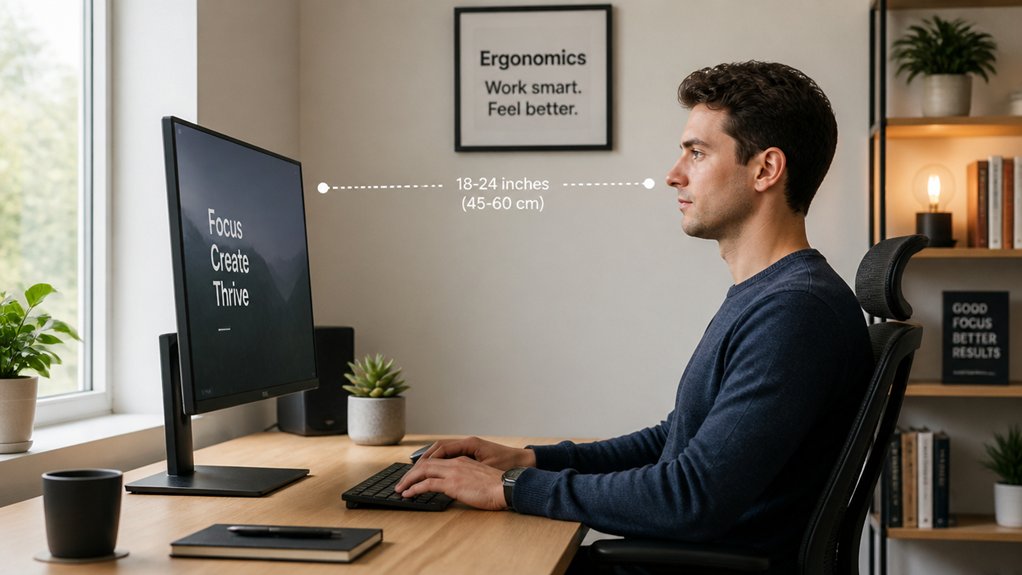
Keeping your screen about 20 to 30 inches from your eyes helps reduce eye strain and muscle fatigue. A proper monitor size compatibility ensures optimal viewing distance and comfort. When the screen is too close or too far, it forces your eyes to work harder to focus, causing discomfort. Adjusting your monitor’s position regularly guarantees you maintain the right distance for lasting comfort.
Optimal Viewing Distance
How close should you sit to your screen to avoid eye strain? For the best comfort, keep your screen about 20 to 30 inches—that’s roughly an arm’s length—away from your eyes. This ideal viewing distance helps you read comfortably without leaning forward or squinting.
Sitting too close (less than 16 inches) increases focus effort, leading to faster eye fatigue. Maintaining this proper distance reduces glare and minimizes unnecessary eye movement and refocusing, giving your eyes a much-needed break.
Use adjustable monitor stands or arms to keep this distance steady, especially during long hours at your desk. Following these tips creates a more comfortable workspace where eye strain is minimized, and your eyes stay healthier and less fatigued.
Proper Screen Placement
Proper screen placement involves more than just sitting at the right distance; it also means positioning your monitor correctly relative to your eyes. Keep your screen 20 to 30 inches away—about arm’s length—to reduce eye strain. The top of the monitor should be at or slightly below eye level, so your gaze naturally looks downward. Adjust the monitor height so your eyes sit roughly 15–20 degrees below horizontal. Tilt the screen back 10 to 20 degrees to minimize glare and maintain comfortable viewing angles. Use stands or height adjustments to achieve ideal position. Proper placement prevents neck strain and reduces glare, keeping your eyes comfortable during long hours. Additionally, selecting a stand with adjustable features enhances ergonomic positioning and aligns with best practices for monitor setup.
Tilt and Angle: Setting Your Screen for Optimal View
Adjusting your screen’s tilt and angle is essential for minimizing glare and ensuring comfortable viewing. To do this effectively:
- Tilt the top of your screen away from you between 10 to 20 degrees to cut down on glare and enhance comfort.
- Position the top of your screen at or just below your eye level. A slight downward angle promotes natural eye movement and reduces strain.
- Keep the screen about 20 to 30 inches away from your eyes, easing focus and preventing eye fatigue.
- Use adjustable stands or mounts to fine-tune your tilt and height, creating an ergonomic workspace that supports your eye health and comfort.
- Ensure your monitor or webcam mounts have firm adjustment mechanisms to maintain steady positioning during extended use.
These adjustments help you avoid unnecessary eye and neck strain during long periods of screen time.
How to Minimize Glare and Reflections on Your Screen
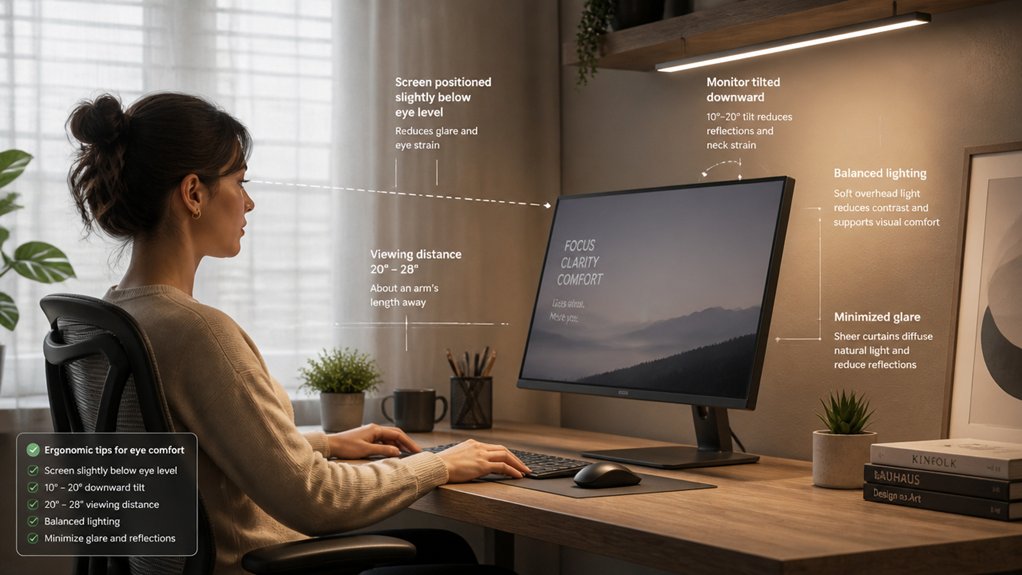
Once you’ve set your screen at the right tilt and height, the next step is to address glare and reflections that can still cause eye strain.
To minimize glare, position your screen perpendicular to windows and bright light sources, preventing direct reflections on the display. Use matte screen protectors or anti-glare filters to reduce surface reflections that lead to visual fatigue. During bright daylight hours, close blinds or curtains and adjust indoor lighting to soften glare without decreasing visibility. Avoid placing your monitor near reflective surfaces that can create distracting reflections.
Regularly clean your screen to remove dust, fingerprints, and smudges, which can increase glare and reduce image clarity. Additionally, choosing an anti-glare protector with high blue-light filtering efficiency can further reduce eye strain caused by blue light exposure. These adjustments can greatly improve screen comfort and help protect your eyes during long hours of use.
Setting Up Your Desk and Chair for Eye-Friendly Posture
Creating an ergonomic setup at your desk is essential for reducing eye strain and maintaining comfort during long hours of screen time. To achieve this, focus on your computer screen and chair adjustments.
- Set your chair height so your feet rest flat on the floor, with knees at a 90-degree angle, promoting an ergonomic posture.
- Position the top of your computer screen at or slightly below eye level to encourage a natural downward gaze and minimize neck strain.
- Keep your screen about 20 to 30 inches (an arm’s length) away to reduce eye fatigue.
- Use an adjustable chair with lumbar support to keep your back straight and avoid upper body tension, supporting a healthy desk workspace.
- Consider lumbar support mechanisms to maintain natural spine alignment and further reduce strain on your back during long periods of sitting.
Optimizing these elements guarantees a comfortable, eye-friendly posture that minimizes strain and fatigue.
Using Adjustable Stands and Mounts to Improve Ergonomics
Using adjustable stands and mounts allows you to customize your monitor’s position for maximum ergonomic benefit. With adjustable stands, you can set the top of your screen at or slightly below eye level, promoting a natural downward gaze that reduces neck and eye strain.
Adjustable mounts enable you to position the monitor about 20 to 30 inches away—roughly arm’s length—helping maintain an ideal viewing distance and ease eye focusing efforts. Tilting the screen 10 to 20 degrees backward with these tools minimizes glare and reflections, boosting visual comfort.
Using adjustable arms or mounts also helps align the monitor with your natural line of sight, supporting better posture and less shoulder or back discomfort. Overall, these features make it easy to find a personalized setup that alleviates eye strain. Range of motion in monitor mounts ensures you can fine-tune your setup for optimal ergonomic benefits.
Adjust Screen Brightness and Contrast for Your Environment
Adjusting your screen’s brightness and contrast to match your environment can greatly reduce eye strain. When you adjust screen brightness, aim to match the ambient lighting, which helps reduce glare and visual discomfort.
Set contrast levels between 60% and 70% to improve text readability and lessen eye fatigue. Using warmer color temperature settings also helps reduce blue light exposure, preventing discomfort over long periods.
Consider increasing font size to 12 points or higher, making reading easier without squinting. If available, employ auto-brightness or ambient light sensors to maintain consistent brightness throughout the day.
These adjustments guarantee your screen responds dynamically to your environment, making your viewing experience comfortable and less stressful on your eyes.
Incorporate Ambient Lighting to Reduce Visual Stress
You should use soft, diffused lighting that matches your screen’s brightness to reduce eye strain.
Keep glare and reflections at bay by controlling sunlight with blinds or curtains, and avoid facing your screen directly toward windows.
Adjust your ambient light levels to stay below 1000 lux for a more comfortable viewing experience.
Match Lighting to Screen
To minimize eye strain, it’s important to match your ambient lighting to your screen’s brightness. When the room light is too bright or too dim compared to your screen, it causes unnecessary eye fatigue.
Adjust the brightness of your screen to blend seamlessly with the surrounding light, aiming for overall illumination below 1000 lux. Use soft, indirect ambient lighting, like adjustable desk lamps, to reduce contrast and glare. Position light sources to the side, not directly in front or behind, to prevent reflections and overwhelming brightness.
Properly balancing your screen brightness and ambient light creates a comfortable viewing environment, reducing visual stress.
- Feel the comfort of balanced light, free from harsh glare.
- Enjoy sharper images and clearer visuals.
- Reduce fatigue by controlling reflections and contrast.
- Maintain focus without eye discomfort.
Minimize Sun Glare
Sun glare often worsens visual discomfort if not managed properly. To minimize glare, position your screen perpendicular to windows, preventing direct sunlight from reflecting on your display. Use blinds, curtains, or shades to control natural light and reduce sudden brightness shifts, which increase eye strain. Soft, indirect ambient lighting helps reduce glare and contrast issues compared to harsh overhead lighting. Applying anti-glare screen protectors diffuses reflected light from sunlight and surrounding sources. Additionally, adjust your screen brightness to match ambient levels, ideally below 1000 lux, to lessen visual stress.
| Light Control Methods | Emotional Impact |
|---|---|
| Using blinds/shades | Feel more in control, less stressed |
| Soft ambient lighting | Calm, soothing environment |
| Anti-glare protectors | Clearer visuals, less eye fatigue |
Use Soft, Diffused Light
Incorporating soft, diffused ambient lighting into your workspace can greatly reduce visual stress and glare. Instead of harsh overhead lights or direct lamps, opt for soft, indirect lighting sources to create a gentle glow. This helps minimize glare and prevents discomfort on your eyes.
Use a desk lamp with adjustable brightness and warm tones to produce even, diffused light that reduces contrast strain.
Consider these tips:
- Choose ambient lighting that’s soft and indirect to create a calming atmosphere.
- Position a desk lamp to complement the ambient light, reducing harsh shadows.
- Avoid placing screens directly in front of bright windows to avoid reflections.
- Employ curtains or blinds to control natural light, preventing sudden brightness changes that cause eye fatigue.
Tips for Setting Up Multiple Monitors Without Causing Strain
Setting up multiple monitors without causing strain requires careful positioning to promote comfort and efficiency. Position your primary monitor directly in front of you at eye level, using adjustable monitor stands or arms to achieve the ideal height and consistent angles.
Place your primary monitor at eye level directly in front for comfortable, strain-free viewing.
Keep all screens about 20-30 inches from your eyes to reduce focusing effort and minimize eye fatigue. Angle secondary monitors inward to lessen excessive head turning, helping maintain a natural posture.
To reduce glare, adjust the monitors away from windows and bright lights, and consider anti-glare filters if needed. Ensuring the top of each screen is at or slightly below eye level promotes a relaxed, downward gaze, preventing neck strain.
Proper monitor placement is key to reducing strain during long work sessions.
Simple Breaks and Movements to Prevent Eye Fatigue
Taking regular breaks and moving around can boost your comfort and prevent eye fatigue. Remember to follow the 20-20-20 rule and stretch or shift your posture to ease tension.
Incorporate simple eye movements and brief stretches during breaks to keep your eyes moist and reduce strain.
Use the 20-20-20 Rule
The 20-20-20 rule is a simple yet effective technique to prevent eye strain during prolonged screen time. By taking a 20-second break every 20 minutes to look 20 feet away, you reduce the fatigue in your eye focusing muscles caused by digital eye strain.
Regular breaks help you avoid tired, achy, or blurred vision, and reminding yourself to shift focus prevents strain buildup. Incorporate this into your routine by setting reminders on your devices. Additionally, proper screen positioning enhances this method’s benefits, allowing your eyes to relax even more.
Remember:
- *Break frequently to ease eye strain.*
- *Look 20 feet away for a real relief.*
- *Set reminders to establish habits.*
- *Combine focus shifts with proper screen positioning.*
Incorporate Desk Exercises
Incorporating simple desk exercises into your routine can greatly reduce eye fatigue and tension from prolonged screen use. Every 20 minutes, try neck stretches and shoulder rolls to ease tension and promote circulation. During breaks, perform eye exercises like slow blinking or focusing on distant objects to combat eye muscle fatigue. Remember the 20-20-20 rule: look 20 feet away for 20 seconds to refresh your eyes. Short, 5-minute standing and stretching breaks each hour also help prevent stiffness. Gentle head tilts and eye rolling exercises further relax your eye muscles. These quick movements can make a big difference in reducing eye strain during long screen hours.
| Desk Exercises | Key Benefits |
|---|---|
| Neck stretches | Relieve neck and eye muscle tension |
| Shoulder rolls | Improve blood flow and reduce fatigue |
| Eye exercises | Minimize eye strain and fatigue |
Take Regular Movement Breaks
Regular movement breaks are essential for preventing eye fatigue and easing the physical strain caused by prolonged screen time. Following the 20-20-20 rule, you should take a 20-second break every 20 minutes, looking at an object 20 feet away. This simple step helps reduce the impact of sustained focusing on your eyes and minimizes the risk of computer vision syndrome.
Incorporate longer 15-minute breaks after every two hours to give your eyes and body proper rest. Use these breaks to stand, stretch, and move your neck, shoulders, and back, easing musculoskeletal discomfort. Avoid continuous screen use exceeding 4 hours daily when possible.
When and How to Consult an Eye Care Professional
Wondering when you should see an eye care professional about your screen-related discomfort? If you experience persistent eye strain, blurred vision, headaches, or discomfort during or after screen time, it’s time to schedule an eye exam.
An eye care professional can perform an all-encompassing eye assessment, including tests for refraction, binocular vision, and eye movement issues. Be sure to share your screen habits and work environment to get personalized recommendations.
They might prescribe computer glasses with blue light-blocking filters, anti-reflective coatings, or specific lenses optimized for your screen distance. Regular visits—at least once a year—help keep your prescriptions up to date and prevent worsening symptoms.
Early consultation guarantees your eye health stays protected in a digital world.
Troubleshooting Common Screen Setup Problems
Proper screen setup can make a considerable difference in reducing eye discomfort and physical strain. If your eyes still feel tired or you experience glare, check your setup.
- Make certain your screen’s top is at or just below eye level to promote a natural downward gaze, reducing neck and eye strain.
- Keep your monitor about 20-30 inches away to lessen eye focusing effort and fatigue.
- Tilt your screen 10 to 20 degrees away from you to cut down on glare from overhead lights or windows.
- Use an adjustable monitor stand or riser to correct height issues and avoid reflections that increase eye strain.
Adjusting these elements can greatly reduce glare and improve your screen’s ergonomics, easing eye strain during long work sessions.
Frequently Asked Questions
How to Adjust Screen to Reduce Eye Strain?
You should position your screen about arm’s length away, with the top slightly below your eye level, tilted back 10-20 degrees, and free from glare, to reduce eye strain and improve comfort during screen use.
What Is the 10 10 10 Rule for Screens?
The 10 10 10 rule guides you to position your screen so the top is about 10 degrees below eye level, keep it 10-30 inches away, and tilt it 10-20 degrees away, reducing strain and promoting comfort during use.
Can High Cortisol Cause Blurry Eyes?
High cortisol can cause blurry eyes indirectly by triggering dry eye symptoms and inflammation, affecting tear film stability. Managing stress and cortisol levels through relaxation techniques helps reduce this blurry vision caused by eye dryness and inflammation.
How to Stop Eye Strain When Looking at Screens?
To stop eye strain when looking at screens, you should position your screen properly, take regular breaks, blink often, adjust brightness and contrast, and maintain a comfortable distance. These steps help reduce fatigue and protect your eyes.



