

Set your monitor so the top edge is at or just below eye level, letting you look down 5‑10 cm without tilting your head. Keep it about an arm’s length away (20‑30 in) so the whole screen is visible without leaning. Use a monitor arm or adjustable stand to fine‑tune height, tilt (10‑20° back), and distance, and align both screens at the same level if you have dual monitors. Proper lighting and chair‑desk height will further reduce neck and eye strain, and the next steps will show you how to avoid common mistakes and optimize your workspace.
Pick the Right Monitor Height to Keep Your Neck Happy
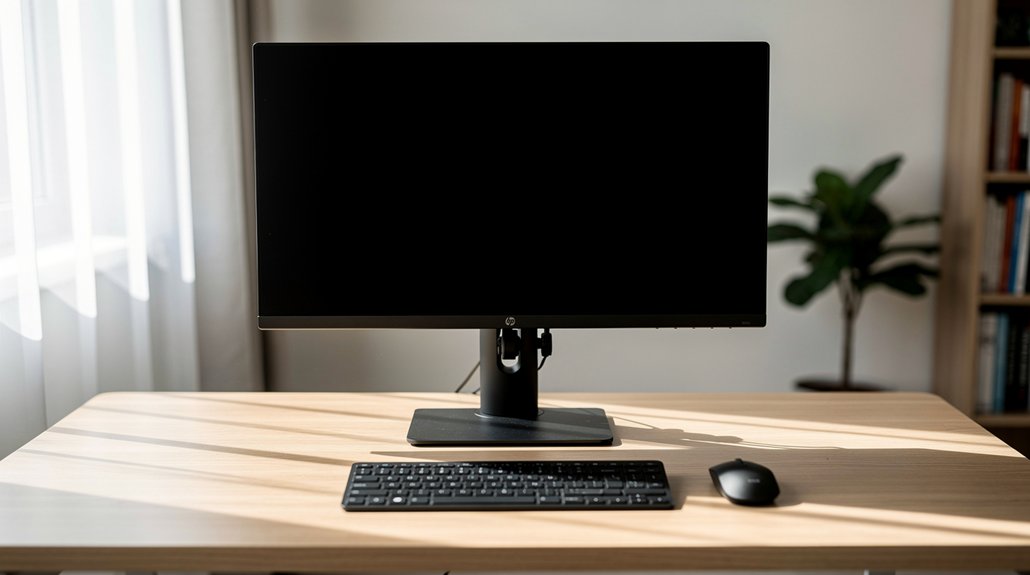
Ever wonder why your neck aches after a long day at the desk? You can fix it by setting the monitor height so the top edge aligns at or just below eye level. That keeps your head neutral, eases neck posture, and cuts neck strain. Adjust the screen angle to a slight backward tilt of 10‑20 degrees; it reduces glare and supports a relaxed neck. Use a monitor arm or adjustable stand to fine‑tune height as you shift seats, ensuring consistent eye‑level alignment. Pair this with a proper viewing distance—about an arm’s length—to keep desk ergonomics balanced. When the screen sits too high, you lift your chin; too low, you crane forward. Fine‑tune these settings for a comfortable, strain‑free workspace.
Sit About an Arm’s Length (20‑30 in) From the Screen
How far should you sit from your monitor? You want a viewing distance of about 20‑30 in (arm’s length) so the top of screen aligns with eye level and you avoid neck strain. At this screen distance the whole display is comfortably visible without leaning or squinting, and you maintain an ergonomic desk setup. If text feels tiny, increase font size instead of moving closer.
- Keep the monitor height so the top of screen is at or just below eye level.
- Position the screen 20‑30 in away to reduce eye and neck fatigue.
- Ensure the monitor position lets you see the entire display without turning your head.
- Adjust chair and desk height to preserve a neutral neck posture.
Reduce Glare on Your Monitor by Moving It Away From Direct Light
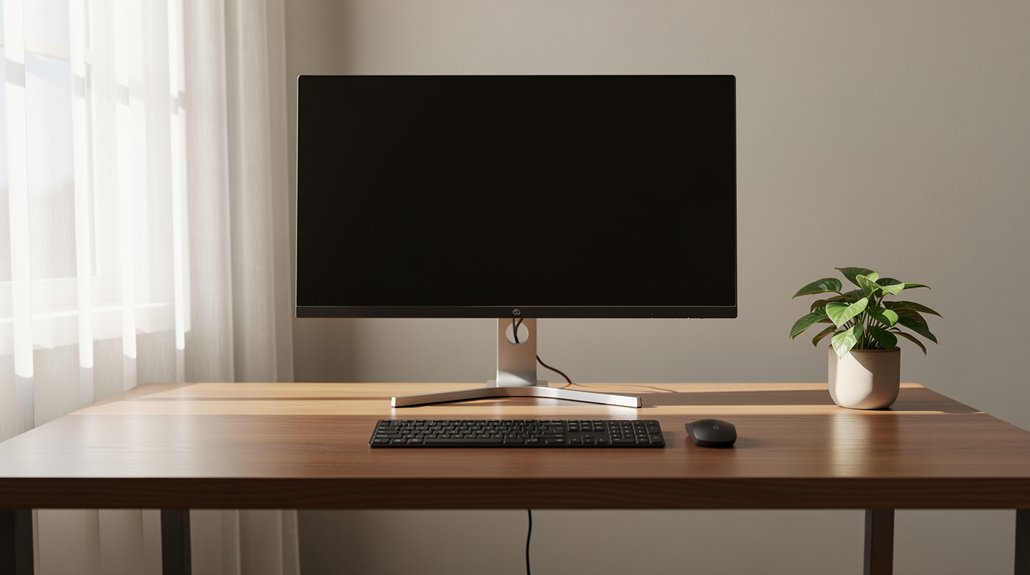
After setting the right viewing distance, you’ll notice that bright spots from windows or lamps can still cause discomfort. Move the monitor away from direct light to cut screen glare. Position natural light to the side, not in front or behind, so reflections bounce above or below the display. Adjust monitor height and desk setup so the viewing angle stays neutral while keeping ambient light soft. Dim or relocate artificial lights that create hotspots. Proper lighting placement and glare reduction improve contrast and reduce eye strain.
| Issue | Solution |
|---|---|
| Direct light on screen | Shift monitor sideways |
| Reflections across view | Raise/lower monitor height |
| Bright hotspots | Dim or move lights |
| Glare from windows | Use blinds or indirect lighting |
Aim Your Eyes Slightly Downward (5‑10 cm Below the Top Edge)
Position the monitor so the top edge sits about 5–10 cm below your eye line, and your gaze will naturally tilt slightly downward. This alignment keeps your neck in a neutral posture, cutting down on strain during long work sessions.
You’ll also notice less eye fatigue because your eyes aren’t forced to look up or stay level for extended periods.
Eye‑Level Alignment
Ever notice how a screen that sits just a few centimeters below your eye line feels more natural? That tiny offset lets your neck stay relaxed while your eyes glide gently downward. In a solid ergonomic setup, you’ll keep the monitor height so the screen top edge rests 5–10 cm below eye level. A monitor arm or adjustable height mount makes it easy to fine‑tune this viewing angle, ensuring comfortable viewing without constant adjustments.
- Position the middle of the display about 17–18° below your eyes.
- Keep the screen top edge just under eye level to avoid chin tilt.
- Use a stable monitor arm for consistent height across sitting positions.
- Align the desk setup so the monitor height reduces neck strain.
Reduce Neck Strain
Keeping the monitor’s top edge 5–10 cm below your eye level creates a natural downward gaze, easing neck tension. When the top edge of monitor sits just under eye level, your eyes adopt a slight downward gaze that aligns the center of screen with a comfortable viewing angle. This ergonomic posture keeps the neck in a neutral position, cutting neck strain during long sessions.
Adjust the monitor height with a monitor arm or a sturdy stand, creating an adjustable setup that follows your seating changes. By positioning the center of screen about 17–18 degrees below eye level, you maintain the ideal 15–30 degree viewing angle, preventing forward head tilt and supporting lasting comfort.
Place Your Monitor Directly in Front of You
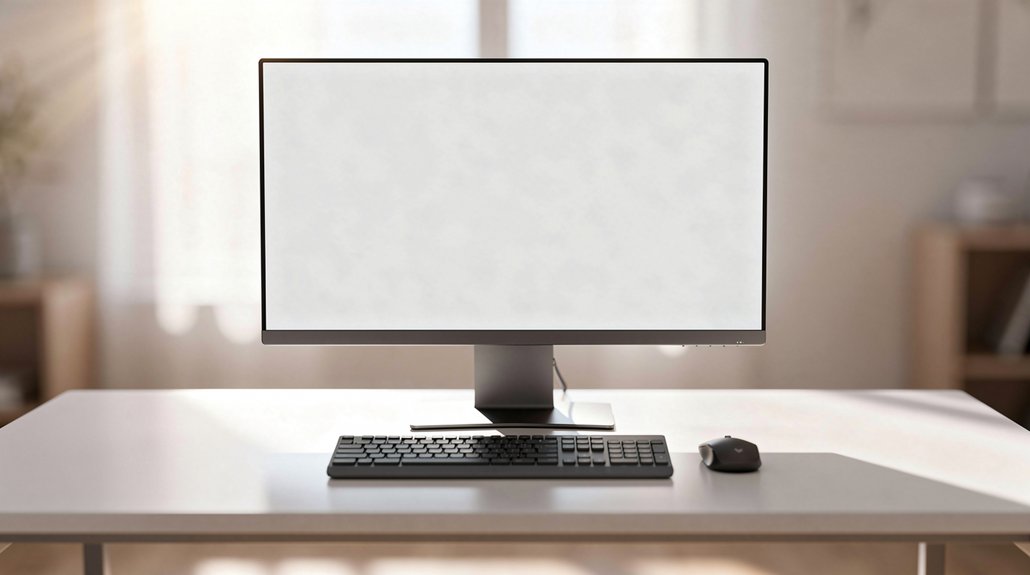
Ever notice how a twisted spine or strained neck sneaks up when you’re working? You can stop that by keeping your monitor directly in front of you. Align the top edge of the screen with or just below eye level so your head stays in a neutral neck position. A front‑facing setup reduces shoulder tension and eye travel, whether you have a single monitor or a dual monitor positioning. Use an adjustable monitor arm to lock the height and distance, ensuring a stable desk setup that promotes good posture.
Keep your monitor centered, eye‑level, and at arm’s length for neutral neck posture and reduced shoulder tension.
- Place the primary screen at arm’s length, centered on your line of sight.
- Position a secondary monitor beside the primary, not in front of you.
- Keep the top edge at eye level for a neutral neck position.
- Use an adjustable monitor arm to fine‑tune height and distance.
Use a Stand or Arm to Adjust Height & Tilt Precisely
Why settle for a fixed, uncomfortable view when a monitor arm or stand can give you precise height and tilt control? You’ll align monitor height so the screen top sits at eye level, cutting neck strain instantly. A gas‑spring arm lets you lift, lower, or swivel with effortless vertical movement, perfect for sit‑stand shifts. An adjustable stand or desk‑clamp arm frees up workspace while keeping the display stable. For dual monitor setups, choose a monitor arm that supports 17–35‑inch screens and offers independent height adjustment and tilt control for each panel. Smooth 10‑20 degree backward tilt eases glare and improves posture, turning your desk setup into a comfortable, ergonomic workstation.
Match Chair and Desk Height for a Neutral Posture
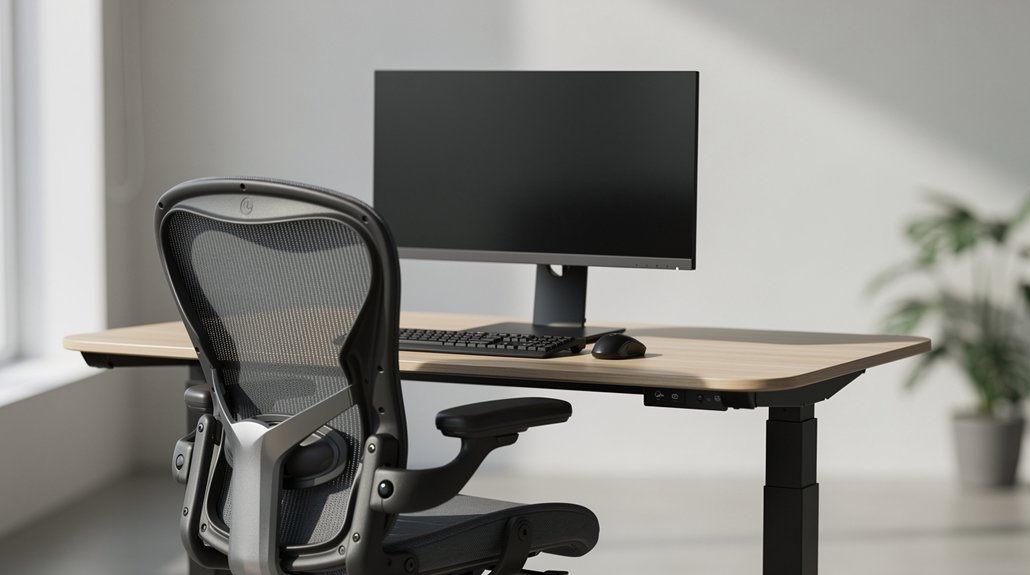
A monitor arm lets you set the screen at eye level, but the chair and desk must also be aligned to keep that posture neutral. First, adjust chair height so your forearms form a 90‑degree angle with the desk; this supports a neutral posture and lets you keep the monitor height at eye level. Next, set desk height so the top edge of screen aligns with or sits just below eye level, preserving ergonomic setup. Ensure your feet rest flat, and keep monitor distance at an arm’s length (20‑30 inches). When you switch between sitting and standing, tweak both chair height and desk height to maintain the same eye‑level alignment.
- Align chair height for 90‑degree forearms
- Set desk height for top edge of screen at eye level
- Use adjustable desk or monitor arms for fine‑tuning
- Keep monitor distance at arm’s length for comfort
Configure a Dual‑Monitor Setup While Preserving Ergonomic Alignment
How do you keep both screens at eye level while avoiding neck strain? Start by placing the primary monitor directly in front at arm’s length, then position the secondary monitor beside it, angled to reduce head turning. Align the top edges of both displays near eye level and set a tilt of 10–20° backward. Use monitor arms to fine‑tune monitor height, screen distance, and tilt, preserving ergonomic alignment and minimizing neck strain.
| Position | Height (eye level) | Tilt |
|---|---|---|
| Primary | Top edge at eye | 10–20° |
| Secondary | Same top edge | 10–20° |
| Both | Arm’s length distance | Adjustable |
Follow these steps, and your dual‑monitor setup stays comfortable and efficient.
Identify Common Mistakes & Quick Fixes for Ergonomic Success
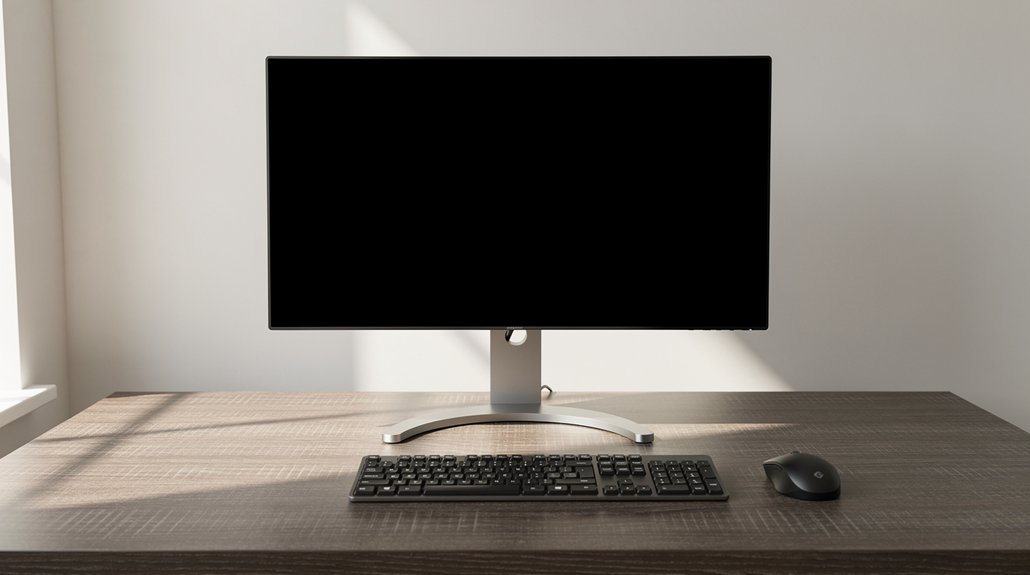
You might notice the monitor tilting too low, forcing you to crane your neck, while a screen that’s too close can strain your eyes and cause glare from overhead lights. These misalignments often lead to discomfort and reduced focus. Adjust the height, distance, and angle to bring the top edge to eye level and tilt the screen slightly back for a comfortable view.
Monitor Tilts Too Low
Placing the monitor too low forces you to tilt your head downward and lean forward, straining the neck and upper back. Raising the top edge to eye level (or just a few centimeters below) restores a neutral downward gaze and eases neck strain. Keep the screen 20–30 inches away so the angle stays within a comfortable 15–30 degrees. Adjust the tilt angle back 10–20 degrees to cut glare and improve reading readability. If you still lean forward, add a monitor arm for fine‑tuned height and distance.
- Raise the monitor height until the top edge aligns with eye level.
- Set a backward tilt of 10–20° for ergonomic setup.
- Verify a comfortable distance of 20–30 inches.
- Use a monitor arm to eliminate neck strain and improve readability.
Screen Too Close
Ever notice how a screen that’s too close forces you to crane your neck and squint at tiny text? That habit shortens your viewing distance, cranks up eye strain, and triggers a forward head posture. To fix it, pull the monitor back to an arm’s length—about 20‑30 inches (50‑76 cm). Adjust monitor height so the top edge sits just below eye level; this keeps head position neutral and eases neck posture. If text remains hard to read, increase font size or tweak resolution before moving the screen closer. A proper ergonomic setup reduces musculoskeletal load, improves screen readability, and eliminates the urge to lean forward. Consistently checking these factors will protect your eyes and neck during long work sessions.
Glare From Overhead Lights
Is your workspace constantly battling harsh overhead glare that forces you to squint and tilt your head? You can curb glare by adjusting lighting placement and screen angle. First, tilt the monitor so the top aligns with your eye level, which cuts screen glare and reduces glare‑induced eye fatigue. Next, shift natural light to the side and use indirect illumination to keep the view clear. If overhead lights still create glare, add an anti‑glare filter or reposition the light source. Quick fixes keep your desk ergonomic and your eyes comfortable.
- Angle the screen downward, keeping the top near eye level.
- Move side lighting to the side, avoiding direct ceiling light on the monitor.
- Install an anti‑glare screen protector when positioning isn’t enough.
- Use task lighting with indirect illumination to balance overall lighting.
Frequently Asked Questions
Do I Need a Monitor Riser if My Desk Is Already High?
Yes, you probably still need a riser. Even a high desk can leave the screen too low for ergonomic eye level, causing neck strain; a riser lifts the monitor to the proper height.
How Does Screen Curvature Affect Optimal Eye Level Positioning?
Screen curvature lets you keep the whole display at roughly the same distance, so you can place the center of the screen at eye level without tilting your head, reducing strain and preserving focus.
Can a Standing Desk Change the Recommended Monitor Height?
Yes, a standing desk raises your eye level, so you should lift the monitor proportionally—keep the top of the screen at or just below your eyes, maintaining a comfortable viewing angle and distance.
What Impact Does Eye Prescription Have on Monitor Placement?
Your prescription determines how far you need to sit for clear focus, so you’ll position the monitor at a distance that matches your corrective lenses’ focal point, keeping the screen at eye level to reduce strain.
Should I Adjust Monitor Height When Using a Laptop as a Secondary Screen?
Yes, you should adjust it. Raise the laptop screen so your eyes stay level with the top of the display, then tilt it slightly upward. This keeps posture comfortable and reduces neck strain.
In Summary
By setting your monitor at eye level, keeping it an arm’s length away, and angling it slightly downward, you protect your neck and eyes. Use a stand or arm to fine‑tune height and tilt, and make sure your chair and desk match for a neutral posture. When you add a second screen, keep both monitors aligned to avoid strain. Fix common mistakes—like glare or improper distance—and you’ll enjoy a comfortable, productive workspace.



