
To test your wrist support at home, sit naturally with your keyboard and support in place. Keep your wrists neutral and lightly rest them on the pad, making certain they don’t bend or press down hard. Type and move your hands freely, observing if your wrists stay straight, comfortable, and free of strain. If you feel discomfort, pressure, or nerve issues, it’s time to adjust or replace your support. Learn more to guarantee your setup keeps you comfortable and healthy.
Why Proper Wrist Support Matters for Your Home Office
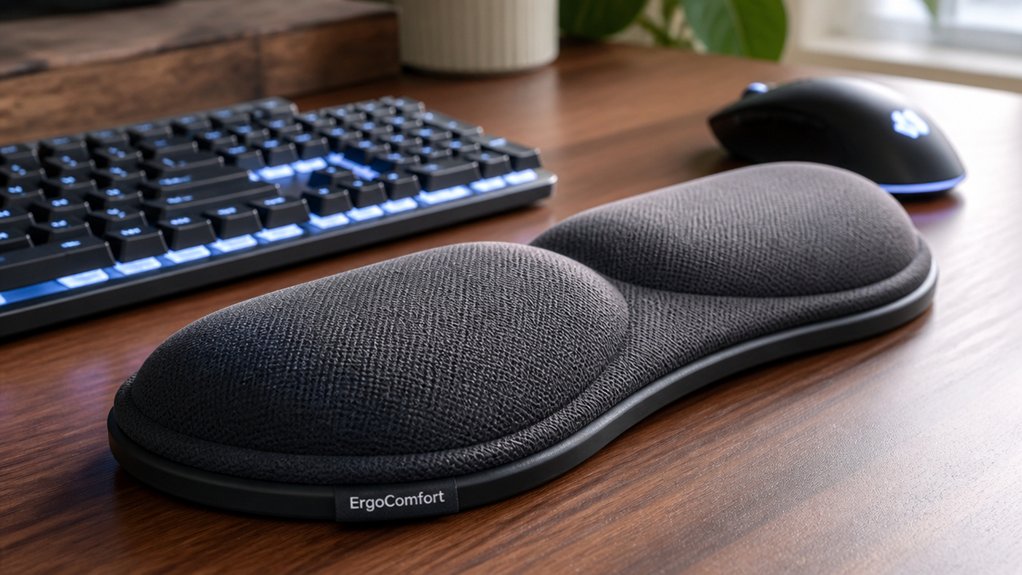
Proper wrist support is essential because it helps you maintain a neutral, straight wrist posture while working. A well-designed wrist rest encourages your hands to stay in the neutral position, reducing strain and preventing repetitive stress injuries like carpal tunnel syndrome. Using a wrist rest with the right surface texture can also enhance tracking performance and overall comfort during long sessions. When using a wrist rest, make sure it provides cushioning to alleviate discomfort during long hours at the keyboard. The support should allow your hands to elevate freely above the cushion, with the pad contacting your palm or heel instead of pressure directly on the wrist. Matching a soft, rounded wrist rest to your keyboard’s width—about 3.8 cm (1.5 inches)—maximizes comfort and minimizes muscular tension. Proper wrist support, combined with ergonomic adjustments, helps you stay comfortable and reduces the risk of chronic pain.
Signs Your Current Wrist Support Isn’t Providing Enough Relief
Are you noticing persistent discomfort or unusual sensations in your wrists while working? If so, your current wrist support may not be doing its job.
Watch out for these signs:
- Ongoing wrist pain, numbness, or tingling during or after typing, indicating insufficient strain relief.
- Increased pressure on wrist bones instead of palms suggests poor cushioning or positioning.
- Frequent wrist bending or awkward hand angles show your support isn’t maintaining a neutral wrist posture.
- Symptoms worsening despite using wrist support, like signs of carpal tunnel syndrome or tendonitis.
- Increased stiffness or reduced circulation in your hands, hinting that your support might be too firm or poorly designed for long-term use.
If you experience these, consider that your wrist support isn’t providing enough relief and needs adjustment.
How to Properly Fit and Comfortably Use Your Wrist Support
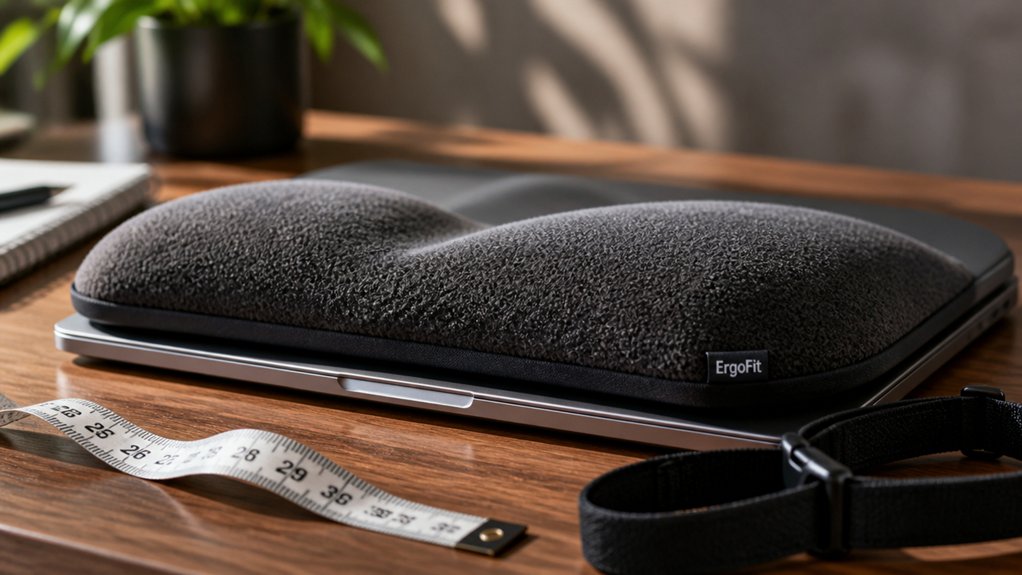
Identifying signs that your wrist support isn’t providing enough relief is only the first step—ensuring it fits correctly and feels comfortable is equally important. To properly fit your ergonomic wrist, keep your wrists in a neutral, straight position without bending while typing. The pad should contact your palm or heel, not the wrist itself, to reduce strain. Choose a wrist rest that’s soft, rounded, and about 1.5 inches deep, matching your keyboard’s height and width for natural support. When using it, your hands should move freely above the rest without heavy pressure on your wrist. Test comfort by typing for extended periods, and watch for any signs of restricted blood flow, discomfort, or numbness—adjust as needed. Make sure the rest’s non-slip base provides stability during use to prevent slipping and maintain proper positioning. Combining this with an ergonomic workstation setup enhances overall comfort and reduces strain.
Test Your Wrist Support by Typing and Moving Naturally
To effectively test your wrist support, start by typing naturally as you normally would, paying close attention to how your wrists feel. Focus on maintaining proper wrist postures, ensuring your wrists stay in a neutral, straight position without bending up or down.
As you use your keyboard and mouse, check that the wrist support contacts your heel or palm gently, allowing your hands to float without heavy resting. Observe if the cushioning prevents your wrists from pressing against the desk edge, easing pressure points.
Also, assess whether it helps keep your forearms parallel or slightly downward, reducing tension. During short breaks, move your wrists and hands freely to confirm the wrist support doesn’t restrict natural movement or cause discomfort during regular typing motions. Additionally, ensure the support’s surface allows for smooth mouse gliding to maintain precise movements.
What Discomfort or Relief Looks Like During Testing
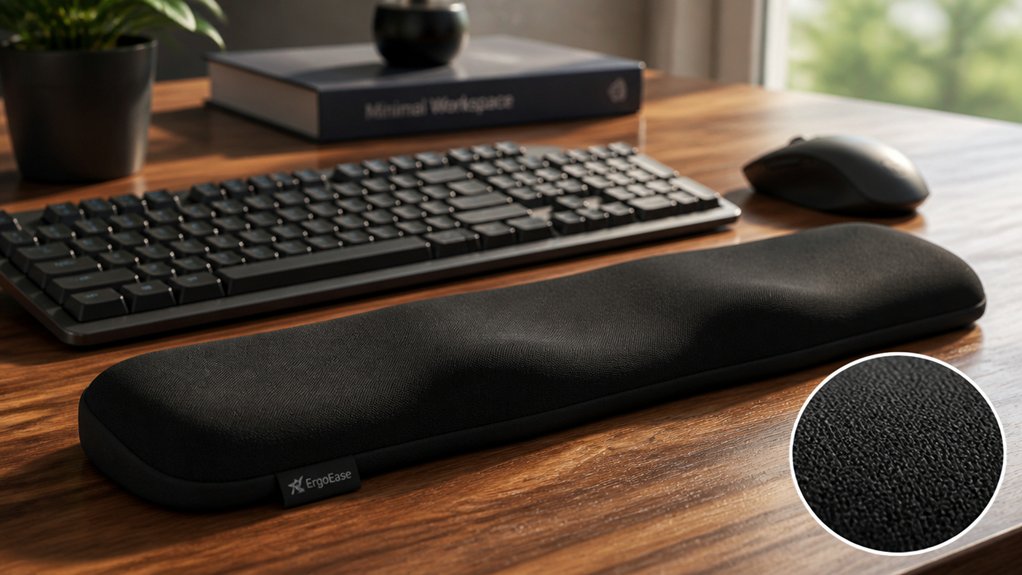
As you test your wrist support, pay attention to how your comfort level shifts—any increased pain, numbness, or tingling signals issues.
Notice if your range of movement feels restricted or if pain worsens during use, indicating adjustments are needed.
Relief shows when your wrist comfortably hovers, with less strain and no pressure points, helping you identify the best fit.
Keep in mind how ergonomic shape design considerations influence the balance between support and mobility during your testing.
Comfort Level Changes
During testing, noticeable comfort changes occur when your wrist maintains a neutral posture without bending or twisting, which often results in a reduction of discomfort symptoms like aching, burning, or numbness.
You’ll notice some positive shifts during the ergonomic assessment of your wrist support. Signs of relief include:
- Less pressure or soreness on the carpal region
- Reduced tingling sensations
- Improved blood flow, eliminating numbness
- A more natural, relaxed wrist position
- Less need to reposition or adjust during use
If discomfort persists or worsens, it indicates the support isn’t ideal.
Comfort level changes can happen quickly within minutes, but testing for 30-60 minutes helps confirm that relief is sustained. A properly fitting wrist rest should enhance comfort, reducing strain during your carpal ergonomic assessment. Wrist support types can significantly influence these comfort outcomes.
Range of Movement
When testing wrist support for range of movement, you’ll want to observe how smoothly your wrist moves without feeling resistance or pain. Your wrist should glide naturally through flexion, extension, and rotation, maintaining a neutral, straight posture. A support with good material durability will also maintain its shape over time, preventing discomfort caused by sagging or deformation. If you notice discomfort such as tingling, numbness, or sharp pain during these movements, it suggests the support might be too rigid or misaligned. Proper wrist support should allow a full, comfortable range of movement while cushioning tendons and nerves, reducing pressure. You’ll often feel relief as wrist flexion and extension become smoother and less tense. To accurately assess this, test your wrist while typing and using the mouse for 10–15 minutes, checking if the support helps keep your wrist neutral without adding strain.
Discomfort or Tingling
Feeling tingling or numbness during wrist support testing indicates that your wrist may be misaligned or experiencing excessive pressure on nerves like the median nerve. You should pay attention to signs of discomfort or tingling, which suggest improper positioning or excessive pressure on the carpal tunnel.
Look for these cues:
- Persistent discomfort or tingling during testing
- Increased symptoms when applying pressure on the wrist rest
- Pain or numbness worsening over short typing sessions
- Relief when adjusting wrist position or removing support
- Symptoms that improve with a neutral, straight wrist posture
Effective wrist supports keep your wrist aligned without bending or extension, reducing pressure on the carpal. If discomfort or tingling persists, consider adjusting or replacing your wrist rest for better ergonomic support.
How to Adjust or Replace Your Wrist Support for Better Comfort
To improve your wrist comfort, start by adjusting the placement of your support so that it’s soft, rounded, and matches your keyboard’s width, keeping your wrists in a neutral position. Test how your wrists feel when slightly elevated above the rest, ensuring they contact the pad without bending or applying pressure. If discomfort persists or the support causes wrist bending, consider replacing it with a better-suited option or re-evaluate your workstation setup for ideal ergonomics. Additionally, choosing a support with a gel insert can help regulate temperature and reduce sweating during long periods of use.
Proper Placement Techniques
Proper placement of your wrist support is key to ensuring comfort and reducing strain during long hours at your home office desk.
To set up an ergonomic wrist, position the support so it aligns with the base of your palms or wrists, keeping your wrists in a neutral, straight position without bending up or down. Make sure the support is about 1.5 inches deep and matches your keyboard width for natural hand alignment.
Adjust your chair and desk height so your forearms are parallel or slightly downward, allowing your wrists to rest lightly without pressure. Test the setup by typing with your wrists lightly on the pad, ensuring it contacts your palms without restriction. Replace or adjust if you feel pressure, numbness, or pain. Incorporate a memory foam wrist support for additional comfort and pressure relief during extended typing sessions.
Choosing the Right Support
Adjusting or replacing your wrist support guarantees continued comfort and prevents strain during long working hours. When working from home, it’s essential to select a wrist support that keeps your wrists in a neutral, straight position without bending. Confirm the support contacts your palm or heel rather than directly pressing on your wrist.
Choose a soft, rounded wrist rest about 3.8 cm (1.5 inches) deep, matching your keyboard size for peak cushioning. Adjust your chair, desk, and keyboard height so that your forearms are parallel or slightly downward, and your wrists aren’t forced into awkward angles.
If you experience numbness or increased pressure on tendons, it’s time to replace your wrist support. Test it by gently resting during typing—avoid leaning heavily—to reduce muscle tension without restricting blood flow or nerve pressure.
Frequently Asked Questions
How to Help Wrist Pain From Desk Job?
You can help wrist pain by maintaining a neutral wrist position, using cushioned wrist rests, keeping your keyboard and mouse close, taking micro-breaks to stretch, and seeing a specialist if pain persists. These steps reduce strain effectively.
How to Test Wrist Mobility?
You test wrist mobility by bending your wrist forward, backward, side to side, and turning your palm up and down, checking for smooth movement, pain, or stiffness. Stretch gently, and watch for signs of discomfort or limited movement.
How to Measure for Wrist Support?
You measure your wrist support needs by checking the distance from your elbow to your palm, matching the support height with your keyboard, and ensuring the rest’s depth and length fit comfortably, providing neutral, unsupported wrist positioning while typing.
Can a Wrist Brace Help With RSI?
Yes, a wrist brace can help with RSI by stabilizing your wrist, reducing strain, and preventing awkward movements. But for best results, combine it with ergonomic adjustments, proper posture, and taking regular breaks during repetitive tasks.



