
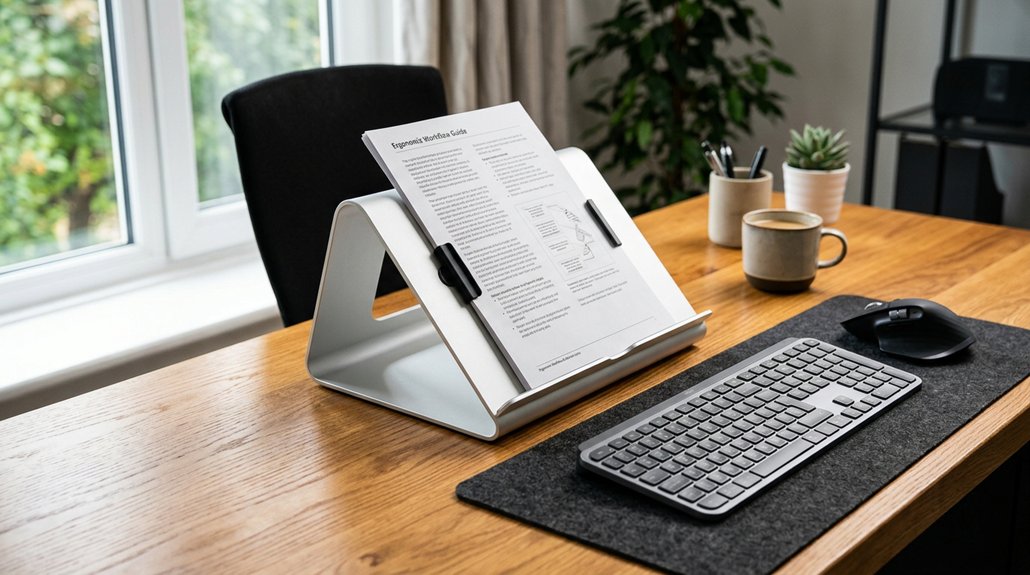
To position your document holder for comfort, place it close to your monitor, slightly to the side at a 45°–60° angle, ensuring it’s at eye level or just below. Keep it within 16 inches of your keyboard to avoid reaching and neck twisting. Adjust the angle and height to promote a neutral posture, supporting smooth gaze shifts. If you keep everything aligned, you’ll reduce strain and improve your workspace; learn more to optimize your setup further.
Why Proper Document Holder Placement Reduces Neck and Eye Strain
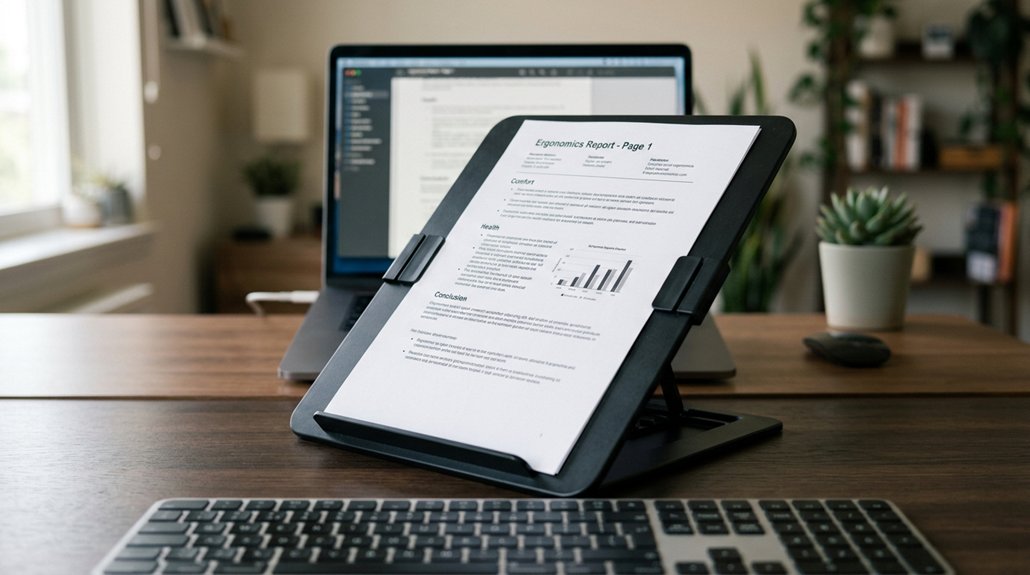
Proper placement of your document holder plays a crucial role in reducing neck and eye strain. When you position it at the same height and distance as your monitor, you avoid awkward head and neck movements that cause discomfort.
Keeping documents close to your monitor prevents you from twisting or bending your neck frequently to view papers placed elsewhere. It also helps maintain your eye level with the documents, which reduces eye strain by minimizing constant refocusing between different depths.
An ideal angle of 45°–60° between your keyboard and monitor allows smooth gaze shifts, preventing excessive head movement. When you maintain proper document placement, you help prevent musculoskeletal issues linked to poor posture and lessen visual fatigue, ultimately making your typing more comfortable and ergonomic. Adjustability features in document holders further enhance your ability to find the perfect position for long-term comfort.
Key Principles for Positioning Your Document Holder Effectively
To position your document holder effectively, start by aligning it with your monitor’s height to keep your eyes level and reduce neck strain. Place it close to your keyboard and at a consistent distance from your eyes to prevent unnecessary movement and eye fatigue. Adjust the angle so you can read easily without shifting your head, ensuring comfortable shifts between screen and paper. Incorporating ergonomic accessories can further enhance comfort and support during extended work sessions.
Eye Level Alignment
Have you ever experienced neck strain while working? Proper eye level alignment is essential. Position your document holder so the top of your documents is at or just below eye level, helping you maintain a neutral posture. This reduces the need to bend or twist your neck, preventing discomfort and eye strain. Incorporate the use of adjustable lumbar support mechanisms to ensure your overall ergonomic setup remains balanced and supportive. Keep the document at the same viewing distance as your monitor, generally 20–26 inches away, to lessen eye refocusing. Angle the holder between 45° and 60° to enhance readability and keep your line of sight consistent with your monitor and keyboard. Place the holder close to the monitor, directly in front or slightly to the side, for smooth, minimal head movement during typing. Adjust height and tilt as needed, especially if you wear bifocals.
Close Proximity Placement
Position your document holder directly between your keyboard and monitor at a 45° to 60° angle to keep your documents aligned with your natural line of sight. This close proximity placement guarantees that your documents are easily viewable without excessive head or eye movement, helping reduce eye strain. A well-designed ergonomic setup ensures your neck remains in a neutral position, preventing discomfort during extended typing sessions. Keep the document holder at the same height and distance as your monitor to maintain a consistent viewing distance, roughly 20–26 inches from your eyes. For typing comfort, position it slightly below the monitor line so you can glance downward easily without leaning forward or straining your neck. Adjust the placement based on your task and document type, favoring inline holders for typing and screen-mounted options for longer readings. The goal is quick access and minimal eye effort.
Consistent Viewing Distance
Ensuring a consistent viewing distance between your documents and monitor is essential for ergonomic efficiency. Keep your document at the same distance from your eyes as your monitor, typically 20–26 inches, to maintain a uniform focal length and reduce eye strain.
Align the document holder height with your monitor to avoid unnecessary refocusing and limit eye fatigue caused by shifting viewing distances. Use a slight incline (around 45°-60°) on the document holder to create a natural line of sight, promoting ergonomic head and neck posture. Keep your documents directly in front of or very close to the monitor’s plane to prevent frequent depth changes in eye focus.
Maintaining this consistent viewing distance helps minimize tension and lowers the risk of headaches and visual discomfort during extended work sessions. Incorporating a monitor privacy screen can also help reduce glare and improve overall visual comfort during long periods of focus.
How to Align Your Document With Your Monitor for Seamless Reading
| Adjustment | Recommended Position |
|---|---|
| Height | Same as monitor screen |
| Horizontal | Directly aligned or slightly to the side |
| Distance | 20–26 inches |
| Angle | 45° to 60° |
| Posture | Upright and natural |
What Are the Best Height and Angle Settings for Comfortable Viewing?
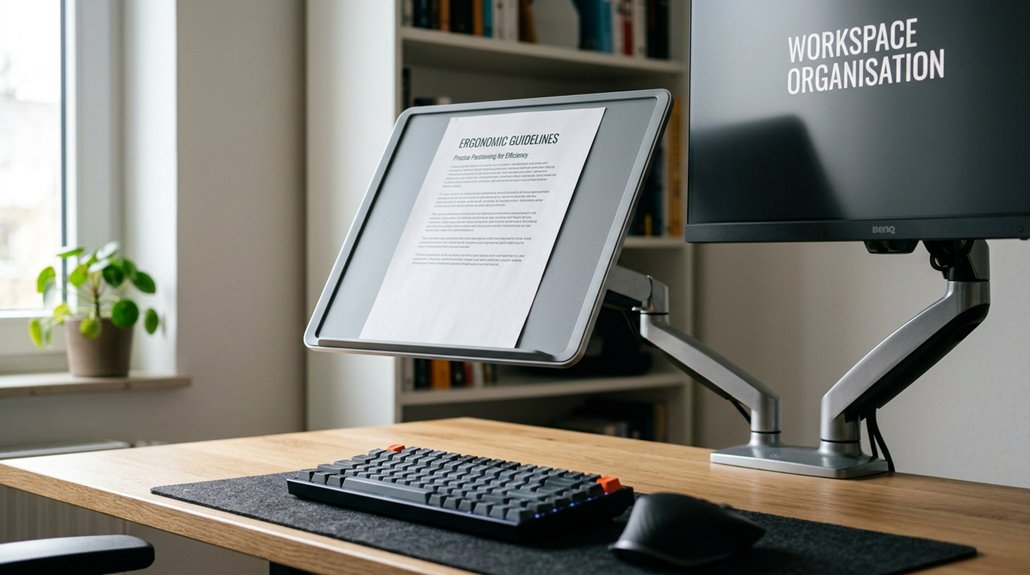
Have you ever noticed how a slight change in your document holder’s height or angle can make a big difference in comfort? To achieve this, position your document holder at the same eye level or slightly below your monitor top to maintain a neutral neck posture.
Set the holder at a 45°–60° angle, aligning with your natural line of sight, which reduces neck twisting. Place documents at the same distance as your monitor (about 20–26 inches) to minimize eye strain from focusing adjustments.
For inline holders, position them between your keyboard and monitor so you can read with a gentle downward glance rather than looking down flat on the desk. Adjust height and angle to allow quick eye shifts, supporting an upright posture and preventing forward bending. Incorporating adjustable stands with ergonomic adjustment features can further enhance comfort during extended typing sessions.
How Close Should Your Document Be to Minimize Reaching?
Positioning your document holder at the right distance helps prevent unnecessary reaching and strain during work. You should place the document within your forearm’s comfortable reach—about 16 inches away—so you don’t need to extend your arm or lean forward while typing. Using an ergonomic organized compartment layout can further streamline your workspace and reduce unnecessary movements. Keeping the document close enough reduces the need for awkward neck twisting, which can cause discomfort and muscle strain. Align the document in-line with your monitor and keyboard, minimizing head movements and maintaining a natural, relaxed posture. Also, make certain it’s at the same height and angle as your monitor to prevent downward head tilt. Avoid placing the document too far to the side or too low on your desk to prevent prolonged reaching that leads to shoulder and arm fatigue.
Where Should You Place the Document Holder on Your Desk?
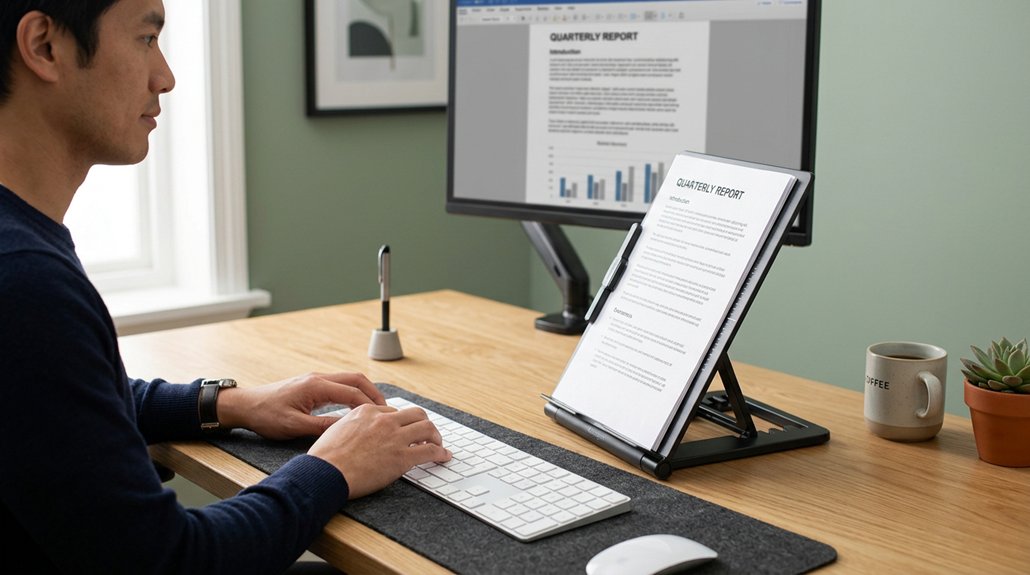
Where should you place your document holder on your desk to maximize comfort and efficiency? Position it directly between your keyboard and monitor, angled at 45°–60° to align with your natural line of sight. This setup helps maintain proper head and neck postures, reducing strain. Keep the document holder at the same height and distance as your monitor, preventing neck twisting and eye strain. Place it close enough to smoothly shift your gaze without excessive movement, typically within arm’s length. Placing the holder below the monitor offers support and allows you to see both screen and documents comfortably. Avoid far-off or flat document placement, which can cause awkward neck angles. Using ergonomic principles such as maintaining proper viewing angles ensures a more comfortable and healthy workspace. Use this table to optimize your workstation components:
| Placement Tip | Reason |
|---|---|
| Between keyboard and monitor | Aligns with natural line of sight |
| Same height and distance as monitor | Prevents neck strain |
| Close within arm’s reach | Minimizes head movement |
| Below monitor for support | Guarantees ergonomic viewing |
How to Adjust Your Monitor and Keyboard for Optimal Viewing
To prevent strain, position your monitor so the top of the screen is at or slightly below eye level and about an arm’s length away.
Place your keyboard directly in front of you with elbows bent at 90 degrees and wrists in a neutral position. Adjust your desk height or use a keyboard tray to keep your shoulders relaxed and your wrists straight while typing.
Monitor Height Alignment
Adjusting your monitor to the correct height is essential for comfortable viewing and reducing strain. Position it so the top of the screen is at, or slightly below, eye level, helping you maintain a neutral neck posture and avoid head tilting. Place the monitor about an arm’s length away—roughly 20-26 inches—to minimize eye strain and allow smooth focus shifts between the screen and keyboard. Use adjustable stands or supports to set the monitor height precisely. To help you visualize, consider this table:
| Monitor Position | Keyboard Position | User Comfort |
|---|---|---|
| Top of the screen slightly below eye level | Elbows bent at 90°, wrists straight | Reduces neck and wrist strain |
| Monitor an additional inch lower | Forearms slope slightly downward | Promotes comfortable posture |
| Viewing at arm’s length | Proper height guarantees alignment | Prevents fatigue and discomfort |
| Neutral neck posture | Consistent visual line | Enhances productivity |
Keyboard Placement Best
For ideal typing comfort, position your keyboard so it’s aligned with your body’s centerline, with your elbows slightly above the keyboard surface. Use a keyboard tray if available to help achieve a flat or slightly negative tilt (front edge higher) by adjusting the feet down, which prevents wrist extension and promotes a neutral wrist posture.
Keep frequently used items, like your mouse and document holder, within a comfortable reach zone—about 16 inches away—avoiding unnecessary reaching or twisting. This setup encourages your forearms to slope downward slightly, keeping your shoulders relaxed and elbows bent at roughly 90 degrees.
An ergonomic workstation guarantees proper alignment, minimizes strain, and enhances comfort during long typing sessions.
What Are the Best Ways to Use Adjustable or Screen-Mounted Document Holders?
Are you wondering how to maximize the comfort and efficiency of adjustable or screen-mounted document holders? For screen-mounted holders, attach them close to your main monitor at eye level to maintain a consistent viewing distance and prevent neck bending. This setup helps you keep a neutral head position and reduces strain.
When using adjustable document holders, position them directly between your keyboard and monitor at a 45°–60° angle, aligning documents with your line of sight. Adjust the height so the top of your documents is slightly below the monitor’s top line, promoting relaxation of your neck muscles. Make certain the document holder is stable and can slide below desk level to prevent obstructing your view. Proper placement minimizes micro-movements and supports comfortable, productive typing sessions.
Using Accessories Like Footrests and Document Supports for Better Ergonomics
Using accessories like footrests and document supports can greatly enhance your ergonomic setup and reduce strain during long typing sessions.
Position your document holder at eye level, close to your monitor, and aligned to maintain a neutral head posture, preventing neck twisting. An in-line document holder placed between your keyboard and monitor at a 45°–60° angle minimizes awkward head and eye movements while data entry.
If your feet don’t reach the floor, use a footrest tilted 15°–20° to improve circulation and offer stable lower body support. Combine a document support with wrist rests (used during pauses) to keep your wrists neutral and reduce forearm strain.
Regularly adjust and declutter your workspace to prevent obstructions, ensuring your footrest and document holder contribute to an ideal ergonomic environment.
Troubleshooting Common Placement Problems and Fixes
Ever wondered why your neck feels strained after long periods of document review? Many times, it’s due to awkward head and neck positions caused by poor document holder placement. If your document holder is too far to the side, it forces you to rotate your neck, leading to discomfort. Make sure it’s centered in line with your primary monitor to reduce this strain.
For inline holders, angle them between 45° and 60°, setting them slightly below eye level to avoid downward head tilt. If the documents are heavy or frequently written on, use a stable, free-standing or sloped desk holder that doesn’t obstruct your typing space.
Always adjust the height and distance of your document in relation to your screen at desk level to maintain a neutral, comfortable posture.
Daily Checks to Maintain Proper Document Positioning
To maintain peak comfort and reduce strain throughout your workday, make it a daily habit to check that your document holder is correctly aligned in height and distance relative to your monitor. This helps you sustain a neutral neck posture and minimizes eye strain. Confirm the document is at a 45°-60° angle between your keyboard and screen for easy viewing without awkward head twisting. Keep papers at the same viewing distance as the monitor to lessen eye adjustments. Also, verify that frequently referenced documents stay securely on the holder to prevent unnecessary reaching. If you notice tension or discomfort after about two hours, adjust the document holder. Use the table below to guide your daily checks:
| Check | What to Look For | Why It Matters |
|---|---|---|
| Height | Aligned with monitor | Maintains neutral neck posture |
| Distance | Same as screen | Reduces eye strain |
| Security | Paper stays in place | Prevents shifting during work |
How Proper Document Positioning Prevents Long-Term Musculoskeletal Issues
When you position your document at eye level, you prevent unnecessary neck twisting and keep your spine aligned. This reduces strain on muscles, tendons, and nerves, lowering the risk of chronic musculoskeletal problems.
Proper placement supports comfortable posture and minimizes long-term discomfort.
Aligns Eye Level
Properly aligning your document holder at eye level helps prevent long-term musculoskeletal issues by reducing the need to bend or twist your neck frequently. When your documents sit close to your computer screen at the same height, you minimize neck flexion and awkward head movements. This alignment encourages an upright, neutral posture, helping you avoid curved spine issues and muscle fatigue.
Keeping documents at a 45°–60° angle between your keyboard and monitor promotes smooth gaze shifts, reducing the strain on your neck and shoulders. Positioning your document holder at or just below eye level is especially effective during extended typing sessions, as it decreases tension and the risk of tendon inflammation, pain, and numbness. Proper positioning supports long-term comfort and ergonomic health.
Reduces Neck Twisting
Aligning your document holder at eye level directly reduces the need for frequent neck twisting during typing tasks.
In your office workstation, proper document placement guarantees that your eyes naturally focus on your screen and documents without excessive movement. Keeping your documents close and aligned with your monitor minimizes the repetitive neck movements that strain cervical muscles. This setup supports a neutral head posture by eliminating sideways head turns, which can cause long-term neck and upper spine issues.
Using a screen-mounted holder angled between 45°-60° helps prevent awkward neck bending and twisting, reducing the risk of tendon inflammation and muscle fatigue. Proper positioning at your workstation can greatly reduce or eliminate the risk of developing musculoskeletal disorders linked to habitual neck twisting.
Supports Proper Posture
Positioning your document holder at eye level beside or between your monitor and keyboard helps maintain a neutral neck posture. Proper positioning guarantees the head stays aligned with the spine, reducing strain from unnatural angles.
When a paper document is placed at a 45°-60° angle close to the monitor, viewing remains consistent, decreasing eye and neck fatigue. This setup prevents you from repeatedly bending forward or turning your head laterally.
Keeping documents at the same height and distance as your screen promotes an upright, relaxed posture, easing muscle tension in your neck and shoulders.
- Head stays in a neutral, aligned position
- Reduces the need for frequent head movements
- Paper document stays within comfortable viewing range
- Supports long-term spinal health
Quick Tips to Effortlessly Reposition Your Document During Work
Ever wonder how to adjust your document holder quickly without disrupting your workflow? Good office ergonomics involve positioning your document at the same height and distance as your monitor, which helps eliminate risk factors like neck strain.
Keep the holder directly below or beside your screen within easy sightline to minimize head turning and maintain a neutral neck posture. Adjust the angle between 45° and 60° for clear visibility without glare or awkward bending.
Make sure the document is close enough—about 20–26 inches—to allow swift glances between paper and screen with minimal eye refocusing. Based on your task, reposition the holder slightly lower for writing or closer for quick reference.
These simple quick tips help you stay comfortable and avoid safety risks during work.
Frequently Asked Questions
Where Should a Document Holder Be Positioned?
You should position your document holder at eye level, close to your monitor, at a 45°–60° angle, directly below or in front of the screen, ensuring it’s stable, unobstructed, and easy to see without bending forward or twisting.
Where Is a Good Location for a Document Holder?
You should place your document holder between the keyboard and monitor at a 45°–60° angle, at the same height and distance as your monitor, and within easy reach to reduce neck strain and improve typing comfort.
What Is the 90 90 90 Rule for Ergonomics?
The 90 90 90 rule in ergonomics involves sitting with your hips, knees, and elbows each bent at roughly 90 degrees, keeping your feet flat, thighs parallel, and elbows close to your sides for ideal posture and comfort.
What Is the Best Ergonomic Position for Typing?
The best ergonomic position for typing is to sit upright with your feet flat, elbows at a 90° angle, wrists straight, and your monitor and document holder aligned at eye level, reducing strain and promoting comfort during long sessions.



