
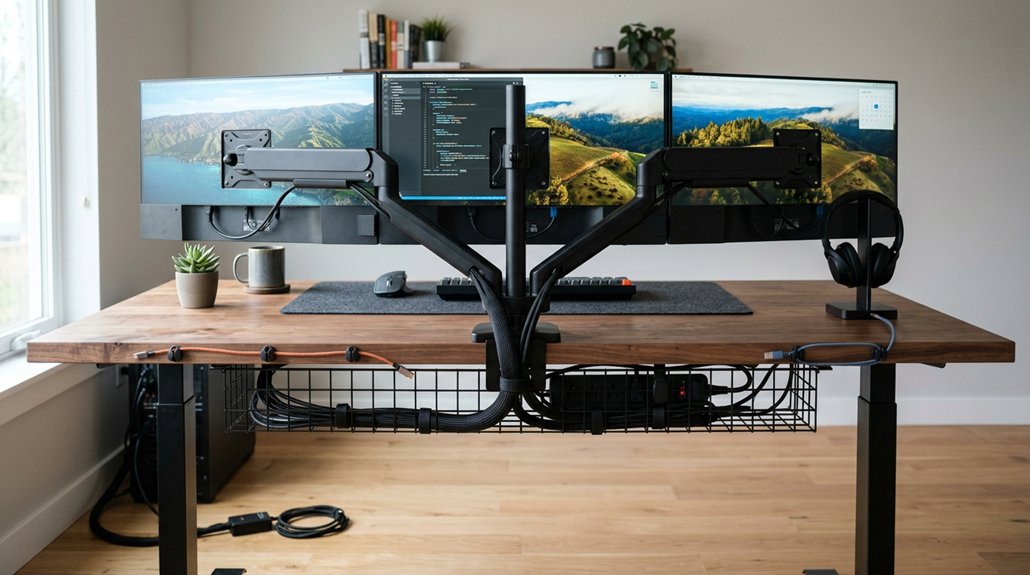
To tame your multi-screen cable clutter, start by evaluating your workspace to identify the most problematic cables and determine proper routing. Use cable ties or Velcro strips to bundle similar cables and secure them along monitor arms or desk edges. Install under-desk trays or clips to hide and organize power strips and excess cords. Keeping cables labeled and leaving slack at key points helps prevent damage and tangles. Want practical tips for a neat setup? Keep going to discover more.
How to Spot and Prioritize Common Workspace Cable Problems
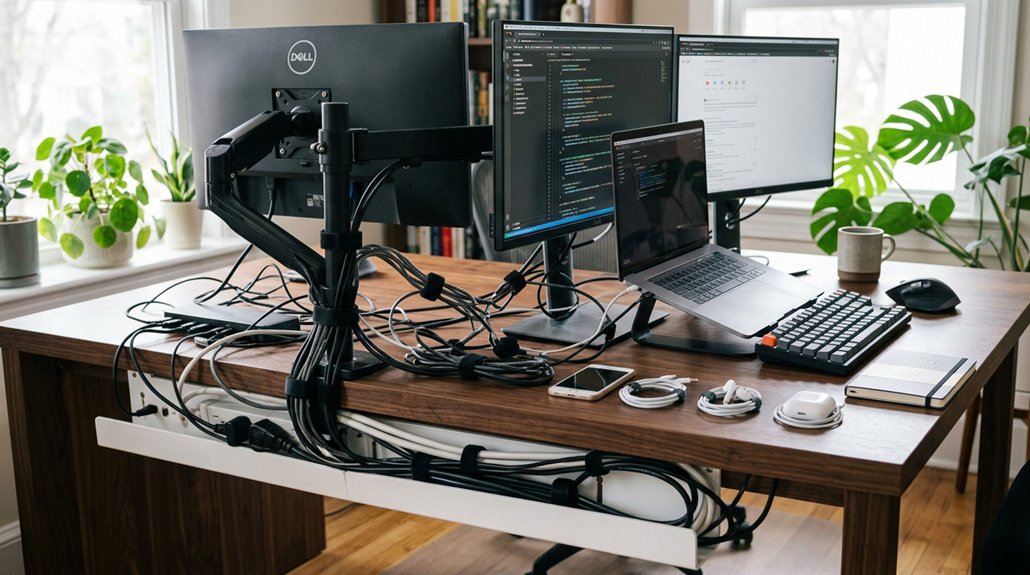
To effectively tame workspace cable clutter, you first need to identify and prioritize the most common problems. Cable length is a key issue—cables that are too short or too long cause tangles and hinder effective cable management. A comprehensive assessment of your existing cables can help determine the appropriate types of cable management solutions, such as sleeves, ties, or raceways, to implement. Monitor cables, such as DisplayPort and HDMI cables, often become sources of clutter if not routed properly. Cable tension from workspace movement or monitor adjustments can lead to flicker, disconnects, or damage, so allowing slack at adjustable points is essential. Power cords and peripheral cables should be carefully planned using cable trays or monitor arms to reduce mess. Differentiating between permanent and portable cables helps determine which need secure routing. Starting with a layout assessment—considering cable routing and cable length—makes organizing easier from the start.
Best Routing and Bundling Techniques for Organized Cables
Once you’ve identified the main types of cables and planned their routes, the next step is organizing them effectively through routing and bundling techniques. Start by establishing a single main cable route, grouping cables like power, HDMI, DisplayPort, and USB, and routing them along monitor arms, under-desk trays, or toward the power strip. Leave slack at moving parts to prevent strain. Using adhesive cable clips can help secure cables neatly along surfaces, reducing tangling and maintaining order. Bundle cables traveling in similar directions using cable ties, Velcro strips, or cable sleeves, then secure these bundles with cable clips or clamps at desk edges and corners. Use monitor arms with integrated cable channels for vertical routing of HDMI, power, and USB cables, minimizing visible clutter. Separating power from data/video cables helps reduce interference, while labeled tags simplify troubleshooting.
Easy Under-Desk and Peripherals Cable Management Tips
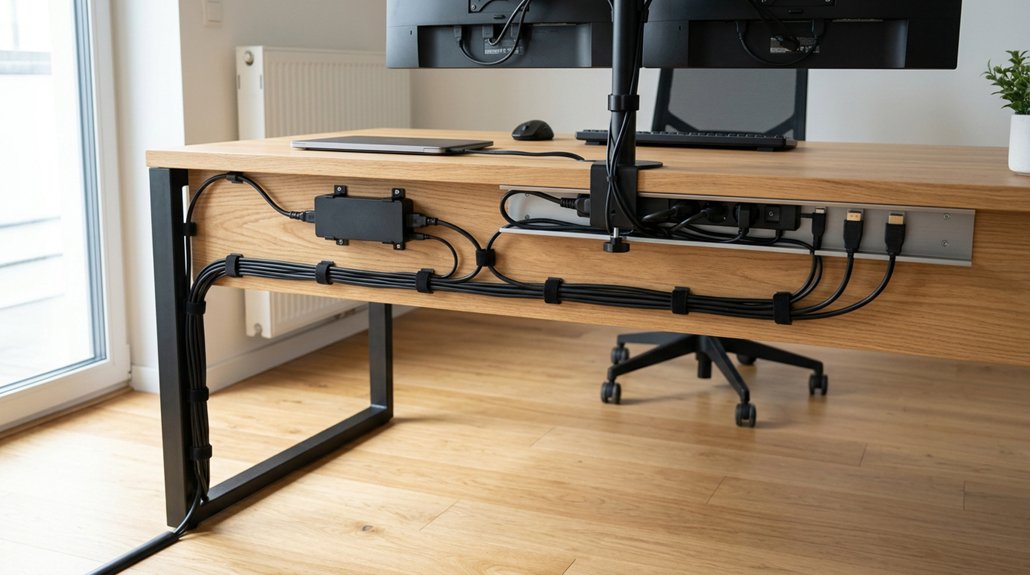
Organizing cables under your desk is essential for a tidy workspace and easier maintenance. To keep cables together and reduce clutter, install under-desk cable trays to hide power strips and excess cords. These trays help position monitors and charging cables without tangling, keeping everything off the floor and tidy. A clamp mount can also be used to secure cables neatly along the edge of your desk, preventing accidental disconnections and slipping. Use adhesive cable clips or Velcro ties to bundle cables traveling in the same direction, simplifying adjustments and preventing tangling. Secure power strips inside trays or mount them beneath your desk to boost accessibility while minimizing clutter. Label both ends of cables with bread bag tags or colored tape to streamline troubleshooting. Regularly inspect and organize cables, leaving slack near moving components to prevent strain, ensuring your dual-monitor setup stays neat and functional.
Frequently Asked Questions
How to Keep Multiple Cables Tidy?
You keep multiple cables tidy by bundling them with cable ties or Velcro, securing them along the desk with clips, hiding excess lengths in under-desk trays, and labeling each end for easy identification during setup or troubleshooting.
How to Get Rid of Cable Clutter?
You can eliminate cable clutter by bundling cables with ties or Velcro, installing under-desk trays, using monitor arms with cable channels, labeling cables clearly, and leaving slack near moving parts for safety and easy adjustments.
How to Organize Multiple HDMI Cables?
You should bundle your HDMI cables with Velcro straps or sleeves, route them through cable channels, leave slack near connectors, label both ends for easy identification, and use quality cables to prevent tangling and signal issues.
How to Hide Dual Monitor Cords?
You can hide dual monitor cords by using monitor arms with built-in cable management channels, bundling cables neatly with Velcro strips, installing under-desk cable trays, and labeling each cord for easy troubleshooting, keeping your workspace tidy and organized.



