
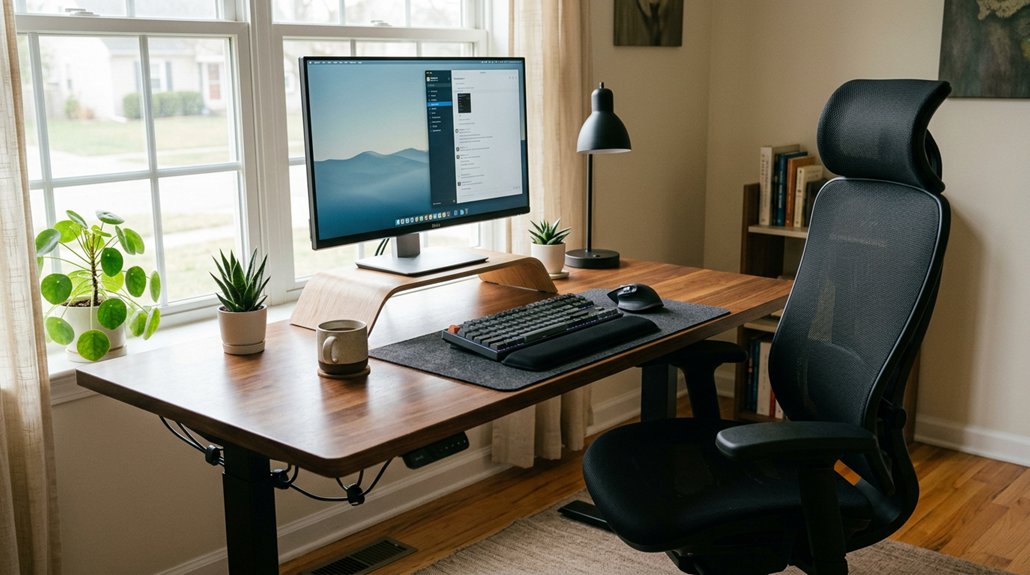
To improve your posture, set your desk at a height where your elbows are at about 90 degrees, and your monitor is at eye level or slightly below. Use an adjustable chair with lumbar support, keeping your feet flat on the floor, and position keys and devices within easy reach to avoid twisting. Incorporate movement breaks and consider standing options. If you want to optimize your workspace further, you’ll find helpful tips below.
Assess Your Current Workspace for Ergonomic Gaps
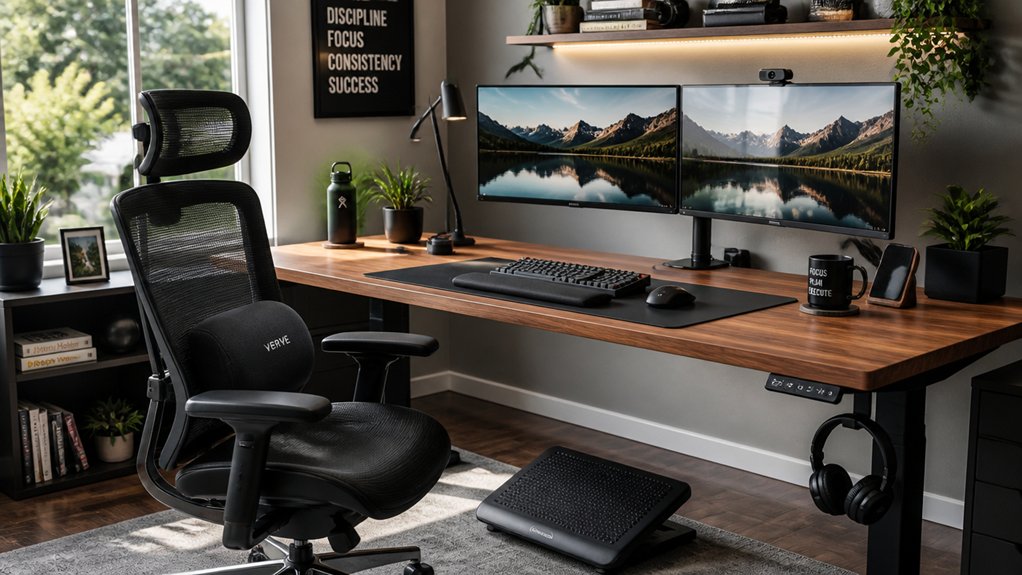
Have you ever stopped to reflect whether your workspace truly supports good posture? An ergonomic setup is essential for comfort and health.
Check if your chair provides lumbar support that matches your spine’s natural S-curve. Is your monitor positioned at arm’s length, with the top at or just below eye level? This prevents neck strain.
Look at your keyboard and mouse—are they at elbow height, with wrists straight and forearms parallel? Proper placement minimizes nerve impingement and discomfort.
Also, guarantee your frequently used items and phone are within easy reach to avoid twisting or leaning.
Finally, make sure your feet rest flat on the floor or a footrest, with knees at about 90 degrees, supporting neutral spine alignment and good circulation.
Be mindful of adjustable lumbar support features to ensure your lower back is adequately supported during long hours.
Choose the Right Desk Height and Optimize Your Space
Are you aware of how your desk height impacts your comfort and posture throughout the day? Setting your desk height correctly is essential. Your elbows should bend at about 90 degrees, with forearms parallel to the floor, to keep your shoulders relaxed and prevent arm strain.
Make sure there’s enough legroom under your desk by avoiding clutter and storing items elsewhere. Your feet should rest flat on the floor or a footrest if necessary, helping maintain proper lower body alignment.
Adjust your desk or combine with an ergonomic chair to align hips and knees at roughly 90 degrees, allowing your thighs to be parallel to the floor. Keep the desk surface organized and within easy reach, especially for frequently used items, to avoid unnecessary twisting or stretching. Ensure your workspace includes adjustable height desks, which can better support ergonomic positioning and accommodate different user needs.
Pick an Adjustable Chair That Supports Your Spine
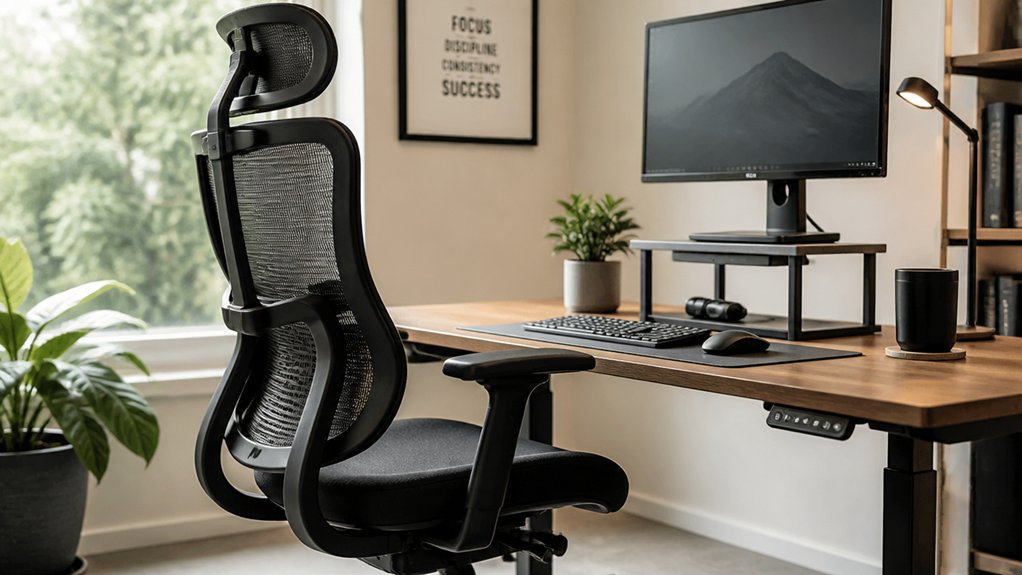
Selecting an adjustable chair that supports your spine is essential for maintaining good posture during long work hours. Look for one with adjustable height and lumbar support to preserve the natural S-curve of your spine and prevent lower back strain. An ergonomic design with multi-position seating options can further enhance comfort and promote proper alignment. Make sure the chair seat depth allows 2-3 fingers of space between your knees and the seat edge to avoid nerve pressure and circulation issues. Adjust the armrests so your shoulders stay relaxed and your elbows rest close to your body, with forearms parallel to the floor at a 90-degree angle. Set the chair height to keep your feet flat on the floor or footrest, with thighs parallel and knees at about a 90-degree angle. Additional lumbar support, like a pillow or backrest, can further enhance spinal alignment.
Set Your Monitor at Eye Level to Reduce Neck Strain
Adjusting your monitor to eye level helps maintain proper neck alignment and reduces strain during long hours at your desk. Use a monitor riser, laptop stand, or stacks of books to raise the screen so the top edge is at or slightly below your eye level. This encourages a natural downward gaze, preventing neck strain.
Ensure the riser or stand you choose offers height adjustability to allow for personalized positioning and comfort. Keep your monitor about an arm’s length away—roughly 20-26 inches—to avoid leaning forward and forward head posture. If you wear bifocals, lower the monitor 1-2 inches to prevent tilting your head backward.
When working with a laptop, pair a laptop stand with an external keyboard and mouse to achieve proper ergonomics. Adjust the height as needed to keep your head, neck, and spine aligned comfortably during long work sessions.
Position Key Items Within Reach to Minimize Reaching and Twisting
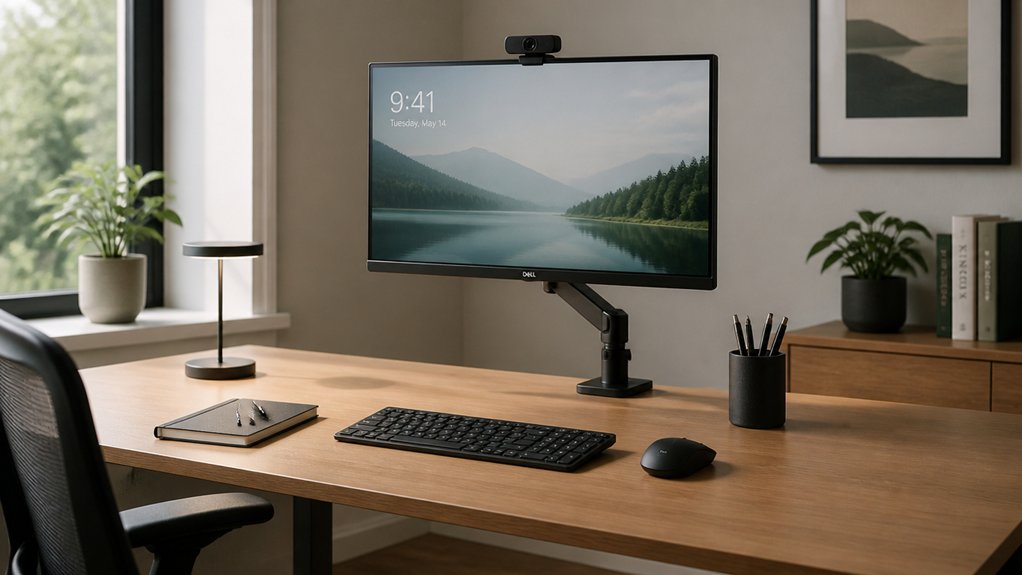
To minimize repetitive reaching and twisting, position your frequently used items—such as your phone, notebooks, and stationery—within easy reach, close to your body. This setup allows you to maintain a neutral position for hours, reducing strain on your neck and shoulders. Using ergonomic accessories like adjustable armrests can also help support your arms and keep everything within comfortable reach. Adjustable armrests provide customizable support to keep your posture aligned during long periods of work. Keep your keyboard and mouse directly in front of you, centered on your body’s midline, so your arms can rest naturally and your posture stays aligned. Place documents on a holder beside your monitor at the same height and distance to prevent neck turning and bending. Using a headset or speakerphone for calls helps avoid cradling the phone between your neck and shoulder, which can cause muscle tension. If an item is consistently out of reach, adjust your setup or stand up to stay relaxed and prevent neck pain.
Add Ergonomic Accessories to Improve Comfort and Support
Adding ergonomic accessories can make a big difference in your comfort and posture. Options like lumbar supports, footrests, and ergonomic keyboards help keep your body aligned and reduce strain during long hours at your desk. Incorporating these tools allows you to work more comfortably and maintain better overall support. Using high-density memory foam cushions and adjustable straps further ensures proper spinal alignment and pressure relief during extended sitting periods.
Lumbar Support Options
Incorporating ergonomic lumbar support accessories can greatly enhance your comfort and help maintain proper spinal alignment during long hours at your desk. Lumbar support, like the SmartFit® Conform™ Back Rest, provides adjustable, personalized support that follows the natural curve of your lower back, reducing strain.
A good backrest helps prevent slouching and lowers the risk of lower back pain, especially in an ergonomic office setup. Adjustable lumbar support allows you to customize height and firmness, ensuring a perfect fit as you move.
These accessories work best when combined with other ergonomic seating tools, like memory foam cushions, to promote proper desk posture. Using lumbar support consistently can prevent discomfort and musculoskeletal issues caused by poorly suited home workstations. Additionally, choosing a support with multi-zone ergonomic design can target specific back areas for even more effective relief.
Footrest Benefits
Using a footrest can greatly improve your overall sitting posture by ensuring your feet stay flat on a supportive surface and your knees remain at or slightly below hip level. An ergonomic footrest helps you maintain proper posture by supporting your feet and reducing strain on your back and legs.
When your feet are properly supported, circulation improves, preventing muscle fatigue and discomfort caused by prolonged sitting. Adjustable or rocking footrests, like the Rocking Foot Rest, encourage foot movement, boosting metabolic rate and easing pressure on your lower limbs.
If your chair is raised to match your desk, a footrest guarantees your feet stay supported and stable. Cushioned options, such as the SoleMate Comfort Footrest, add luxury support, further reducing foot and leg discomfort during long work hours.
Ergonomic Keyboards And Mice
| Ergonomic Accessories | Benefits |
|---|---|
| Ergonomic keyboards | Promote natural hand positioning, reduce wrist bending, lower carpal tunnel risk. |
| Ergonomic mouse | Maintain neutral wrist posture, lessen wrist strain, and prevent nerve impingement. |
| Wrist rest | Supports the base of your palm—not the wrist—to reduce pressure and avoid muscle fatigue. |
| Proper positioning | Set devices at elbow height with straight forearms and relaxed shoulders for comfort. |
| Adjustable tilt and split layouts in ergonomic keyboards help achieve a more neutral hand posture, further alleviating wrist strain.
Incorporate Movement Breaks and Dynamic Sitting for Long-Term Health
To support your long-term health while working at a desk, it’s essential to incorporate movement breaks and dynamic sitting habits throughout the day. Posture can actually improve with shifting your position regularly and walking around for a few minutes.
Take 10-minute movement breaks every hour to reduce cumulative strain, prevent stiffness, and ease musculoskeletal discomfort. Incorporate micro-movements and frequent posture adjustments to boost blood circulation and reduce static muscle fatigue.
Dynamic sitting, such as sitting on the chair’s edge or using rocking footrests, engages core muscles and supports natural spinal alignment. Alternating between sitting and standing following a cycle of 20 minutes sitting, 8 minutes standing, and 2 minutes moving can lessen lower back pain and foster better posture over time.
Tech reminders help keep you consistent.
Explore Standing Desk Options and Alternative Work Surfaces
Have you considered how your choice of work surface impacts your posture throughout the day? A standing desk can help you maintain natural spinal curves, reducing back strain by enabling you to alternate between sitting and standing.
Adjustable standing desks, combined with ergonomic setups like monitor arms and footrests, let you personalize your workspace for comfort and proper alignment.
Using a footrest or resting one foot on a stool supports your lower back and legs during standing, preventing fatigue.
Be cautious with non-traditional surfaces, like kitchen counters or beds—they can disrupt spinal alignment unless you add supportive elements, like placing your laptop on nearby tables.
Alternating between sitting and standing, with the right ergonomic accessories, promotes better posture and reduces discomfort during long work hours.
Regularly Review and Update Your Ergonomic Setup for Ongoing Comfort
Make it a habit to review your ergonomic setup at least once a year to keep up with changes in your work and body.
Small adjustments to your chair, monitor, or keyboard can prevent discomfort and promote better posture.
Incorporating new ergonomic tools as needed will help maintain comfort and support your long-term well-being.
Annual Ergonomic Assessments
How often do you review your workstation setup to guarantee it supports your comfort and posture? Annual ergonomic assessments are essential to maintain peak office ergonomics. They help identify changes in your work habits or equipment that could impact your posture and comfort.
During these reviews, you can adjust your chair height, monitor position, and keyboard placement to prevent musculoskeletal pain. Upgrading or replacing worn-out ergonomic seating cushions guarantees your supports stay effective.
Staying current with ergonomic research and product innovations through yearly assessments also helps you maintain spinal alignment and prevent injuries. Regular evaluations promote awareness of your posture habits and encourage ongoing improvements, making long-term health benefits more achievable.
Consistent assessments are key to a comfortable, healthy workstation.
Adjustments for Changing Needs
To maintain ongoing comfort and support, it’s important to regularly review and update your workstation setup as your work habits or body needs evolve. An ergonomic desk setup requires periodic adjustments to stay effective.
Adjust your chair height and lumbar support to keep your feet flat on the floor and preserve natural spinal curves. Realign your monitor at eye level and keyboard at elbow height to prevent neck and wrist strain. Incorporate adjustable components like monitor arms, footrests, and ergonomic cushions to quickly adapt your desk to changing comfort needs.
Staying aware of discomfort or new work routines guarantees you can promptly update your setup, preventing musculoskeletal issues and promoting good posture. Regular updates help your workspace remain supportive and ergonomic over time.
Frequently Asked Questions
What Is the Best Desk Setup for Good Posture?
The best desk setup keeps your monitor at eye level, your chair adjusted so your feet are flat, and your keyboard and mouse at elbow height. Use lumbar support, keep items within reach, and maintain relaxed shoulders for good posture.
What Desk Helps With Posture?
A desk that adjusts to your elbow height with ample legroom supports proper posture, while a surface large enough for your keyboard and monitor at eye level helps keep your neck, shoulders, and back relaxed and aligned.
How Can I Improve My Posture at My Desk?
You can improve your posture at your desk by sitting with a neutral spine, keeping your monitor eye-level, maintaining relaxed shoulders, and using ergonomic accessories. Regularly stretch and move to prevent stiffness and reduce discomfort.
What Is the 90 90 90 Rule for Ergonomics?
The 90 90 90 rule means sitting with your hips, knees, and elbows bent at about 90 degrees. You keep your feet flat, arms close to your sides, and maintain proper spinal alignment to reduce strain and discomfort.



