
To silence video call distractions, identify your main background noise sources like typing or chatter and mute or relocate to a quieter space. Use noise-canceling headphones and position your microphone close to your mouth for clearer sound. Optimize your environment by closing windows and turning off noisy devices. Enable built-in app noise suppression or add external software for extra clarity. Practice good meeting etiquette and regularly test your setup. Keep exploring to discover even more ways to improve your audio.
Identify Your Most Disruptive Background Noises
To effectively minimize distractions during video calls, it’s essential to first identify which background noises are most disruptive. Unwanted background noise, like a kitten meowing, office chatter, or appliance sounds, can reduce your call comprehension and productivity by up to 20%.
Pay attention to common disruptive sounds such as typing, cooking, or printer noise, and determine where they originate—whether from within your space or others on the call. Tracking these distractions helps you develop targeted noise suppression strategies, like muting yourself or using noise cancellation tools.
You can also run test recordings or ask participants for feedback to discover persistent background noise sources that might otherwise go unnoticed. Identifying these noises early allows you to address them effectively. Ensuring your space has proper air quality can also help reduce background noise levels by minimizing ambient distractions.
Optimize Your Environment to Reduce Ambient Sound
Creating a quiet environment for your video calls starts with choosing the right space. Select a room that minimizes ambient noise by closing windows and doors to block external sounds like traffic and voices.
Turn off noisy appliances such as fans, air conditioners, or kitchen devices before your call begins to prevent distractions. Incorporate soft furnishings like curtains and rugs to absorb sound and reduce echo, making your audio clearer.
Politely ask housemates, coworkers, or nearby individuals to lower their noise levels during your meeting times. Also, conduct test recordings beforehand to spot any unexpected ambient noise and address it promptly.
To further enhance sound clarity, consider using a white noise machine or sound masking device, which can effectively drown out distracting background noises during your calls.
Choose Noise-Canceling Hardware for Clear Calls
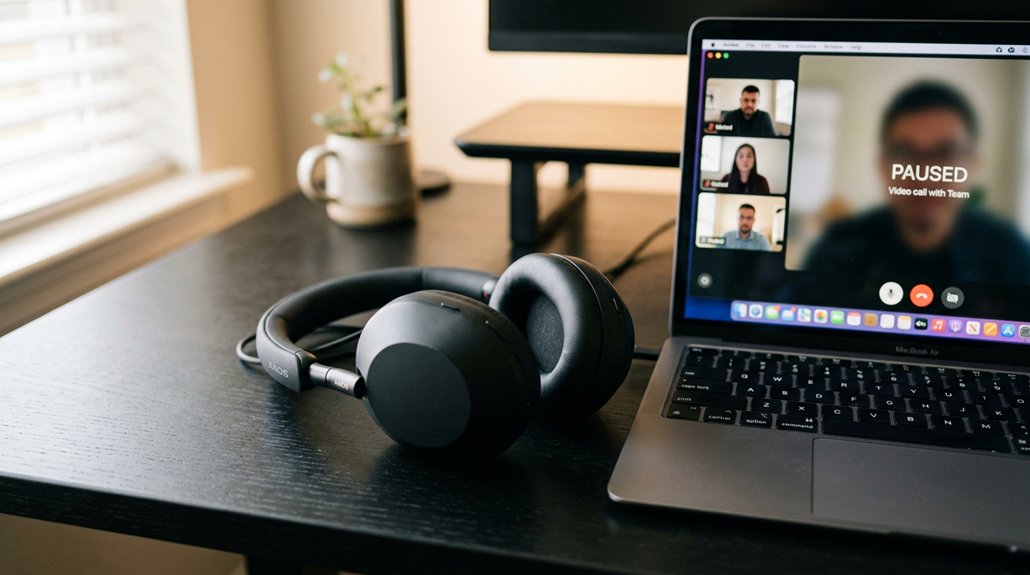
Choosing the right noise-canceling hardware can make a big difference in call clarity; understand the differences between active noise cancellation and directional microphones. A good model will also feature hybrid ANC or advanced microphone arrays to better block out background noises and ensure your voice remains clear.
Types of Noise Cancellation
With the right noise-canceling hardware, you can dramatically improve the clarity of your voice during video calls. There are several types of noise cancellation to take into account, each offering different levels of noise suppression. Active Noise Cancellation (ANC) headsets are highly effective, reducing ambient sounds for clearer communication. Directional microphones focus on your voice and block background noise, greatly enhancing audio quality. Combining high-quality headsets with software noise suppression provides an added layer of sound isolation, especially in busy environments. Keep in mind, popular wireless earbuds like most AirPods don’t effectively cancel ambient room noise, so specialized hardware is essential for professional calls. Additionally, understanding the difference between microphone types can help tailor your setup for optimal clarity. Here’s a quick comparison:
| Type of Noise Cancellation | Best For |
|---|---|
| Active Noise Cancellation | Reducing ambient sounds effectively |
| Directional Microphones | Focusing on your voice, minimizing noise |
| Software Noise Suppression | Enhancing noise suppression alongside hardware |
Best Hardware Options
To guarantee crystal-clear audio during video calls, investing in the right noise-canceling hardware is essential. Look for headsets equipped with Active Noise Cancellation (ANC) technology to effectively filter out ambient sounds and enhance voice clarity.
Directional microphones are crucial, as they focus on your voice while minimizing background noise from other directions. For superior noise reduction, consider professional-grade audio devices specifically designed for noise suppression, making a noticeable difference in noisy environments like open offices or busy homes.
Combining noise-canceling headphones with quality microphones offers the best noise isolation, so your voice stays clear even in shared or noisy workspaces. Portable options, like the Orosound Tilde Pro headset, provide flexible and effective noise reduction for remote and on-site workers alike.
Additionally, selecting hardware with mounting options or cable management features can help keep your workspace organized and free from distractions.
Device Compatibility Tips
When selecting noise-canceling hardware, ensuring compatibility with your video conferencing platforms can make all the difference in achieving clear audio. Check device compatibility before purchasing noise-canceling headsets or microphones. Compatibility issues can cause audio delays, loss of features, or total failure to connect, defeating your goal of distraction-free calls. Opt for headsets with Active Noise Cancellation (ANC) and directional microphones that are designed to work seamlessly with popular platforms like Zoom, Teams, or Webex. Portable solutions like the Orosound Tilde Pro paired with neep software offer versatility and proven compatibility across different environments. Use this quick reference to verify compatibility:
| Device | Platform Compatibility | Features Supported |
|---|---|---|
| Headphones | Zoom, Skype, Teams | ANC, microphone, playback |
| Microphones | Webex, Google Meet | Noise suppression, directional pickup |
| Software | Windows, Mac | Full hardware integration |
| Portable Hardware | Any environment | Flexibility and integration |
Additionally, considering compatibility with Linux systems can ensure a smoother experience across various operating environments.
Use Built-in Software Features to Minimize Background Noise
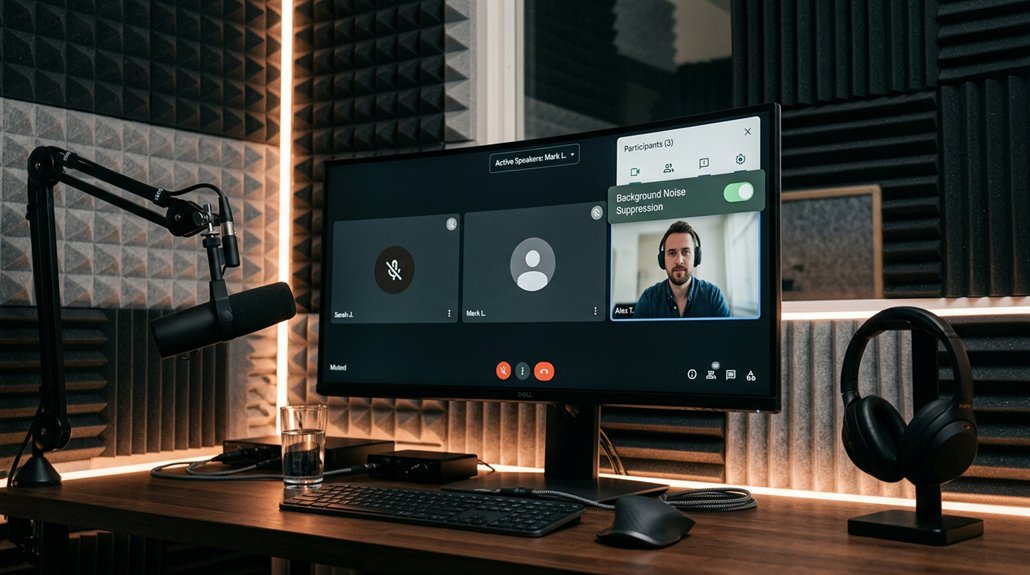
Many video conferencing platforms like Zoom and Google Meet include built-in noise suppression features that can considerably reduce background noise during calls. By enabling and correctly configuring these settings, you can minimize distractions caused by keyboard typing, pets, and household sounds, helping everyone stay focused. A good understanding of your platform’s noise absorption capabilities can help you optimize settings for better audio clarity.
Built-in noise suppression filters ambient sounds from both your environment and other participants, maintaining a professional sound quality. Keep your video call software updated regularly to access the latest noise reduction improvements, ensuring peak background noise filtering.
These built-in features are a simple yet effective way to improve audio clarity without relying on external tools. Taking advantage of these tools helps create a smoother, less distracting video call experience for everyone involved.
Add External Noise Cancellation Apps and Tools
External noise cancellation apps like Neep use AI to filter out background sounds in real time, improving clarity beyond standard platform features. They run locally on your device, keeping your privacy intact while enhancing audio quality during calls. Implementing certification standards in these tools ensures they meet safety and performance benchmarks, providing added peace of mind.
Enhancing Audio Clarity
To greatly improve audio clarity during video calls, consider leveraging dedicated noise cancellation software like neep AI, which filters out ambient sounds in real-time. These tools go beyond hardware capabilities to eliminate background noise, making your voice clearer.
Activate built-in noise suppression features available on platforms like Zoom and Google Meet to automatically reduce noise during calls. Apps that remove noise on both your and other callers’ audio channels enhance overall call quality and professionalism.
Adjust noise cancellation settings within your video call software to suit your environment and device, ensuring peak filtering.
For low latency, privacy, and high-fidelity voice separation, AI-driven noise suppression tools that run locally are a smart choice.
Combining these options creates a quieter, distraction-free communication experience.
Real-Time Noise Filtering
Integrating external noise cancellation apps into your video call setup can greatly enhance audio clarity by actively filtering out unwanted noise in real time. Apps like Neep use AI to distinguish between your voice and background sounds, effectively removing disturbances such as typing, pets, or environmental noise.
Many platforms, including Zoom and Google Meet, offer built-in noise suppression features, but adding dedicated software can deliver even clearer results. These tools typically run locally on your device, providing faster response times and safeguarding your privacy.
For peak noise reduction, pair these apps with directional microphones or ANC headsets. Many setup guides are available to help you configure and optimize external noise filtering apps, ensuring your calls stay distraction-free and professional.
Compatibility With Platforms
Many video call platforms, such as Zoom and Google Meet, already include built-in noise suppression features that you can enable in settings to automatically reduce background noise. However, external noise cancellation apps like neep can be integrated for even better results. These apps provide superior real-time AI noise filtering, removing background noise from both your environment and other callers, which improves voice clarity during video meetings. Compatibility depends on app permissions and system audio routing, so following detailed setup guides guarantees smooth integration. To clarify, here’s a quick comparison:
| Feature | Platform Compatibility |
|---|---|
| Built-in noise suppression | Yes in Zoom and Google Meet |
| External app integration | Varies by system setup |
| Hardware needed | Quality microphone |
| Real-time filtering | Yes with neep and others |
| Setup complexity | Moderate |
Combining these tools yields the best video meeting experience.
Create Personal Protocols for Managing Distractions
Creating personal protocols for managing distractions can greatly boost your focus during video calls. To communicate effectively, start by establishing a routine of keeping your microphone muted by default, unmuting only when you speak.
Forewarn housemates or coworkers about your scheduled calls to reduce interruptions. Use visual or audio cues, like a “do not disturb” sign or silent periods, to remind others to keep noise levels low.
Prepare a checklist before every call—close windows, turn off appliances, and choose a quiet space—to proactively prevent disruptions. Also, develop a habit of actively using mute controls—mute yourself when not speaking and swiftly mute others if the platform allows.
These personal protocols keep distractions minimal and guarantee clear, effective communication during your meetings.
Position Your Microphone and Camera for Better Sound Quality
To improve your sound quality during video calls, position your microphone carefully: place it close to your mouth but slightly below or to the side, so it captures your voice clearly while reducing breath sounds. Keep the microphone away from noise sources like keyboards, fans, or pets to minimize background noise.
If your microphone has a directional pickup pattern, aim it toward your voice and away from ambient sounds for better voice isolation. Position your camera at eye level for a professional appearance, and discreetly angle your microphone to avoid obstructing your view.
Avoid placing the microphone too far or behind objects, as this can degrade audio clarity and pick up more background noise. Proper positioning guarantees clearer voice transmission and a more focused, distraction-free call.
Practice Meeting Etiquette to Keep Distractions in Check
Practicing good meeting etiquette helps keep distractions to a minimum and guarantees everyone stays focused.
Make it a habit to mute yourself when not speaking and encourage others to do the same. Setting clear expectations about muting and speaking protocols keeps meetings professional and efficient.
Maintain Professional Mutes
Starting meetings on mute and unmuting only when you’re ready to speak is essential for maintaining professionalism and minimizing disruptions. Using the mute button proactively helps keep background noise from interrupting the flow.
To practice good meeting etiquette:
- Always mute yourself at the start and only unmute when you need to contribute.
- Develop a routine of listening, thinking, then briefly unmuting before speaking.
- Regularly check your microphone status to avoid accidental unmuted noises.
- Encourage others to stay muted when not speaking, promoting a respectful environment.
Set Clear Expectations
Setting clear expectations before a meeting guarantees everyone understands their role in maintaining a focused environment. You can make certain your voice sets a professional tone by communicating meeting guidelines in advance. Encourage participants to choose quiet locations and silence their devices to minimize distractions. Establish a norm to use the mute button consistently and unmute only when contributing, preventing interruptions. Remind attendees respectfully to avoid side conversations or unrelated activities during calls. To reinforce this, send a brief pre-meeting message or chat that emphasizes shared responsibility. Here’s an example of shared expectations:
| Expectation | Behavior | Outcome |
|---|---|---|
| Muting microphones | Mute when not speaking | Reduce background noise |
| Choosing quiet locations | Find a private, quiet space | Maintain professionalism |
| Staying focused | Avoid side conversations | Keep discussions on track |
These steps make certain your voice helps create a distraction-free meeting.
Regularly Test Your Setup to Ensure Clear Audio
To guarantee your audio is always clear during video calls, it’s essential to regularly test your setup before important meetings. Conduct test calls to identify and fix background noise or audio issues.
Regularly test your audio setup to ensure clear, distraction-free sound during important video calls.
Use recording features in your conferencing software or external apps to review audio quality and spot distractions.
Here are some tips to optimize your setup:
- Check microphone sensitivity and noise cancellation settings to improve voice clarity.
- Experiment with different microphone positions and devices, like headsets with ANC.
- Verify your audio equipment is functioning properly and connected securely.
- Request feedback from trusted participants during test calls to catch any lingering issues.
Regular testing helps you catch problems early, guaranteeing your audio remains crisp and distraction-free during critical video calls.
Combine Hardware and Software Strategies for Maximum Silence
Combining hardware and software strategies creates a powerful approach to achieving maximum silence during video calls. Using noise-canceling headsets with Active Noise Cancellation (ANC), like the Orosound Tilde Pro paired with neep AI software, effectively filters out ambient office noise, ensuring clear communication during your video meetings.
Software solutions such as neep provide real-time AI noise removal, eliminating background sounds on both your end and your caller’s, enhancing voice clarity beyond hardware alone. Pairing directional microphones with noise suppression apps further sharpens your voice focus and diminishes disruptive environmental noises.
Frequently Asked Questions
How to Make a Video Call Silent?
To make a video call silent, mute your microphone when you’re not speaking, use noise-canceling headphones, enable noise suppression features, choose a quiet spot, and remind others to mute when they aren’t talking, maintaining a distraction-free environment.
What to Do When You’re Bored on a Video Call?
When you’re bored on a video call, take notes, ask questions to stay engaged, or participate actively. Use the mute button when necessary, and consider taking short breaks to refresh your focus and reduce restlessness.
Why Don’t Introverts Like Video Calls?
You don’t like video calls because they drain your energy with constant interaction, limit your ability to read nonverbal cues, and make you feel anxious about being on-screen, overwhelming your natural preference for quieter, more controlled conversations.
How to Block Out 100% of Noise?
To block out 100% of noise, you should use ANC headsets paired with AI noise suppression software like neep, focus your microphone on your voice, and create a quiet environment by closing windows and turning off noisy devices for ideal sound isolation.



