
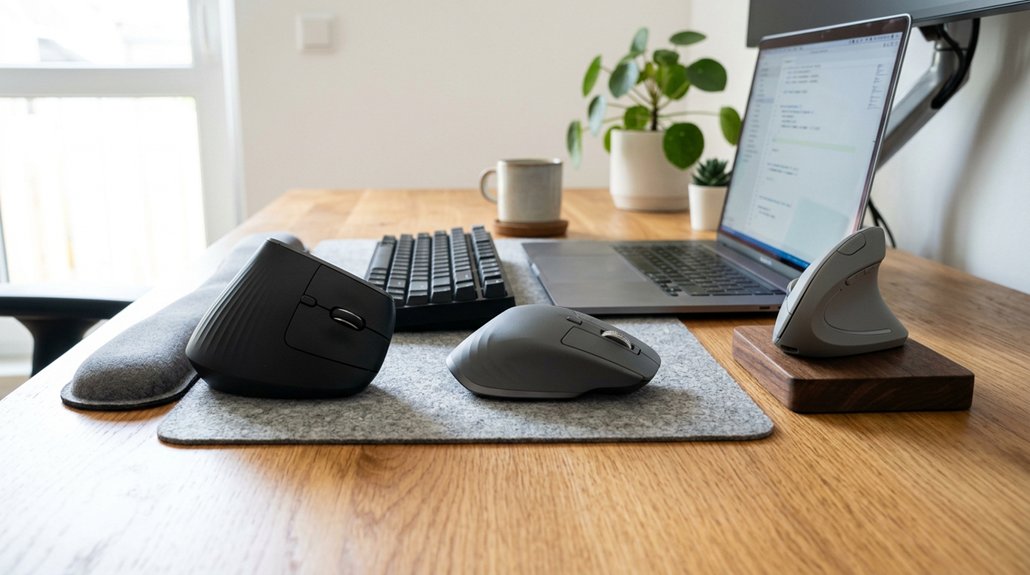
To ease carpal tunnel discomfort, position your mouse close to your keyboard, about 1-2 inches apart, to avoid reaching and strain. Use an ergonomic mouse that fits your hand and encourages a neutral wrist position, reducing bending and twisting. Keep your wrist straight and relaxed, using your whole forearm rather than just your wrist to move the mouse. Proper workspace setup and support can make a difference—keep exploring for more tips to protect your wrists.
Position Your Mouse for Comfort and Wrist Support
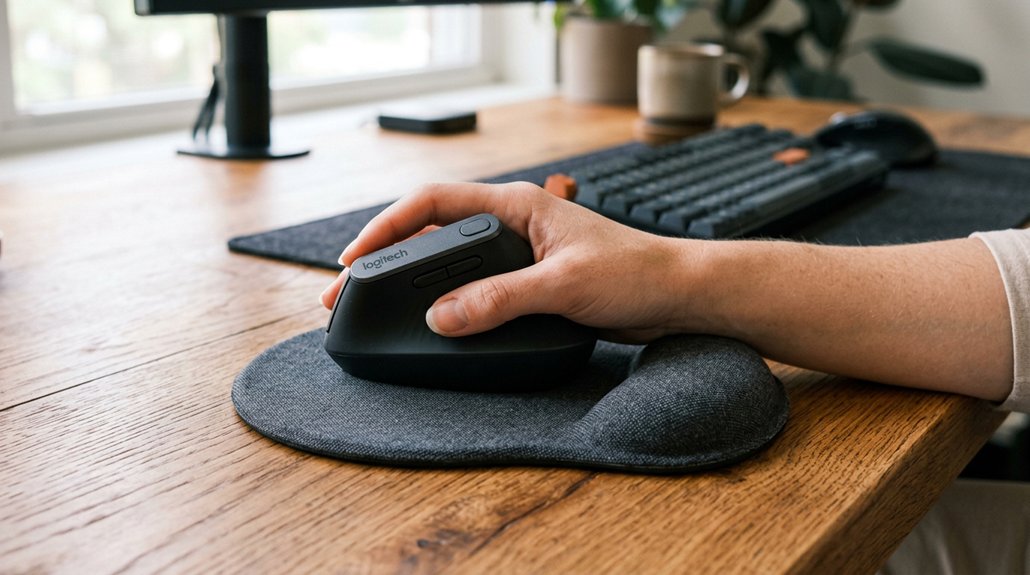
To avoid strain and support your wrist properly, position your mouse close to the keyboard, ideally 1–2 inches above it on your right side if you’re right-handed.
Keep your hand in a neutral position, with your wrist straight and relaxed during mouse use. Avoid bending or twisting your wrist, as this increases pressure on the carpal tunnel and irritates the median nerve.
Maintain a straight, relaxed wrist to reduce pressure and prevent discomfort during mouse use.
Use your whole forearm to move the mouse, not just your wrist, to reduce wrist strain. An ergonomic mouse can help maintain proper hand position, promoting a natural and comfortable grip.
Avoid resting your wrist on the desk, which can worsen pressure and discomfort. Proper placement and support are essential for minimizing strain and preventing long-term issues like carpal tunnel syndrome.
Implementing ergonomic design principles in your workspace setup can significantly enhance comfort and reduce risk factors associated with repetitive strain.
Choose an Ergonomic Mouse Shape and Size to Minimize Strain
Choosing the right ergonomic mouse shape and size is essential for reducing strain and maintaining a neutral wrist position. An ergonomic mouse that fits your hand comfortably can help minimize wrist extension and pressure on the median nerve, reducing carpal tunnel symptoms.
Consider a vertical mouse, like the Contour UniMouse, which encourages a handshake posture, lowering the muscle activity linked to carpal tunnel issues. Larger mice or trackballs help reduce grip tension and promote arm-based movements, alleviating repetitive wrist flicking.
Avoid curved or narrow mice that force your wrist inward or upward, increasing strain. Symmetrical, ambidextrous mice enable load sharing between hands and make switching sides easier.
Choosing a mouse that fits your hand and encourages natural wrist positioning greatly reduces the risk of mouse cause carpal tunnel.
Keep Your Mouse Close to Your Keyboard to Reduce Reaching
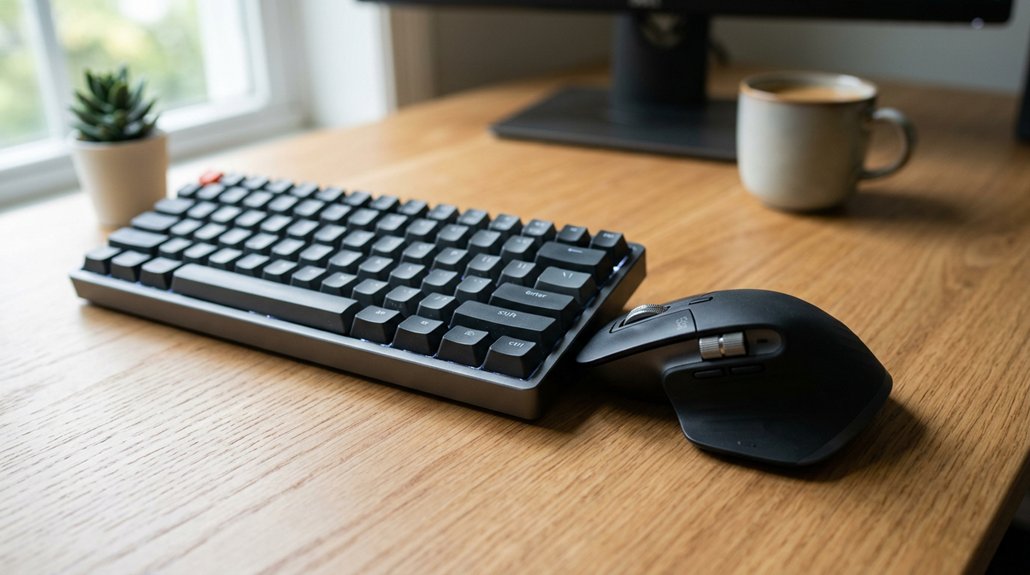
Keeping your mouse close to your keyboard is essential for reducing strain on your wrist and forearm. When the mouse is within 1–2 inches of your keyboard, you can maintain a neutral wrist position, which lowers pressure on the median nerve involved in carpal tunnel syndrome. This setup reduces the need for excessive reaching, preventing tension buildup in your forearm and shoulder. By avoiding stretching your arm to the side, you minimize tension on the median nerve and prevent shoulder fatigue. Keeping the mouse nearby encourages using your forearm rather than bending your wrist, supporting an ergonomic posture. Proper wrist support can further enhance this positioning by promoting correct alignment and cushioning. This simple adjustment helps prevent discomfort and contributes to a healthier, more comfortable workspace, especially if you’re trying to alleviate or prevent symptoms of carpal tunnel syndrome.
Frequently Asked Questions
How to Use a Mouse With Carpal Tunnel?
To use a mouse with carpal tunnel, hold it gently, keep your wrist neutral, and move it with your forearm. Avoid resting your wrist on surfaces, and take breaks regularly to stretch and reduce strain.
How to Avoid Carpal Tunnel With a Mouse?
To avoid carpal tunnel with a mouse, keep it close to your keyboard, use your whole forearm, keep your wrist neutral and relaxed, avoid hard surfaces, and consider ergonomic mice that promote better wrist and forearm alignment.
How to Unpinch the Carpal Tunnel Nerve?
To unpinch your carpal tunnel nerve, you should stretch your wrists gently, take frequent breaks, and adjust your hand position to guarantee a neutral, straight wrist. Using ergonomic tools and practicing good posture also helps reduce pressure.
What Is Stage 4 Carpal Tunnel?
Stage 4 carpal tunnel is the most severe, causing constant numbness, severe pain, muscle wasting, and loss of hand function. It often requires surgery, as nerve damage becomes irreversible, leading to permanent weakness and disability if untreated promptly.
In Summary
By adjusting your mouse position, choosing an ergonomic shape, and keeping it close to your keyboard, you can greatly reduce strain on your wrists. Small changes like these make a big difference in preventing carpal tunnel discomfort. Remember to take regular breaks and stretch your hands and wrists too. Prioritizing proper positioning helps keep your hands comfortable and healthy, so you can work smoothly without unnecessary pain or strain. Your wrists will thank you!



