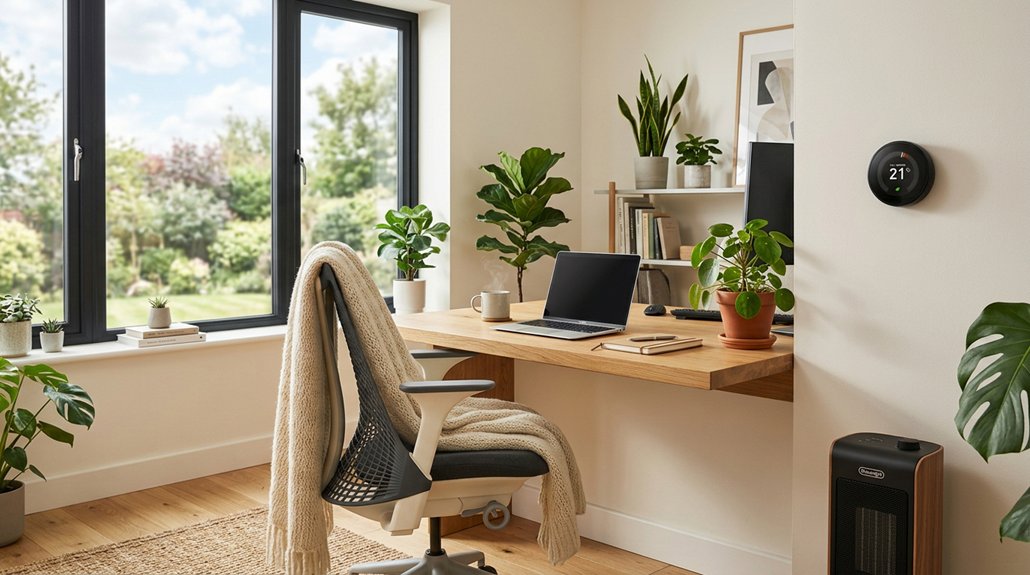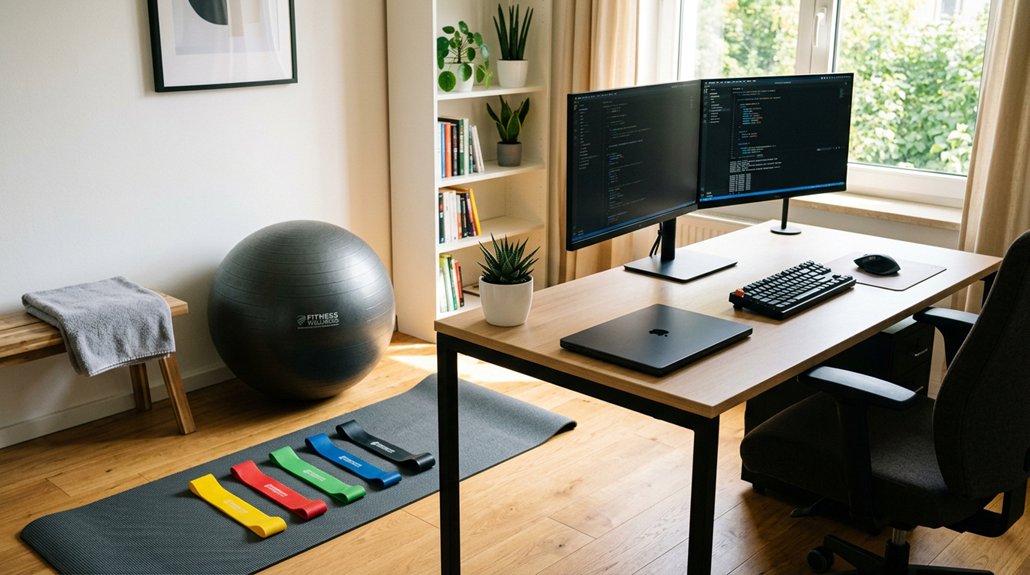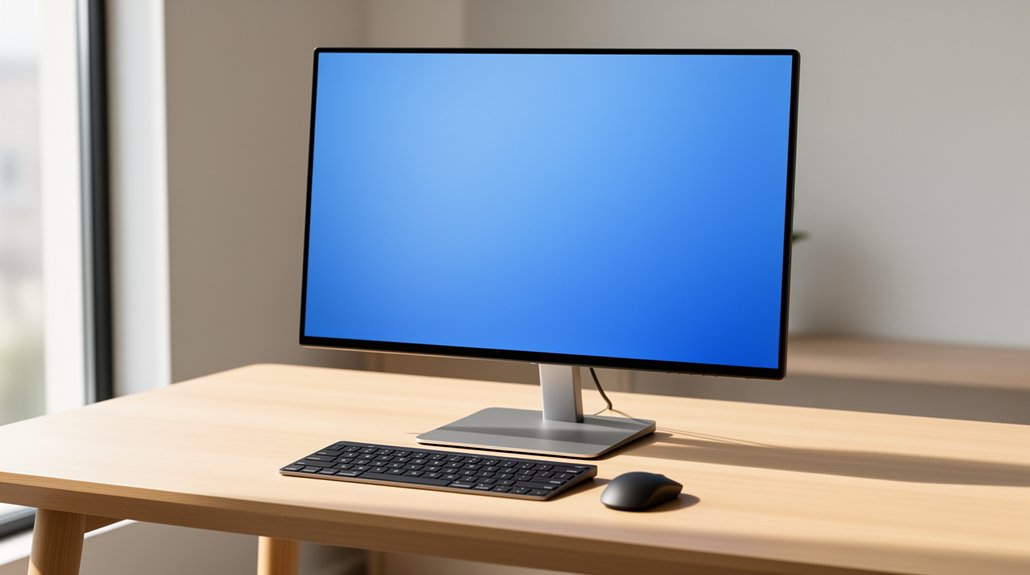
Place the monitor’s top edge at or just below eye level so your neck stays neutral and you can glance down slightly. Keep the screen about an arm’s length away (20‑30 inches) and tilt it back 10‑20° to match your line of sight. Reduce glare by positioning side lighting away, adding bias lighting behind the display, and using a matte screen or antiglare filter if needed. Align both monitors on the same horizontal line for dual setups, and sync height changes with your sit‑stand desk. Continue and and’ll discover more tips for optimal ergonomics.
Set Your Monitor’s Top Edge at Eye Level
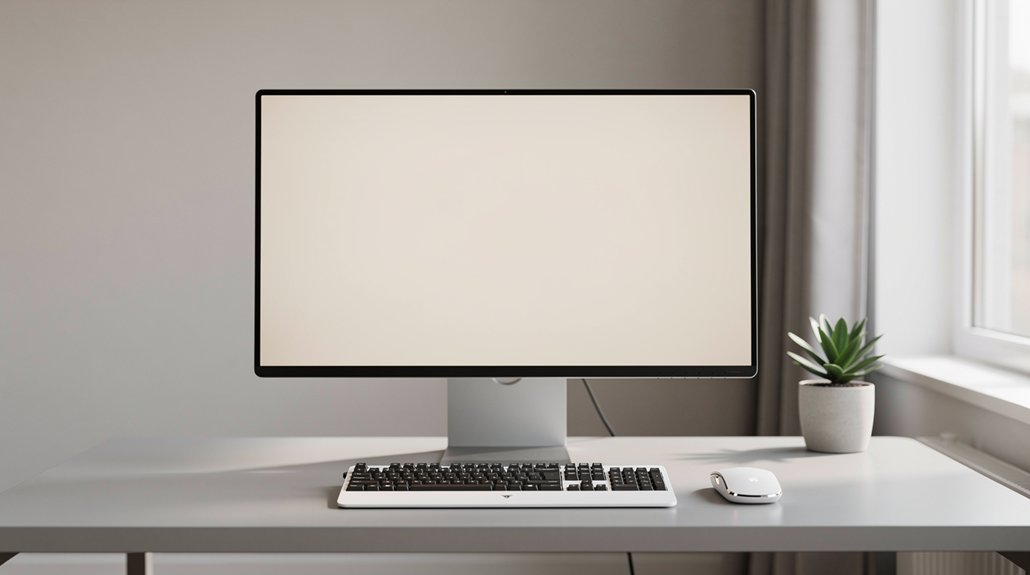
Ever wondered why your neck aches after hours at the screen? You can fix that by setting the monitor height so the top edge sits at eye level. When the top third of the display rests 5–10 cm below your natural line of sight, you maintain a neutral neck posture and cut eye strain. Use a monitor arm or height‑adjustable stand for precise height adjustment.
For dual monitors, align both top edges on the same horizontal line so each screen matches your eye level, keeping the viewing distance consistent and the ergonomic setup balanced. This simple tweak eliminates the need to tilt or crane your neck, letting you work longer with comfort and focus.
Reduce Glare for Comfortable Viewing
Why let glare ruin your focus? You can cut eye strain by mastering glare reduction. Position the monitor so natural light comes from the side, not directly in front or behind, and keep the top third of the screen at or just below eye level. A slight screen tilt of 10–20 degrees aligns the viewing angle with your eye line, while bias lighting behind the monitor softens contrast and eases reflections. If glare persists, try an antiglare filter or matte screen.
Cut eye strain: side lighting, slight upward tilt, bias lighting, and an antiglare filter.
Steps to reduce glare
- Shift side lighting away from the screen.
- Tilt the monitor upward 10–20°.
- Add bias lighting behind the display.
- Use an antiglare screen or filter.
Pick the Best Viewing Distance and Tilt Angle

After cutting glare, the next step is setting the right distance and tilt. Keep an arm’s length—about 20–30 inches—between you and the screen to cut eye strain and keep the whole display in view.
Position the monitor height so the top edge is at eye level or just below, letting the center sit 15–20° down for a natural gaze.
Tilt the screen 10–20° back to align with your sight line and reduce glare.
If text feels cramped, increase font size instead of moving closer; this preserves reading comfort and head posture.
For dual monitors, match both viewing distance and monitor height, placing the primary screen straight ahead and angling the secondary slightly to maintain consistent eye strain and strain
Adjust Height for Sit‑Stand Workstations
How do you keep your neck neutral when you shift between sitting and standing? Adjust the monitor height so the top edge sits at or just below eye level, and keep the screen center about 17–18° down. Use an adjustable monitor arm to maintain arm’s length (20–30 in) in both postures. Match desk height changes with monitor height to avoid constant readjustments, and choose a quick‑adjust mechanism for effortless transitions.
- Set top edge ≤ eye level for a neutral neck.
- Position screen center at a 17–18° downward reading angle.
- Keep the display at arm’s length with an adjustable monitor.
- Sync chair/desk height changes with monitor height for ergonomic workstations.
Set Height for Multiple Monitors to Reduce Eye Strain
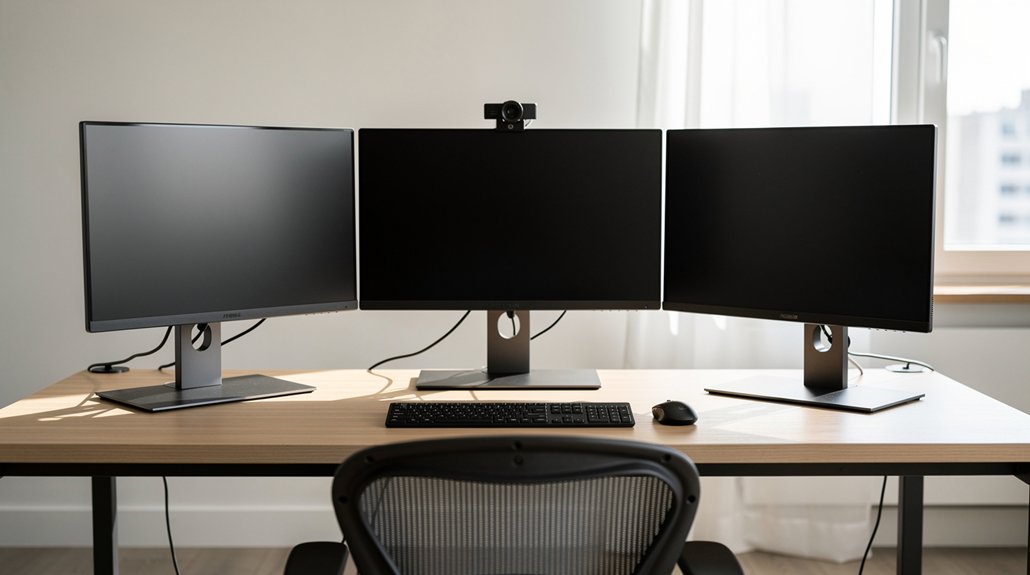
Ever notice how your eyes tire when you constantly shift focus between unevenly positioned screens? In a multi‑monitor setup, set the monitor height of both displays to equal height so your gaze stays level and neck strain drops.
Position the primary monitor directly in front at arm’s length, aligning its top edge with or just below natural eye level. Angle the secondary monitor slightly to the side, keeping the same screen distance and viewing angle to avoid asymmetrical posture.
Use adjustable stands or monitor arms to fine‑tune ergonomic alignment, ensuring both screens share the same distance from your eyes. When the monitors are at equal height and proper distance, eye strain diminishes and your neck feels relaxed throughout the workday.
Frequently Asked Questions
What Height Should a Monitor Be for Eye Strain?
Your monitor’s top edge should sit about 5‑10 cm below your natural eye level, letting you gaze downward at roughly a 10‑20‑degree angle, keeping the screen’s center 17‑18 degrees below eye line.
What Is the Best Setting for Monitor to Reduce Eye Strain?
You should set the top edge a few centimeters below your eyes, keep the screen about an arm’s length away, tilt it 10‑20°, and align both monitors at the same height for comfortable viewing.
Do Higher Resolution Monitors Reduce Eye Strain?
Yes, higher‑resolution monitors cut eye strain by delivering sharper text and smoother edges, letting you keep fonts readable at comfortable distances without squinting or leaning forward, provided you adjust size and brightness appropriately.
How to Reduce Eye Strain From Computer Monitors?
You should set the monitor top third at eye level, keep it 20‑30 inches away, tilt it 10‑20°, match brightness to lighting, use larger fonts, and align any secondary screen directly in front.
In Summary
By aligning your monitor’s top edge with your eye level, you’ll keep your neck relaxed and your eyes focused. Minimizing glare, choosing the right distance, and tilting the screen correctly further cut fatigue. Adjust the height for sit‑stand setups and synchronize multiple displays to maintain a consistent line of sight. These simple tweaks protect your vision, boost comfort, and let you work longer without strain.