You should sit about an arm’s length away—roughly 28–31 inches (71–79 cm)—from a typical 24‑ to 27‑inch monitor to keep the whole screen in clear focus without neck strain. Larger screens need you to step back a bit, while higher‑resolution displays let you sit closer without losing detail. Keep the top of the screen at or just below eye level and tilt it slightly downward for comfort. If you follow these basics, you’ll discover even more ways to protect your eyes and improve ergonomics.
What Is the Ideal Arm’s‑Length Screen Distance?

How far should your screen be? You’ll find the sweet spot at arm’s length—roughly 28–31 inches (71–79 cm) for most adults. For a 24‑inch monitor, aim for 20–28 inches (50–70 cm); a 27‑inch model works best at 24–32 inches (60–80 cm).
Laptops need a closer approach, but pair them with a separate keyboard and mouse to keep the display at a comfortable distance.
When you hold a smartphone or tablet, keep it at least arm’s length away—about 30 cm for phones—to curb eye strain. The goal is simple: position your screen so you can see the whole display without leaning forward or squinting. This screen distance reduces fatigue, improves posture, and protects your eyes during long sessions.
How Screen Size Determines Your Viewing Distance
You’ll notice that the larger the screen, the farther back you should sit to keep the whole picture clear. A 24‑inch monitor feels comfortable at about 20‑28 inches, while a 55‑inch TV needs roughly 9‑10 feet. Matching the distance to the screen’s diagonal helps prevent squinting and neck strain.
Screen Size Guides Distance
Ever wondered why a 42‑inch TV feels just right at about 2.2 meters (7.2 feet) away, while a 65‑inch model needs roughly 3.6 meters (11.8 feet) for comfortable viewing? The rule of thumb is simple: larger screens demand a greater screen distance to keep the entire image in focus without eye strain.
For a 55‑inch set, aim for around 2.8 meters (9.2 feet). These guidelines follow a linear scale—each extra 10‑inch increment adds roughly 0.6 meters to your viewing distance. By matching the screen size to the appropriate distance, you preserve detail, reduce pixelation, and maintain a relaxed posture. Stick to the reference table, and your eyes will thank you.
Optimal Viewing Based on Inches
When you choose a TV size, the best viewing distance scales directly with the screen’s diagonal. For a 42‑inch set, aim for about 2.2 meters (7.2 feet) of screen distance to keep details sharp without straining your eyes.
A 55‑inch model works best at roughly 2.8 meters (9.2 feet), while a 65‑inch screen needs a viewing distance near 3.6 meters (11.8 feet).
These figures balance clarity and comfort, letting you see the full picture without pixelation or excessive eye fatigue. Follow the simple table that maps each diagonal to its ideal distance, and you’ll enjoy a cinematic experience that feels natural and relaxed.
Adjust your seating accordingly, and you’ll notice the difference immediately.
How Resolution (HD, 4K, 8K) Affects Screen Distance
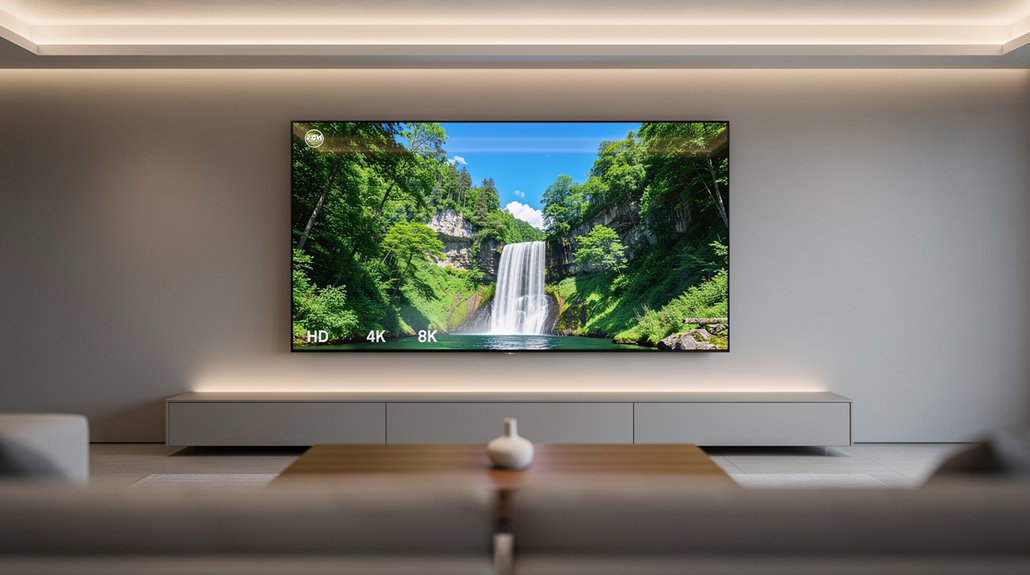
You’ll notice that higher resolution lets you sit closer without losing detail, because pixels are packed tighter. A 4K screen already shrinks the ideal distance compared to 1080p, and an 8K display pushes that even further, virtually eliminating visible pixelation. By matching the resolution to your viewing spot, you keep the image sharp and your eyes comfortable.
Resolution Determines Ideal Distance
How far back you sit really hinges on the screen’s resolution. Higher resolution means you can shrink your viewing distance without seeing pixels. For a standard‑definition TV, you’d aim for about six times the screen height, but an HD panel lets you sit a bit closer, and 4K or 8K screens let you move even nearer while still looking crisp.
A 43‑inch 4K set feels sharp at roughly 1.7–2.0 m, and a 55‑inch 4K model works well at 1.9–2.3 m. As resolution rises, the ideal distance contracts, so you preserve clear vision and comfort. Adjust your seating to keep the picture clear and the field of view comfortable, rather than sticking to a one‑size‑fits‑all rule.
4K Allows Closer Viewing
Higher resolution means you can sit closer without seeing individual pixels, so a 4K TV lets you move in a few feet compared to the much larger distances required for HD or SD sets.
With a 55‑ to 65‑inch panel, your optimal viewing distance drops to roughly 1.0–1.5 meters (3.3–5 feet). That’s because the denser pixel grid keeps the image sharp even when you’re near, reducing eye strain and neck fatigue.
Compared to HD, where you’d need about twice that distance to avoid seeing the pixel structure, 4K lets you enjoy a fuller picture without squinting.
Adjust your seating so the whole screen fills your field of view comfortably; the closer proximity enhances immersion while preserving clarity.
8K Reduces Pixelation Further
Because pixel density rises dramatically from HD to 4K and then to 8K, you can sit noticeably closer to the screen without seeing individual pixels.
The jump to 8K triples the pixels per inch compared with 4K, so the same screen size packs far more detail. That boost lets you shrink your viewing distance while keeping edges razor‑sharp and text legible.
You’ll notice that fine UI elements and small fonts stay crisp even when you lean in, reducing the need to squint or zoom.
When you pair a larger 8K panel with a shorter distance, the overall experience feels more immersive without introducing blockiness.
In short, higher pixel density directly translates to a tighter, more comfortable viewing distance.
How to Set Screen Height and Tilt for Neck Comfort
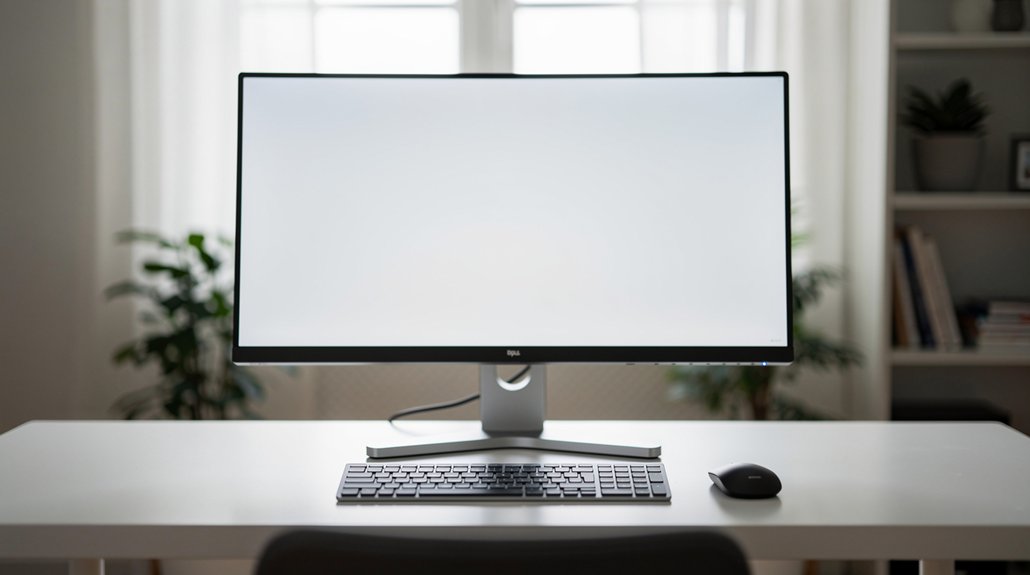
Ever wonder why a slight downward gaze feels so much better? You’ll notice that placing the top of the screen at or just below eye level encourages that natural tilt, easing neck strain. Adjust the screen height so when you sit with feet flat, your eyes meet the monitor’s upper edge. A gentle backward tilt reduces glare and keeps your head in a neutral position. For dual‑monitor setups, center the primary display and angle the secondary one inward to preserve a straight neck line. Curved screens of 33–50 inches let you scan without excessive head movement, further protecting your neck.
Position screens just below eye level, tilt slightly downward, and center displays to maintain a neutral neck posture.
- Position top of screen at/just below eye level
- Use a riser to match screen height to eye level
- Tilt monitor slightly downward to cut reflections
- Center main monitor, angle side screens inward
- Choose a large curved monitor for minimal head movement
How to Relieve Eye Strain From Too‑Close or Too‑Far Viewing
From arm’s length to a comfortable arm’s‑reach, keeping your screen within the sweet spot of about 50–70 cm (for 24‑27‑inch monitors) cuts eye strain and supports good posture. If the display feels too close, slide it back until you can read without squinting; the extra distance eases the ciliary muscles and reduces fatigue.
Conversely, when you’re too far, increase text size or zoom so you don’t lean forward to see details, which otherwise heightens eye strain. Choose a screen size that matches your viewing distance—larger TVs at 0.9–1.8 m let you relax focus.
Position the monitor so its top edge is at or just below eye level and eliminate glare; these tweaks keep eye strain minimal even when viewing distance isn’t perfect.
Implementing the 20‑20‑20 Rule & Quick Break Strategies

Set a timer for every 20 minutes, then look at something at least 20 feet away for 20 seconds. Keep your focus on that distance to give your eye muscles a quick reset. Regular eye rests, like a brief massage or a warm cloth, help maintain comfort throughout the day.
Set Timers
Wonder how a simple timer can protect your eyes while you work? You can set a timer to remind you of the 20-20-20 rule, so every 20 minutes you glance 20 feet away for 20 seconds. A reliable timer keeps the habit automatic, letting you focus on tasks without remembering to pause.
Pair the timer with quick break actions like blinking, gentle eye massage, or a warm cloth on closed lids. Use built‑in accessibility alerts or third‑party apps to trigger breaks without disrupting flow. Consistent timing also reinforces proper viewing distance, keeping screen strain low.
- Choose a 20‑minute interval for the 20-20-20 rule.
- Use a phone or desktop timer that repeats automatically.
- Enable pop‑up notifications to avoid missing breaks.
- Combine the timer with a 5‑minute stretch or eye‑massage routine.
- Test different apps to find the most unobtrusive reminder.
Focus on Distance
How can you keep your eyes relaxed while staying productive? Follow the 20‑20‑20 rule: every 20 minutes, glance at something 20 feet away for at least 20 seconds. Set a timer or enable device reminders so you never miss a quick eye rest. Keep your monitor at an arm’s length—about 28–31 inches—to maintain proper screen distance and cut eye strain. During each break, blink deliberately, massage your temples, or place a warm cloth over your eyes for extra relief. Short, frequent pauses beat occasional long rests, keeping fatigue at bay during marathon work sessions. Pair these habits with good posture, and you’ll protect your vision while staying productive.
Rest Eyes Regularly
Ever notice how quickly your eyes feel gritty after a marathon of scrolling? You can dodge that eye strain by building micro‑pauses into every work session. The 20‑20‑20 rule forces you to look 20 feet away for 20 seconds every 20 minutes, letting your ciliary muscles relax and your blink rate recover. Pair it with quick break strategies—massage your temples, press a warm cloth over closed lids, or simply stare at a distant object. Experiment with intervals; some people thrive on a 10‑minute pause, others on a 30‑minute rhythm. The key is consistency, so your eyes stay lubricated and focused without the fatigue that drags you down.
- Follow the 20‑20‑20 rule religiously.
- Blink consciously during each pause.
- Use a warm compress for a soothing reset.
- Try a gentle eye‑massage to boost circulation.
- Track which interval length feels most comfortable.
Tech Tools for Managing Screen Distance (Apple’s Feature Included)

Ever wondered how to keep your device at a safe distance without constantly checking? You can rely on Apple’s Screen Distance feature, which uses the TrueDepth camera to monitor screen distance and warn you when you’re under 12 inches, helping cut eye strain. The alert pops up on iOS 17, iPadOS 17, watchOS 10, or macOS Sonoma devices with Face ID, prompting you to move back or tap Continue. It’s on by default for kids under 13 in Family Sharing, but you can toggle it in Settings > Screen Time > Screen Distance. After a software update, the setting syncs across all your Apple devices, ensuring consistent protection wherever you work or play.
Laptop vs. Mobile Device Distances – Why They Differ
Why do laptop screens sit closer to your eyes than phones? You’re probably used to the built‑in keyboard and trackpad pulling the display nearer, while a phone rests in your hand and naturally stays at arm’s length. This shift in screen distance changes how your eyes work, so you’ll notice different eye strain levels if you don’t adjust.
Laptop screens sit closer due to keyboard proximity, while phones naturally stay at arm’s length, affecting eye strain.
- Laptops: keep the top of the screen at or just below eye level, angled slightly downward.
- Phones: hold them about arm’s length away, aligning the center with your gaze.
- Keyboard proximity forces a closer view, but a separate keyboard lets you pull the laptop back without sacrificing productivity.
- Alternating devices frequently can cause misalignment, increasing eye strain.
- Consistency across devices helps your visual system stay relaxed.
Choosing the Right Chair, Desk Depth, and Monitor Stand
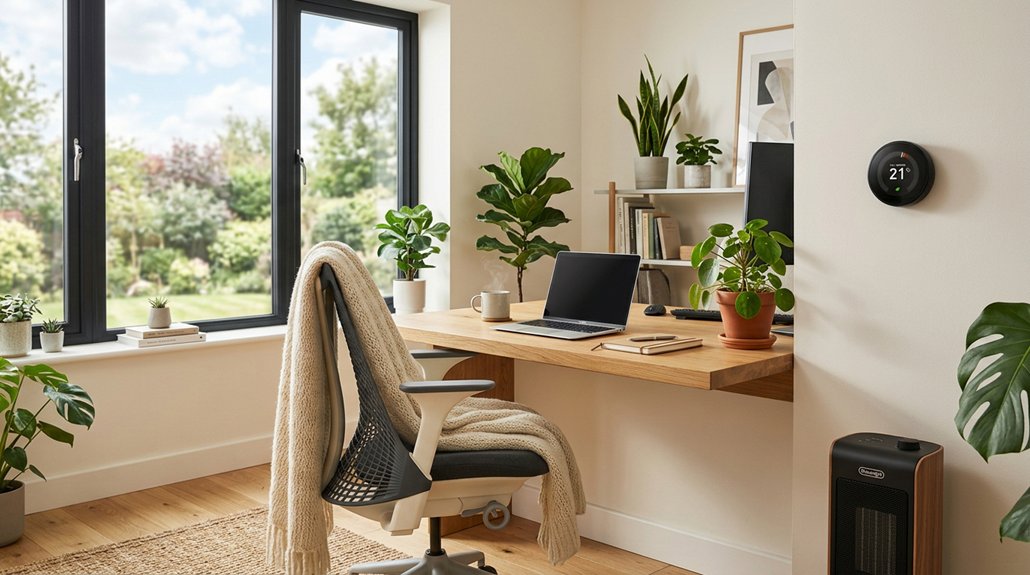
What makes a workstation truly ergonomic? You start by setting a chair that lets your eyes line up with the top third of the monitor, so you gaze slightly downward. Choose a chair with solid lumbar support to keep your torso upright and hips at a 90‑degree angle.
Next, adjust desk depth so the screen sits an arm’s length away—about 20–30 inches—while your elbows stay near 90 degrees. Place the keyboard and mouse within easy reach to avoid forward stretching.
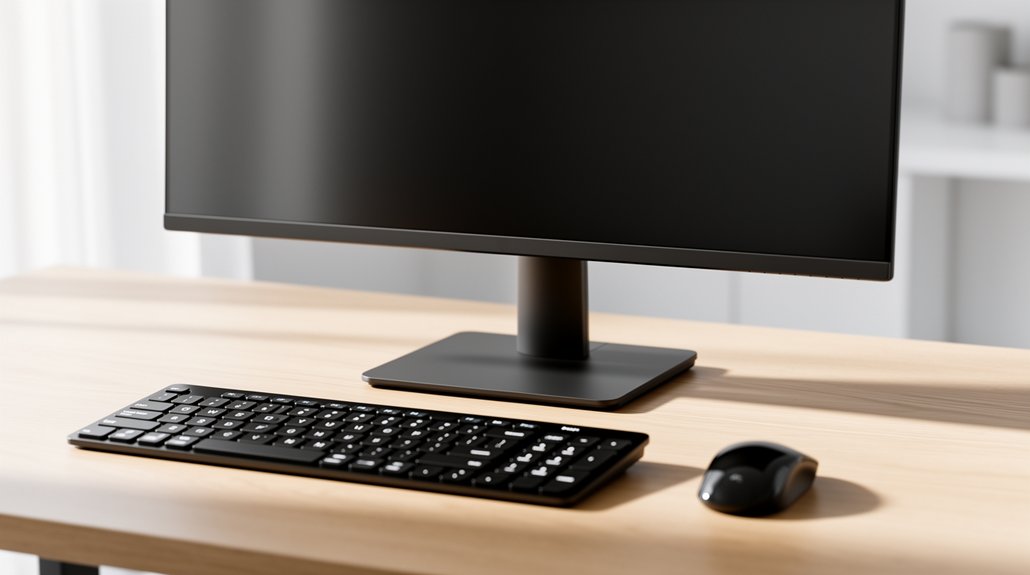
Finally, add a monitor stand or riser to raise the screen to eye level and, if you have multiple displays, angle them inward for a centered view. This combination reduces neck strain, keeps shoulders relaxed, and promotes a comfortable, efficient work posture.
Quick Checklist to Verify an Ergonomic Screen Setup
Now that your chair, desk, and monitor stand are set, verify the screen setup with a quick checklist. Ensure the viewing distance matches an arm’s length—about 28–31 inches (71–79 cm)—and adjust for screen size. Position the top edge at or just below eye level, keeping your posture upright with feet flat. Take regular 20‑20‑20 breaks to curb eye strain. For laptops, add a riser and external keyboard to meet the same distance and neck alignment.
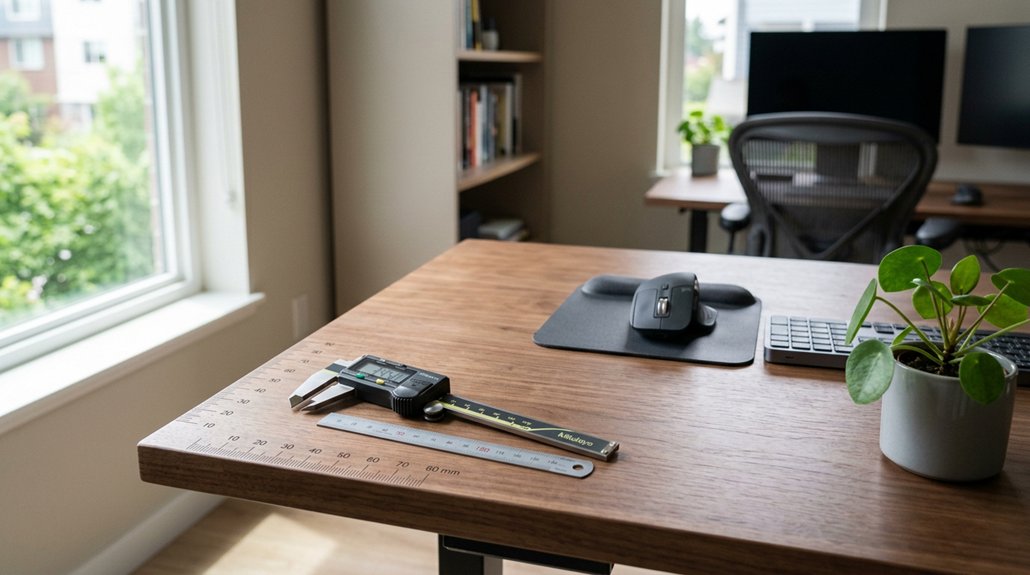
- Measure arm‑length distance; aim for 50–70 cm on a 24‑in monitor, 60–80 cm on a 27‑in.
- Align the screen’s top edge slightly below eye level.
- Center the display with your seated position.
- Apply the 20‑20‑20 rule every 20 minutes.
- Use a riser and separate peripherals for laptops.
Frequently Asked Questions
Can You See 20 Miles Away?
You can’t see 20 miles away on a screen; your eyes need natural distance and high‑resolution optics. Even with perfect focus, typical displays lack the detail and contrast to resolve objects that far.
What Is the 30 30 30 Rule for Eyes?
You follow the 30‑30‑30 rule by pausing every 30 minutes, looking at something roughly 30 feet away, and holding that gaze for 30 seconds, which eases eye strain during screen work.
How Far Should You Sit From Your Computer Screen 6 to 12 Inches, 12 to 18 Inches, 18 to 24 Inches, 24 to 30 Inches?
Sit about 24 to 30 inches away. That distance keeps the whole screen in view, reduces eye strain, and lets you maintain a comfortable posture while working or gaming.
What Happens if Your Phone Is Too Close?
If your phone’s too close, you’ll strain eye muscles, experience blurry vision, and increase fatigue. The blue light hits more intensely, disrupting sleep patterns and potentially causing long‑term discomfort if you don’t adjust distance.
In Summary
By keeping your screen at an arm’s length—about 20‑30 inches—you’ll reduce eye strain and protect your neck. Adjust the height so the top edge is at or just below eye level, tilt it slightly back, and match the distance to your device’s size and resolution. Use ergonomic chairs, desks, and stands, and leverage built‑in tools to stay within the sweet spot. Consistency with these habits ensures comfortable, healthy viewing every day.