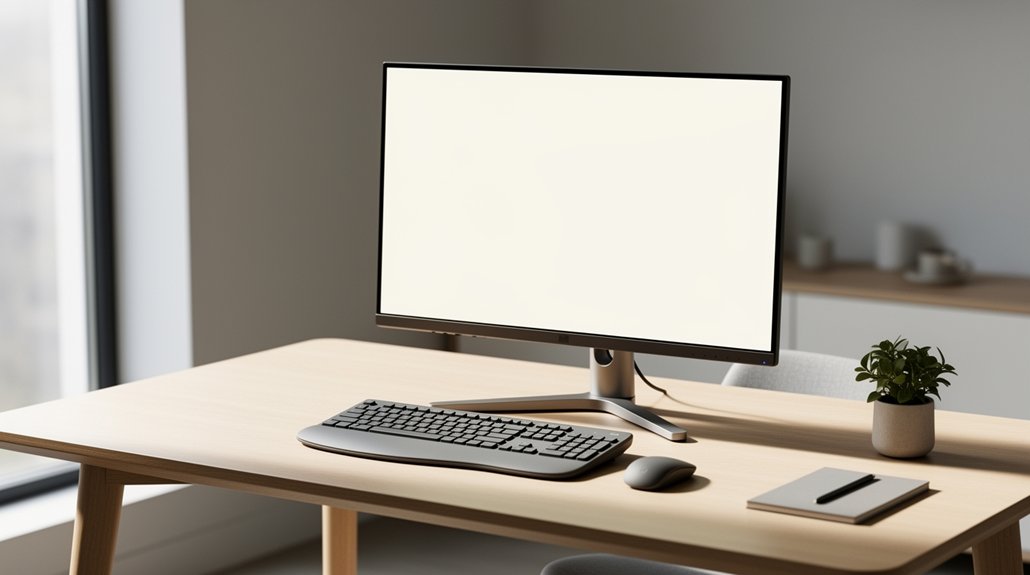
Position your monitor so the top sits 4–8 inches below eye level and keep it 20–28 inches away; this lets you look slightly downward (15–20°) and maintains a neutral head and neck posture, reducing strain. Tilt the screen 10–20° backward to cut glare and keep the view comfortable. Block direct sunlight and use even ambient lighting to avoid contrast shocks. Adjust brightness, contrast, and color temperature for eye comfort. Following these steps will keep you comfortable while you explore deeper ergonomic tips.
Why Proper Monitor Height Reduces Eye Strain
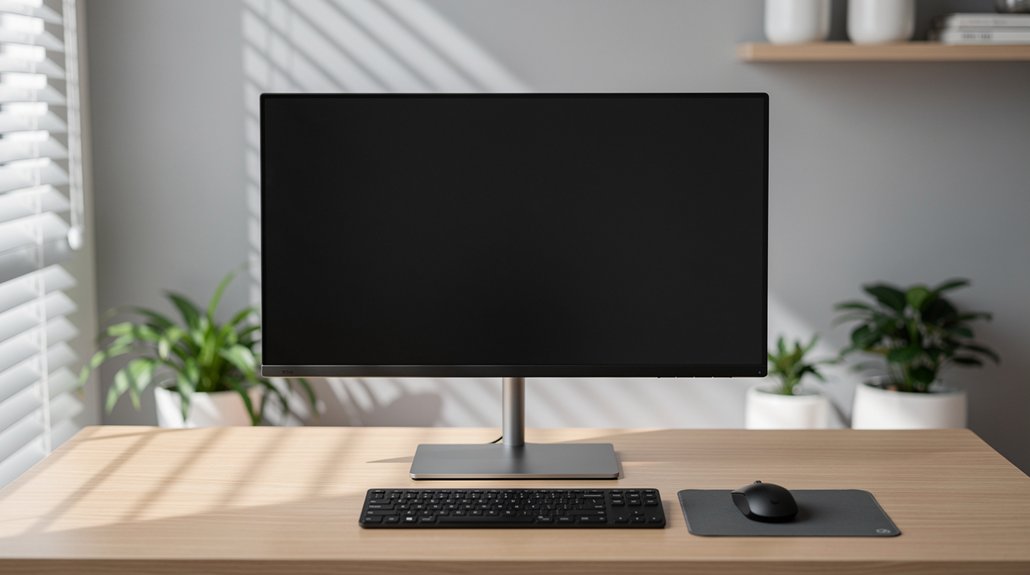
Ever wondered why a properly positioned monitor can ease your eyes? When you set the monitor height so the screen’s top sits 4–8 inches below your eyes, the viewing angle slopes downward, which cuts eye strain and keeps neck comfort high.
This screen position encourages a neutral head position and supports good posture, preventing the shoulders from hunching. You also want the screen distance around 20–28 inches away; that distance lets your eyes focus without constant refocusing, reinforcing an ergonomic setup.
Center the display directly in front of you, so you don’t tilt your head or twist your neck. By aligning monitor height, screen position, and viewing angle, you create a balanced workspace that minimizes fatigue and protects your vision.
Set Monitor Height Just Below Eye Level to Cut Eye Strain
You should position the monitor so the top sits just below your eye line, giving your gaze a slight downward angle. This small adjustment eases neck tension and cuts down on dry‑eye discomfort caused by a high screen. By keeping the screen’s center 4–8 inches beneath eye level, you also reduce the need for constant refocusing, easing overall eye strain.
Monitor Slightly Below Eyes
Why not place the monitor just a few inches below eye level? When you set the monitor position lower, the downward gaze reduces eye strain and creates a natural viewing angle. The screen height sits just under your eyes, so the top‑of‑screen alignment stays slightly below horizontal. This ergonomic setup eases neck posture, keeping your head upright and improving neck comfort. A modest tilt prevents the muscles from over‑working, letting you read for longer without fatigue.
| Benefit | Reason | Effect |
|---|---|---|
| Reduced eye strain | Downward gaze | Less dry eye |
| Better neck posture | Lower screen height | Fewer neck flexions |
| Enhanced comfort | Ergonomic setup | Sustained reading |
| Improved focus | Top‑of‑screen alignment | Consistent viewing angle |
Reduces Neck and Eye Strain
Placing the monitor a few inches below eye level naturally tilts your gaze downward, which eases neck muscles and cuts eye strain. This monitor position creates a comfortable viewing angle, keeping your eyes aligned with the screen center and reducing eye strain.
When screen height sits 15–20 degrees lower than your eyes, you maintain posture alignment that eliminates neck tension and lowers neck strain. The slight downward tilt also minimizes glare reduction, preventing dry eye and fatigue.
By avoiding a high monitor that forces you to lift your head, you keep neck muscles relaxed and improve eye comfort during long sessions.
Adjusting the monitor this way supports consistent posture alignment, cuts repetitive head movements, and sustains visual health.
Keep Screen 20‑28 Inches Away to Reduce Eye Strain
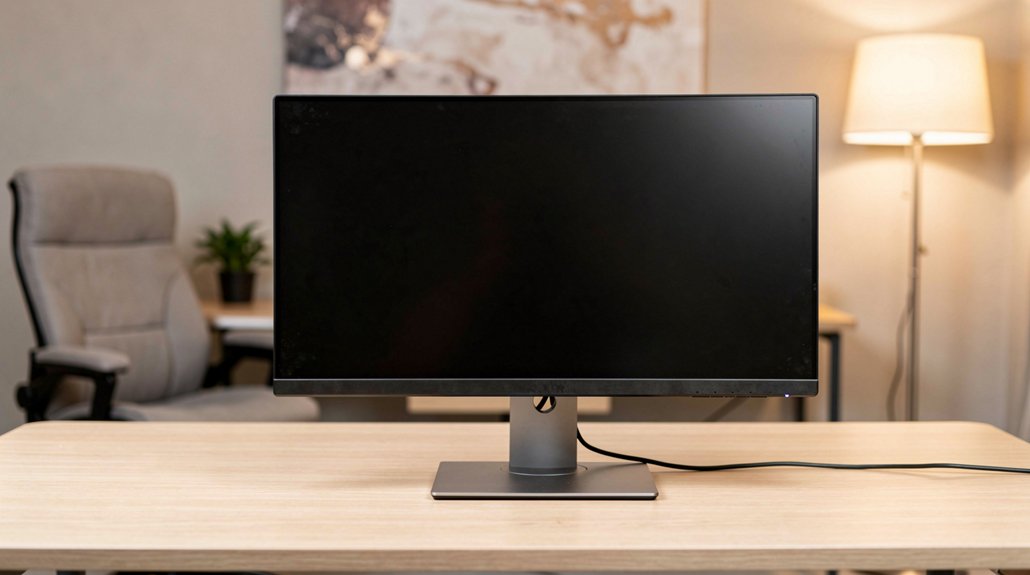
Ever wondered why your eyes feel tired after hours at the computer? Keeping your screen distance at 20-28 inches lets your eyes stay relaxed, cuts eye fatigue, and supports a comfortable neck posture. When the monitor position respects this range, your viewing angle stays natural, readability improves, and you avoid constant refocusing.
- Arm‑length placement – your screen sits just out of reach, reducing convergence strain.
- Larger text – at 20-28 inches you can increase font size without losing detail, easing squinting.
- Balanced posture – a proper distance aligns your head and shoulders, minimizing neck tension.
Tilt Screen 10‑20° Backward to Minimize Glare and Neck Stress
Keeping the screen at the right distance is only half the battle; the next step is to tilt it back 10‑20°. A modest screen tilt redirects overhead light, slashing glare while letting you keep a downward gaze. That posture reduces neck strain and eases eye fatigue because your eyes stay in a natural line of sight. When you pair a 10‑20° tilt with the recommended viewing distance, you create a comfortable viewing angle that feels ergonomic and effortless.
| Aspect | Recommended Range | Benefit |
|---|---|---|
| Tilt angle | 10‑20° backward | Cuts glare, lowers neck strain |
| Viewing distance | 20‑28 inches | Keeps eyes relaxed |
| Gaze direction | Slightly downward | Improves posture |
| Monitor position | Centered at eye level | Enhances ergonomics |
| Setup cost | Minimal adjustment | Quick, low‑cost fix |
Block Direct Sunlight and Overhead Glare on Your Display
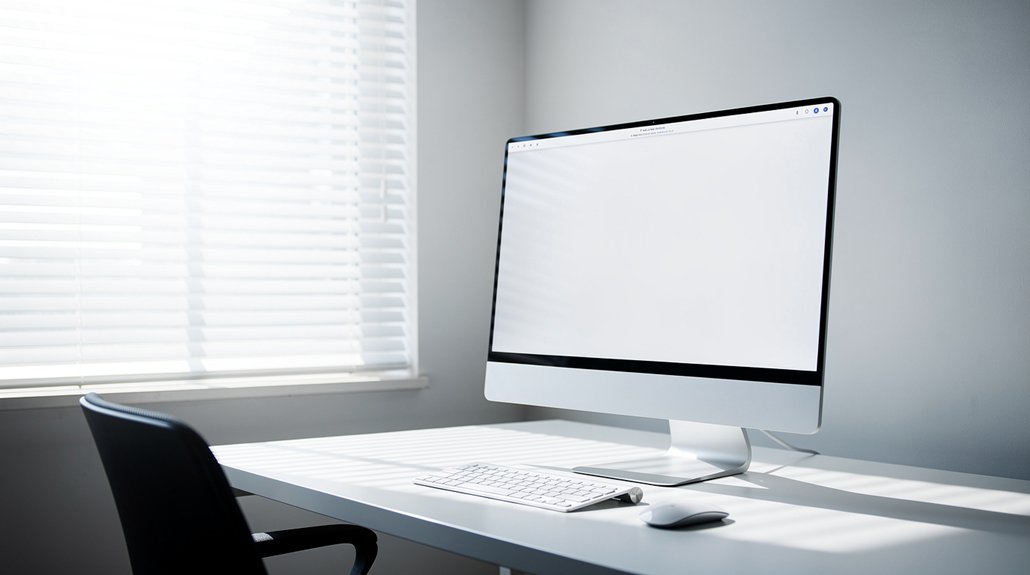
Wondering how to keep bright sunlight from turning your screen into a blinding mirror? You can block direct sunlight and overhead glare by adjusting screen positioning and your viewing environment. First, move windows to the side so direct sunlight never hits the front of the display, cutting reflections that cause eye strain. Next, install an anti‑glare filter or glare guard to soften harsh light and keep display brightness comfortable. Finally, orient overhead lights away from the monitor’s glare field, using blinds or curtains to create even illumination.
- Shift windows sideways, not in front.
- Apply anti‑glare protectors on the screen.
- Reangle ceiling lights and use blinds for uniform lighting.
Create Even Indirect Ambient Light to Prevent Contrast Shock
You should aim for even lighting across the room so the screen isn’t a bright island in a dark sea. Keep light sources indirect and out of your direct line of sight to avoid glare and sudden contrast spikes. This balanced illumination lets your eyes stay relaxed and maintain comfortable focus.
Even Lighting Across Room
Ever notice how a well‑lit room eases the strain on your eyes while you work? Even lighting across the room keeps the luminance around your monitor steady, so your eyes don’t constantly adjust to bright‑dark swings. When ambient light matches screen brightness, contrast drops and you stop squinting. Indirect illumination eliminates harsh glare, letting you keep a comfortable screen position without extra effort.
- Diffuse ceiling lamps that spread light uniformly.
- Soft floor lamps aimed toward the ceiling, not the screen.
- Task lighting that fills shadows without creating hotspots.
Avoid Direct Light Sources
Even lighting sets the stage, but the next step is keeping direct light away from the screen. You should position your monitor so overhead lighting or window glare doesn’t bounce off it, preventing harsh reflections that trigger eye strain. Choose indirect lighting that spreads evenly across the workspace, balancing ambient illumination so the screen never appears dramatically brighter than its surroundings. Use blinds or shades to block bright exterior light while maintaining enough overall light for comfortable viewing.
Avoid pointing lamps directly at the monitor; instead, aim light a diffuse source that reduces glare on glossy surfaces. By controlling screen position and eliminating monitor glare, you create a steadier visual environment that enhances viewing comfort and protects your eyes.
Maintain Ergonomic Seating and Posture for Comfortable Viewing
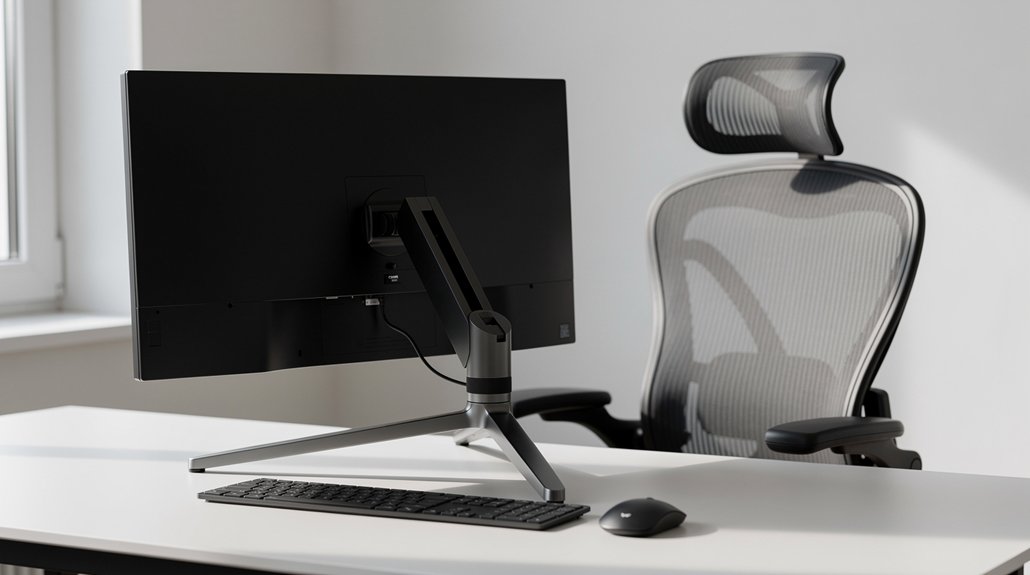
A proper ergonomic setup starts with sitting up straight, feet flat on the floor, which aligns your neck and shoulders while you view the screen. You’ll notice less eye strain when your posture stays consistent, your chair offers firm support, and the monitor sits at the right height. Keep the viewing distance between 20 and 28 inches, and tilt the screen 10–20 degrees so your eyes adopt a natural downward gaze. This alignment reduces neck stress and maintains ergonomic seating throughout the day.
- Adjust chair height so elbows rest at a 90‑degree angle, promoting neck alignment.
- Position the monitor top just below eye level, using monitor tilt for a comfortable downward gaze.
- Place reference materials within arm’s reach, preserving consistent posture and minimizing eye strain.
Adjust Brightness, Contrast, and Color Temperature for Eye Comfort
How can you keep your eyes comfortable while you work for long hours? Start by setting brightness to a mid‑range level, then tweak contrast until text pops without creating glare. Align color temperature to a cooler blue‑light hue for focus or a warmer tone for relaxation, depending on the time of day. Balance screen brightness with ambient lighting so the display doesn’t outshine the room or force your eyes to constantly readjust. Avoid stark white backgrounds; choose text‑on‑dark or dark‑on‑light schemes that boost readability and reduce strain. By fine‑tuning brightness, contrast, and color temperature, you support eye comfort, improve screen positioning benefits, and keep blue light exposure in check.
Quick Checklist for a Strain‑Free Monitor Setup
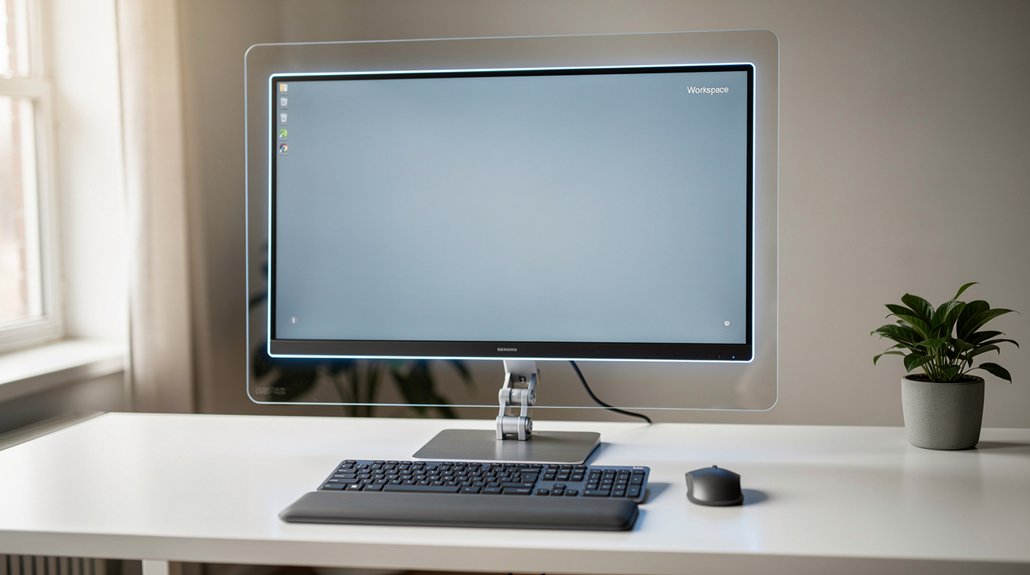
Fine‑tuning brightness, contrast, and color temperature sets the stage, but the physical setup of your monitor determines lasting comfort. You’ll notice immediate visual comfort when you follow a quick checklist that eliminates eye strain and protects posture.
- Viewing distance & height – Place the screen 20–28 inches away and center it 4–8 inches below eye level so your head stays neutral and your eyes don’t constantly refocus.
- Monitor angle & glare reduction – Tilt the top of the monitor 10–20 degrees away from you; this monitor glare and keeps the screen’s surface at a comfortable angle.
- Posture alignment – Keep your shoulders relaxed, elbows at a right angle, and your gaze slightly downward (15–20 degrees) to maintain a neutral head position and reduce neck tension. Following these steps secures a strain‑free, ergonomically sound workspace.
Frequently Asked Questions
How to Prevent Eye Strain When Looking at Screens?
You prevent eye strain by keeping the monitor 16‑30 inches away, tilting it slightly downward, positioning it 15‑20 degrees below eye level, using a document holder, and reducing glare with a 10‑20 degree tilt.
Which Fruit Is Best for Eyes?
You’ll find oranges, kiwi, and mangoes top the list—rich in vitamin C and A, plus lutein and zeaxanthin—so eat a colorful mix daily to boost retinal health and reduce strain.
What Is the 10 10 10 Rule for Screens?
You follow the 10‑10‑10 rule by pausing every ten minutes, looking away for ten seconds, then adjusting posture or stretching for another ten seconds, keeping eyes and neck relaxed.
What Is the #1 Worst Food for Vision Loss?
You can’t pinpoint a single worst food for vision loss from the material; it doesn’t list any. Instead, focus on balanced nutrition and limiting excessive sugars, trans fats, and processed snacks.
In Summary
By setting your monitor just below eye level, keeping it 20‑28 inches away, and tilting it 10‑20° back, you cut glare, reduce neck strain, and prevent contrast shocks. Block direct sunlight, add even ambient light, and fine‑tune brightness and color temperature. Pair this with good posture and ergonomic seating, and you’ll enjoy a comfortable, strain‑free viewing experience all day long.