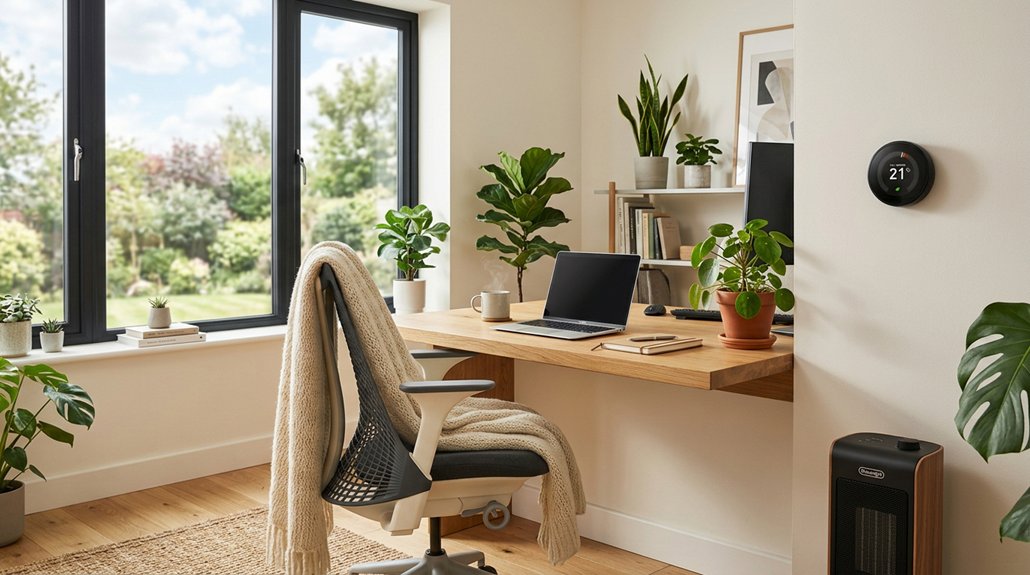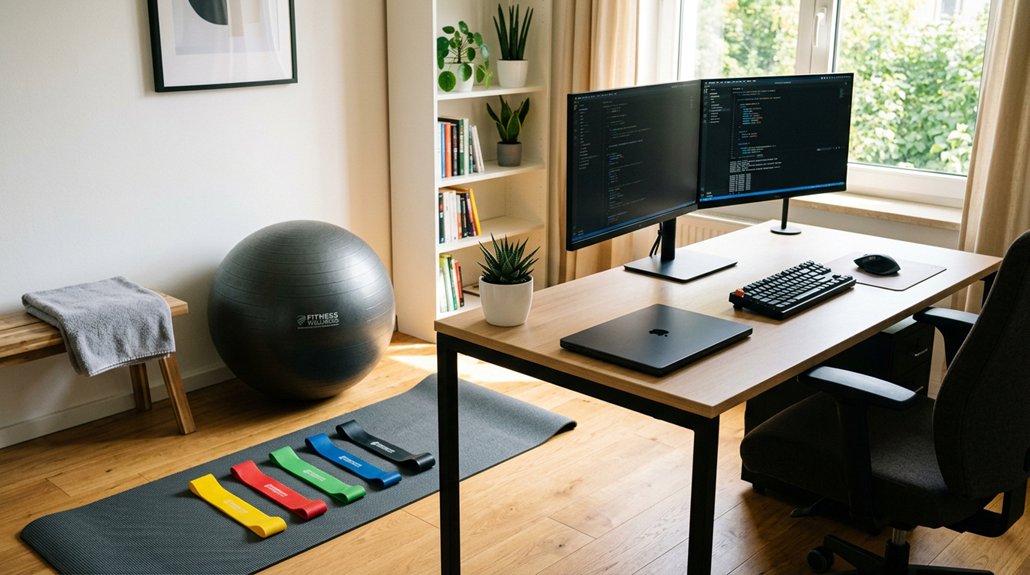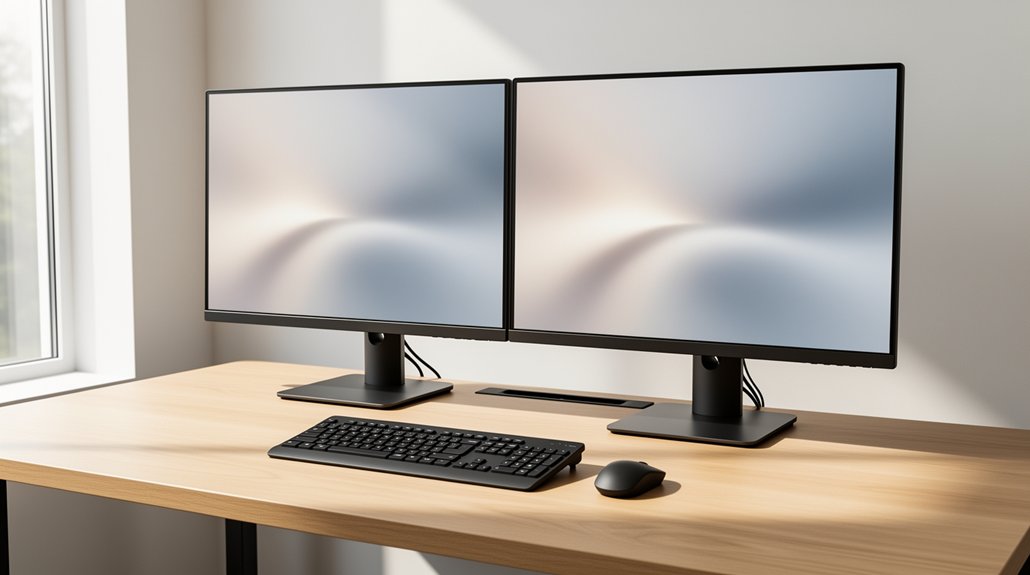
Place your primary monitor straight ahead at eye level and keep its top just below your line of sight. Angle the secondary screen 15‑30° inward, bringing the inner edges close together for a shallow V‑shape. Sit an arm’s length away, use the top‑third gaze rule, and maintain a 15‑30° downward viewing angle. Adjust chair and desk so elbows stay at 90°, forearms stay parallel, and feet stay flat. Control glare with side lighting and anti‑glare screens. Follow these steps and you’ll discover even more ways to boost comfort and productivity.
Ergonomic Dual Screen Positioning: Quick Setup Checklist
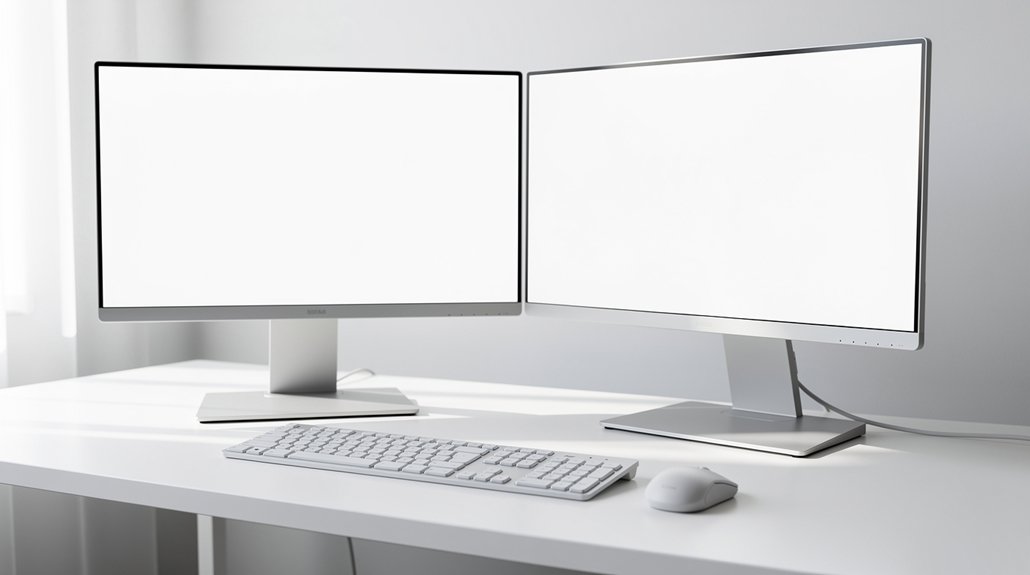
Wondering how to set up your dual monitors for maximum comfort? Start by placing the primary screen directly in front of you at eye level, then angle the secondary monitor 15–30° toward the side to create a gentle cockpit. Keep both displays at a viewing distance of roughly arm’s length—about 60–70 cm—and align their tops with your eye level to reduce neck strain. If one screen dominates your workflow, put it in the center and tilt the other inward 10–20° so the screen angle guides your gaze naturally.
Position the keyboard straight ahead, elbows at a comfortable 90°, and use an external mouse to keep forearms neutral. Avoid high or low monitor height that forces upward or downward gazing. This setup balances ergonomics and productivity.
Why Most Dual‑Monitor Arrangements Cause Neck Pain
You’ll notice neck pain quickly when one monitor sits higher or lower than the other, forcing you to tilt your head.
An asymmetric viewing angle makes you constantly turn sideways to see the secondary screen, adding strain to your neck muscles.
Aligning both displays with your natural line of sight and keeping the secondary screen angled can eliminate this discomfort.
Improper Monitor Height
If your monitors sit too high or too low, you’ll find yourself tilting your chin upward or downward, which quickly strains the neck and can lead to headaches. The top of each screen should sit at or just below eye level; when it sits above, you stare up, overworking neck muscles and inviting neck strain. With dual screens, align the primary monitor’s top edge to eye level and keep the secondary screen within a few centimeters vertically. Even a small height mismatch forces your head out of a neutral posture, causing shoulders and upper‑back muscles to compensate. Over a workday, those extra degrees of tilt add up, increasing fatigue and reducing productivity. Adjust monitor height promptly to maintain a relaxed, ergonomic stance.
Asymmetric Viewing Angles
Why do many dual‑monitor setups leave your neck sore? Because asymmetric viewing angles force you to twist your head repeatedly, creating neck strain.
In a dual screen setup, the primary monitor should sit straight ahead while the secondary monitor angles 15–30° to the side. This V‑shaped arrangement follows your natural gaze, cuts abrupt head turning, and keeps your spine neutral.
If eye dominance is unclear, you may habitually tilt toward the dominant eye, loading one side of your neck. By positioning the primary screen directly ahead and angling the secondary screen, you minimize lateral movement, reduce compensatory postures, and prevent the chronic discomfort that comes from uneven monitor use.
Align Monitors to Your Primary/Secondary Workflow

Ever wondered how to match monitor placement with your workflow’s hierarchy? You can boost comfort and efficiency by aligning your ergonomic dual screen setup to the tasks you prioritize. Keep the primary monitor directly in front, then angle the secondary monitor so its inner edge nearly touches the primary, forming a cockpit‑like curve that shortens eye travel. Adjust both screens so their tops sit at or just below eye level, keeping viewing angles within 15–30°. Align the keyboard axis with the primary monitor’s center to avoid neck twists when shifting focus.
- Position primary monitor straight ahead for dominant tasks.
- Angle secondary monitor 15–30° toward the side for occasional use.
- Bring inner edges close together to create a cockpit‑like curve for equal 50/50 workloads.
- Set screen tops at or slightly below eye level to maintain optimal viewing angle.
Set the Primary Monitor Directly in Front, Secondary Angled Inward
How can you keep neck strain at bay while staying efficient? Place your primary monitor directly in front of you so you can work with a straight gaze and minimal head turning. Angle the secondary monitor inward about 15–30 degrees toward your natural line of sight, aligning the inner edges of both screens. This creates a short, smooth arc for your eyes and helps you maintain a neutral spine. Keep the keyboard axis near the primary monitor, letting your elbows rest at roughly 90 degrees for comfortable forearm alignment. For equal‑use setups, tilt both displays slightly inward, ensuring the top of each monitor stays at or just below eye level. Test small adjustments—an inch or two—to fine‑tune the balance and reduce eye strain while supporting your workflow.
Fine‑Tune Height and Angle: Top‑Third Gaze Rule
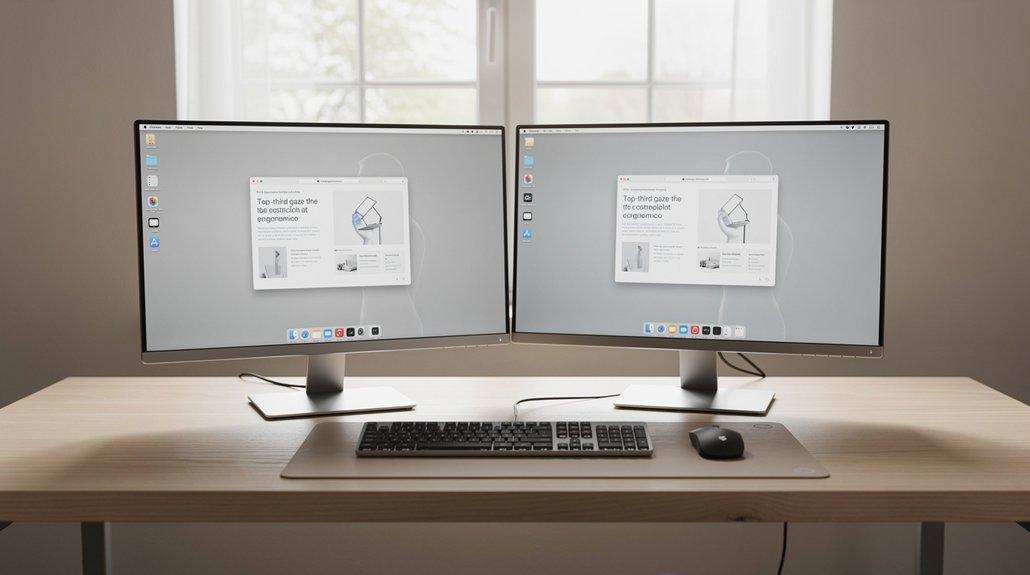
Ever wondered how a tiny adjustment can keep your neck relaxed while you work? Align the monitor height so the top of each screen sits at eye level. When you look straight ahead, the top third gaze zone becomes your primary visual area, encouraging a natural downward viewing angle of about 15‑30 degrees. This setup reduces neck strain and eye fatigue, especially with dual screens that share the same top line. Keep both monitors at the same height to maintain a consistent top‑third gaze across the workspace.
Align monitor tops at eye level for a natural 15‑30° downward viewing angle, reducing neck strain and eye fatigue.
- Position monitor tops at eye level.
- Aim for the top third of each screen as the focal zone.
- Set a viewing angle of 15‑30° downward.
- Ensure dual screens share identical height.
Starter Positioning Table – Distance, Height, and Angle by Size
Where should you place each monitor to stay comfortable and productive? For 22–24‑inch dual monitors, set the distance at 20–30 inches, keep the height so the top edge rests at or just below eye level, and tilt each screen slightly inward.
With a 27‑inch primary, aim for a 25–35‑inch distance, align the top at eye level, and angle the secondary monitor 20–30 degrees toward you.
For 32‑plus‑inch screens, sit 30–40 inches back, center the main display at eye level, and give both monitors equal‑use angles, angling the secondary inward.
Ultrawide setups follow a 25–35‑inch distance, a gentle inward curve, and the center at eye level. In an 80/20 workflow, keep the primary straight ahead and the secondary at a 15–30‑degree angle to reduce head turning.
Adjust Chair and Desk to Complement Your Monitor Layout

Make sure your feet are flat and your knees form a 90‑degree angle, then raise or lower the chair until your forearms sit parallel to the floor. Adjust the desk height so the keyboard aligns with those forearms, using an adjustable desk or converter if needed.
Finally, sync the chair and desk tweaks with your monitor angles, keeping the tops of the screens at or just below eye level for a seamless, ergonomic setup.
Feet Height for Alignment
How can you keep your feet flat and knees at a comfortable 90‑degree angle while working with two screens? Aligning feet height with chair height and desk height is essential for a healthy dual‑screen setup. Adjust your chair so your thighs are parallel to the floor and your forearms rest lightly on the desk. If your feet don’t reach the floor, add a footrest to maintain neutral ankle and knee angles. Keep the desk height consistent with your seated elbow position, and consider a standing desk or converter for occasional changes. Synchronizing these adjustments prevents strain and supports long‑term comfort.
- Set chair height to achieve 90‑degree knees.
- Match desk height to forearm level.
- Use a footrest when floor contact is impossible.
- Re‑check alignment after any monitor repositioning.
Desk Surface Height Alignment
Ever wondered why a slight tweak to your desk height can eliminate neck strain? When your desk height lets your forearms sit parallel to the floor, you keep a comfortable 90‑degree elbow angle and reduce shoulder tension. Align the monitor height so the top of each screen sits at eye level; this prevents you from tilting your head up or down. Adjust your chair until your wrists stay neutral while your hands rest near elbow height, then fine‑tune the desk height in small increments—sometimes a fraction of an inch makes a big difference. Test the combined chair and desk settings throughout the day, watching for less neck twisting and smoother typing. This coordinated approach creates an ergonomic setup that supports both screens without sacrificing comfort.
Coordination With Monitor Angles
A slight adjustment to your chair height can make the angled dual‑monitor setup feel natural. When you raise or lower the seat so your elbows form about 90°, the keyboard sits directly in front, and the eye‑level primary monitor stays straight ahead, you reduce neck twist and keep the V‑shaped monitor layout comfortable. Tilt the chair a touch outward to match the inward angle of the dual screens (15–30°) and let your spine stay supported while you fine‑tune desk height. Small daily tweaks—like moving the chair 1 inch—can dramatically improve posture and visual ergonomics.
- Align chair height for 90° elbows and keyboard access.
- Set primary monitor at eye level, straight ahead.
- Angle secondary monitor 15–30° to create a shallow V‑shaped monitor setup.
- Adjust desk or monitor arms while keeping the spine’s natural curve.
Control Glare and Light for Comfortable Viewing
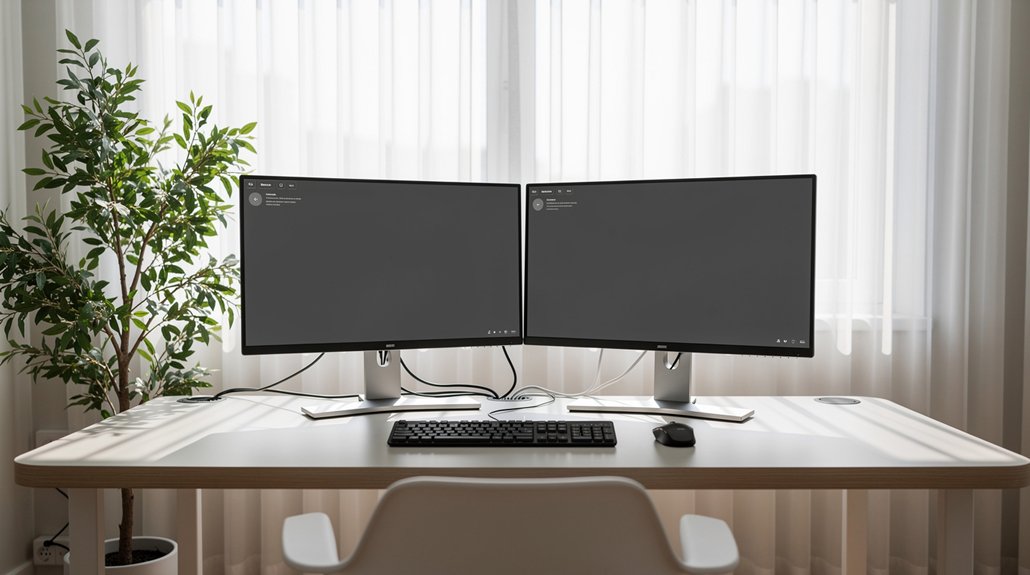
Ever notice how a bright window can turn your workstation into a glare‑filled nightmare? Place your desk so windows sit to the side, not directly in front or behind the screens, and you’ll cut glare dramatically. Use a simple desk lamp that casts focused, indirect lighting; avoid harsh overhead lights that bounce off monitors. Match screen brightness and contrast to the ambient lighting, aiming for similar luminance across both displays to ease eye strain. Consider anti‑glare coatings or a monitor hood if you can’t control natural light. Rotate or reposition your screens throughout the day as sunlight shifts, keeping the active viewing area free of reflections. These glare reduction tactics let you work comfortably without constant head turning.
Productivity Gains When Ergonomics Match the Body
Why settle for a cramped workstation when a well‑aligned dual‑monitor setup can lift your output by up to 42 %? When your ergonomic alignment matches your body, you reduce neck strain and keep your viewing angle natural, creating a feedback loop where comfort fuels productivity gains. The University of Utah study shows that proper placement of primary and secondary screens maximizes effectiveness, while misalignment erodes benefits and breeds fatigue.
Well‑aligned dual monitors boost output up to 42 %, reducing neck strain and fatigue.
- Position the primary monitor directly in front of you, top edge at eye level.
- Angle the secondary monitor no more than 30° off‑center to avoid excessive head turning.
- Keep both screens at the same height to maintain a neutral neck posture.
- Adjust distance so you can read text without leaning forward, preserving ergonomic alignment.
Immediate Action Items and How to Test Your Setup
First, make sure the tops of both screens sit at or just below your eye level, then sit back and see if your neck stays neutral while you glance between them.
Next, note any head turning—if you’re rotating more than a few degrees, adjust the secondary monitor’s angle until the movement feels minimal.
Finally, work through a full day, log any aches, and fine‑tune the setup in small increments until neck strain and eye fatigue drop.
Test Your Eye Levels
Wondering how to verify that your monitors sit at the right height? You’ll want the top of the screen just at or slightly below eye level so your gaze stays neutral and head movement stays minimal. With dual monitors, keep the primary straight ahead, angle the secondary 15‑30° toward your dominant eye, and sit about an arm’s length away (60‑70 cm). If you’re not sure which eye dominates, alternate focus between screens for a day and note which setup reduces strain.
- Sit upright, look straight ahead, and check if the top edge of each monitor aligns with your eye level.
- Measure the distance from your eyes to the screens; aim for arm’s length.
- Tilt the secondary monitor 15‑30° toward your dominant eye.
- Observe head movement; adjust until it feels natural.
Check Neck Rotation
Could your neck feel strained after a few minutes at the desk? First, place your primary monitor directly in front of you, keeping its top at or just below eye level.
Angle the secondary screen 15–30° to the side, forming a shallow cockpit that limits neck rotation when you shift focus.
Use the 80/20 or 50/50 workflow to split attention, so you only need minimal lateral head movement.
Check your eye dominance and assign the dominant eye to the primary monitor for a steadier view.
To test, alternate tasks between screens for 5–10 minutes, then note any lingering discomfort or excessive turning.
Adjust monitor position in 1–2° increments until neck rotation feels natural and strain‑free.
Frequently Asked Questions
How Many Inches Apart Should Dual Monitors Be for Optimal Eye Focus?
You should keep the monitors about 20‑30 inches apart, roughly an arm’s length, and align them so your eyes naturally focus on the center without straining. This distance reduces eye fatigue and maintains comfortable viewing.
Can I Use a Curved Monitor as the Secondary Screen Without Causing Strain?
Yes, you can use a curved monitor as your secondary screen, but keep it at a similar distance and angle as your primary, and ensure the curve isn’t too aggressive to avoid eye strain.
What Is the Best Screen Height for Users Who Wear Glasses?
Set the screen so the top edge aligns with your eye level; you’ll glance slightly downward, reducing glare and strain. Keep it about 20‑30 cm away, and adjust tilt for comfortable focus while wearing glasses.
Should I Adjust Monitor Brightness Based on Ambient Lighting Changes?
Yes, you should tweak brightness as lighting shifts. Lower it in dim rooms to reduce eye strain, and raise it in bright spaces for clarity. Quick adjustments keep visual comfort consistent throughout the day.
Is a Standing Desk Compatible With Ergonomic Dual‑Screen Positioning?
Yes, a standing desk works great with ergonomic dual‑screen setups; just keep monitors at eye level, maintain a comfortable viewing distance, and adjust height so your posture stays neutral while you switch between sitting and standing.
In Summary
You’ve got the basics down, so now you can set up your dual screens without straining your neck or eyes. Keep the primary monitor straight ahead, angle the secondary toward you, and adjust height so the top third of each screen sits at eye level. Tame glare, align your chair and desk, and test the setup regularly. When everything matches your body, you’ll work faster, feel better, and stay productive all day.