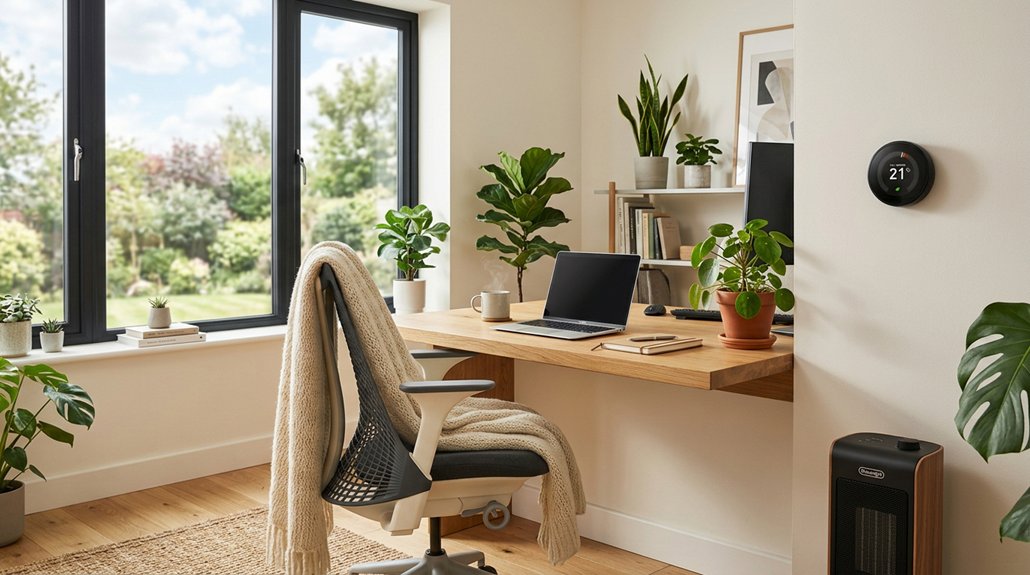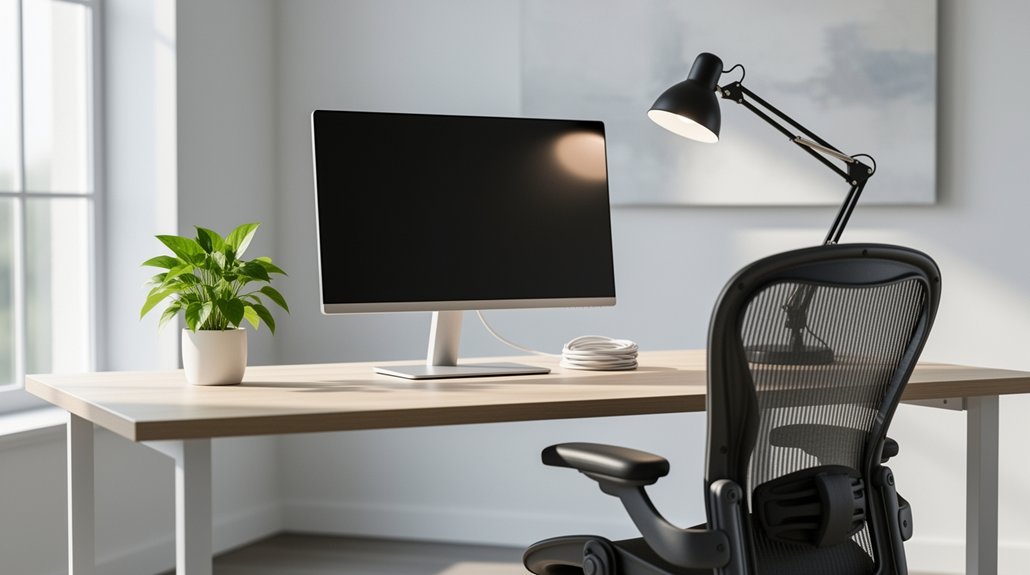
Keep your monitor at eye level, positioning the top third of the screen at your gaze so your neck stays neutral. Adjust your desk so your forearms are parallel to the floor and your elbows form a 90‑degree angle while typing. Elevate laptops with a stand and use an external keyboard and mouse to maintain that alignment. Take a quick 30‑minute micro‑break, stretch your neck and roll your shoulders, and follow the 20‑20‑20 rule for your eyes. Set your chair height so your feet rest flat and your back is supported, and choose a low‑loft pillow that keeps your spine aligned while you sleep. These habits will help you avoid neck strain, and the next steps will show you how to fine‑tune each tip.
Set Monitor at Eye Level for Neck Pain Prevention
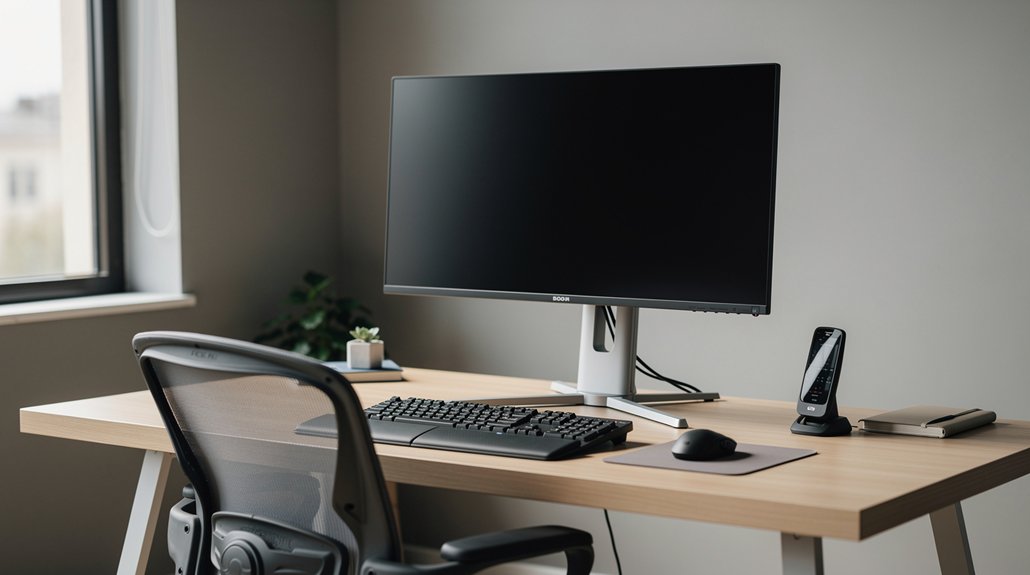
Ever wondered why your neck aches after a long day at the desk? You can fix it by adjusting monitor height so the screen sits at eye level. Align your gaze with the top third of screen; this keeps neck posture neutral and eliminates forward head tilt. Use a monitor stand or riser to raise the display without tilting the neck. Keep screen distance about an arm’s length away; that reduces strain and supports an ergonomic setup. Check your desk posture regularly—if you change chair height, recalibrate the monitor to maintain a neutral head position. By fine‑tuning these variables, you create a healthier workspace that protects your neck from chronic discomfort.
Place Screen Top Third at Eye Height to Keep Neck Neutral
How can you keep your neck neutral while you work? Position your monitor so the top third of the screen sits at eye level. This simple shift in screen height aligns your gaze with the upper area of the display, preventing the head from tilting down and reducing neck strain. When your eyes rest on the top third, you maintain a neutral neck posture, decreasing forward head posture and the pressure that comes from slouching.
Adjust the monitor height whenever you change your chair or viewing distance, and make sure the desk setup supports this alignment. By treating the top third as the ergonomic target, you promote a healthier, more upright workspace that safeguards your neck.
Adjust Desk Height for Parallel Forearms and Reduced Neck Strain

Set your desk so your forearms rest parallel to the floor when you type, which keeps your neck angle low.
A chair that lets your feet stay flat and your thighs stay level helps maintain that alignment.
Adjust the monitor to the top third of the screen so you don’t have to tilt your head up or down.
Desk Height Alignment
Ever wonder why your neck feels sore after a long typing session? Adjust your desk height so your forearms stay parallel to the floor. When you keep an elbow angle of 90 degrees, you achieve ergonomic alignment and a neutral posture that eases neck strain. Proper monitor placement—eye level in the top third of the screen—reduces neck flexion. Consistently check your workstation setup; a well‑aligned desk supports a relaxed typing posture and prevents neck fatigue.
| Element | Recommended Setting | Why it Matters |
|---|---|---|
| Desk height | Forearms parallel | Reduces neck strain |
| Elbow angle | ~90 degrees | Maintains ergonomic alignment |
| Monitor placement | Top‑third gaze | Keeps neck neutral |
| Overall posture | Neutral, relaxed | Prevents fatigue |
| Typing posture | Wrist straight | Supports shoulder health |
| Workstation setup | Adjustable chair | Allows fine‑tuning |
Forearm Parallel Positioning
Why does a simple desk‑height tweak make such a big difference for your neck? When your forearms stay parallel to the floor while you type, desk ergonomics naturally align your shoulders, elbows, and wrists, keeping neck posture neutral.
Adjust the desk so your arms rest comfortably, then set the monitor height so the top third of the screen meets your eye line. This prevents you from tilting the head forward, preserving a neutral spine and reducing neck strain.
Pair the setup with an ergonomic chair that lets your feet rest flat and thighs stay parallel, reinforcing posture alignment.
Remember to take breaks every 30 minutes, stand, stretch, and reset your head‑forward position to avoid cumulative stress.
Neck Angle Reduction
When your forearms rest parallel to the floor, the angle of your neck naturally straightens, keeping your head in line with your torso. Adjust the desk height until your elbows form a 90‑degree angle; this creates a neutral head alignment and reduces forward head posture. Pair the ergonomic desk with a chair that supports flat feet and thighs parallel to the ground, enhancing spine alignment and lowering neck load. Set monitor height so the top third of the screen meets your gaze, preventing you from looking down and increasing neck strain. Keep your head position centered over your shoulders, lift the chest, and take brief breaks to reset posture. These tweaks minimize neck angle stress and protect your spine throughout the workday.
Elevate Laptop or Monitor for Neutral Head Position and Neck Pain Prevention

How can you keep your neck from turning into a sore, stiff hinge after hours at the desk? Elevate your laptop or monitor so the top third of the screen sits at eye level. This monitor height creates a neutral head position, easing pressure on the cervical spine. Pair a laptop with an external keyboard and mouse; laptop elevation lets your forearms stay parallel to the floor while the screen stays aligned with your gaze.
Consistently adjusting the monitor alignment to an eye level screen supports posture alignment of the head, neck, and spine, a core principle of ergonomics. By maintaining these settings you boost neck strain prevention and practice tech neck prevention, keeping your workday comfortable and pain‑free.
Take Mini‑Breaks & Move Eyes to Relieve Neck Tension
Even if you’re glued to your screen, a simple timer can save your neck from turning into a stiff hinge; set it for every 30 minutes, then step away for a quick 10‑15‑second eye sweep—horizontally, vertically, and far‑near—while adding a gentle neck tilt or shoulder roll.
During each screen break, practice eye breaks that combine horizontal and vertical eye movement with a head tilt.
Follow the 20‑20‑20 rule: look 20 feet away for 20 seconds, then refocus on a near object.
This gaze diversification eases ocular strain and cuts neck tension.
Pair the eye work with neck stretches, a shoulder roll, and a posture reset to keep your spine aligned and prevent stiffness throughout the day.
Set Chair and Feet for Whole‑Body Support and Neck Pain Prevention
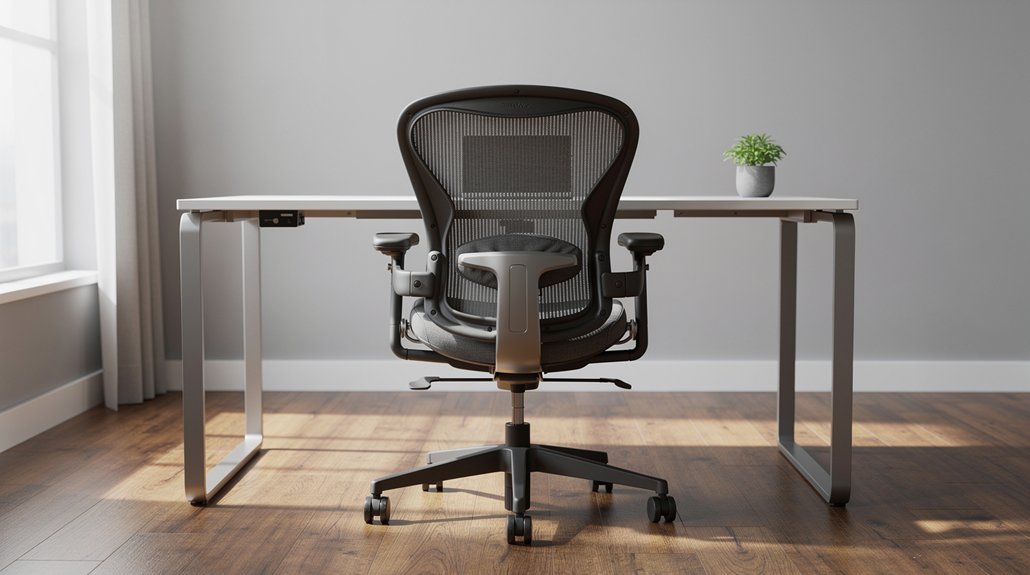
You’ll feel more balanced when your chair height lets your feet rest flat on the floor and your knees form a 90‑degree angle.
This simple adjustment aligns your spine, keeping your neck in a neutral position throughout the day.
With your feet stable, you reduce the tendency to lean forward and strain your neck.
Flat Chair Height Alignment
Wondering why your neck feels tight after hours at the desk? Your chair height is the first line of defense against neck pain. Set the seat so your feet lie flat and your thighs stay parallel to the floor; this anchors whole‑body alignment and keeps your spine neutral.
Adjust the desk height until your forearms are parallel to the floor while typing, which aligns the keyboard height with your elbows and preserves a neutral neck position.
Add lumbar support or a small pillow to reinforce lower‑back posture, then place the monitor so the top third of the screen meets your gaze, avoiding a head‑forward posture.
Finally, schedule breaks every 30 minutes to stand, stretch, and reset workstation ergonomics, preventing cumulative strain.
Feet Flat on Floor
Flattening your feet on the floor anchors your whole body, giving your spine a solid base that eases neck tension. When your feet are flat on floor, you create lower body support that aligns hips, maintains a neutral spine, and reduces neck strain. Combine this with proper chair height and lumbar support for ergonomic seating that keeps posture stable throughout the day.
- Adjust chair height so thighs are parallel to the ground.
- Use a footrest if your feet don’t reach the floor comfortably.
- Keep knees at a 90‑degree angle, avoiding crossed legs or tucked feet.
- Align hips over knees to sustain lumbar support and a neutral spine.
Pick a Pillow & Sleep Position for Neck Pain Prevention
Ever wonder why a good night’s sleep can feel like a neck‑relief miracle? You can achieve that by choosing a pillow that promotes neutral alignment and proper cervical alignment. A memory foam pillow conforms to your spine, offering consistent pillow support while keeping the loft low enough to prevent forward head posture.
For back sleeping, place a thin pillow under your knees or a wedge under your hips to maintain spinal curvature. If you prefer side sleeping, pick a pillow with enough loft to keep your head level with your spine, avoiding neck pain.
Replace your pillow every 1–2 years to preserve its supportive qualities, and consider a travel pillow for on‑the‑go neck protection.
Frequently Asked Questions
What Are the 5 D’s for Neck Pain?
You’ve got the 5 D’s: degeneration, disc herniation, discomfort from poor posture, disuse‑related weakness, and diurnal strain from staying in one position too long.
What Did Joe Rogan Do for His Neck?
You’ll find Joe Rogan kept his neck healthy by adjusting his workstation, taking regular posture, using eye‑level screens, strengthening his core and upper back, staying hydrated, and avoiding forward‑head posture.
Can Your Neck Hurt From Vaping?
You might feel neck pain from vaping because the device’s angle encourages forward‑head posture, and holding the vape deepens tension. Reducing use or adjusting how you hold it can ease that strain.
How to Stop Neck Pain From Leaning Down Too Much?
You should raise your screen, keep your head centered, and take a break every half hour. Hold devices at eye level, stretch, and strengthen core muscles to reduce the strain from leaning down.
In Summary
By applying these simple adjustments—raising your monitor, aligning your screen, setting a proper desk height, elevating your laptop, taking frequent mini‑breaks, positioning your chair and feet correctly, and choosing the right pillow and sleep posture—you’ll keep your neck neutral and reduce strain. Consistently practicing these habits will protect your spine, boost comfort, and help you stay productive without the nagging pain of neck tension.