
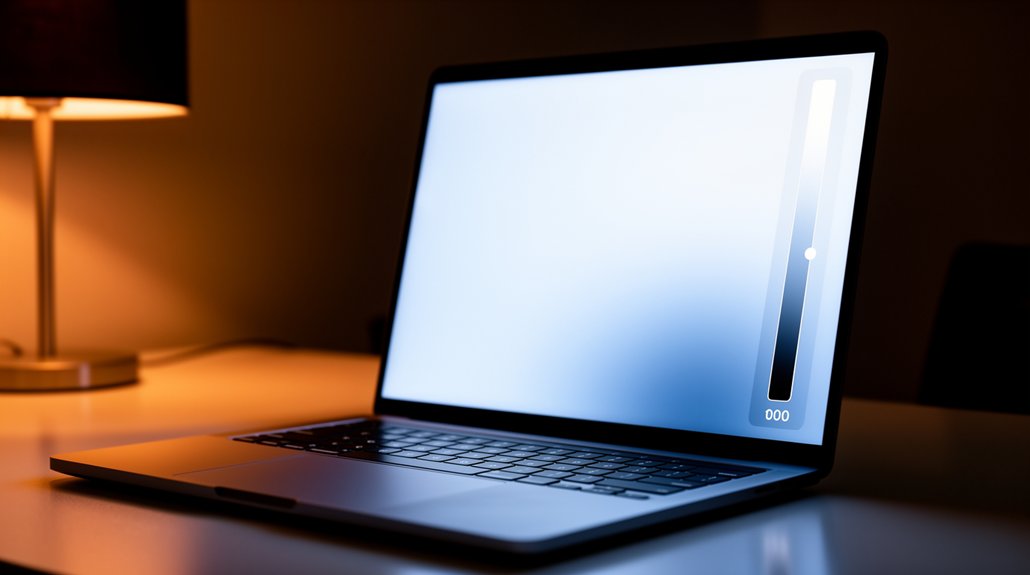
You’ll notice your eyes tire when the screen’s brightness doesn’t match the surrounding light because your pupils constantly adjust to compensate. Too bright in a dark room causes glare and over‑exposure, while a dim screen in bright daylight forces the eyes to work harder, leading to strain and fatigue. Proper brightness—around 200‑300 nits indoors, 500‑700 nits in daylight, and 100‑150 nits at night—keeps contrast comfortable and reduces glare. Adjusting ambient lighting, using anti‑glare filters, and enabling auto‑brightness help, and if you keep going you’ll discover more tips for optimal eye comfort.
Screen Brightness and Eye Comfort – What You Need to Know
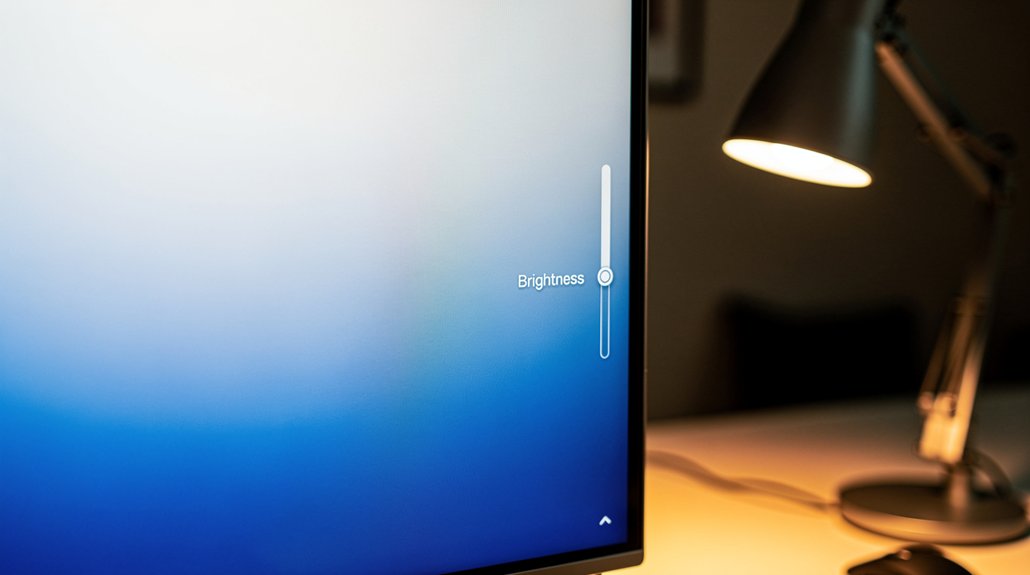
Ever wonder why your eyes feel sore after a long scrolling session? You’re probably staring at a screen whose Brightness doesn’t match the ambient lighting, forcing your eyes to work harder. When the display is too bright in a dim room, glare and reflections pop up, while a dim screen in bright surroundings makes you squint. Both scenarios trigger eye strain and can amplify blue light’s impact. Use auto‑brightness to let the device adjust in real time, and consider anti‑glare filters to cut reflections. Keep the screen around 200–300 nits for indoor eye comfort, and tweak color temperature if needed. These simple steps reduce fatigue, protect your vision, and keep you comfortable during marathon scrolling.
Why a Brightness Mismatch Makes Your Eyes Feel Tired
When the room’s light outshines your screen, glare spikes and your eyes scramble to maintain contrast, which tires them quickly. If the screen is too dim for a bright space, your pupils stay dilated and the eye muscles strain to read, leading to fatigue and headaches.
Matching brightness to ambient light and cutting glare can keep your eyes comfortable and reduce strain.
M Roomlight Glare Amplifies Fatigue
Why does a bright screen in a well‑lit room make your eyes feel exhausted? When room lighting floods the space, a high screen brightness creates a sharp mismatch with ambient light. The glare from windows or overhead fixtures combines with the display, forcing your eye muscles to constantly adjust. This reduces contrast between text and background, so you squint to keep comfortable focus and maintain visual comfort. The extra effort leads to eye strain and faster eye fatigue.
Matching screen brightness to ambient light restores contrast, eases glare, and lets you read without overworking your eyes. By balancing luminance, you keep visual comfort high and prevent the lingering tiredness that bright rooms usually provoke.
Mismatched Brightness Causes Strain
How does a mismatched screen brightness drain your eyes? When screen brightness far exceeds ambient lighting, your pupils constrict to limit glare, forcing extra muscular effort that triggers eye strain and fatigue.
Conversely, a dim screen in a bright room makes you squint, amplifying under‑illumination and causing the same discomfort.
This brightness mismatch disrupts visual comfort, turning simple reading into a chore.
Adjusting the display to match surrounding light and using anti‑glare filters restores comfortable viewing, reduces glare, and eases eye fatigue.
How Glare and Reflections Amplify Brightness‑Related Discomfort

You’ll notice glare makes the screen feel harsher, forcing your eyes to work harder.
Reflections scatter light, washing out contrast and adding strain.
When brightness climbs to compensate, the discomfort amplifies, leading to fatigue and headaches.
Glare Increases Visual Discomfort
Ever notice how a bright reflection on your screen makes your eyes ache? That glare spikes perceived brightness, forcing you to strain harder to focus. When ambient light is strong, reflections wash out contrast, so text and images blur and eye fatigue sets in.
Screen glare also reduces contrast, making details harder to discern and amplifying visual discomfort. Using an anti‑glare coating or matte screen scatters reflections, lowering the brightness boost and easing strain.
Adjusting lighting layout, tilting the monitor, and choosing non‑glossy surfaces keep glare in check. By managing glare, you stabilize perceived brightness, prevent contrast reduction, and protect your eyes from lingering fatigue.
Reflections Scatter Light
Do you realize that every glare and reflection on your screen scatters light straight into your eyes, boosting perceived brightness and forcing extra effort to focus? Those bright spots combine with screen brightness, creating scattered light that your eyes must constantly adjust to, especially under harsh ambient lighting. The result is a heightened sense of eye strain and a less comfortable visual environment. You can combat this by using anti‑glare filters and positioning your workspace to limit reflections.
- Choose anti‑glare screen protectors.
- Adjust ambient lighting to reduce competing light sources.
- Position the monitor to avoid direct sunlight or lamp glare.
- Keep screen brightness moderate to lessen scattered light.
Brightness Amplifies Eye Strain
Glare and reflections turn a bright screen into a light‑bomb for your eyes, forcing the ciliary muscles to work overtime to keep the image sharp. When the brightness level outpaces ambient lighting, contrast spikes, and the extra glare makes your pupils constantly adjust. Reflections on glossy desks add phantom light sources, so your eye strain ramps up and discomfort builds quickly. A blue‑light filter can cut some harshness, but you still need to lower screen brightness to match the room. Balancing these factors reduces the blur and halos that otherwise tire your eyes during long reading sessions.
| Factor | Effect |
|---|---|
| Glare | Increases light entry, heightens eye strain |
| Reflections | Creates multiple light sources, worsens discomfort |
| Brightness level | Determines contrast with ambient lighting, amplifies strain |
Ideal Brightness Levels for Indoor, Daylight, and Night Settings

How bright should your screen be in different environments? You can keep eye strain low by matching screen brightness to ambient light. In indoor lighting, aim for 200–300 nits; it balances comfort and visibility. Under daylight conditions, boost brightness to cut glare and preserve detail. For night settings, dim the display to reduce blue light and protect your sleep cycle.
Match screen brightness to ambient light: 200‑300 nits indoor, 500‑700 nits daylight, 100‑150 nits night.
- Indoor lighting – 200‑300 nits, matches ambient light, eases eye strain.
- Dim office – 300‑400 nits, combats mild glare, maintains comfort.
- Bright daylight – 500‑700 nits, overcomes strong glare, keeps detail sharp.
- Night settings – 100‑150 nits, minimizes blue light, promotes relaxed viewing.
Adjusting these levels helps you avoid fatigue, headaches, and visual discomfort during long sessions.
How to Set the Right Brightness on All Devices
Ever wondered how to keep your screen comfortable across phones, tablets, laptops, and TVs? You can start by matching screen brightness to ambient light—aim for 200‑300 nits indoors. Open device settings, enable auto‑brightness, and let the sensor adjust luminance as lighting changes. If auto‑brightness isn’t reliable, manually dial the level until text looks crisp without causing glare reduction or squinting. Boost contrast slightly to keep characters sharp, but avoid excessive contrast that creates halos. In bright rooms, add an anti‑glare filter or wear glare‑reducing glasses for added eye comfort. Consistently checking these settings ensures comfortable viewing on every device throughout the day.
Blue‑Light Reduction: Dark Mode, Night Shift, and Filters

Why does blue‑light reduction matter? You’re staring at a screen that emits blue light, which can disrupt melatonin and increase glare, especially in dim rooms. Adjusting display settings helps you keep eye comfort while still seeing clearly.
Blue‑light harms melatonin, increases glare; adjusting settings preserves eye comfort and clear vision.
- Dark mode – switches to a dark background, cutting overall screen brightness and reducing glow.
- Night shift – shifts color temperature to warmer tones, lowering blue light emission.
- Filters – apply blue‑light‑blocking overlays or software that block specific wavelengths.
- Combined use – layering dark mode with night shift and filters maximizes blue light reduction.
Simple Workplace Adjustments: Position, Distance, and Ambient Light
After reducing blue‑light exposure, the next step is to set up your workspace so the screen’s position, distance, and surrounding light don’t add strain. Place the monitor at eye level and keep it an arm’s length away; this distance eases eye strain and lets you maintain a natural gaze.
Balance ambient light to prevent glare and reflections—use curtains, desk lamps, or overhead lights that match the room’s illumination. Adjust screen brightness to a comfortable range of roughly 200–300 nits, or enable auto‑brightness, so the display never feels too bright in a dark room or too dim in bright surroundings. If glare persists, add an anti‑glare screen or matte filter. These simple tweaks keep eye comfort high while you work.
When Screen Brightness Adjustments Fail – Seek Eye Care

If the screen still feels harsh even after you’ve dialed the brightness down, it’s a clear sign that adjustments alone aren’t enough. Persistent eye strain, eye discomfort, or headaches often mean underlying issues that screen brightness and blue light filters can’t fix. You should consider professional eye care to rule out dry eye, refractive errors, or other conditions contributing to digital eye strain.
- Schedule regular eye exams to catch problems early.
- Ask the clinician to evaluate total visual load and recommend lenses or filters.
- Optimize ambient lighting and contrast alongside screen brightness.
- Follow prescribed treatment plans to reduce headaches and improve comfort.
Seeing a specialist helps you address the root cause rather than relying solely on brightness tweaks.
Frequently Asked Questions
Why Is Proper Screen Brightness Important for Eye Health?
You need proper screen brightness because it reduces eye‑muscle strain, prevents glare, and keeps focus effortless; matching ambient light eases fatigue, lowers headache risk, and supports long‑term visual comfort.
What Is the 10 10 10 Rule for Screens?
You follow the 10‑10‑10 rule by pausing every two hours of screen time for ten minutes, looking away at distant objects, and resting your eyes to reduce strain and glare exposure.
What Is the #1 Worst Food for Vision Loss?
You should know added sugars and refined carbs are the #1 worst foods for vision loss; they fuel obesity and diabetes, which dramatically raise your risk of diabetic retinopathy and other eye diseases.
What Is the 30 30 30 Rule for Eyes?
You follow the 30‑30‑30 rule by staring at a screen for 30 minutes, then pausing 30 seconds to focus on something at least 30 feet away, giving your eyes a quick, distance‑focused break.
In Summary
By matching your screen’s brightness to the surrounding light, you’ll keep eye strain at bay and stay comfortable all day. Adjust the settings, use dark mode or blue‑light filters when needed, and position your device to avoid glare. If you still feel fatigue, it’s time to consult an eye‑care professional. Taking these simple steps now protects your vision and boosts productivity.

Leave a Reply